This guide will walk you through the Onboarding Management screen, helping you keep track of your employees’ onboarding status and progress.
Step 1
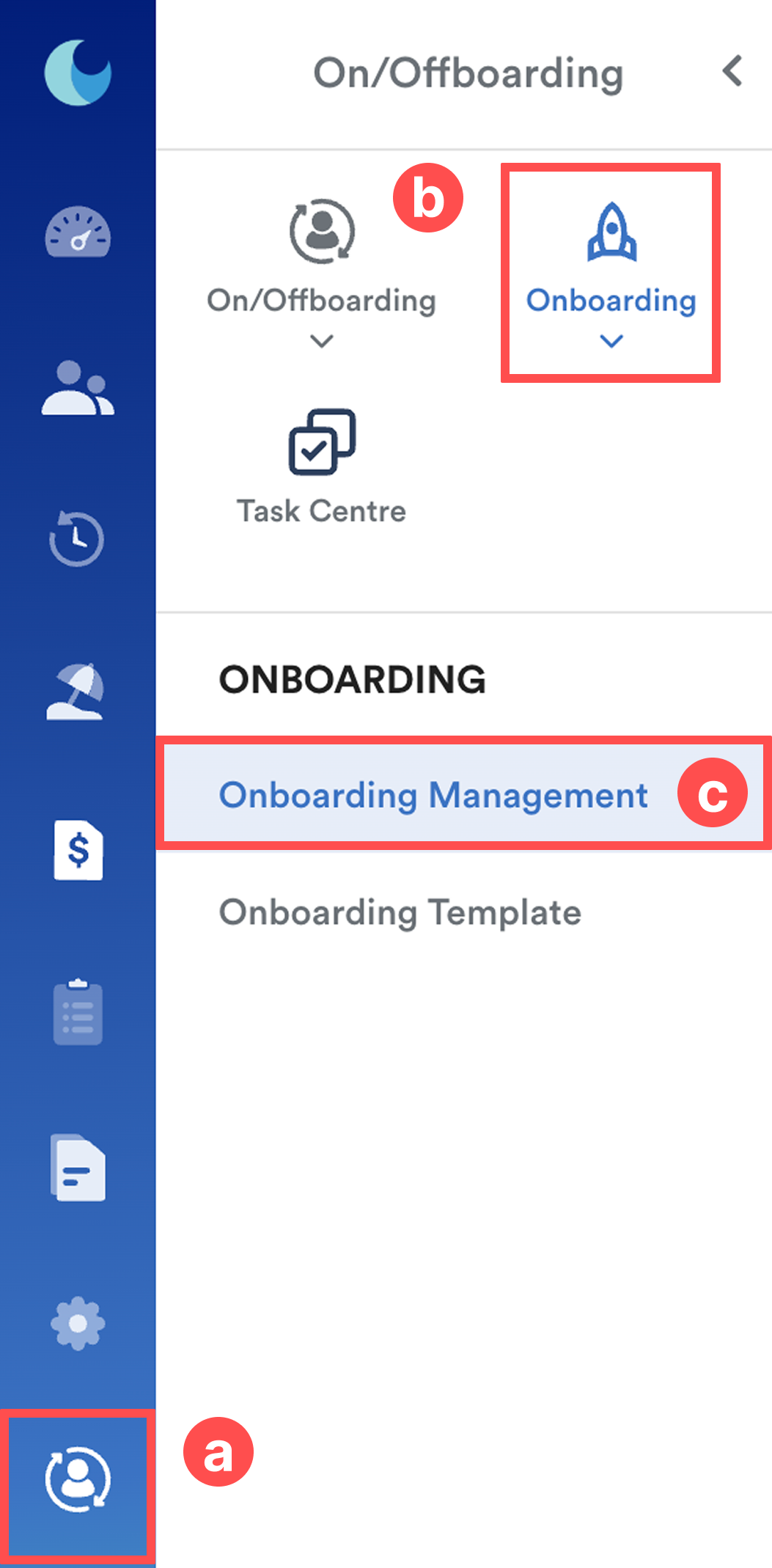
On the left menu, go to On/Offboarding > Onboarding > Onboarding Management.
Step 2
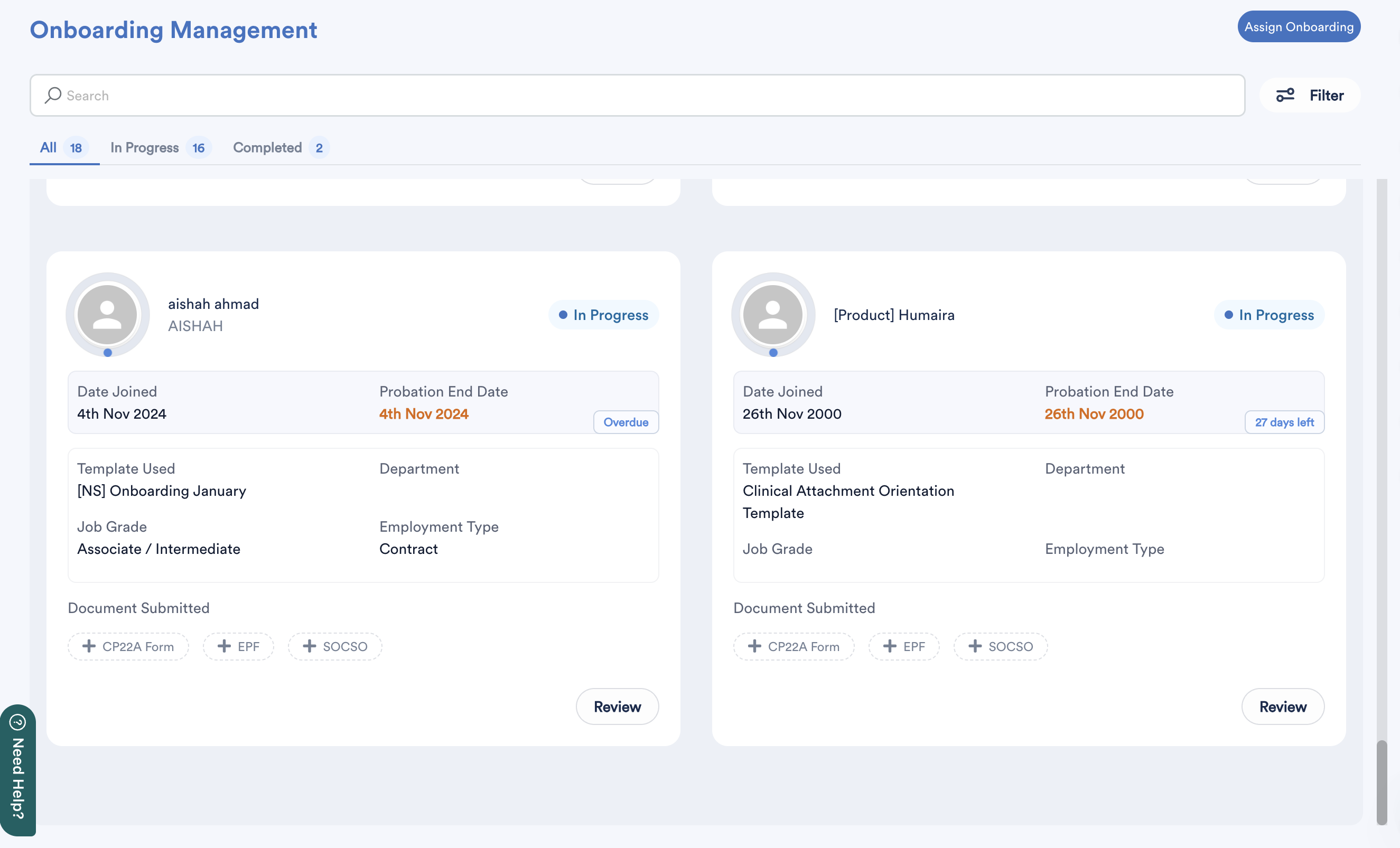
Once inside, you’ll notice three main tabs at the top:

- All: View all employees’ onboarding statuses.
- In Progress: See employees currently undergoing onboarding.
- Completed: Check employees who have finished their onboarding.
Above these tabs, there’s a search bar that allows you to filter employees by department, employment type, or simply by name. This makes it easy to find specific employees and their progress.
Step 3
The cards displayed represent employees who have been assigned an onboarding template.
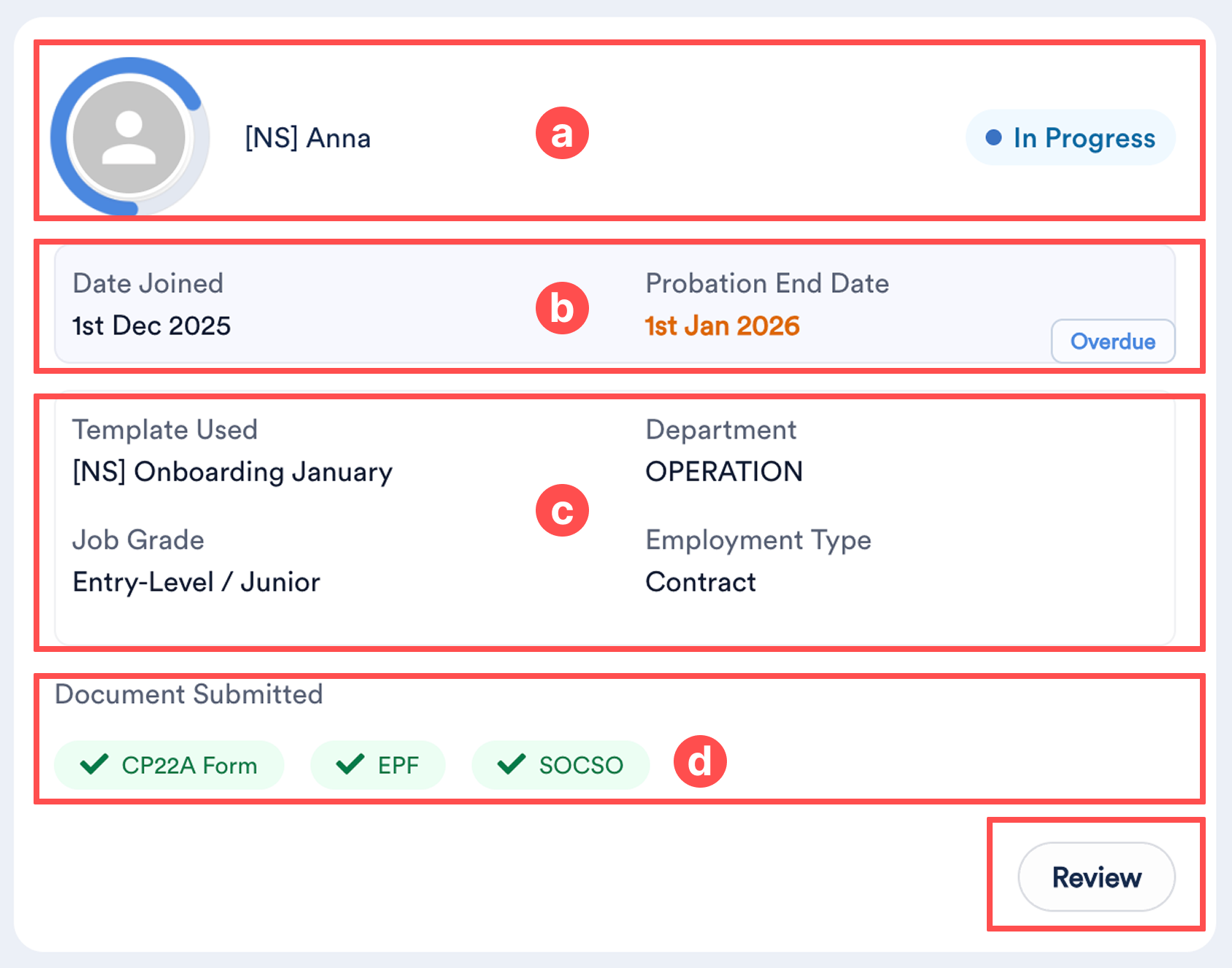
Each card shows:
- Progress bar, employee name, and current onboarding status
- Join date (based on the hire date in the employee profile), probation end date, and onboarding due indicator
- Template used and employment details
- Document submitted
Click Review at the bottom right of each card to view the employee’s detailed onboarding information and progress.
Step 4
On the detailed onboarding screen, the top section displays the employee's employment information and contact details.
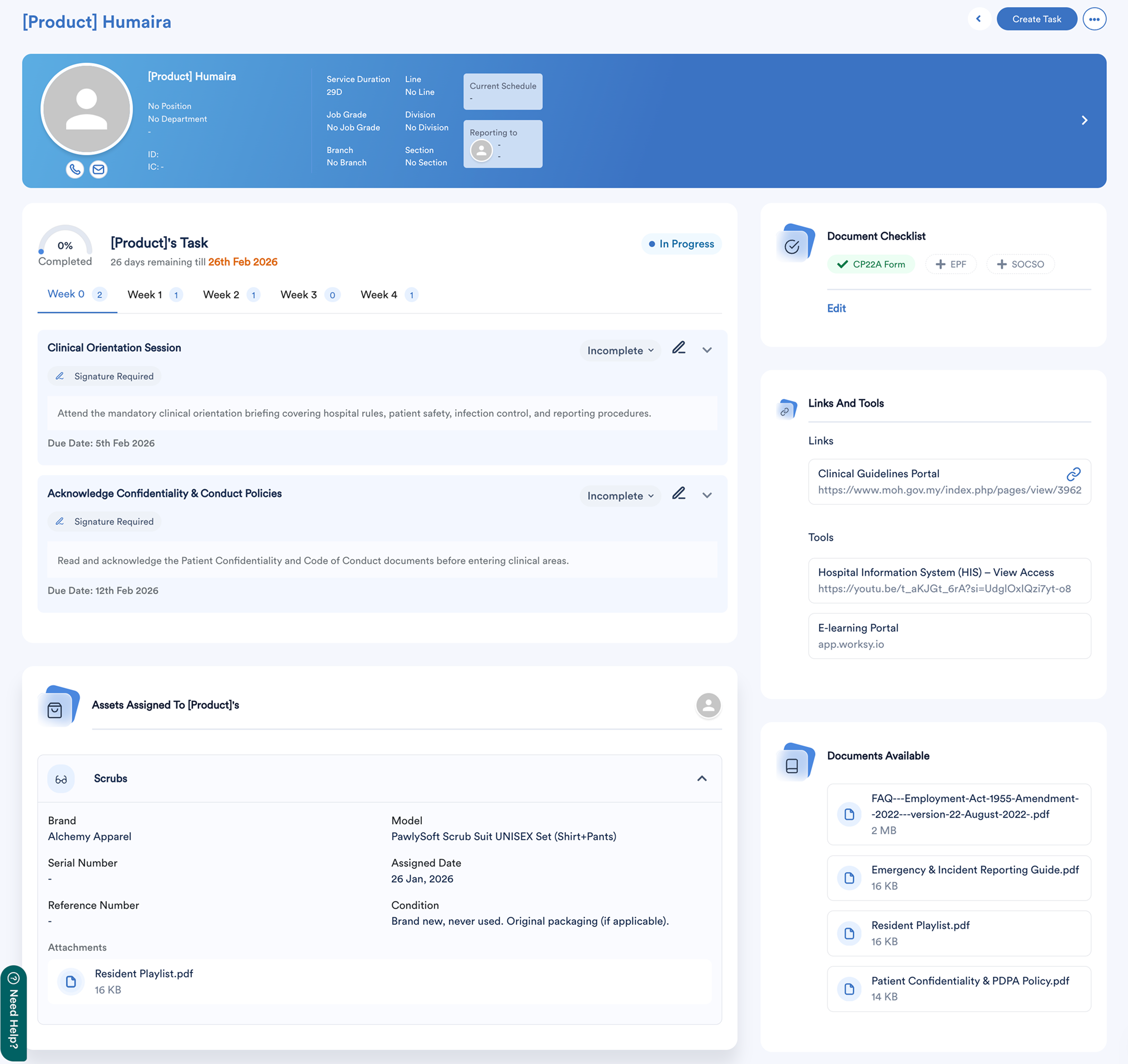
Below this, you’ll find the following sections:
a. Tasks
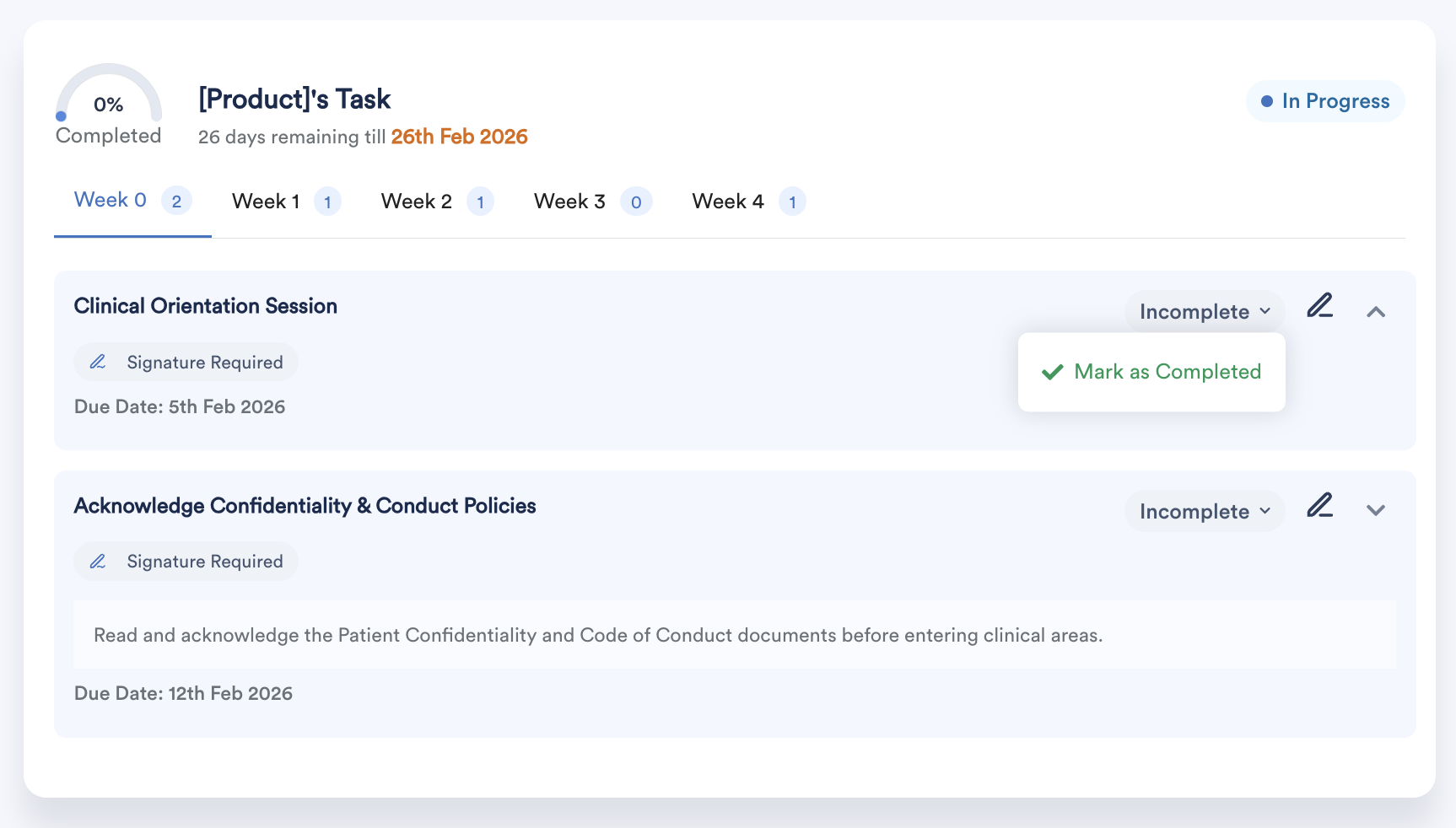
Lists all tasks assigned to the employee, grouped by onboarding duration. You can mark tasks as complete or incomplete, edit tasks, and view any uploaded attachments.
b. Assets
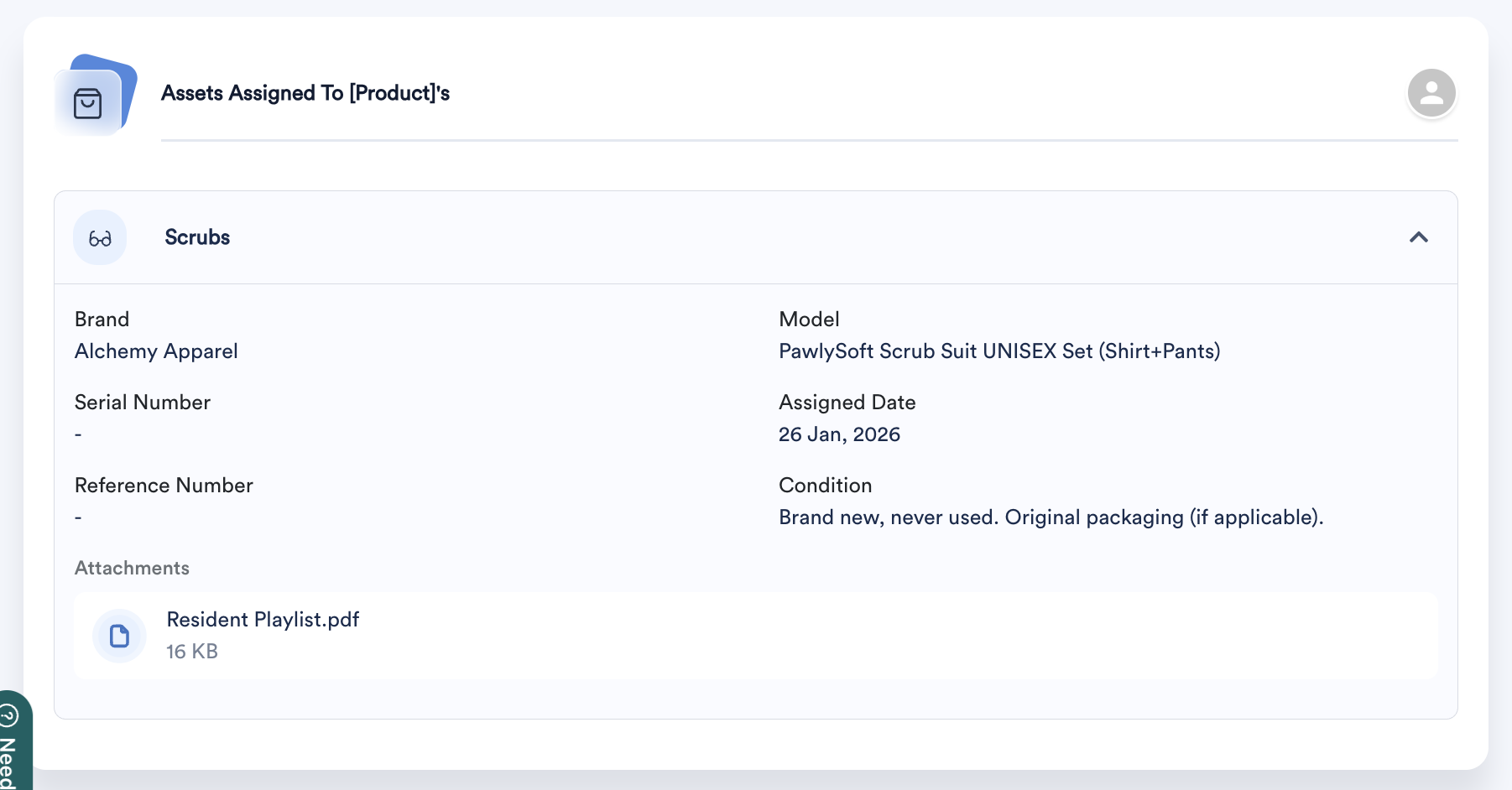
Displays all assets assigned to the employee. If an asset from the template does not appear here, it means the assigned PIC has not completed the asset assignment.
c. Document Checklist
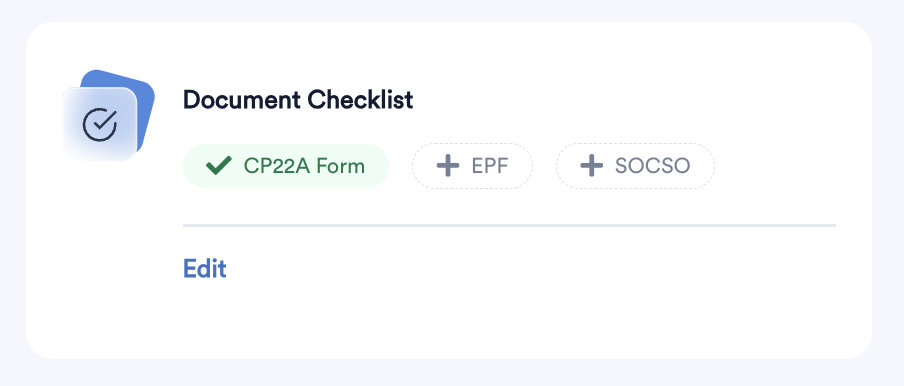
Shows all documents required from the employee. Uploaded documents will appear in green.
d. Links and Tools
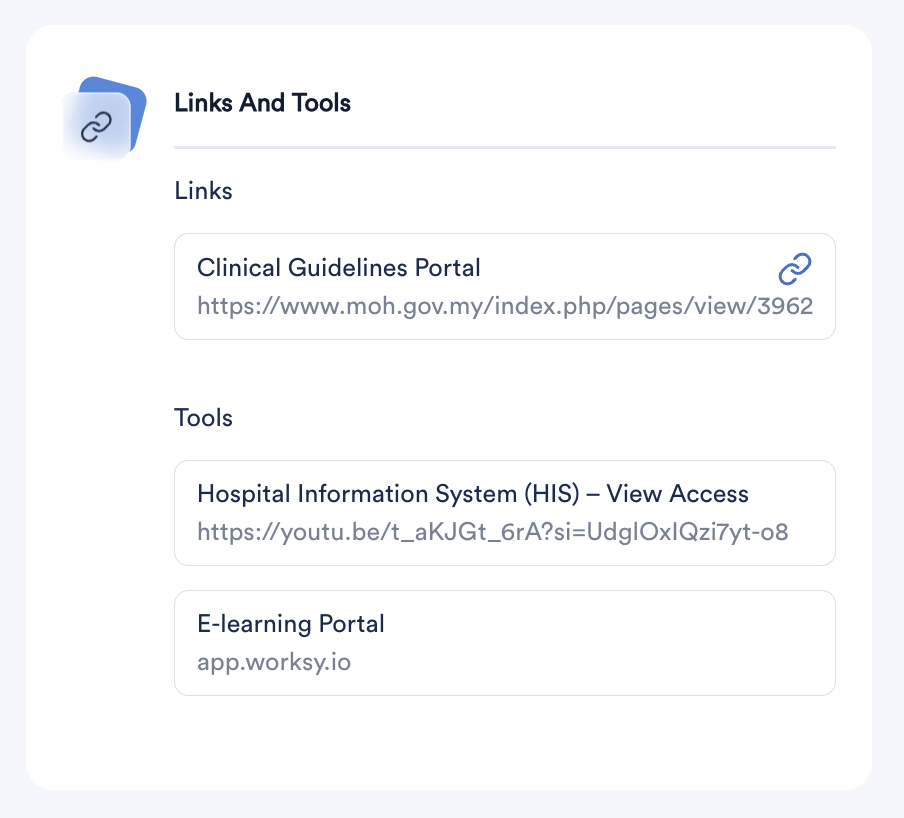
Displays links and tools configured in the onboarding template.
e. Documents Available
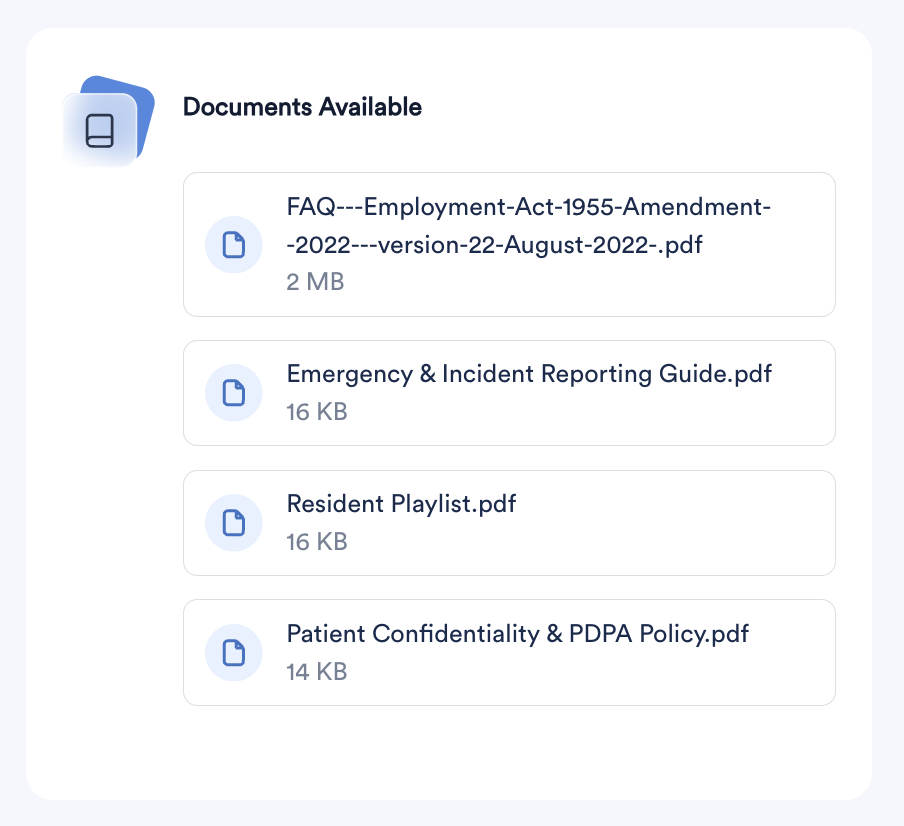
Shows documents shared with the employee via the onboarding template.
Step 5 (optional)
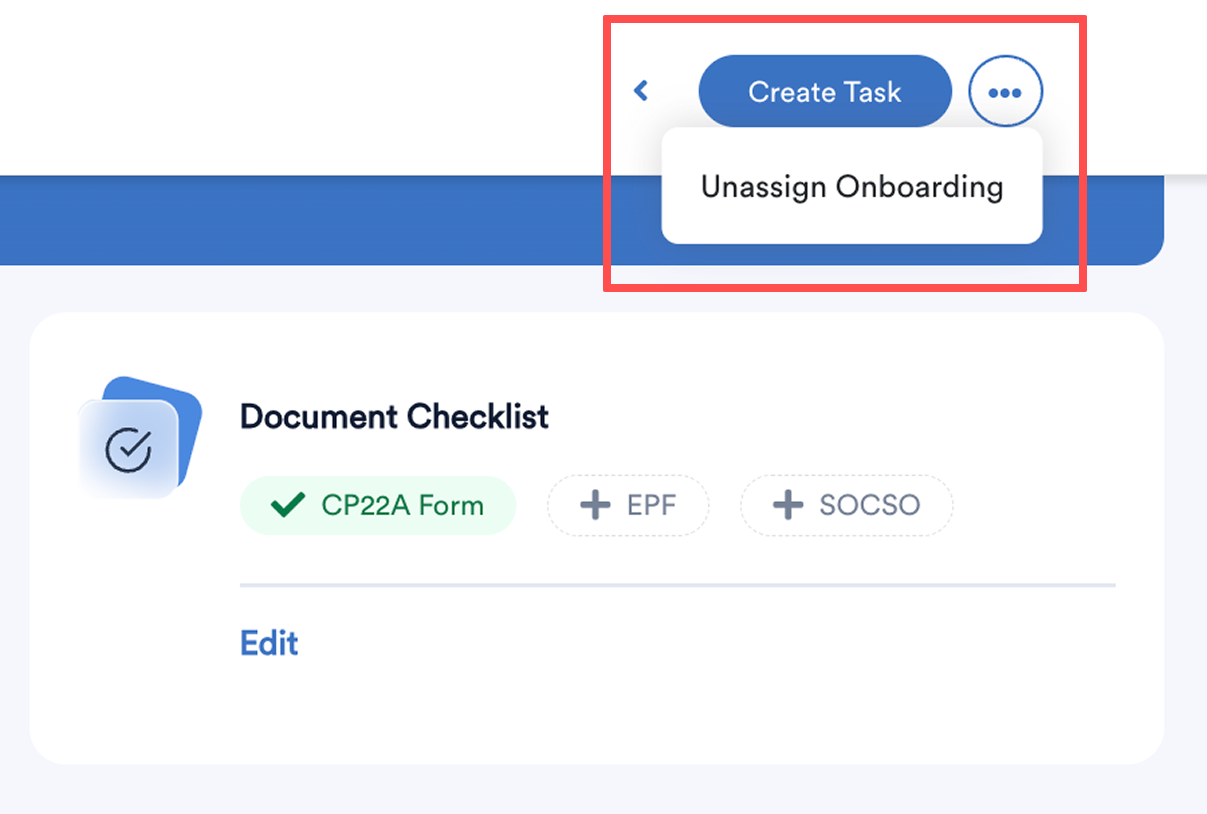
- To add a task for the employee, click Create Task at the top right of the screen and follow the same steps used when creating tasks in the onboarding template.
- To remove the onboarding template from the employee, click the three-dot icon next to Create Task and select Unassign Onboarding.
Once unassigned, the employee card will no longer appear in the Onboarding Management screen.
We hope this explanation clarifies the matter. If you require further assistance, please don't hesitate to contact our support team.
Was this article helpful?
That’s Great!
Thank you for your feedback
Sorry! We couldn't be helpful
Thank you for your feedback
Feedback sent
We appreciate your effort and will try to fix the article