This article explains how to batch assign an onboarding template from either the Onboarding Template screen or the Onboarding Management screen.
Note:
If you change the hire date after assigning the template, you need to unassign and reassign. System will detect overdue based on original template assignation date.
Step 1
You can start batch assignment from either of the following screens:
Onboarding Template screen
- Click Batch Assign at the top right of the screen.

OR
Onboarding Management screen
- Click Assign Onboarding at the top right of the screen.

Step 2
Choose whether you want to assign the onboarding template to a New Employee or an Existing Employee.
For New Employee
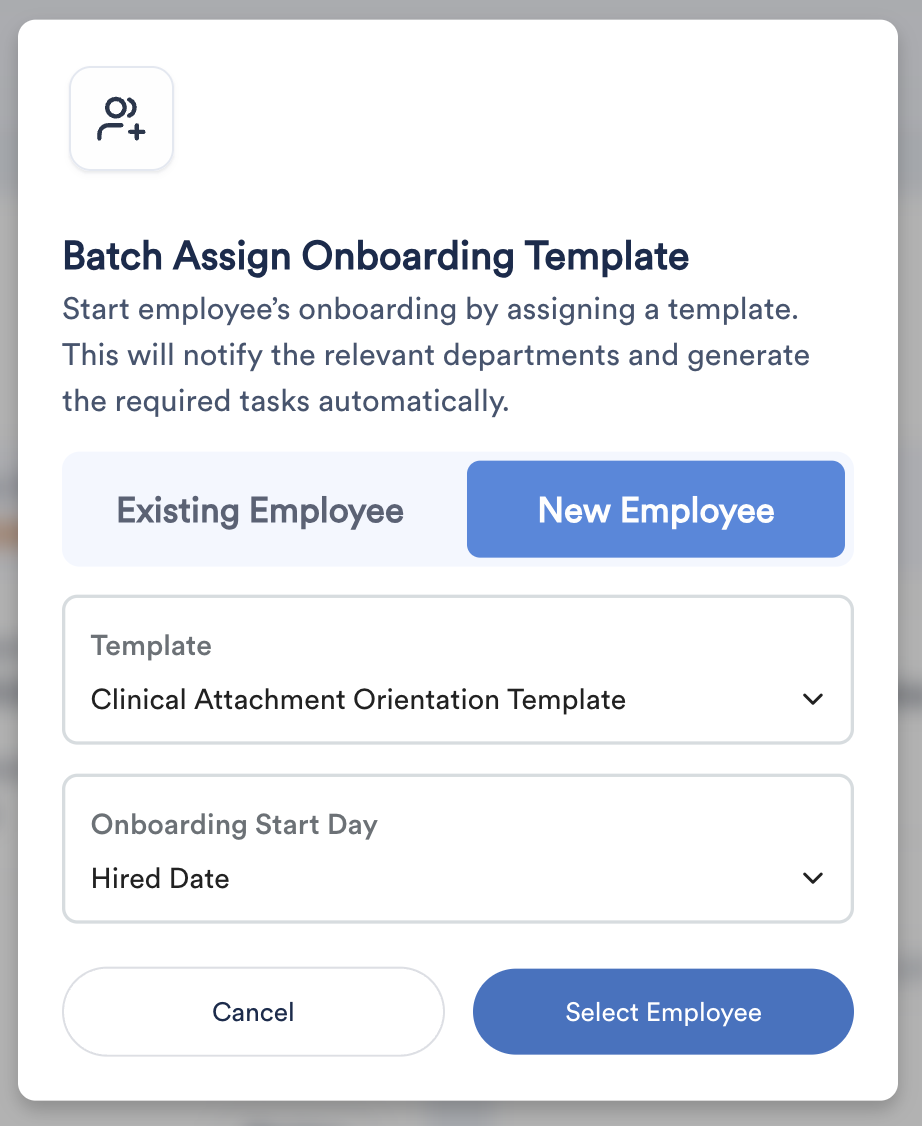
Select the Template.
Select the Onboarding Start Day:
Hire Date
Immediately
One week before hire date
One month before hire date
Custom date
If Custom date is selected, a calendar will be enabled for you to choose a specific date.
Click Select Employee.
For Existing Employee
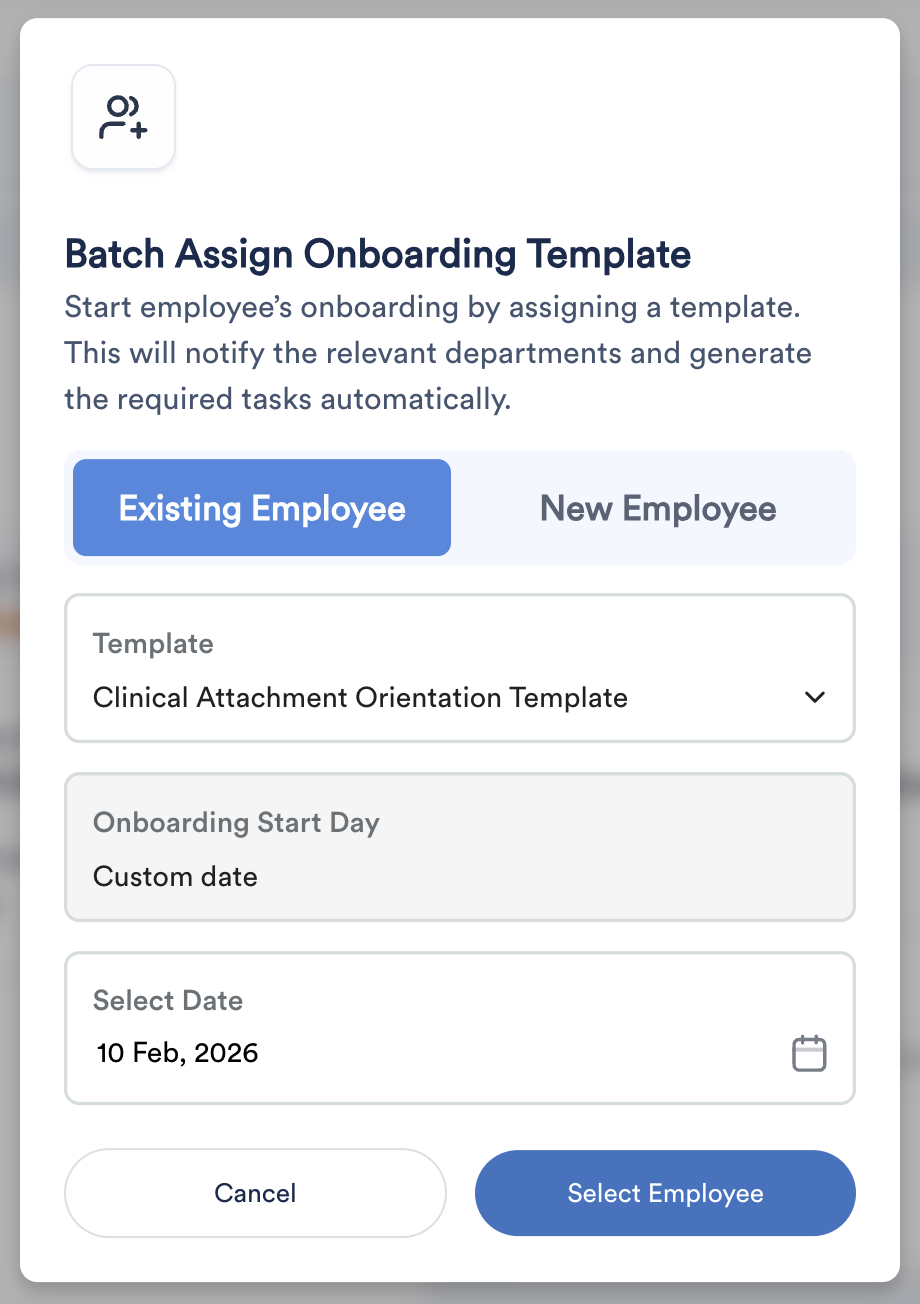
Select the Template.
The Onboarding Start Day will be automatically set to Custom date.
Select a specific onboarding start date.
Click Select Employee.
Step 3
You will be directed to the Batch Assign screen.
The system will list all employees in the system.
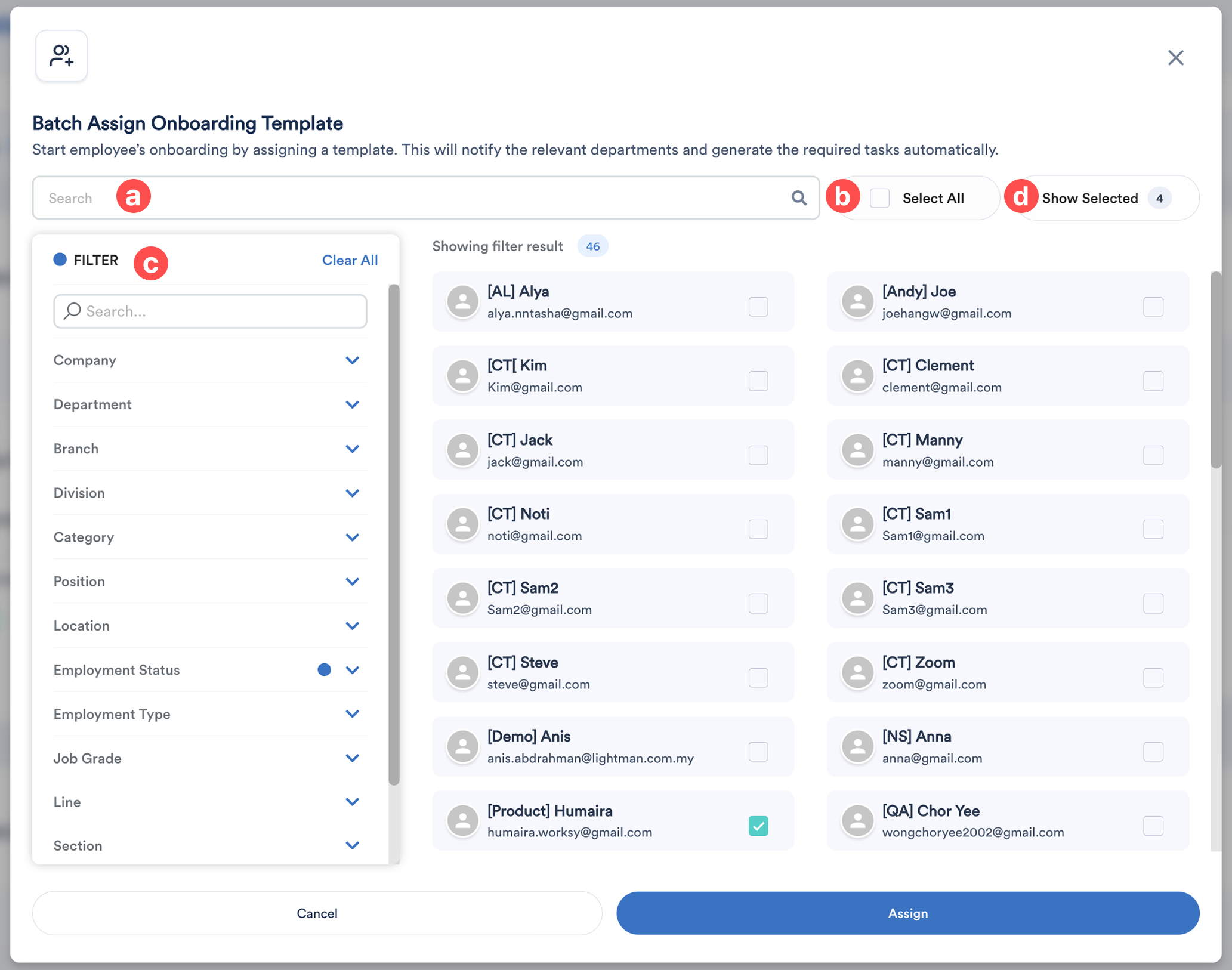
Use the search bar to find employees by name.
Click Select All to select all listed employees.
On the left side, use the Filter panel to narrow down employees based on criteria such as:
Company
Department
Position
Other available filters
Next to the search bar, click Show Selected to:
View the number of employees selected
Review which employees have been selected
Once confirmed, click Assign to complete the batch assignment.
The system will display the assignment status for each employee.
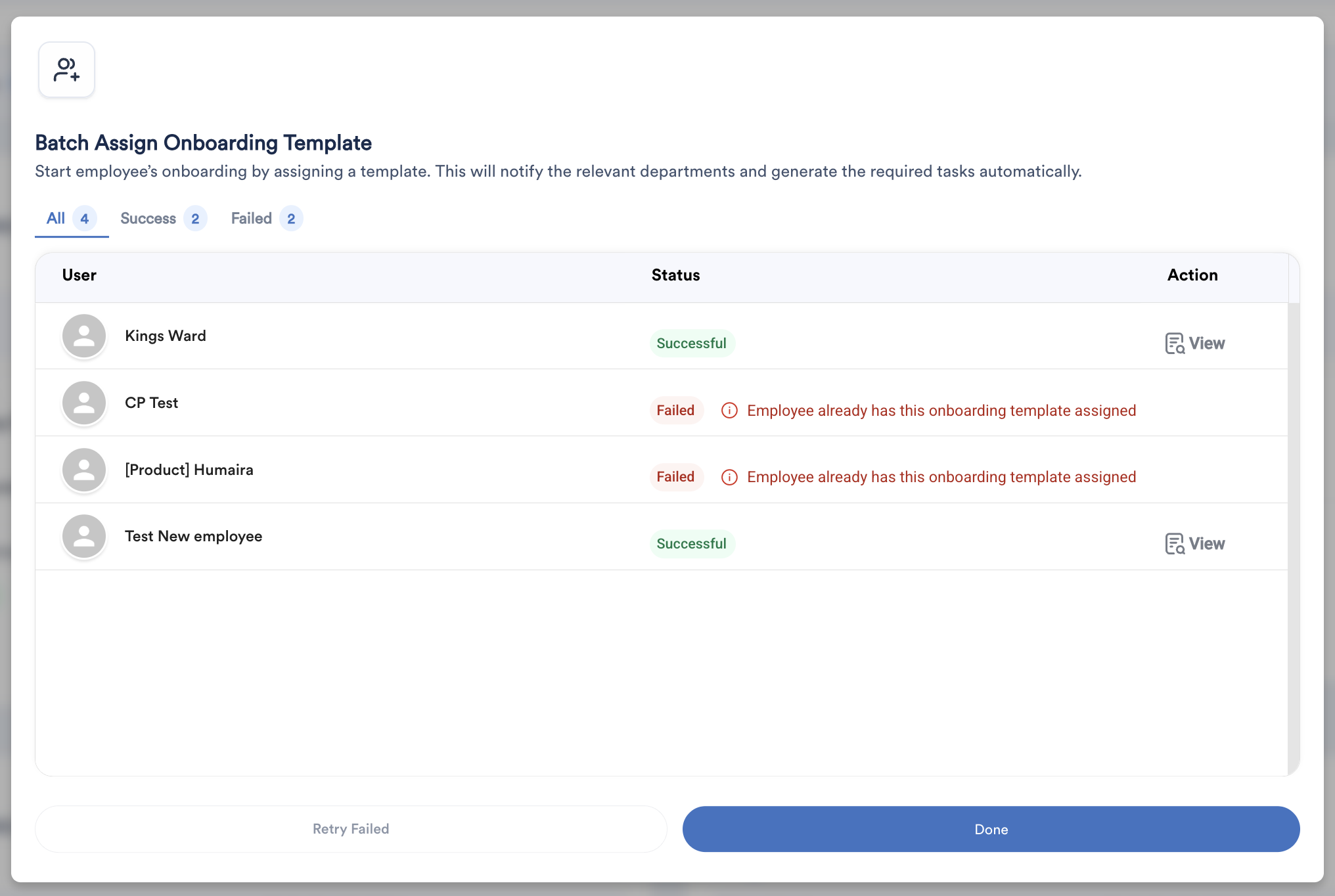
Under the Action column, click View to be redirected to the employee’s My Onboarding page.
We hope this explanation clarifies the matter. If you require further assistance, please don't hesitate to contact our support team.
Was this article helpful?
That’s Great!
Thank you for your feedback
Sorry! We couldn't be helpful
Thank you for your feedback
Feedback sent
We appreciate your effort and will try to fix the article