Onboarding templates help you standardize the onboarding experience by preparing tasks, documents, assets, and key information in advance so new joiners know exactly what to expect from day one.
Step 1
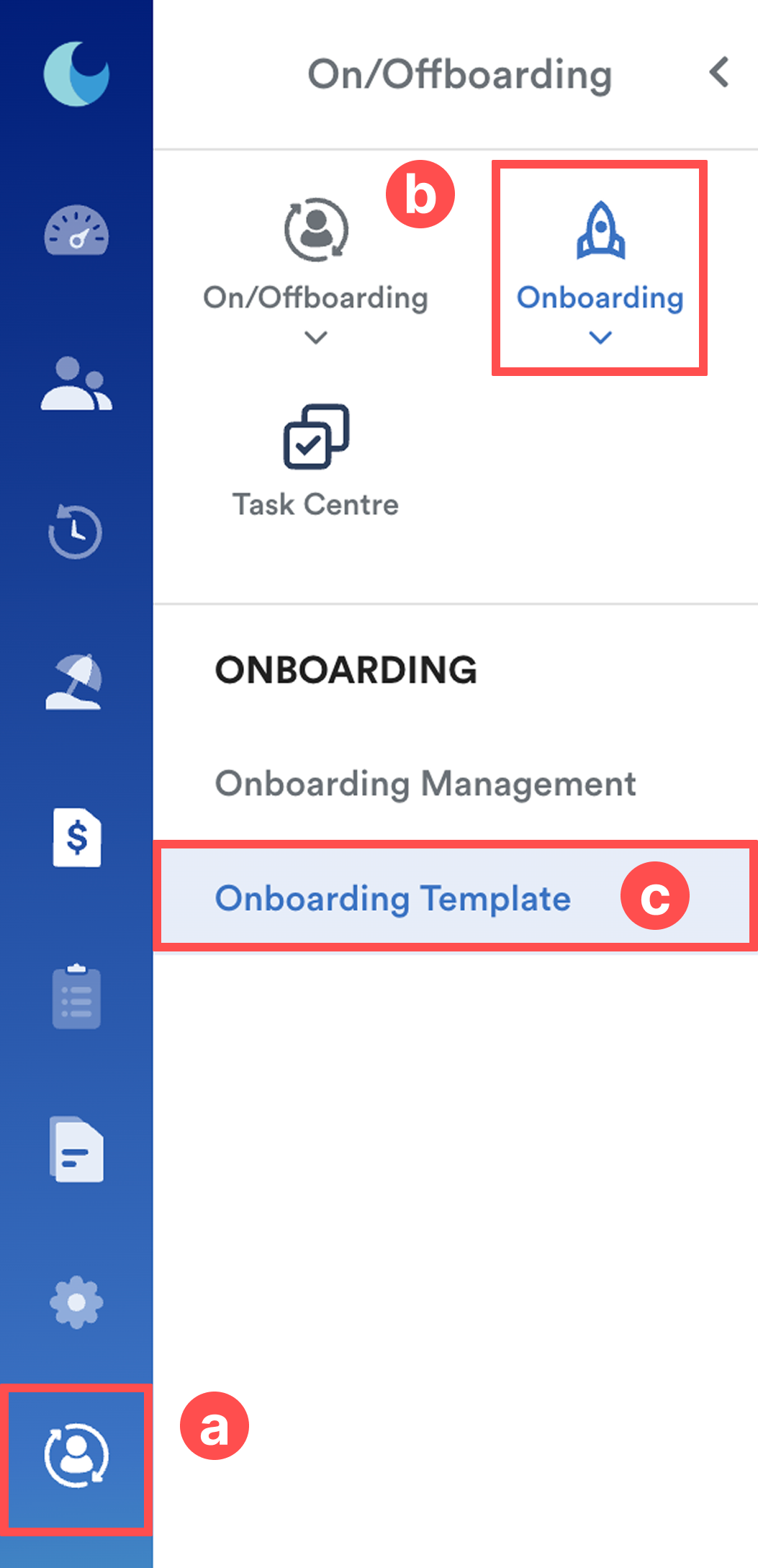
From the left menu, go to On/Offboarding > Onboarding > Onboarding Template.
Step 2
The screen shows a list of onboarding templates created. For each template, you can view:
- Template title
- Number of tasks
- Assets under the template
- Last updated date
- Status
- Actions (Assign, View, or click the three-dot icon for more actions)
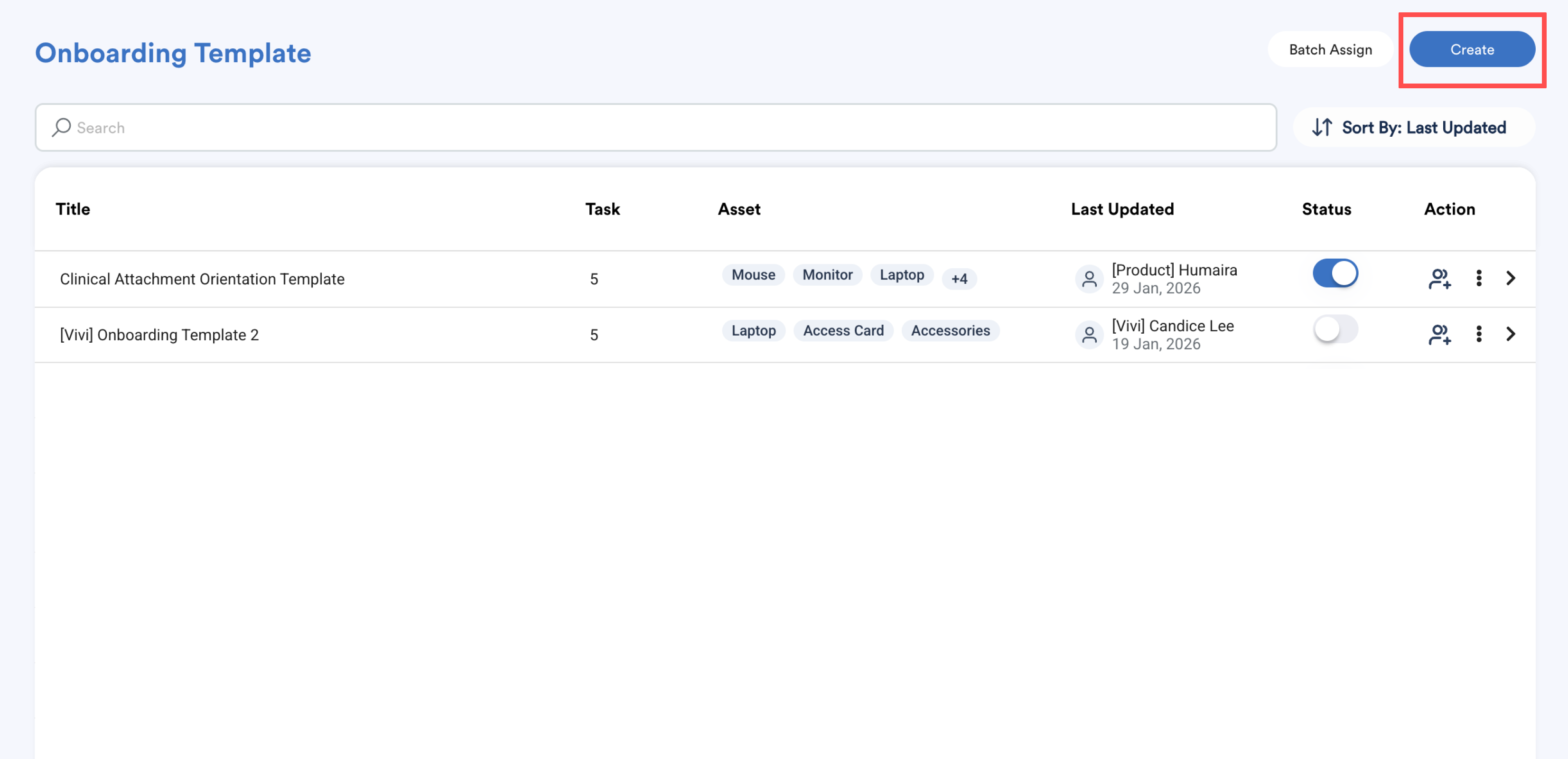
Click Create at the top right of the screen.
Step 3
You will see two tabs:

- Template Settings
- Onboarding Details
Template Settings – Set up the basic configuration and eligibility for this onboarding template.
Sections in Template Settings:
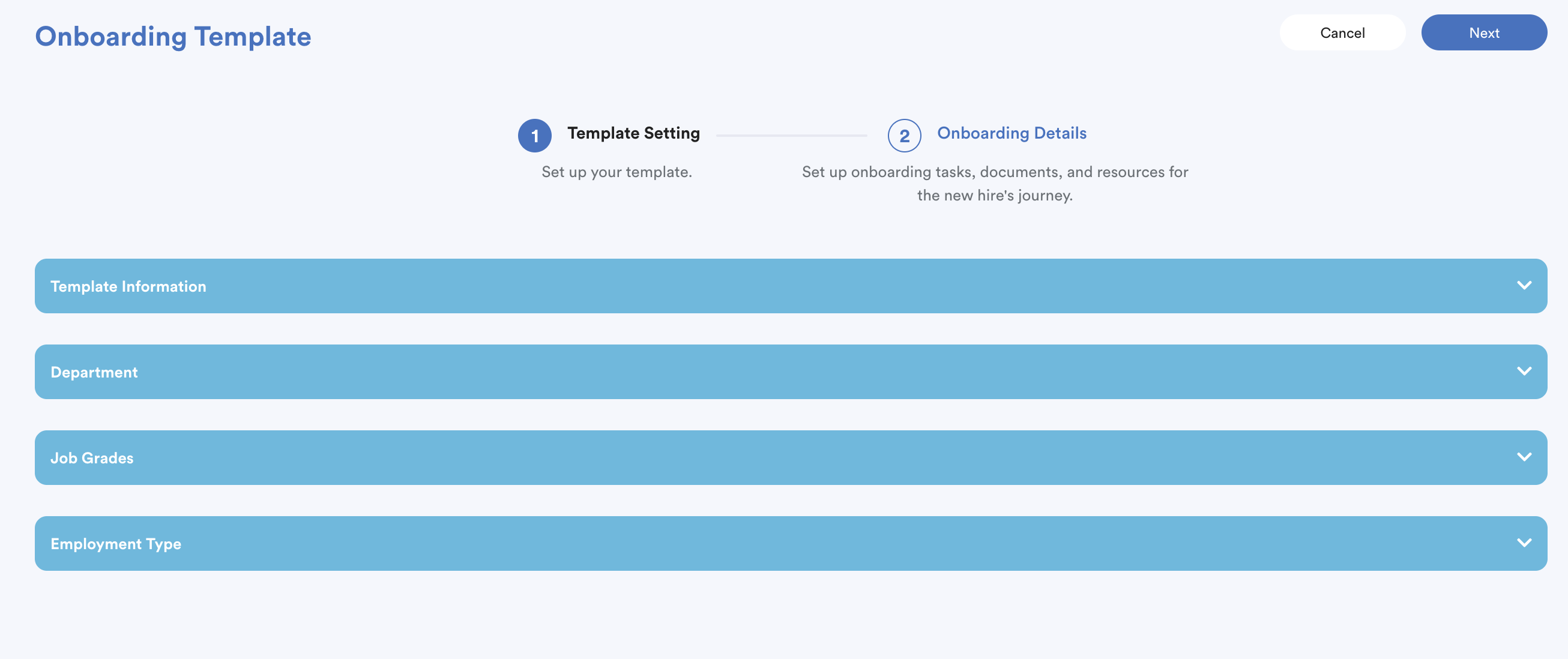
1. Template Information

- Title: Enter a clear name for the onboarding template.
- Duration: Select how many weeks the employee has to complete onboarding tasks.
This duration will be used to determine task deadlines later.
2. Department
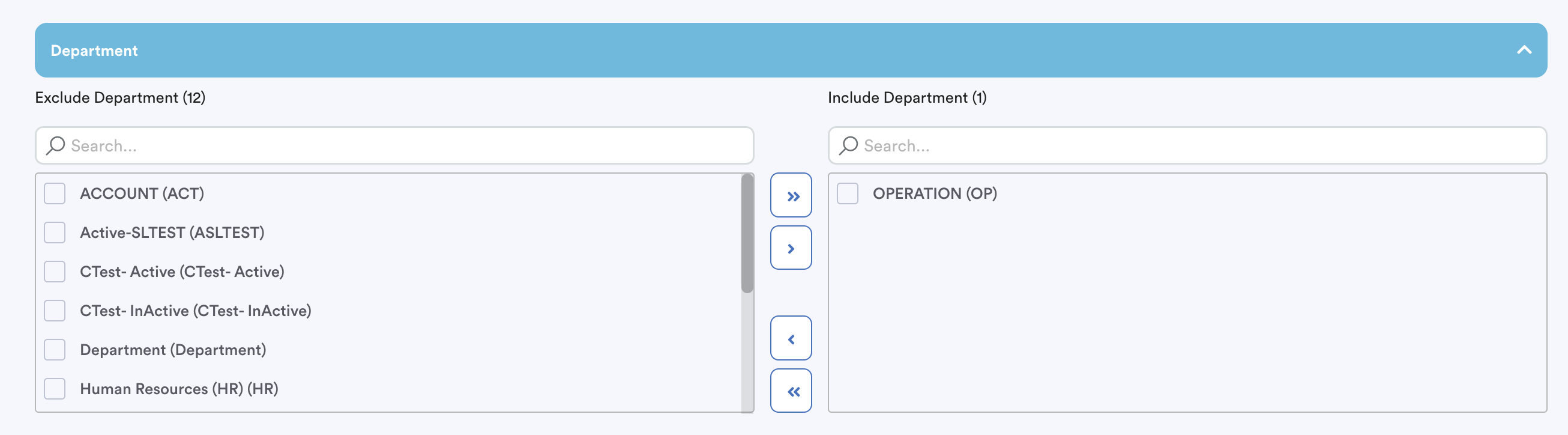
- Select the departments applicable to this template.
- Move departments between Include and Exclude as needed.
3. Job Grade
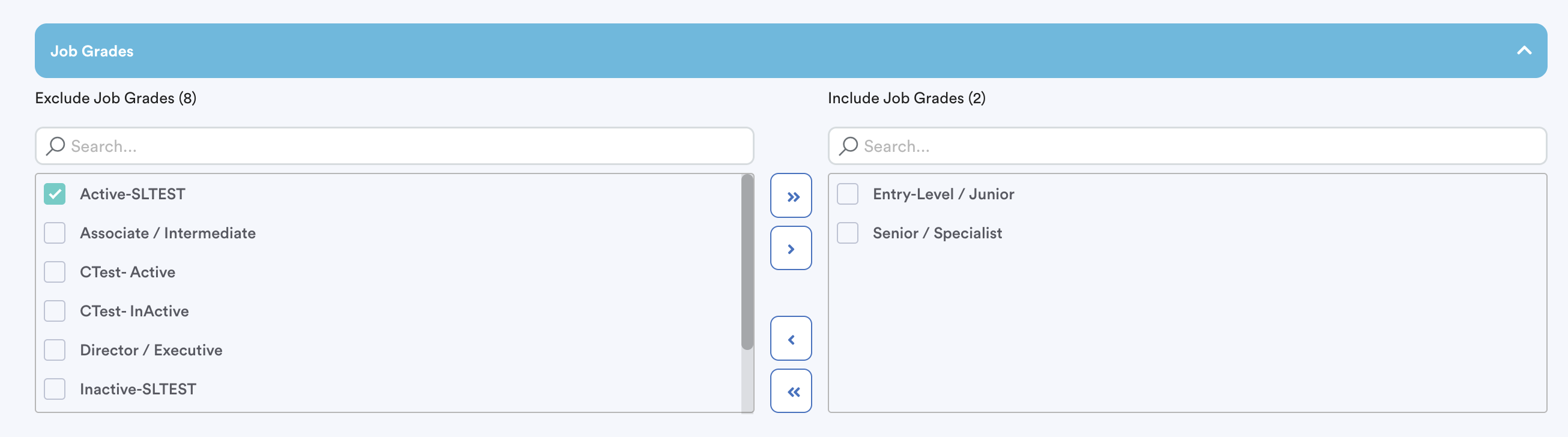
- Select the job grades applicable to this template.
- Use Include/Exclude to control eligibility.
4. Employment Type
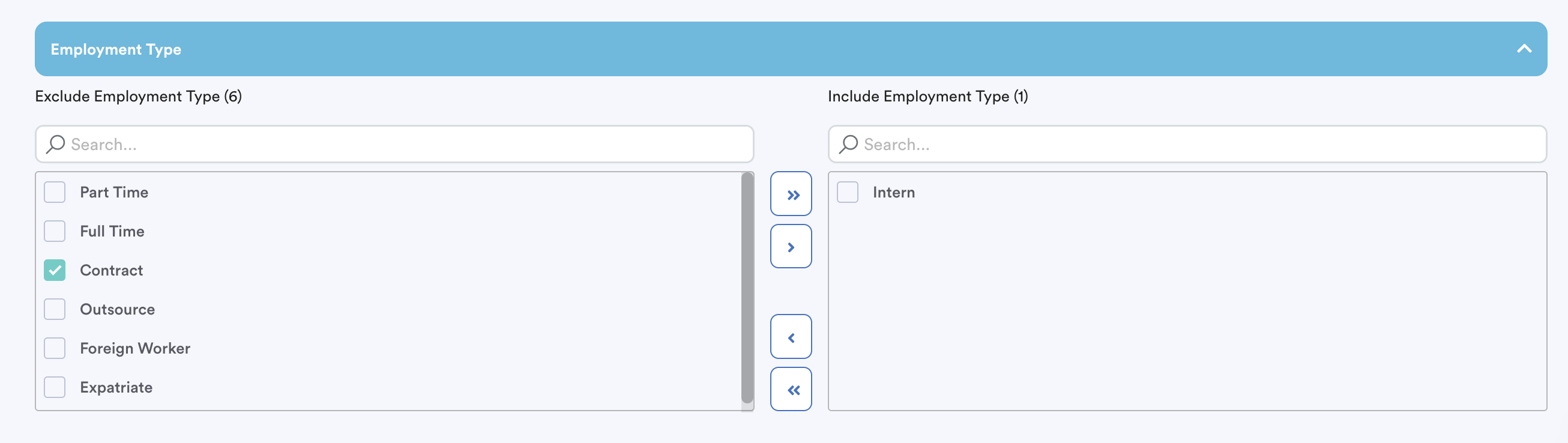
- Select the employment types (e.g. Full-time, Contract).
- Use Include/Exclude as required.
Once completed, click Next at the top right of the screen.
Step 4
Onboarding Details – This tab defines what new joiners will see and complete during their onboarding journey.
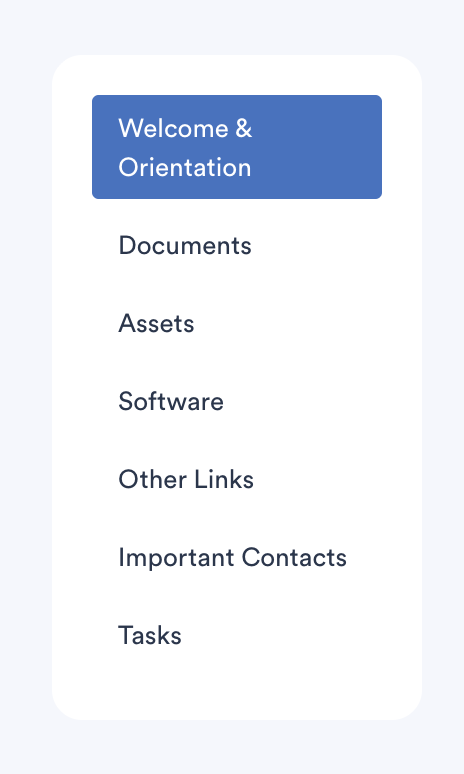
1. Welcome & Orientation
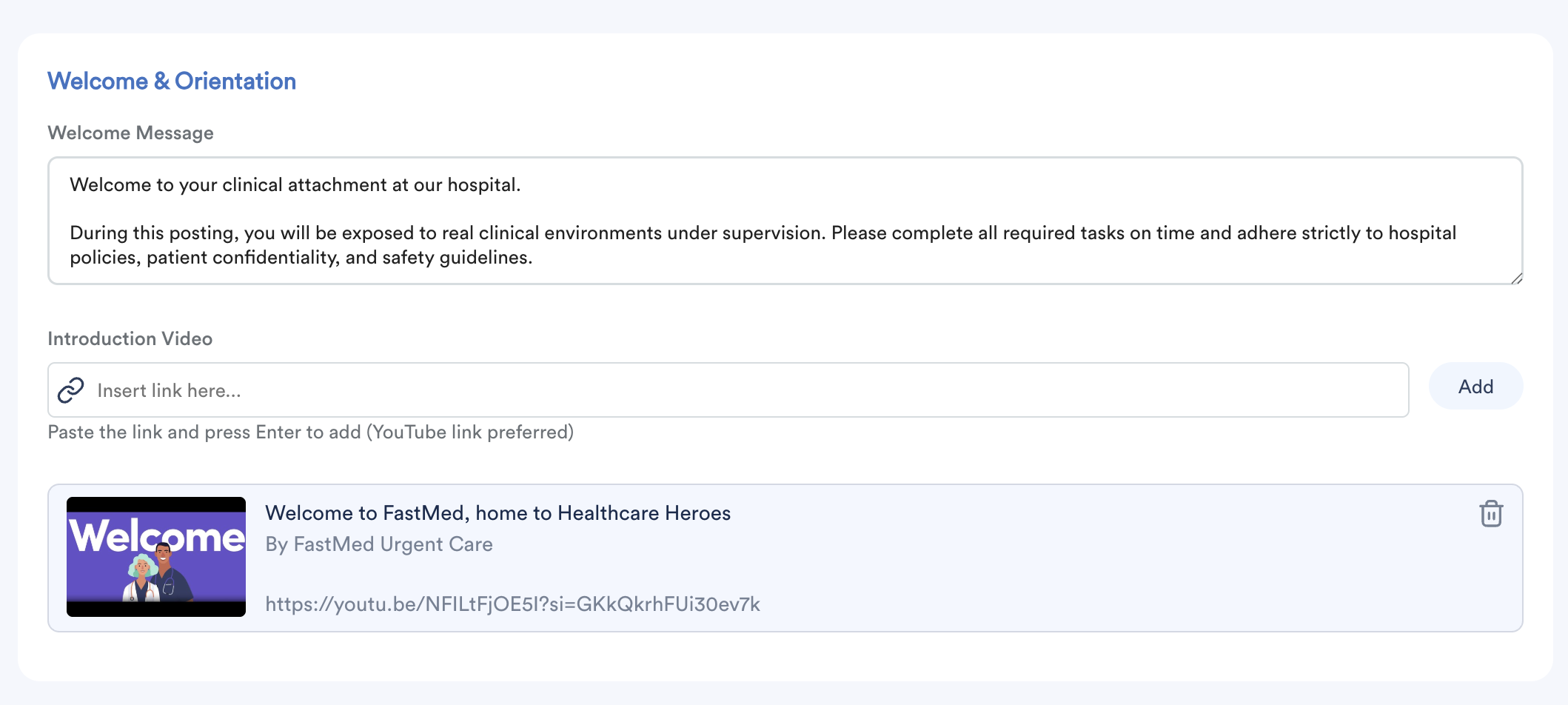
- Write a short welcome message for new joiners.
- Optionally, insert a YouTube link (e.g. company introduction or orientation video).
2. Documents
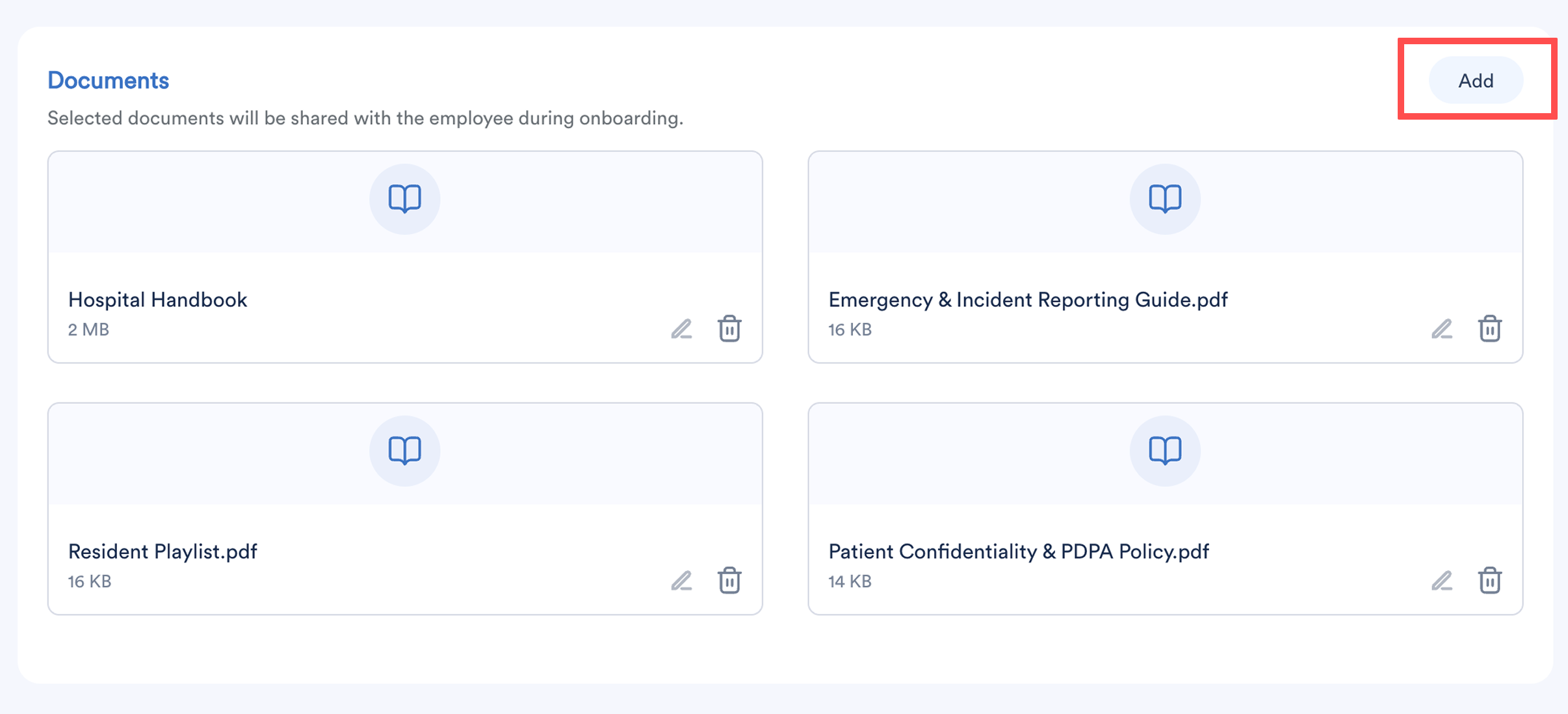
- Upload documents to be shared with the employee during onboarding.
- Supported formats: PDF, DOC, SVG, PNG, JPG, GIF
- Maximum file size: 4MB
- Click Add to upload or drag and drop files.
3. Assets
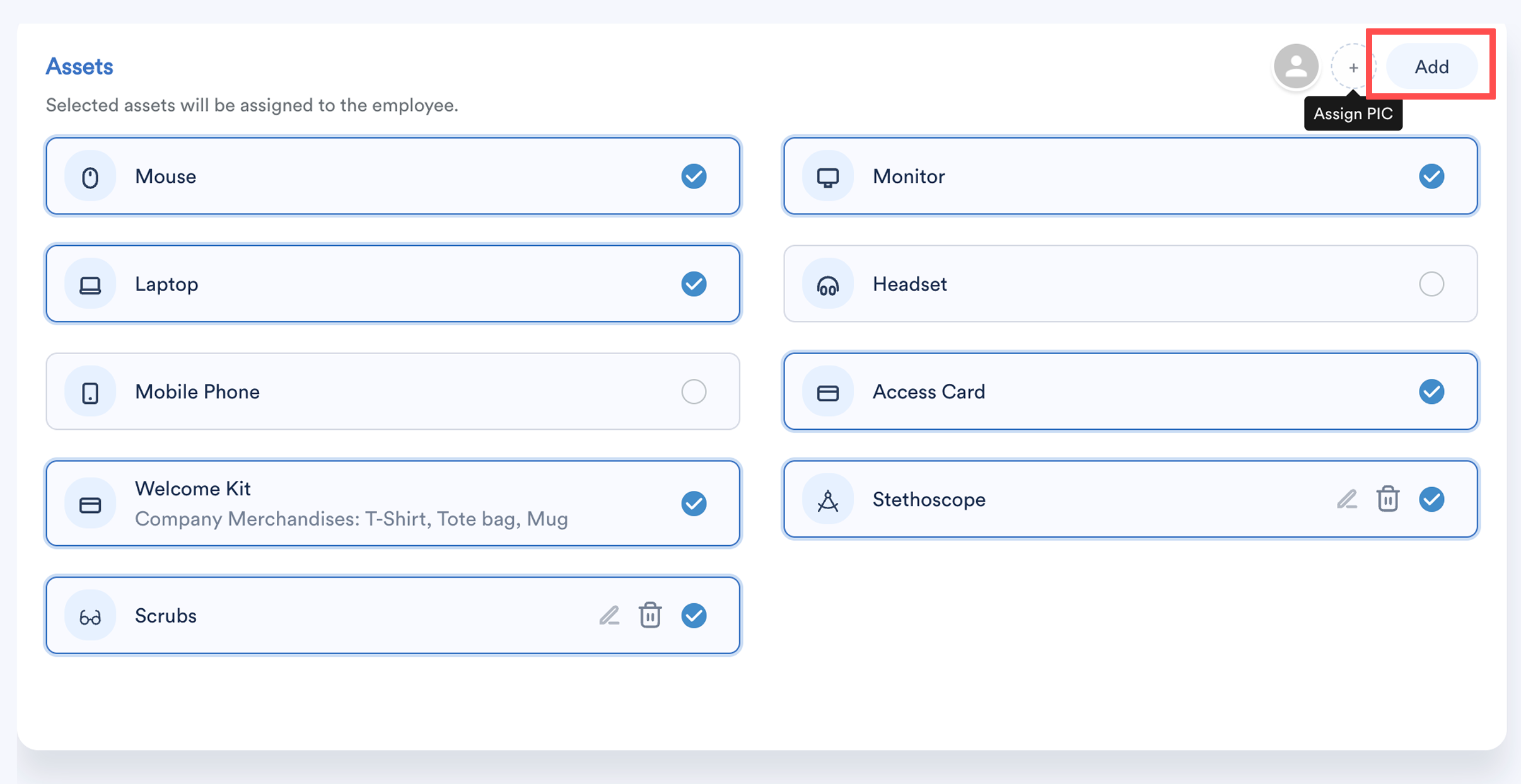
- By default, the system lists common assets such as mouse, laptop, monitor, headset, mobile phone, access card, and onboarding kit.
- Tick the assets to assign them to the employee.
- Click the pencil icon to edit or dustbin icon to delete new asset.
Adding new assets
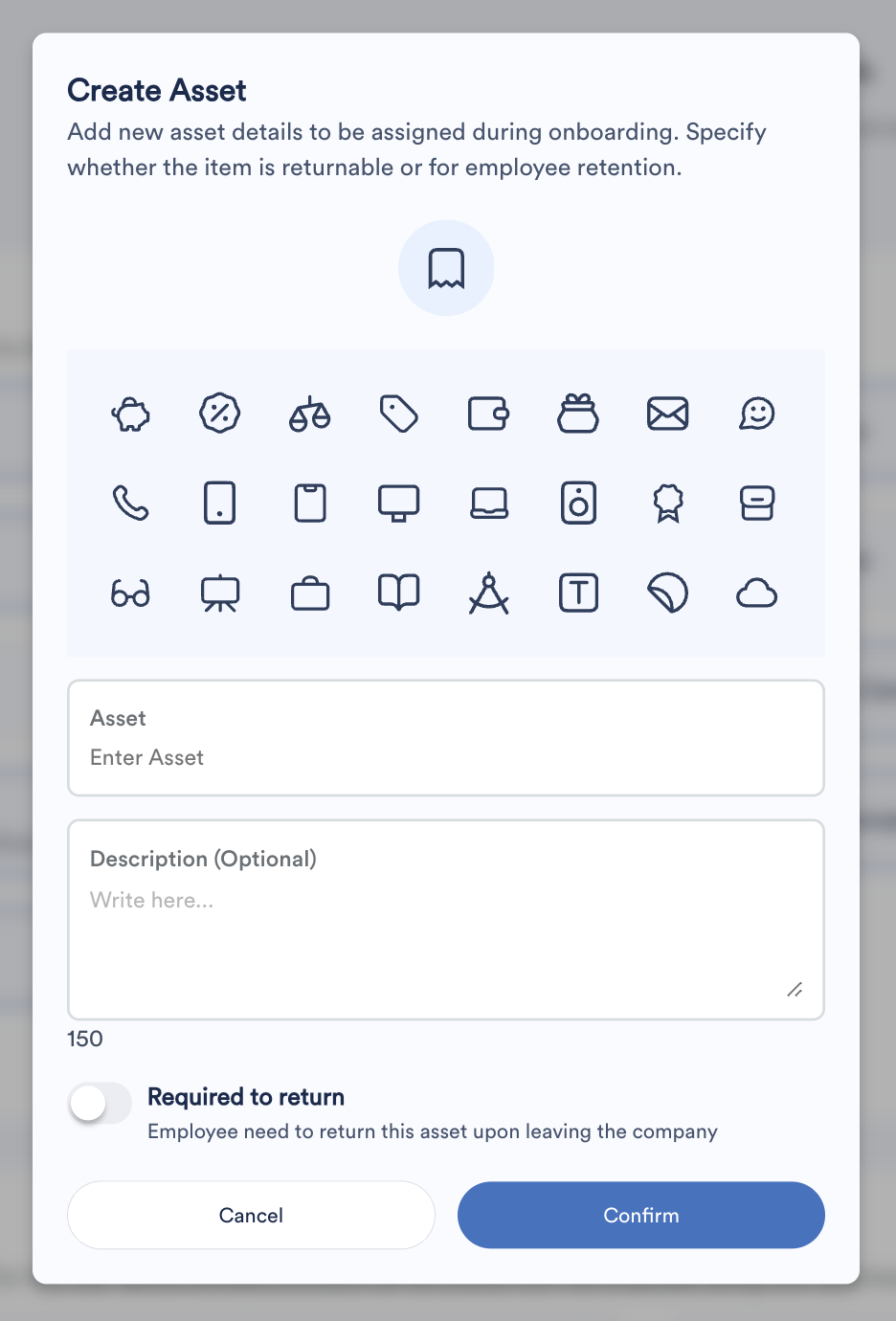
- Click Add.
- Choose a relevant icon for the asset.
- Enter the asset details.
- Specify whether the asset is required to return.
- Click Confirm.
Assign Asset Person-in-Charge (PIC)
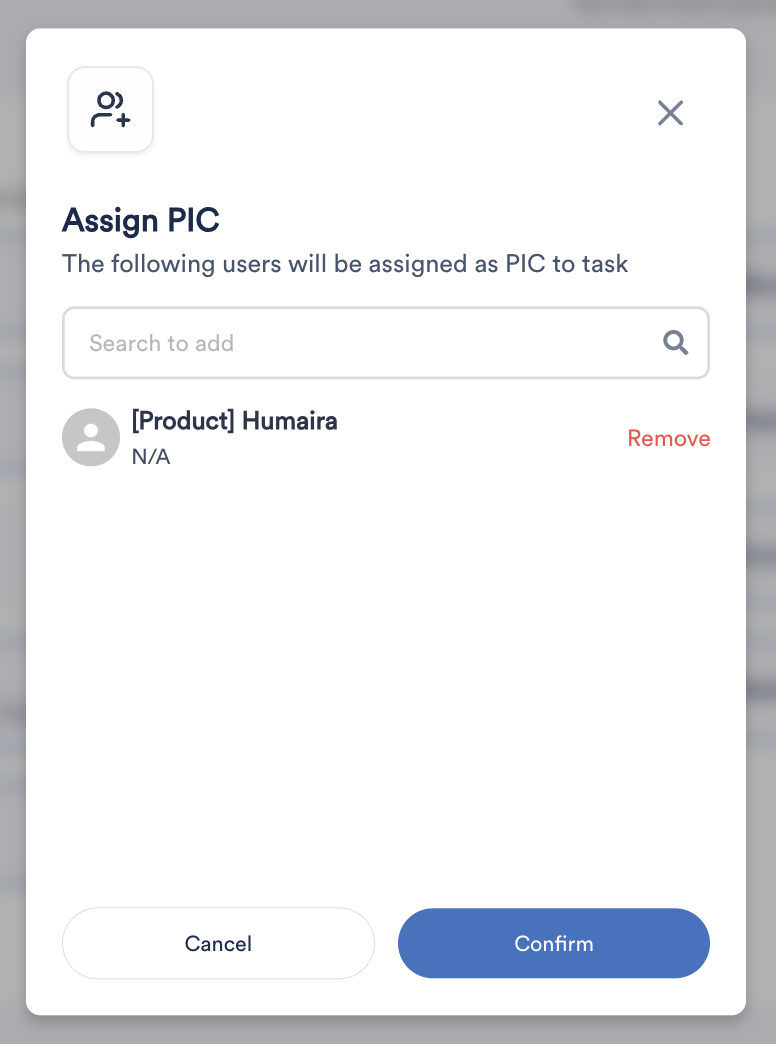
- Click + button next to Add button.
- Search for employee name and click to select as PIC.
- Click Confirm.
4. Software
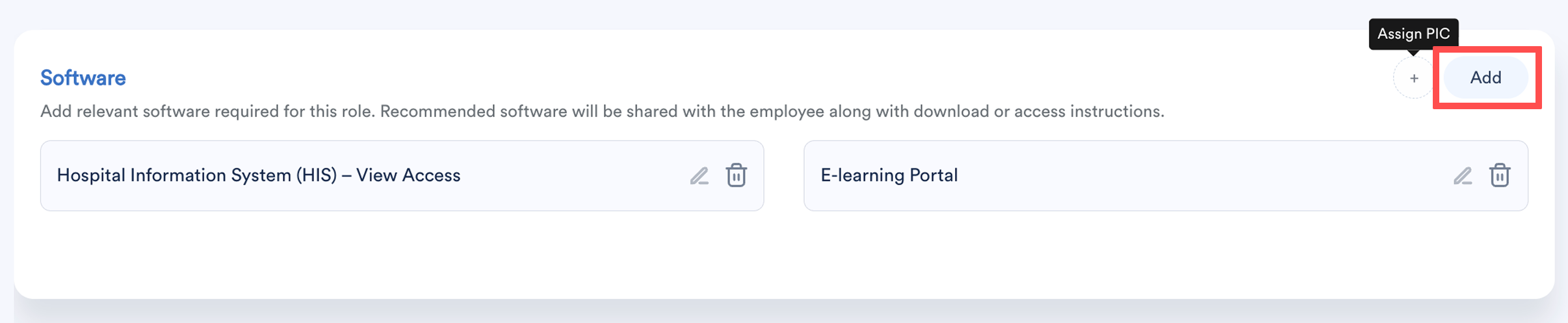
- Click + Add to list software required for the role. Include the license key (if applicable) and download or access instructions.
- Employees can refer information here to download and activate the software once it is available.
Assign Asset Person-in-Charge (PIC)
- Click + button next to Add button.
- Search for employee name and click to select as PIC.
- Click Confirm.
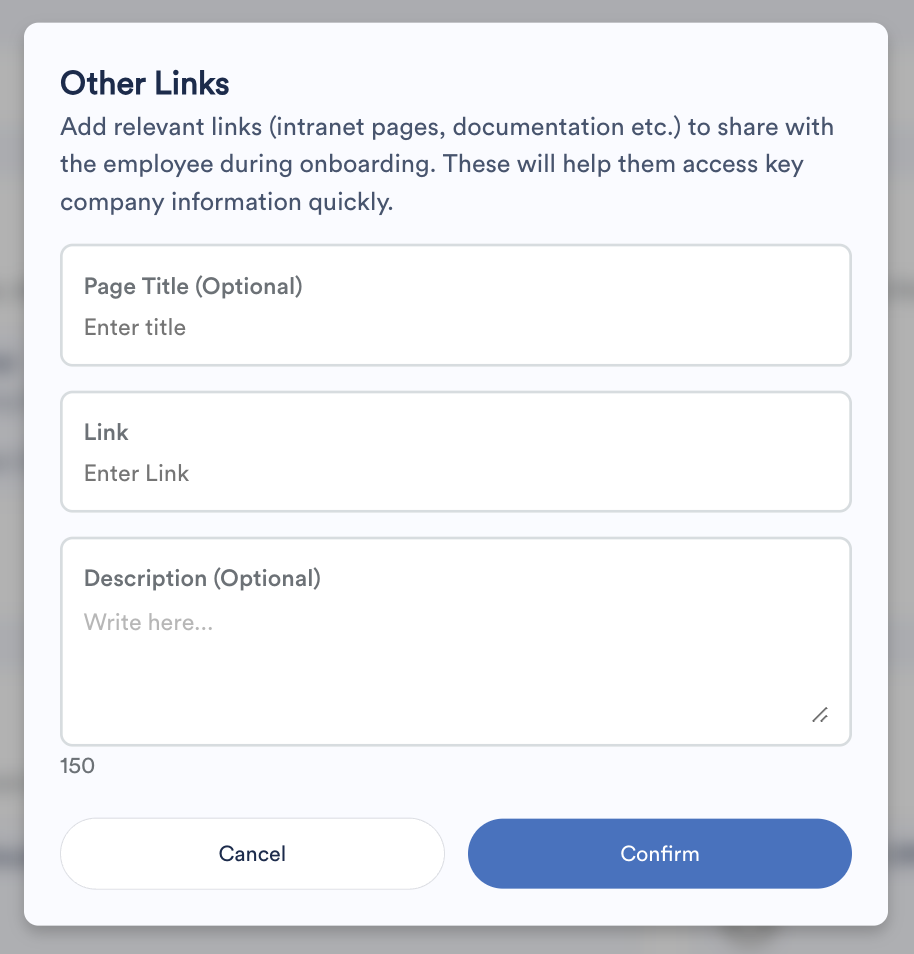
5. Other Links
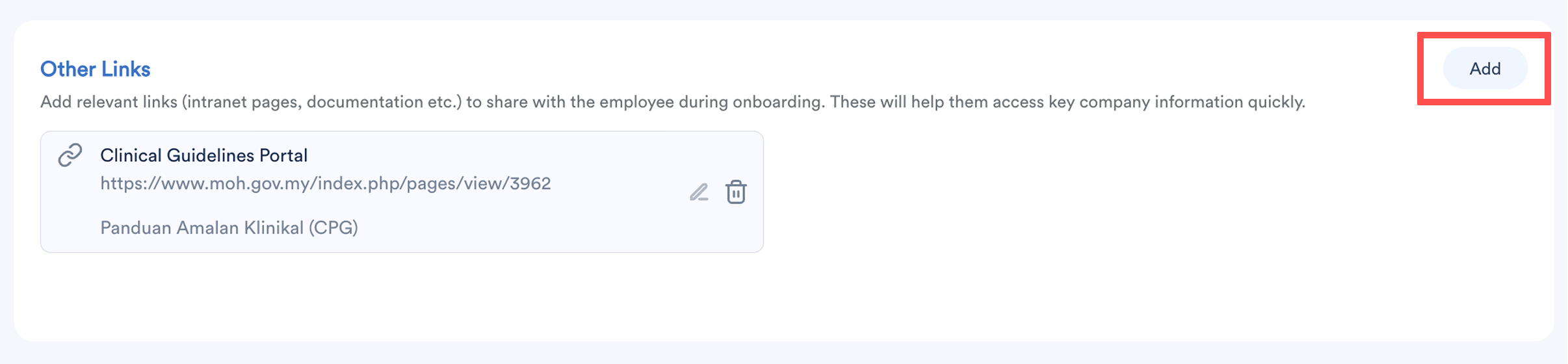
- Add relevant links such as intranet pages or internal documentation. These help employees access key company information quickly.
- Click Add to include each link.
- Click Confirm.
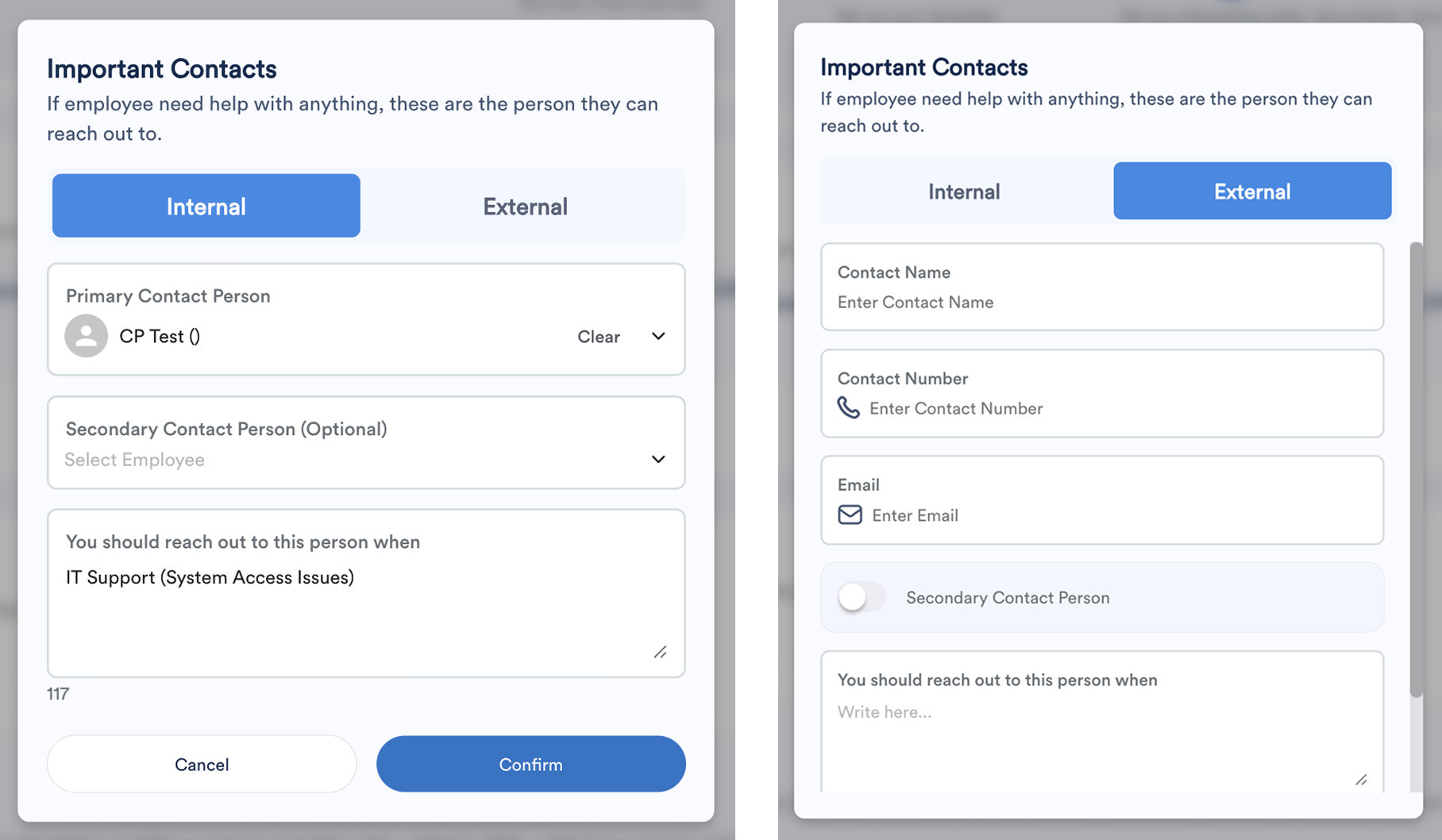
6. Important Contacts
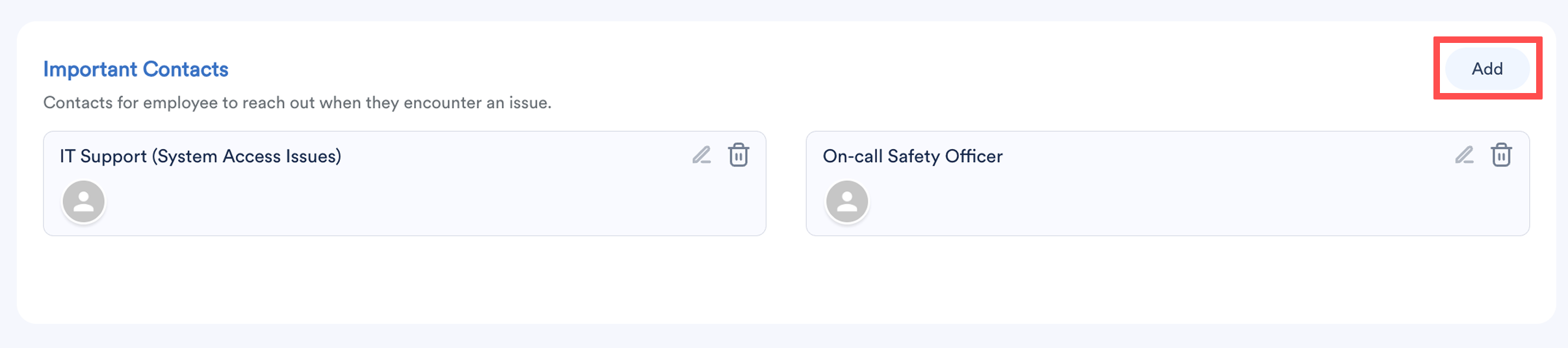
- Click Add to include internal employees or external contact persons. These are the people employees can reach out to if they need help during onboarding.
- Click Confirm.
7. Tasks
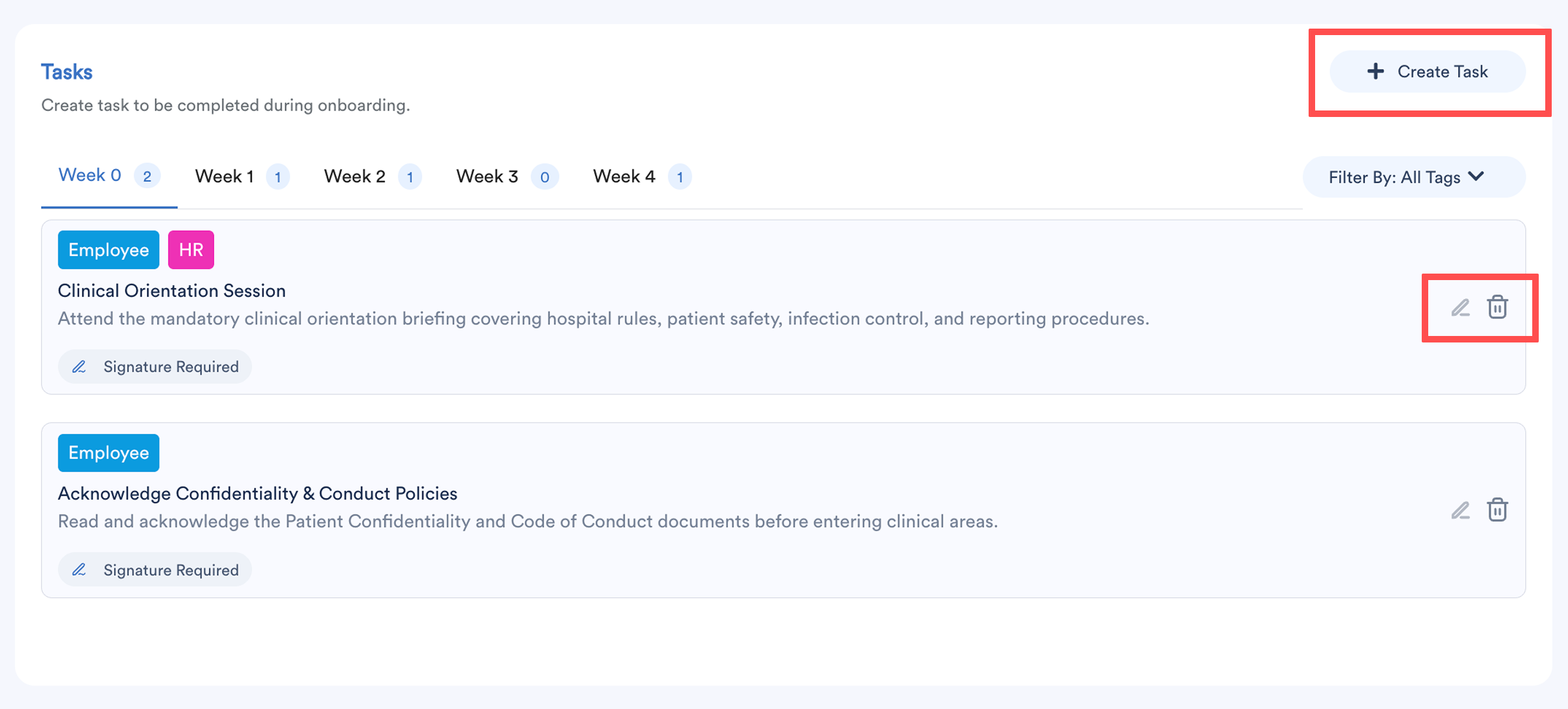
- Tasks are organised based on the duration selected in Template Settings.
- Click + Create Task to add tasks to be completed during onboarding.
- Click the pencil icon to edit or dustbin icon to delete task.
Creating Onboarding Task
All fields are compulsory:
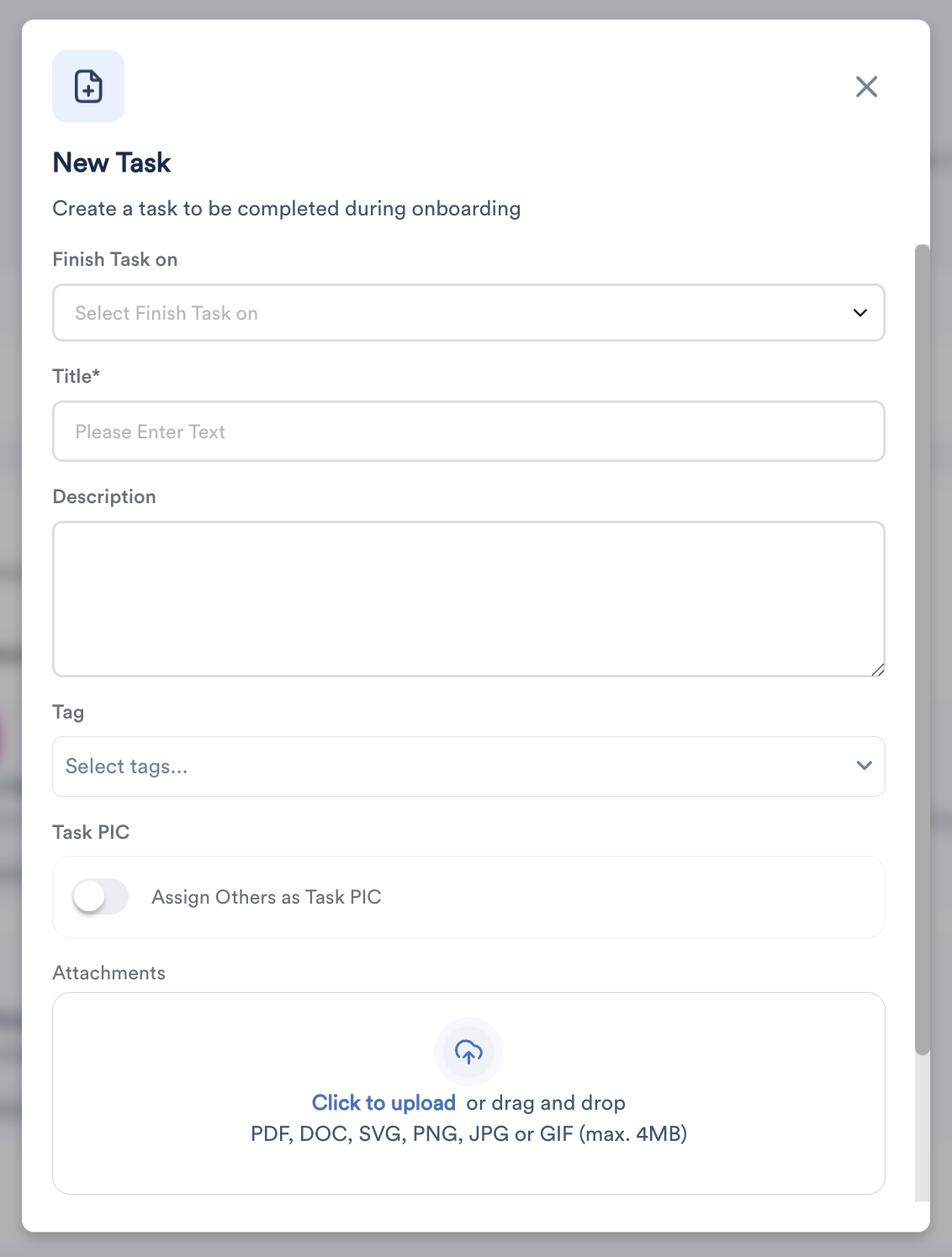
- Finish task on: Select the week the task should be completed.
- Title: Task name.
- Description: Provide clear instructions to help new joiners complete the task smoothly.
- Tags: Select relevant tags (e.g. Employee, HR, IT), based on system labels set in Worksy Settings.
- Task PIC: Assign the person responsible for overseeing the task.
- Attachments: Upload supporting files (PDF, DOC, SVG, PNG, JPG, GIF; max 4MB).
Optional settings:
- Required Signature – employee must sign off on the task.
- Require attachment from employee – employee must upload a file to complete the task.
Once all details are confirmed, click Save to create the onboarding template.
Here’s a preview of how the onboarding will appear on the employee’s My Onboarding:
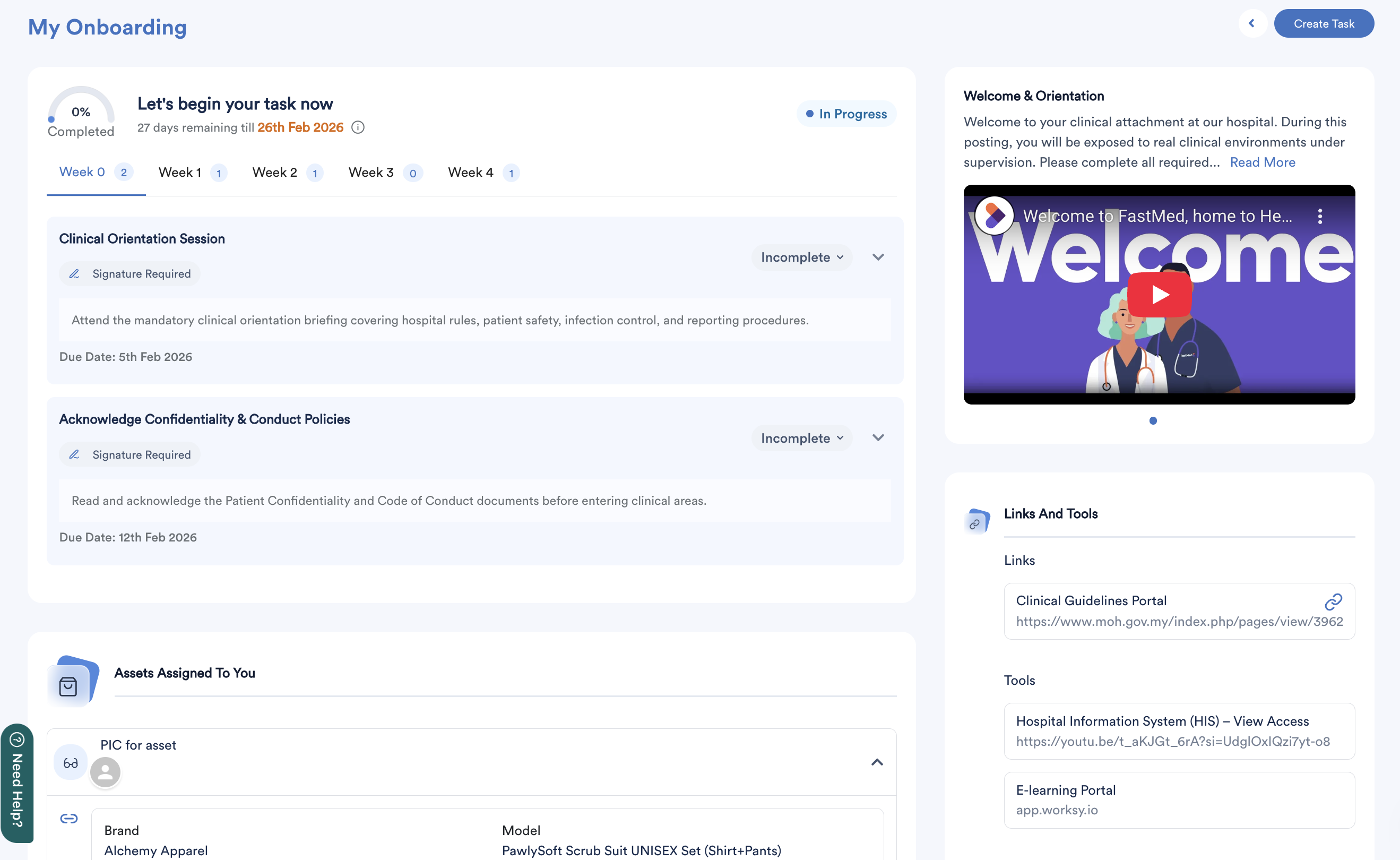
The template must be assigned to employees before it can be used. Refer to the next guide on how to assign onboarding templates to new or existing employees.
We hope this explanation clarifies the matter. If you require further assistance, please don't hesitate to contact our support team.
Was this article helpful?
That’s Great!
Thank you for your feedback
Sorry! We couldn't be helpful
Thank you for your feedback
Feedback sent
We appreciate your effort and will try to fix the article