License screen lets you manage which employees can access the modules included in your company’s subscription.
You can assign licenses to individual employees and monitor the remaining license capacity from this screen. This is useful when your company subscribes to a module for a limited number of employees.
Prerequisite
Make sure your role has access rights to License (Settings > User Account > Access Rights)
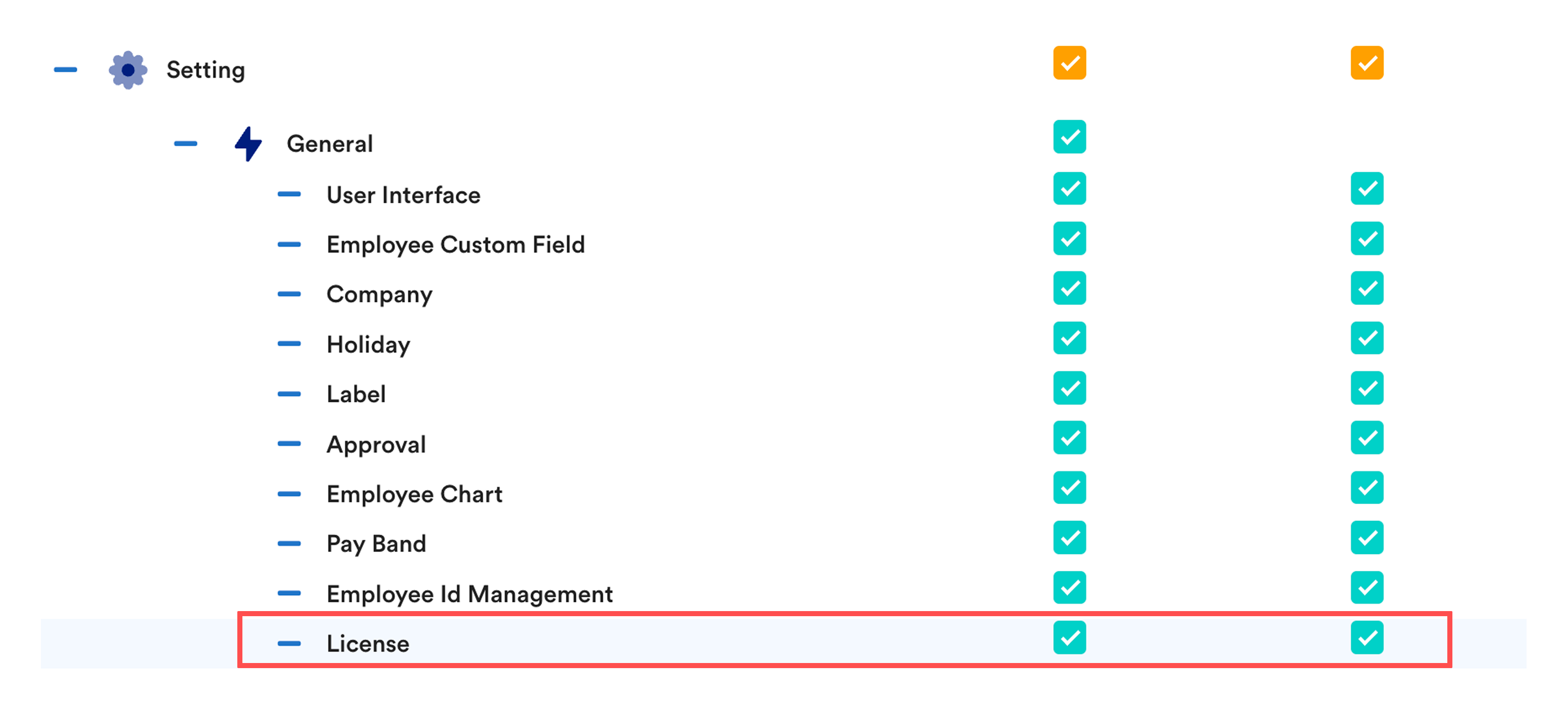
How license access works
- Employees can only access modules that are enabled for them.
- When a module is not enabled, its icon will not appear in the employee’s navigation menu.
- Unsubscribed modules are locked and cannot be enabled.
- Each license has a headcount limit based on your company’s subscription.
Note: The available license headcount is based on your company’s subscription (refer invoice). When your company first subscribes, licenses are enabled for all employees by default.
How to Manage Employee Licenses
Step 1
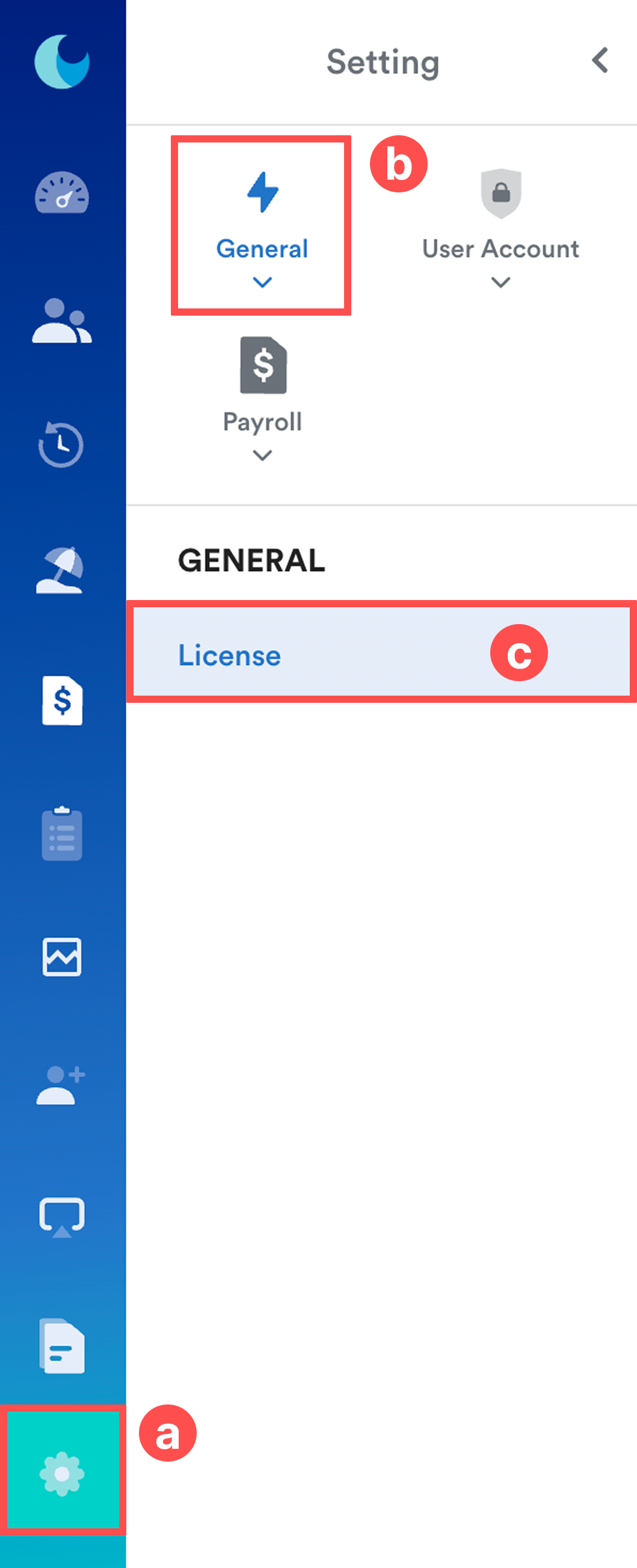
Go to Settings (a) > General (b) > License (c).
Step 2
The License screen displays:
- Modules
- Employee List
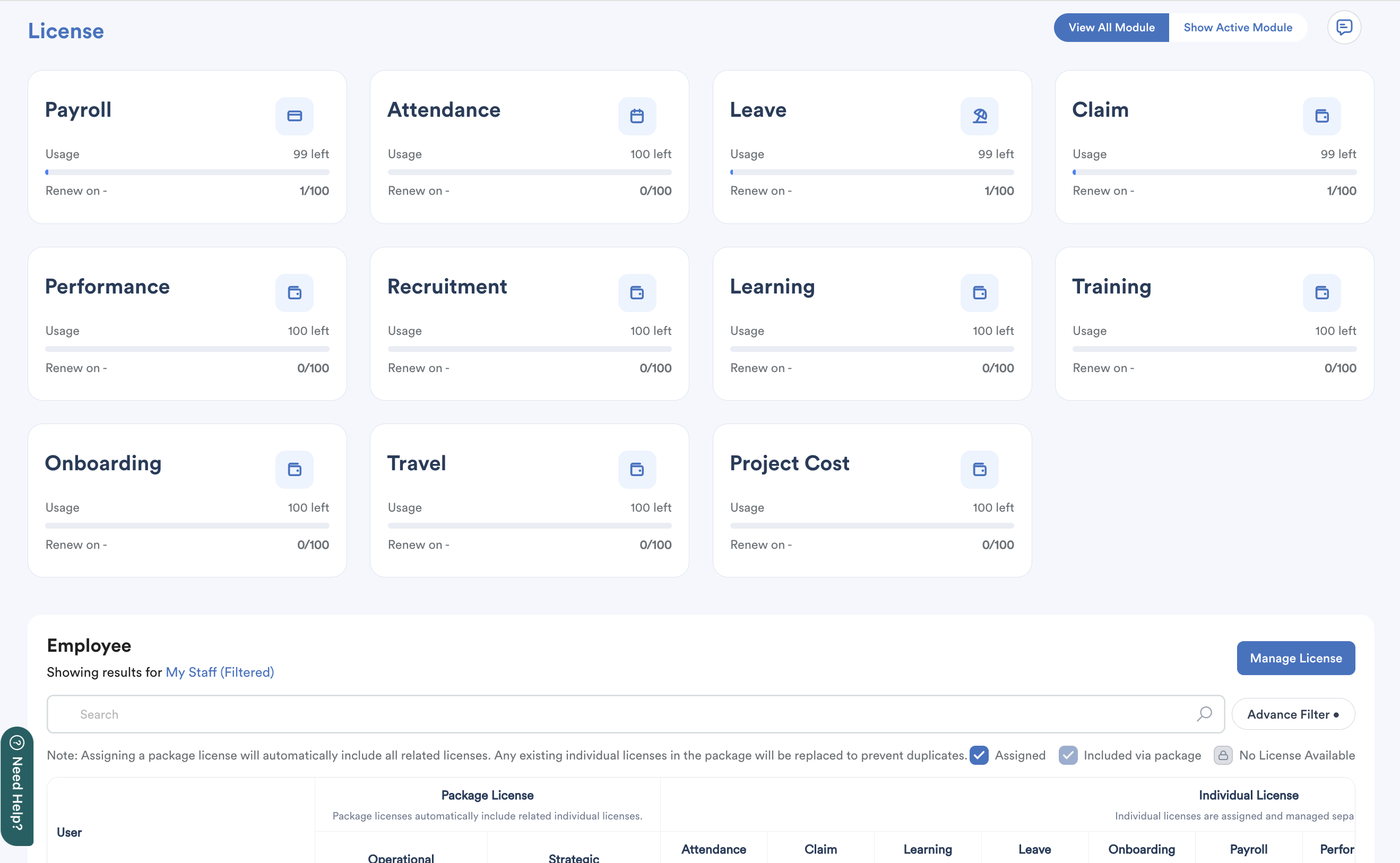
Use the filter to control which modules are displayed:
- View All Module — Shows all modules, including modules your company has not subscribed to. Unsubscribed modules are shown with a lock icon.
- Show Active Module — Shows only modules included in your company’s subscription.
Each module card shows:
- License usage — The number of licenses assigned and the total capacity, for example 1/100.
- Available licenses— The number of remaining licenses, for example, 99 left.
- Renewal date — The date the subscription will be renewed.
Step 3
By default, the employee list shows All Employees. Use the Search field or Advanced Filter to find the employees you want to manage.
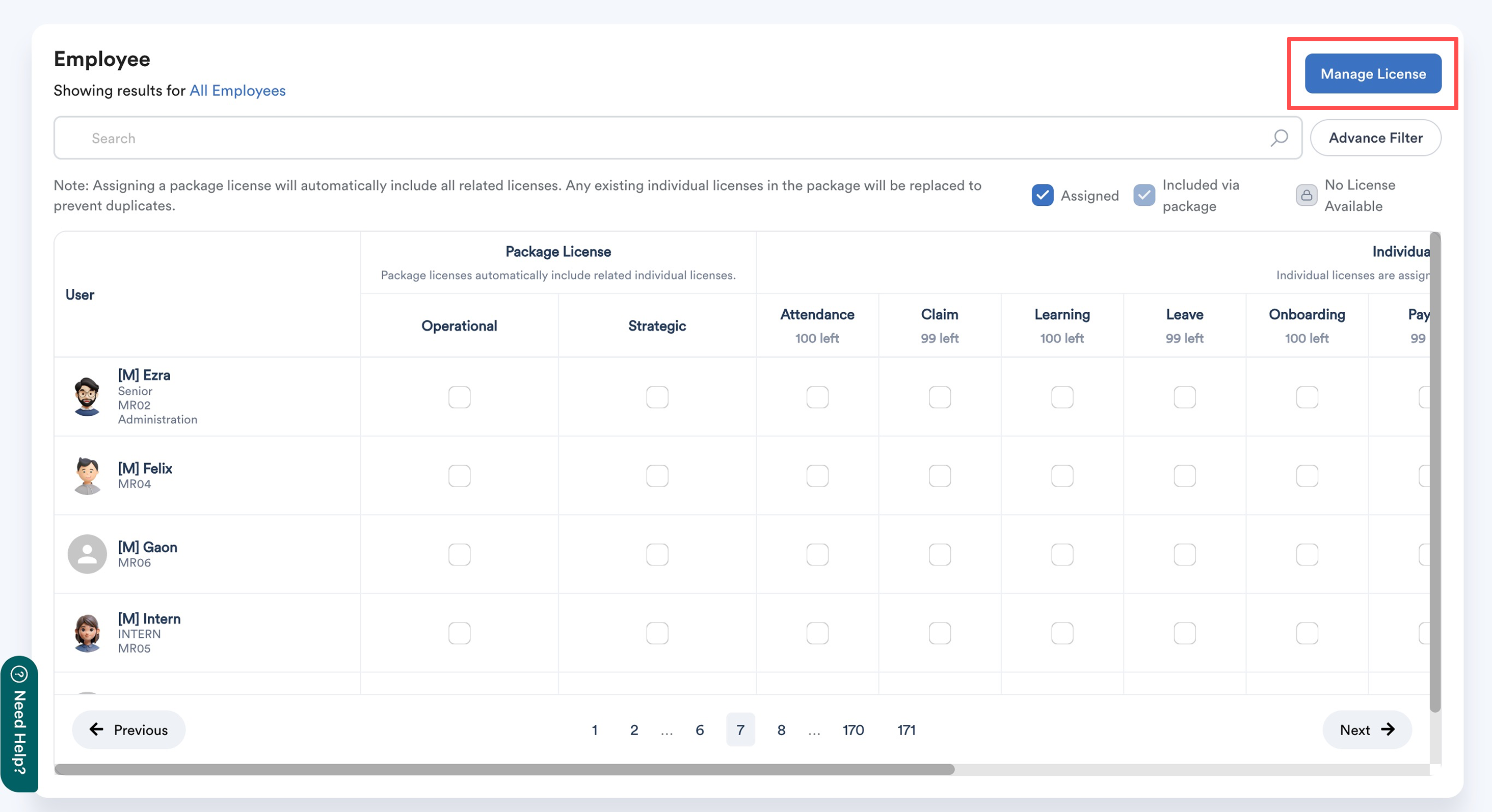
Click Manage License for the employee.
License Types
A. Package License
Enabling a package here automatically enables the modules included in that package.
There are two package types:
- Operational: Enabling the Operational package automatically enables Attendance, Claim, Leave, Payroll
- Strategic: Enabling the Strategic package automatically enables Learning (LMS), Performance (PMS), Recruitment (RMS), Training
B. Individual License
Individual licenses are managed separately and must be enabled manually. The following modules are available as individual licenses:
- Onboarding
- Project Cost
- Travel
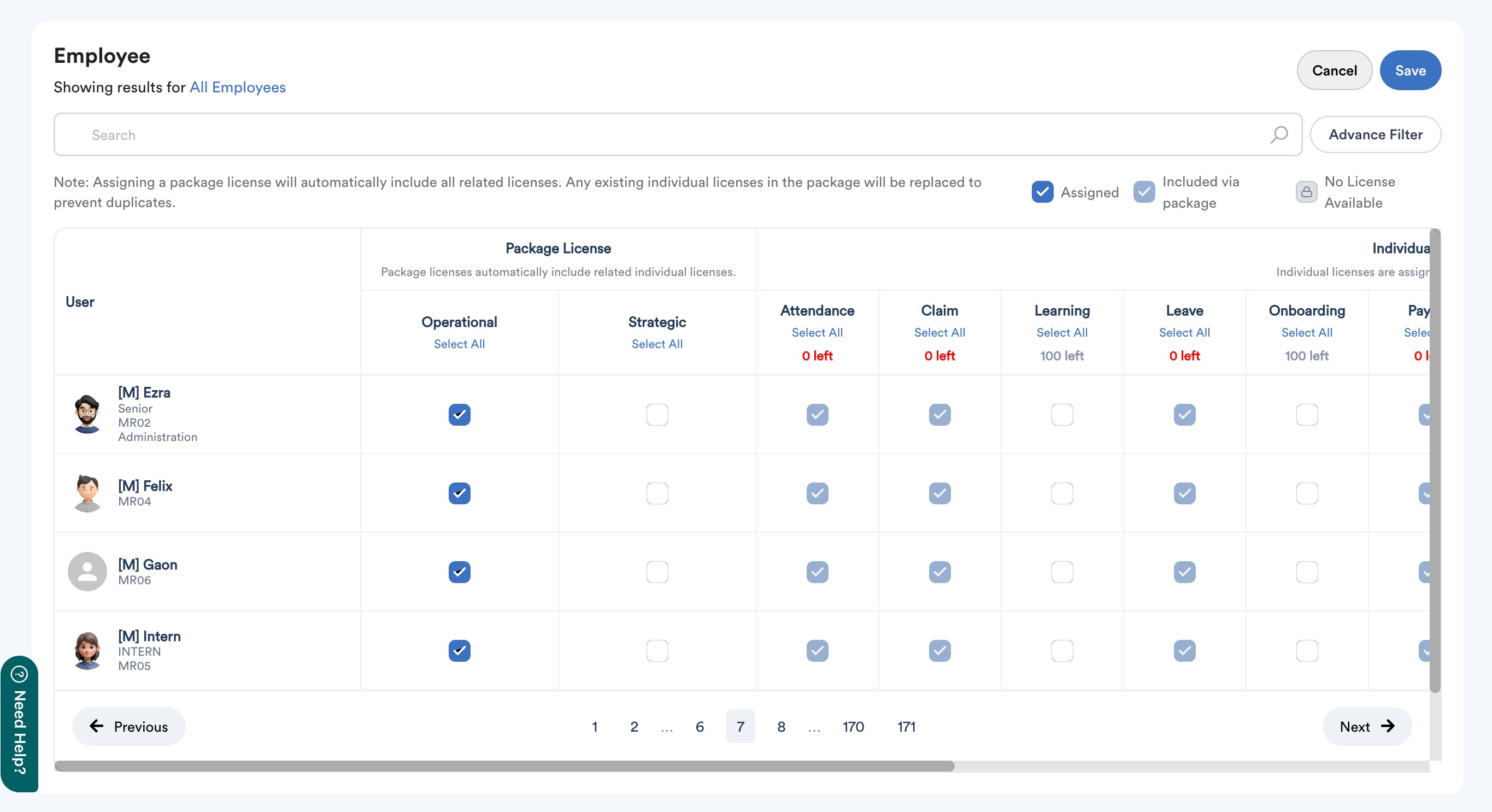
Select the required licenses, then click Save.
Check License Capacity
The available license count is updated whenever a license is assigned or removed.
For example, if a module has a capacity of 100 and 1 license is assigned, the module shows 99 left.
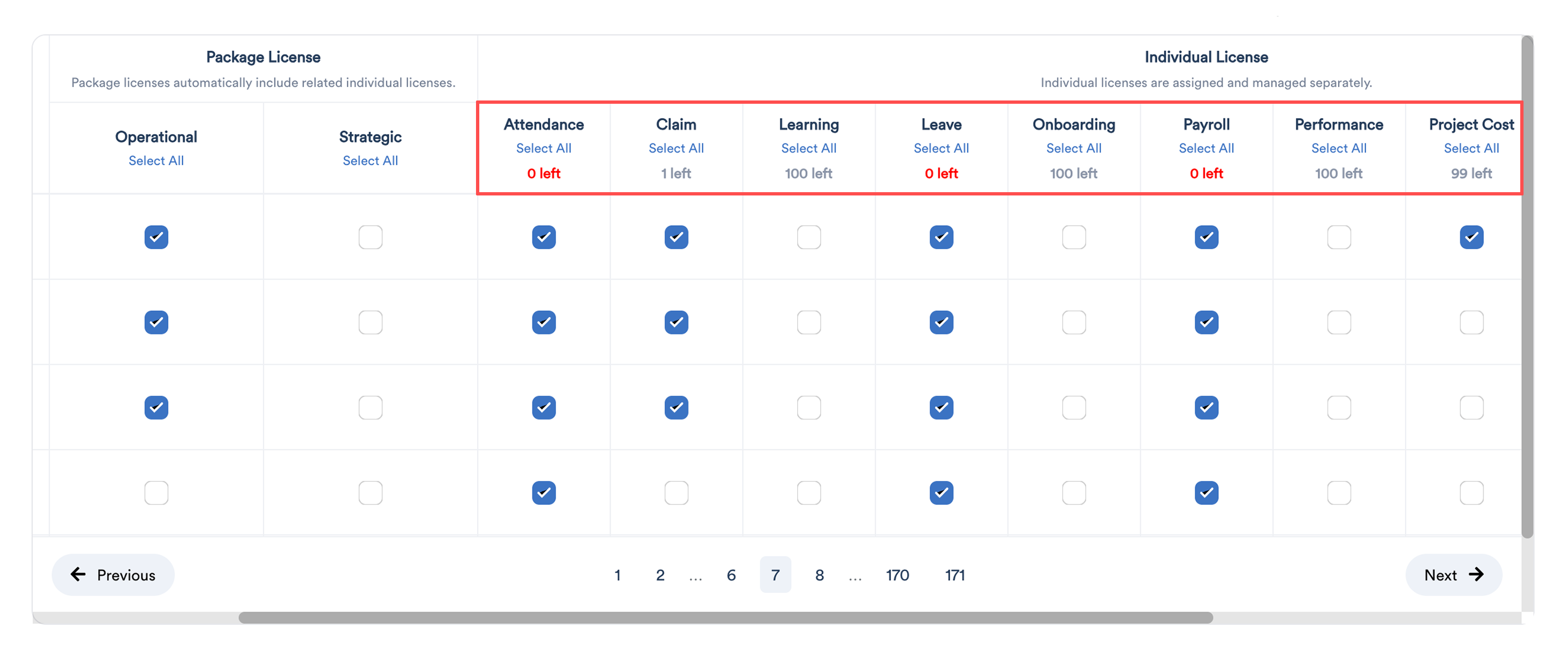
When all available licenses are assigned, the module shows 0 left. You cannot assign the module to additional employees until a license becomes available.
View License Activity
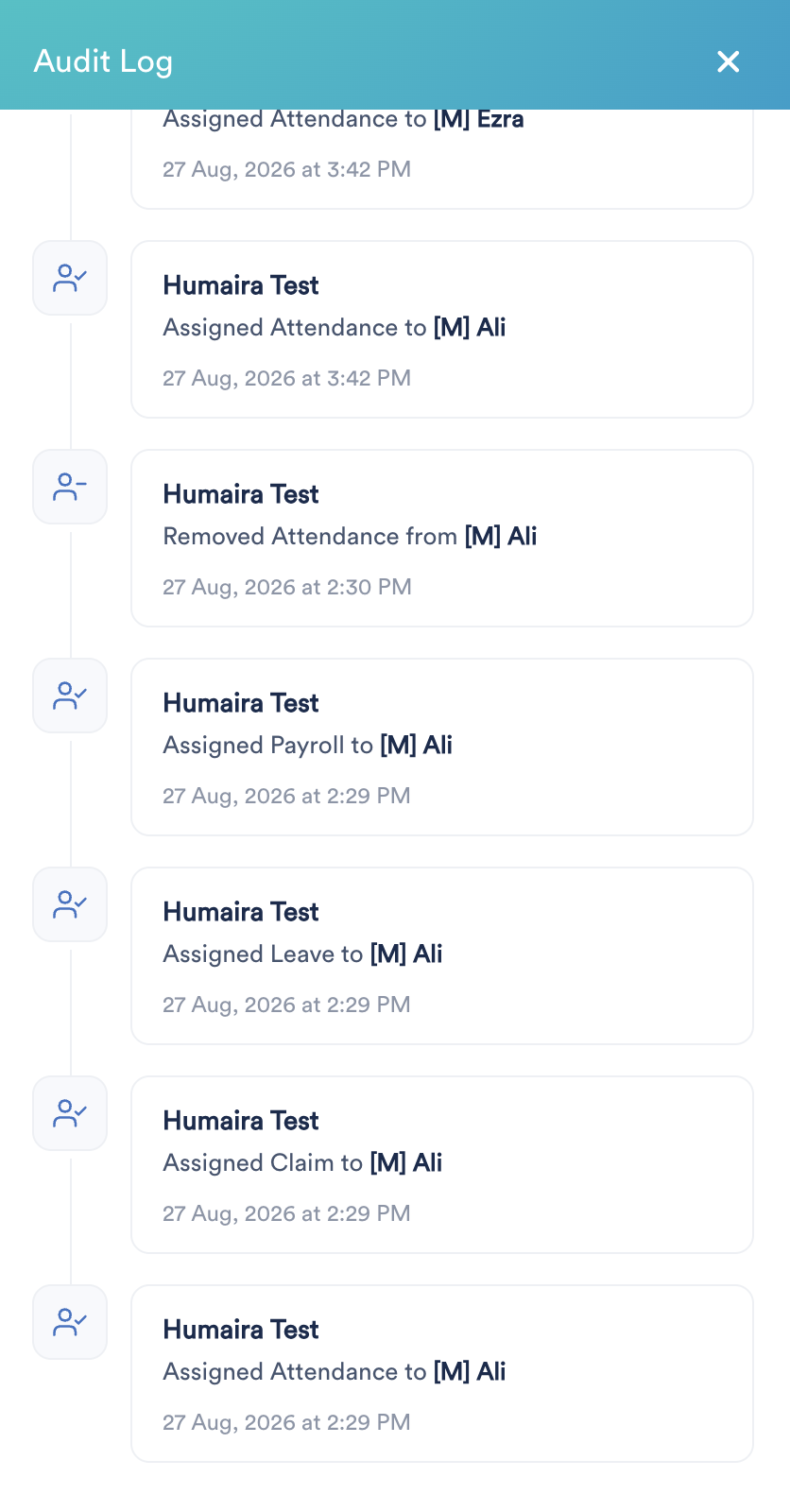
Click the Audit Log button next to View All Module / Show Active Module to view the activity history for license management.
We hope this explanation clarifies the matter. If you require additional assistance, do not hesitate to contact our support team.
Was this article helpful?
That’s Great!
Thank you for your feedback
Sorry! We couldn't be helpful
Thank you for your feedback
Feedback sent
We appreciate your effort and will try to fix the article