This article provides a step-by-step guide on how to manage an employee resignation in Worksy, ensuring a smooth offboarding process while maintaining payroll, leave, and system access continuity.
TABLE OF CONTENTS
Quick Offboarding Checklist for HR
Use this checklist as a general guide to ensure resignation-related actions are completed:
1.1 Update Progression: Record the resignation in the employee's progression.
1.2 Reroute Approvals: If they are a manager/supervisor, assign a new person to approve their team's leaves/claim requests.
1.3 Account Auto Deactivation: Set whether employees should lose access to Worksy upon resignation.
2.1 Leave Encashment: Pay out any unused leave (if applicable).
2.2 Check for Notice In-Lieu: Verify if they are leaving early and if any payment in-lieu is needed.
2.3 Enable Payroll Email: Turn on payroll email settings so they receive their final payslip even after they can no longer log in.
2.4 Payroll Run: Ensure you included resigned staff in payroll policy to avoid "policy not matched" error.
3.1 EA Form: Download and email this to the employee manually (when they won’t have system access later).
Important: To display the latest payroll info in EA form, ensure the latest processed payroll is locked. Refer to How to lock a pay cycle after payroll processing? (payroll control)
Note: This checklist is not an exhaustive list of all offboarding requirements. Companies may adjust, add, or remove steps based on their own resignation, clearance, and exit management process.
How to Manage Resignation Using Worksy
1. The Essentials
1.1 Update Progression
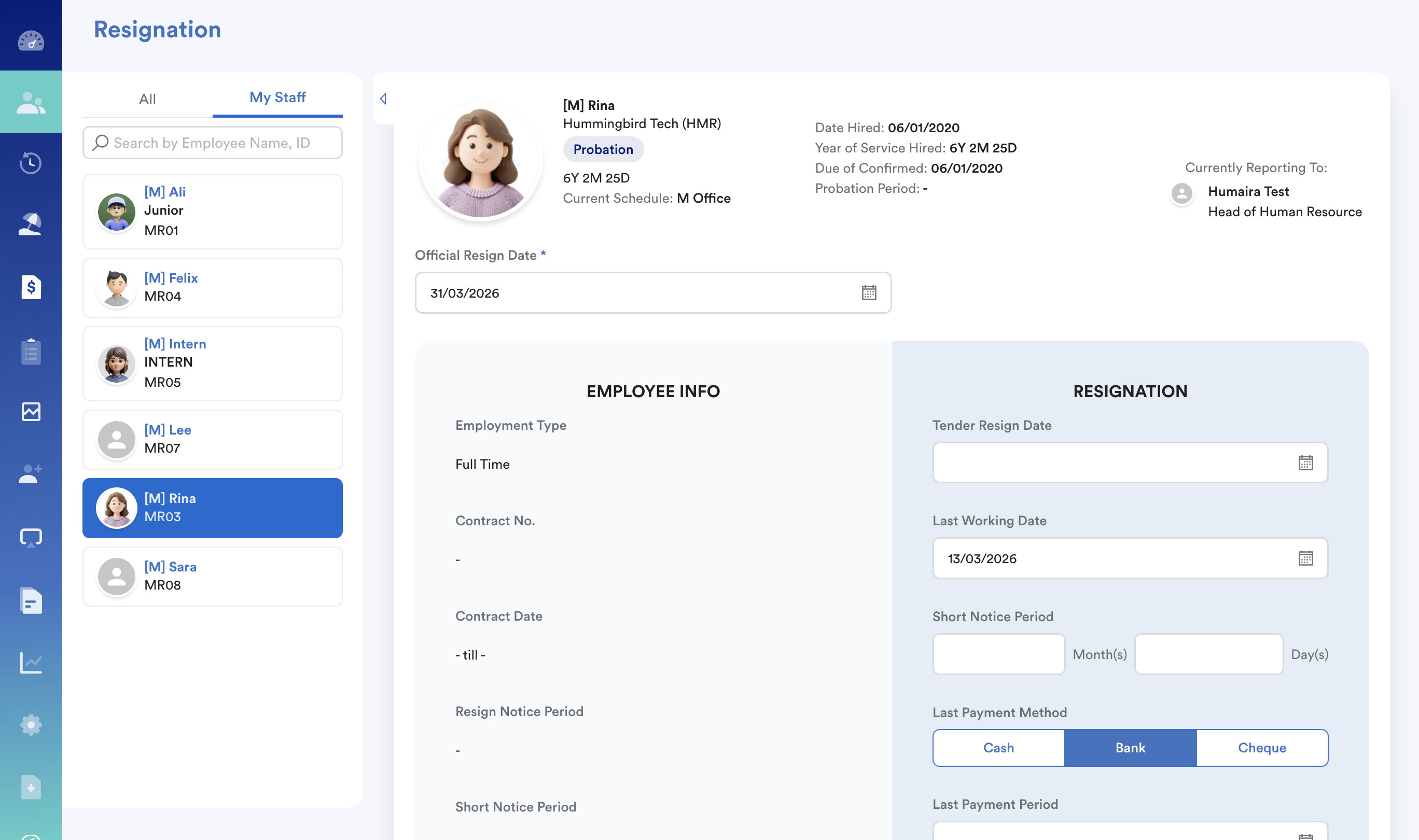
Start by updating the employee’s resignation details from the Progression screen.
Important:
Official Resign Date - Worksy will include this date to calculate the last payroll and leave entitlement. After 1 day from the resignation date, system will mark the employee as "Resigned".
Refer to this article on how to resign an employee through Progression screen: Resigning an Employee
After the resignation effective date, verify that the resigned employee can no longer access their Worksy account if deactivation is required.
Refer to: How to Ensure Resigned Employees Cannot Access Worksy
If you still need to retrieve or include resigned employee information in reports or records, note that resigned employees may not appear by default in search results. This guide will show you how to include resigned employee data.
Refer to: Why I cannot find resigned staff data?
1.2 Account Auto Deactivation
Next, decide whether the employee’s Worksy account should be deactivated immediately upon resignation or or remain accessible temporarily based on your company’s offboarding process.
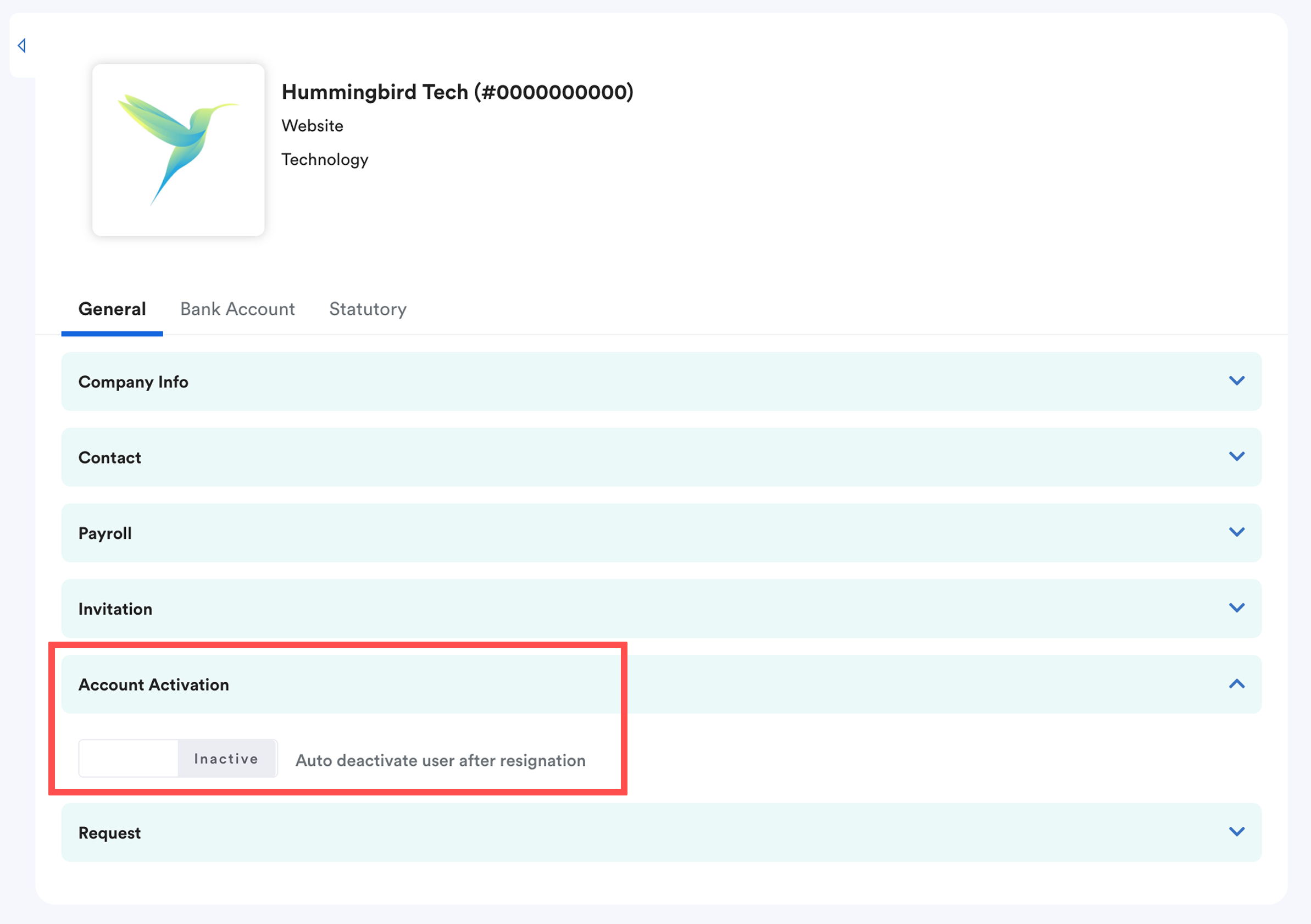
Refer to: Auto Deactivate Employee's Account After Resignation
1.3 Reroute Approvals
If the resigned employee is an approver or manages direct reports, make sure to reassign their approval responsibilities to avoid disruptions to pending employee requests.
Refer to: How to Reassign Approver If Current Approver Resigned?
2. Final Pay & Leaves
2.1 Leave Encashment
If your company practices encashing unused leave balances upon resignation, process it accordingly before the final payroll.
Important:
Official Resign Date - Worksy will include this date to calculate the last payroll and leave entitlement. After 1 day from the resignation date, system will mark the employee as "Resigned".
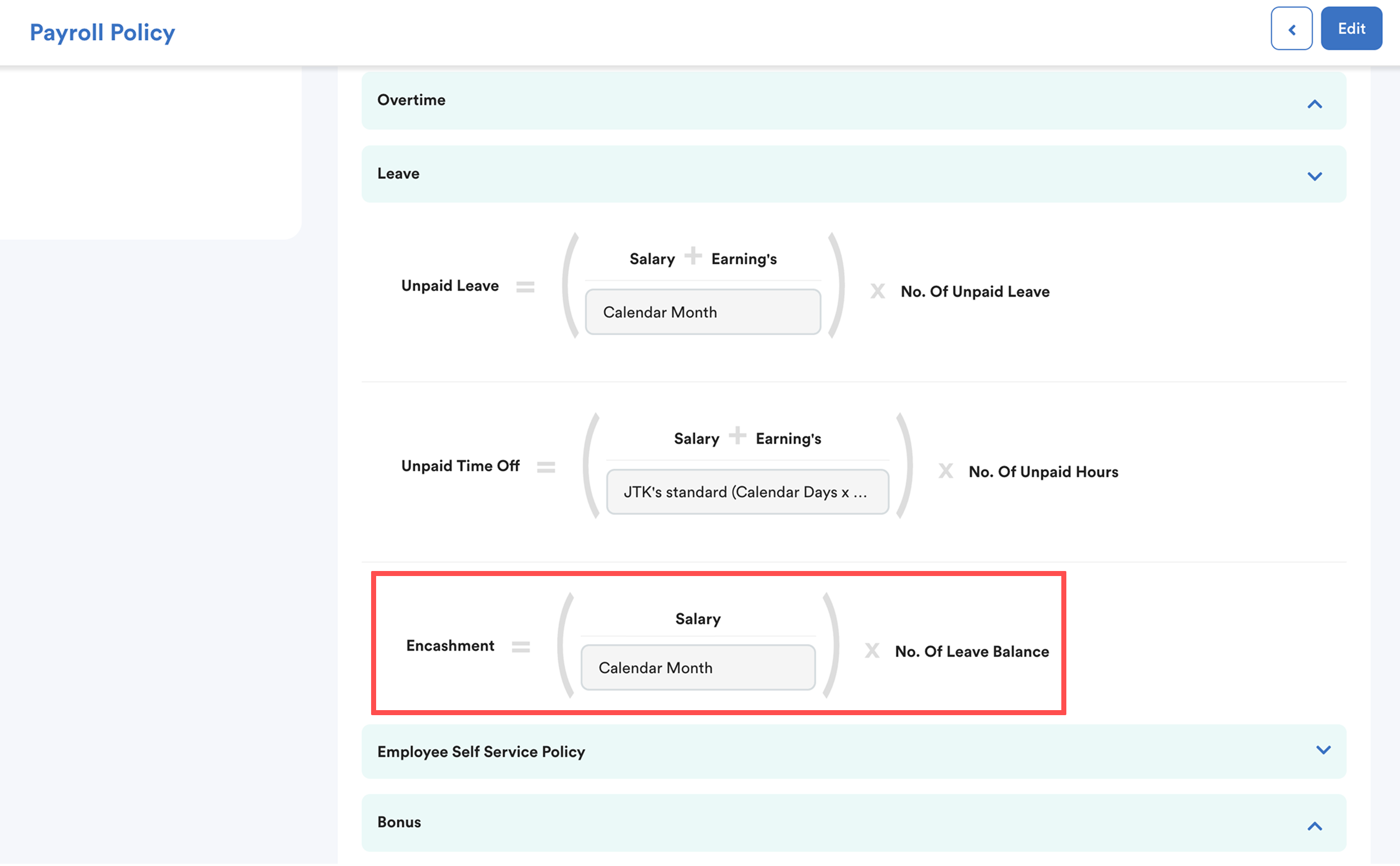
You may refer to:
- How to Prorate Leave for Resigning Staff
- Leave Encashment for Unutilized Leave Balance
- Year-End Leave Management
2.2 Check for Notice In-Lieu
If the resignation involves early release or notice in-lieu, refer to the dedicated guideline below.
Refer to: How to Process Early Resignation with Payment in Lieu of Notice (PILON)
This guide covers 2 common scenarios:
- Case 1: Unserved Notice (Significant Early Departure)
- Case 2: Partial Month Proration by Updating the Official Resignation Date
Use the method that best aligns with your company policy and mutual agreement with the employee, while remaining compliant with Malaysian employment practices.
2.3 Enable Payroll Email
If the employee’s final salary is processed in the following payroll month, the payslip can still be automatically emailed to the employee’s registered email address, provided the following settings are enabled:
- Email Notification on Payslip Availability
- Payslips Email Attachment
The payslip will be sent as an email attachment.
Refer to the article Payslip Email Notification & Password for more details on these settings.
2.4 Payroll Run
For payroll process, ensure you have included them in payroll policy, especially if you use filter during policy set up to filter out resigned staff. When you run payroll, your resigned staff will see "policy not matched". Refer to Include resigned staff in payroll policy temporarily
3. Statutory & Documentation
3.1 EA Form
Please note that the EA Form is not automatically shared by the system once generated.
Important: To display the latest payroll info in EA form, ensure the latest processed payroll is locked. Refer to How to lock a pay cycle after payroll processing? (payroll control)
The EA Form must be manually downloaded and shared through one of the following methods:
- By the employee, if they still have account access
- By HR, if the employee’s account has already been deactivated
Important:
If Auto deactivate user after resignation is enabled in your company settings, the employee will no longer be able to log in after their resignation date.
In this case, HR must download and provide the EA Form manually.
We hope this explanation clarifies the matter. If you require further assistance, please don't hesitate to contact our support team.
Was this article helpful?
That’s Great!
Thank you for your feedback
Sorry! We couldn't be helpful
Thank you for your feedback
Feedback sent
We appreciate your effort and will try to fix the article