This article explains how to process Payment in Lieu of Notice when an employee does not fully serve the notice period.
Depending on company policy and mutual agreement, this payment can be treated either as a payment to the employee or a deduction from salary.
The system will not automatically calculate or deduct unserved notice. To correctly reflect this in payroll, the payroll admin must manually process it using a payroll item and an individual transaction.
Case 1: Unserved Notice (Significant Early Departure)
Case 2: Partial Month Proration by Updating the Official Resignation Date
Case 1: Unserved Notice (Significant Early Departure)
If an employee leaves earlier than the required notice period (e.g. serves 1 month out of a 3-month notice), the treatment of the unserved notice depends on the employment contract, company policy, and mutual agreement.
Recommended approach:
- Finalize the contract decision (pay, deduct, waive, or offset)
- Once agreed, record the agreed amount in payroll using payroll item via Individual Transaction so it appears on the payslip for transparency and audit.
Enforcement or legal interpretation of notice obligations is outside Worksy's system scope. Payroll only records the final agreed outcome.
Step 1
Go to Settings > Payroll > Payroll Item. Select Earning or Deduction, and click Add New.
Create a payroll item for this matter (e.g. Payment in Lieu of Notice) and fill in the details. Refer to: Creating/Edit Payroll Items
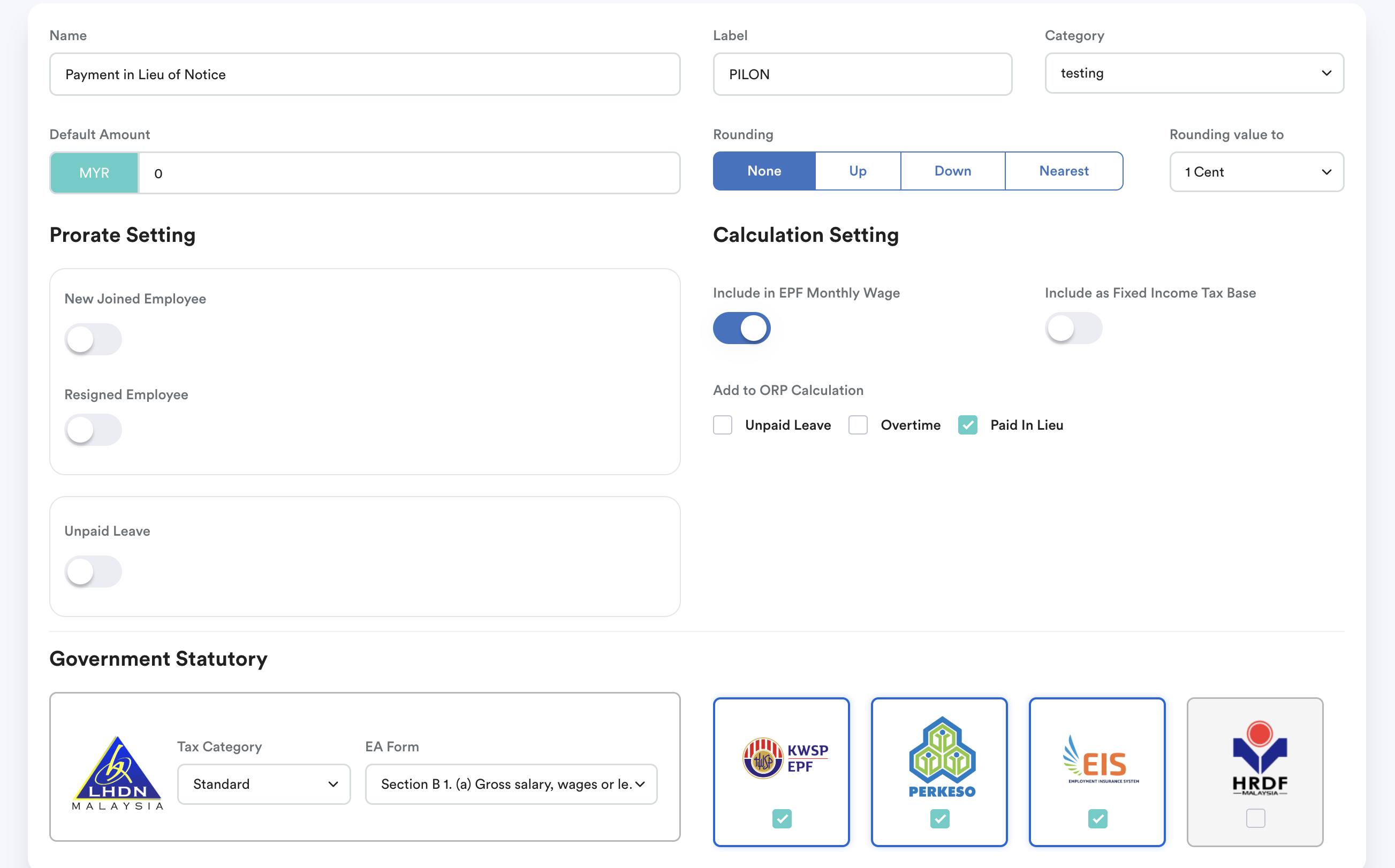
When creating the earning payroll item, be aware of the statutory treatment:
- Tax (PCB/MTD): Payment in Lieu of Notice is usually treated as taxable income and subject to monthly tax deductions.
- EPF, SOCSO & EIS: In many cases, it's treated as a termination benefit and may not require contributions.
Confirm with your payroll or statutory advisor before finalizing the payroll item configuration.
Step 2
Go to Payroll > Transactions > Individual Transaction. Select the employee and add the earning or deduction using the payroll item created.
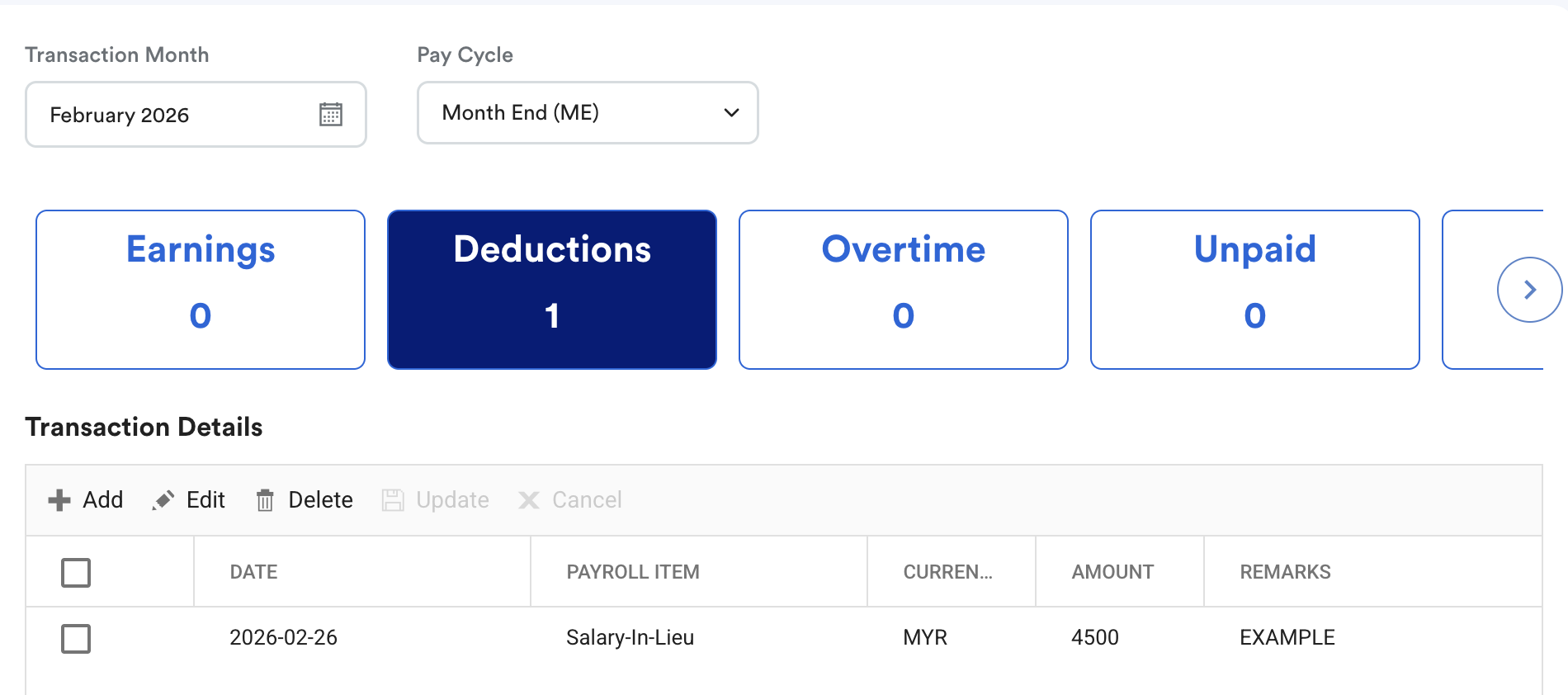
Refer to: Add Additional Transaction into Payslip before process payroll (Individual Transaction)
Save before processing the final payroll.
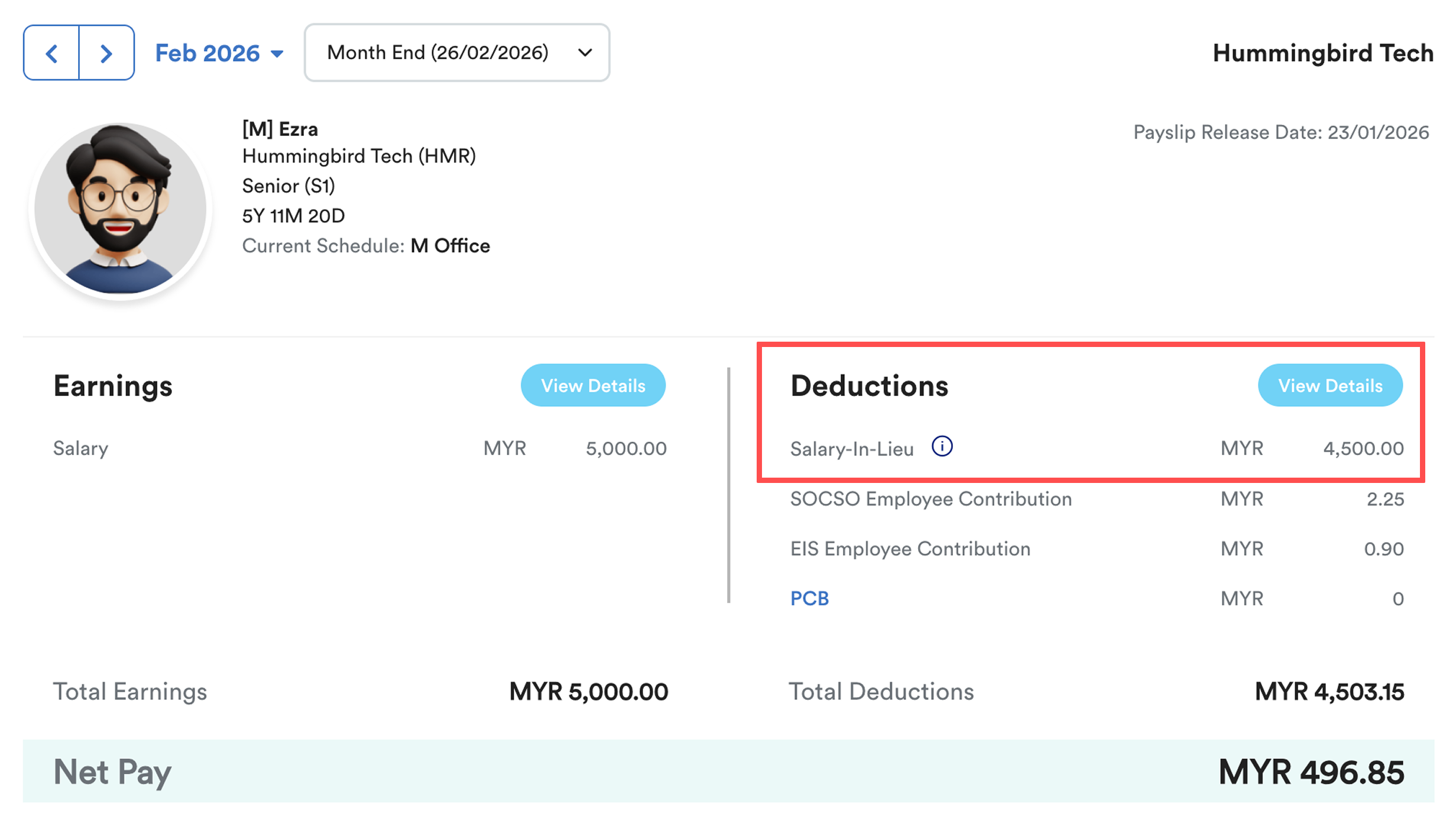
Example if both parties agreed on salary deduction for early dismissal.
Case 2: Partial Month Proration by Updating the Official Resignation Date
Step 1
Update in Progression screen the Resign Date to the actual last working date.
The system blocks login access based on the Resign Date and automatically prorates the salary for that final month.
Example:

Settings > Payroll > Payroll Policy
Prorated Salary = Basic Salary ÷ Total Days in the Month × Number of Days Worked
= 5,000 ÷ 31 × 21
= RM3,387.10
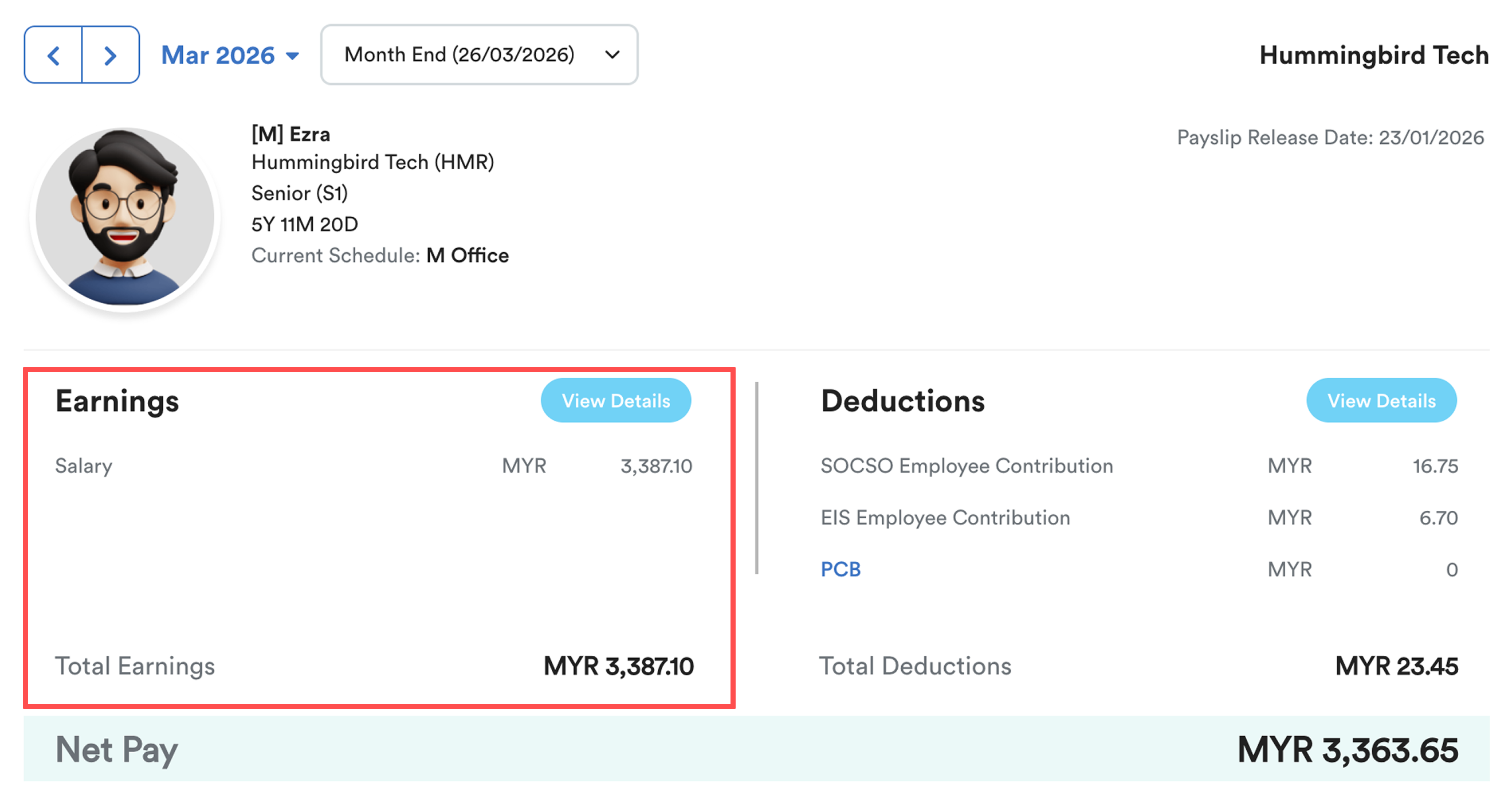
This step only prorates the final month’s salary.
We hope this explanation clarifies the matter. If you require further assistance, please don't hesitate to contact our support team.
Was this article helpful?
That’s Great!
Thank you for your feedback
Sorry! We couldn't be helpful
Thank you for your feedback
Feedback sent
We appreciate your effort and will try to fix the article