Prorating ensures that the employee receives leave entitlement proportional to their service period before their resignation date.
Official Resign Date - This is the date the system uses to mark as resigned and to calculate the last payroll and leave entitlement.
The steps below will guide you on how to generate prorated annual leave for a resigning employee in the system.
Step 1
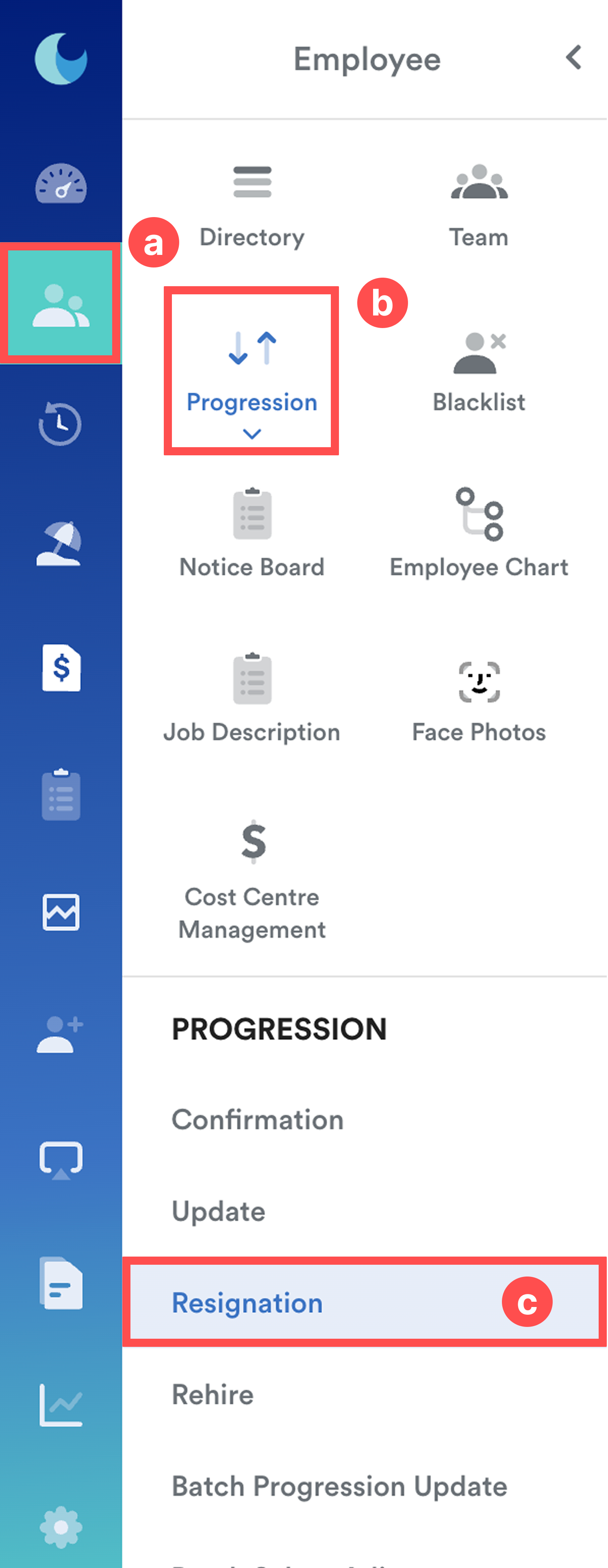
On the left menu, go to Employee (a) > Progressions (b) > Resignation (c).
Update the resignation progression, enter the official resignation date, fill in the required details, and click Resign Employee.
Step 2
Go to Leave > Generate Entitlement. Select the relevant leave type and the current year.
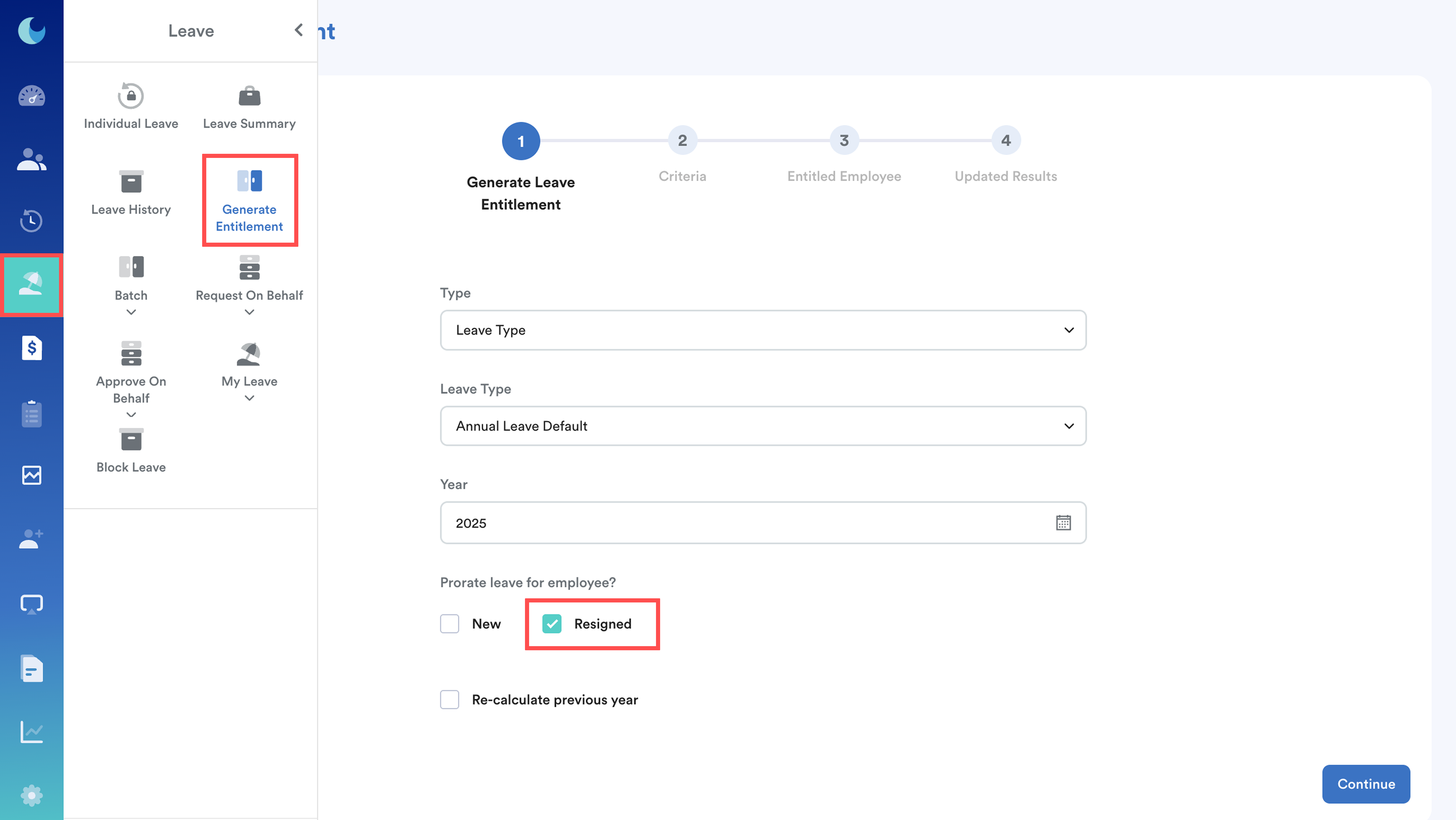
Under "Prorate leave for employee", make sure to tick Resigned. This is essential to ensure the system prorates the leave correctly for the resigning employee.
Step 3
Select the resigning employee and click Process.
Step 4
After the entitlement is generated, go to Leave > Leave History, select the employee, and find the leave type you just prorated.
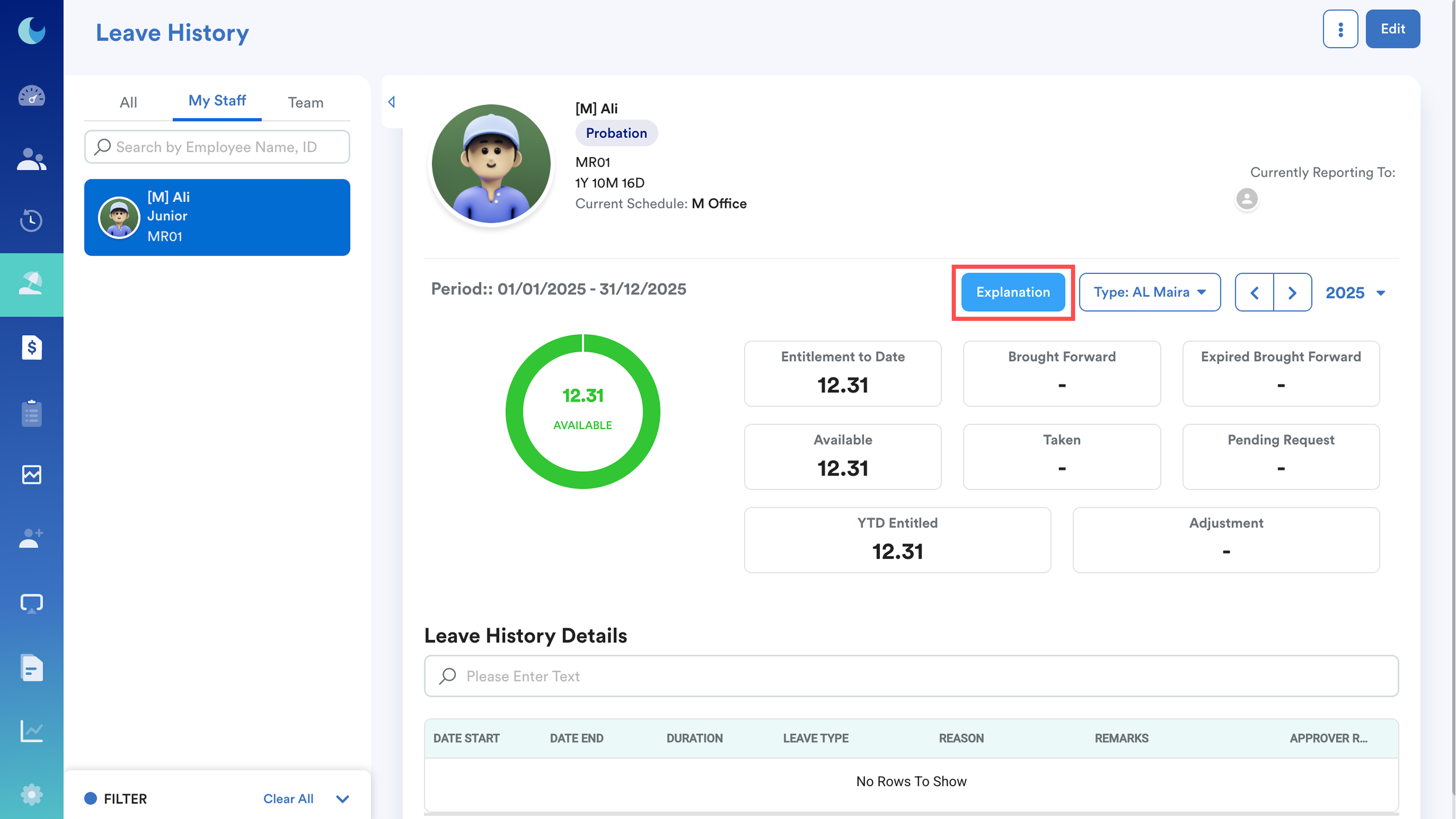
Click Explanation to verify that the balance has been prorated as expected.
Refer this guide for to learn more: Understanding the Explanation Button in Leave History
We hope this explanation clarifies the matter. If you require additional assistance, do not hesitate to contact our support team.
Was this article helpful?
That’s Great!
Thank you for your feedback
Sorry! We couldn't be helpful
Thank you for your feedback
Feedback sent
We appreciate your effort and will try to fix the article