Purpose: Payroll Control allows you to lock a specified pay cycle to prevent further edits unless manually unlocked.
To understand why staff can't view payslip, refer to Staff Cannot View Payslip.
Step 1
Navigate to Payroll(1) > Process(2) > Payroll Control (3).

Step 2
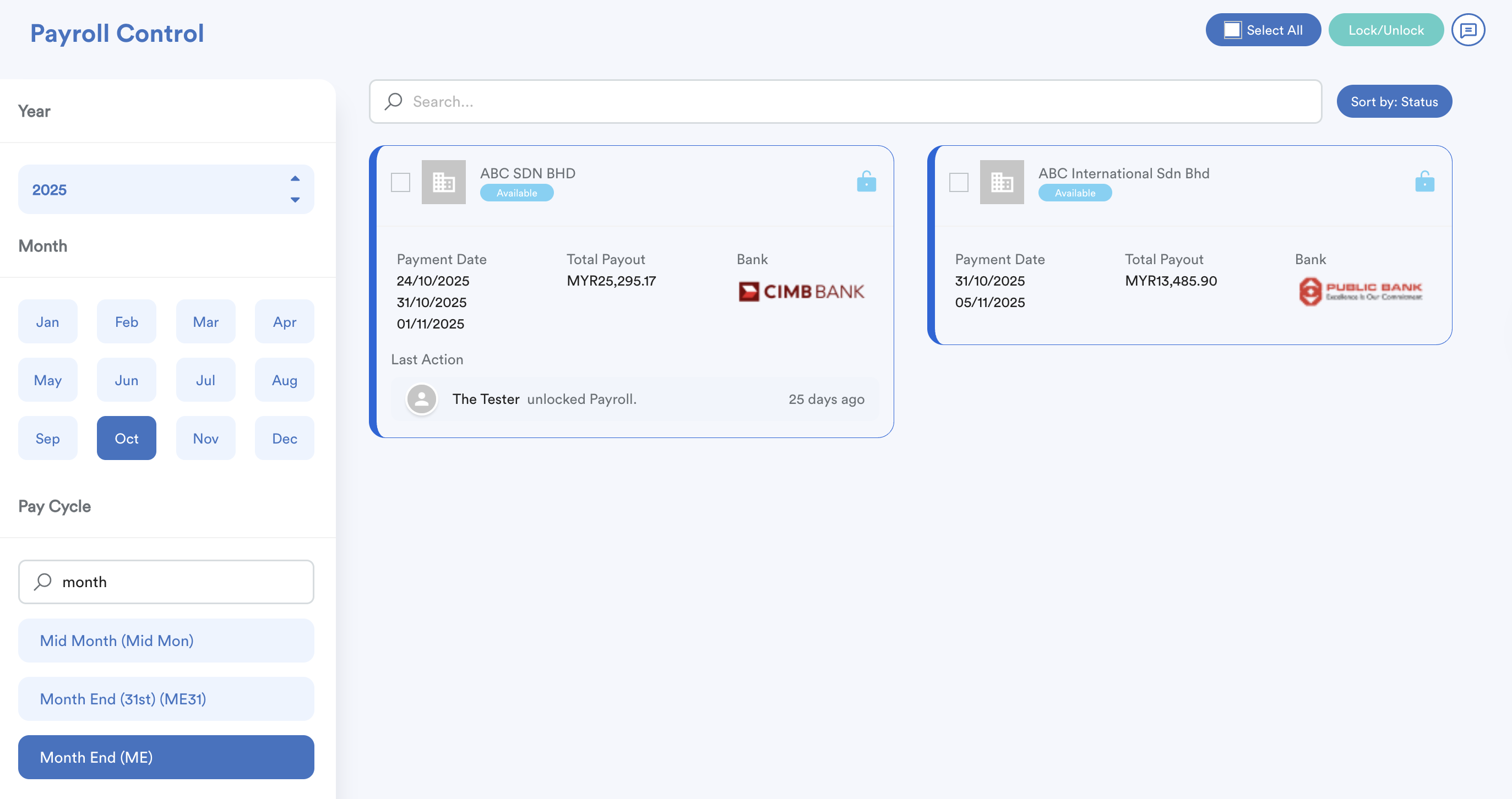
Once you clicked, you will be prompted by the screen below. Now, you may proceed to choose a payment file by choosing the Year(1), Month(2), and Pay Cycle(3) on left panel.
Step 3
Select the company. Click the "Padlock Icon"(1) to lock the payroll and fill in remark(2).


Step 4
To unlock the payroll, simply click the padlock icon(1) and you will see the Unlock Payroll Cycle(2).


Step 5
This payroll control screen has a simple audit trail for any changes made. By clicking on the top right side of the page, you can see who is locked and unlocking the payment file in the Activity Log.


Was this article helpful?
That’s Great!
Thank you for your feedback
Sorry! We couldn't be helpful
Thank you for your feedback
Feedback sent
We appreciate your effort and will try to fix the article