Note: With regard to the additional public holiday, kindly note that Worksy will not automatically update any additional or newly announced public holidays in the system once they are confirmed.
For public holidays that have already been officially announced earlier in the year (for example, 23 March 2026 – Hari Raya Aidilfitri Holiday), Worksy will normally include these in the system automatically. However, for additional or ad-hoc holidays announced later by the government, these will need to be manually added by the HR/Admin in the system.
This approach is implemented to provide flexibility, as not all companies may observe the additional holiday. Therefore, each company may decide whether to add the holiday based on its internal policy.
To delete a holiday, please refer to Deleting Holiday in Attendance.
To create a holiday, please refer to the guide below.
To edit an existing holiday, refer here.
Quick Links
How to verify the special holiday created:
Adding holiday will not credit back the approved leave automatically to employees. Please refer to leave adjustment section to solve pending or approved leave requests.
Step 1
On your dashboard, go to your left menu, go to Settings (1), click General (2) and scroll down to click Holidays (3).

Step 2
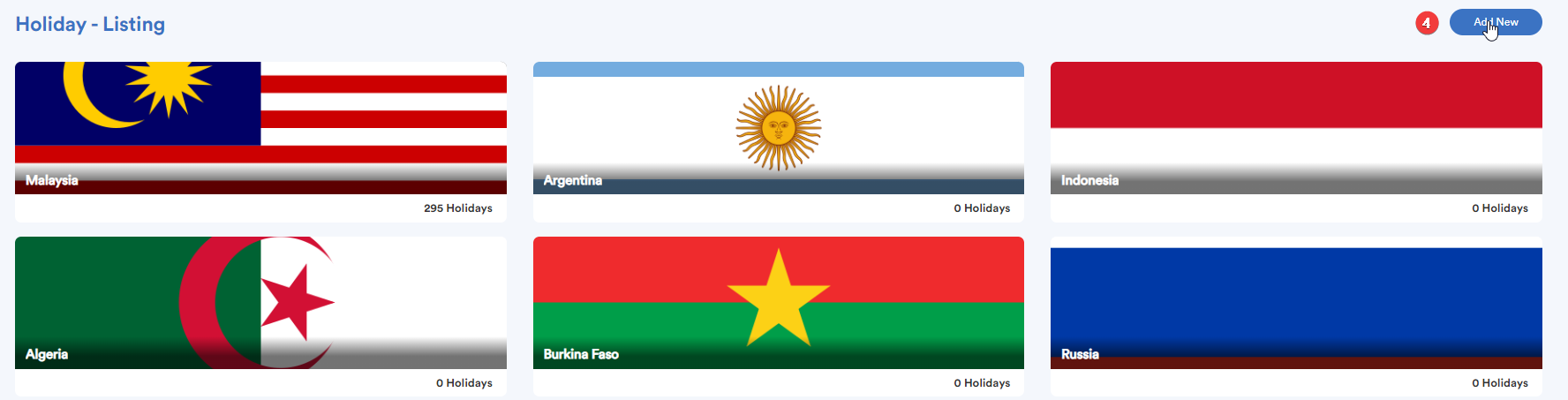
Step 3
You will be redirected to this page where you can put your holidays in Today View, Monthly View, Year View, or List View. For this example, the holidays are in the list view.
To add a company holiday to the system, click Add Holiday on top right. 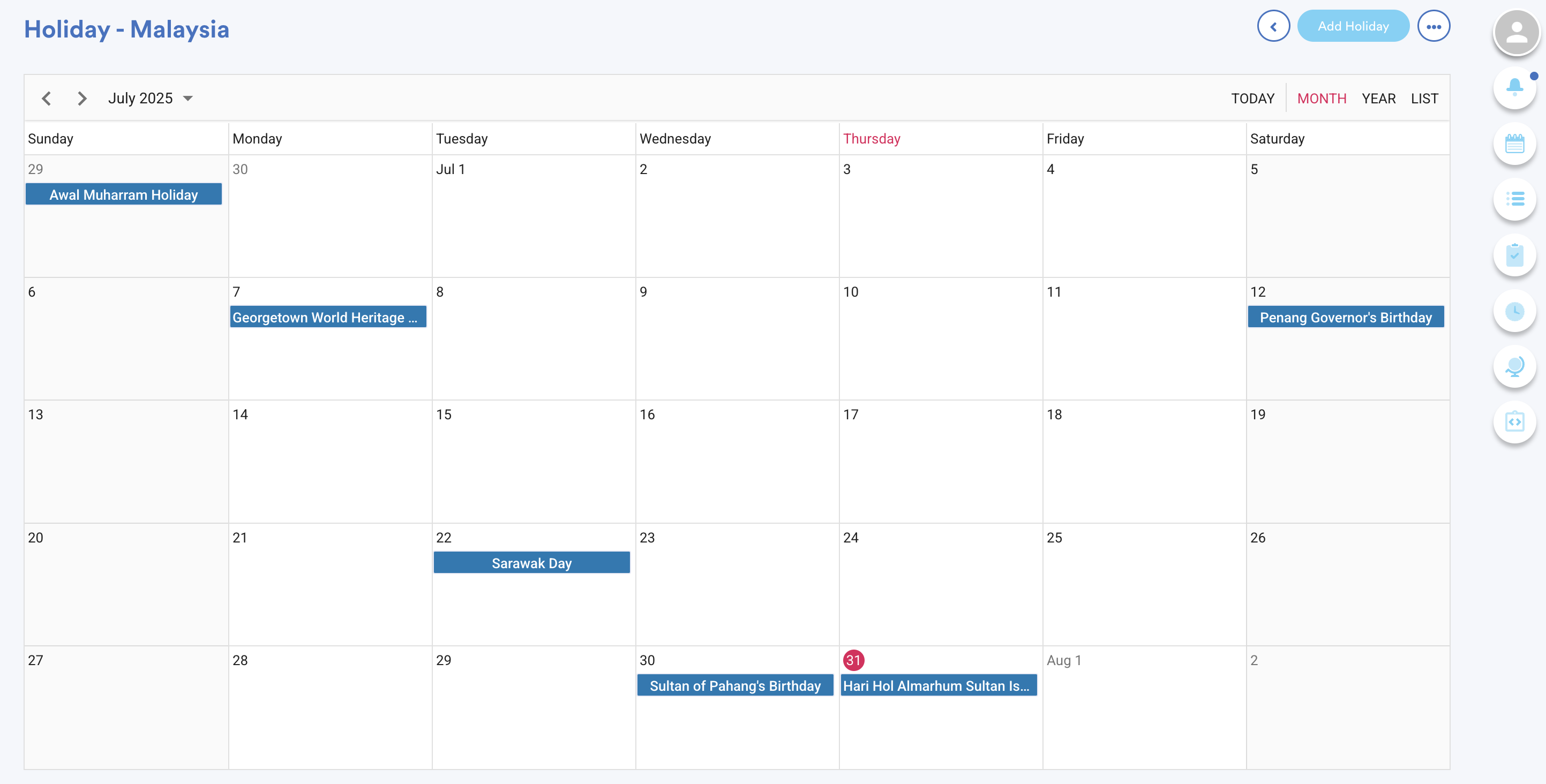
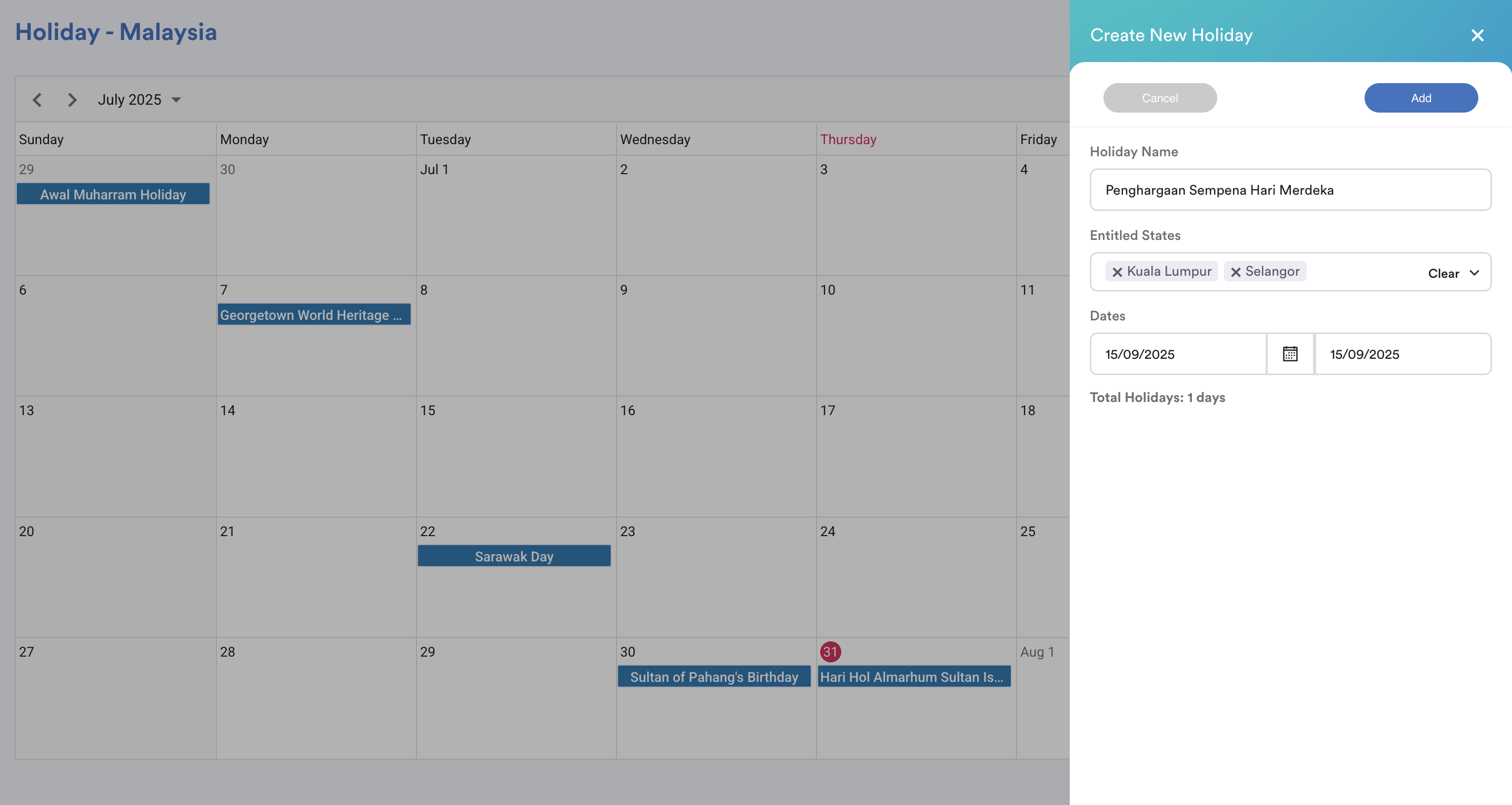
Fill in your company holiday details and click Add to save when you are finished. Now this new company holiday will apply to employees from the states included.
Note: Must select states to create a holiday.
In this case, we create a new holiday on 15th September 2025 for Penghargaan Sempena Hari Merdeka. Entitled states included Kuala Lumpur and Selangor.
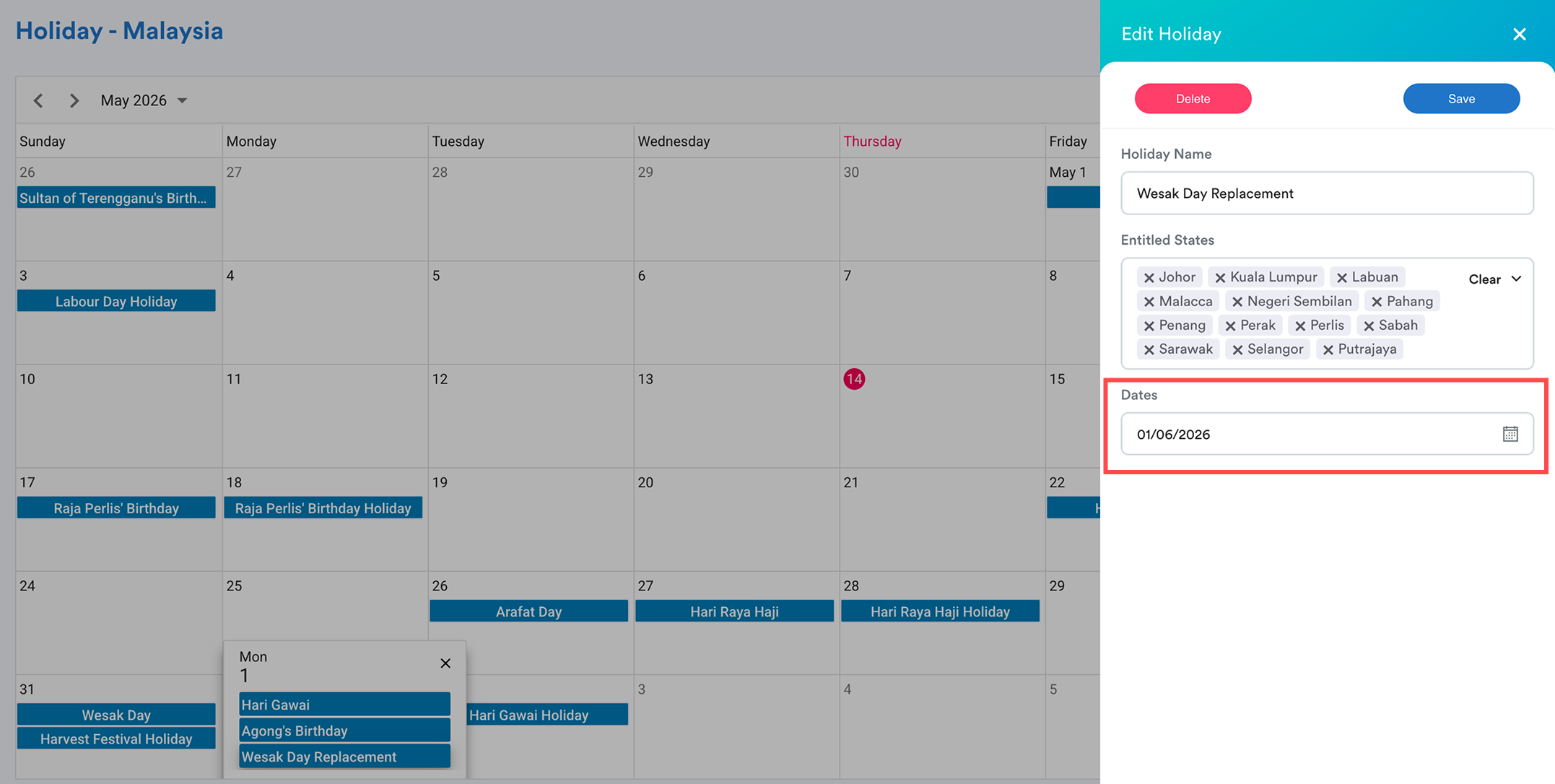
To edit an existing holiday, you just click on the existing holiday (Example: Wesak Day Replacement) and adjust the date.
How to verify the special holiday created:
For past attendance records, ensure you perform a "batch process" in Attendance > Batch Process, using the relevant date, schedules, and employees to reflect the created holidays.
If your holiday is not reflected in attendance/calendar, please do batch process, refer to system logic here Batch Process Resetting Attendance to Default Schedule Settings.Option 1: From Schedule Settings
Go to Settings > Schedule
- Select the relevant schedule from the list. Click on the Holiday tab
- Select the entitled state (based on this created holiday, only entitled for Selangor and KL in ste). The holiday should appear in the correct date box.
Example: Holiday on 15 September 2025 will now be visible in blue ribbon.
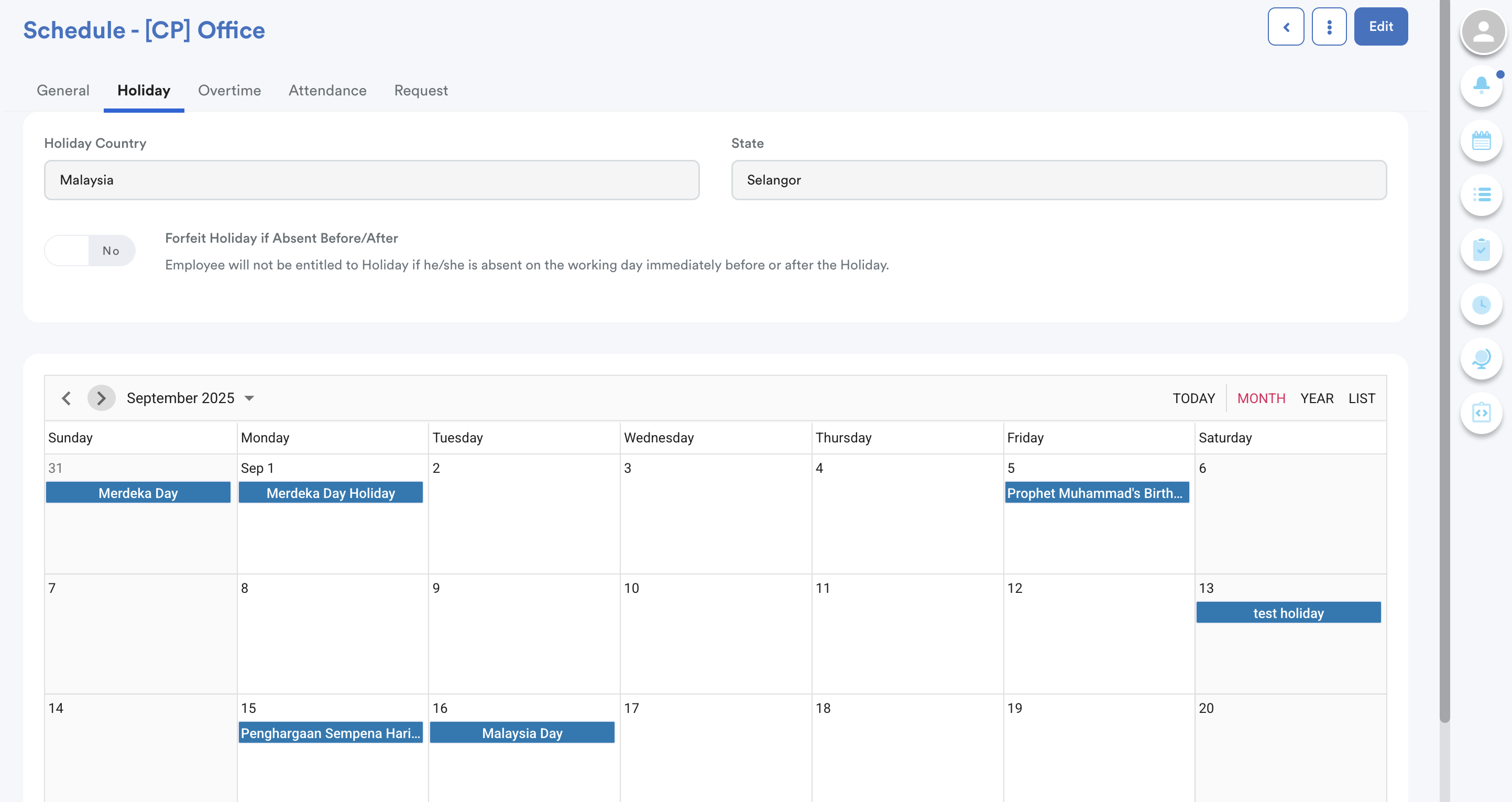
Option 2: From My Calendar
- Go to My Calendar from the right panel
- Navigate to the holiday’s date. It should appear in the calendar box.
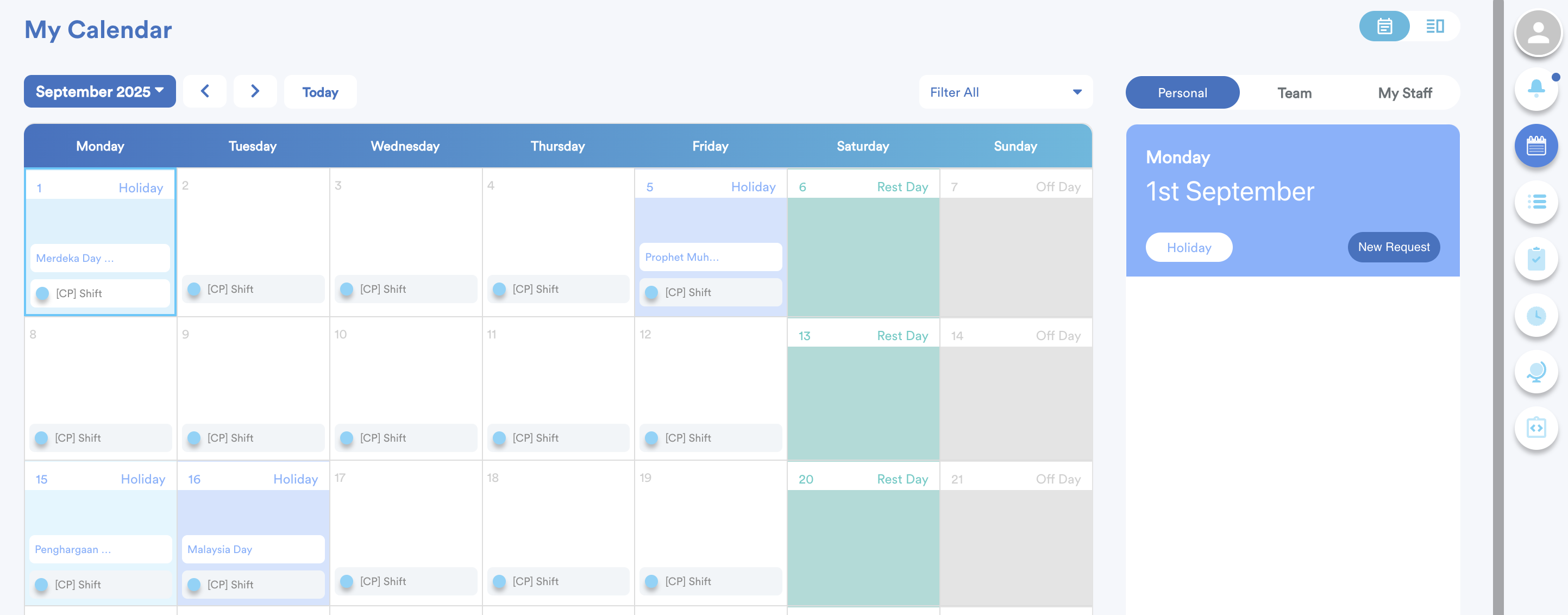
Option 3: From Individual Attendance
- Go to Attendance > Individual Attendance. Select an employee assigned to the schedule with the holiday
- You’ll see the holiday indicated in the box (e.g. 15 September now labelled with the holiday name, green color)
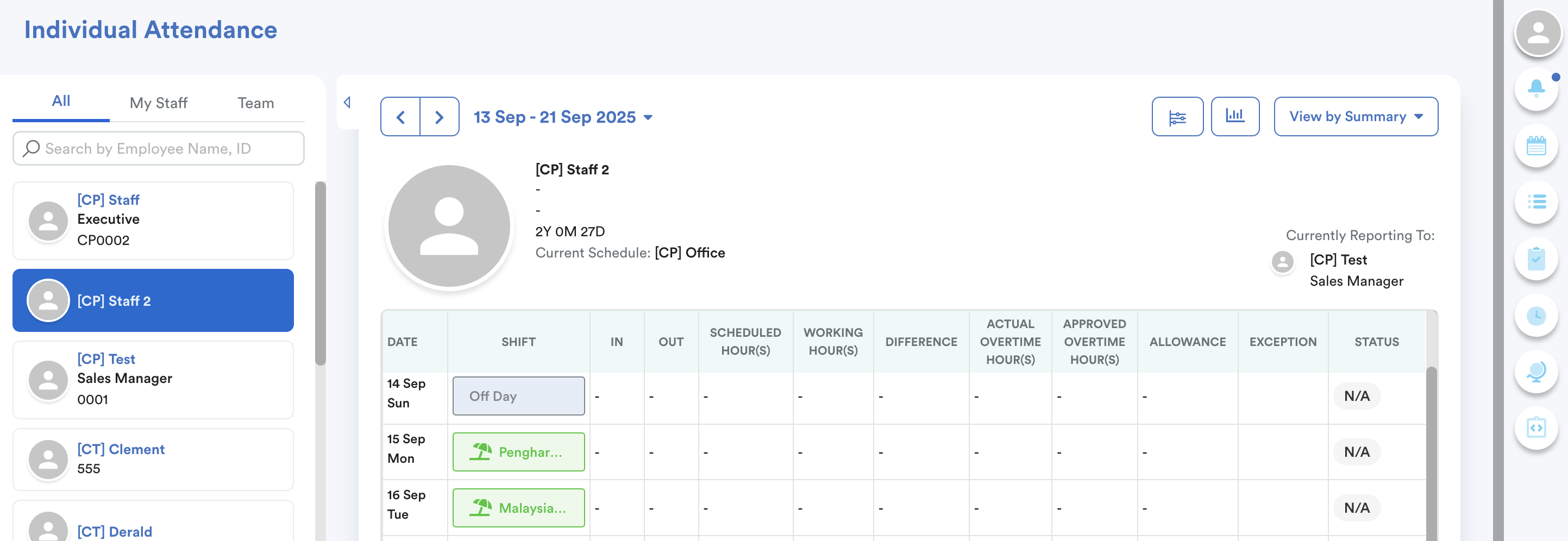
Leave Adjustment
Please note that the newly added holiday will not automatically cancel any previously applied annual leave. Below are several possible scenarios along with our recommended actions:
1. Approved Leave Request:
The requester can cancel the request (if the "Allow Cancel Request If It Has Been Approved By Any Approver" in leave type setting is Yes"). Once cancelled, the employee may submit a new leave application.
HR/Admin - can delete/update the approved leave request.
Delete/Update or Cancel Approved Leave Request
2. Pending Leave Request:
The employee may edit/withdraw the request as needed.
After the holiday is added, and the batch process is done, editing leave will show the updated leave duration accordingly.
How Employees Edit/Withdraw Pending Leave Request
Additionally, the HR team will have the option to edit the leave record directly through the Leave History screen. Guidance for this process can be found in this article:
Edit Leave Record in Leave History
We hope this explanation clarifies the matter. If you require additional assistance, do not hesitate to contact our support team.
Was this article helpful?
That’s Great!
Thank you for your feedback
Sorry! We couldn't be helpful
Thank you for your feedback
Feedback sent
We appreciate your effort and will try to fix the article