This guide shows how to automatically deactivate an employee’s Worksy account after they resign.
Important:
If this function is enabled, the employee’s account will be automatically deactivated 1 day after the resignation effective date. Once deactivated, the employee will no longer be able to access Worksy, as view-only access is not supported.
In this case, HR must download and share the EA Form manually with the resigned employee.
Step 1
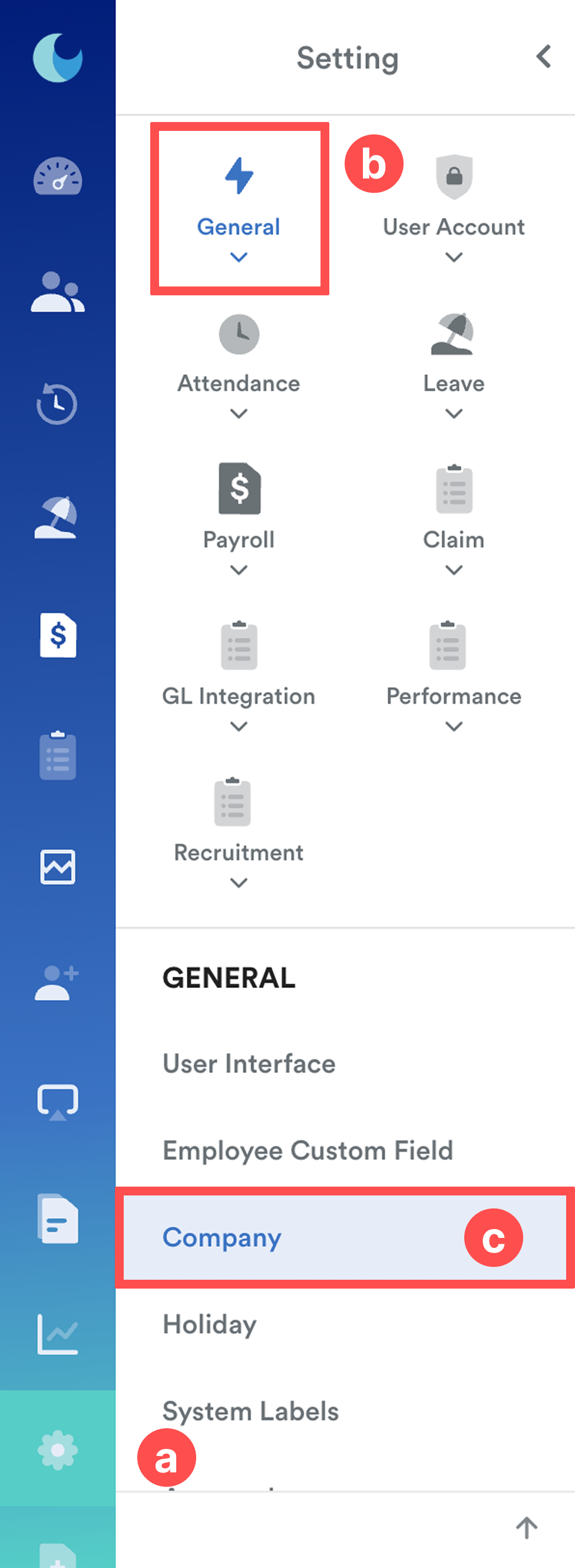
On the left menu, go to Settings (a) > General (b) > Company (c).
Step 2
From the company list, select the company the employee belongs to.
Step 3
At the General tab, Click Edit and scroll to Account Activation section to enable Auto deactivate user after resignation.
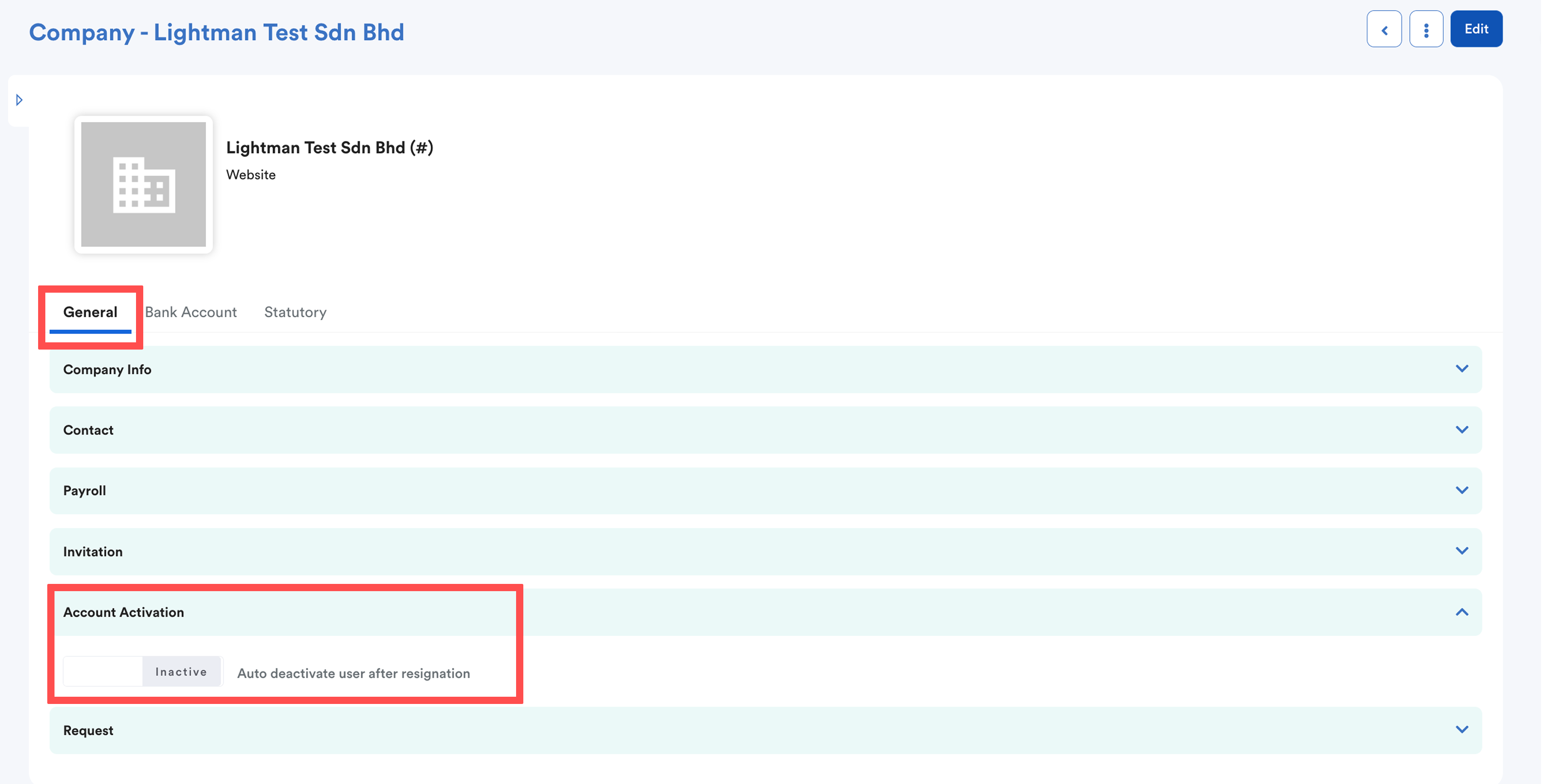
Toggle the button to Active and click Save.

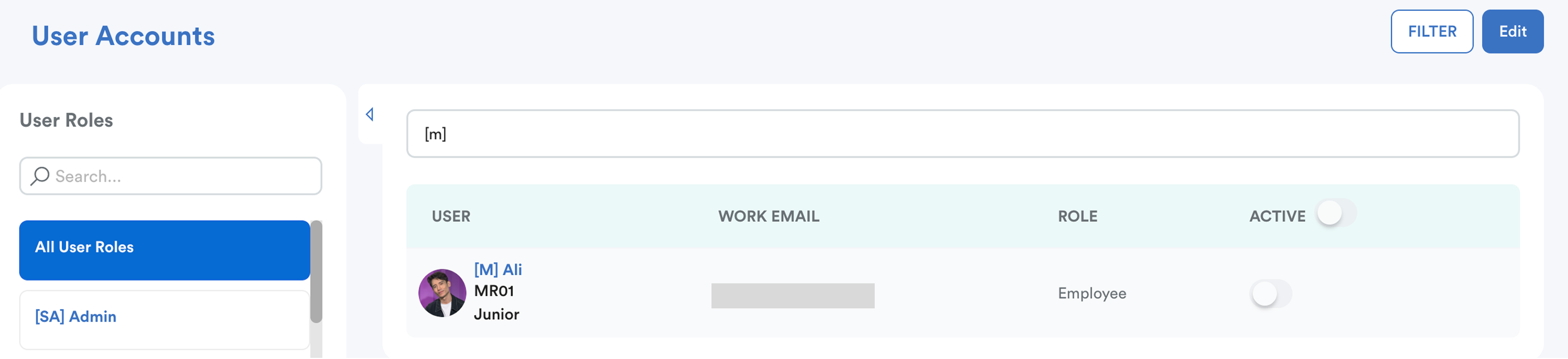
To verify deactivation:
Before the resignation, the user's account is active.
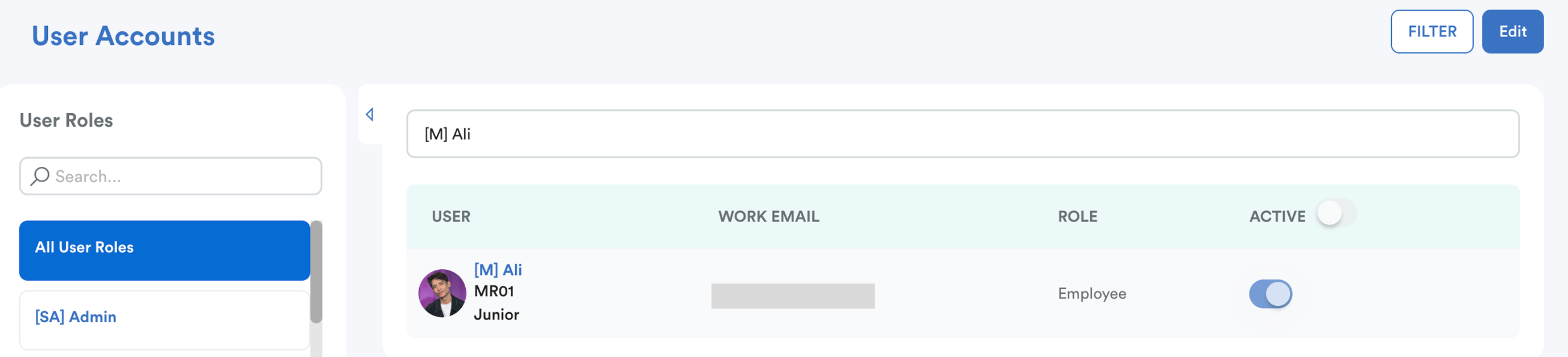
Path: Settings > User Account > User Accounts.
After processing the resignation via Progression > Resignation, the account will be automatically deactivated 1 day after the official resignation date.
Refer to this article on how to resign an employee through Progression screen: Resigning an Employee (Career Progression)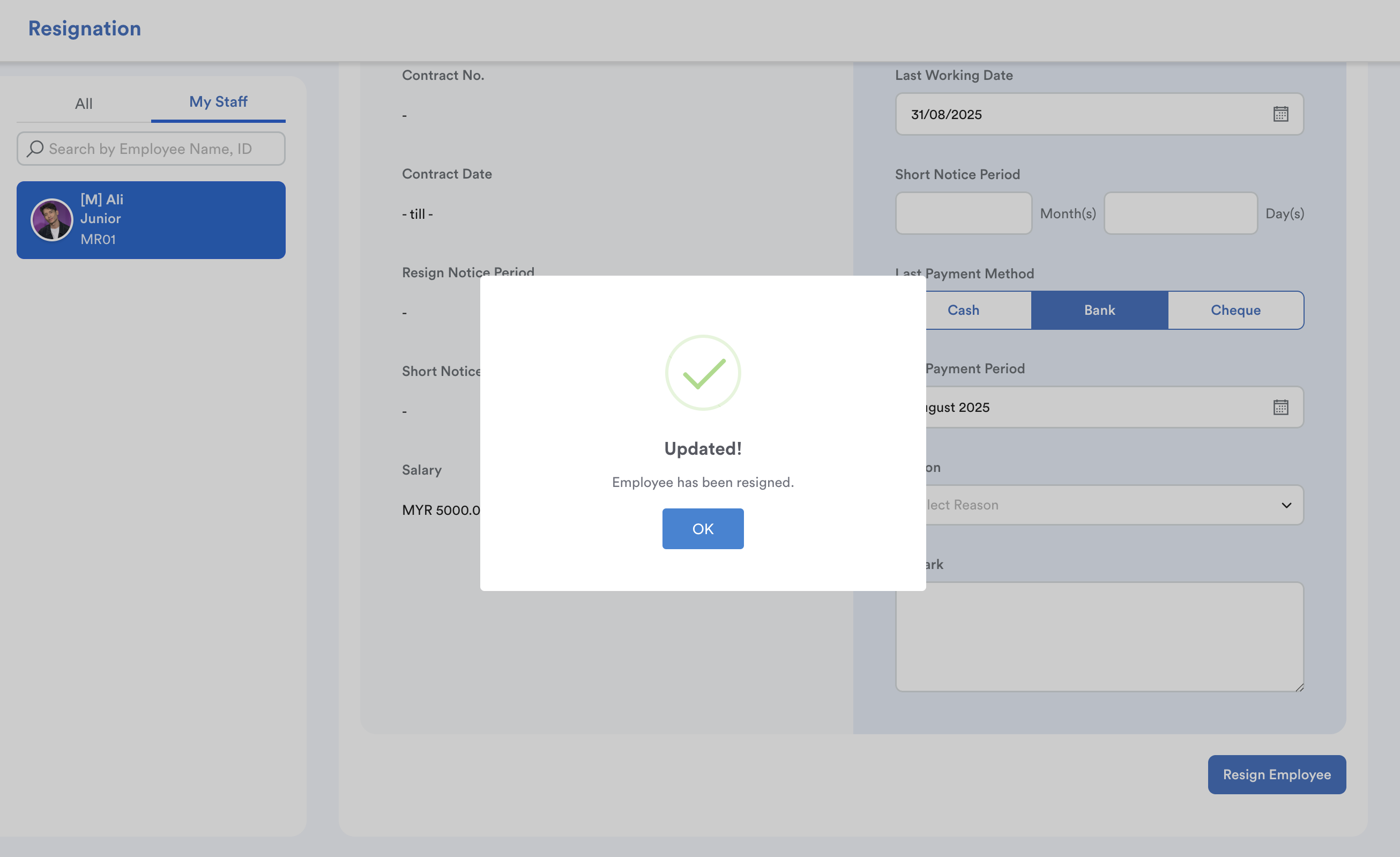
Once deactivated, the employee can no longer log in to Worksy.
We hope this explanation clarifies the matter. If you require further assistance, please don't hesitate to contact our support team.
Was this article helpful?
That’s Great!
Thank you for your feedback
Sorry! We couldn't be helpful
Thank you for your feedback
Feedback sent
We appreciate your effort and will try to fix the article