This article will guide you the process of manually editing or overwriting an employee's payslip directly from the Payroll Review screen.
The Overwrite function allows you to manually adjust earnings and statutory contribution amounts when specific corrections are required outside of standard payroll processing.
Important:
Before you begin, please note how manual adjustments interact with EA Form:
If a payroll is overwritten, the changes will be reflected in the employee's EA Form.
If you have also performed an Overwrite EA Form action, the system will prioritize those figures over any overwritten payroll data.
Priority: Overwrite EA Form > Overwrite Payslip
TABLE OF CONTENTS
How to Overwrite Payslip
To make any manual adjustments, the specific payroll cycle must be unlocked in payroll control.
Step 1
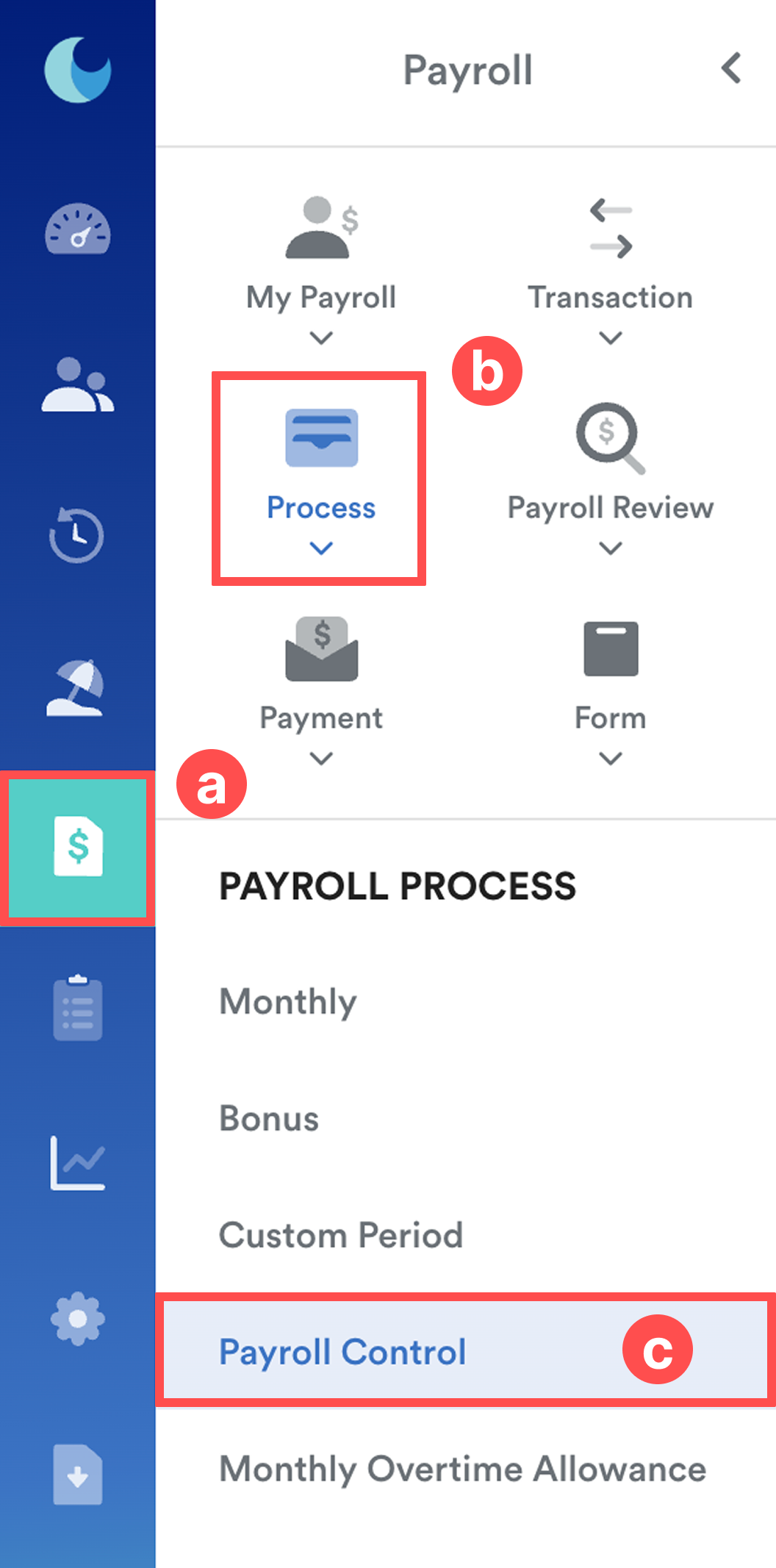
On the left menu, go to Payroll (a) > Process (b) > Payroll Control (c).
Step 2
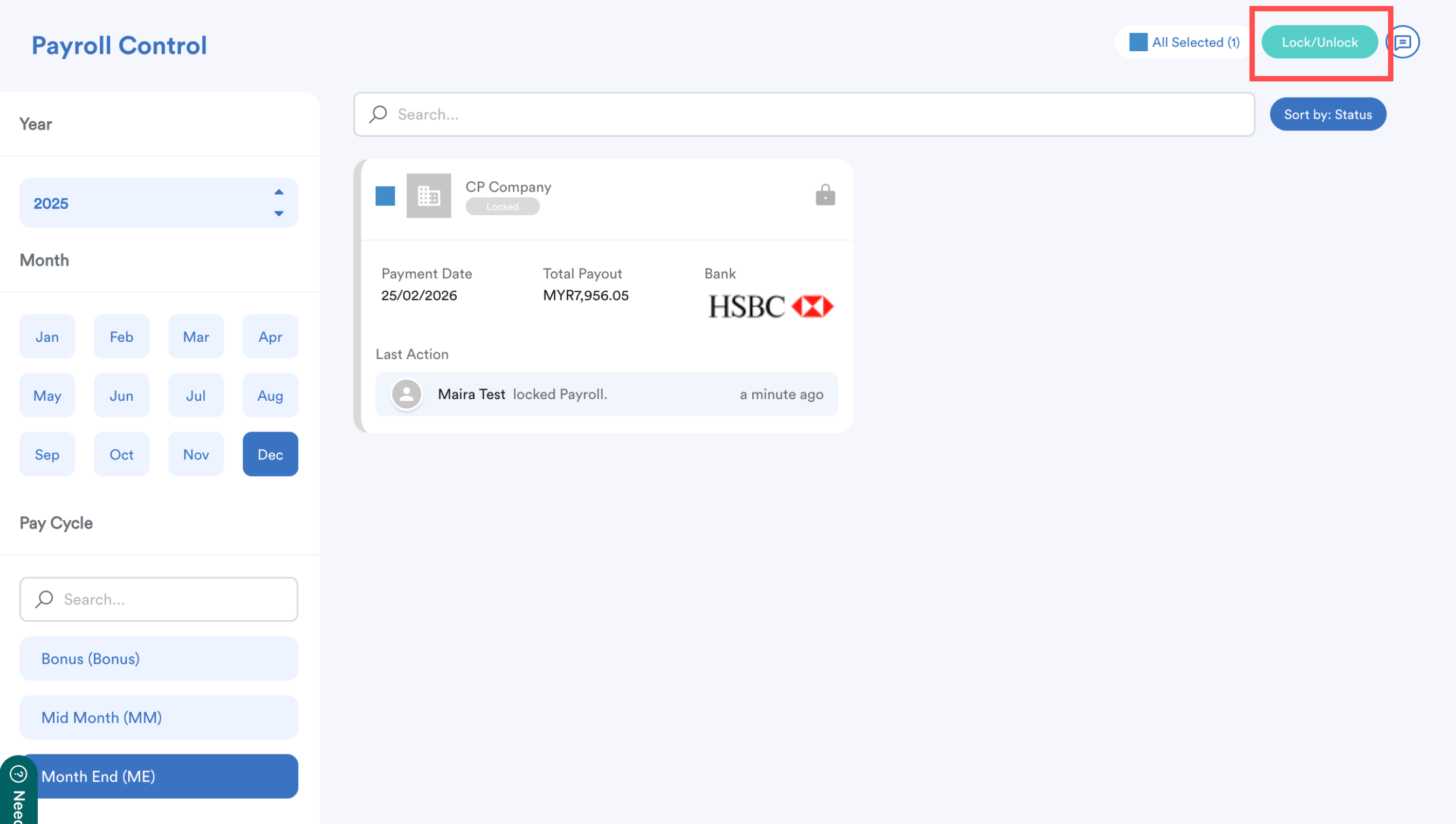
Select the correct period, pay cycle, and payroll to unlock.
Step 3
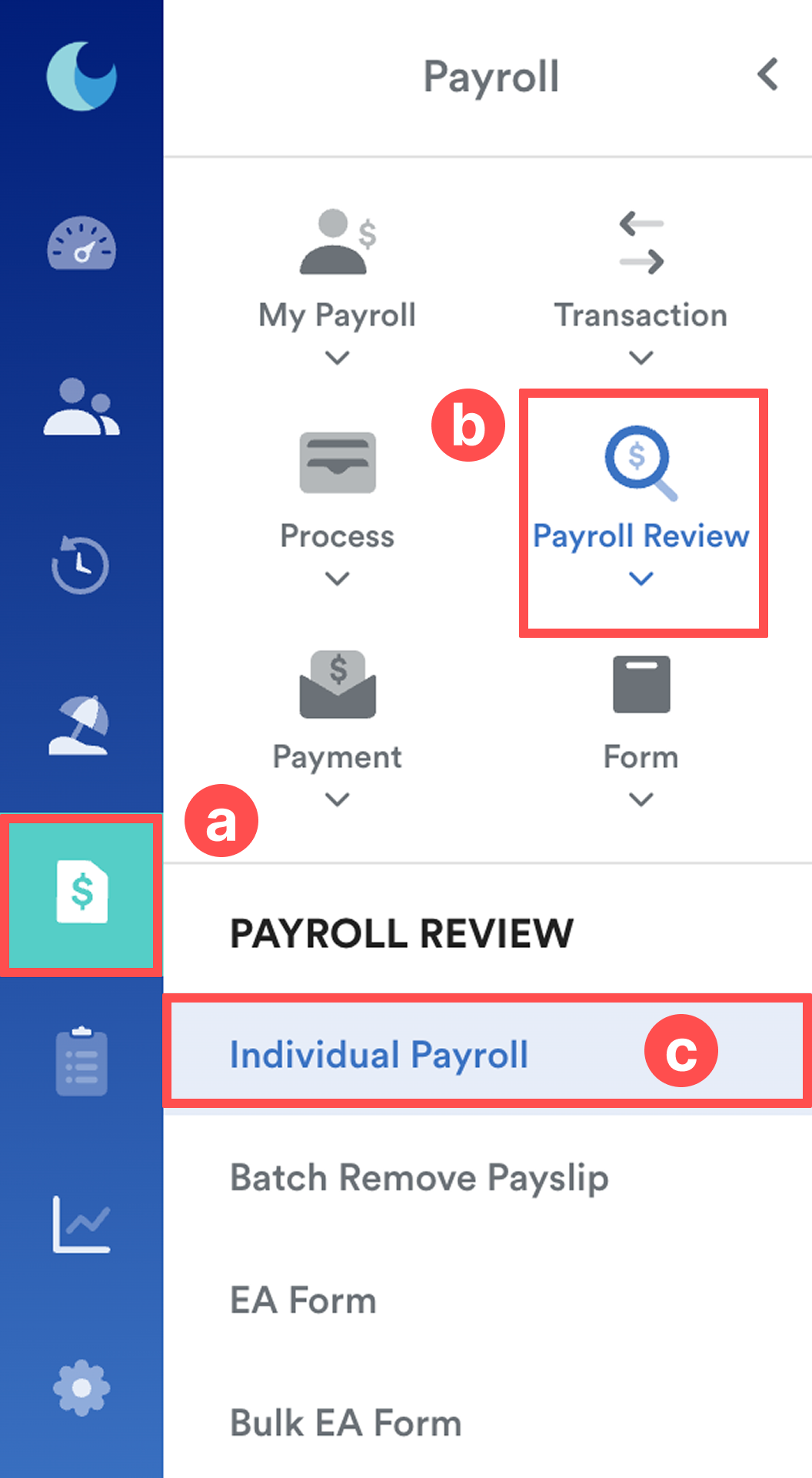
Still in payroll module, go to Payroll Review (b) > Individual Payroll (c).
Step 4
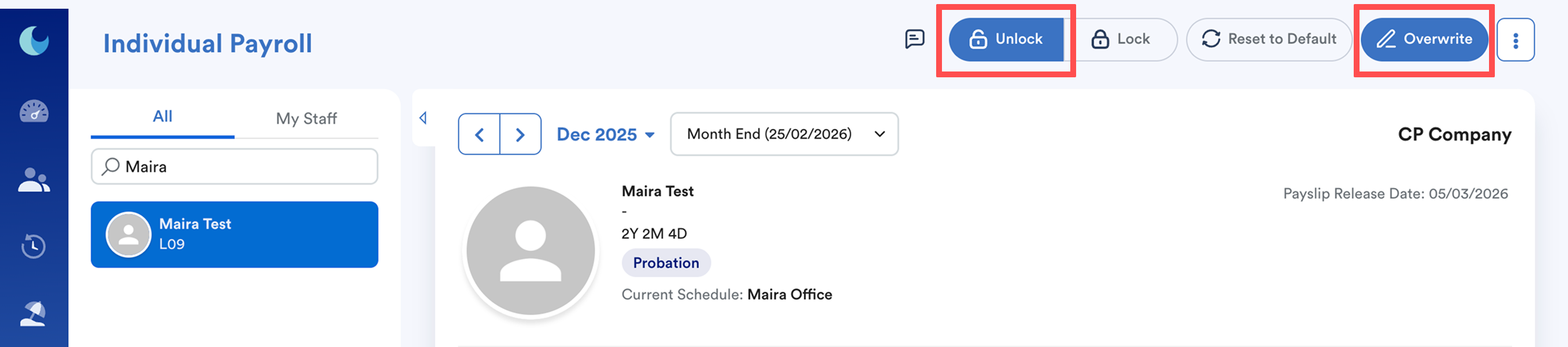
Select the relevant employee and payroll period. Ensure the toggle is at the Unlock icon at the top of the screen.
Step 5
Click the Overwrite button.
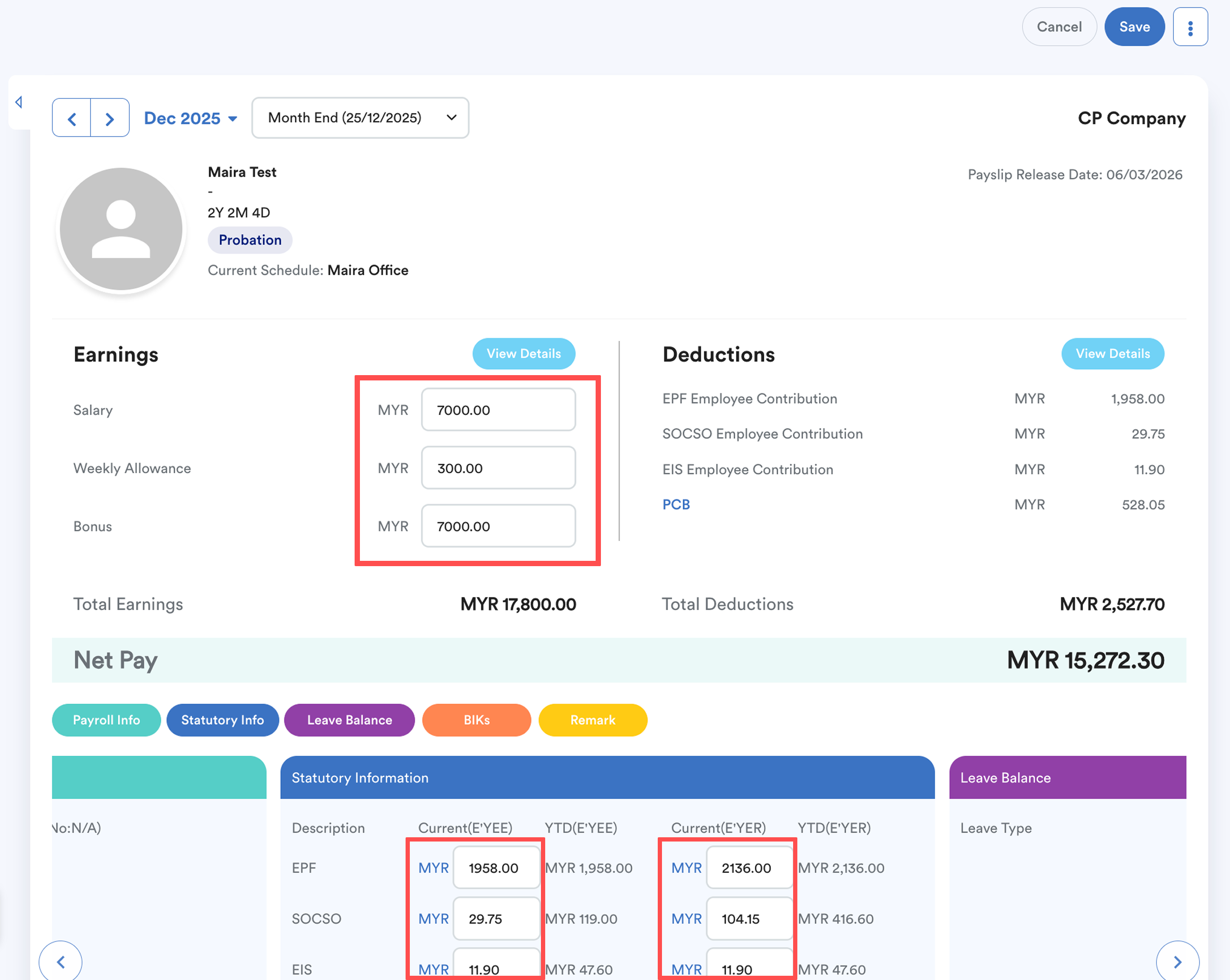
This will make the earnings and statutory contribution fields editable. Enter your adjusted figures and click Save.
Step 6
A confirmation prompt will appear. Here, you can choose to tick or untick the Recalculate Statutory Base and Figure checkbox:
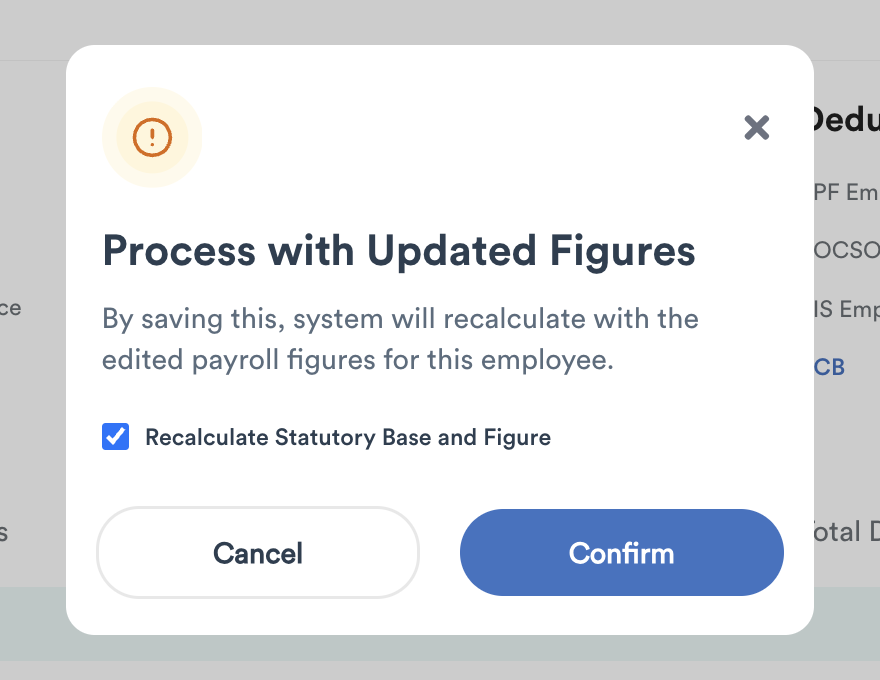
Tick: The system will automatically adjust the statutory base/figures based on your new input.
Untick: The figures will remain exactly as you manually entered them.
Click Confirm to finalize the changes.
How to Revert Changes
If you make a mistake or need to return to the original system-calculated values:
Single Field: Click the Overwrite button again. Edited boxes will display a small undo arrow; click it to revert back to original amount.
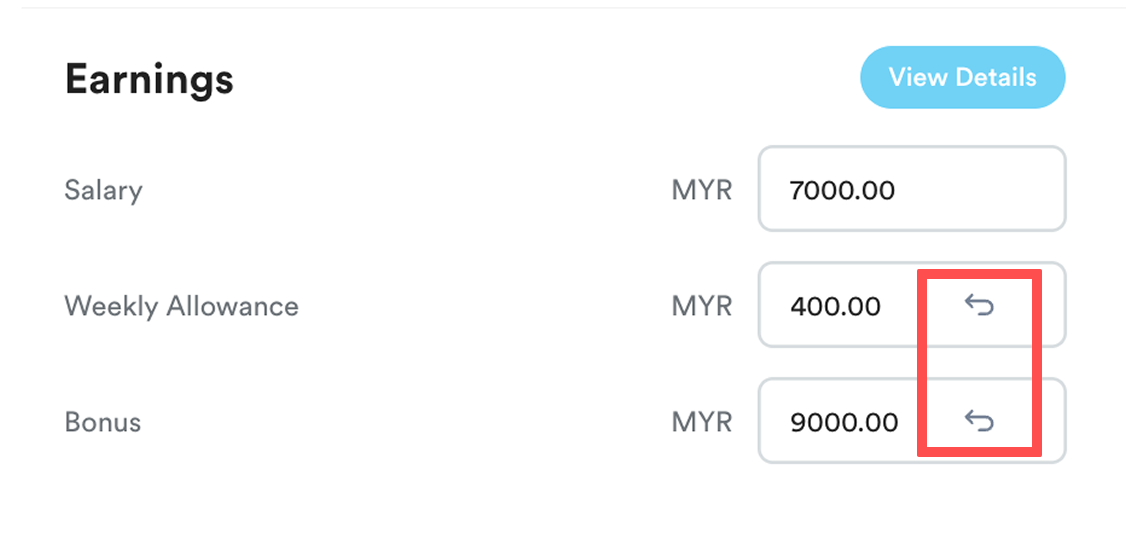
Bulk Reset: Click Reset to Default to undo all manual overwrites and return every field to its original value.

How to Check Overwrite Actions
Click on the Audit Log button to view overwrite actions done to the employee's payslip.

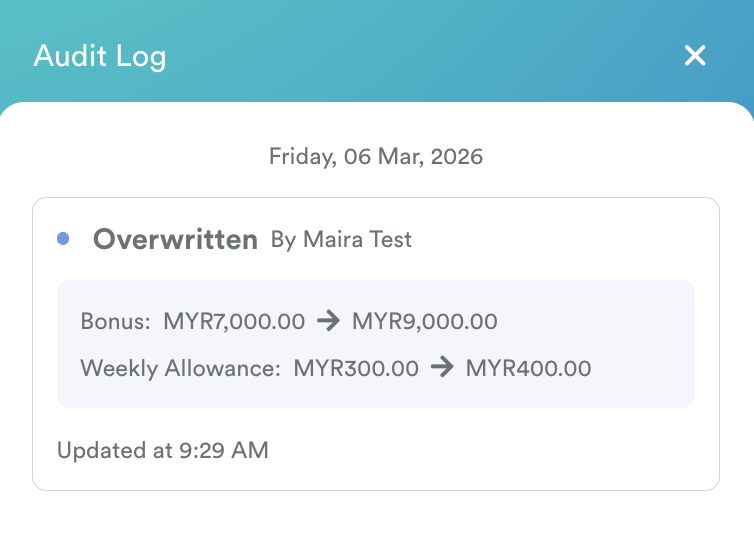
We hope this explanation clarifies the matter. If you require further assistance, please don't hesitate to contact our support team.
Was this article helpful?
That’s Great!
Thank you for your feedback
Sorry! We couldn't be helpful
Thank you for your feedback
Feedback sent
We appreciate your effort and will try to fix the article