Path: My Request > Travel Claim
After a travel request is approved, the system will automatically create a Travel Claim and place it under the Draft tab.
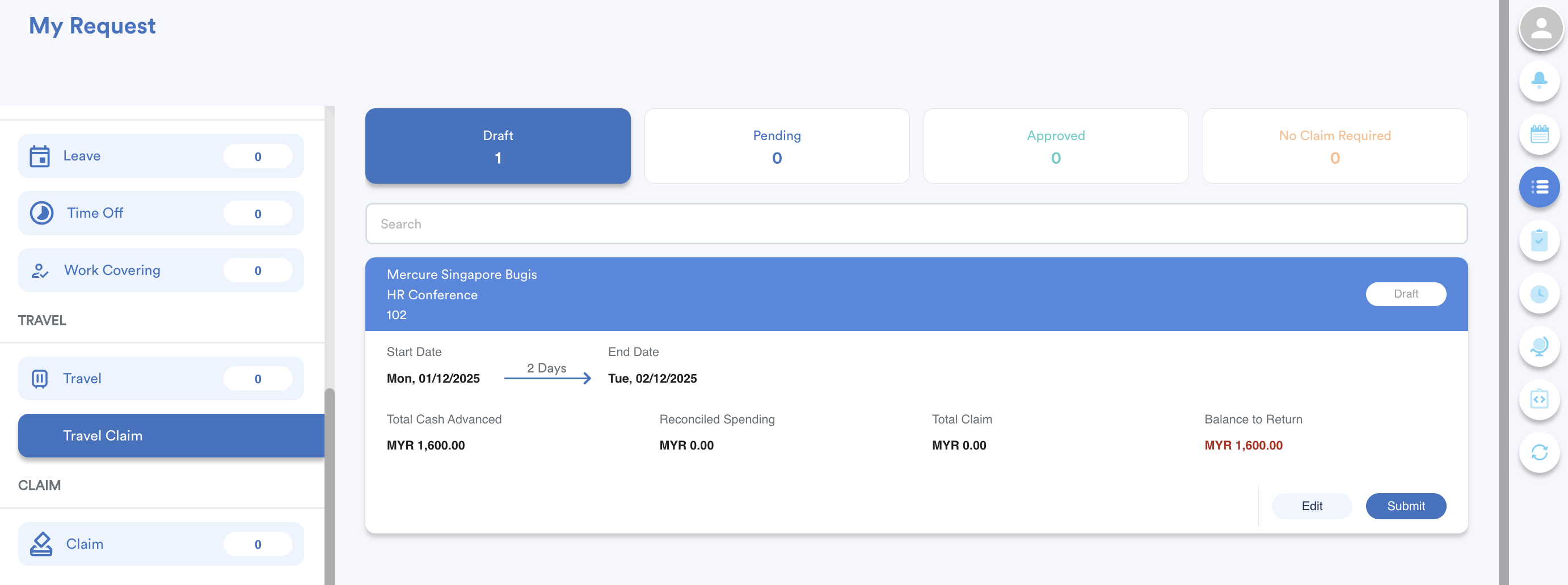
A travel claim will remain in the Draft tab and cannot be submitted until the trip has ended (the travel end date has passed).
Each travel claim displays the following information pulled from the original travel request:
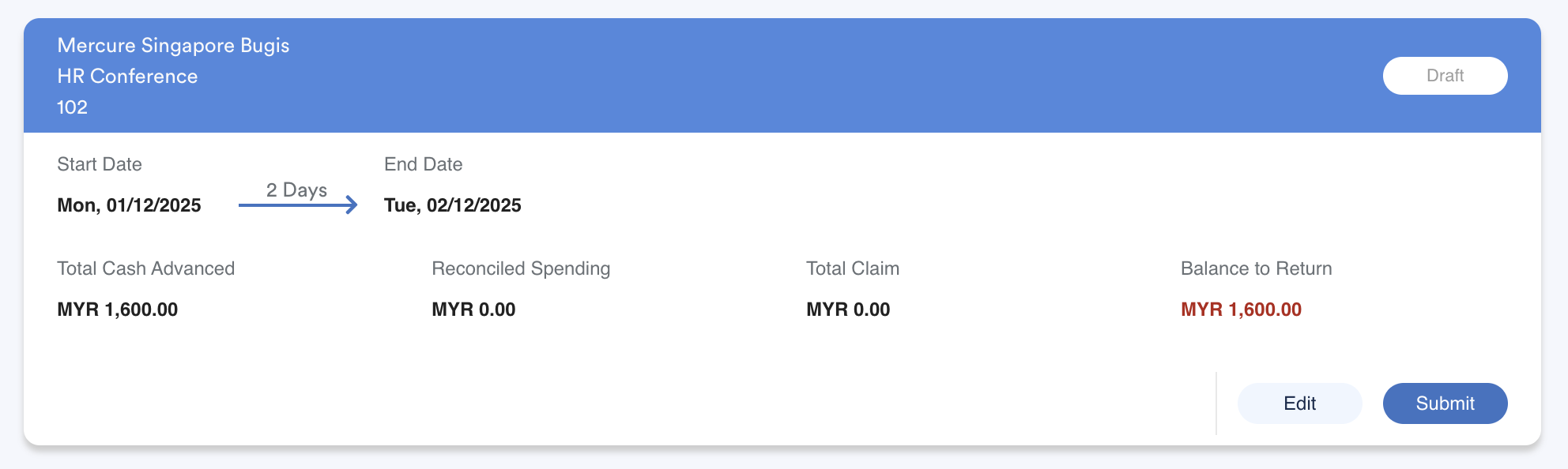
- Destination
- Trip Title
- Reference ID
- Travel Start & End Date
- Total Cash Advanced
- Reconciled Spending (expenses matched with receipts)
- Total Claim (additional claims)
- Balance to Return / Balance to Reimburse
- Balance to Return (red) – amount the employee must return to the company.
- Balance to Reimburse (blue) – amount the company must reimburse to the employee.
- This amount is calculated depends on: Cash Advance - Reconciled Spending - Total Claim
To add Reconciled Spending and Claims, click Edit.
Editing a Travel Claim
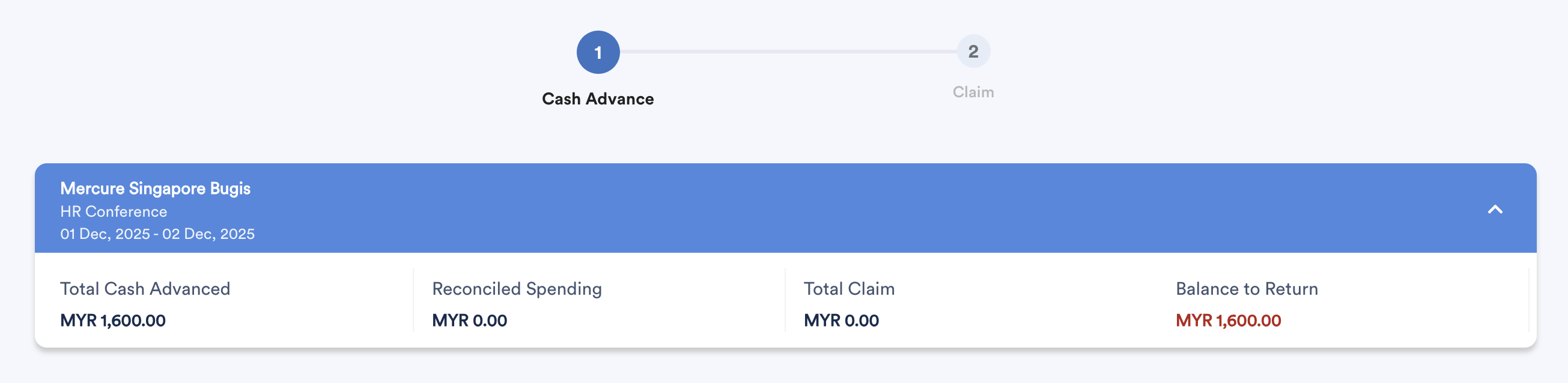
When you click Edit, the system will bring you to the Travel Claim screen, which reflects your original travel request. There are two sections: Cash Advance and Claim.
1) Cash Advance
Step 1
Review trip details.
Step 2
In Advance Payback, enter:
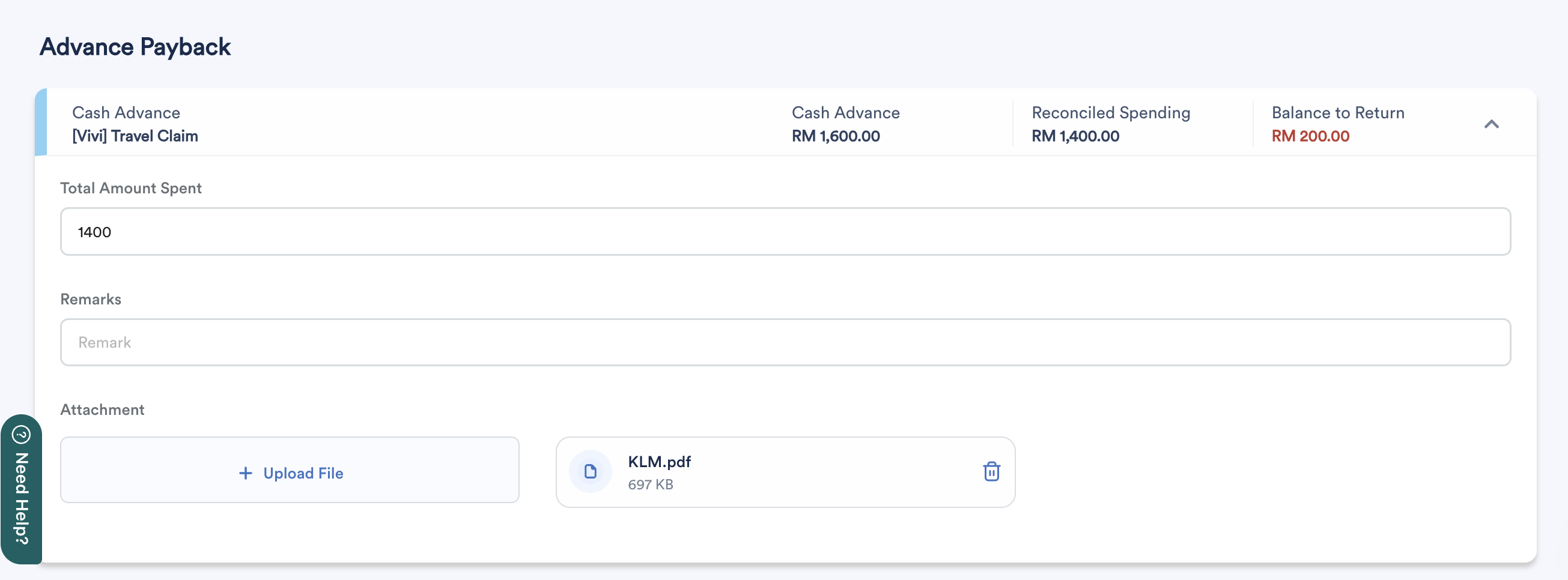
- Total Amount Spent
- Remarks
- Attachments
Reconciled Spending will follow Total Amount Spent and the system calculates Balance to Return / Reimburse based on that.
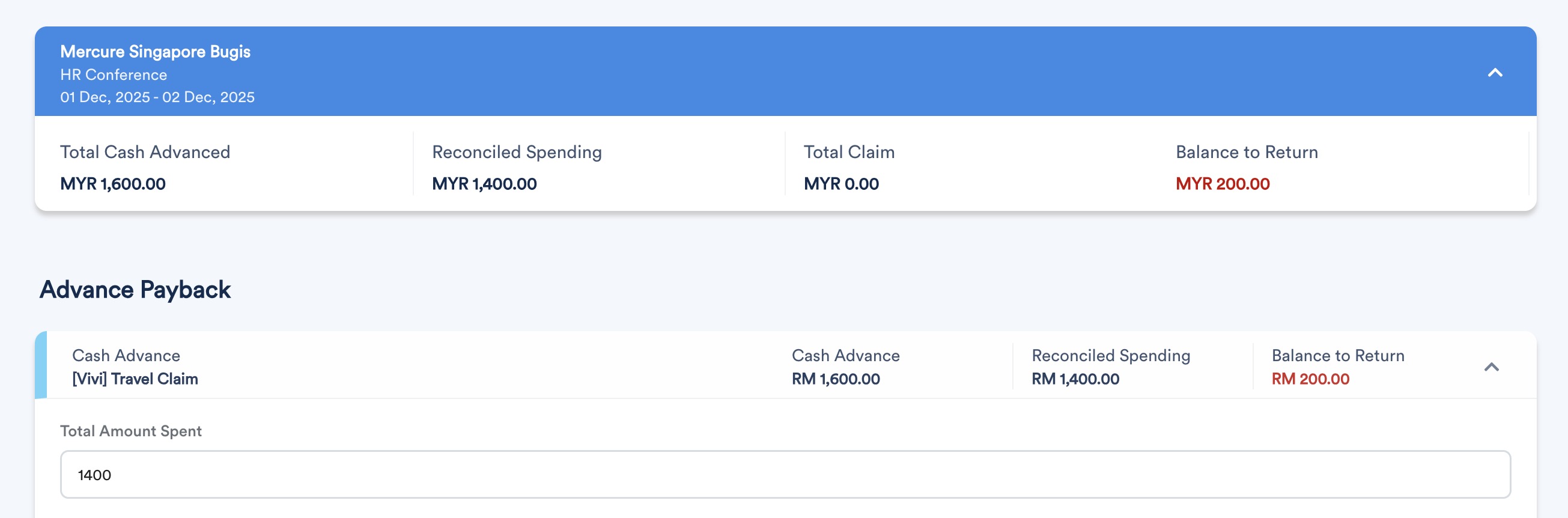
Total Amount Spent < Cash Advanced → Balance to Return (red)
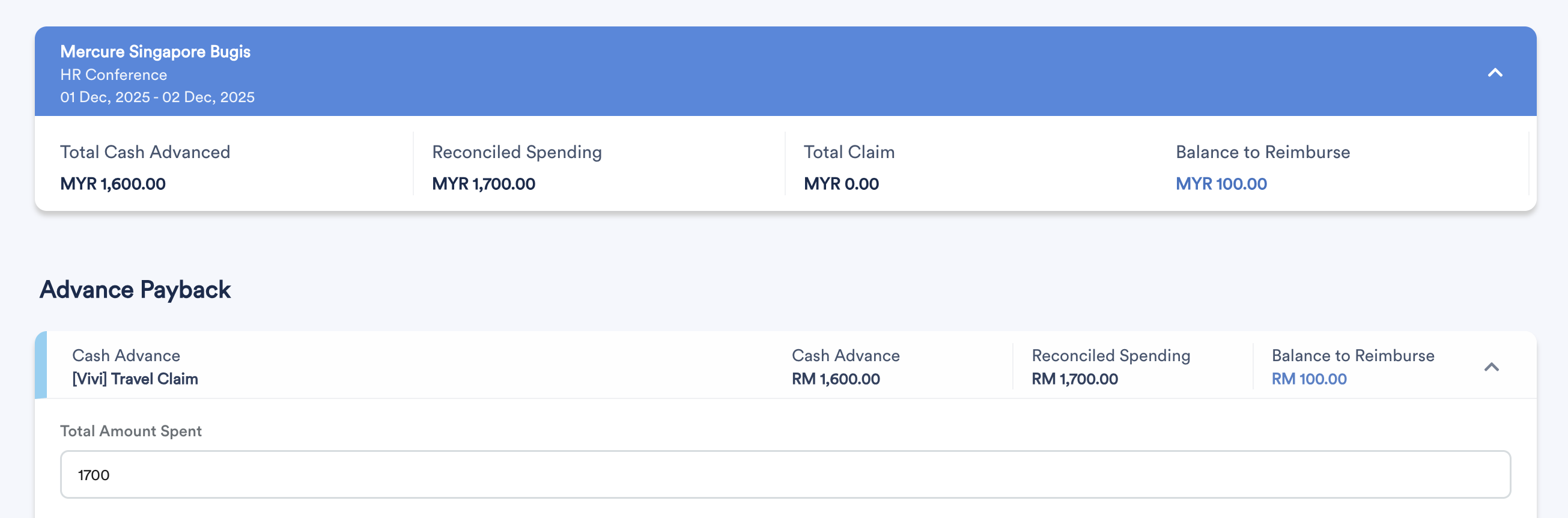
Total Amount Spent > Cash Advance → Balance to Reimburse (blue)
2) Claim
Step 1
Click +Add Claim Item to add new claims.
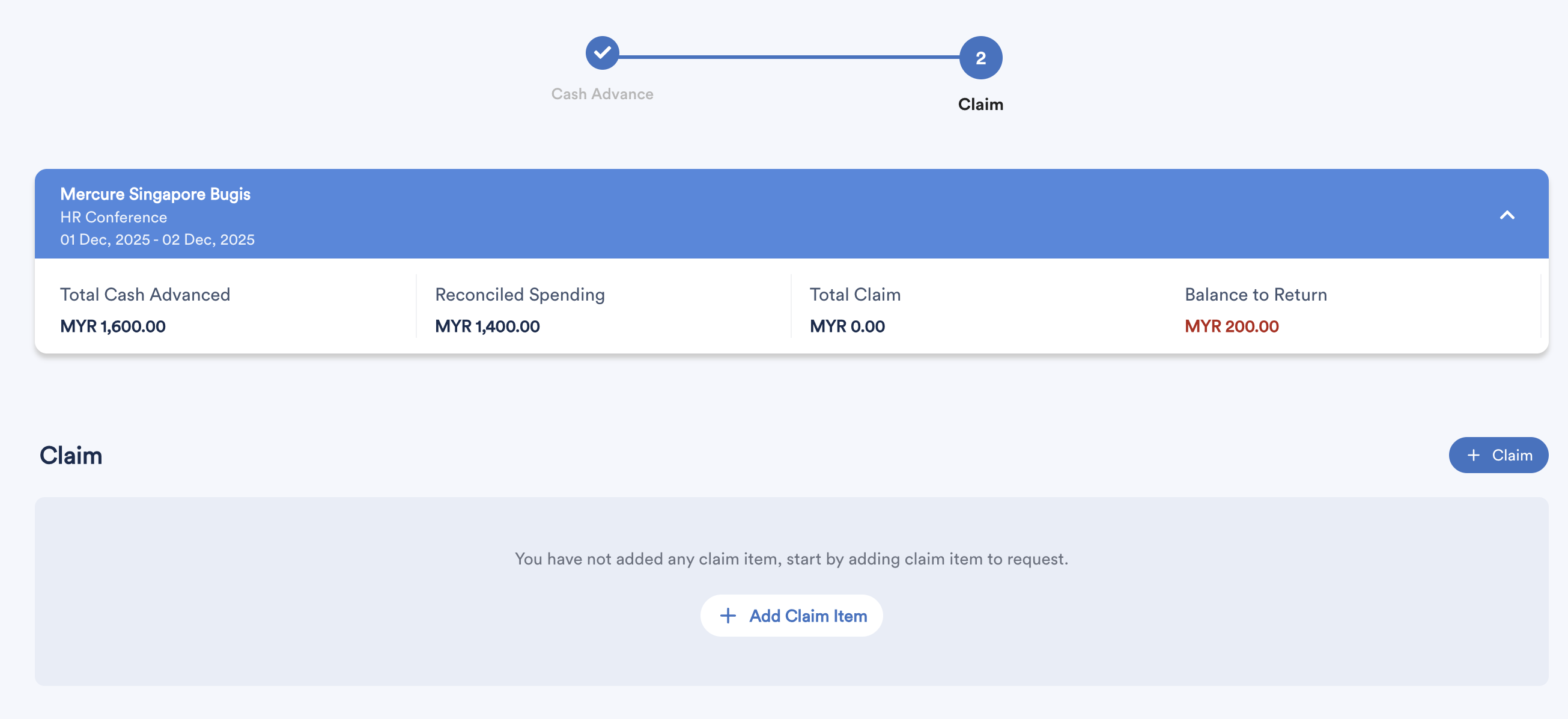
For each claim:
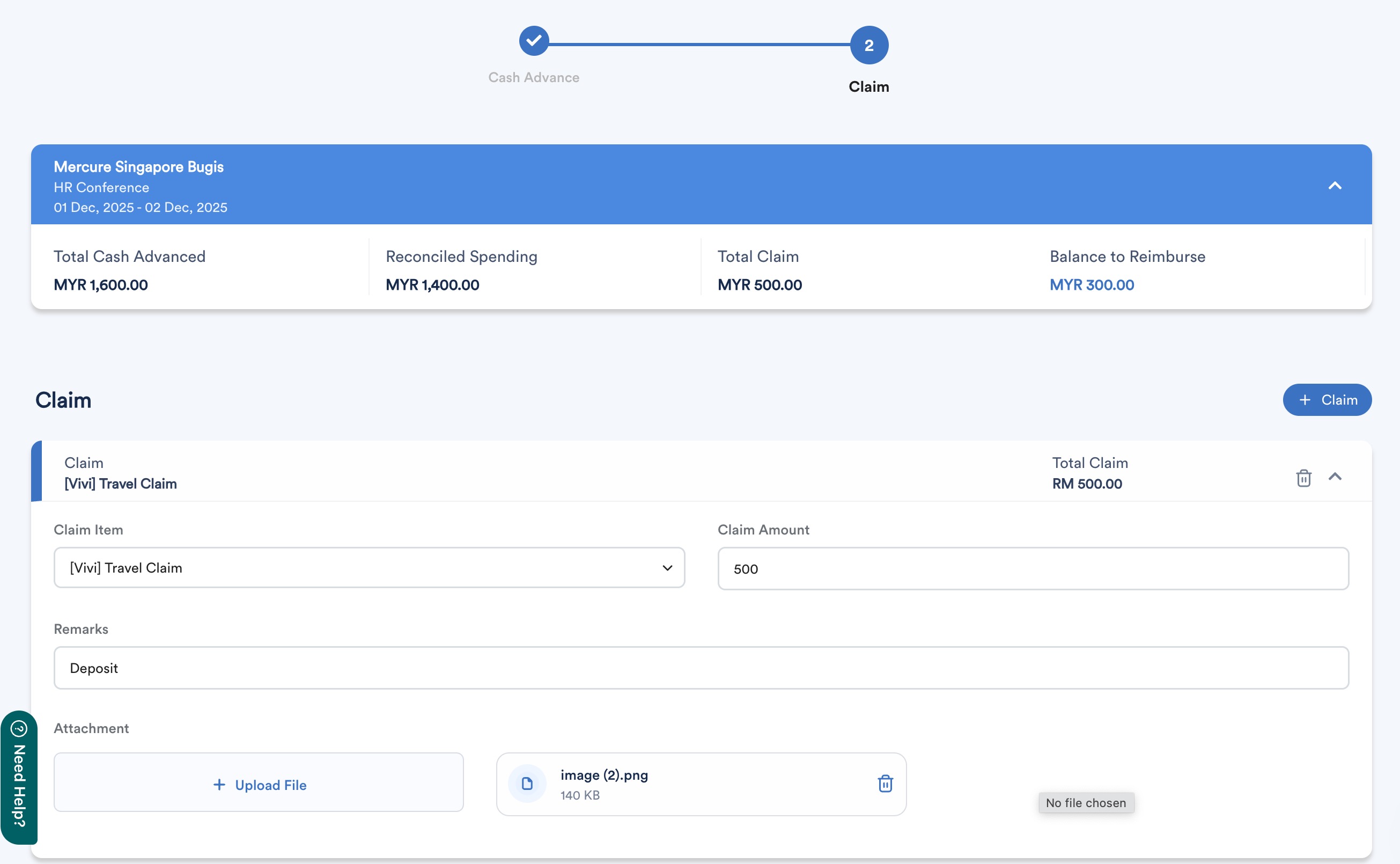
- Select claim item
- Enter claim amount
- Add remarks and attachments
The Total Claim and Balance to Reimburse / Return displayed at the top of the screen will update automatically.
Click + Claim to add another claim. To remove a claim, click the dustbin icon.
Step 2
Once all reconciliations and claims are added, submit the travel claim.

After submission, the claim will move to the Pending tab.
Pending Travel Claim
In the Pending tab, you can:
- Edit
- Withdraw
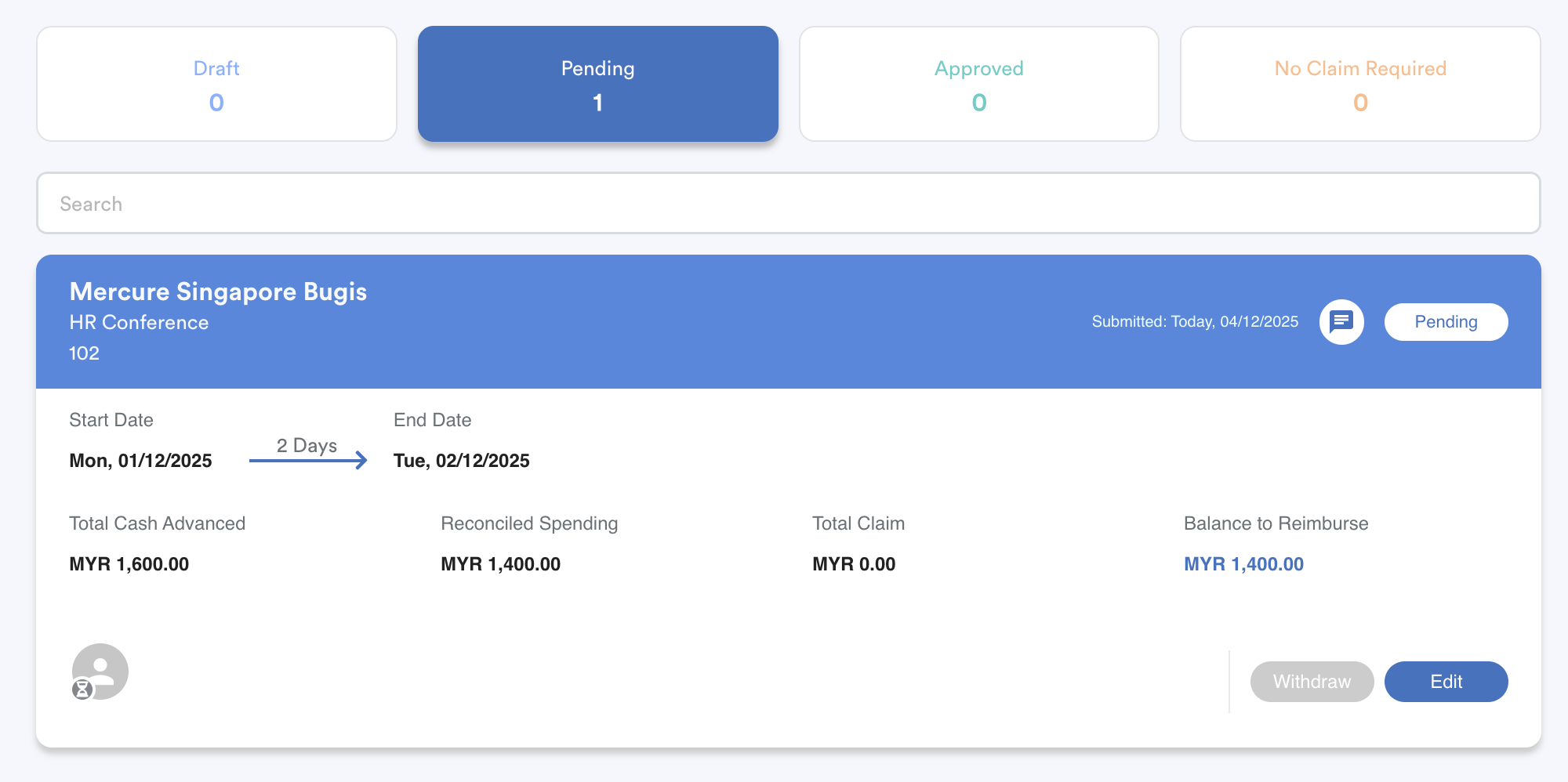
Important: Travel claims with a cash advance cannot be cancelled. Clicking Withdraw only moves the claim to Draft, where it must be resubmitted.
No Claim Required
When an approved travel request has no cash advance and no claim added, a "Mark as No Claim Required" button will appear. Once clicked, the claim will move to the "No Claim Required" tab.
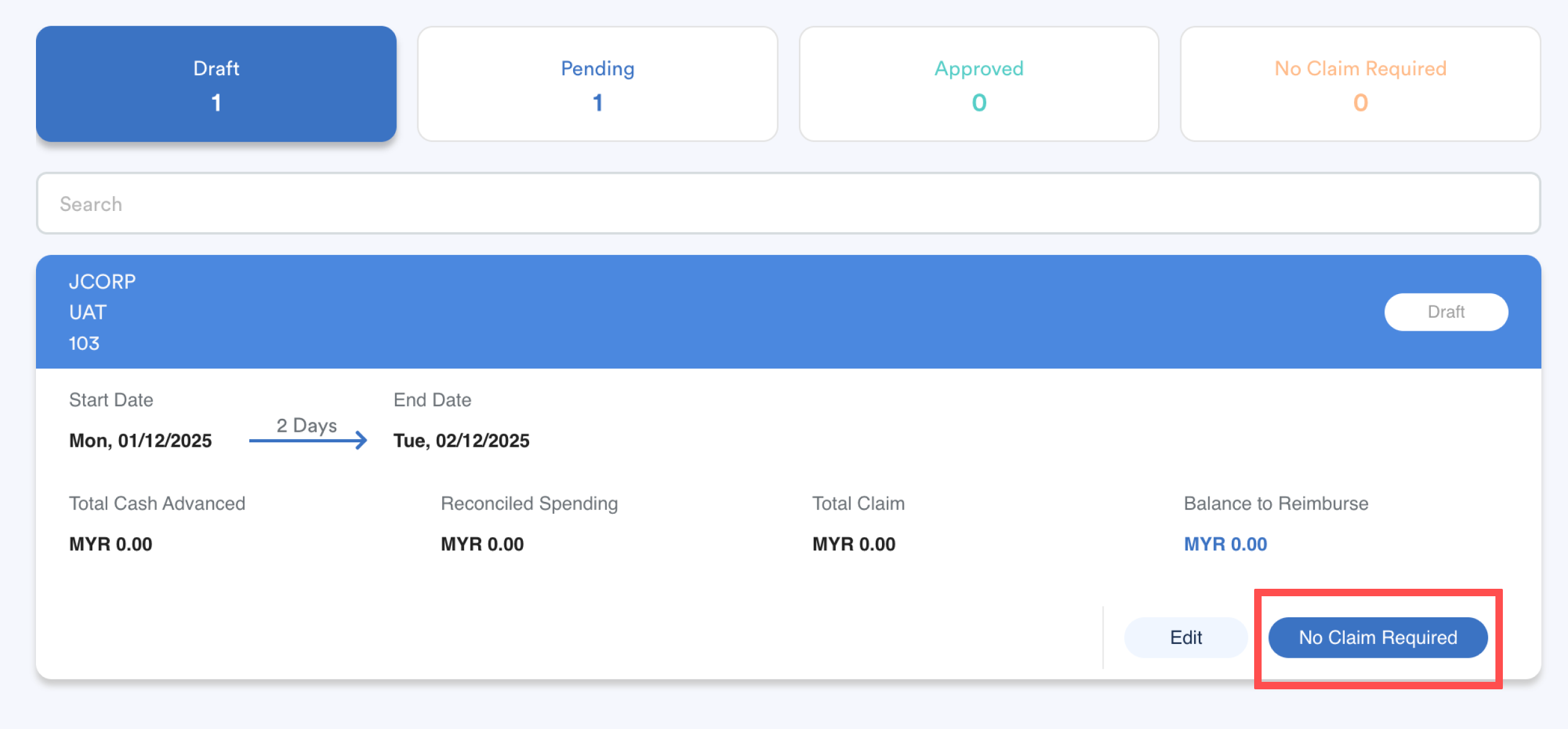
If the requester later needs to submit a claim,
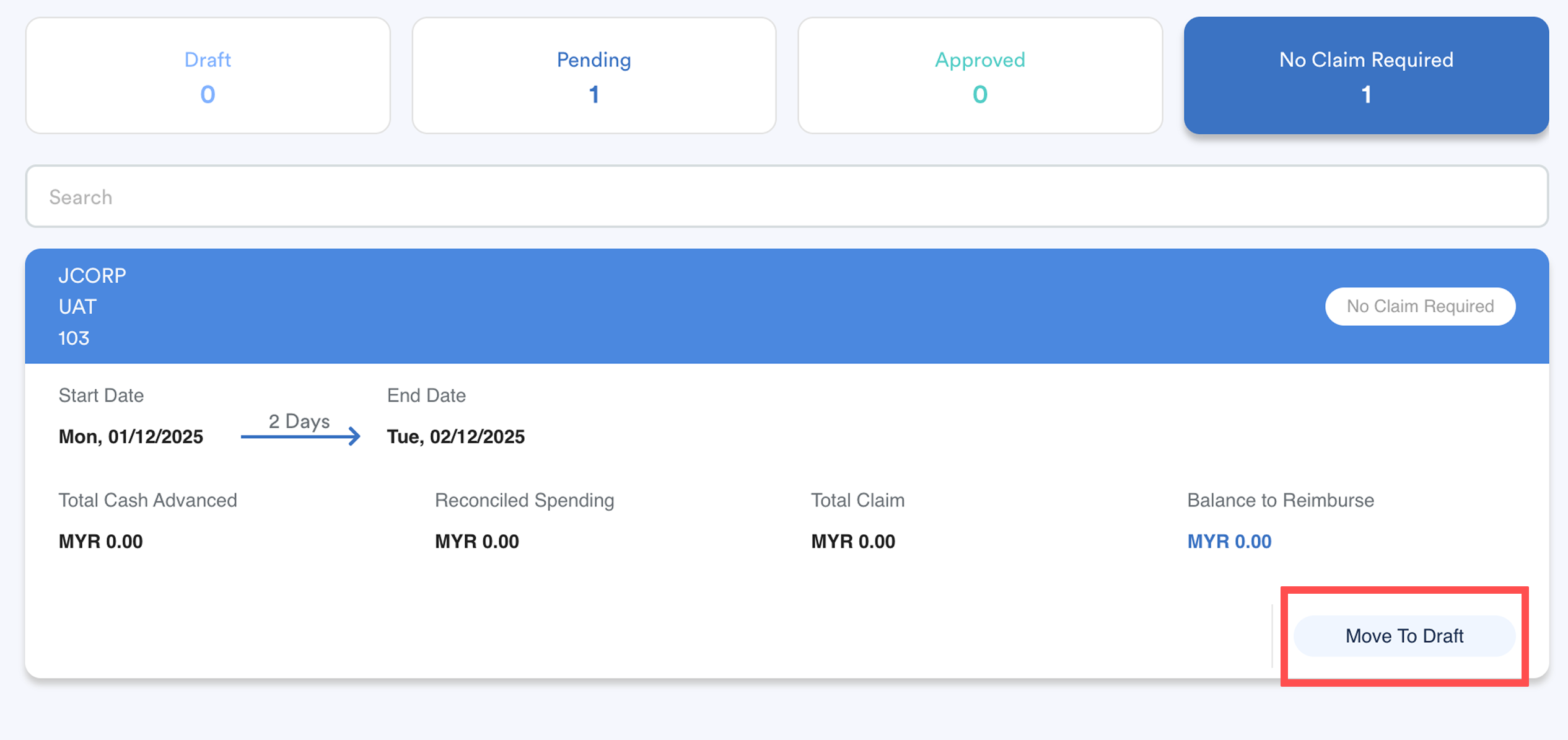
- Select "Move to Draft" to bring the travel claim back to the Draft tab
- Then, click Edit to add claim details.
We hope this explanation clarifies the matter. If you require additional assistance, do not hesitate to contact our support team.
Was this article helpful?
That’s Great!
Thank you for your feedback
Sorry! We couldn't be helpful
Thank you for your feedback
Feedback sent
We appreciate your effort and will try to fix the article