Path: My Request > Travel
This section allows employees to create, view, and manage their travel requests for both domestic and international trips.
The list view displays all travel requests categorized by status:
- Draft
- Pending
- Approved
- Rejected
- Cancelled
Creating a New Travel Request
Click New Request and follow these steps:
Step 1: General Information
A. Travel Information
Provide the basic details of your trip:
| Type of Trip | Select International or Domestic. |
| Trip title | Enter a clear trip name (e.g. Client Meeting in Singapore). |
| Start Date & End Date | Specify the overall travel period. The system will calculate total days automatically. |
| Reason | Provide the purpose of travel. |
| Remarks | Add any additional notes if needed. |
| Require Booking Assistance | Toggle ON if you need the admin team’s help with travel or accommodation arrangements. |
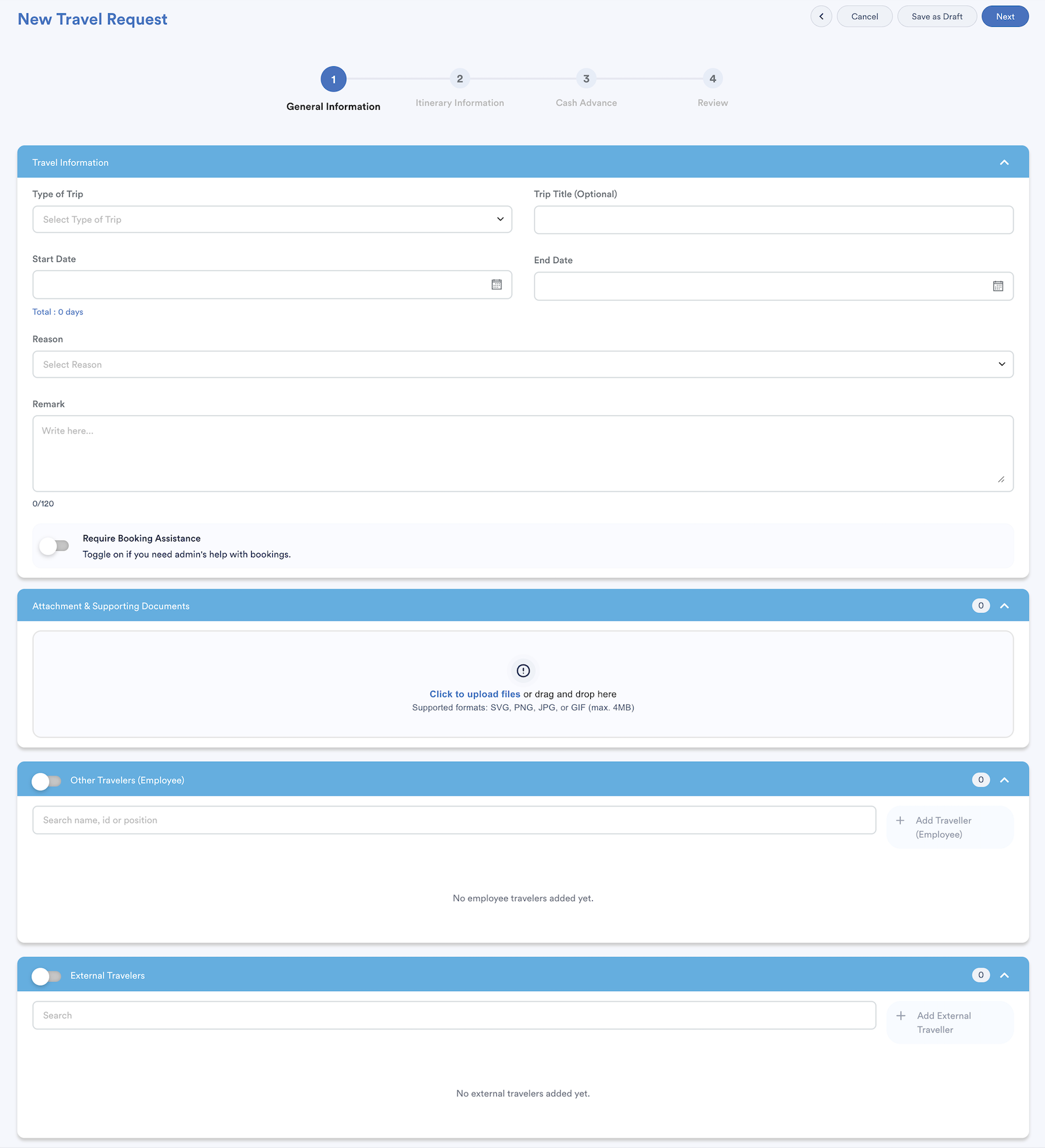
B. Attachment & Supporting Documents
Upload any related files such as:
- Meeting agenda
- Event brochure
- Invitation letter
The top-right corner will indicate the total number of files uploaded.
Optional: Add Travellers
Toggle ON these sections to include other travelers in your request:
- Internal Travellers: Search and add employees from your company.
- External Travellers: Add non-employees such as family members or guests.
Once an external traveller is added, fill in their details:
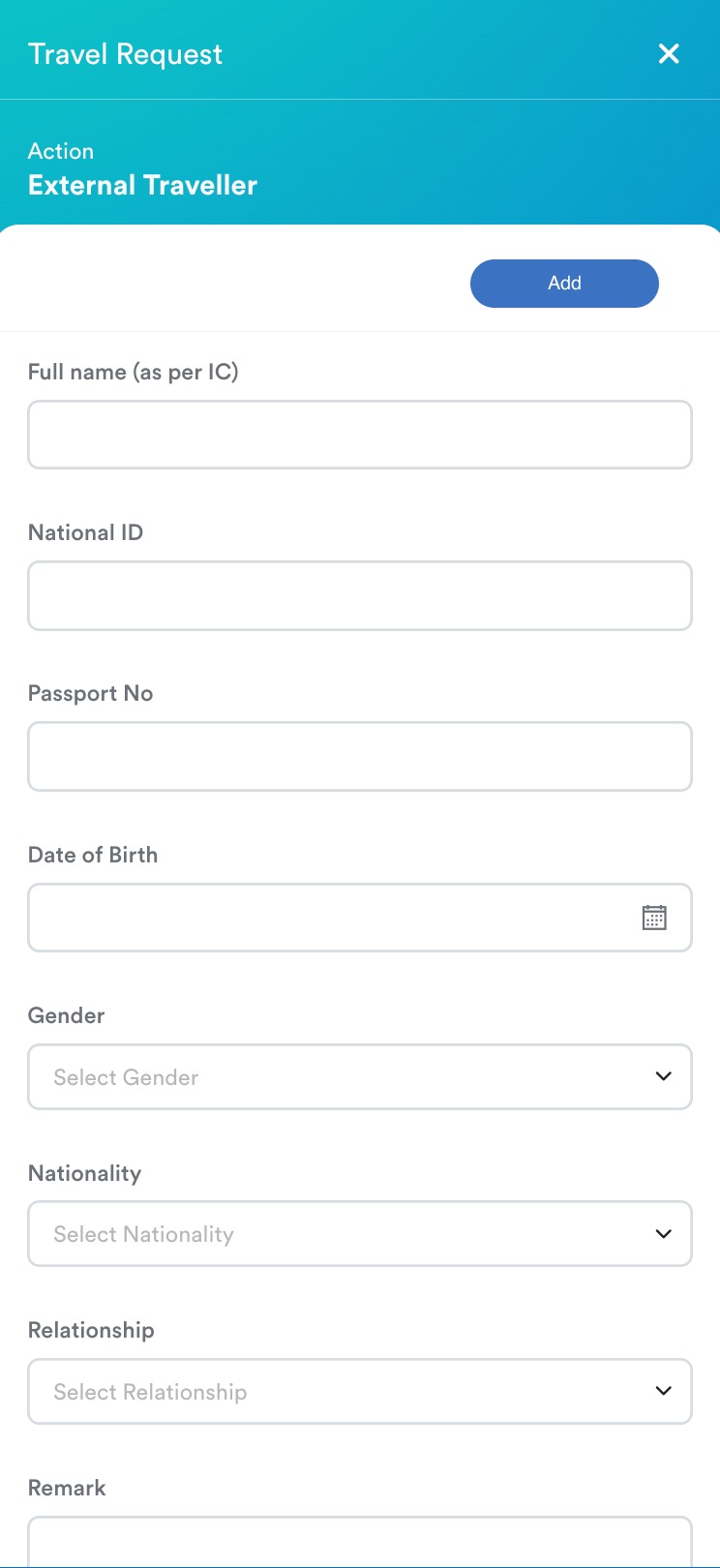
- Full Name
- National ID
- Passport Number
- Date of Birth
- Gender
- Nationality
- Relationship
Use the pencil icon to edit or the dustbin icon to delete travellers.
The top-right corner will indicate the total number of travelers added.
Step 2: Itinerary Information
The itinerary automatically reflects the start and end dates from the General Information section. Therefore, these dates cannot be edited here.
Follow these steps to complete your itinerary:
- Enter your destination for both departure and arrival.
- The system will automatically generate a transport segment between these points to show how you will commute between each location.
- If your trip includes multiple stops, click Add Location to include additional destinations. Each new location will automatically link to the previous and next travel segments.
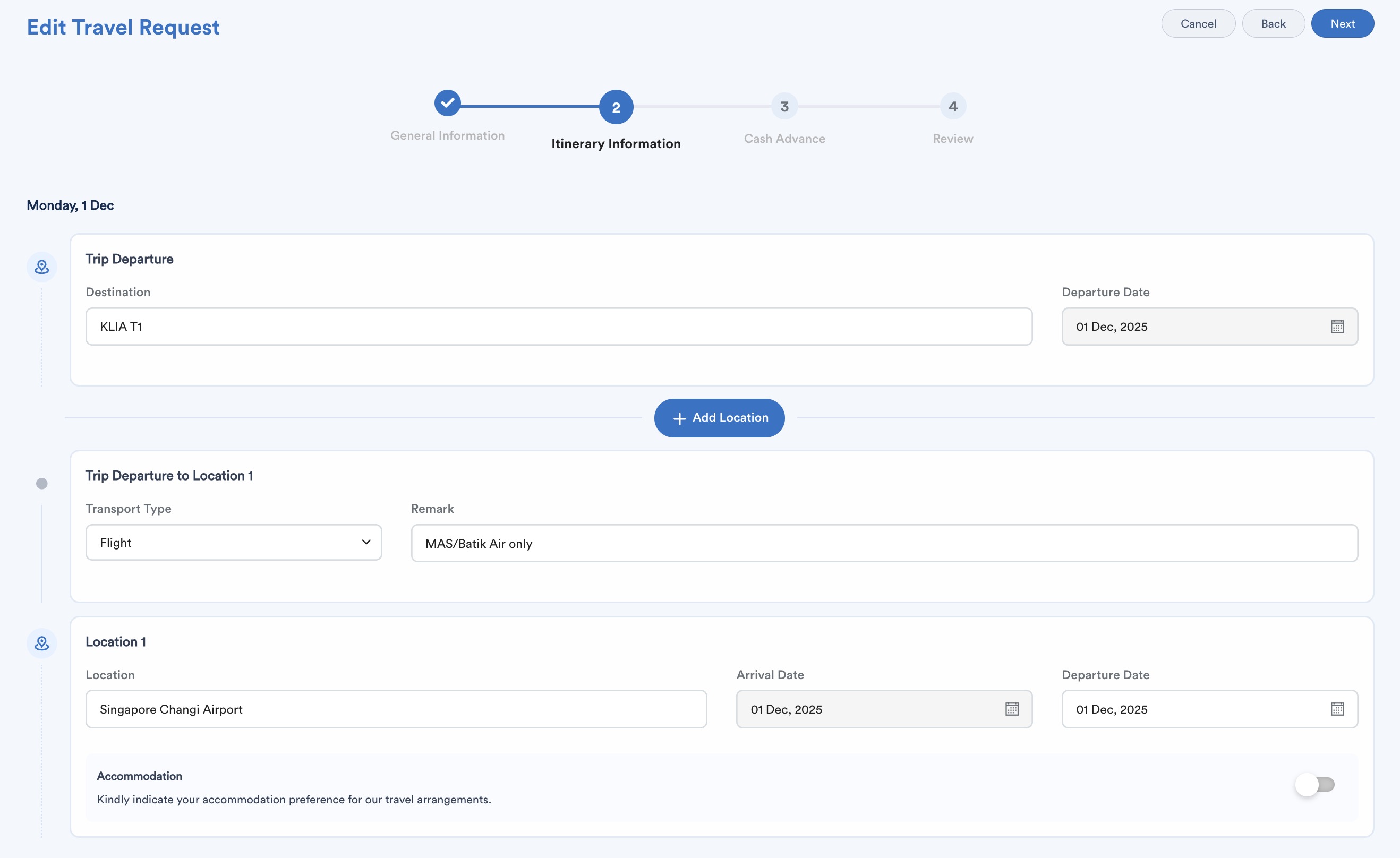
Adding a Location
When you add a location (e.g., Location 1), the system will automatically create a transport card showing how you travel from the origin city to that location.
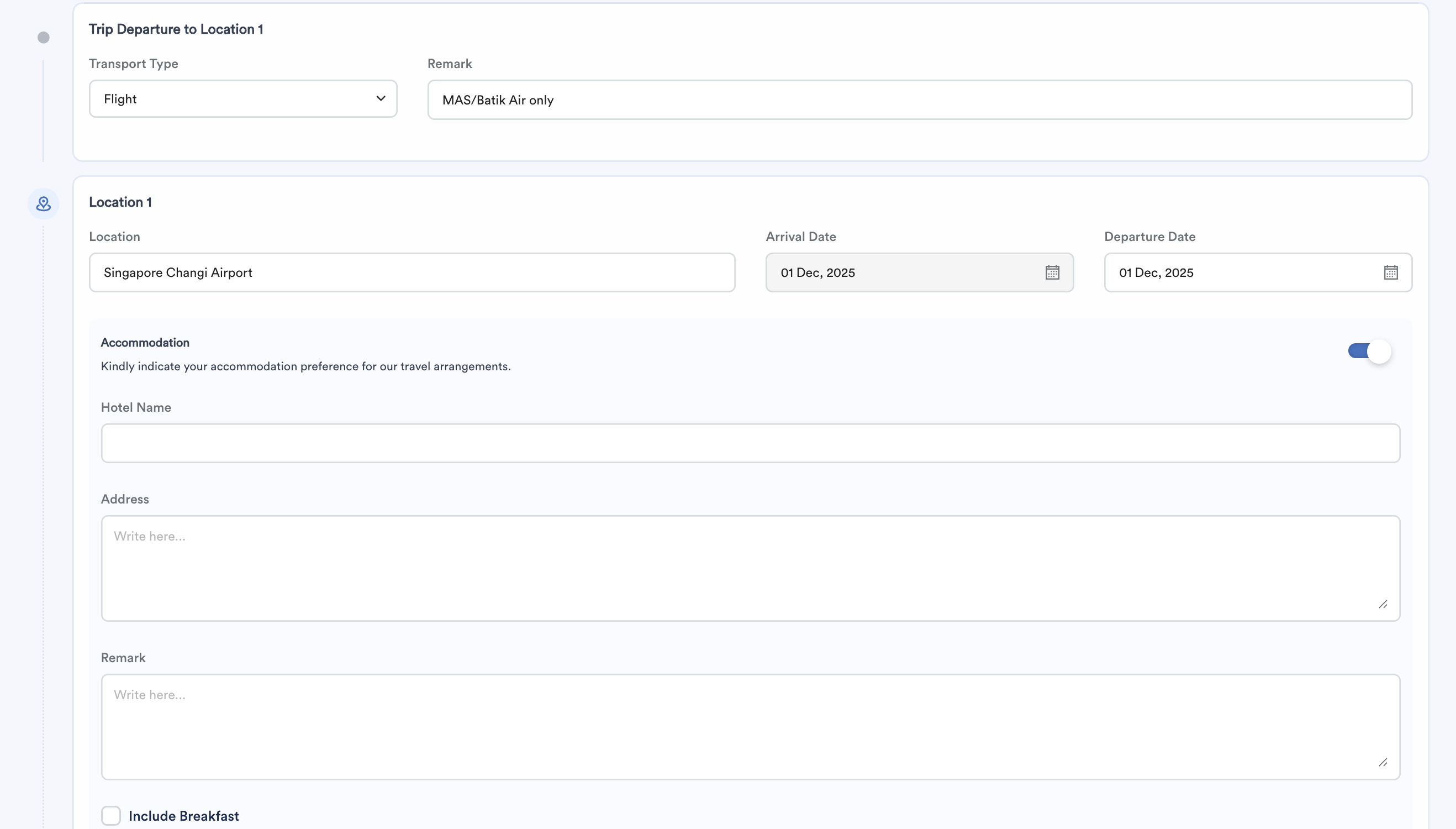
For each location, fill in the following details:
| Destination | Enter the city or area name. |
| Arrival Date & Departure Dates | Automatically linked based on previous transport segments. |
| Accommodation | Toggle on to enter Hotel Name and Address. |
| Remarks | Example: “Prefer xx airline” or “Find hotel near meeting venue.” |
| Breakfast Option | Tick to include or exclude breakfast. |
Each additional location added (e.g. Location 2, Location 3) will be automatically connected to the previous and next segments.
Note: Deleting a location will also remove its linked transport. This action can’t be undone. Click Delete to confirm or Cancel to keep it.
Step 3: Cash Advance
This step allows you to request travel-related cash advances for yourself and other company travellers. The screen will display all travellers listed in the request but excluding external travellers.
Follow these steps:
- To request a cash advance for another traveller, toggle ON the switch next to their name.
- For each traveller, fill in the Cash Advance Details section.
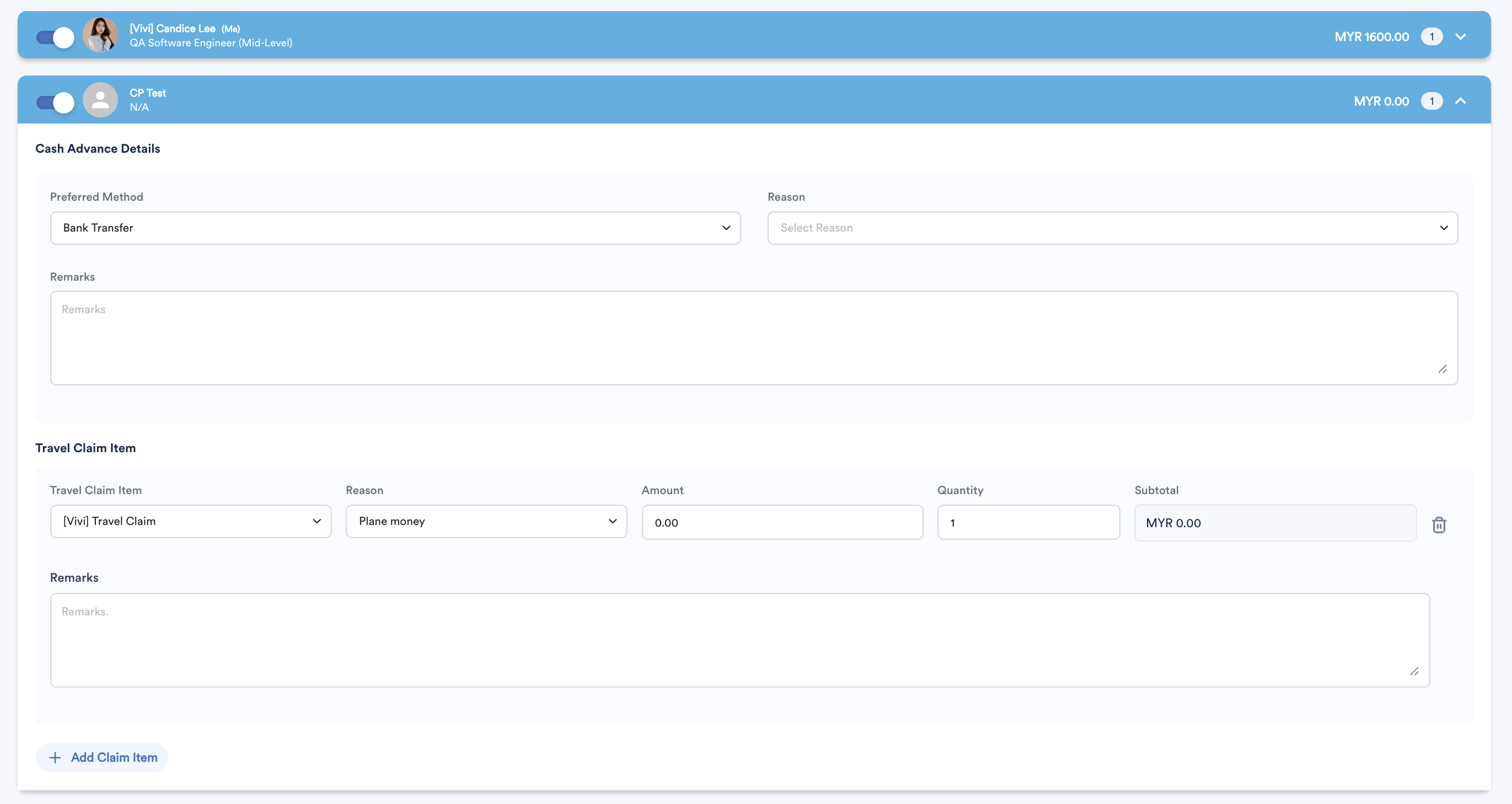
Cash Advance Details
- Preferred Method: Select how you would like to receive the advance (e.g. Cash, Bank Transfer, etc.).
- Reason: Choose from the list of reasons configured under Settings > General > System Label.
- Remarks: Add any additional notes if required.
- Travel Claim Item: Click Add Claim Item to include specific expense items.
Travel Claim Item Details
For each claim item, provide the following:
| Travel Claim Item | Select the expense details from drop down list. |
| Reason | Purpose or category of the expense. |
| Amount | Enter the rate per night, per person, or meal (based on company's claim setup). |
| Quantity | Number of unites, if applicable. |
| Subtotal | Auto-calculated based on Amount × Quantity and can’t be edited. |
Click Add Claim Item to include more, or the dustbin icon to remove one.
The top-right corner (same line as the traveller’s name) shows the total amount and number of claim items for that traveller.
Step 4: Review
The final step gives you a complete summary of your travel request before submitting.
Trip Information: Trip name, travel companions, reason, dates, attachments, external travelers, and booking assistance toggle.
Itinerary: All locations, transportations, and accommodation details.
Cash Advance: Requested cash advance details and travel claim items for each traveller.
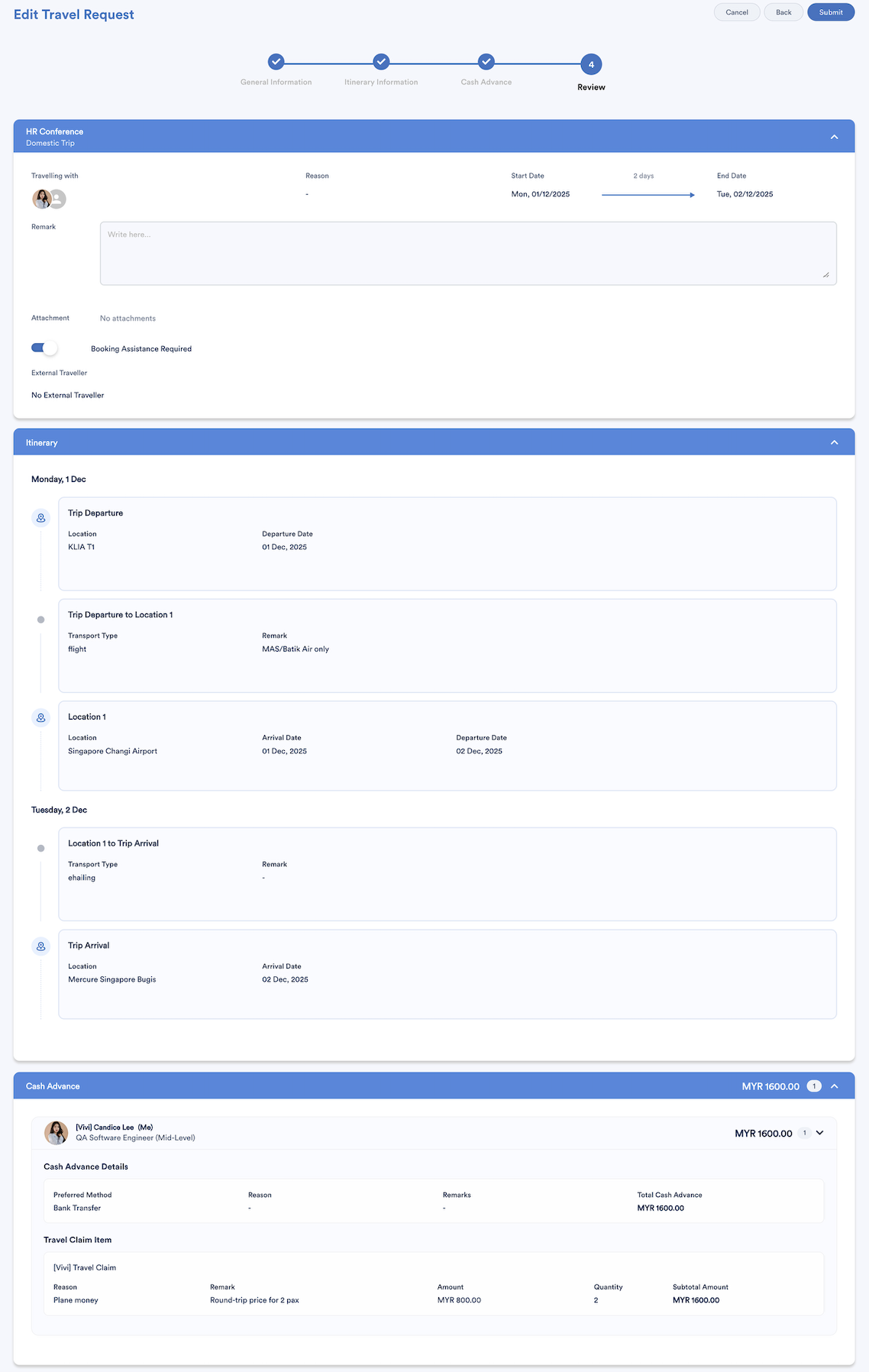
After verifying the information, you can:

- Submit: Send the request for approval.
- Back: Return to Step 3 (Cash Advance).
- Save as Draft: Save the request without submitting it.
- Cancel: Exit the request setup and return to the Travel Request list without saving any new changes.
After submission, a confirmation pop-up will appear:
- Submitted for approval - Choose Dismiss or View Request.
If saved as draft, the pop-up will show:
- Saved as draft - Choose Dismiss or View Draft.
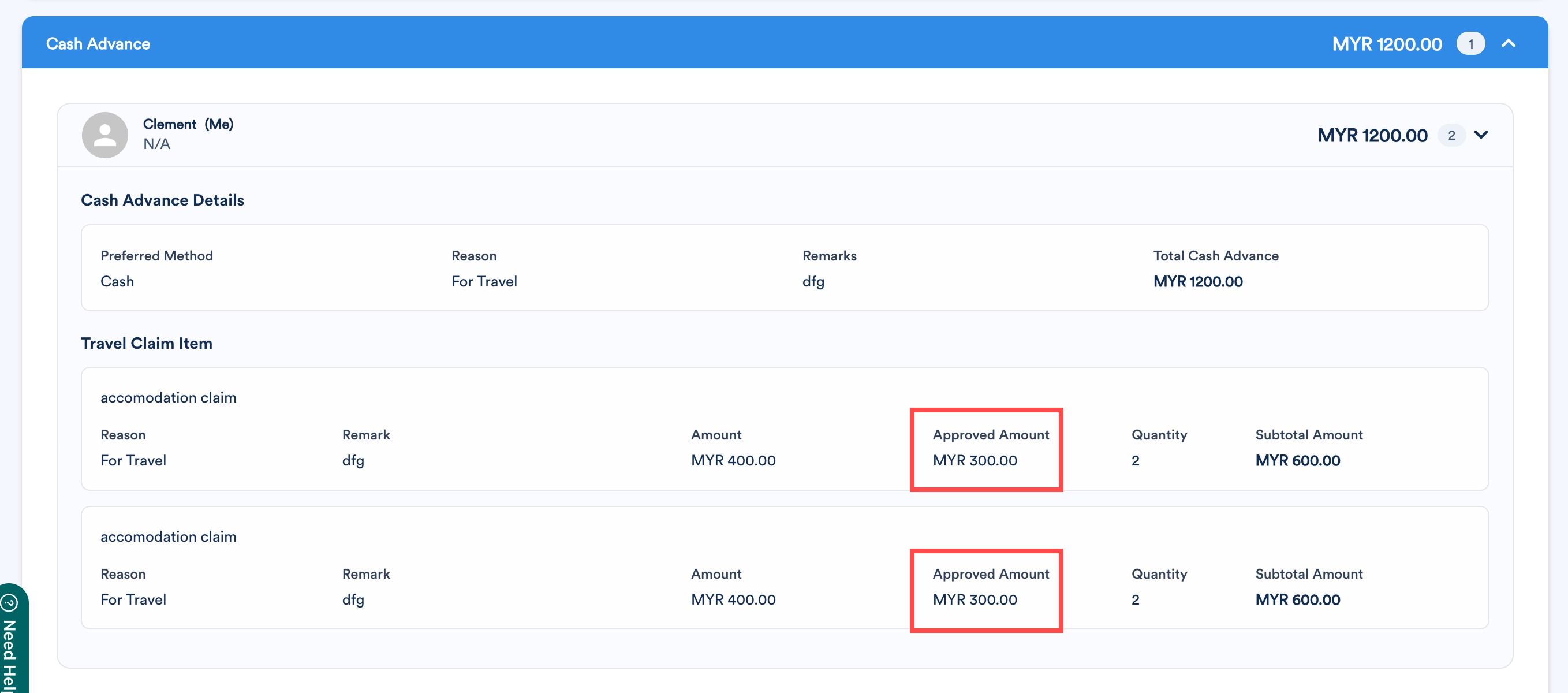
Once the request is approved, they will see the approved amount under the review tab in the approved status.


We hope this explanation clarifies the matter. If you require additional assistance, do not hesitate to contact our support team.
Was this article helpful?
That’s Great!
Thank you for your feedback
Sorry! We couldn't be helpful
Thank you for your feedback
Feedback sent
We appreciate your effort and will try to fix the article