Path: Right Menu > My Approval > Travel
All travel requests are organized under tabs:
- Pending
- Approved
- Rejected
- Cancelled
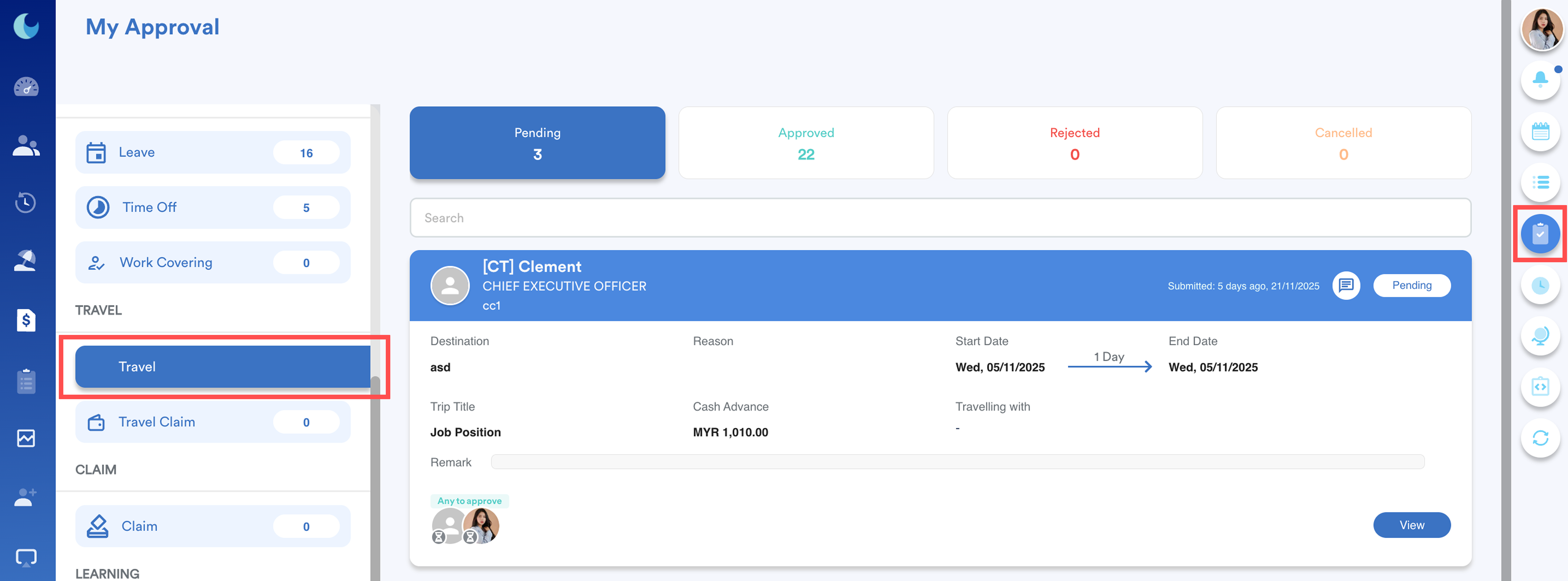
Note: Approvers can only view requests under all tabs. No edits are allowed except for cash advance amounts in pending requests.
Step 1
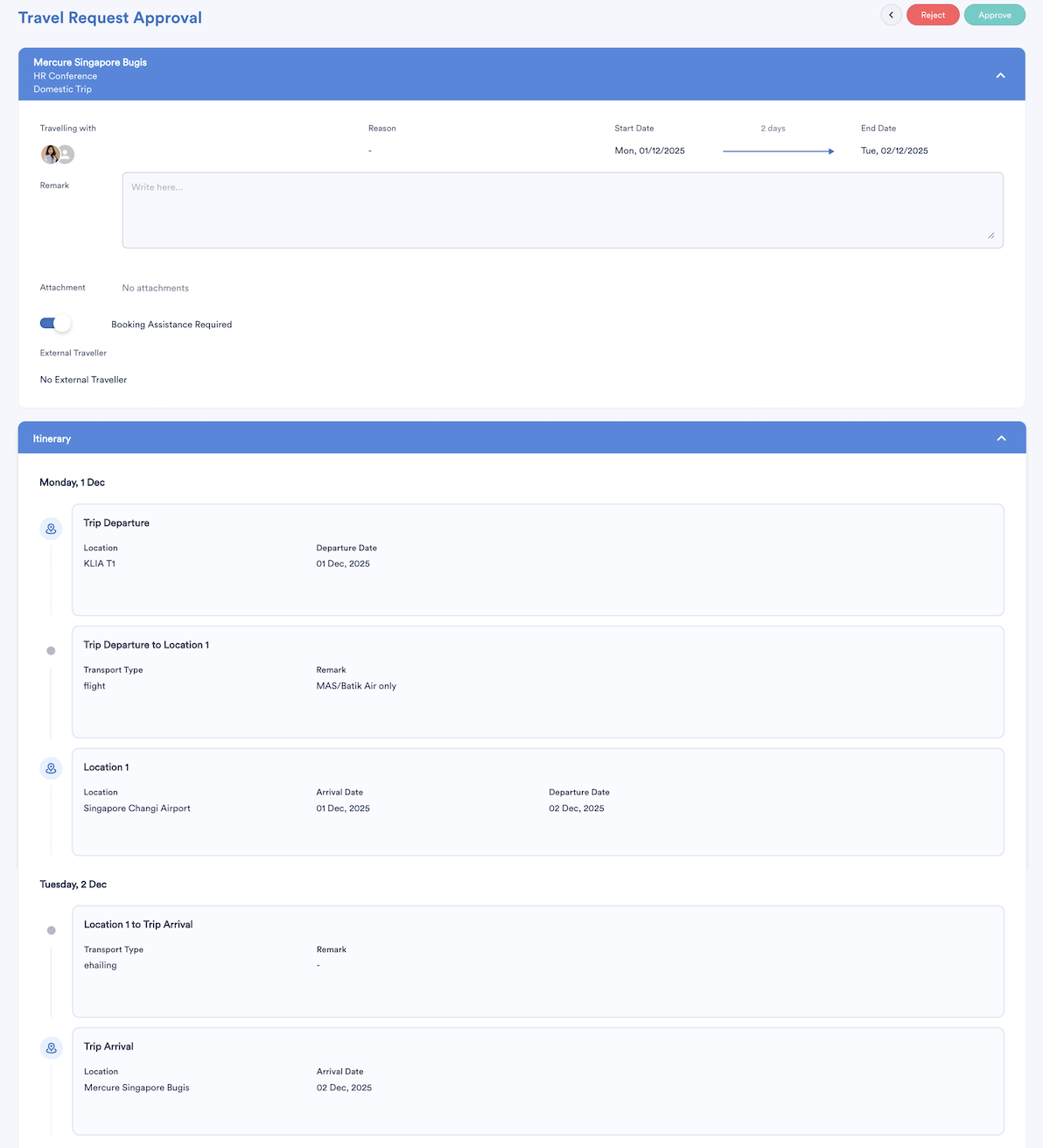
Click View on any request to see the full details.
You can see:
- Trip information - title, start & end date, travellers (internal and external)
- Itinerary - locations, transport, accommodation
- Cash advance and travel claim items
All fields are read-only, except for cash advance amounts.
Step 2
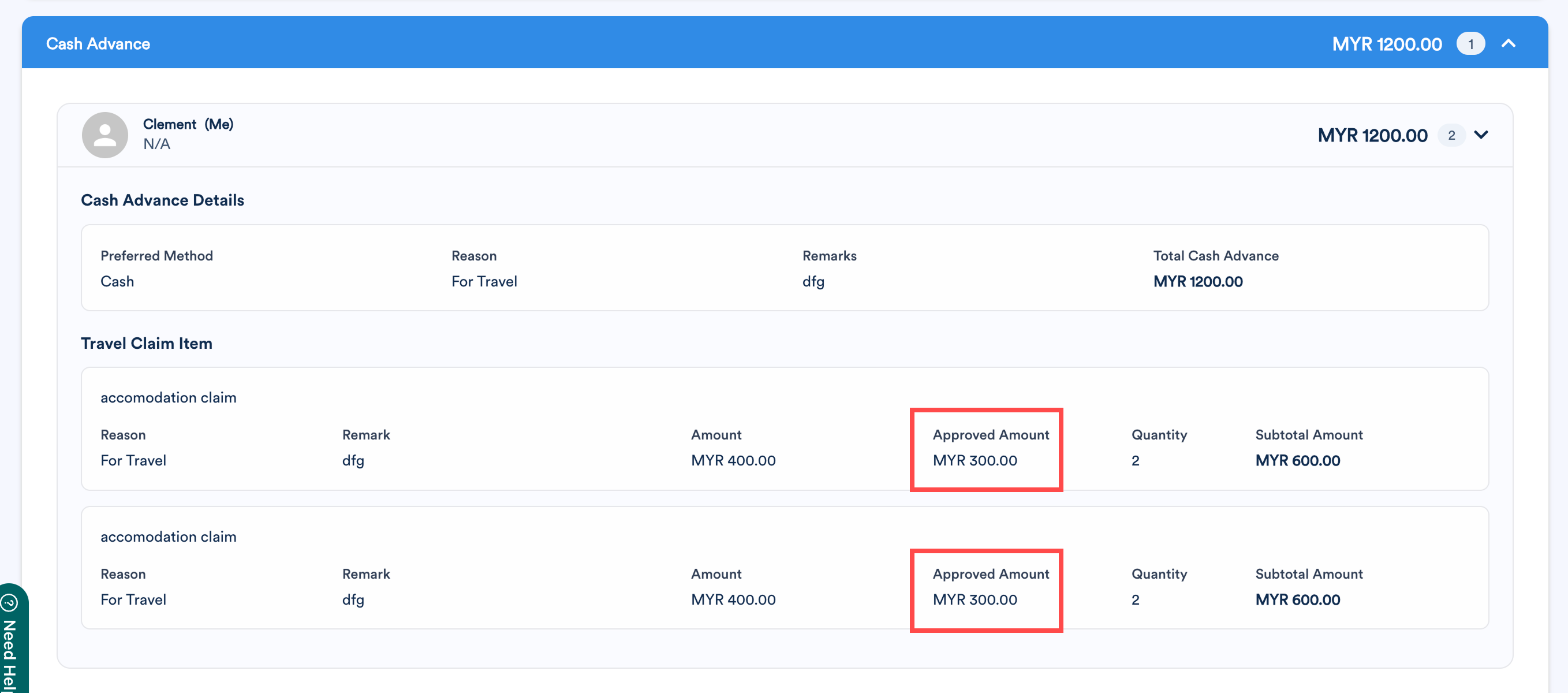
Approvers can update the approved amount for cash advance items if it's a pending request.
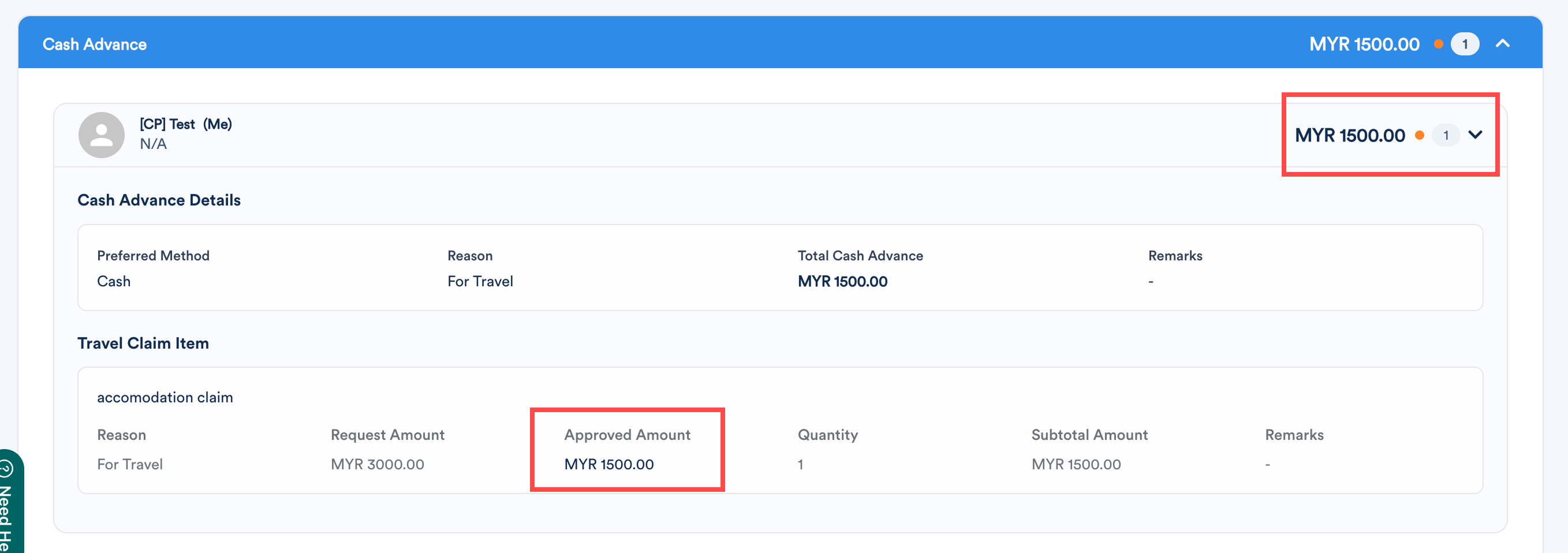
- If an orange dot appears next to an amount, it indicates that an edit has been made by the approver.
- Other details (Reason, Quantity, Subtotal) remain read-only.
Step 3
At the top of the screen, you'll see three buttons: Back, Reject, and Approve.

- Back - returns user to the list of requests.
- Reject or Approve - will trigger a remark screen to slide in. After entering your remarks (optional), click Reject or Approve to finalize the action.
On the requester's side, once the request is approved, they will see the approved amount under the review tab in the approved status.


We hope this explanation clarifies the matter. If you require additional assistance, do not hesitate to contact our support team.
Was this article helpful?
That’s Great!
Thank you for your feedback
Sorry! We couldn't be helpful
Thank you for your feedback
Feedback sent
We appreciate your effort and will try to fix the article