Path: My Approval > Travel Claim
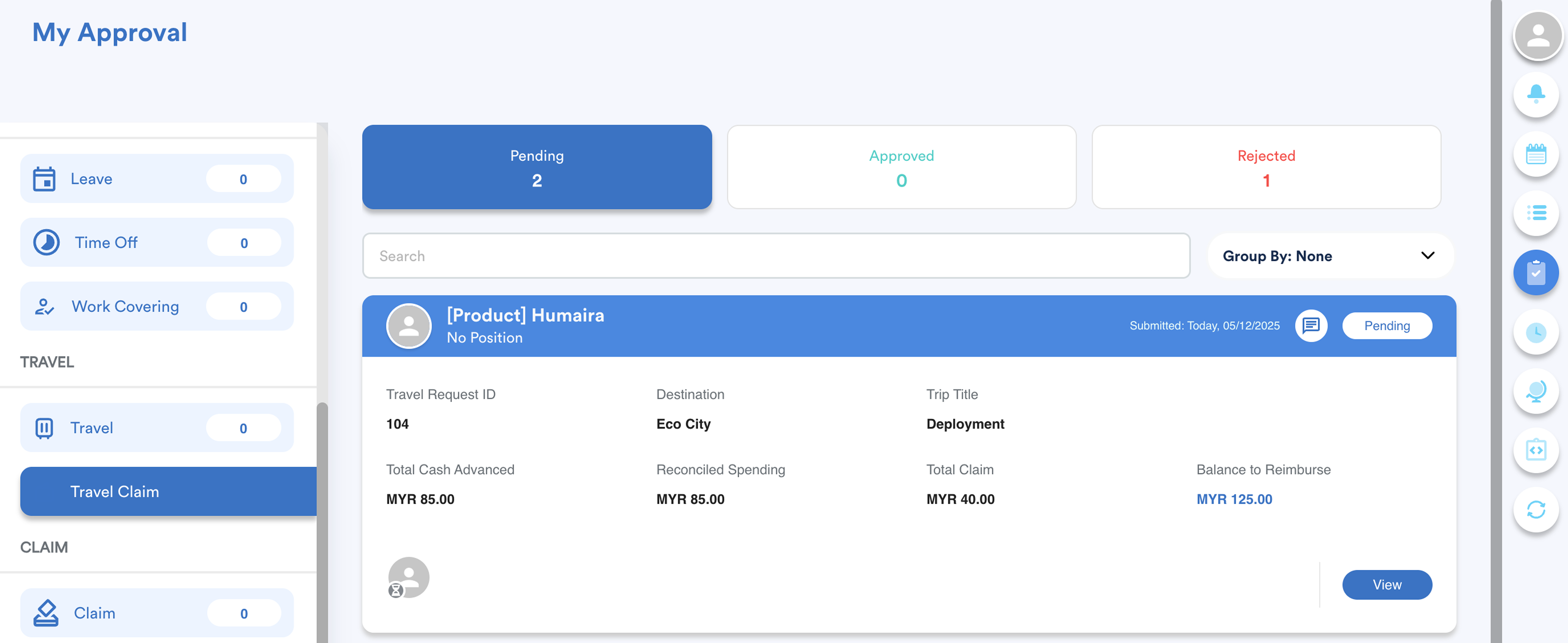
All travel requests are organized under tabs:
- Pending
- Approved
- Rejected
Step 1
Click View on any request to access full details.
At the top of the screen, three action buttons are available: Back, Reject, Approve.
Travel Claim contains two sections: Cash Advance and Claim.
Step 2
Cash Advance
The top section displays a summary of the travel claim:
- Trip details
- Total Cash Advanced: based on approved travel request
- Reconciled Spending: the actual amount spent by the requestor
- Total Claim: any claims added by the requestor
- Balance to Return / Balance to Reimburse: based on approved amounts
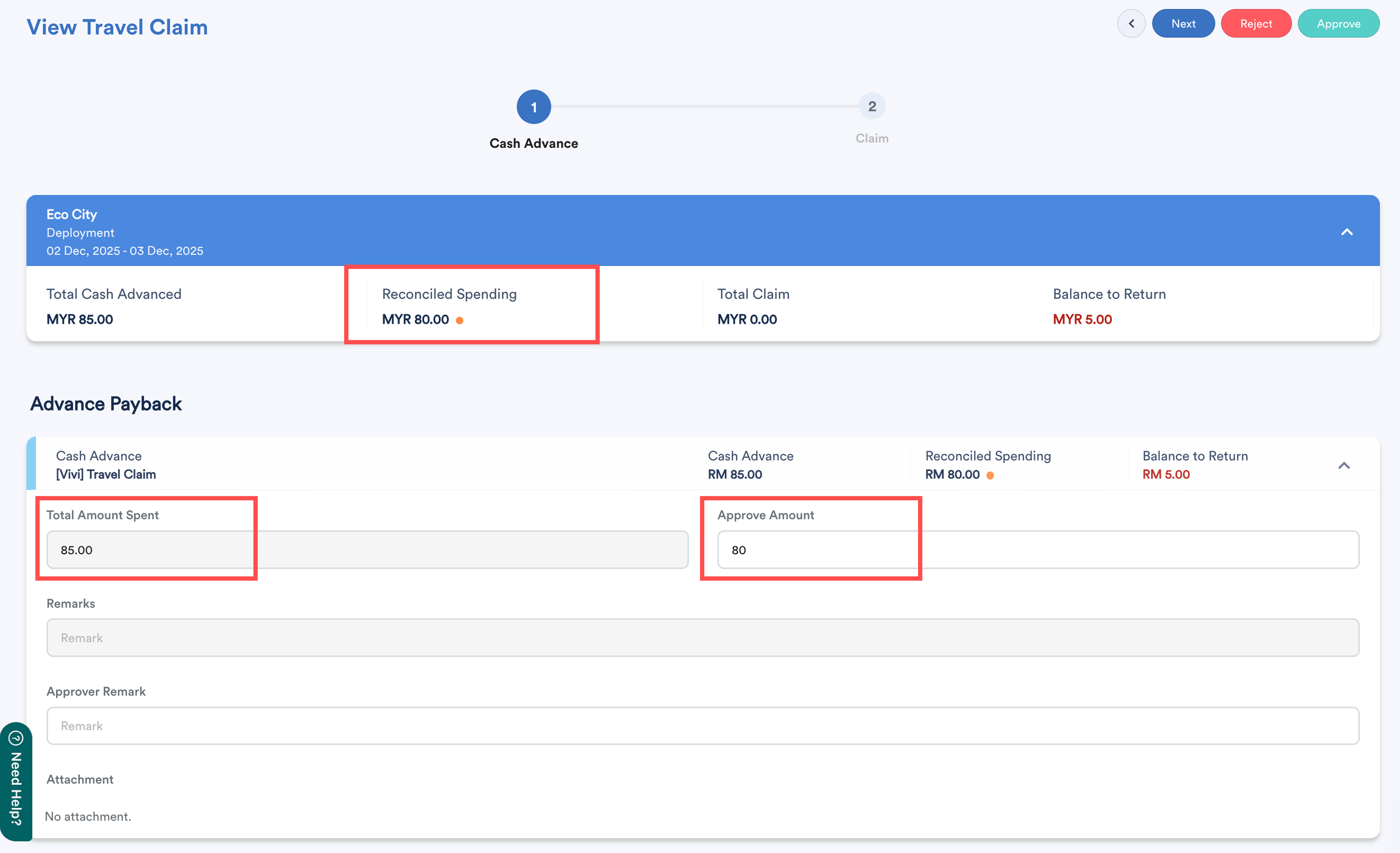
The approver may amend the Approve Amount field next to Total Amount Spent.
- An orange dot next to Reconciled Spending indicates the Approve Amount differs from the Amount Spent.
Remarks can be added for any changes or clarification.
The system calculates Reconciled Spending and updates Balance to Return / Balance to Reimburse based on the Approve Amount.
Step 3
Claim
The approver may amend the Approve Amount for each claim line.
The final claim amount will follow the Approve Amount.
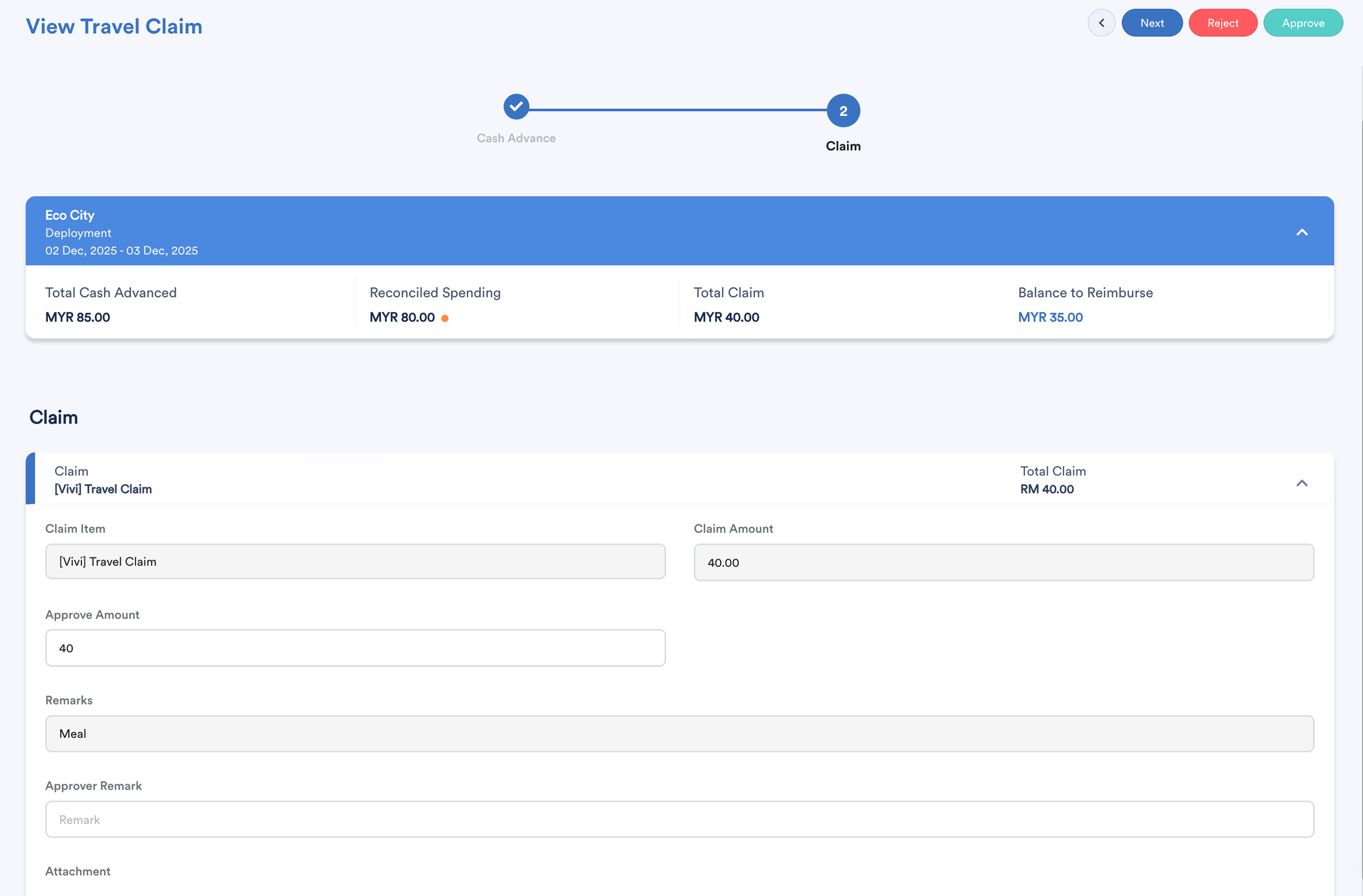
The system recalculates the final Balance to Return / Balance to Reimburse based on:
Reconciled Spending (from Cash Advance tab), and
Approved Claim Amount
Step 4
After reviewing both tabs, select Approve or Reject.

We hope this explanation clarifies the matter. If you require additional assistance, do not hesitate to contact our support team.
Was this article helpful?
That’s Great!
Thank you for your feedback
Sorry! We couldn't be helpful
Thank you for your feedback
Feedback sent
We appreciate your effort and will try to fix the article