The Manual Earliest In and Latest Out setting helps ensure clocking data is paired under the correct shift, especially when employees:
- clock in early
- clock out more than 2 hours after shift end
- work overtime past midnight
- continue working into the next day
Without an extended clocking range, the system may treat the after-midnight clocking as a new day’s clock-in instead of the previous shift’s clock-out, which can result in incomplete attendance records.
This setting allows the system to automatically group all clocking data within the configured time range into the same shift.
How It Works
Once enabled, the system will automatically sort all clocking records that fall between the configured:
- Earliest In
- Latest Out
and include them under the current shift.
This helps prevent situations where the next-day clocking is mistakenly captured as:
- a new attendance entry
- the wrong date
- an incomplete shift record
For example, if an employee works overtime until 2:00 AM, setting the Latest Out beyond that time ensures the 2:00 AM clocking is still treated as the same shift’s clock-out.
How to Set Manual Earliest In and Latest Out
Step 1
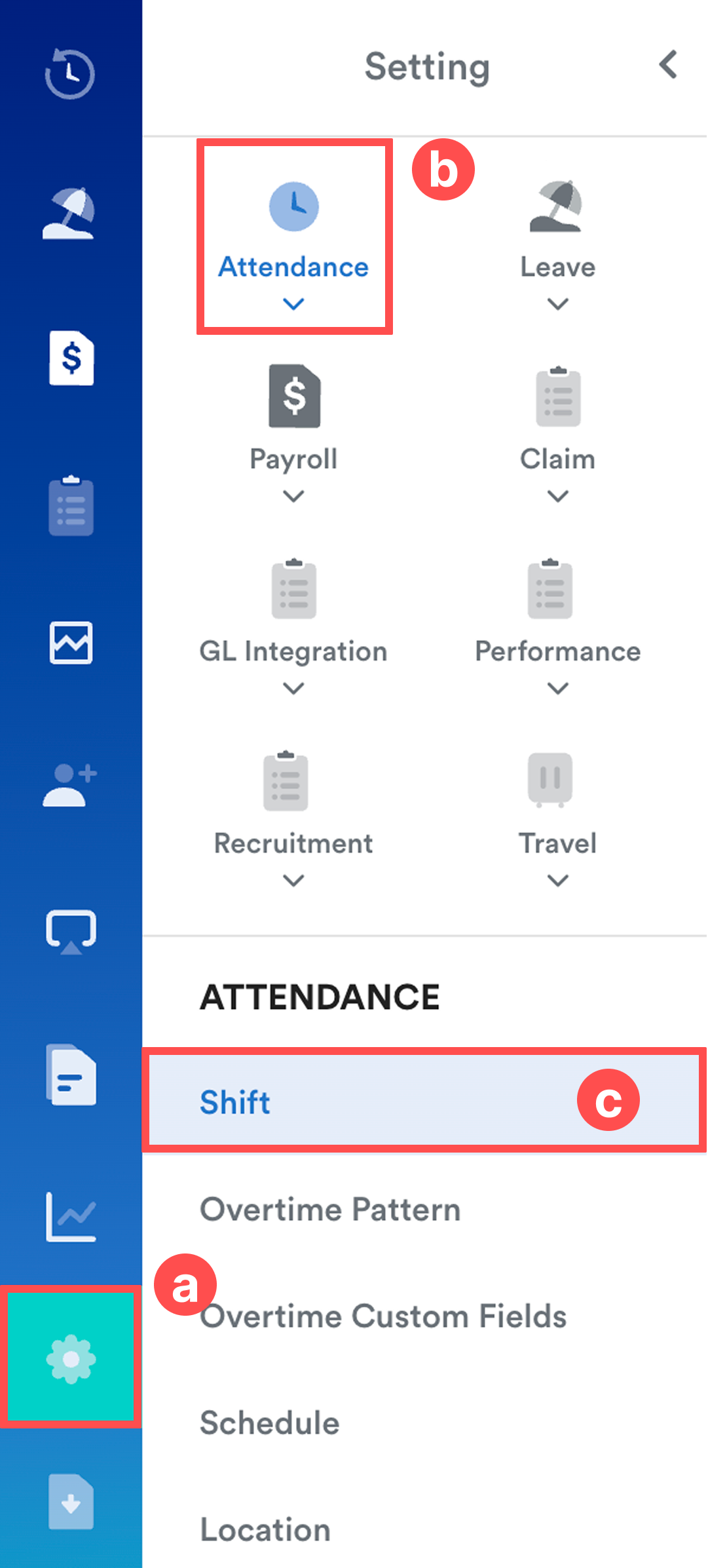
On the left menu, go to Settings (a) > Attendance (b) > Shift (c). Select relevant shift from the list to edit.
Step 2
Toggle on Manual Earliest In and Latest Out.
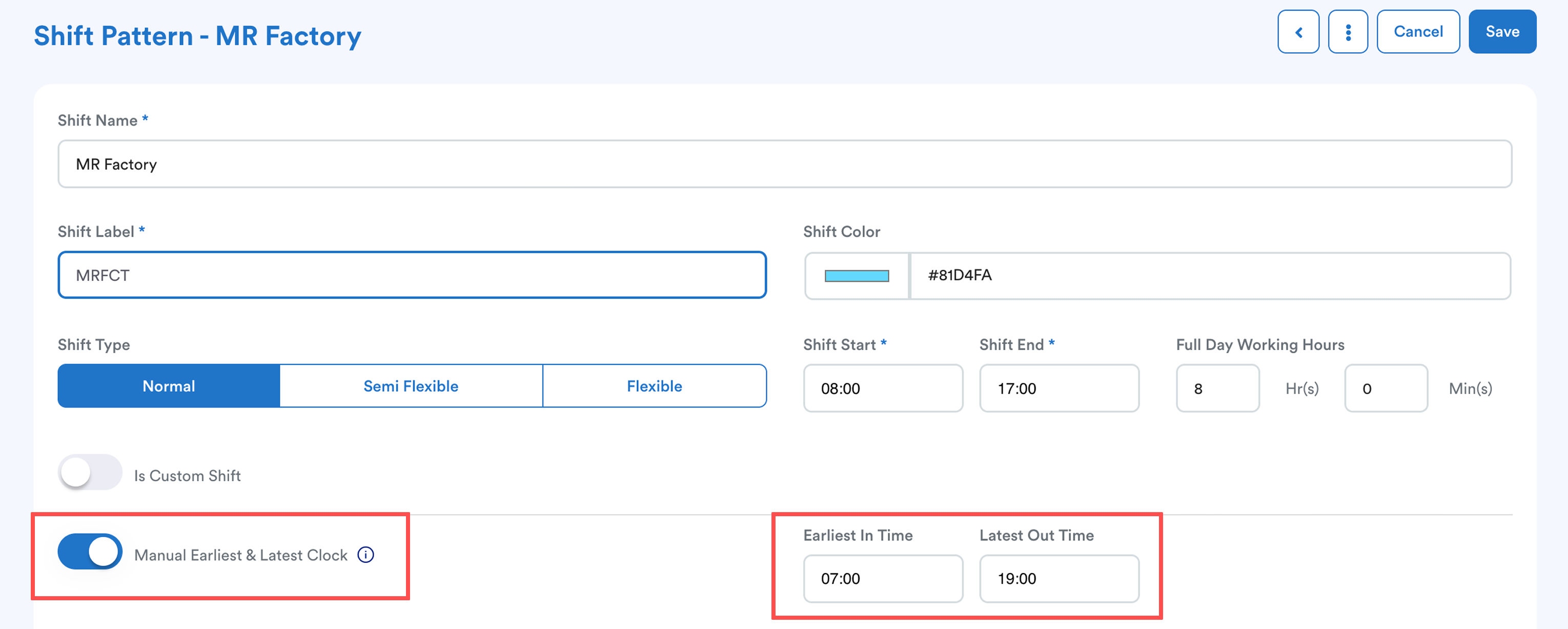
Then set:
- Earliest In = how early employees are allowed to clock in
- Latest Out = the latest expected clock-out time, including possible overtime
Best Practice: Always leave a buffer between the previous shift’s Latest Out and the next shift’s start time. If the Latest Out is set too close to the next shift start, the system may still pair the clocking incorrectly.
When setting the time range, make sure the configured period:
- fully covers possible overtime hours
- includes any work that may pass midnight
- does not overlap with the next shift start time
- leaves a time gap before the following workday
Once completed, click Save.
Step 3
After saving the new shift setting, run Batch Process and tick Reset Clock.
Refer to this article: Batch Process Resetting Attendance to Default Schedule Settings
This allows the attendance records to be recalculated using the updated clocking range. Without this step, previous attendance data may still follow the old clock pairing logic.
We hope this explanation clarifies the matter. If you require additional assistance, do not hesitate to contact our support team.
Was this article helpful?
That’s Great!
Thank you for your feedback
Sorry! We couldn't be helpful
Thank you for your feedback
Feedback sent
We appreciate your effort and will try to fix the article