Clock data is the clock-in and clock-out time recorded in an employee's attendance based on their shift. A complete clock data requires both in and out time recorded, or else the attendance is flagged as "Incomplete". However, it's normal when there are cases where employee forget to clock out after their shift ends.
As an HR or Admin, there are three methods you can to help update employees' clock-in and clock-out time. In this article, we will use clock-out as an example:
Method 1: Incomplete Entry Request
The employee can submit a request for the incomplete clock entry via Worksy. This request will then be routed to the HR (or depending on employee's approval flow) for review and approval.
Step 1
Instruct the employee to go to My Request and submit an Incomplete Entry request.
Your employee can refer to this guide: Submitting Incomplete Clock Entry RequestStep 2
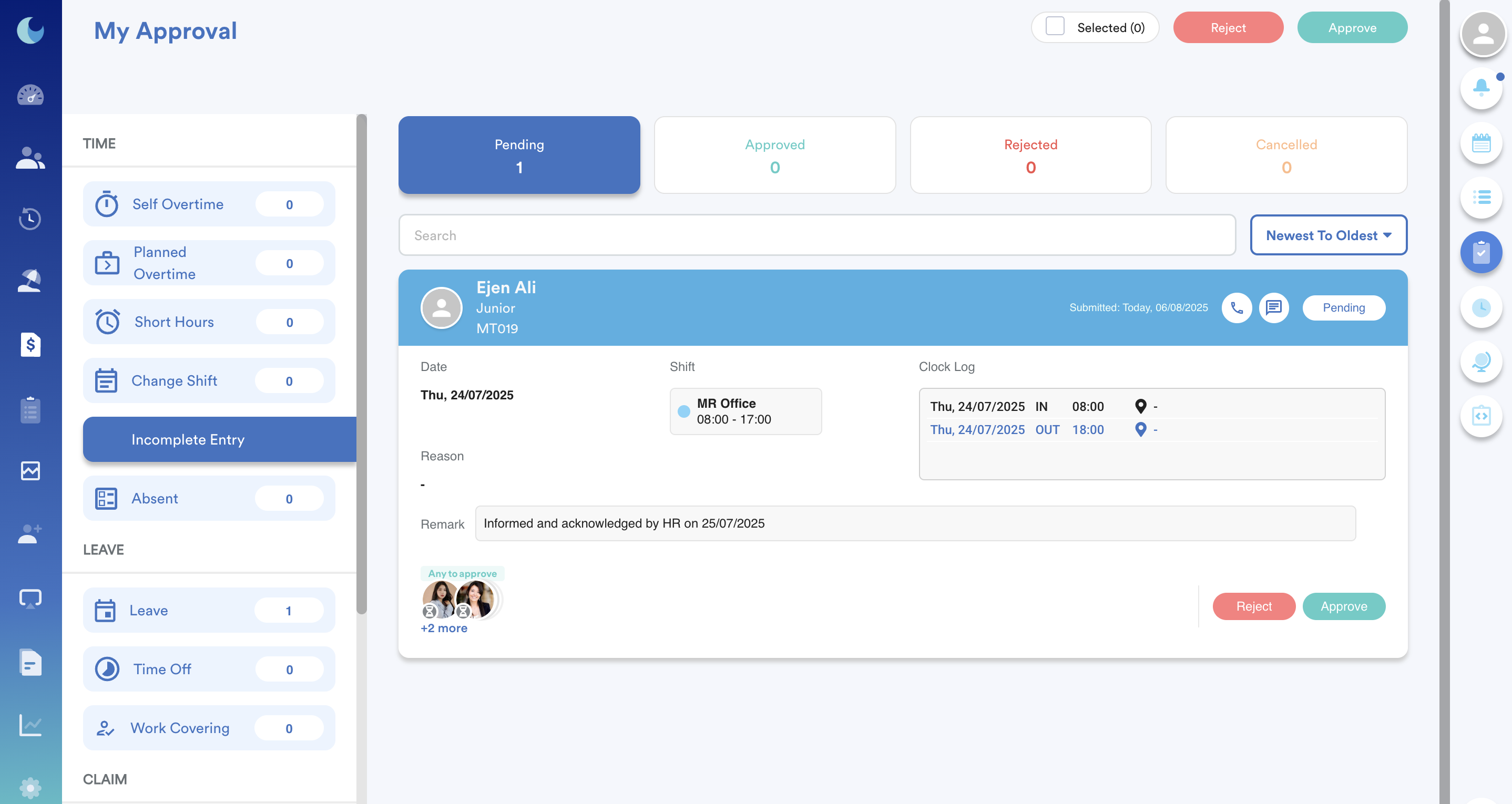
HR and Admin can find the request in My Approval > Incomplete Entry. Review the information and click Reject or Approve to process the request.
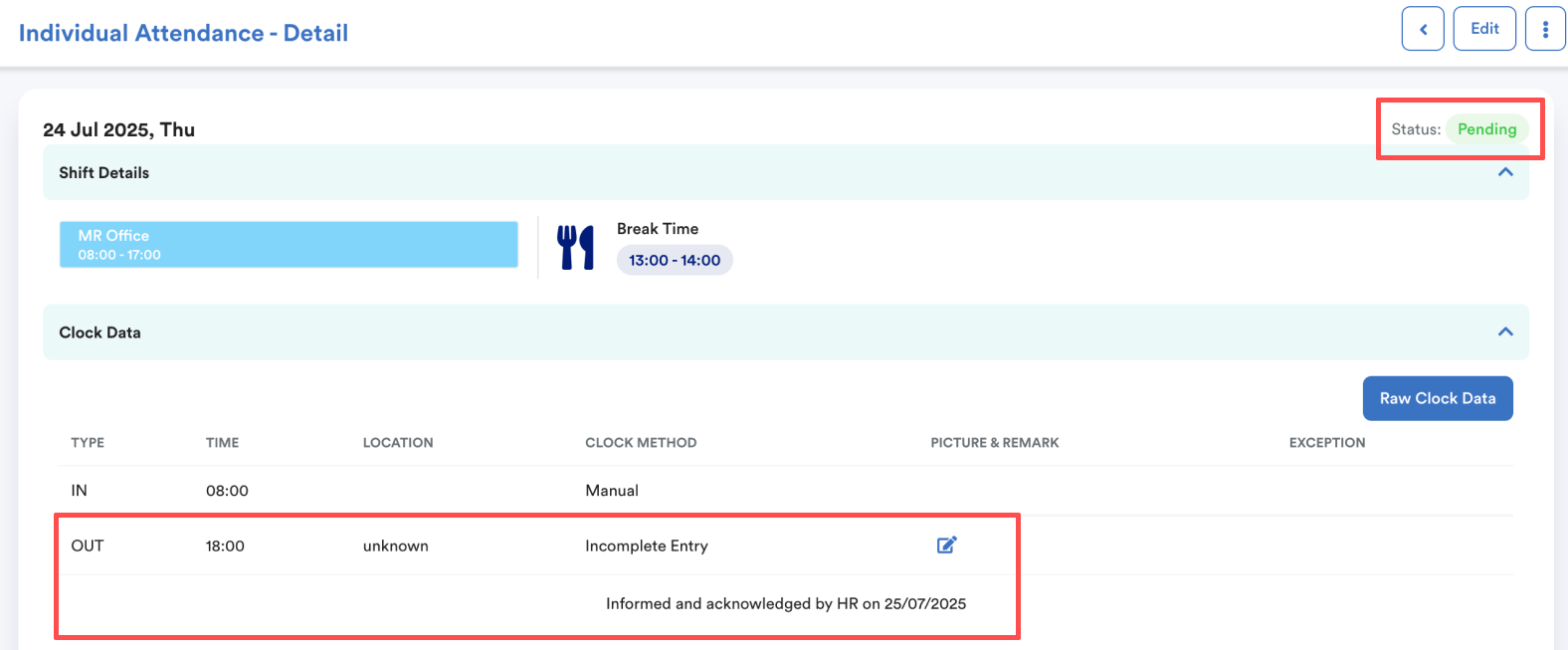
Once approved, the clock-out method will be reflected in Individual Attendance. The Incomplete tag will also disappear.
Method : Manual Clock-out through Individual Attendance
HR or Admin can directly edit employee's clock data through Individual Attendance screen.
Refer to this guide: Editing Individual Clocking RecordsWe hope this explanation clarifies the matter. If you require additional assistance, do not hesitate to contact our support team.
Was this article helpful?
That’s Great!
Thank you for your feedback
Sorry! We couldn't be helpful
Thank you for your feedback
Feedback sent
We appreciate your effort and will try to fix the article