Location Specified Clocking ensures that employees can only clock in or out when they are physically present at assigned work locations.
When this feature is active, the system checks the employee's GPS coordinates against the coordinates defined in the Work Location. Refer: Creating Working Location
Note: For more flexibility, consider a wider radius (e.g. 50–100 meters) to account for GPS drift indoors.
How to Enable Location-Specified Clocking
To activate this feature, you must activate the settings within the specific Schedule assigned to your employees.
Step 1
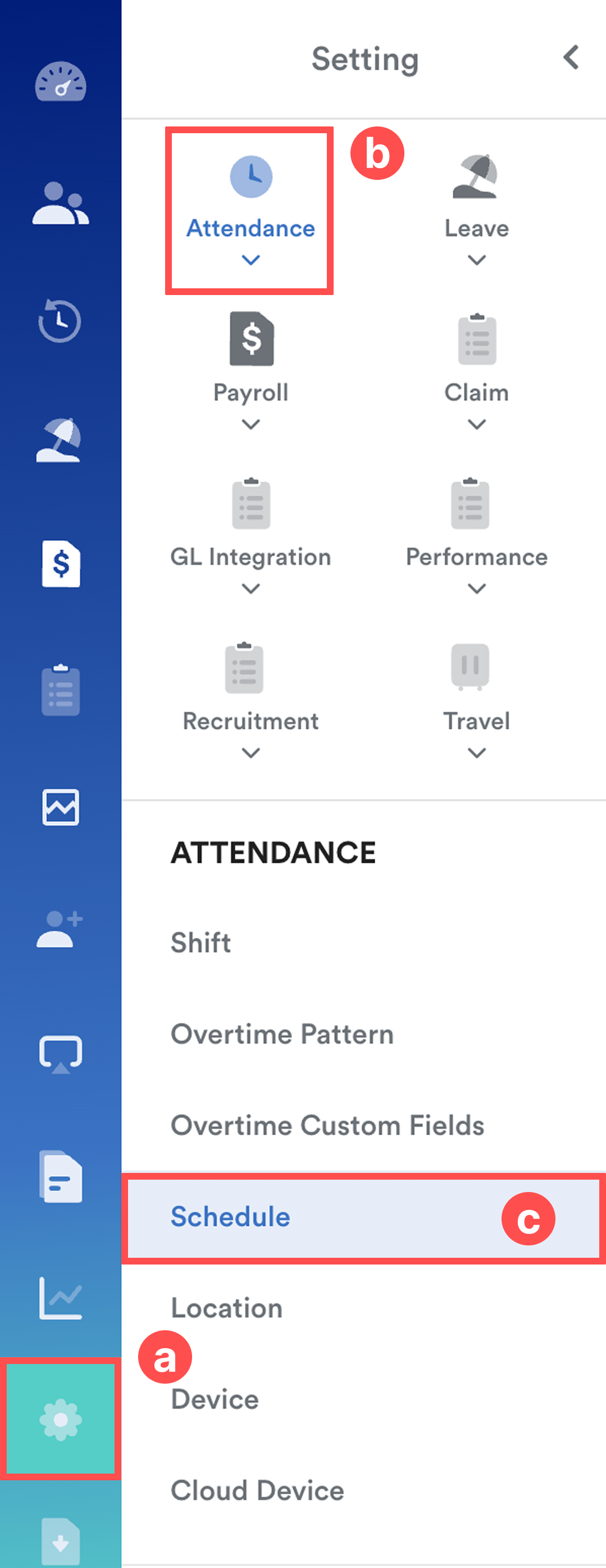
On the left menu, go to Settings (a) > Attendance (b) > Schedule (c).
Step 2
Select the relevant schedule from the list.
Step 3
Go to the Attendance tab. Click Edit on the top right of screen.

Step 4
Scroll to Clocking Method section and toggle the button to activate Location Specified Clocking.
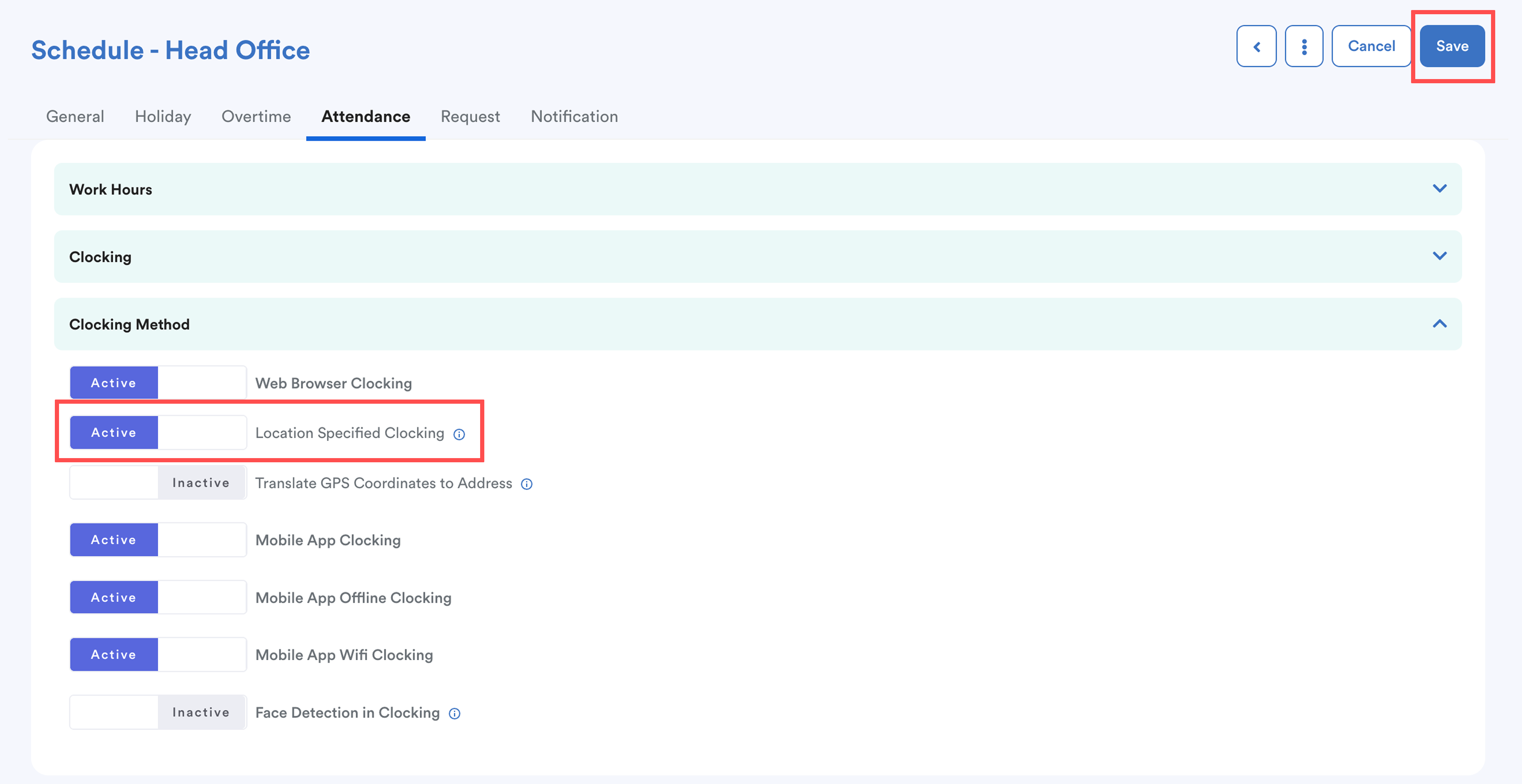
Click Save to apply changes.
Note:
Ensure your staff are linked to the correct location-restricted schedule.
Related
- GPS Location Not Detected When Clocking (Mobile App)
- Why "You are not allowed to clock-in/ clock-out at this Location"
- Allow Employees to Clock In from Different Time Zones
We hope this clarifies the matter. If you require further assistance, do not hesitate to contact our support team.
Was this article helpful?
That’s Great!
Thank you for your feedback
Sorry! We couldn't be helpful
Thank you for your feedback
Feedback sent
We appreciate your effort and will try to fix the article