To support work-from-home practice, you may either turn off the location-specific clocking or include the employee's home address as the work location. Since WFH requirements vary by company, you can choose the method that best fits your internal policy.
TABLE OF CONTENTS
- Method 1: Allow Clock-In from Anywhere (Recommended)
- Method 2: Restrict Clock-In to Approved Locations
- Additional Settings to Review (Optional)
Method 1: Allow Clock-In from Anywhere (Recommended)
If you do not require employees to clock in from a fixed location, you can disable Location Specified Clocking.
This allows employees to clock in from anywhere, including their home, without additional setup.
Step 1
Go to Settings > Attendance > Schedule. Create or edit a schedule for WFH days.
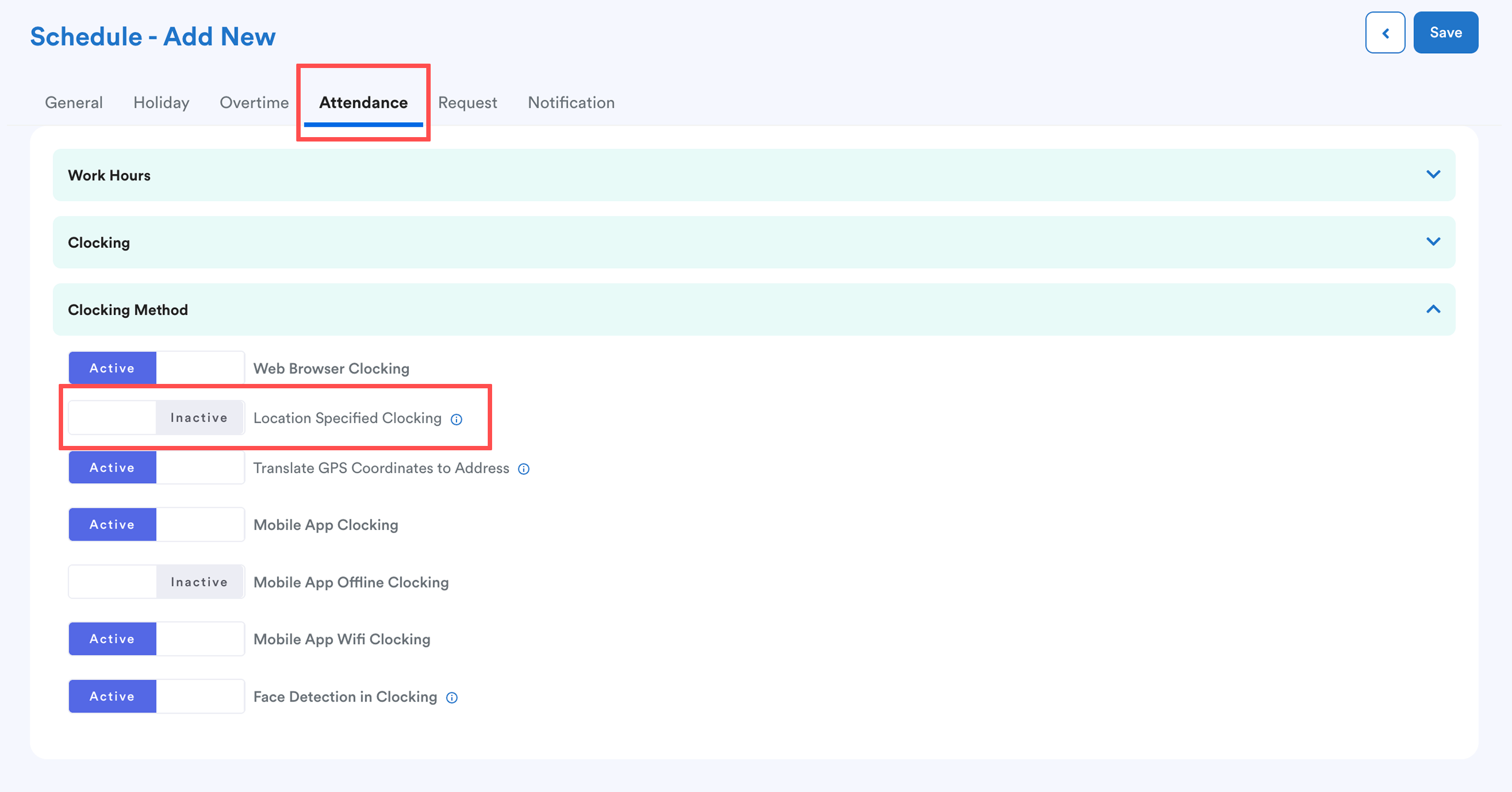
Ensure Location Specified Clocking is inactive.
Step 2
Assign the schedule to employees. Refer to: How to Add / Edit Staff Schedule or Batch Assign Work Schedule
Hybrid Arrangement (Office + WFH)
For hybrid arrangements, you can create a hybrid schedule and set up separate shifts (e.g. Office shift and WFH shift).
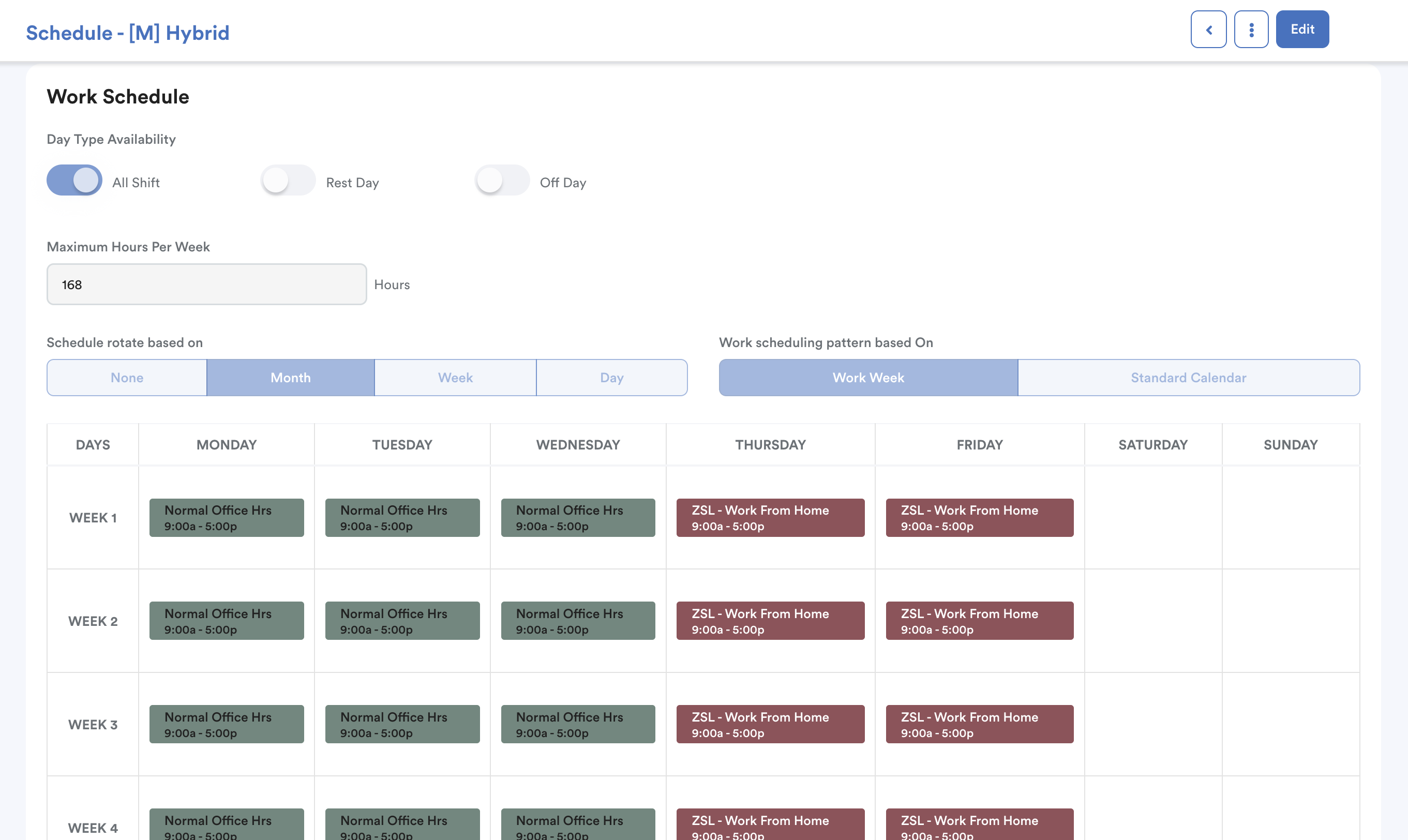
Then, assign them accordingly in the schedule with Location Specified Clocking disabled. This allows flexibility for employees to clock in across different work arrangements without location restriction.
Method 2: Restrict Clock-In to Approved Locations
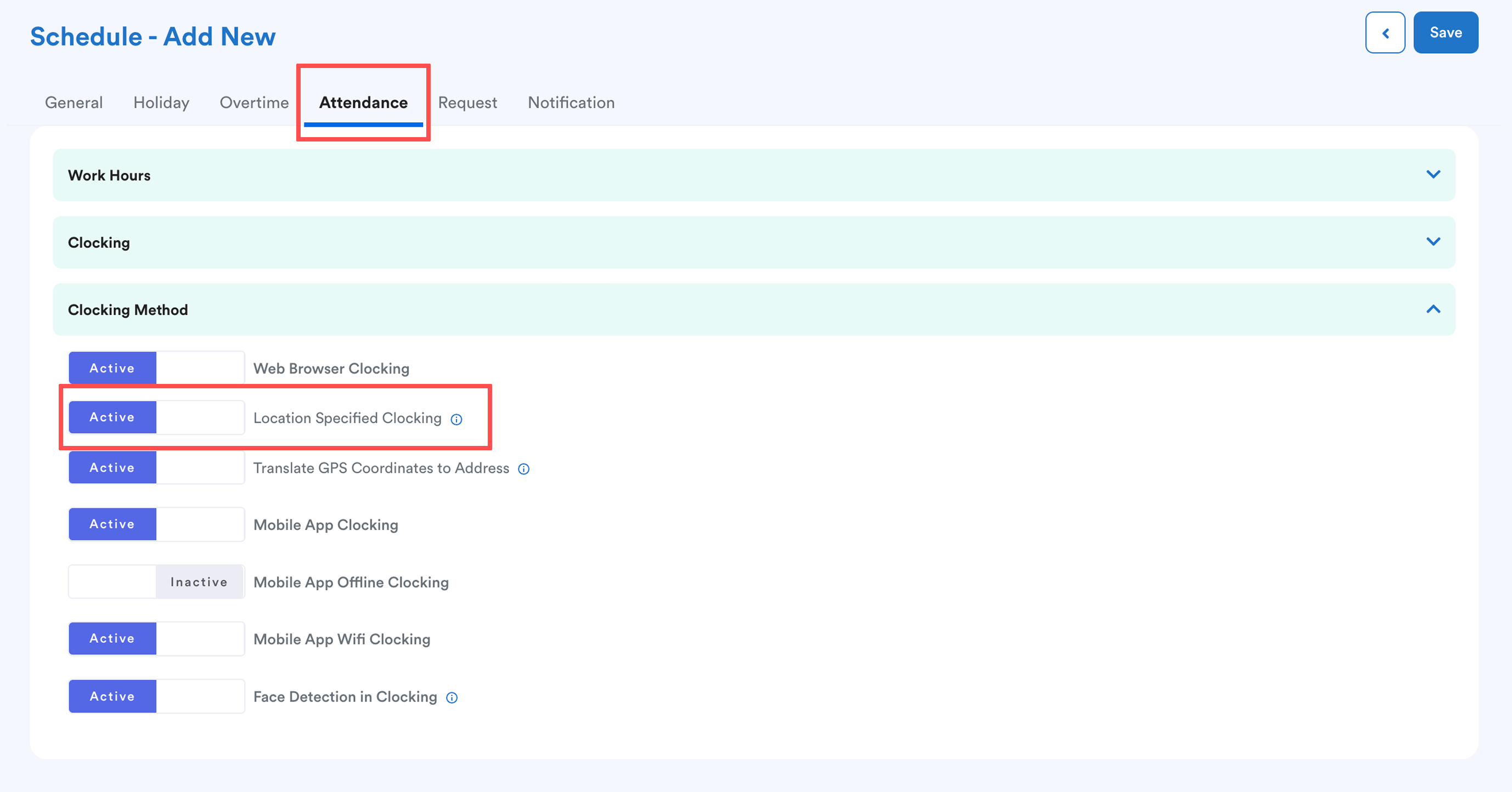
If you want employees to clock in only from specific locations, keep Location Specified Clocking enabled and include their home as an approved location.
Note: The Location Specified Clocking setting applies to the entire schedule and cannot be set for specific days.
Step 1
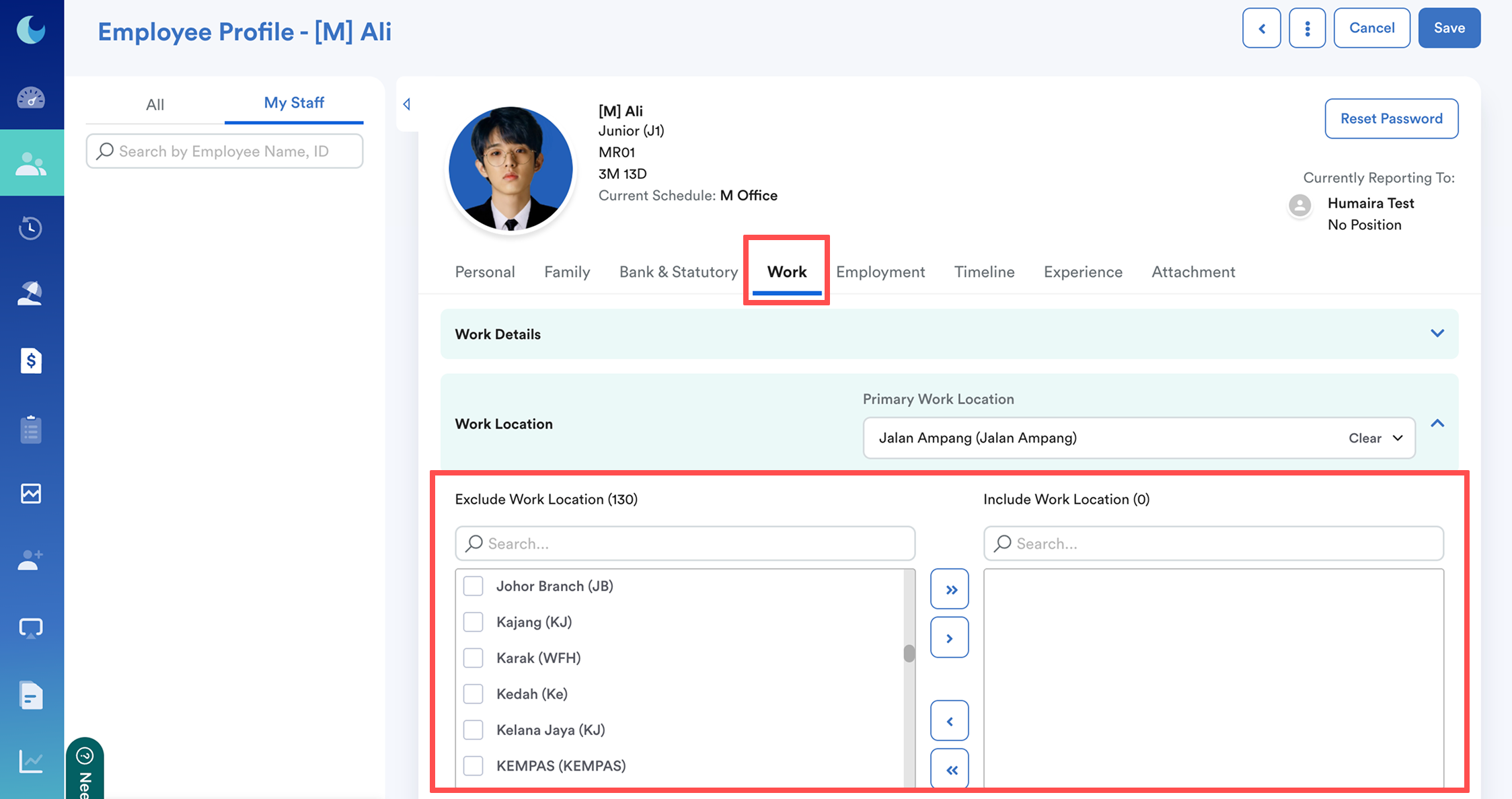
Create a work location for the employee’s home. Refer to: Creating Working Location
Step 2
Assign the location under Work Location in the employee profile
Step 3
Ensure the schedule has Location Specified Clocking activated
Additional Settings to Review (Optional)
a. Break Settings
To allow staff to take their rest periods flexibly rather than at a fixed time, you may utilize the Flexible Break function.

- Refer to this example: How to Enable Flexible Break Time?
b. Clock-In Validation
For additional verification, you may enable Face Detection in Clocking (same section as Location Specified Clocking).
To ensure this works properly, you need to ensure the whole face is centered in the frame.
For more self-clocking errors, refer to Common Errors for Self-Clocking with Face Detection.
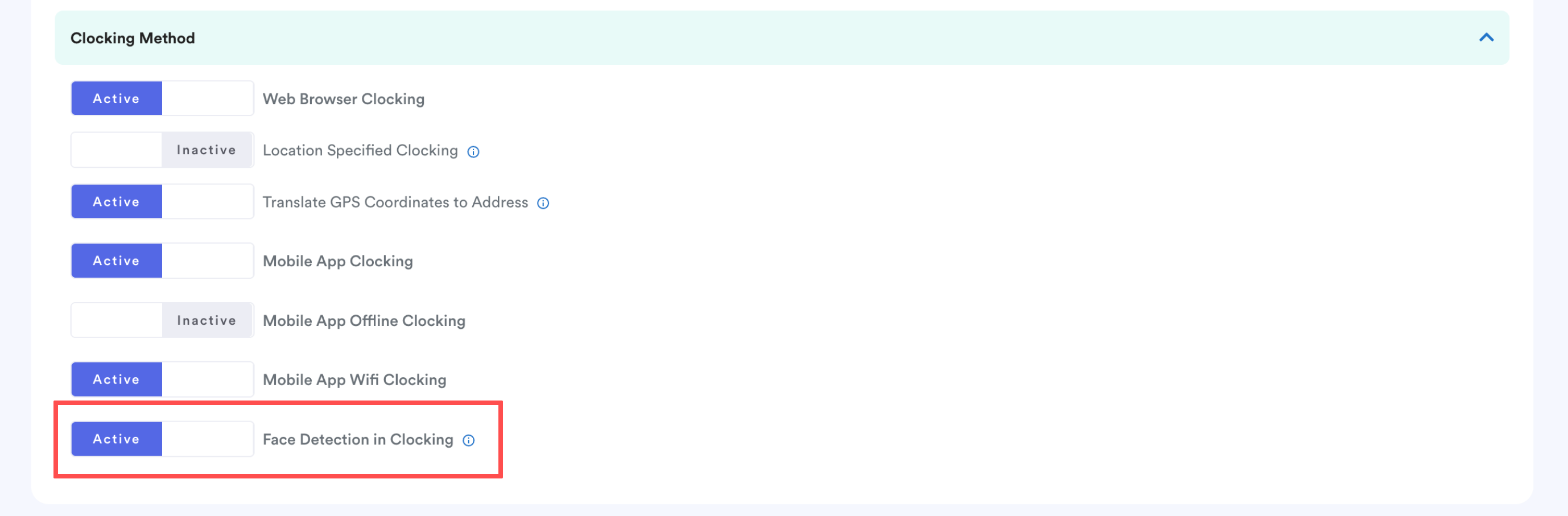
When activated, employees are required to take a selfie during clock-in/out. The system will verify that a human face is detected in the submitted image.
If no face is detected (e.g. image of surroundings, objects, or animals), the clocking attempt will be unsuccessful.
We hope this explanation clarifies the matter. If you require additional assistance, do not hesitate to contact our support team.
Was this article helpful?
That’s Great!
Thank you for your feedback
Sorry! We couldn't be helpful
Thank you for your feedback
Feedback sent
We appreciate your effort and will try to fix the article