Current system does not allow overlapping requests. For example: If you have either a work shift or pre-approved OT, you will not be able to submit an overtime request.
Refer to this for more understanding: What is Pre-Approved Overtime?
To understand overtime request errors , refer to Fail to Submit Overtime Request
Step 1
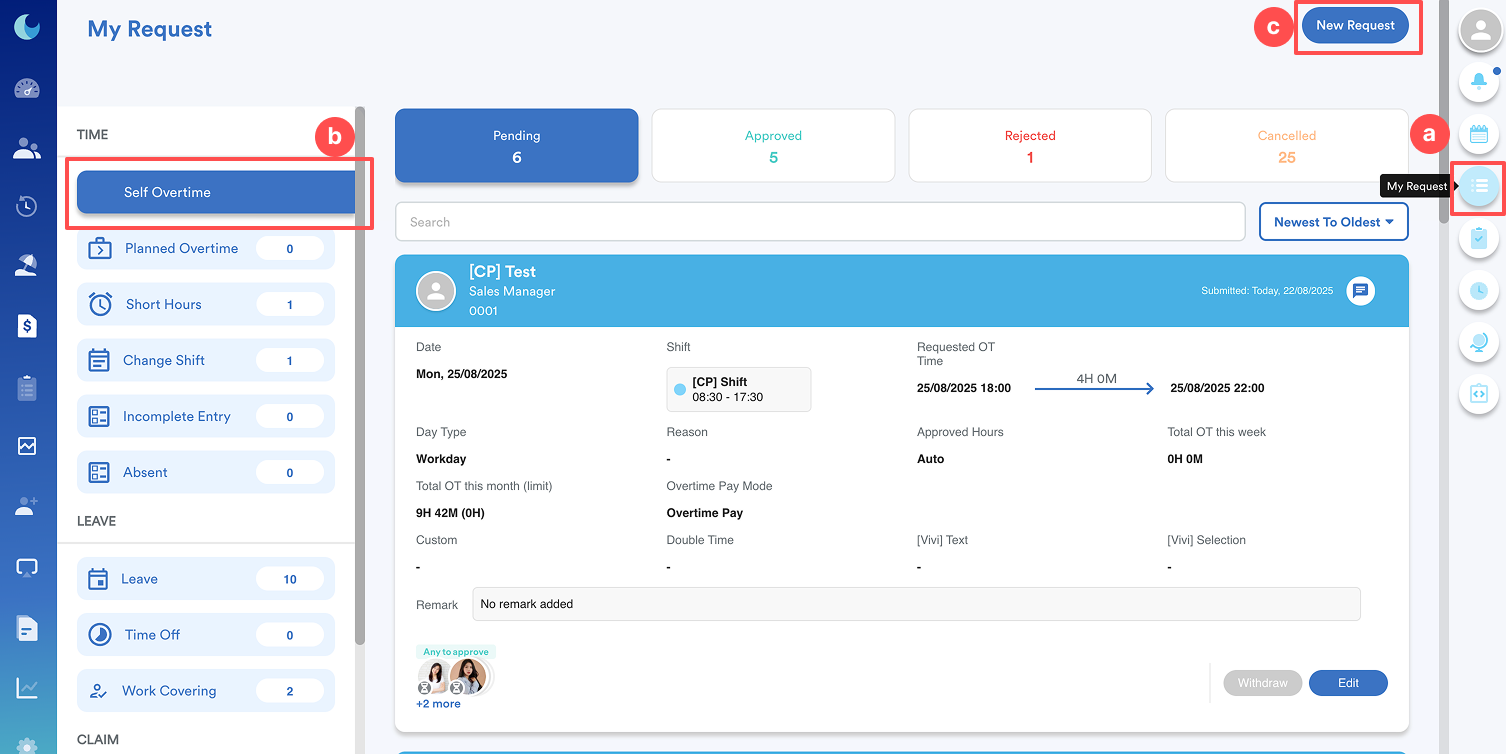
On the right menu, go to My Request. Then, click Self Overtime. To make an overtime request, click New Request.
Step 2
Choose the Date that you have worked extra hours. Then, select your overtime Start time & End time.
Step 3
Choose your Reason & Remarks if any. Then, click on the Attachment button to submit relevant documents before proceeding to click Submit.
To set the reason, you may go to Setting > General > System Label > Pick the modules (attendance) > Add New, refer to Managing System Labels.
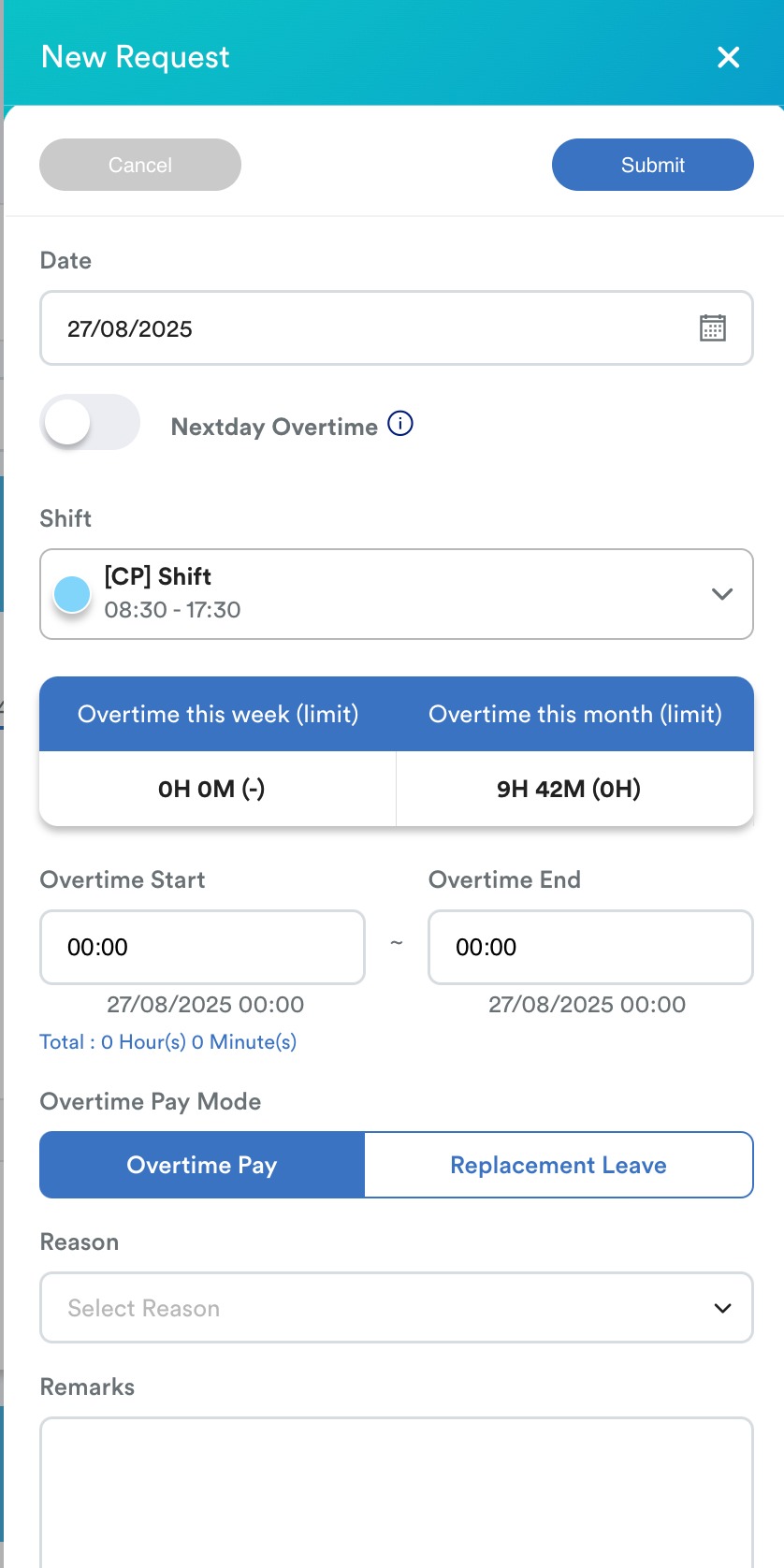
Refer to the “Overtime this week (limit)” and “Overtime this month (limit)” tabs to see the maximum hours you can request.
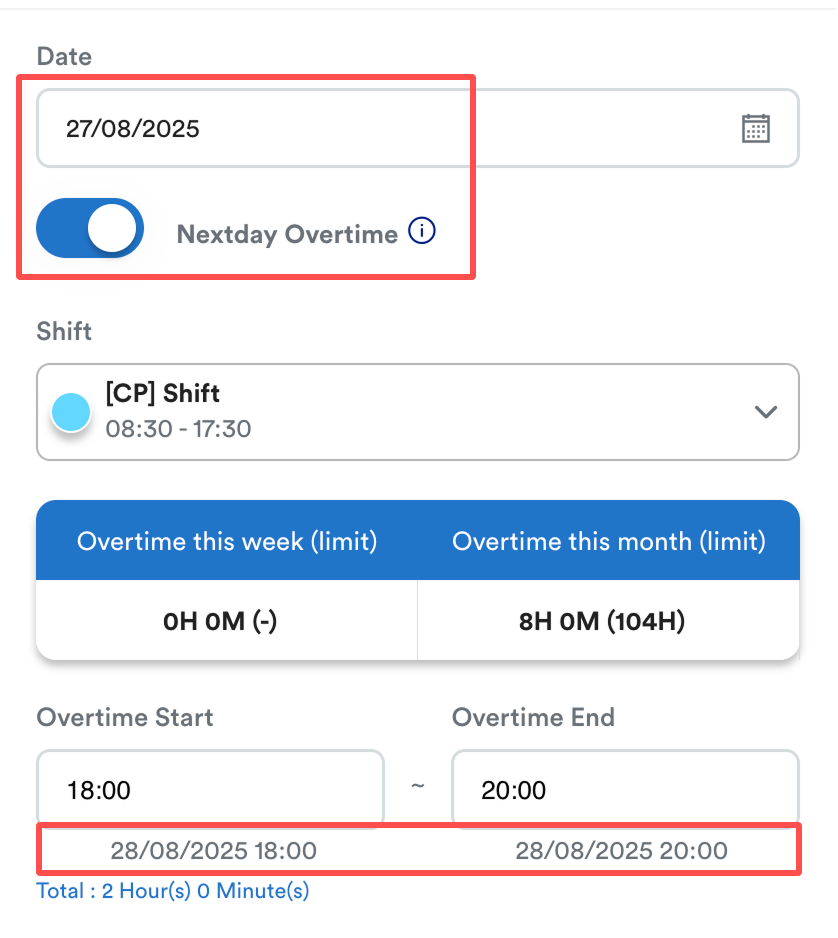 If you turn on "Nextday Overtime", the overtime will appear on the next day (28 Aug). After approval, this will show as pre-approved OT on 27 Aug. 2025 individual screen.
Note: If you do not see the overtime pay mode selection, it means that you are entitled for both overtime and replacement leave/time off, which is set in the overtime pattern. Therefore, you cannot actually select which payment mode you want. Refer to How to Enable Both Overtime Pay and Replacement Leave as Overtime Pay Mode
Note:
If the Overtime Pay Mode is set to Replacement Leave, the system calculates leave entitlement based on the Approved Overtime Hours.
If the Overtime Pay Mode is set to Overtime Pay, the system will refer to the Rounded Overtime Hours for OT calculation as defined in the Overtime Pattern settings.
Alternatively, you can also enable pre-approved OT in shift settings. Refer to option 3 in How to Get Pre-approved OT.
To set your overtime pattern, refer to: Creating Overtime Pattern TemplateTo set up replacement leave, refer to: Setting Up Replacement LeaveTo understand earning replacement leave for overtime, refer to: Earn Replacement Leave from Non-Working DayVideo Tutorial
The videos below show how to request, edit, and also cancel your self-overtime request.
Mobile Version
Desktop Version
We hope this explanation clarifies the matter. If you require additional assistance, do not hesitate to contact our support team.
Was this article helpful?
That’s Great!
Thank you for your feedback
Sorry! We couldn't be helpful
Thank you for your feedback
Feedback sent
We appreciate your effort and will try to fix the article