If an overtime request has already been approved, the requestor must first submit a cancellation request, and the Approver/Admin will then need to approve that cancellation.
This article will guide you on how to cancel an approved overtime request as an Admin. The Admin can perform the cancellation via the Request on Behalf screen.
The method applies to both Self Overtime and Planned Overtime requests. In this guide, we’ll use an approved Self Overtime request as the example.
1. Manual Overwrite in Individual Attendance
2. Use Request on Behalf and Approve on Behalf
1. Manual Overwrite in Individual Attendance (for past records)
For attendance with clocking data, go to Attendance > Individual Attendance, select the affected date, click "Manual Overwrite", and set the approved OT to 0. 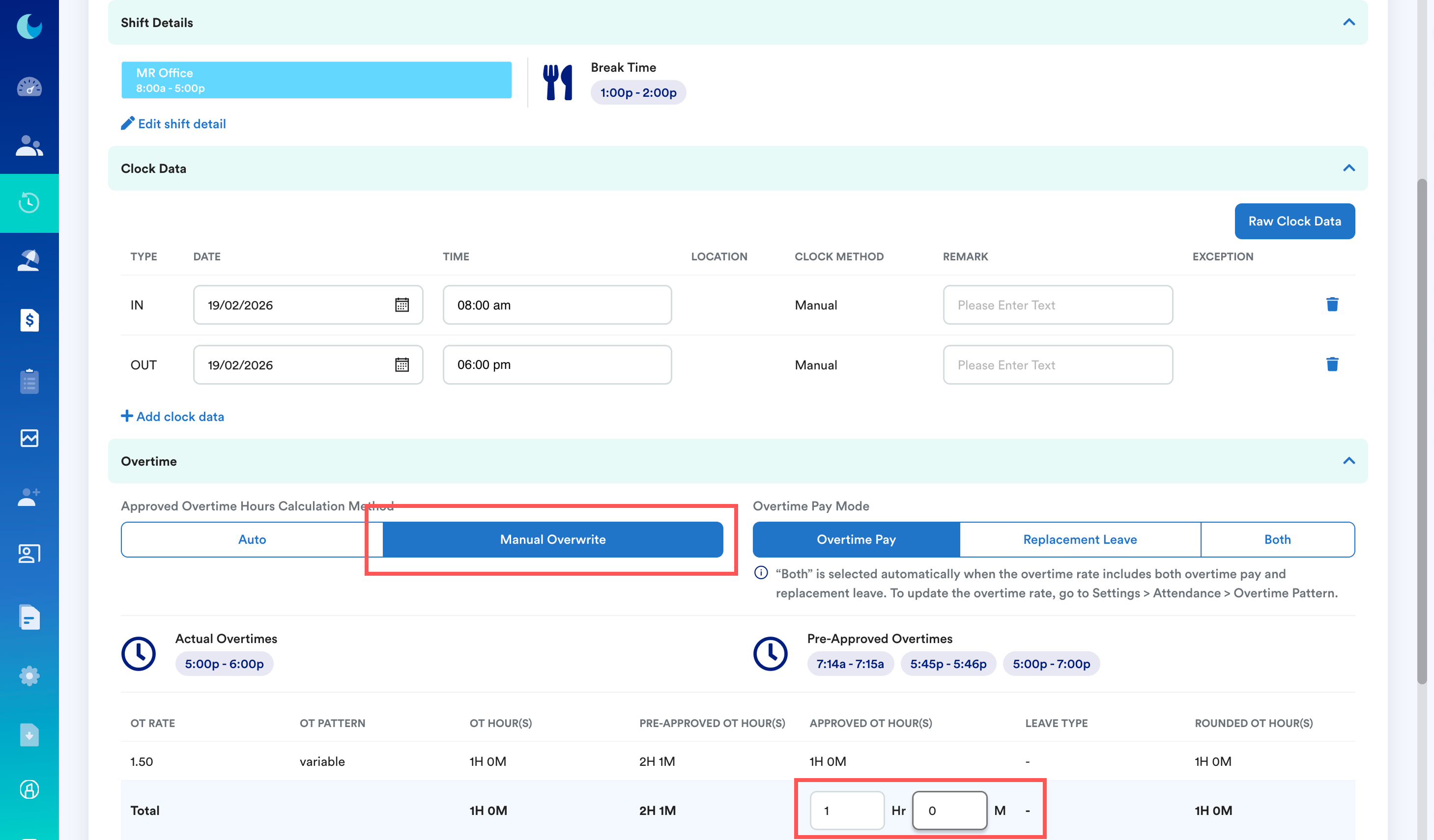
2. Use Request on Behalf and Approve on Behalf (for future records)
Step 1
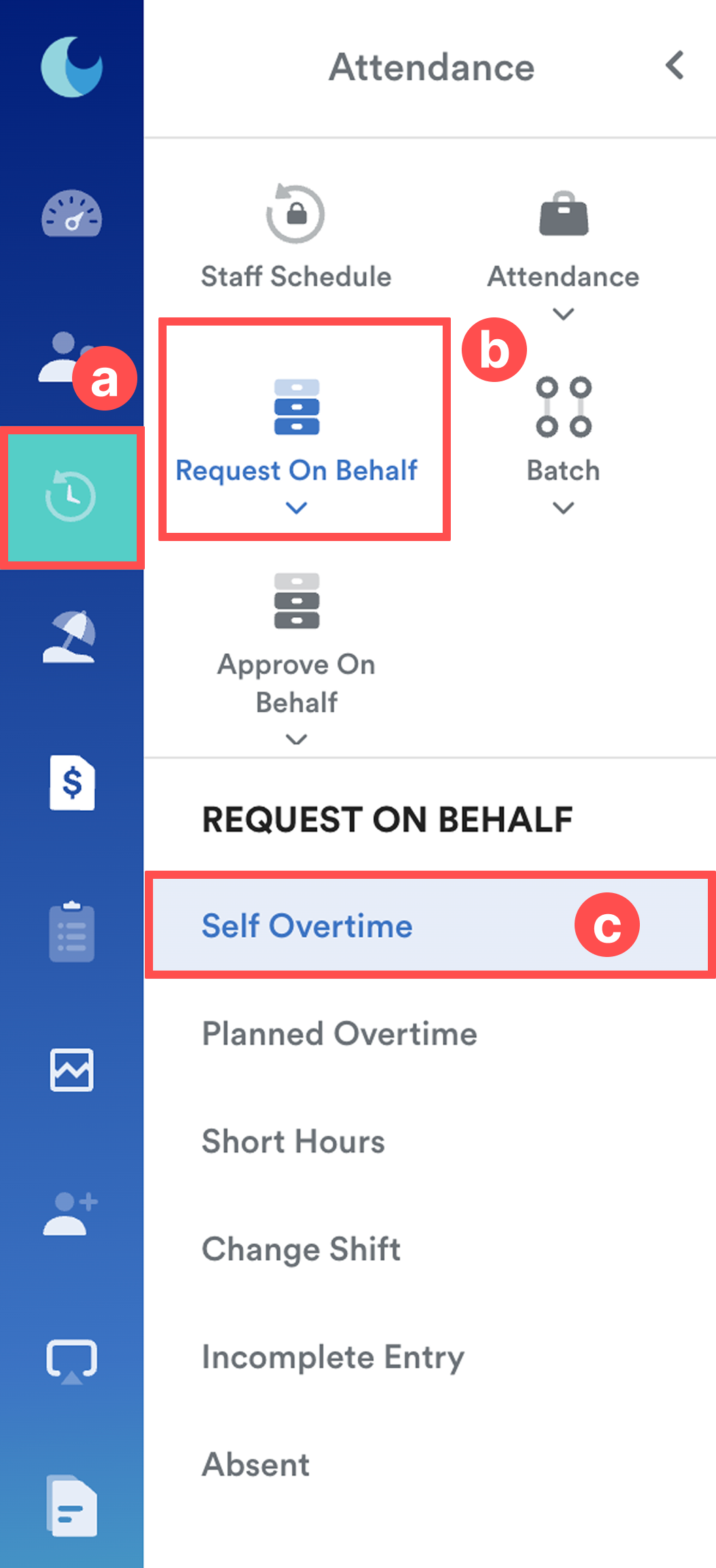
On the left menu, go to Attendance (a) > Request on Behalf (b) > Self Overtime (c).
Step 2
Select the relevant employee. Under the Approved tab, find the overtime request that needs to be cancelled.
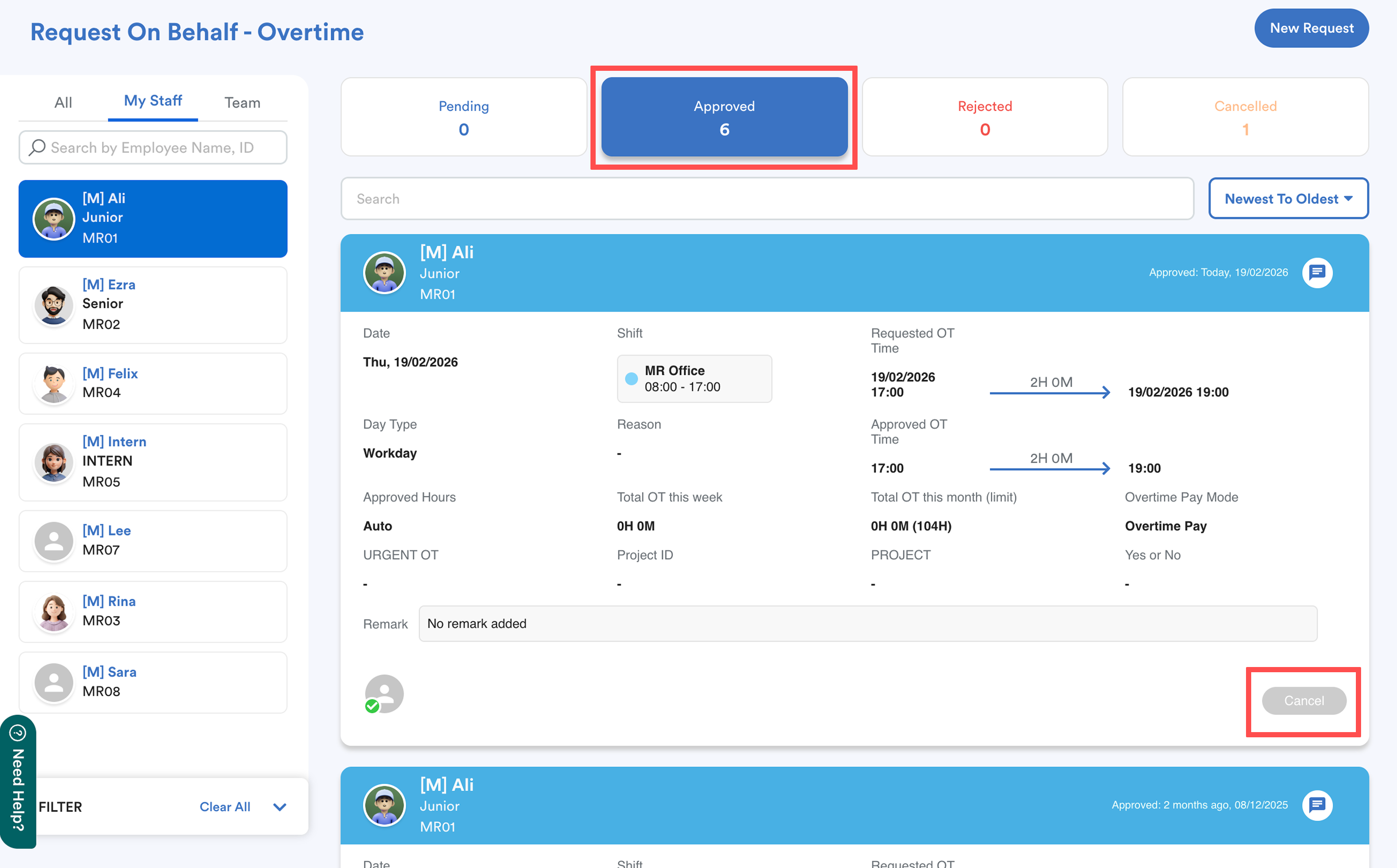
Click the Cancel button at the bottom right of the request.
Once the cancellation is submitted, the request will automatically move to the Pending tab on both the requester’s and approver’s side.
Step 3
Now, you need to approve the cancellation request as an approver. In this case, the approver is "Humaira Test".
Go to Approved on Behalf > Self Overtime. Select the approver and go to Pending tab.
Find the cancellation request (refer to the Cancellation Submitted date in the request header to identify it).
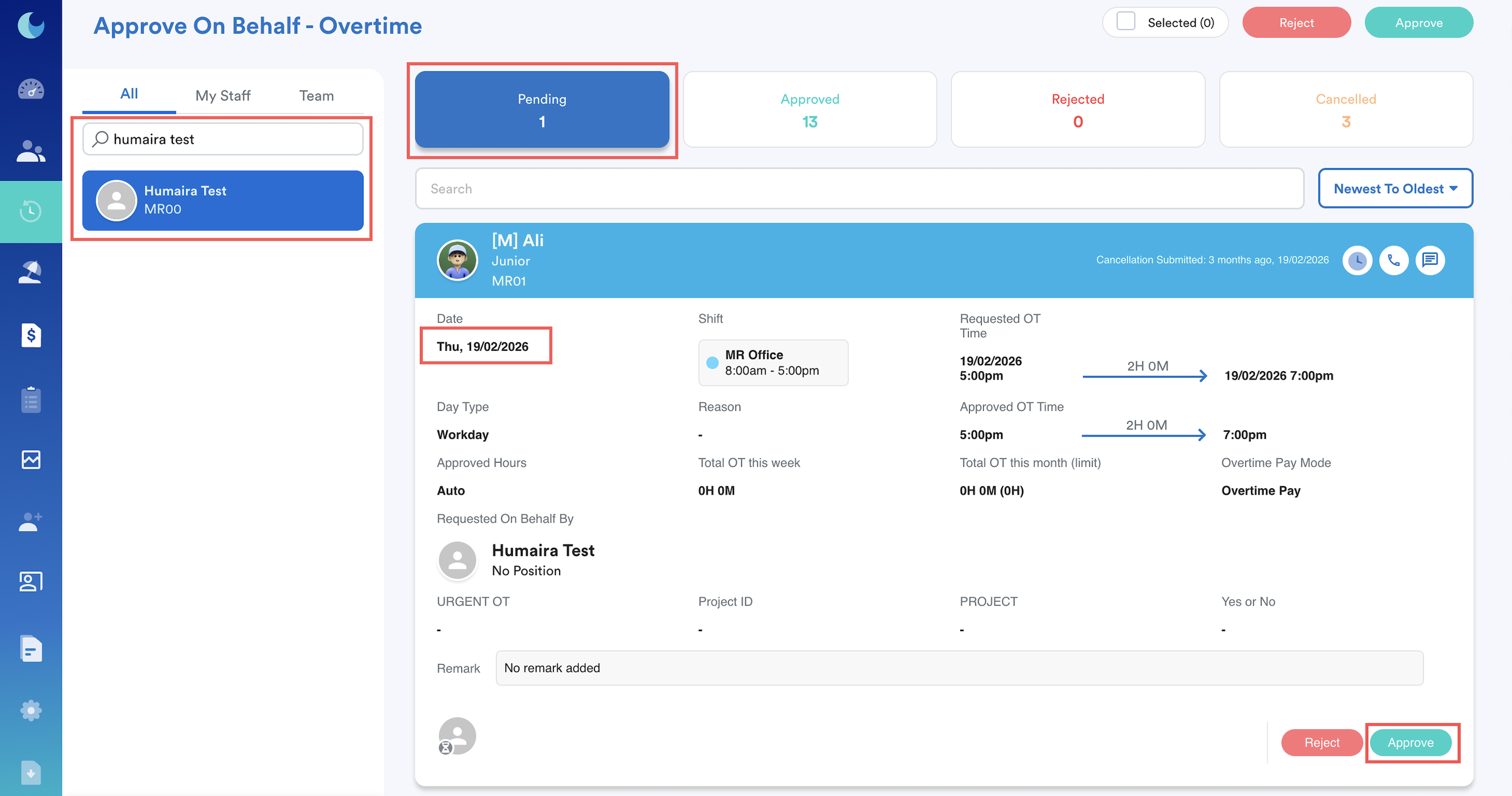
Click Approve to finalize the cancellation.
Important:
On the requester’s side, do not click Withdraw. It will cancel the cancellation request, and the original overtime request will remain in Approved status.
Related:
We hope this explanation clarifies the matter. If you require additional assistance, do not hesitate to contact our support team.
Was this article helpful?
That’s Great!
Thank you for your feedback
Sorry! We couldn't be helpful
Thank you for your feedback
Feedback sent
We appreciate your effort and will try to fix the article