Important: If an employee’s original schedule was Offday, Rest Day, or Public Holiday, once the change shift request is approved, it will be calculated as overtime rather than normal working hours.
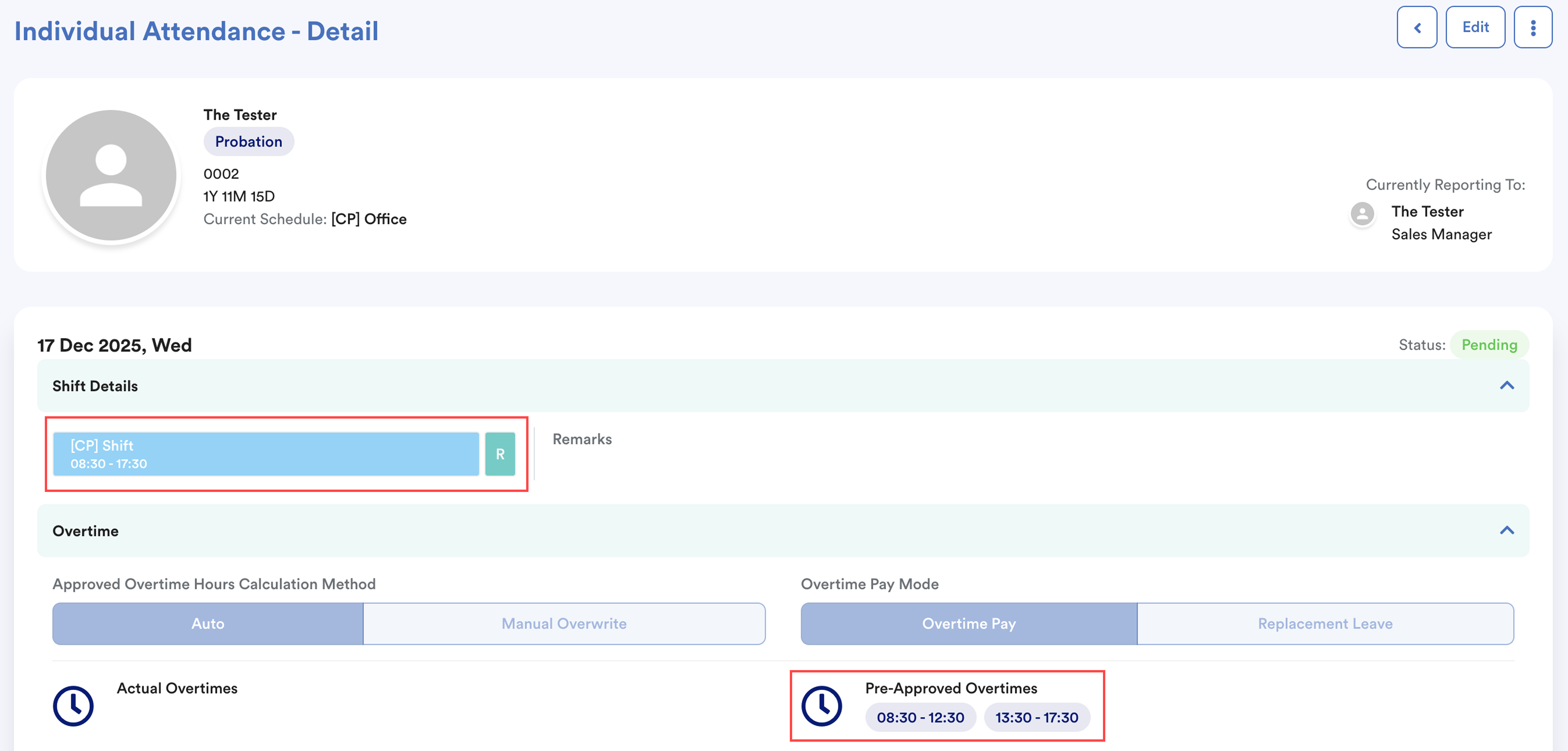
Example: 17 Dec is a rest day. A shift is assigned on a rest day.
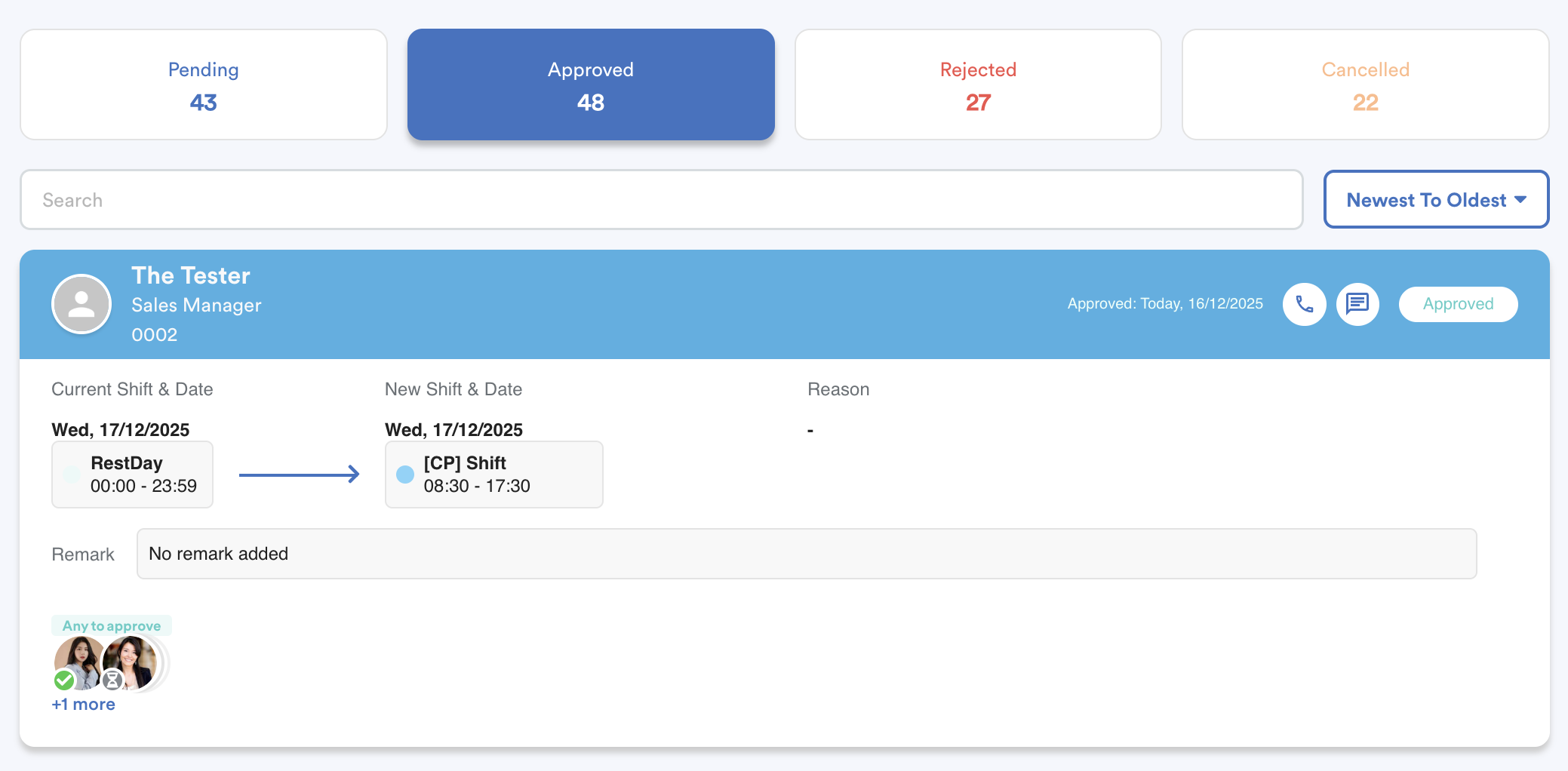
Once approved, you will see this as Pre-Approved Overtimes.
If you would like to change the day type, please ask your admin to do so, and you can refer to Batch Change Day Type.
Step 1
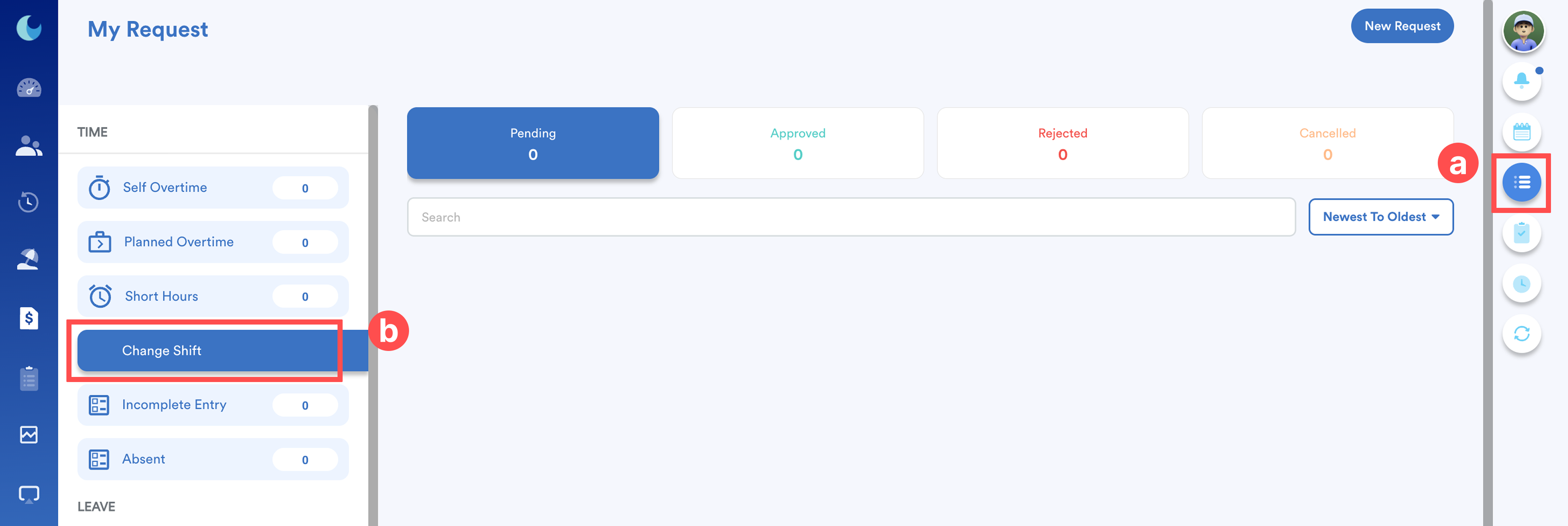
On the right menu, go to My Request (a). Then, click Change Shift (b).
Step 2
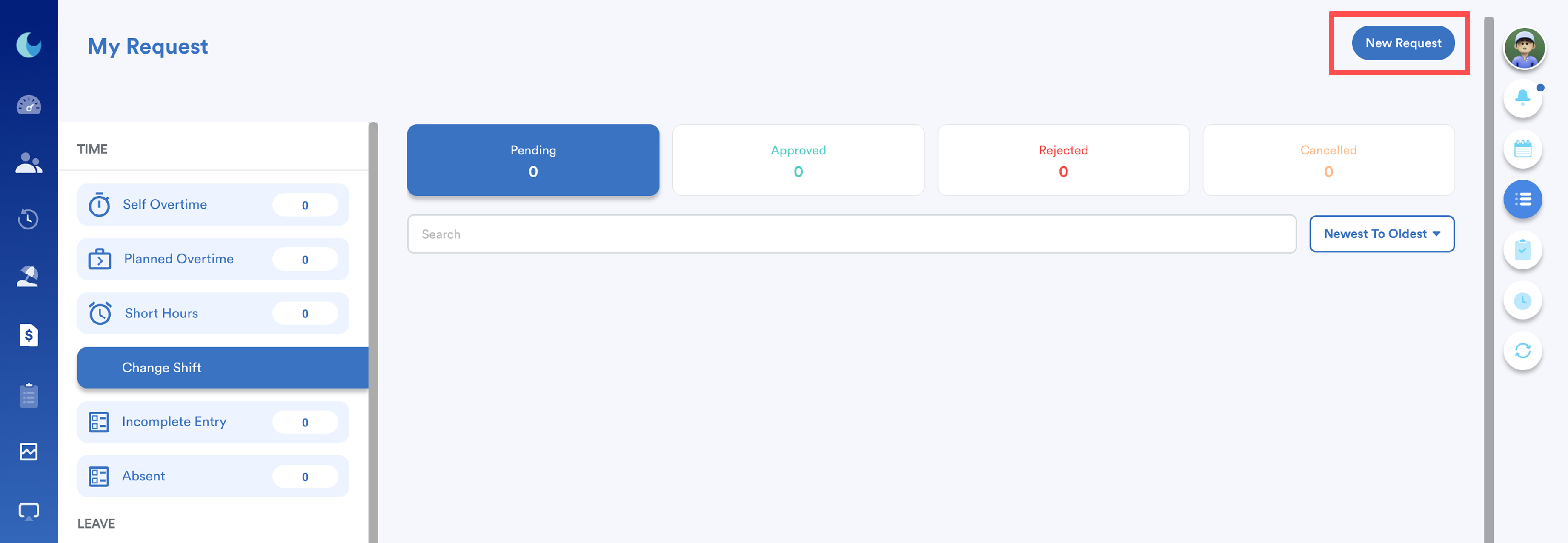
To make a new change shift request, click New Request.
Step 3
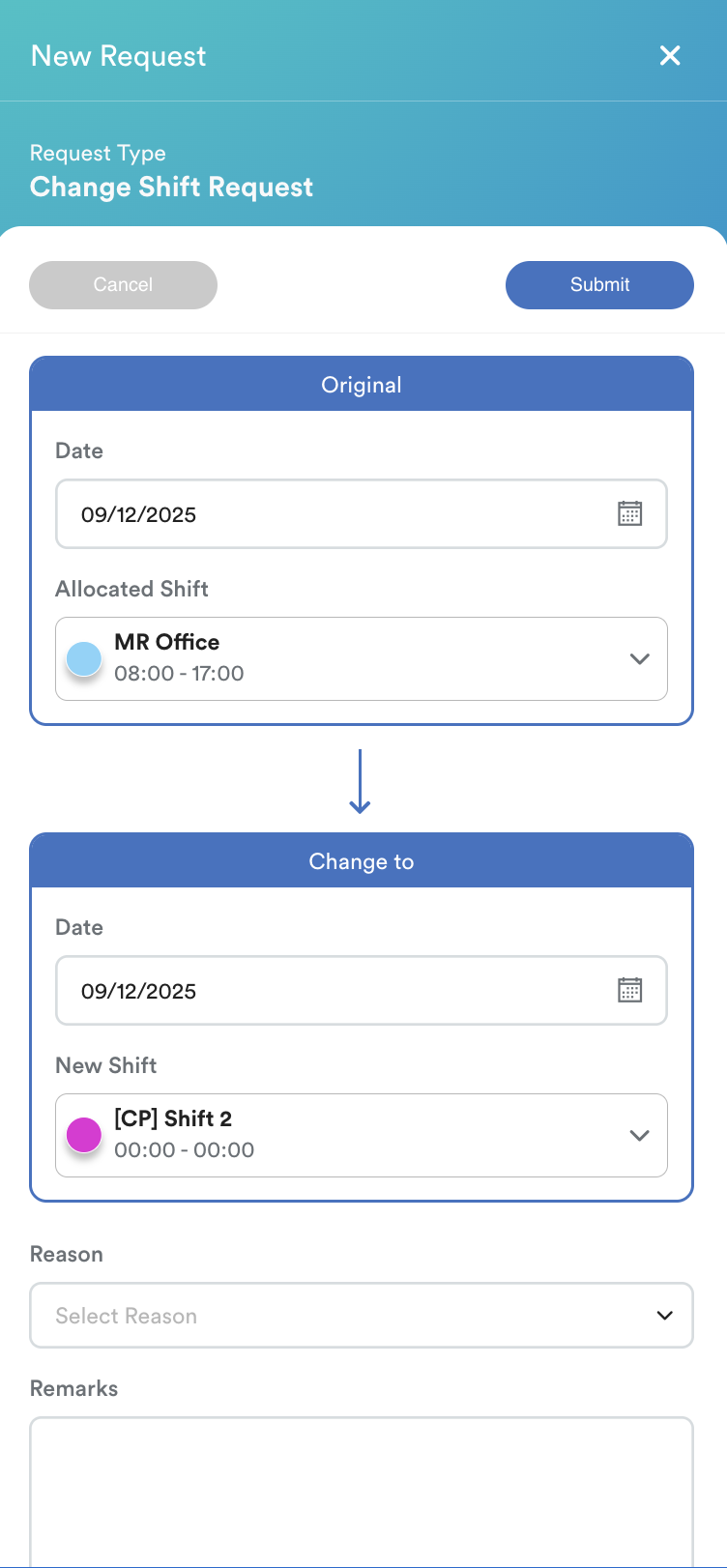
- Under the Original tab, select the Date. The system will display your assigned shift automatically.
- Under the Change To tab, select the Date & New Shift.
- Choose your Reason and add Remarks if needed. Use the Attachment button to upload any supporting documents.
- Click Submit to send your request.
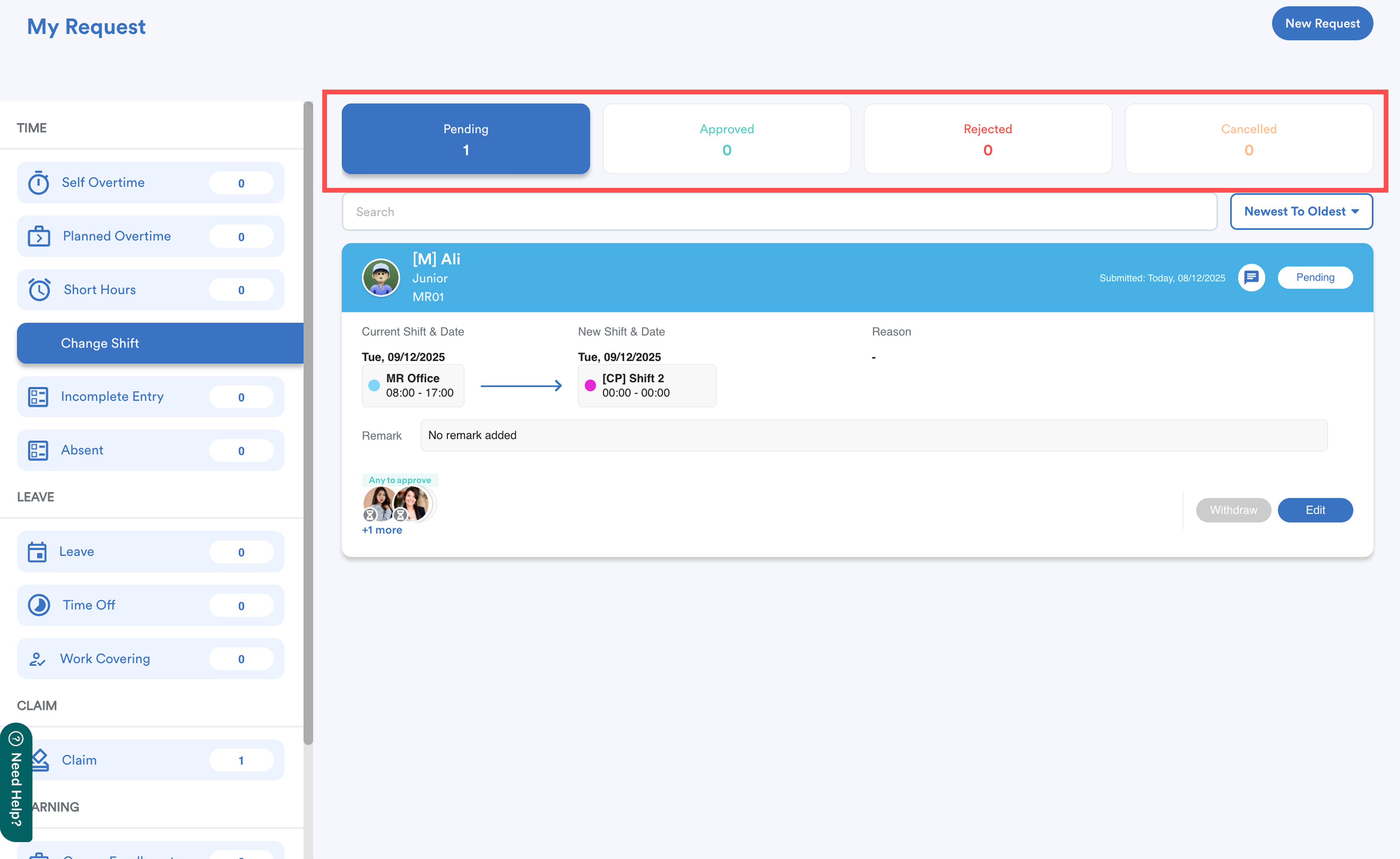
Your submitted request will appear under the Pending tab. Once approved or rejected by your superior, it will move to the Approved or Rejected tab.
Video Tutorial
The video below demonstrates how to submit a change shift request using the mobile interface.
We hope this explanation clarifies the matter. If you require additional assistance, do not hesitate to contact our support team.
Was this article helpful?
That’s Great!
Thank you for your feedback
Sorry! We couldn't be helpful
Thank you for your feedback
Feedback sent
We appreciate your effort and will try to fix the article