This guide will walk you through the steps to clock in and out using the Worksy app on both iOS and Android devices.
For iOS:
Step 1
Open the Worksy App. Once signed in, you’ll be taken directly to the Clocking tab.
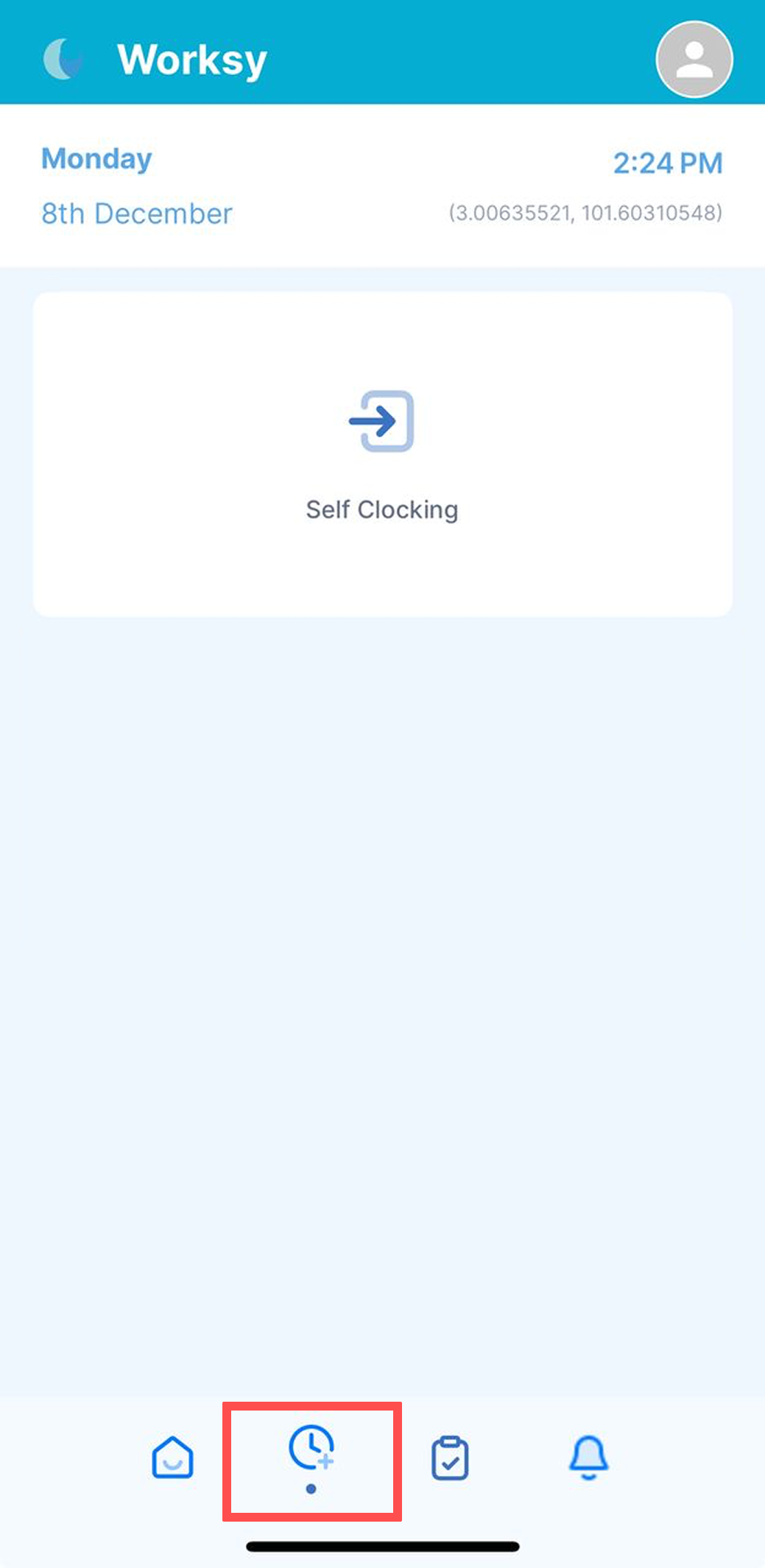
Step 2
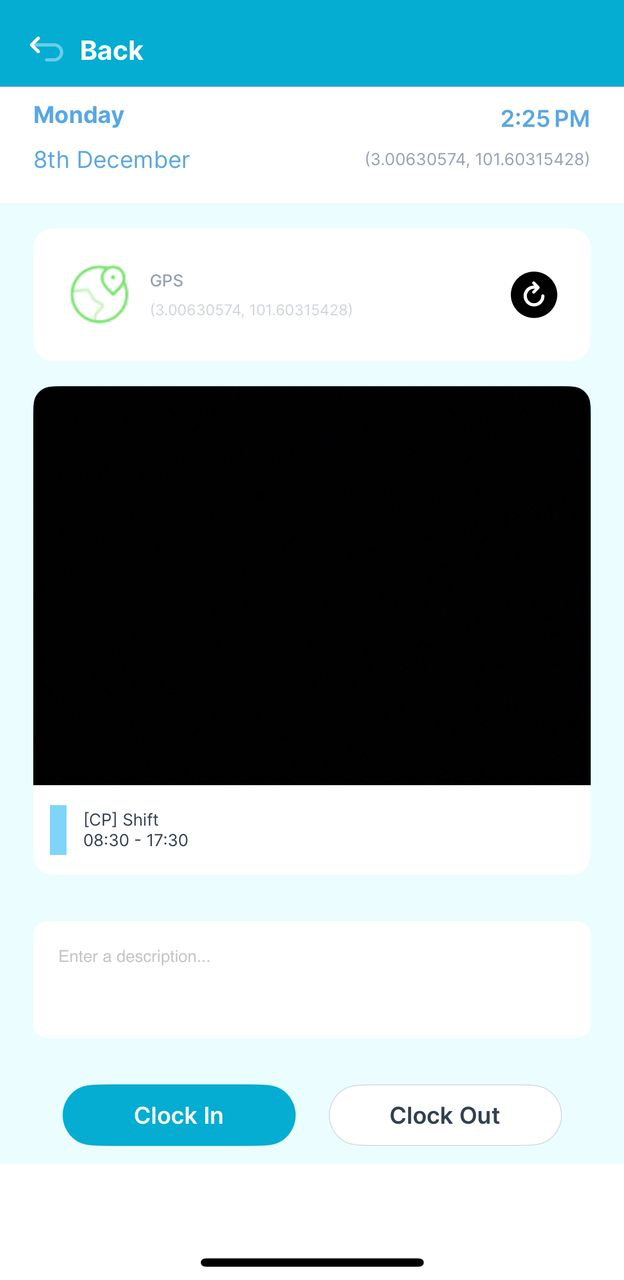
You’ll see today’s date, time, GPS (location), selfie camera, and your assigned shift.
Tap Clock In (or Clock Out when finishing your shift).
For Android:
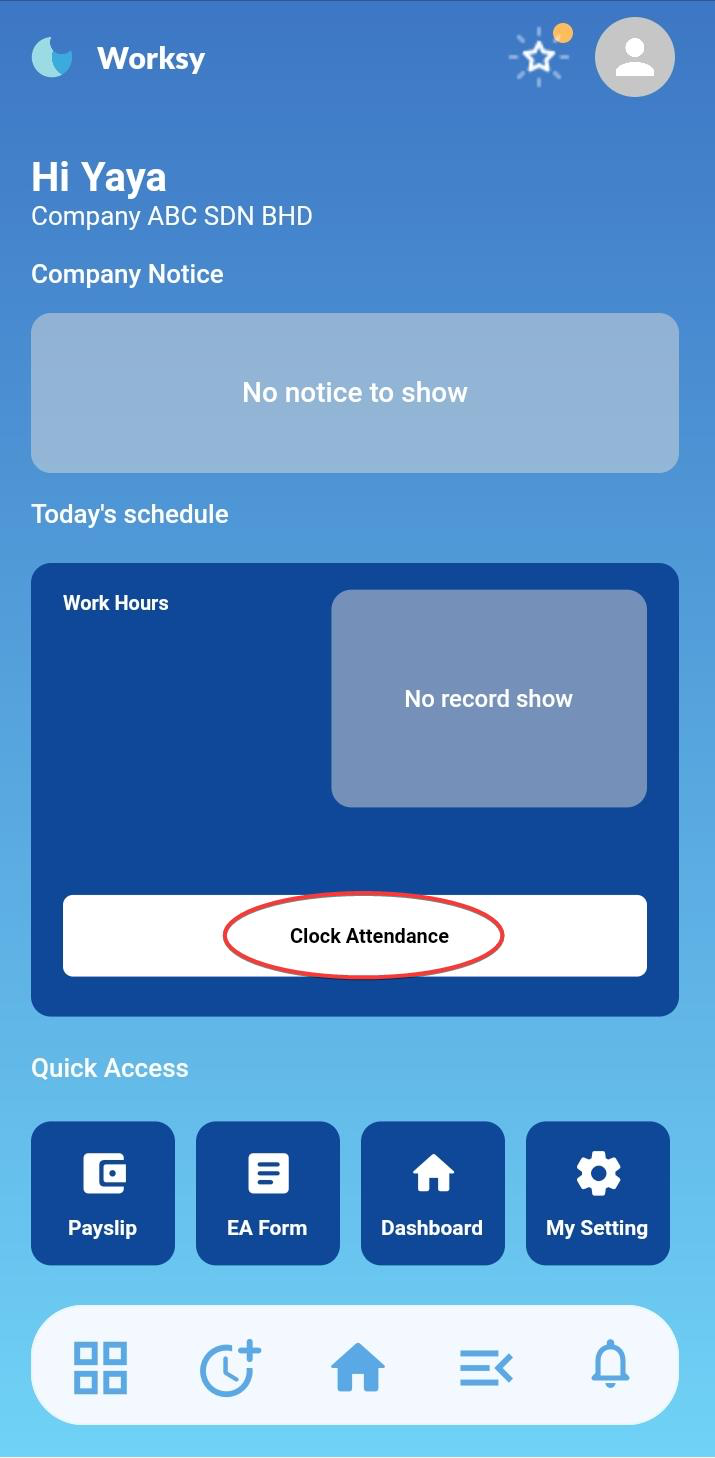
Step 2
Tap Clock In to start your shift.
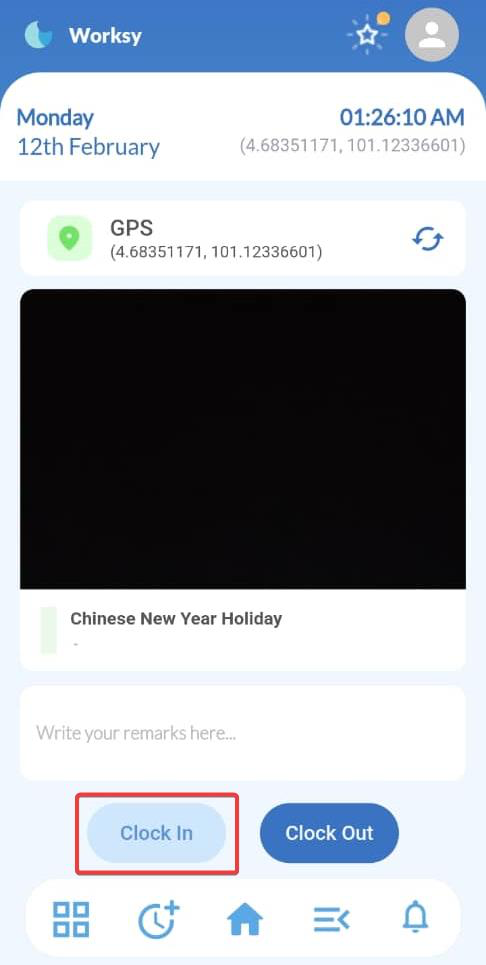
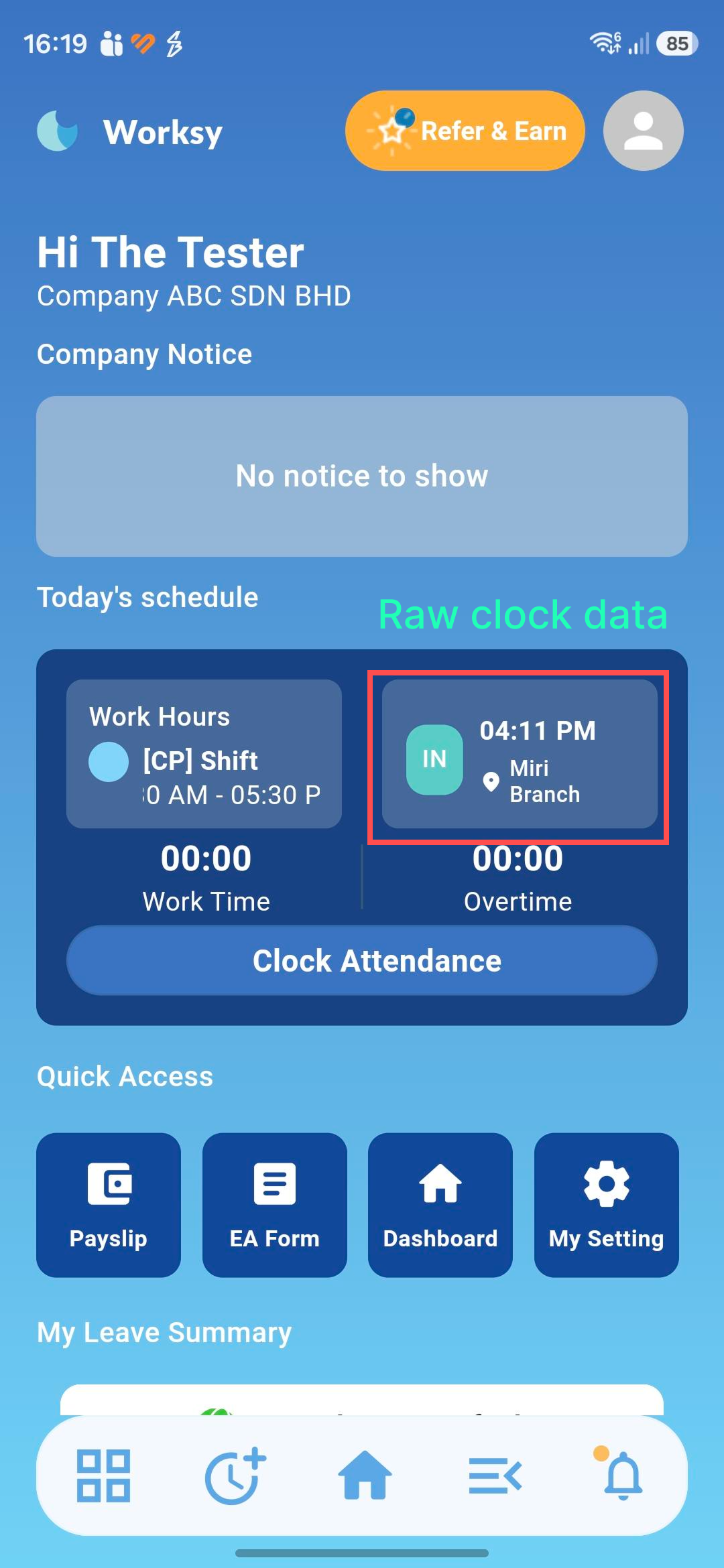
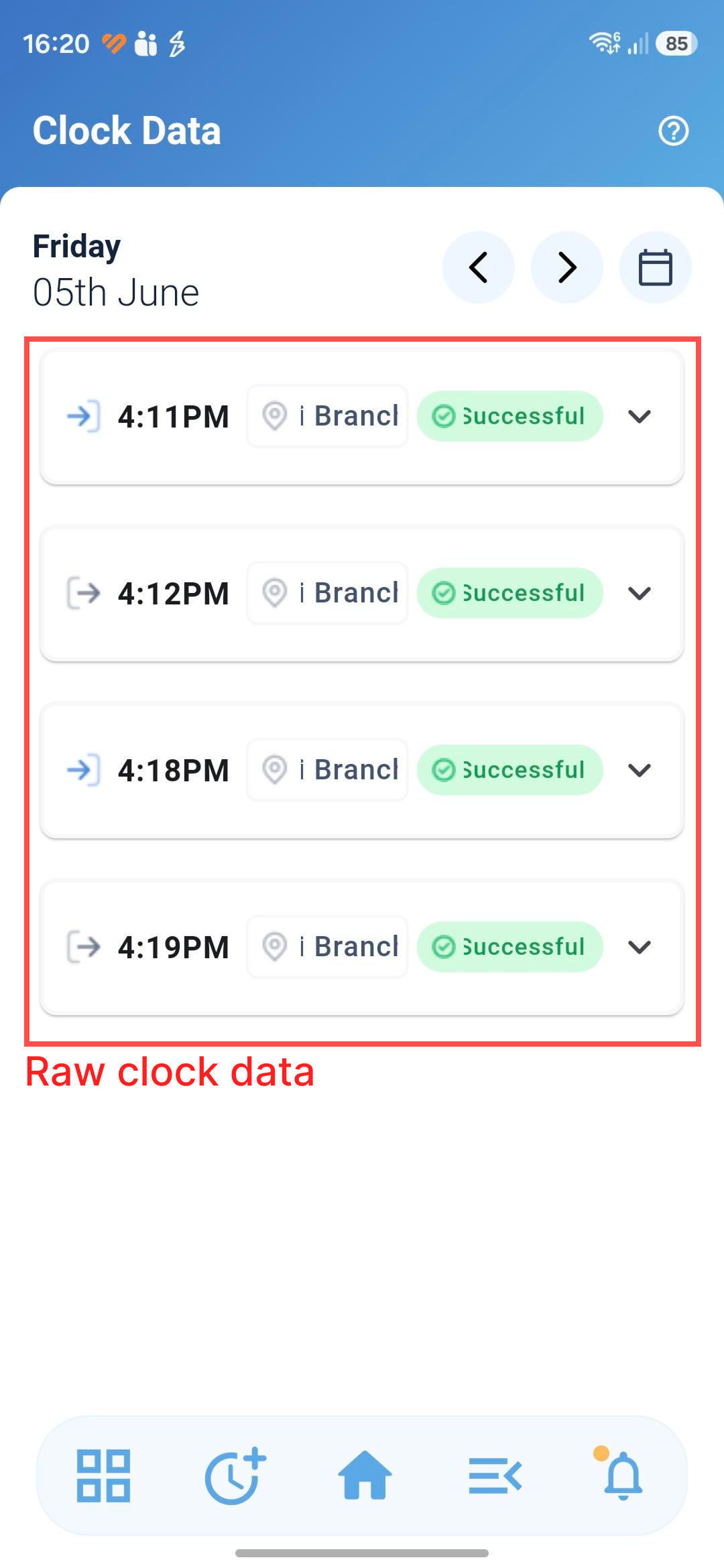
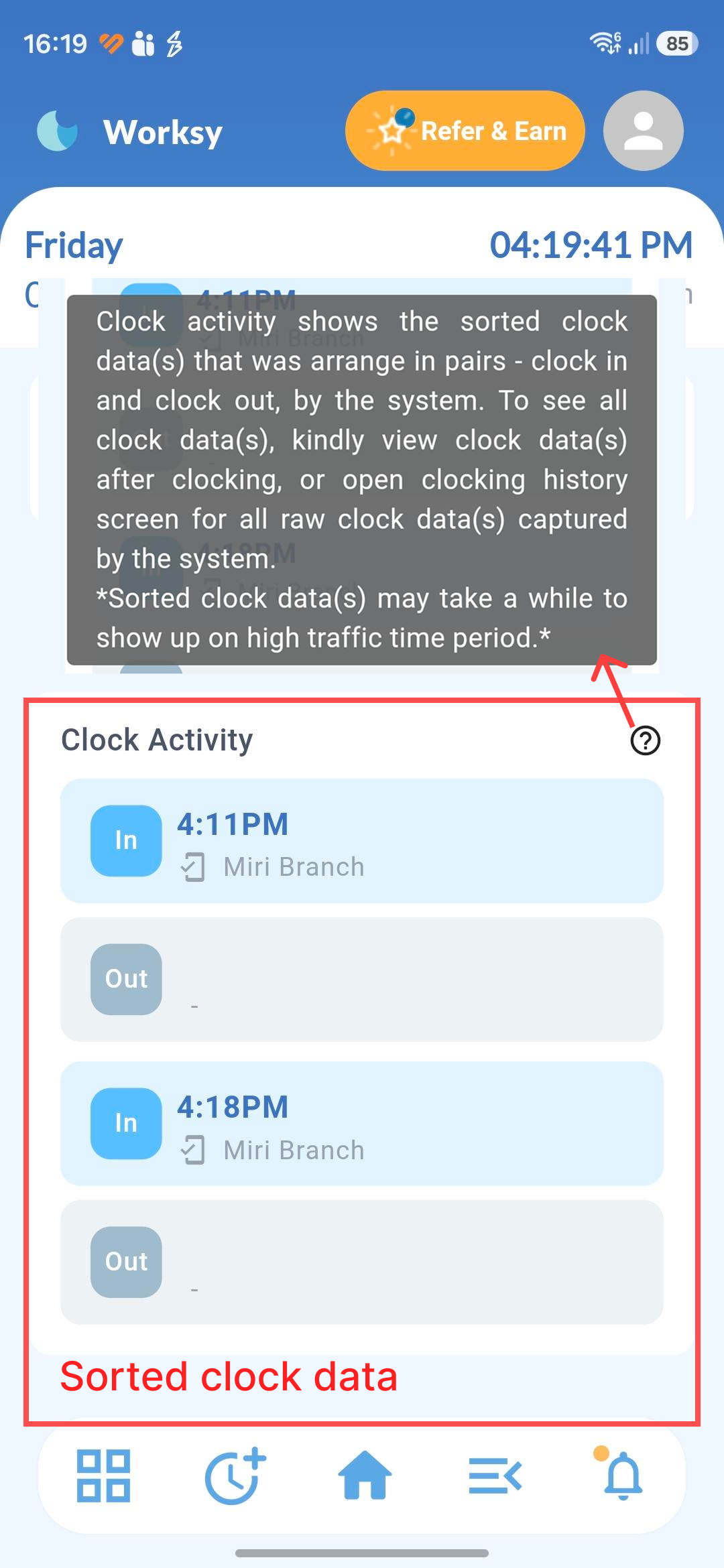
Once successfully clocked in, a confirmation reminder will appear on your screen.
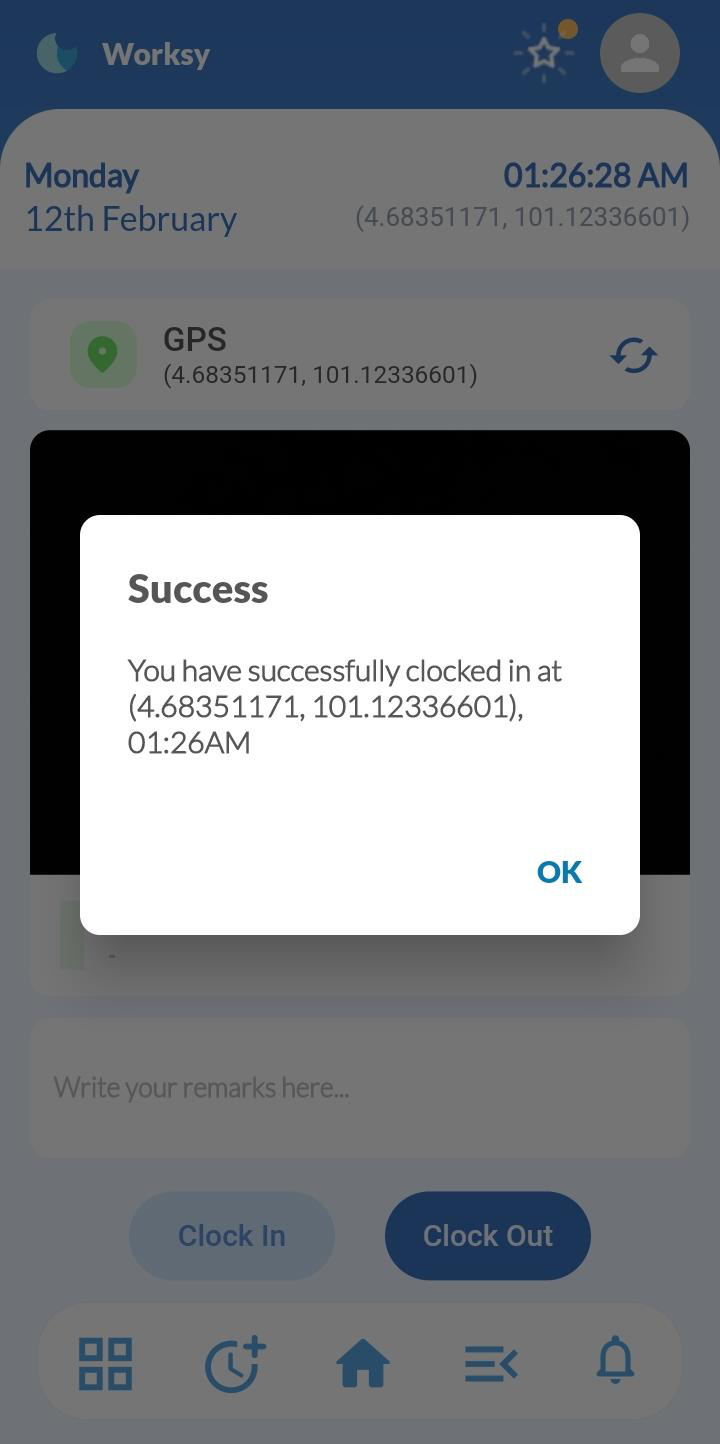
Example on clocking data (IOS):
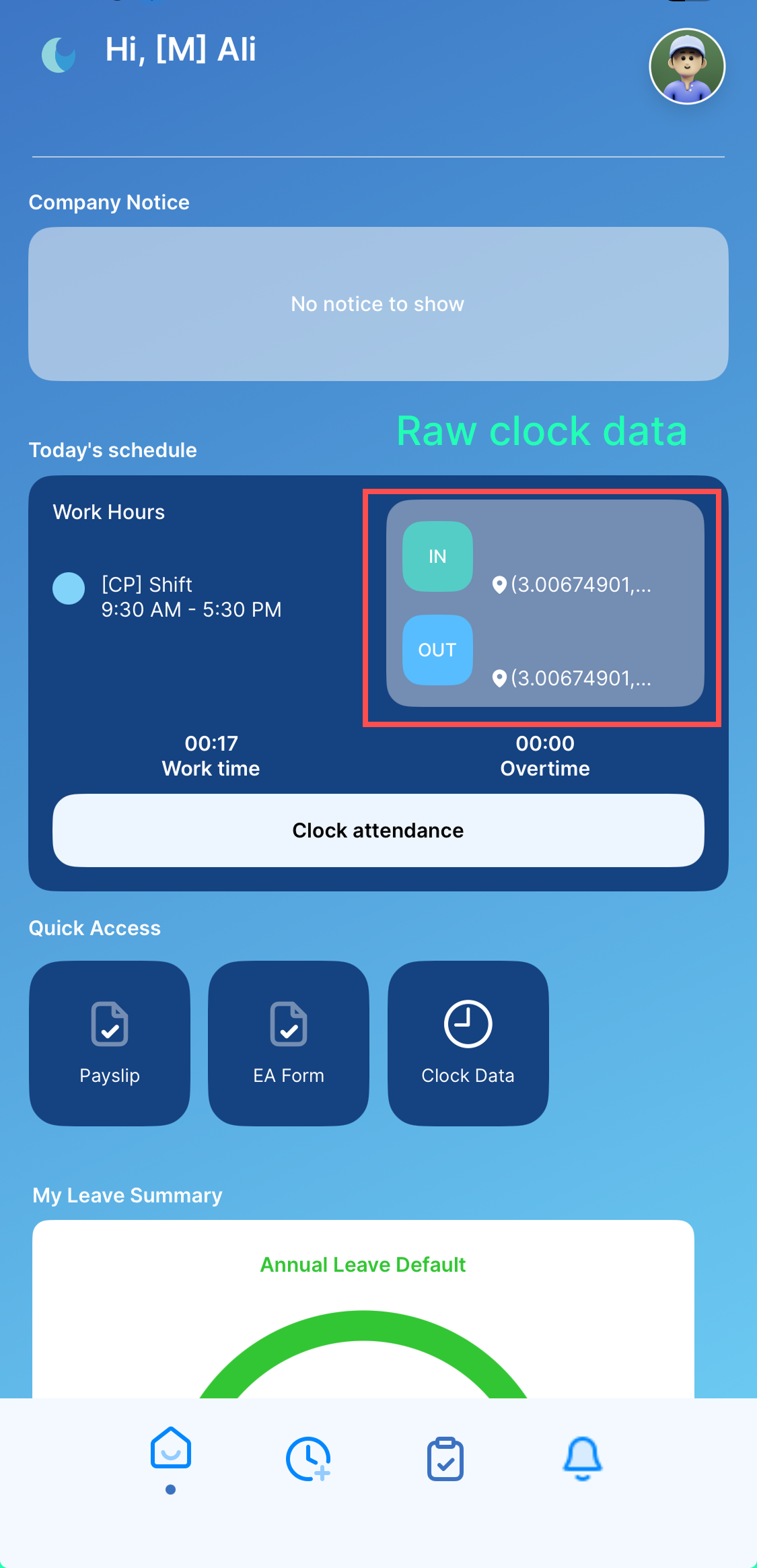 | 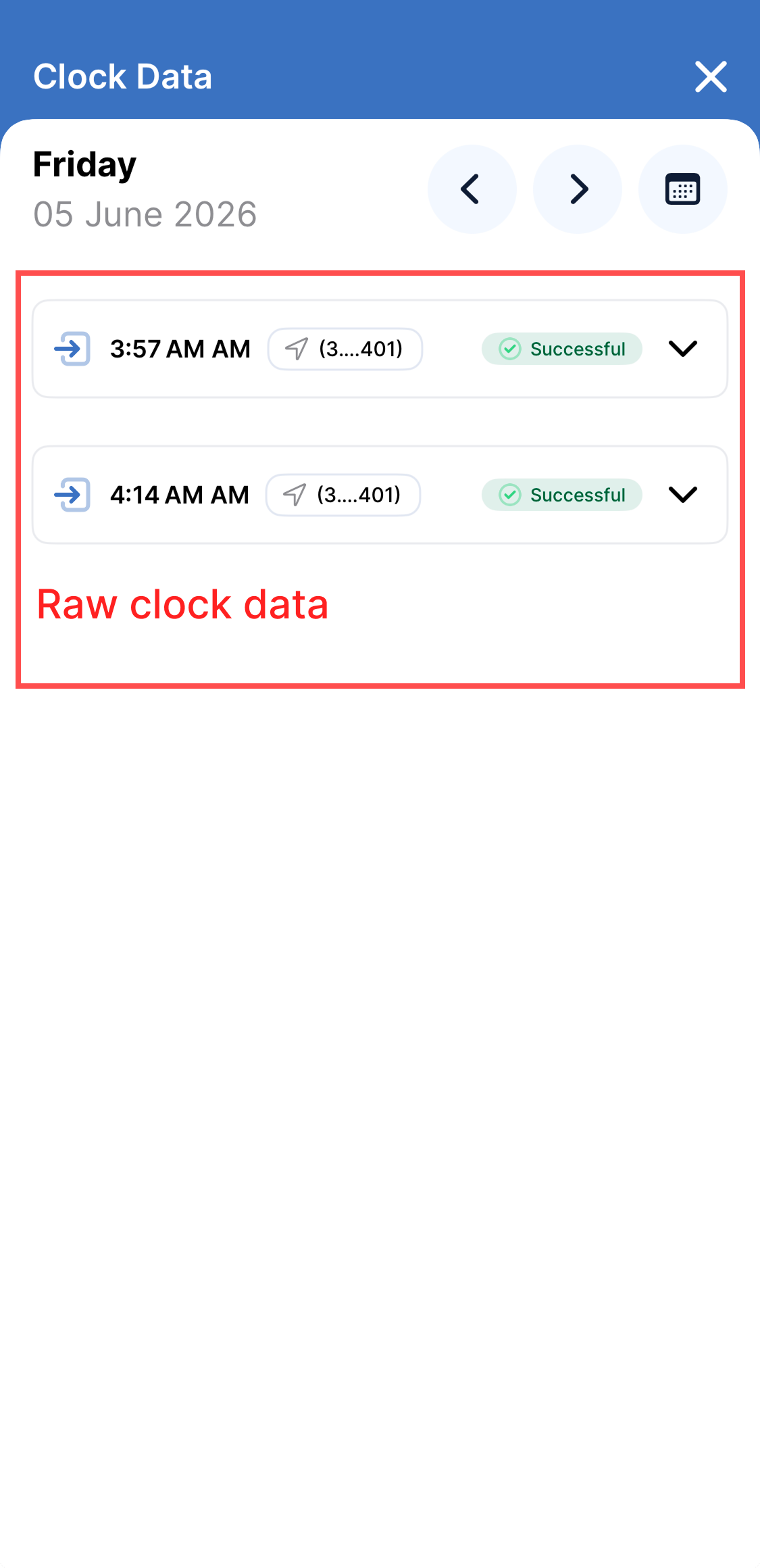 | 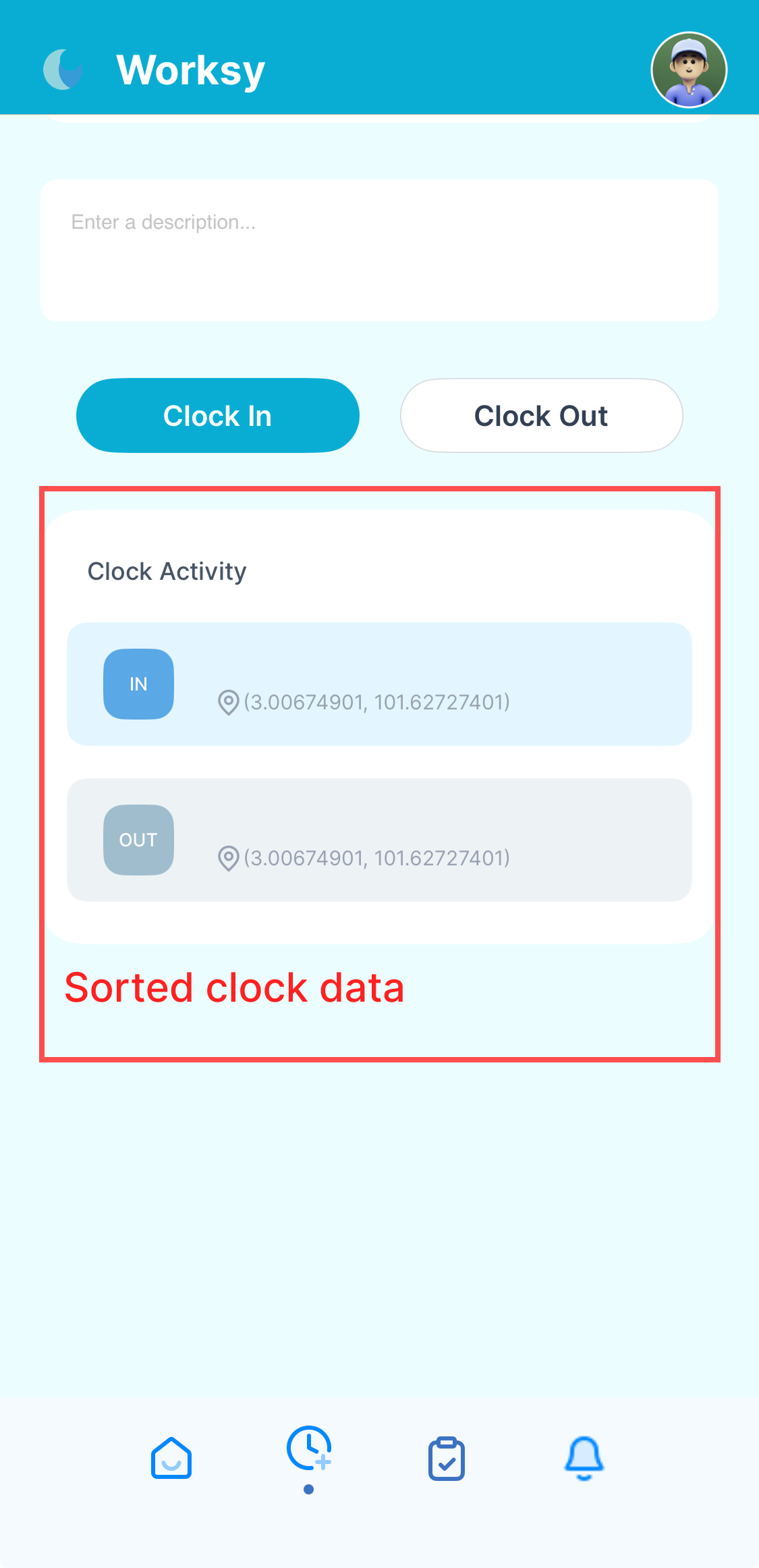 |
Example on clocking data (Android):
 |  |  |
Video Tutorial
We hope this explanation clarifies the matter. If you require additional assistance, do not hesitate to contact our support team.
Was this article helpful?
That’s Great!
Thank you for your feedback
Sorry! We couldn't be helpful
Thank you for your feedback
Feedback sent
We appreciate your effort and will try to fix the article