Once a project has been scheduled and assigned, employees can select the relevant project and skills during their daily clocking routine.
This guide will walk you through the steps to clock in and out using mobile devices and web.
Note: If you do not see a specific project in your list, please contact your Supervisor/Admin to ensure you've been assigned to that project.
Mobile Clocking (iOS & Android)
iOS
Step 1
Open the Worksy App. Once signed in, you’ll be taken directly to the Clocking tab.
Step 2
You’ll see today’s date, time, GPS (location), selfie camera, and your assigned shift.
Choose the relevant Project and Skill from the dropdown menus for your current task. These selections will be reflected in your Project Attendance record.
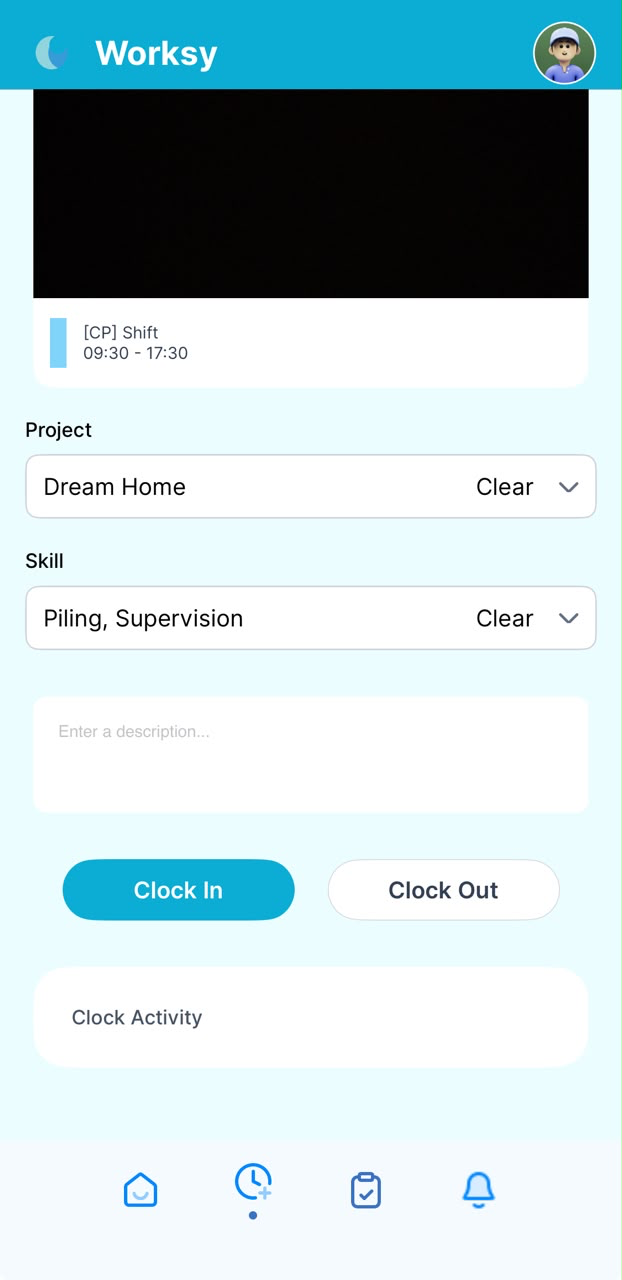
Tap Clock In (or Clock Out when finishing your shift or switching to a different project).
Android
Step 1
Log in to your Worksy account. After logging in, you will be redirected to the main screen.
Tap Clock Attendance.
Step 2
You’ll see today’s date, time, GPS (location), selfie camera, and your assigned shift.
Choose the relevant Project and Skill from the dropdown menus for your current task. These selections will be reflected in your Project Attendance record.
Note: On the clocking screen, project and skill selections will only be displayed if they were configured as 'required' and 'optional'.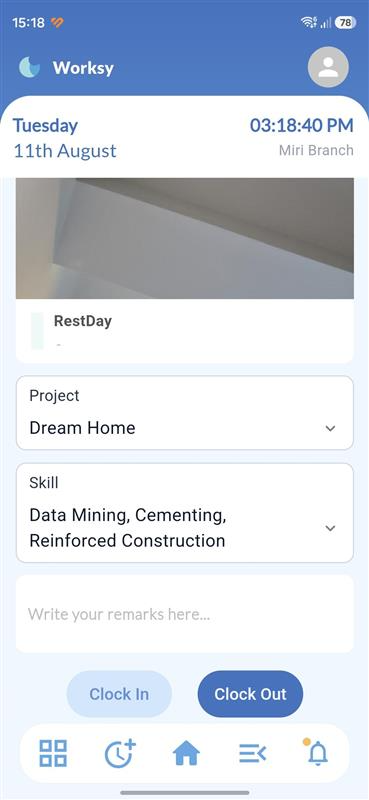
Tap Clock In (or Clock Out when finishing your shift or switching to a different project).
Once successfully clocked in, a confirmation reminder will appear on your screen.
Web Clocking
Step 1
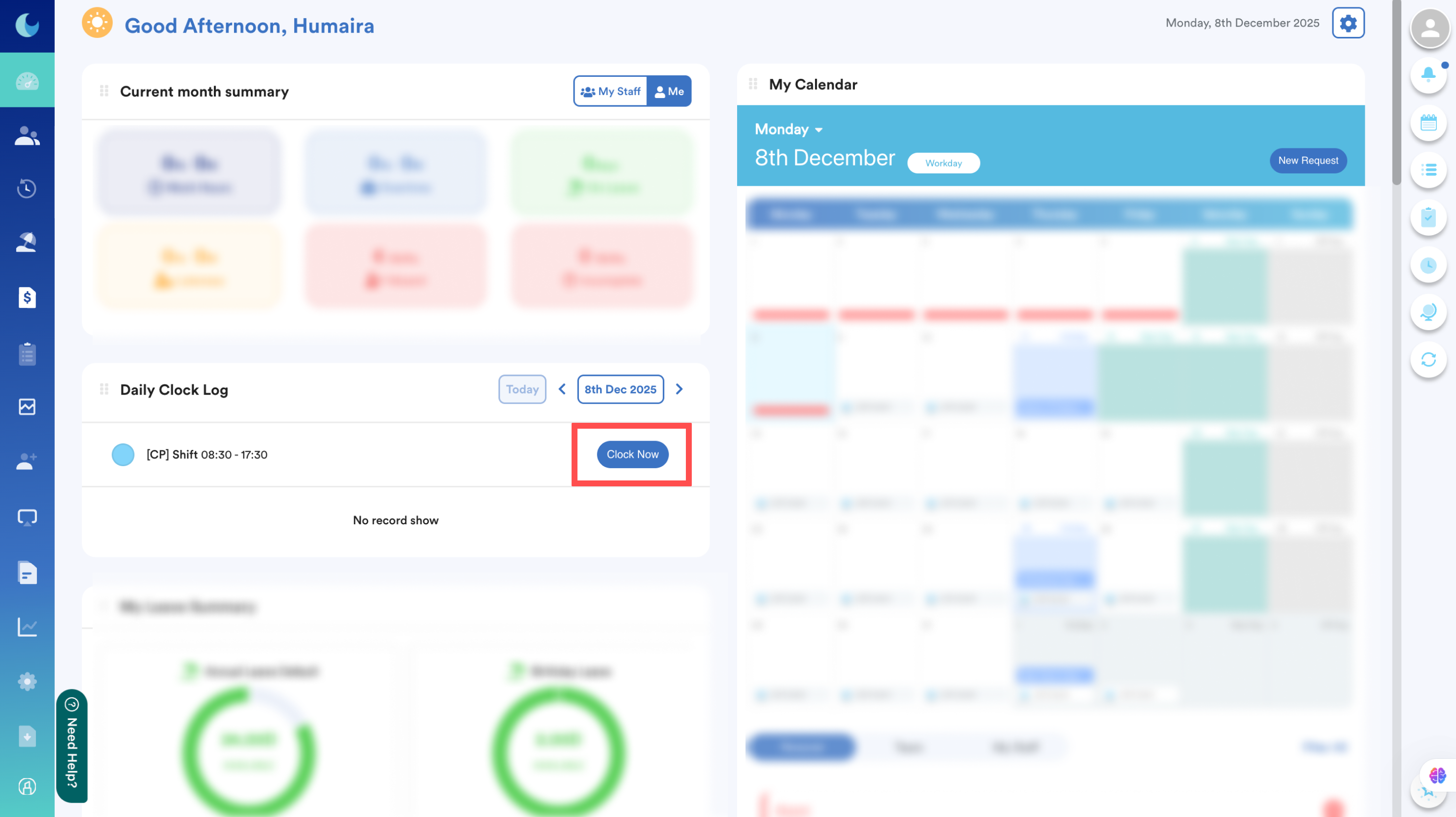
From your dashboard, go to the Daily Clock Log panel. You’ll see your assigned shift. Click Clock In.
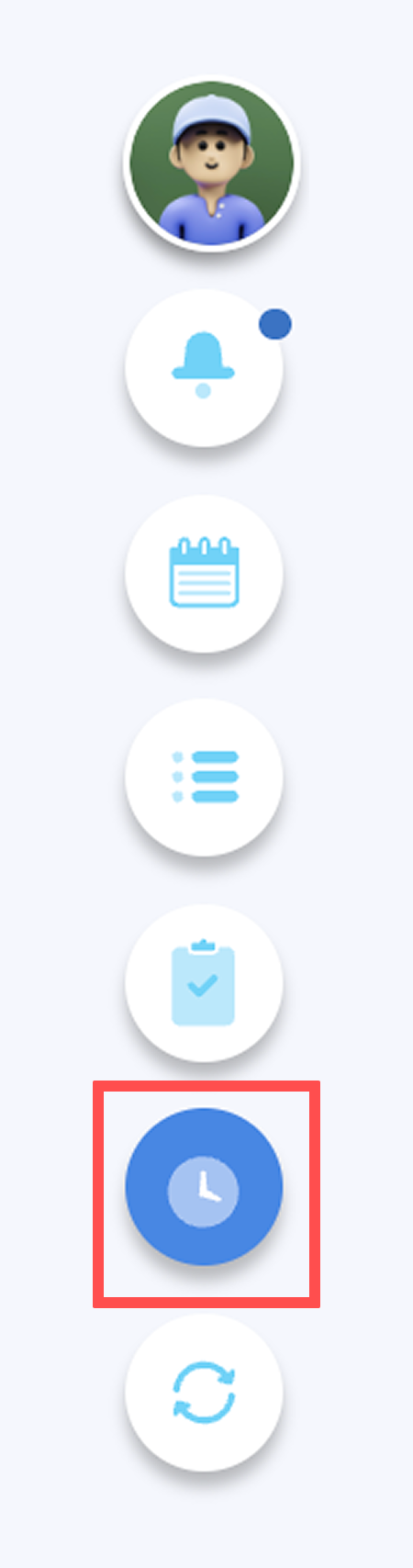
or you can click Web Clocking Capture icon at the right-side menu.
Step 2
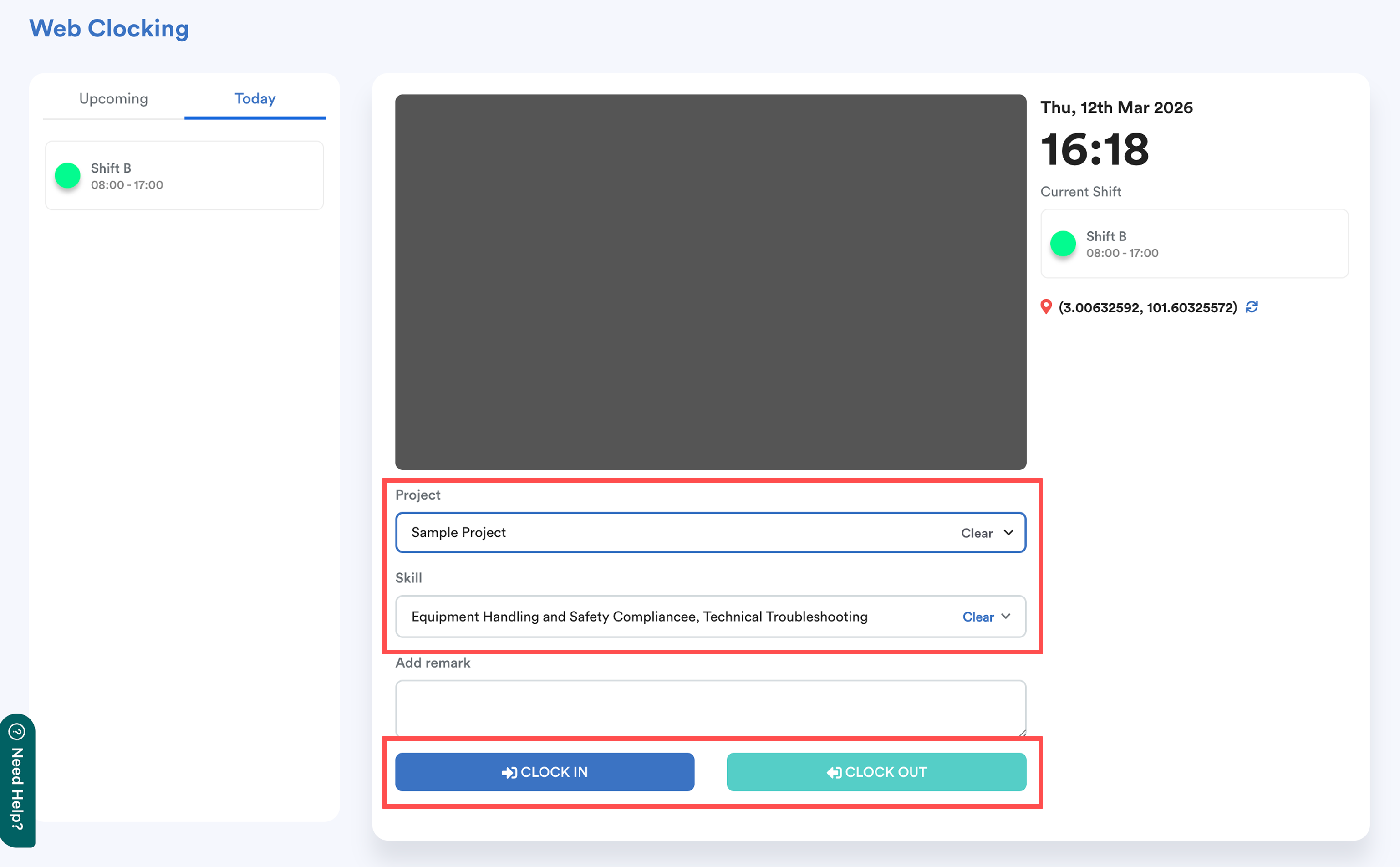
A window will appear showing the current time, date, camera, and location.
Choose the relevant Project and Skill from the dropdown menus for your current task. These selections will be reflected in your Project Attendance record.
Tip: If your location isn’t detected, make sure Location Services are enabled in your browser settings.
Step 3
Click Clock In (or Clock Out when finishing your shift or switching to a different project).
We hope this clarifies the matter. If you require further assistance, do not hesitate to contact our support team.
Was this article helpful?
That’s Great!
Thank you for your feedback
Sorry! We couldn't be helpful
Thank you for your feedback
Feedback sent
We appreciate your effort and will try to fix the article