In Worksy, supervisor clocking with face scan must come with a facial recognition purchase. Without this FR, supervisor clocking can only do offline clocking, which selects which employee they want to clock in without face scan.
To understand the difference between face detection and face recognition, refer to Face Detection and Face Recognition.
Purpose: A feature exclusively for supervisors to assist staff in clocking with the supervisor mobile app (IOS or Android), ideally for foreign workers who do not have a mobile app.
Step 1
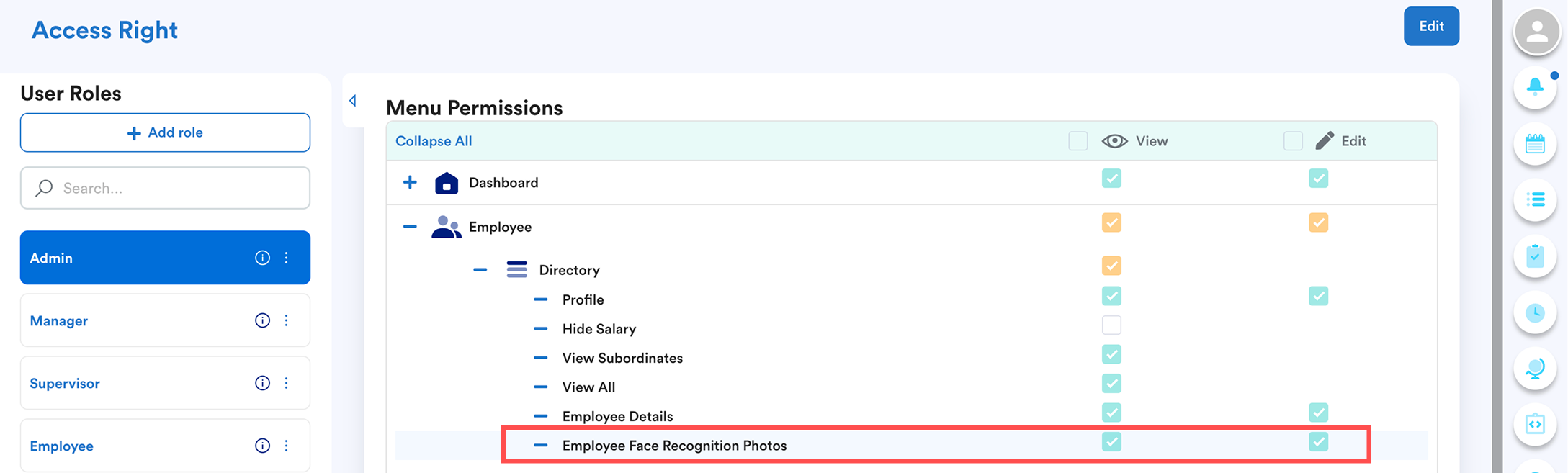
To enable this, HR needs to upload staff photos to Employee Face Recognition.
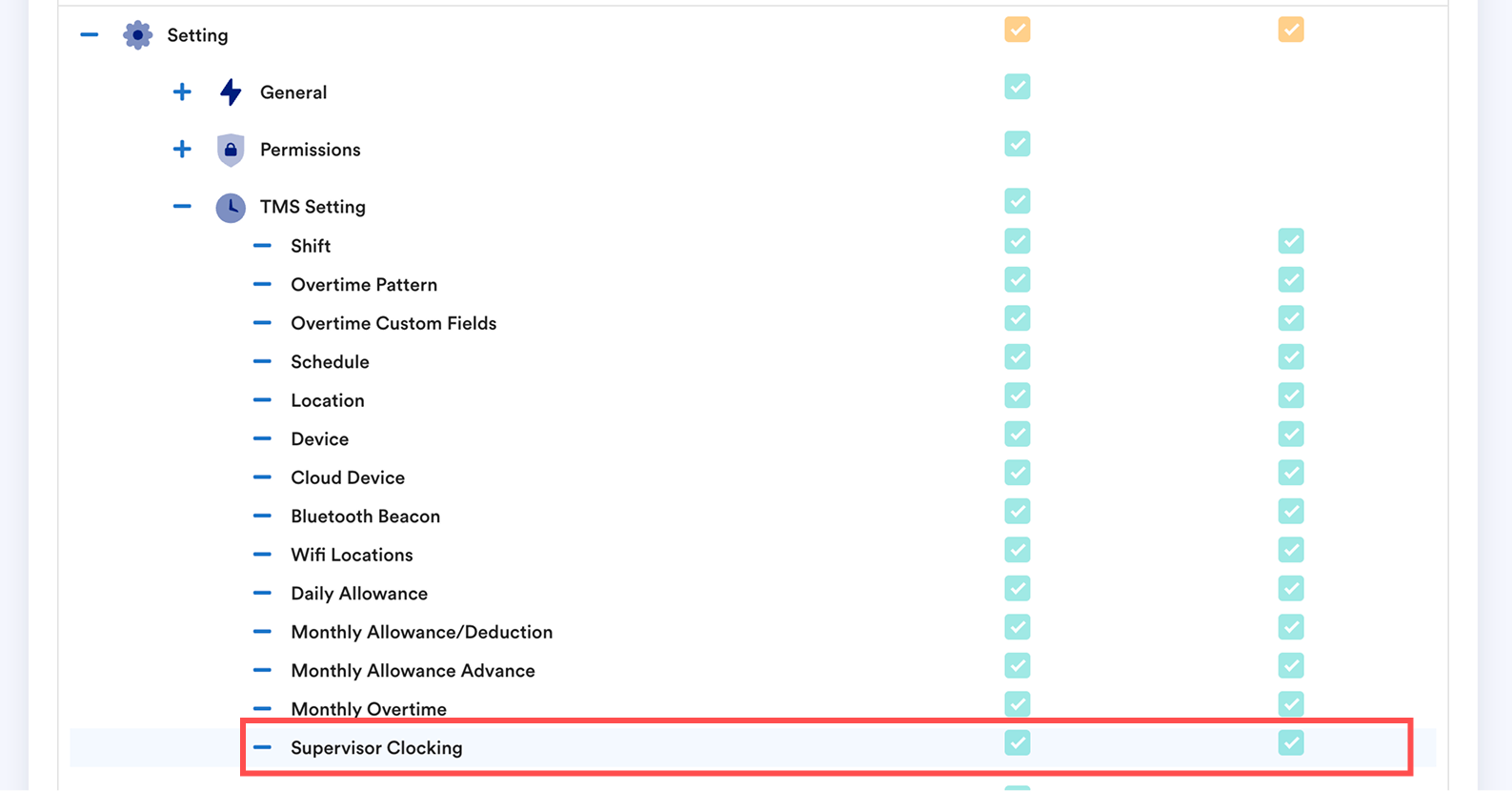
Go to Access Right Settings of the supervisor role to ensure Supervisor Clocking & Employee Recognition Photos are enabled.
Step 2
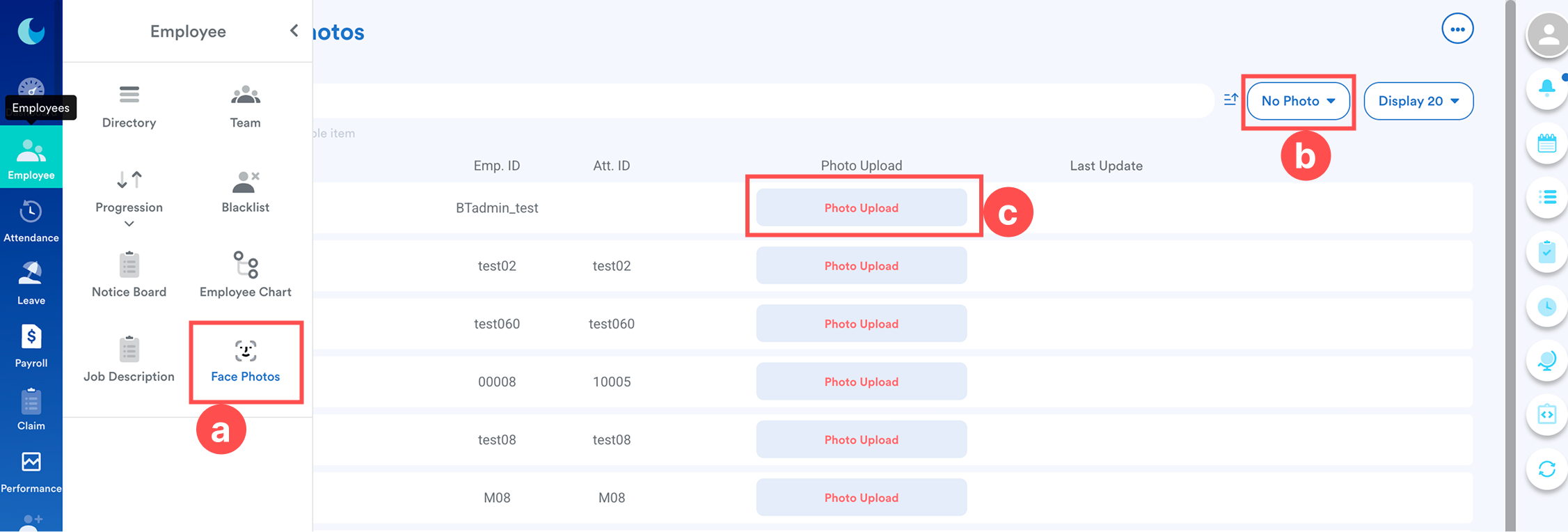
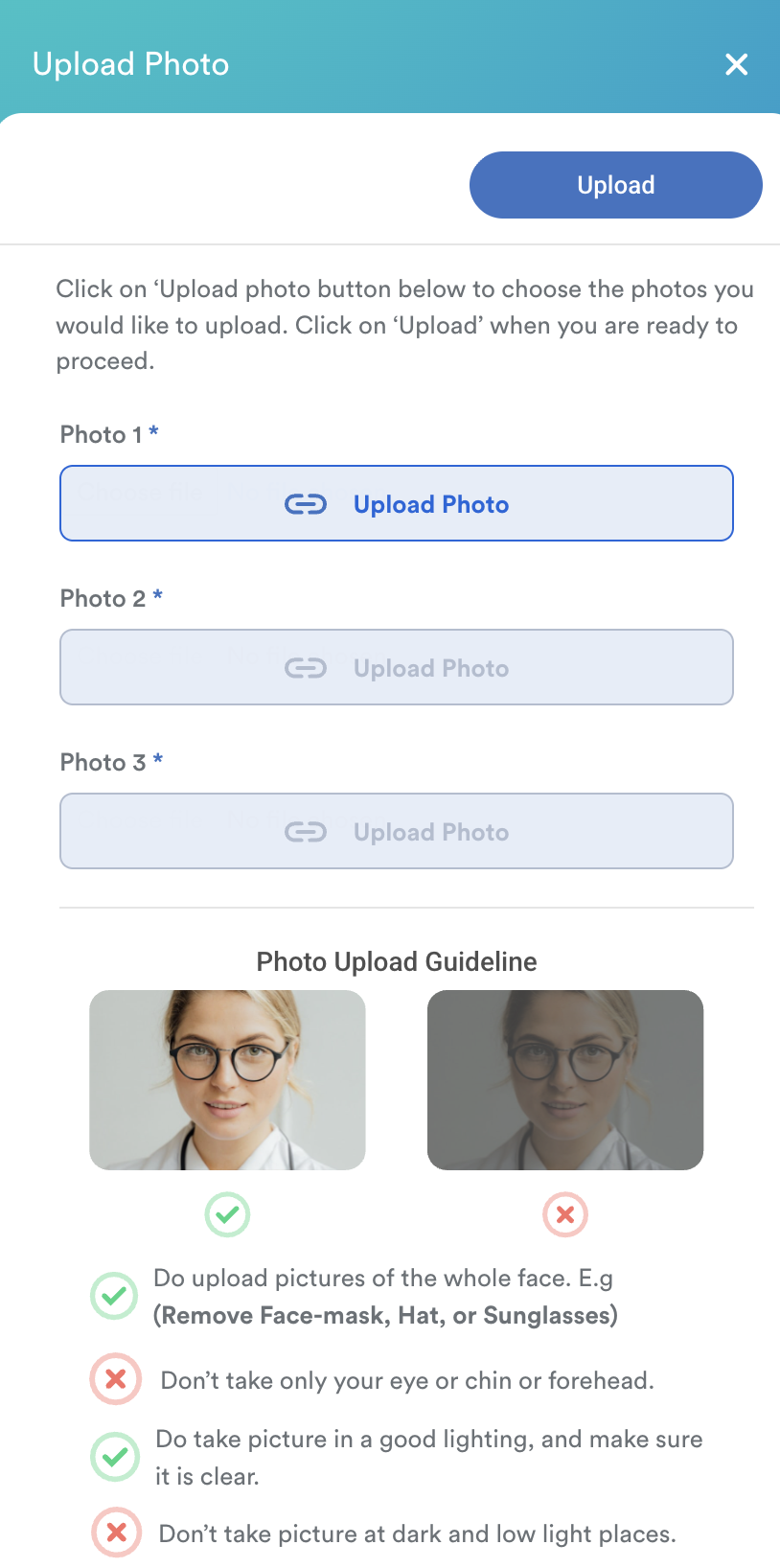
Go to Employee > Face Photos and upload the photos of the employees. Click Upload Photo to upload new photos.
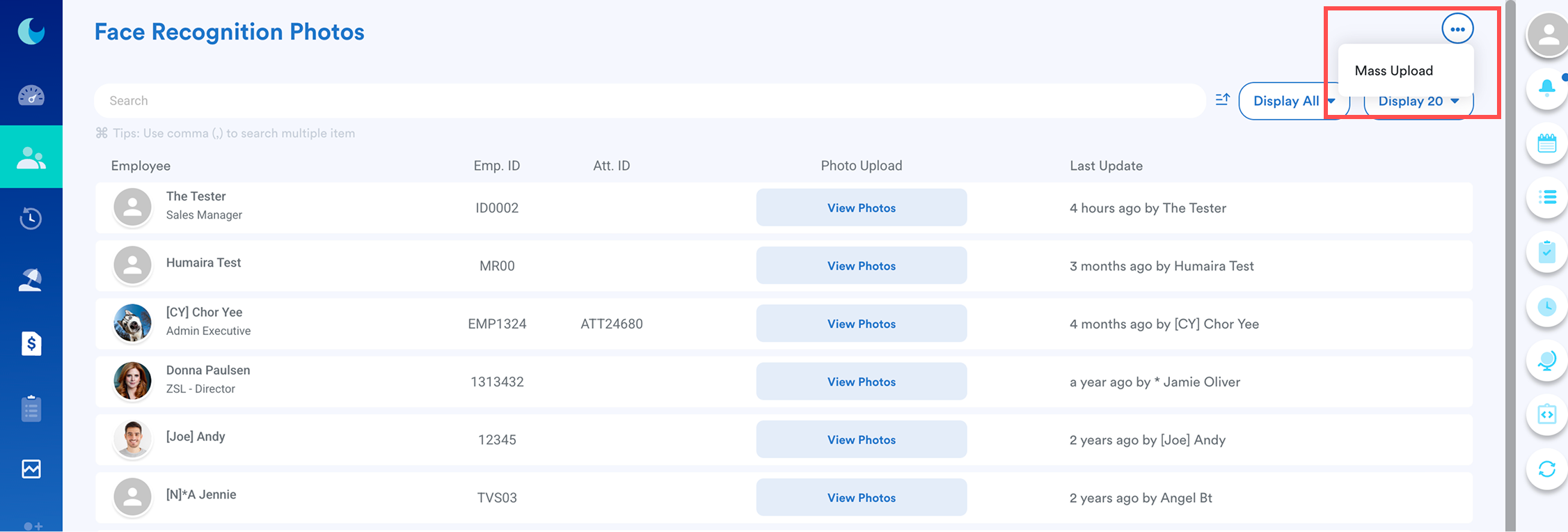
There is an option to mass upload the photos. Click on the top right corner to upload a zip file.
The photos should be uploaded according to the guidelines.
Step 3
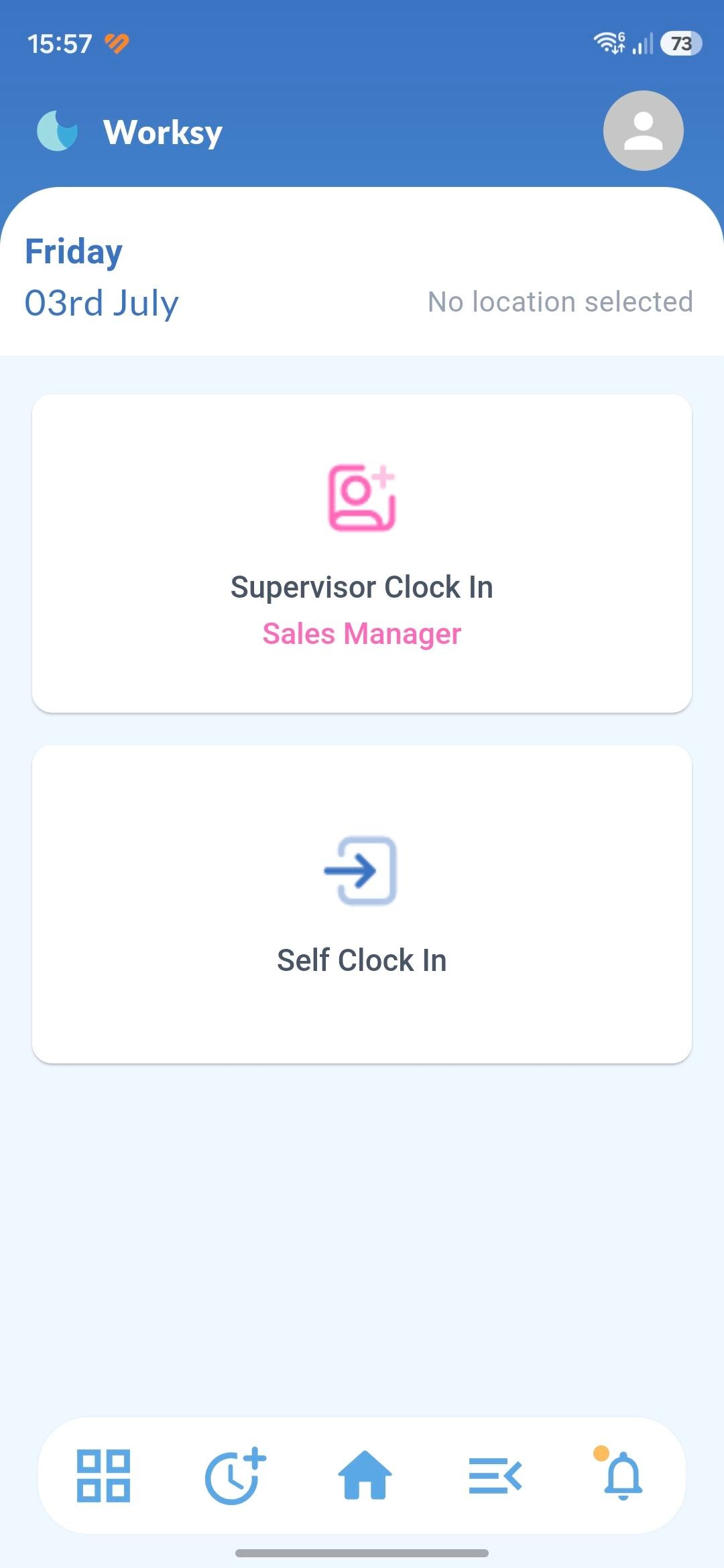
Now open the supervisor's mobile where the access for Supervisor Clocking has been turned on as in (Step 1).
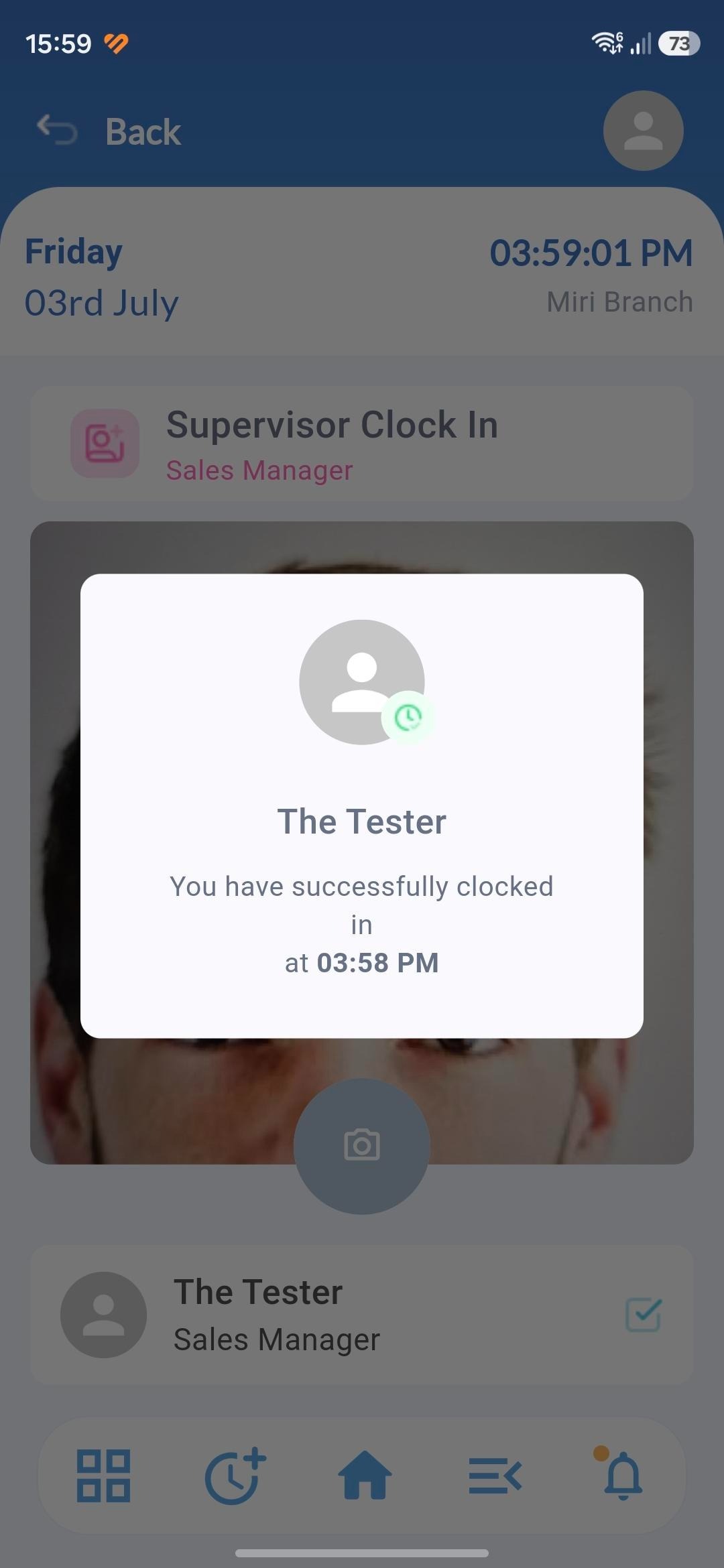
You may see the Supervisor Clocking option as in the image below (left) and a successful clocking prompt (right).
 |  |
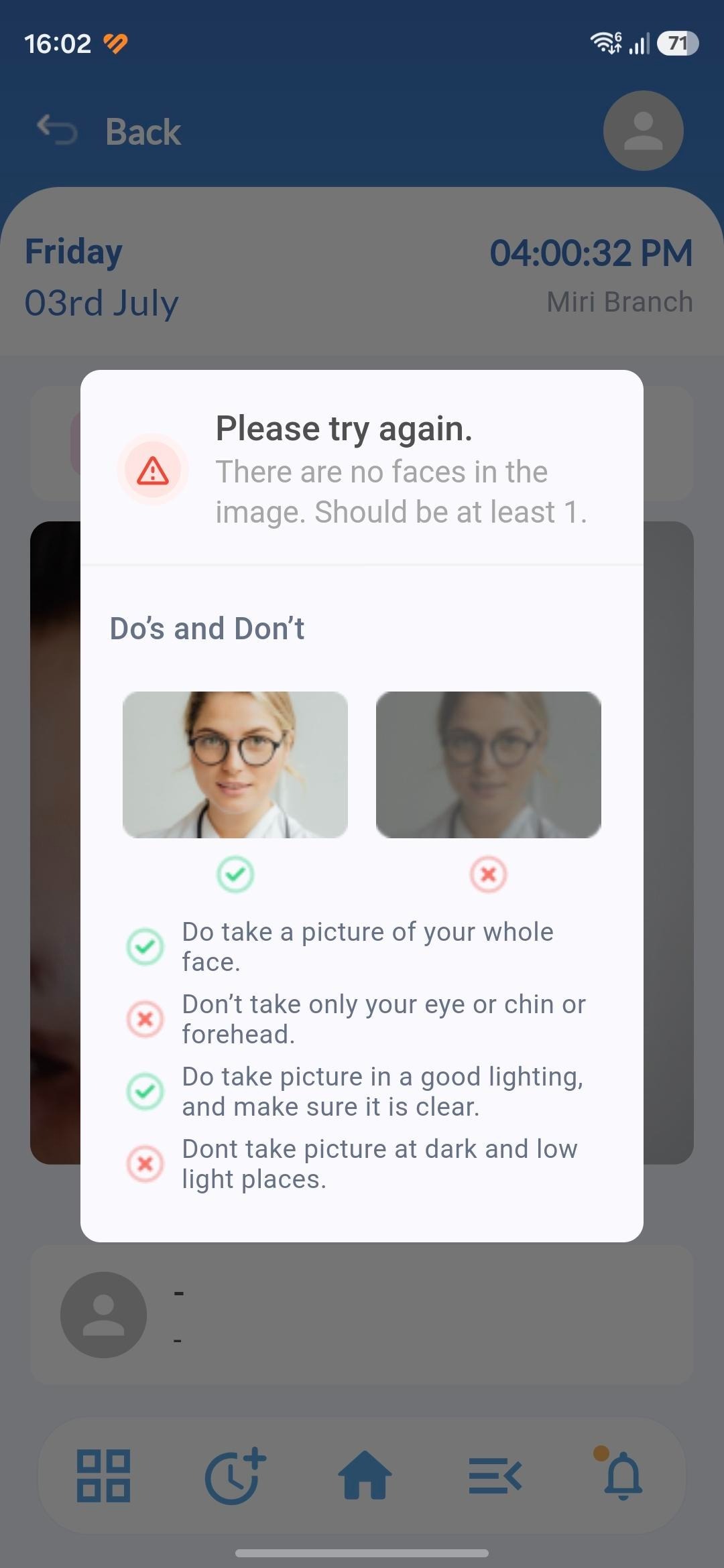
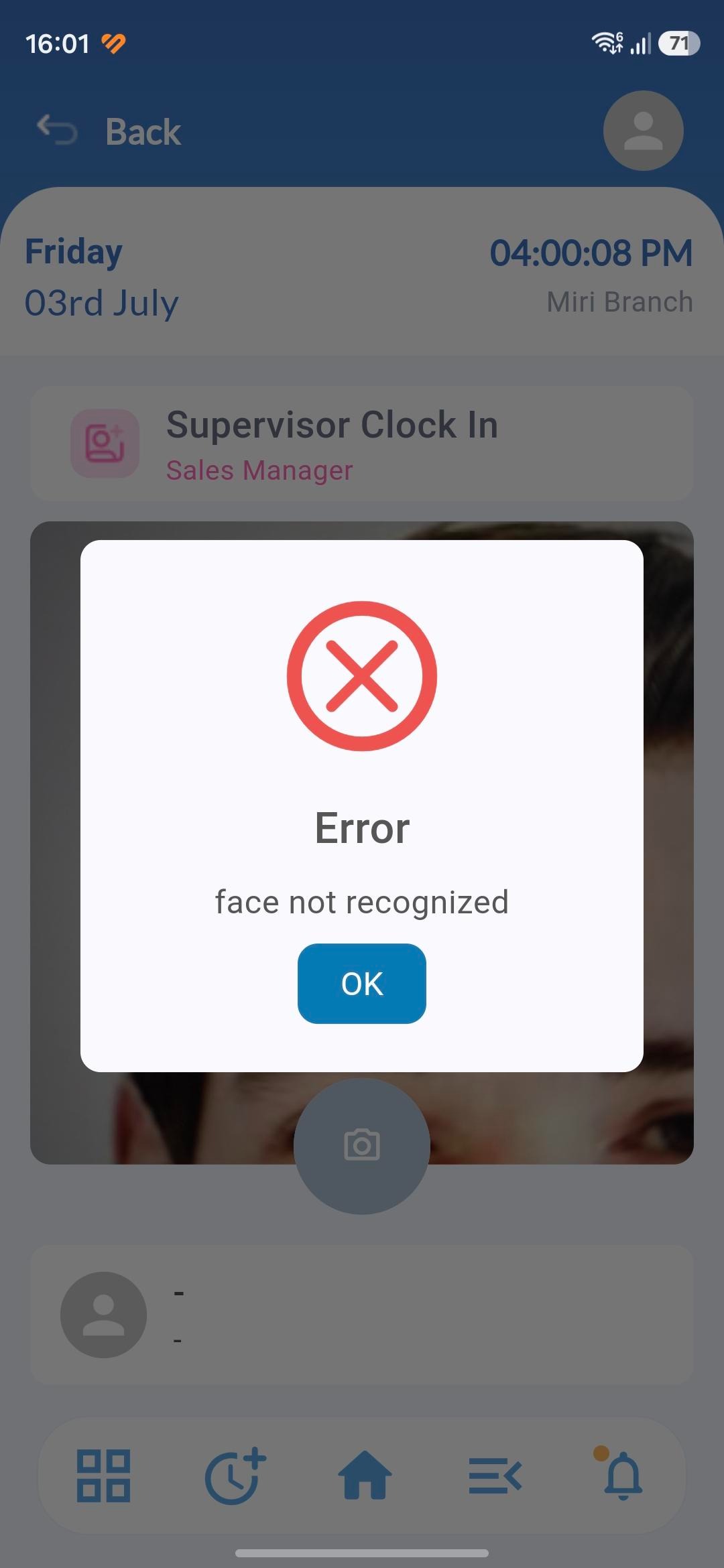
Common errors for supervisor clocking:
| When only part of a face is captured, the system will fail to recognize it. Ensure the entire face is centered in the frame. | If the registered face is not the same as the clocking face. (if company purchased face recognition) |
 |  |
We hope this explanation clarifies the matter. If you require additional assistance, do not hesitate to contact our support team.
Was this article helpful?
That’s Great!
Thank you for your feedback
Sorry! We couldn't be helpful
Thank you for your feedback
Feedback sent
We appreciate your effort and will try to fix the article