In this section, you’ll customize how your open positions are displayed and how each job’s details appear to candidates.
Unlike the Career Page, these two pages are edited directly on the main screen by clicking the Edit icon on the components. The content here is automatically pulled from the job requisitions created by your recruiters.
TABLE OF CONTENTS
1. Job Listing
This is your job catalog. By default, it features a Search & Filter panel on the left and Search Results on the right.
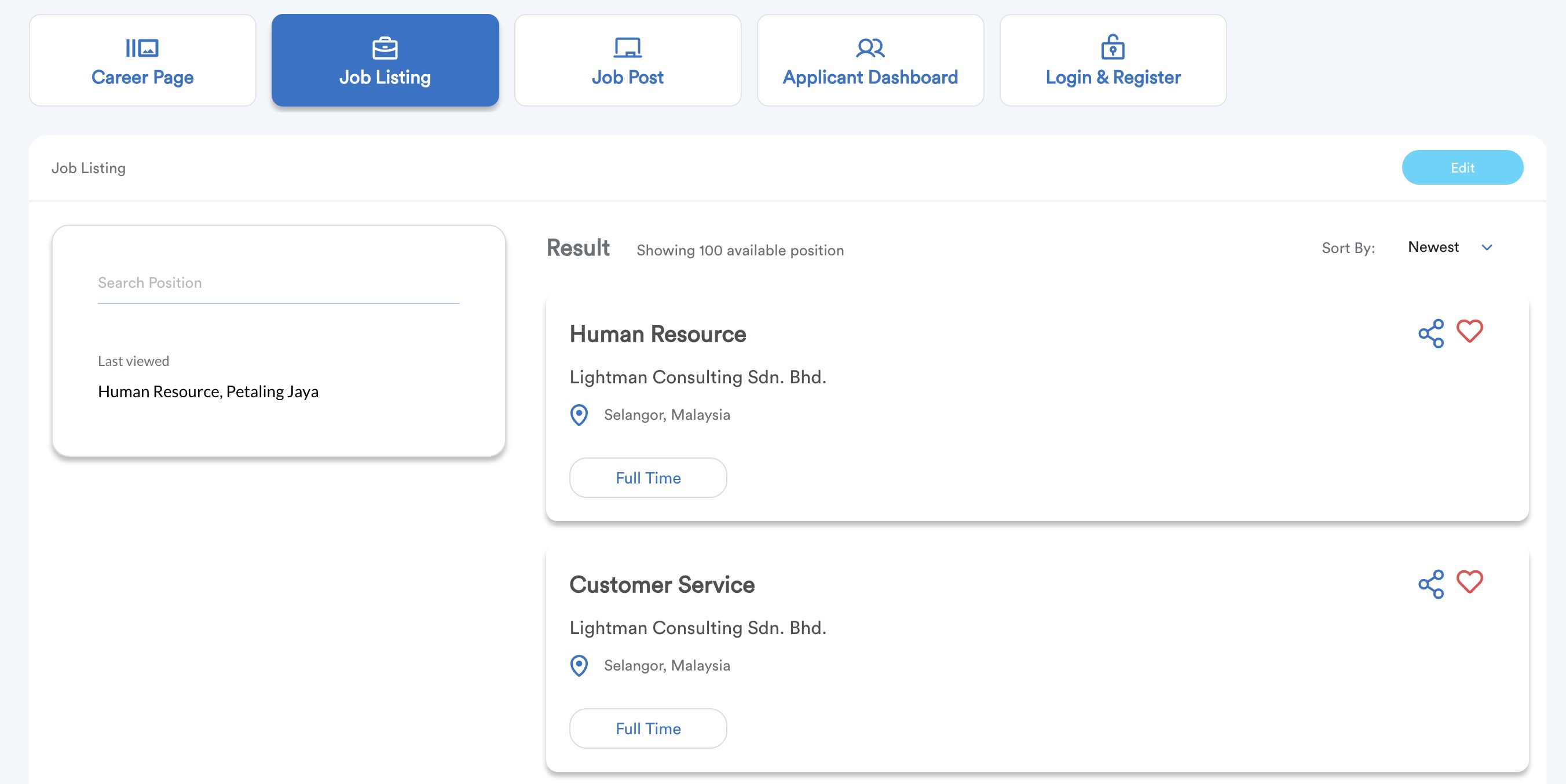
To customize this page, click Edit.
A. Hero Image
This is the banner at the top of your listings.
- Display: Toggle to enable or disable the image.
- Upload: Add your preferred banner.
- Image Style: Choose how the image fits (Cover, Contain, etc.).
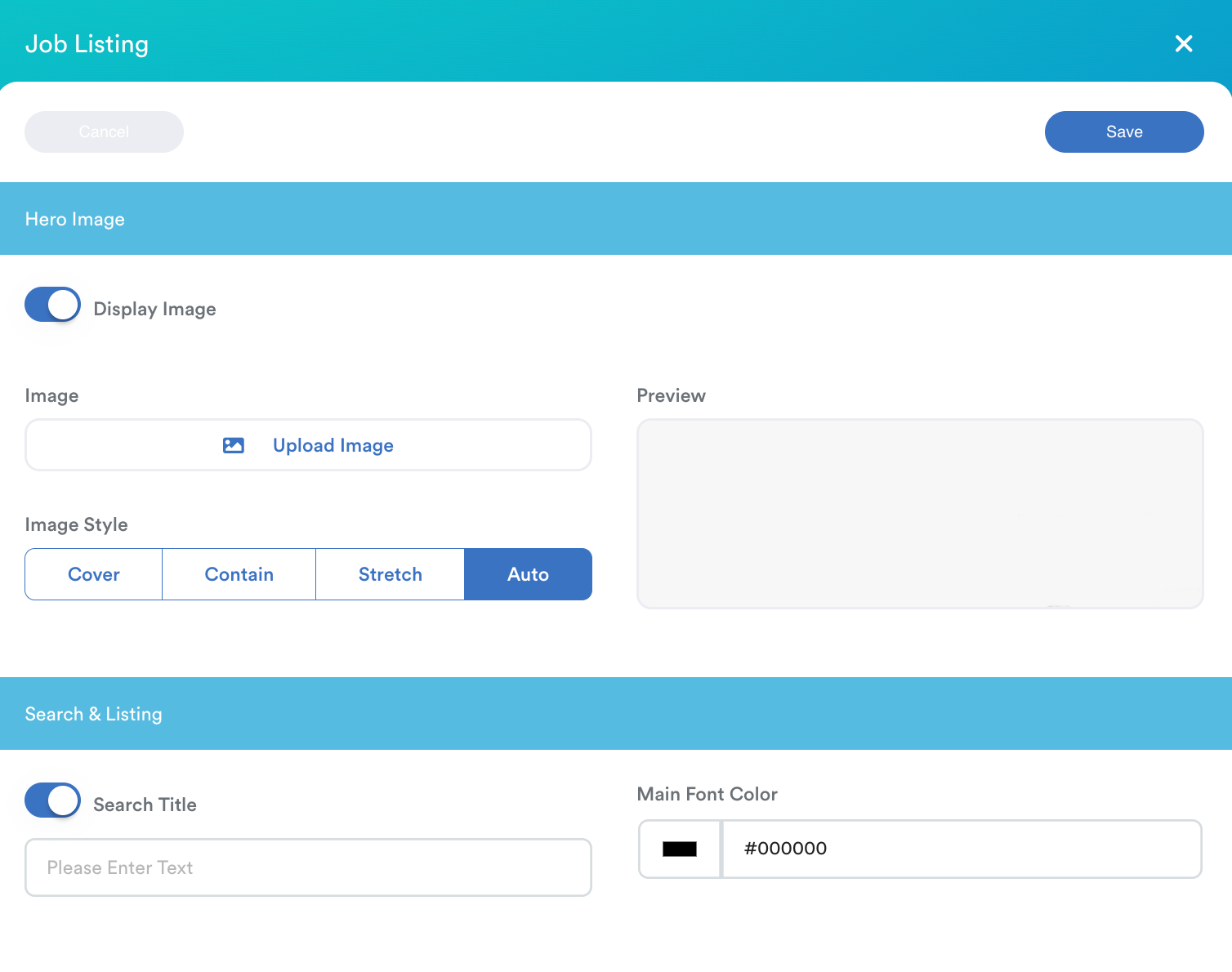
B. Search Listing
This controls the area where jobs are displayed.
- Search Title: Toggle this ON to add a heading (e.g., "Explore Our Openings"). If toggled OFF, only the search bar and filters will appear.
- Styling: Set your Main Font Color to ensure readability against your background.
2. Job Post
The Job Post page shows detailed information for each role when a candidate clicks into a job.
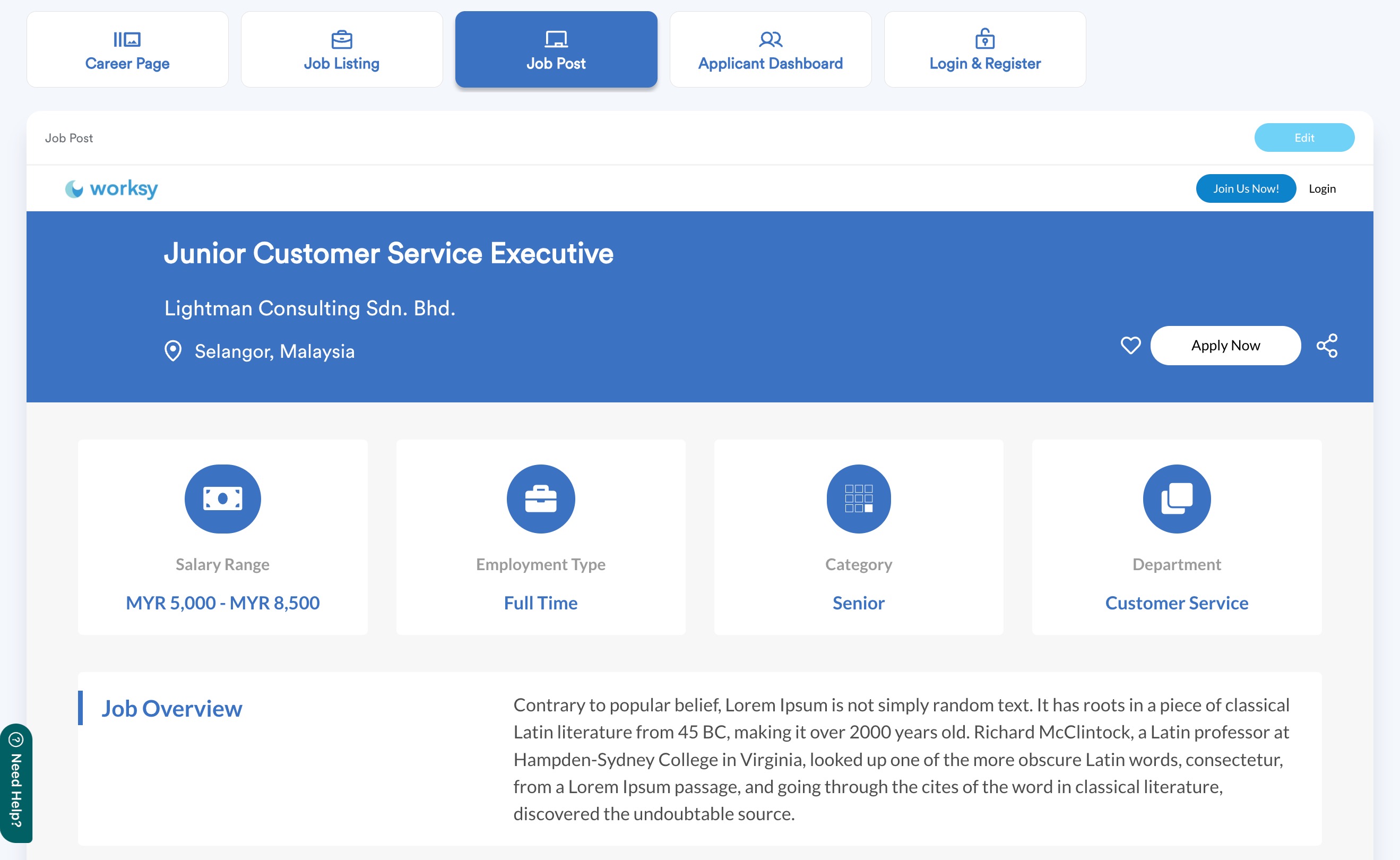
Like Job Listing, you can edit everything directly on screen. Most of the content here is auto-filled based on:
- The Requisition Template
- Information provided by the recruiter in the requisition request
Your role here is mainly to style and structure how it appears. Click Edit to customize these elements:
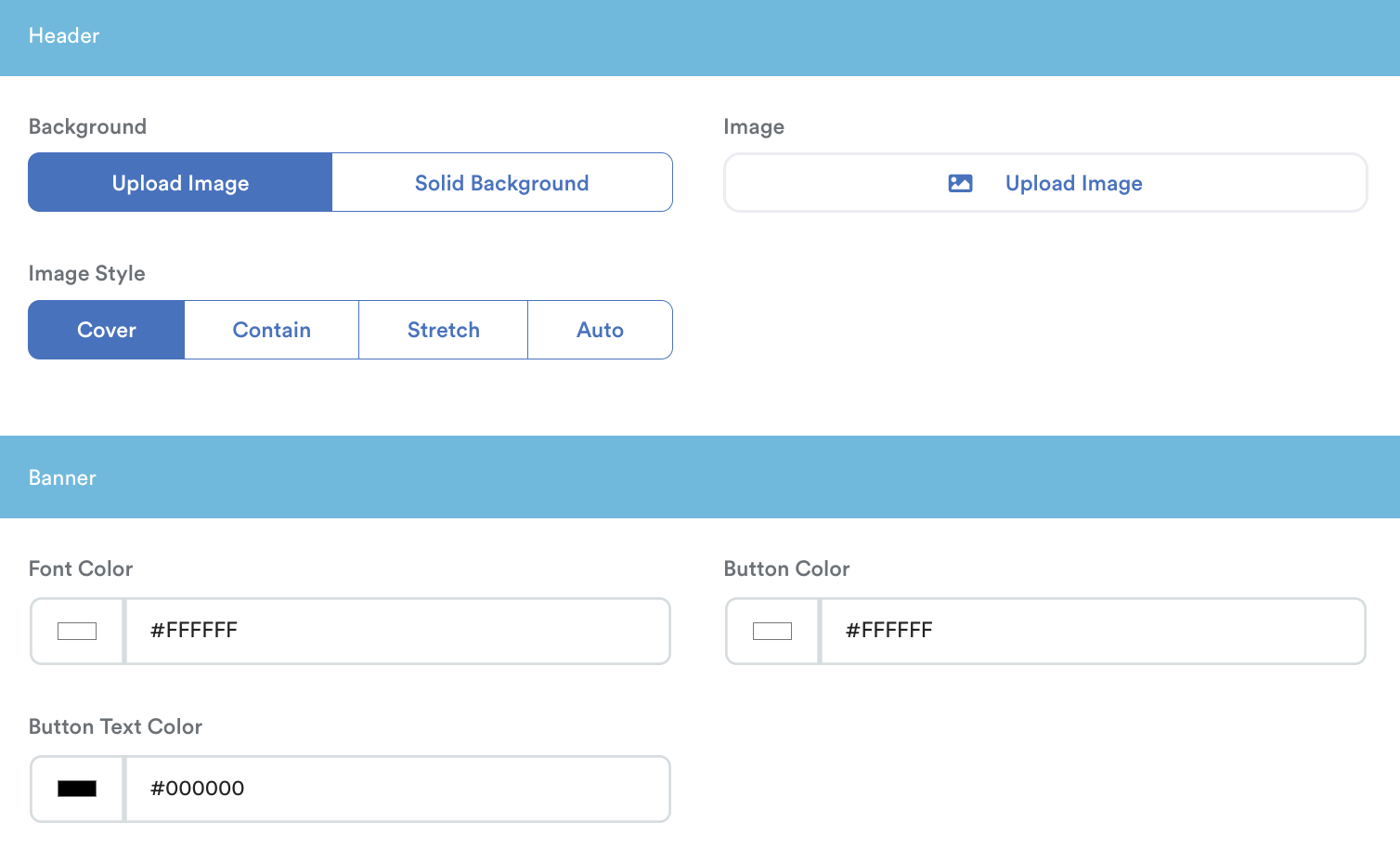
A. Header & Banner

- Header: Choose between a Solid Background Color or an Uploaded Image. Set the style to match your brand.
- Banner (Job Title): This area highlights the position name.
- Set the Font Color.
- Customize the Apply Now button color and text color to make it stand out.
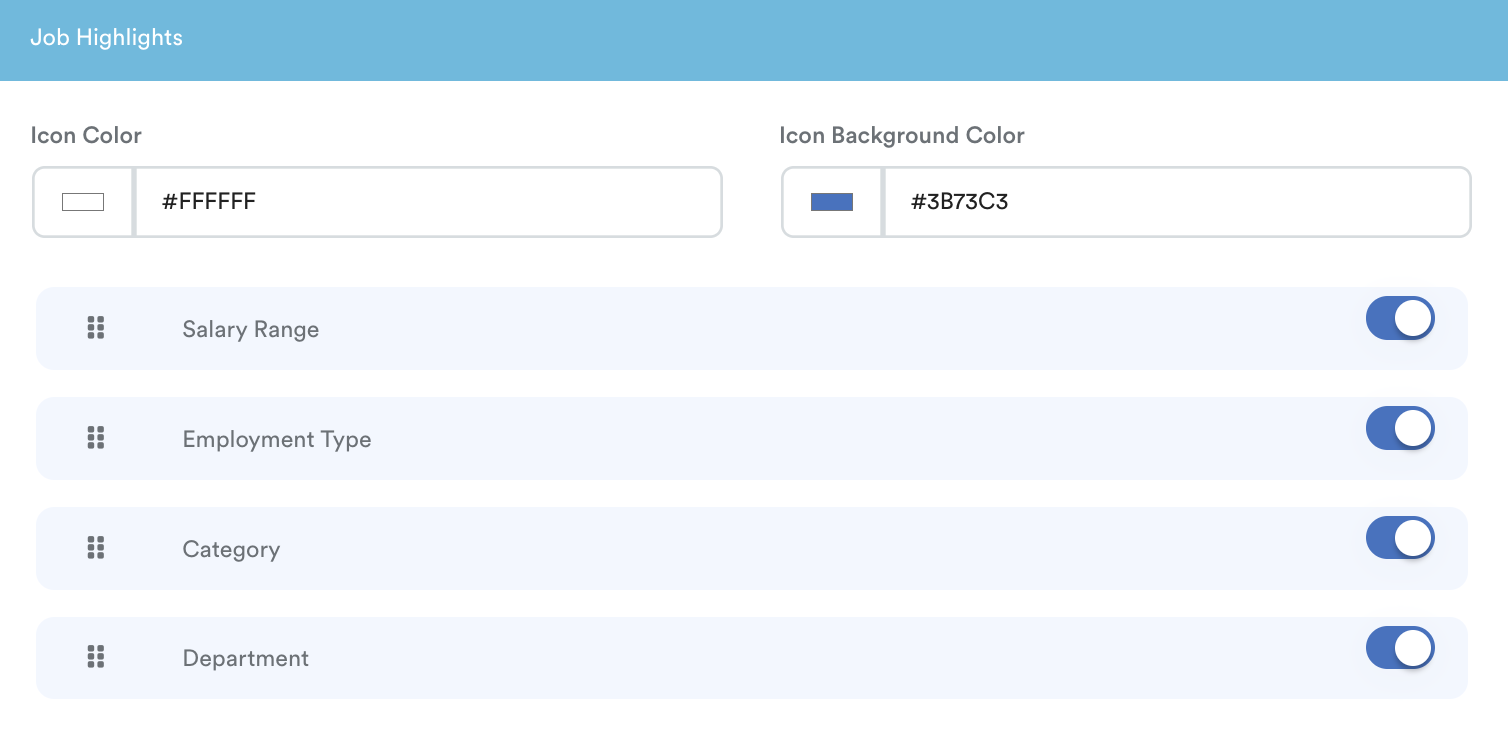
B. Job Highlights
These are the quick-glance details (e.g. Salary Range, Employment Type, Category, Department).

- Set the Icon Color and Icon Background Color.
- Toggle on/off specific highlights and drag-and-drop the rows to rearrange the order of importance.
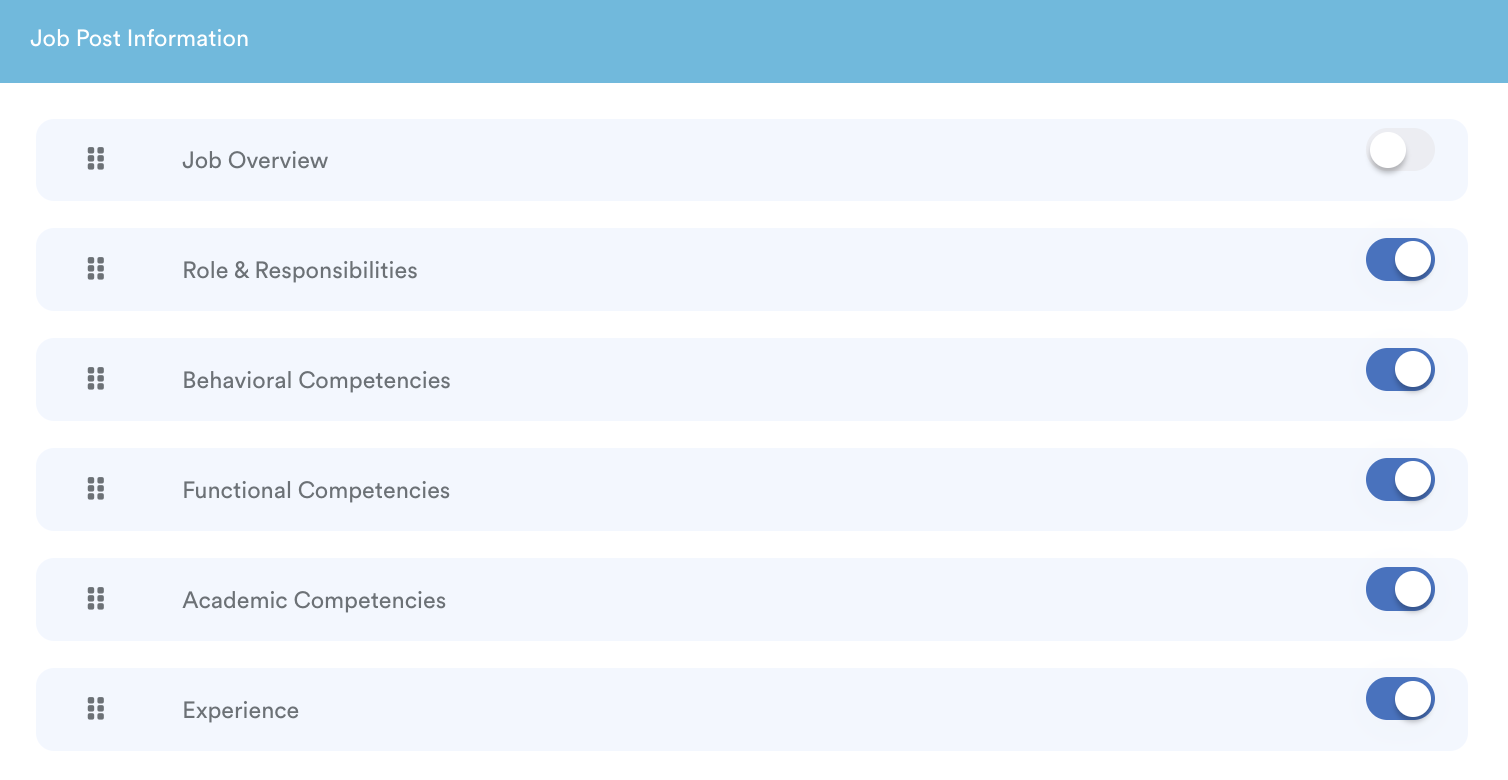
C. Job Post Information
This section displays the job description based on job details provided in Employee > Job Description.
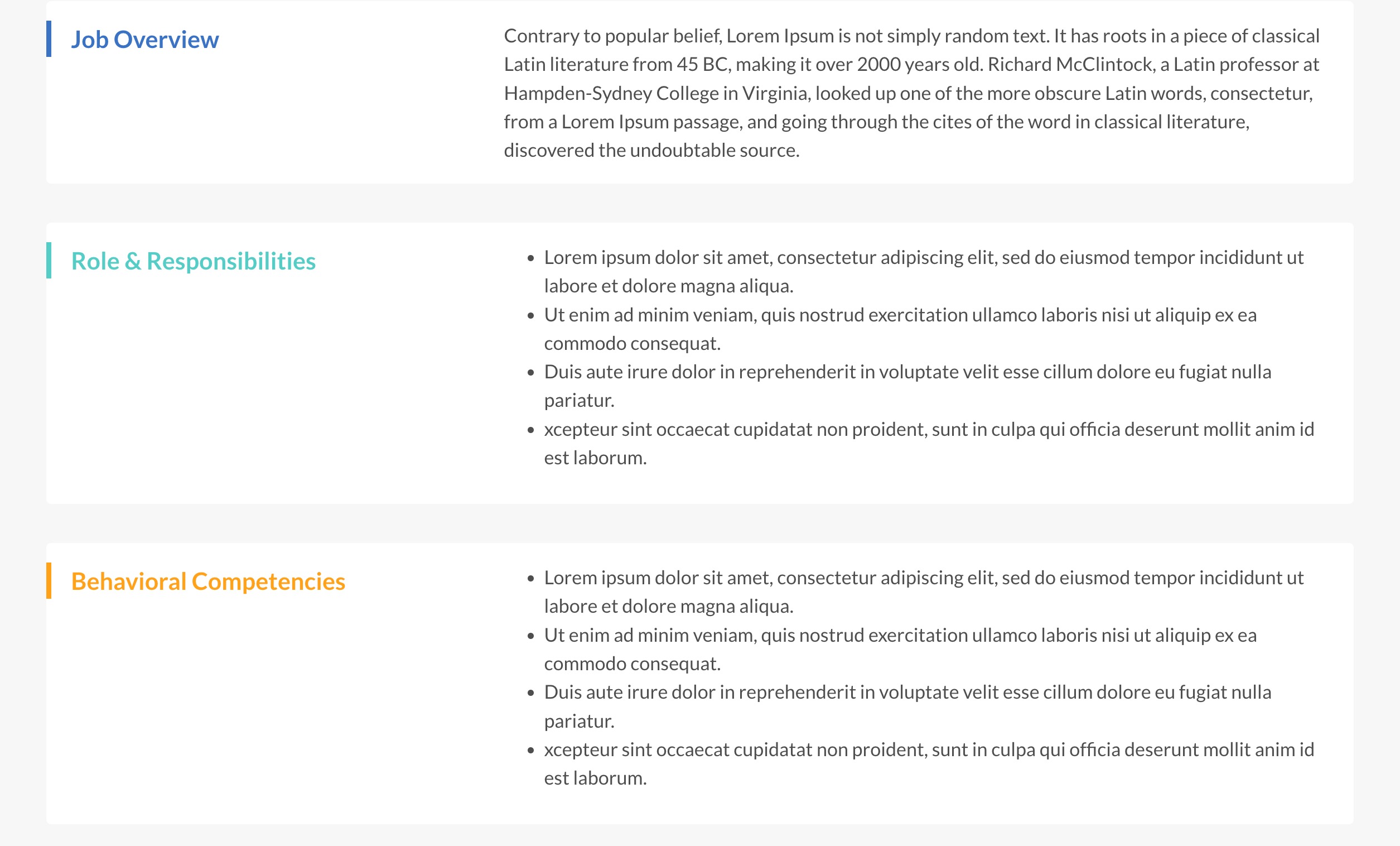
- Use the toggles to hide or show specific info blocks.
- Just like highlights, you can rearrange these sections by dragging them up or down to change the flow of information.
Note: To create/edit job descriptions, go to Employee > Job Description.
If you have not created the position yet, create it at Settings > General > System Label > Employee > Position.
In this Career Portal Builder tutorial series:
- Career Page
- Job Listing & Job Post (current)
- Applicant Dashboard and Login & Register (next)
We hope this explanation clarifies the matter. If you require additional assistance, do not hesitate to contact our support team.
Was this article helpful?
That’s Great!
Thank you for your feedback
Sorry! We couldn't be helpful
Thank you for your feedback
Feedback sent
We appreciate your effort and will try to fix the article