A Requisition Template defines the structure and workflow of a recruitment process, including approval flow, job requirements, and hiring stages within the system.
Step 1
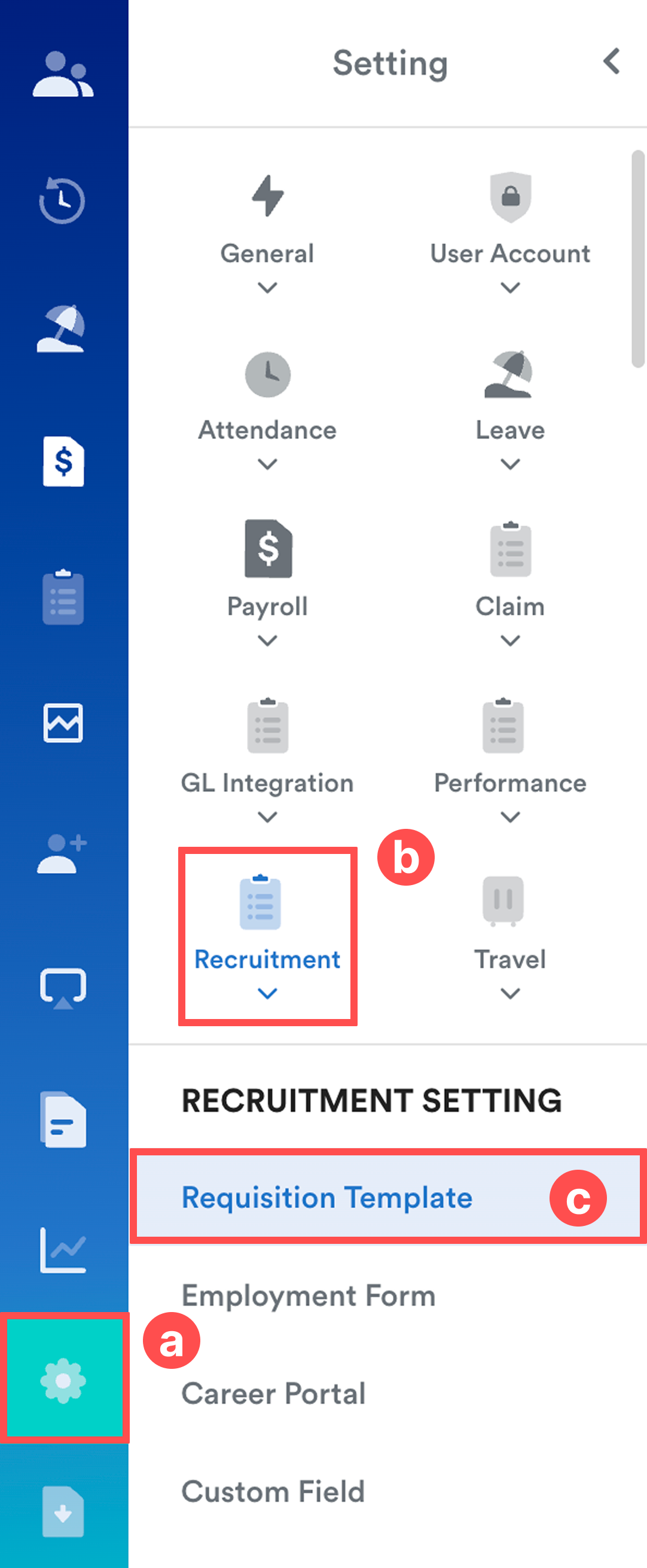
Navigate to Setting (a) > Recruitment (b) > Requisition Template (c).
Step 2
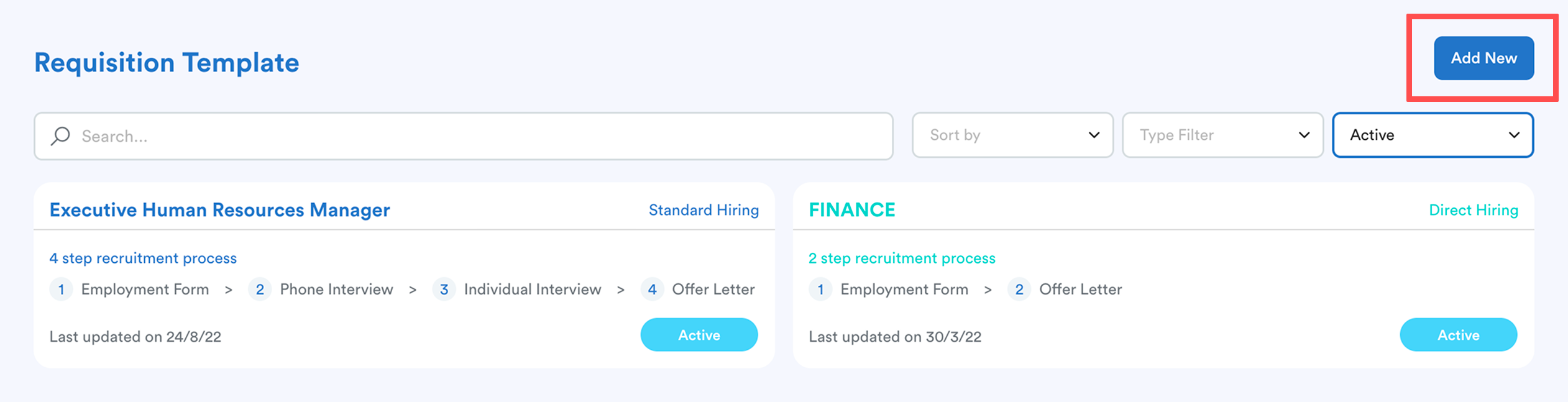
Click Add New to create a Requisition Template.
Step 3
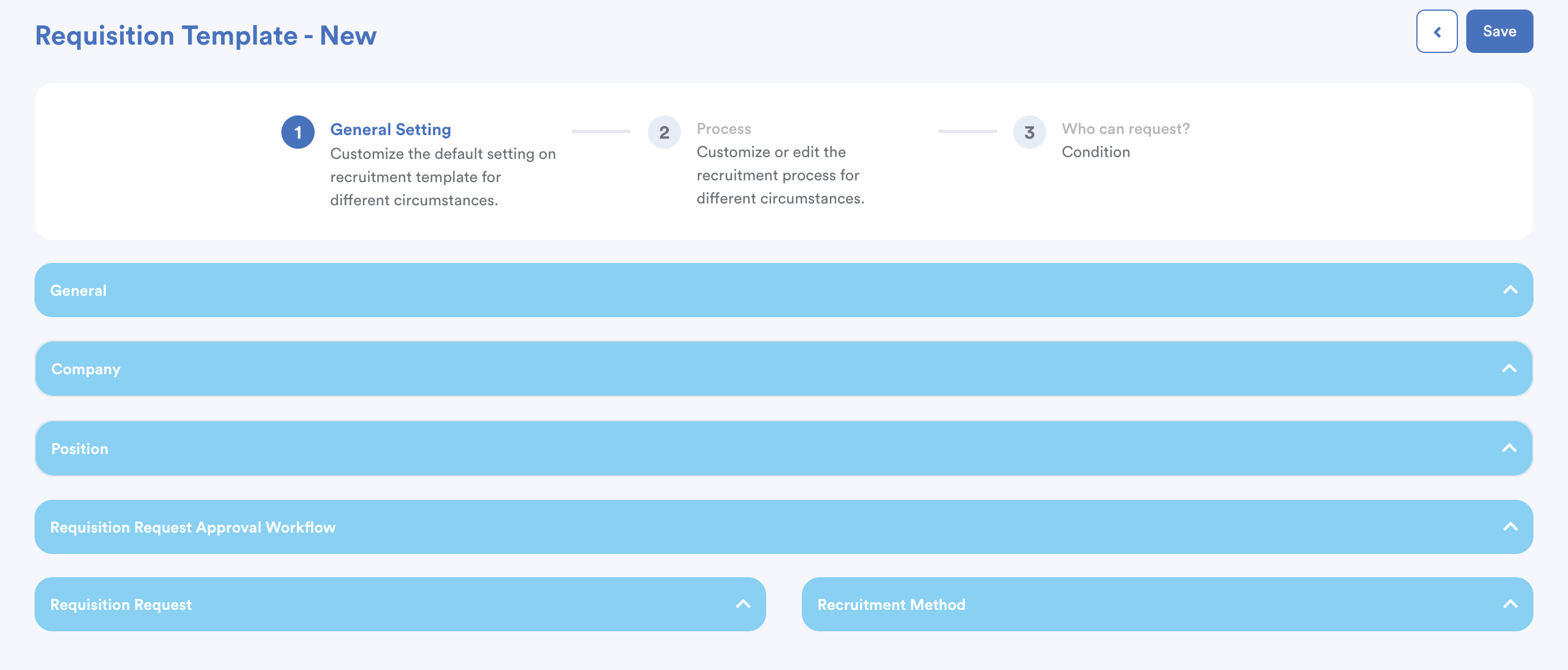
Tab 1 - General Settings
Define the basic rules and requirements for this specific recruitment process.
This tab consists of 6 sections: General, Company & Position, Approval Workflow, Requisition Request, Recruitment Method
General
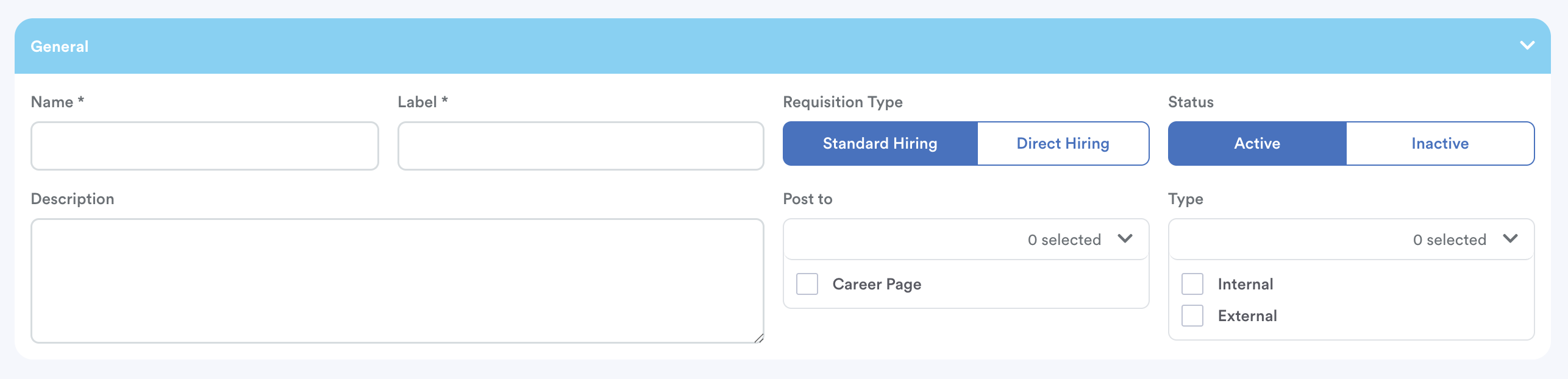
Name, Label, & Description: Give your template a clear title and internal notes.
Requisition Type:
- Standard: Follows the full company process (Application > Screening > Interviews > Offer).
- Direct Hiring: A simplified process for cases such as walk-ins or career fairs where interviews are already conducted.
Type: Choose Internal, External, or both to allow people from the company and the public to apply.
Company & Position
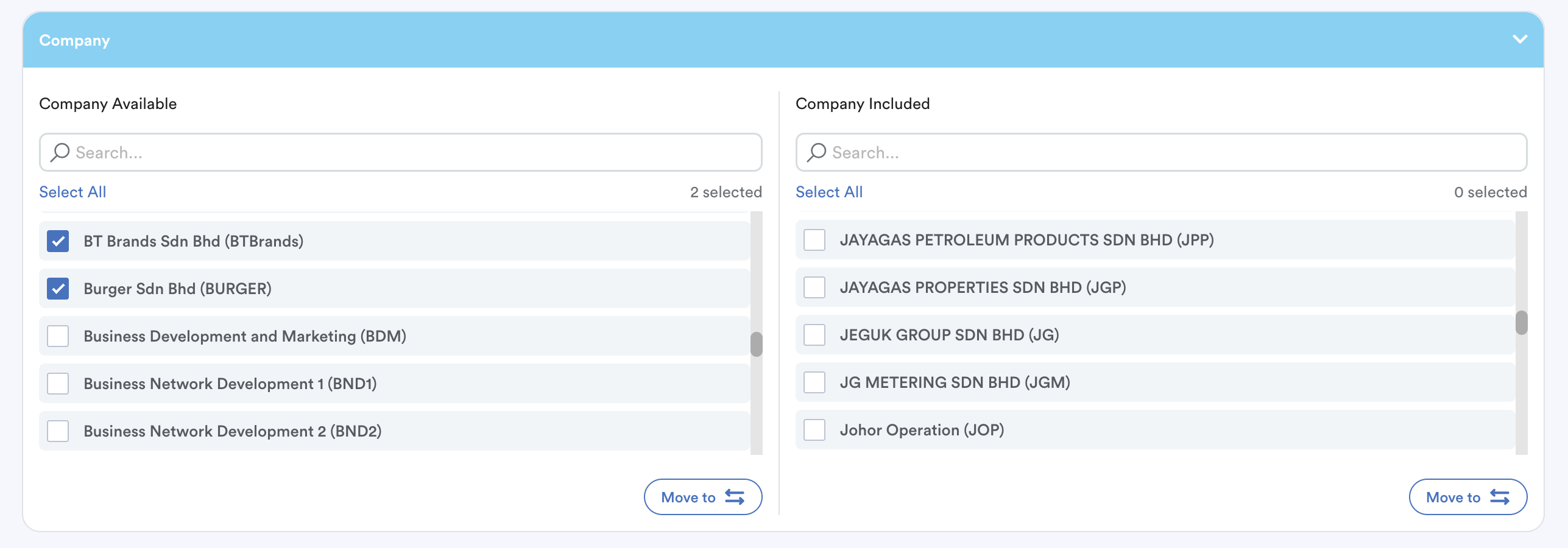
Select the companies and positions that will use this template by moving them from the "Available" column to the "Included" column.
Note: If you want to create a new position, create it at Setting > General > System Label > Employee > Position.
Approval Workflow
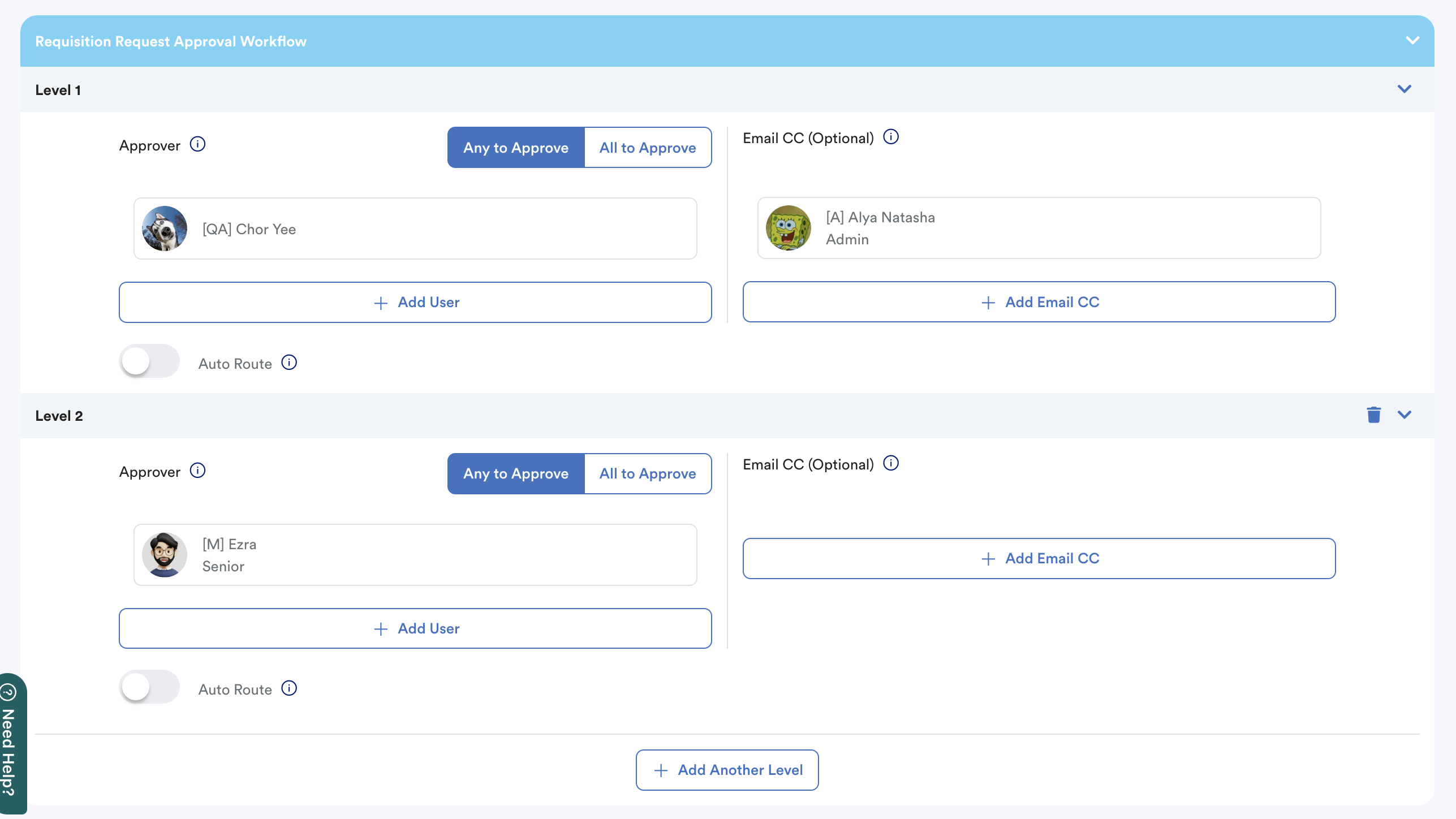
Set up the flow of approval by adding the specific Users and Approval Levels required to authorize the requisition.
Requisition Request
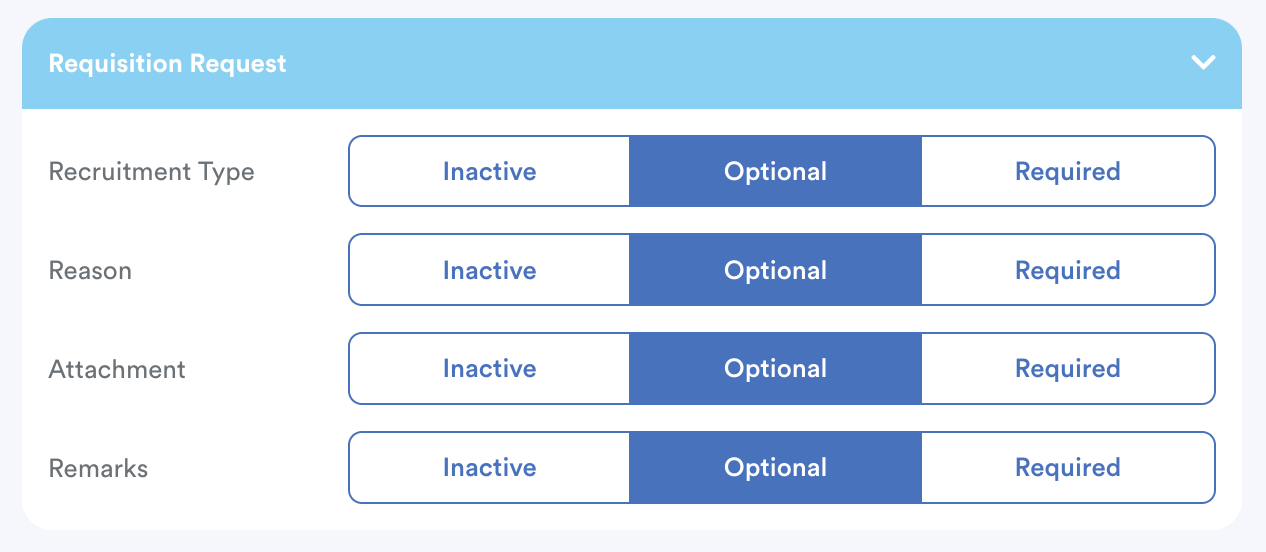
Select if the Reason, Attachment, or Remarks fields are Required, Optional, or Inactive (hidden) for the requester.
Recruitment Method
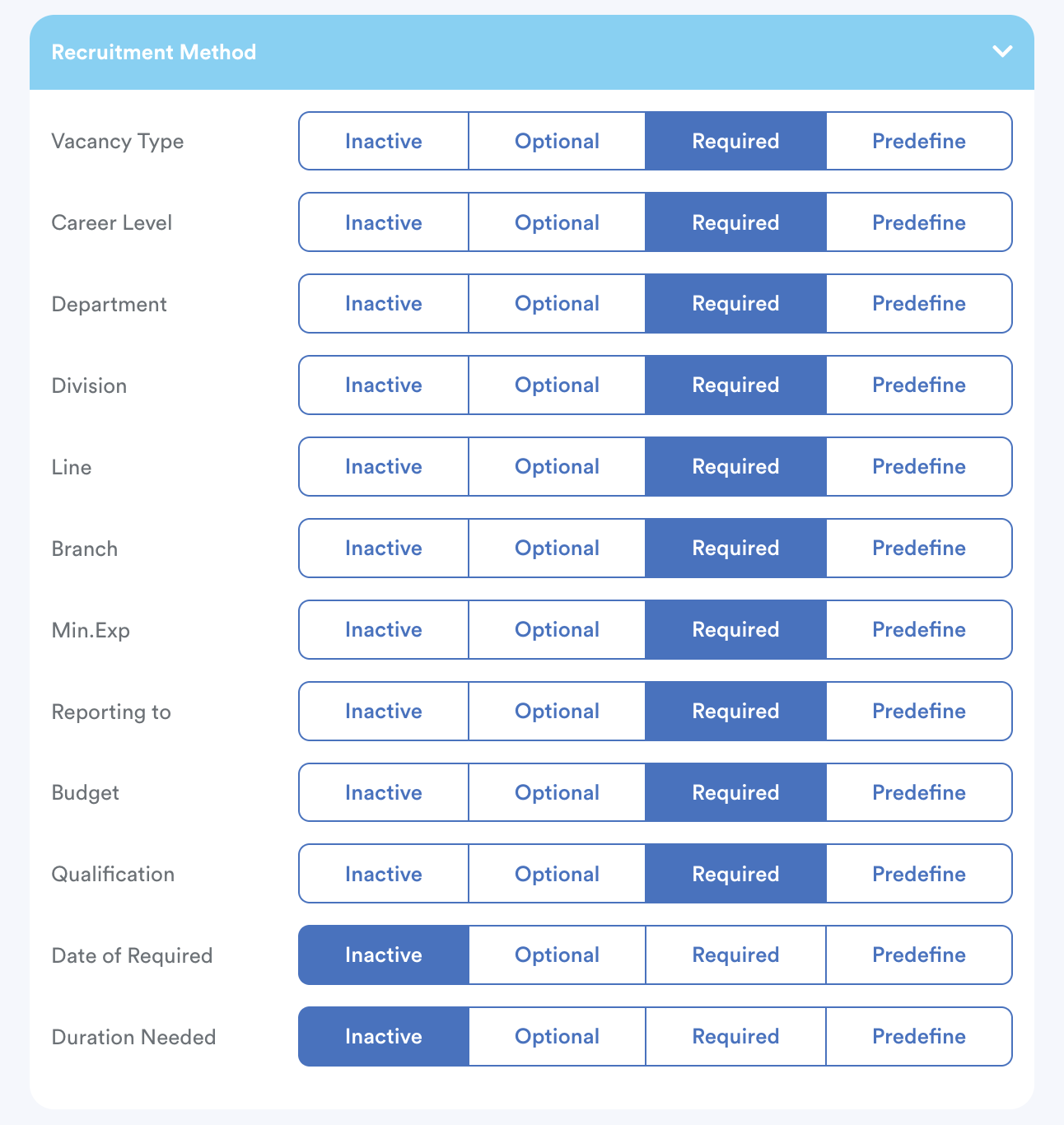
Define which job details (such as Vacancy Type, Department, Budget, Experience, and Qualifications) should be visible or mandatory when an employee creates a new request. When defined, the details will also appear in the job posting on career portal.
Step 4
Tab 2 - Process
Build the hiring stages for this recruitment template.
Available sections:
- Employment Form
- Phone Interview
- Individual Interview
- Offer Letter
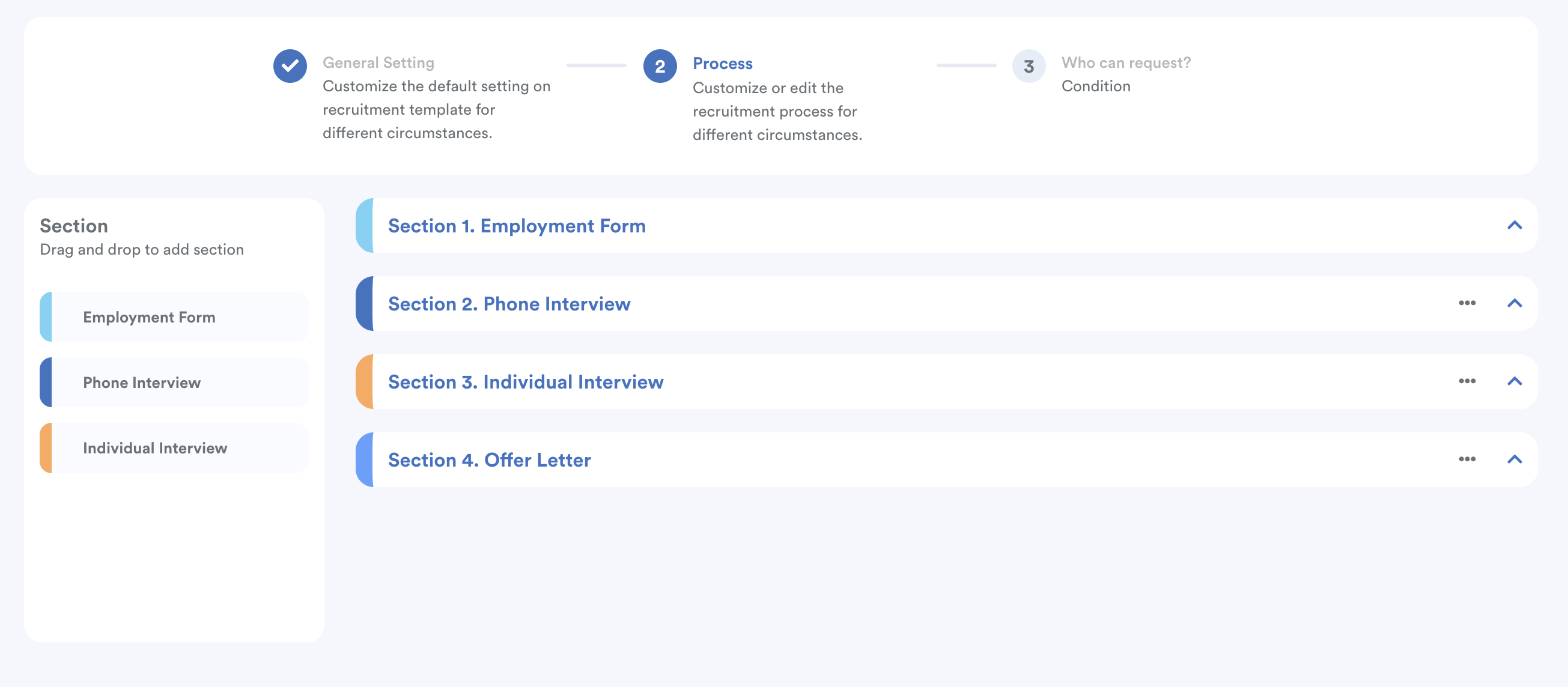
Managing Sections
- To Add: Drag a section from the left panel and drop it into the right-side workspace.
- To Remove: Click the three-dot icon on a section and select Delete.
- To Rearrange: Drag and drop sections to change the order.
Note: The Employment Form is compulsory and will always remain at the top by default.
Employment Form
- Set a section name and tick the boxes for questions you want to make mandatory for applicants. Refer to How to Edit Employment Form Sections and Questions
Interviews (Phone/Individual)
- Section Name: Define the interview stage name
- Interviewer: Assign users who will conduct the interview.
- Notify: Tick to send email notifications to selected interviewers
- Duration & Break: Set timing in minutes (used for interview timeslot scheduling)
Note: Without setting the duration, you cannot set the Interview Schedule. For more info, refer to How to Generate and Schedule Interview Time Slots.
Offer Letter
- Section Name: Define the offer stage name
- Letter Template: Select a pre-configured template from the Letter Builder.
- Notify: Tick to notify hired candidates via email
- Requirements: Enable acknowledgement or signature requirement
Step 5
Tab 3 - Who Can Request
Define which employees are allowed to submit requisition requests.
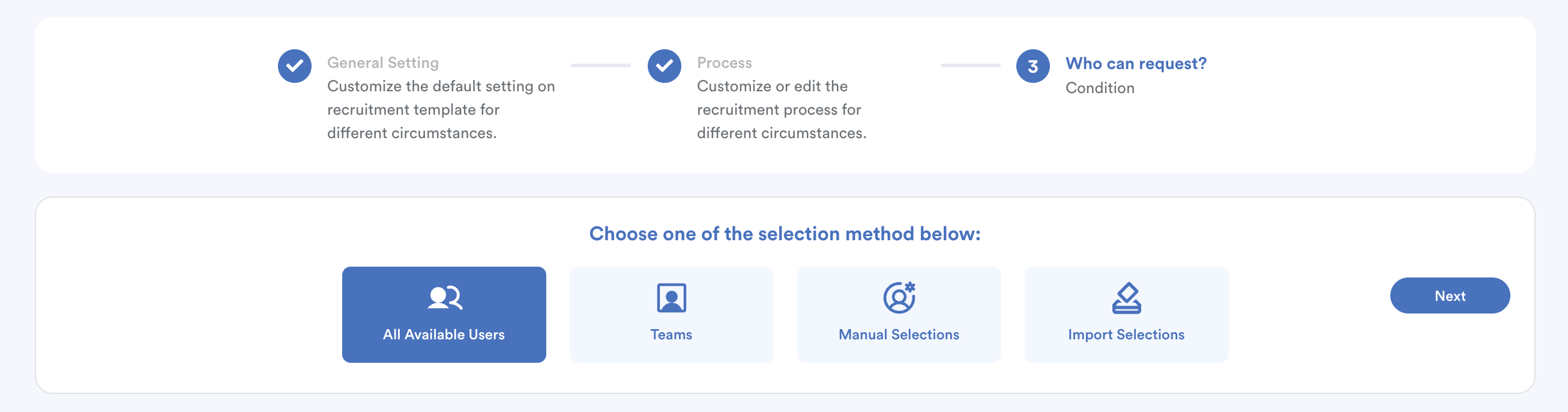
This follows the same selection logic used in other modules, where employees are filtered based on filters, teams, manual, or import selections.
Step 6
Click Save.
Requesters: Eligible employees will see this template as an option when submitting a requisition request.
Applicant: Any applicant applying for positions linked to this template will automatically follow the stages you just configured.
We hope this explanation clarifies the matter. If you require additional assistance, do not hesitate to contact our support team.
Was this article helpful?
That’s Great!
Thank you for your feedback
Sorry! We couldn't be helpful
Thank you for your feedback
Feedback sent
We appreciate your effort and will try to fix the article