The Career Page is the home page or landing page of your recruitment efforts.
On Setting > Recruitment > Career Portal, you can customize and design a career portal to align with your company branding.
On the builder for career page, the screen is divided into three functional areas:
- Top Bar: Switch between the 5 editable pages (Career Page, Job Listing, Job Post, Applicant Dashboard, Login & Register).
- Left Panel: Contains Components (Quote, Image, Title, Text) to drag into your page.
- Main Screen: The live preview where you arrange and edit your content.
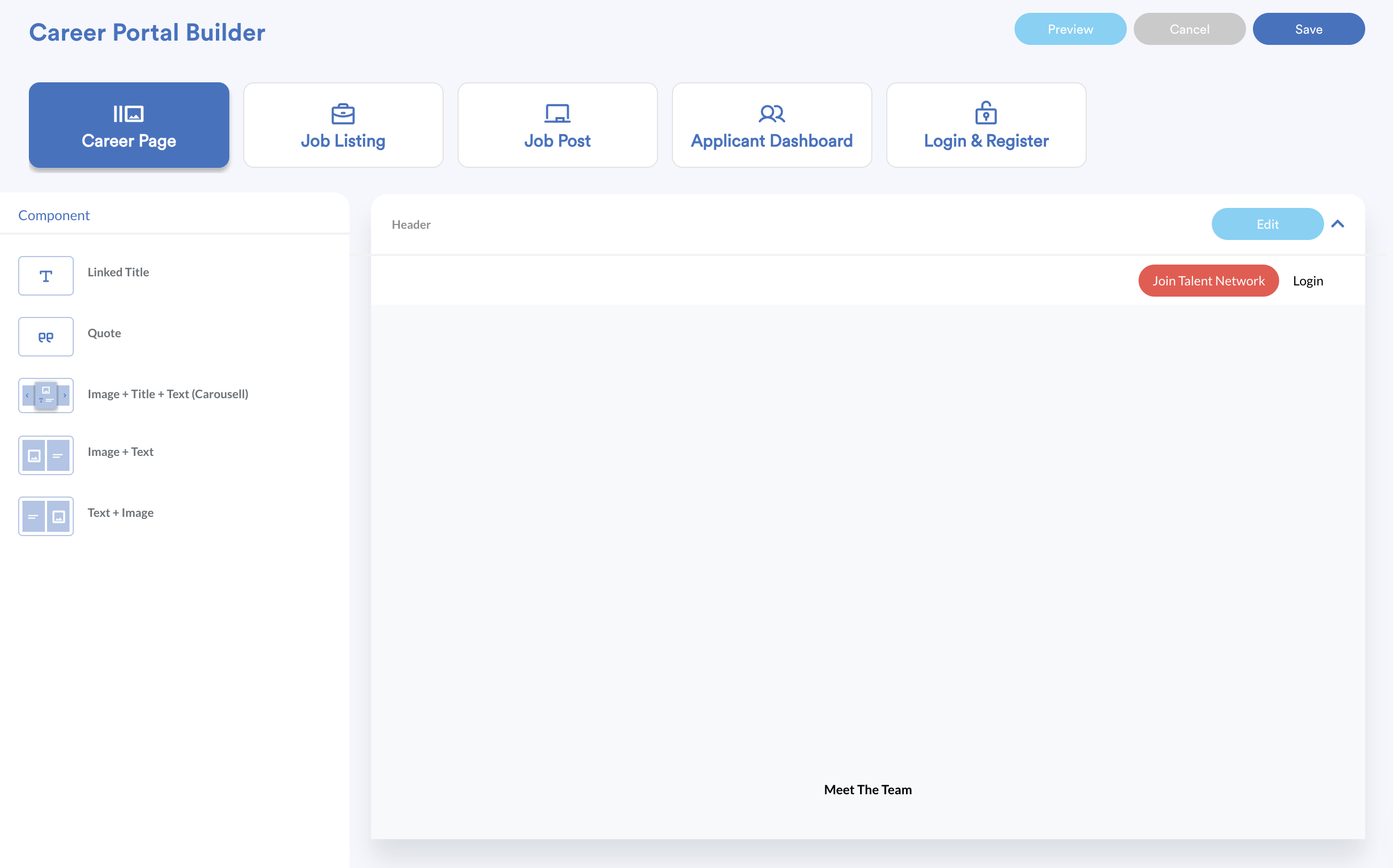
By default, the Header and Footer are pre-built. You can add sections in between by dragging components from the left panel.
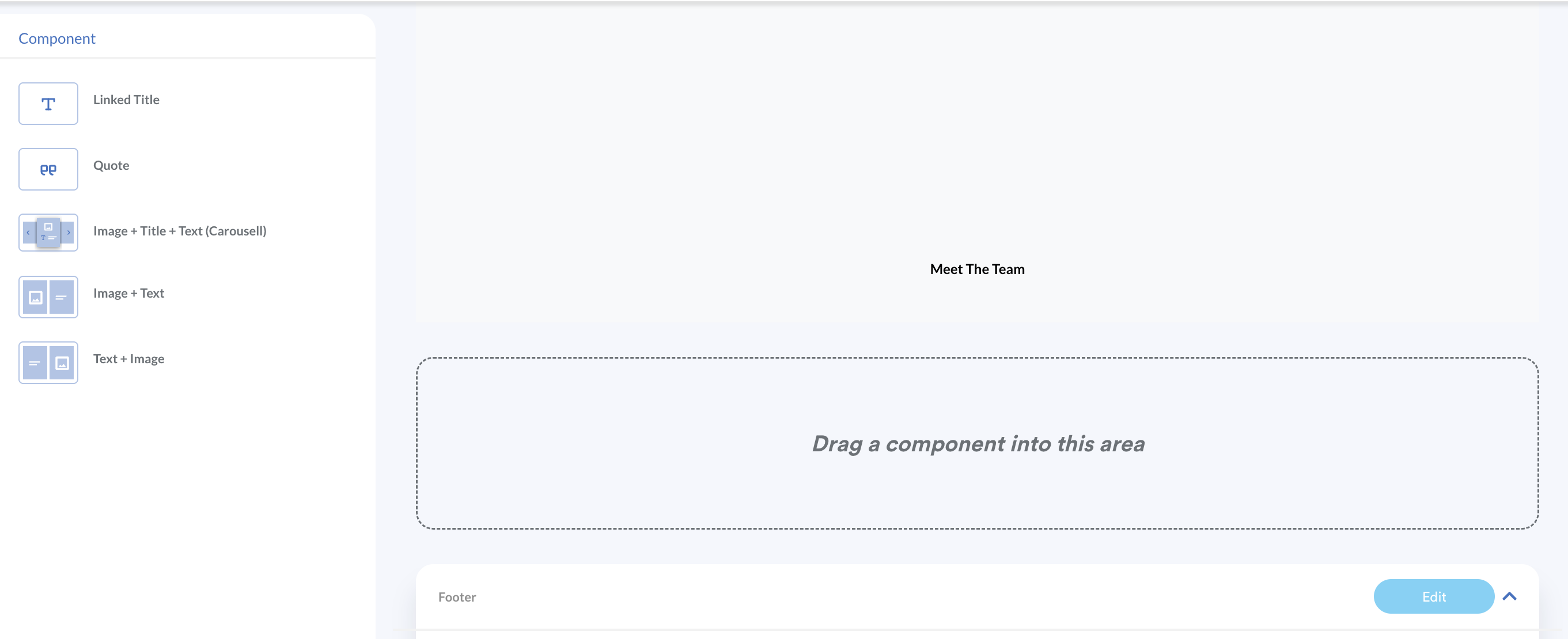
Step 3 - Header
The navigation bar at the top of your site.
- Logo & Colors: Upload your company logo and set the menu background/font colors.
- CTA Button: The primary action button (e.g. Join Us, Apply Now)
- Keep text under 3 words.
- Enable Open New Tab to keep the portal open when the button is clicked.
Hero Section
The main "spotlight" of the header area.
- Background: Upload a high-resolution image.
- Title & Description: Toggle these on to add your headline (e.g. Join Our Team, Build Your Career With Us, etc).
- Search Bar: Toggle Display Search to allow candidates to search for jobs directly from the home page. Keep styling consistent with your overall theme
- Filters: Add up to 2 filter options to help users narrow down job preferences quickly.
Step 4 - Footer
The bottom section for links and company details.
- Company Info: Logo and a brief "About Us" description.
- Additional Info: Displayed beside your company info. Use this for disclaimers or security notices.
- Links: Add important links such as your company's main website, Whistleblowing policy, or PDPA. Click Add to include more links.
- Additional Links: Smaller links at the very bottom of the page. Click Add to include more.
- Social Media: Select icons (LinkedIn, Facebook, etc.) and paste your profile URLs.
Step 5 - Components
After dragging a component to the main screen, you can Edit, Duplicate, or Remove. When editing, you can customize everything to match your company’s colors, branding, tone

Common Customisation Options
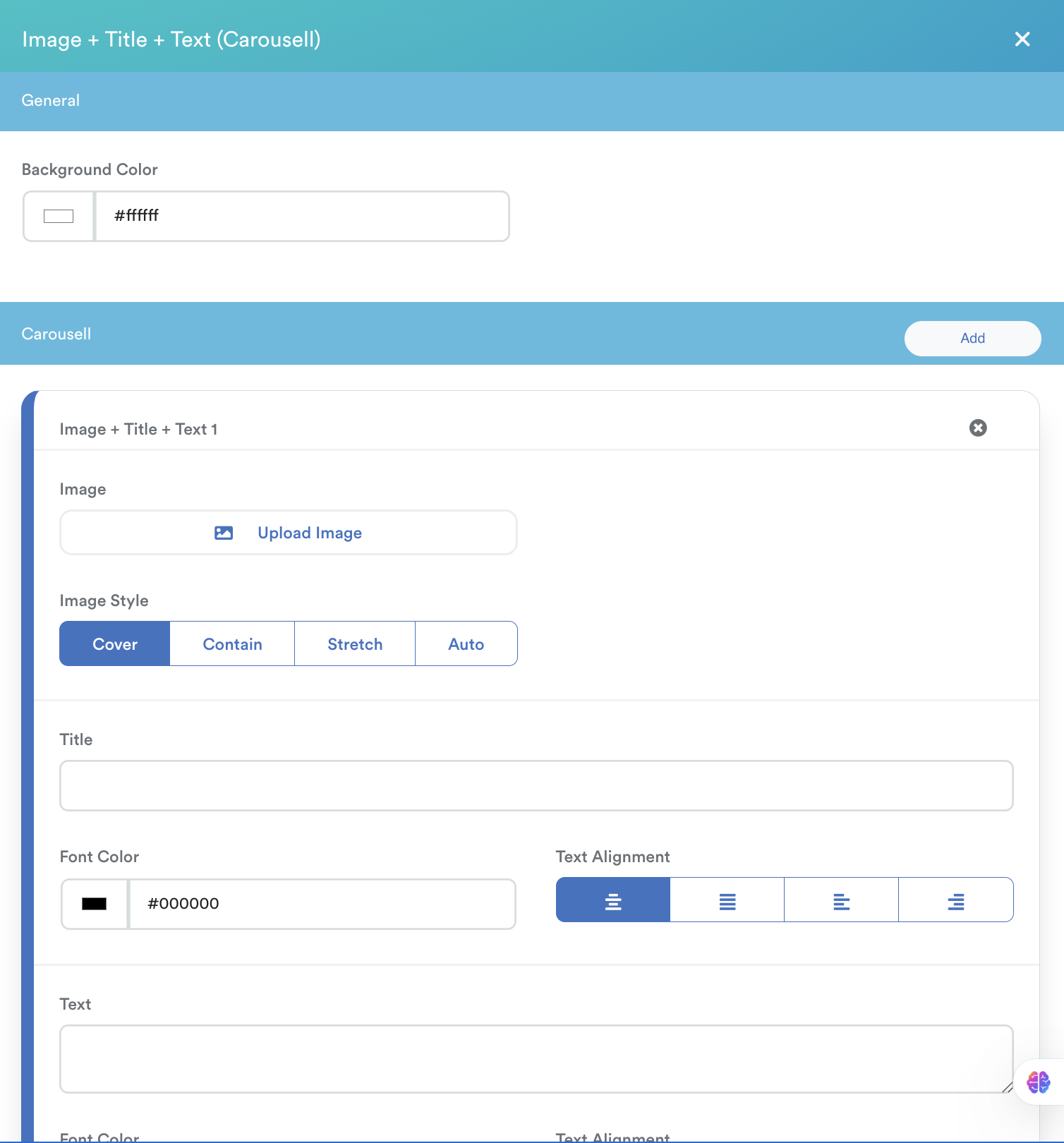
Components will allow you to adjust:
| Image | Text |
|
|
This applies to all components: Linked Title, Quote, Image + Title + Text (carousel), Image + Text, Text + Image
This covers the Career Page, which is the main landing page of your portal.
In this Career Portal Builder tutorial series:
- Career Page (current)
- Job Listing & Job Post (next)
- Applicant Dashboard and Login & Register
We hope this explanation clarifies the matter. If you require additional assistance, do not hesitate to contact our support team.
Was this article helpful?
That’s Great!
Thank you for your feedback
Sorry! We couldn't be helpful
Thank you for your feedback
Feedback sent
We appreciate your effort and will try to fix the article