The Applicant Dashboard allows candidates to track their application progress, view job history, and manage their profiles. The Login & Register screens are the entry points for both new and returning applicants.
Unlike the previous pages, these interfaces have a fixed layout. Although you cannot rearrange the sections, you can customize the visual and messaging.
TABLE OF CONTENTS
1. Applicant Dashboard
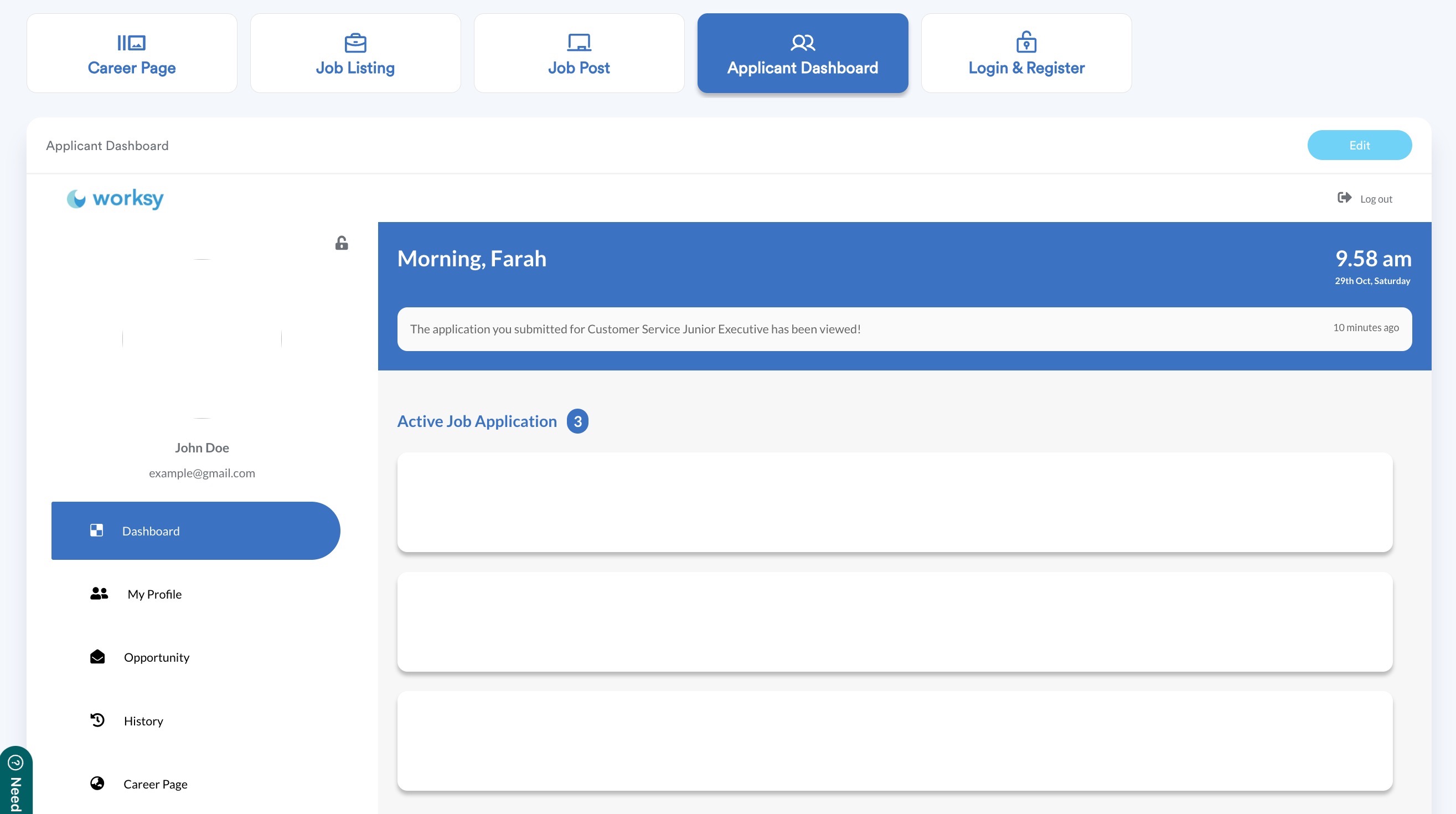
The Applicant Dashboard is where applicants can:
- View active job applications
- Track progress and status
- Explore other opportunities
- Access their application history
- Manage their profile
To style the dashboard, click Edit.
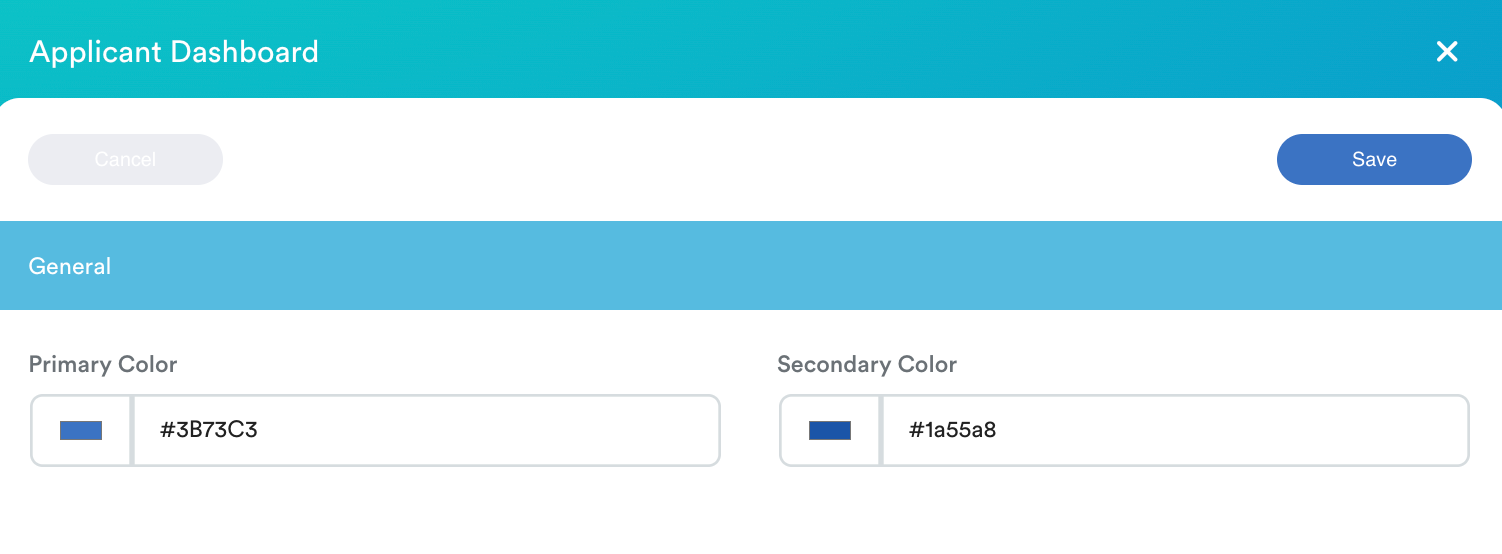
Set the Primary & Secondary Colors.
Tip: Use colours consistent with your Career Page, Job Listing, and Job Post to maintain a cohesive user experience
2. Login & Register
This is the entry point for both:
- New applicants (first-time users)
- Existing employees (use current worksy login)
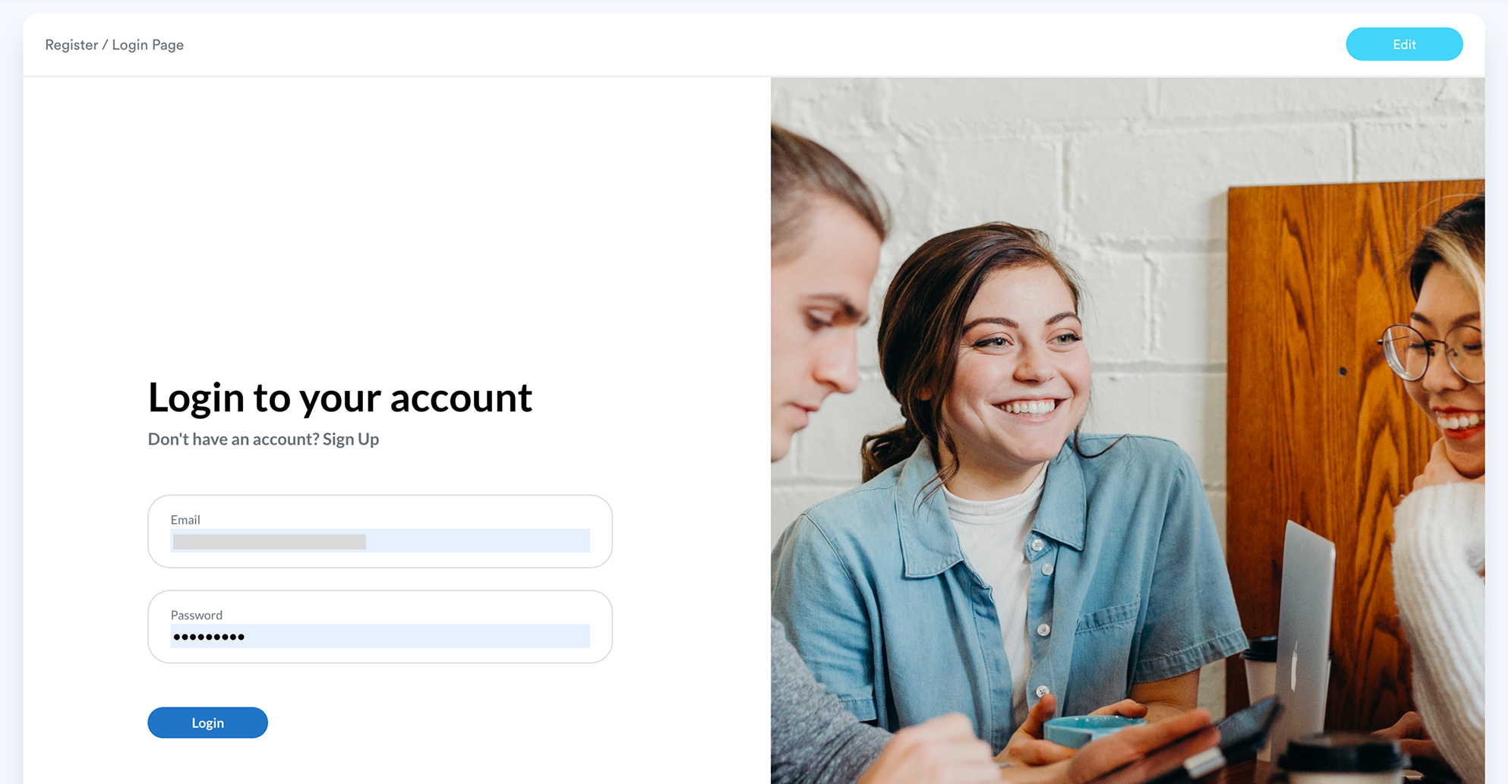
From here, users can log in and access their dashboard to track applications and updates.
Click Edit to customize the following:
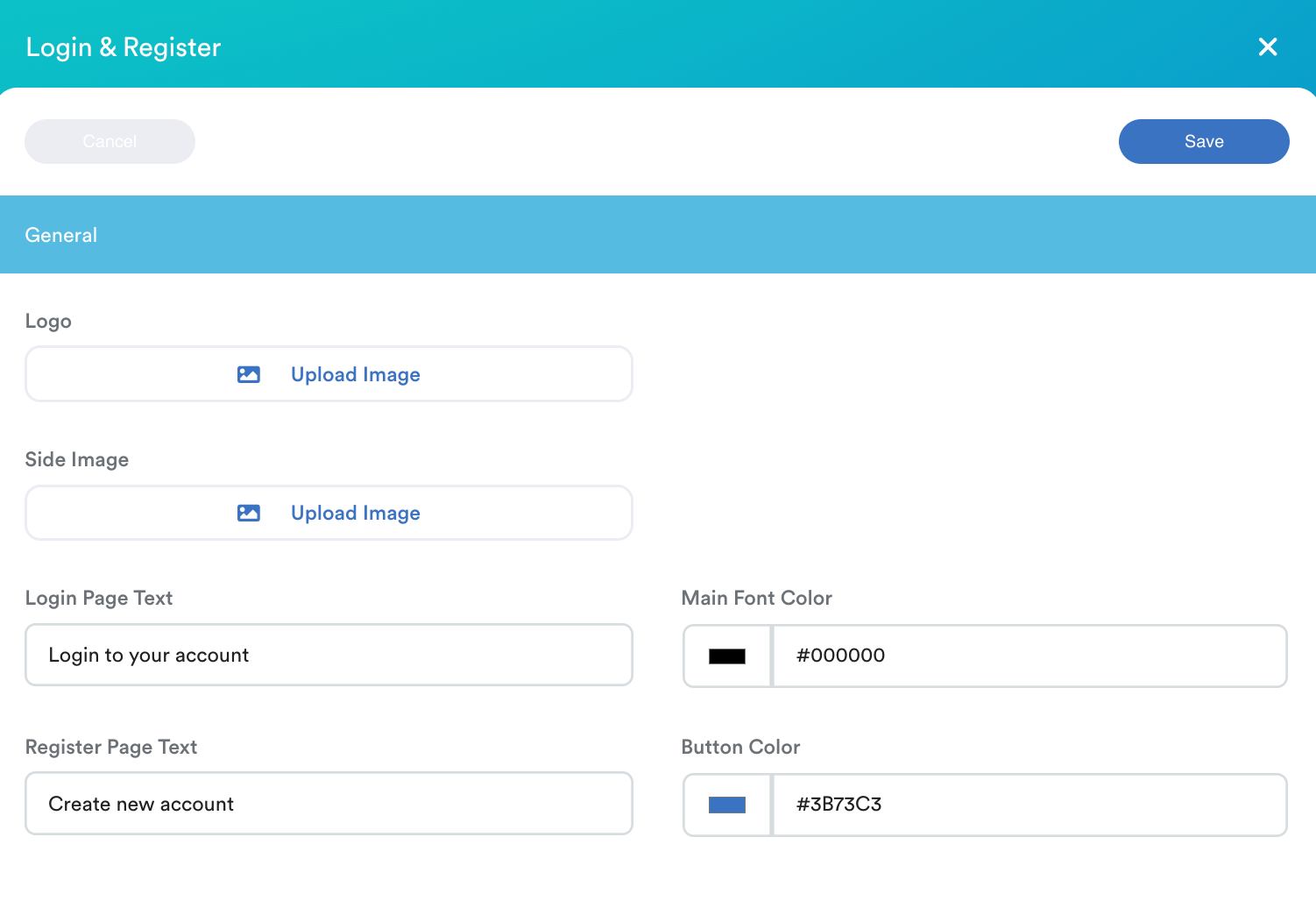
- Company Logo: Upload your official logo to appear on the login box.
- Side Image: Upload a high-quality visual for the side panel. If you leave this blank, the system will display a professional default background.
- Login Page Text: Enter a brief welcome or instruction (e.g. "Login to your account").
Note: The "Don't have an account? Sign Up" appears by default below this text to help new users find the registration page.
- Register Page Text: Enter a brief greeting for new users (e.g. "Join our talent community").
- Color: Set the Main Font Color and Button Color to match your company identity.
Once you have finished customizing the Career Page, Job Listings, Job Posts, and the Dashboard:
- Review all pages using the top navigation bar.
- Click Save at the top right of the screen.
Your changes will reflect immediately on your live Career Portal.
You’ve now completed the full Career Portal setup. Refer previous Career Portal setup tutorial:
- Career Page
- Job Listing & Job Post
- Applicant Dashboard and Login & Register (current)
We hope this explanation clarifies the matter. If you require additional assistance, do not hesitate to contact our support team.
Was this article helpful?
That’s Great!
Thank you for your feedback
Sorry! We couldn't be helpful
Thank you for your feedback
Feedback sent
We appreciate your effort and will try to fix the article