The Project Attendance page provides a breakdown of an employee's daily activity, specifically tracking how their worked hours are distributed across various assigned projects.
This screen allows employers to compare scheduled versus actual manpower distribution.
For data to appear here, employees must select a project and/or skill when performing their clocking actions via the mobile app or web portal.
Step 1
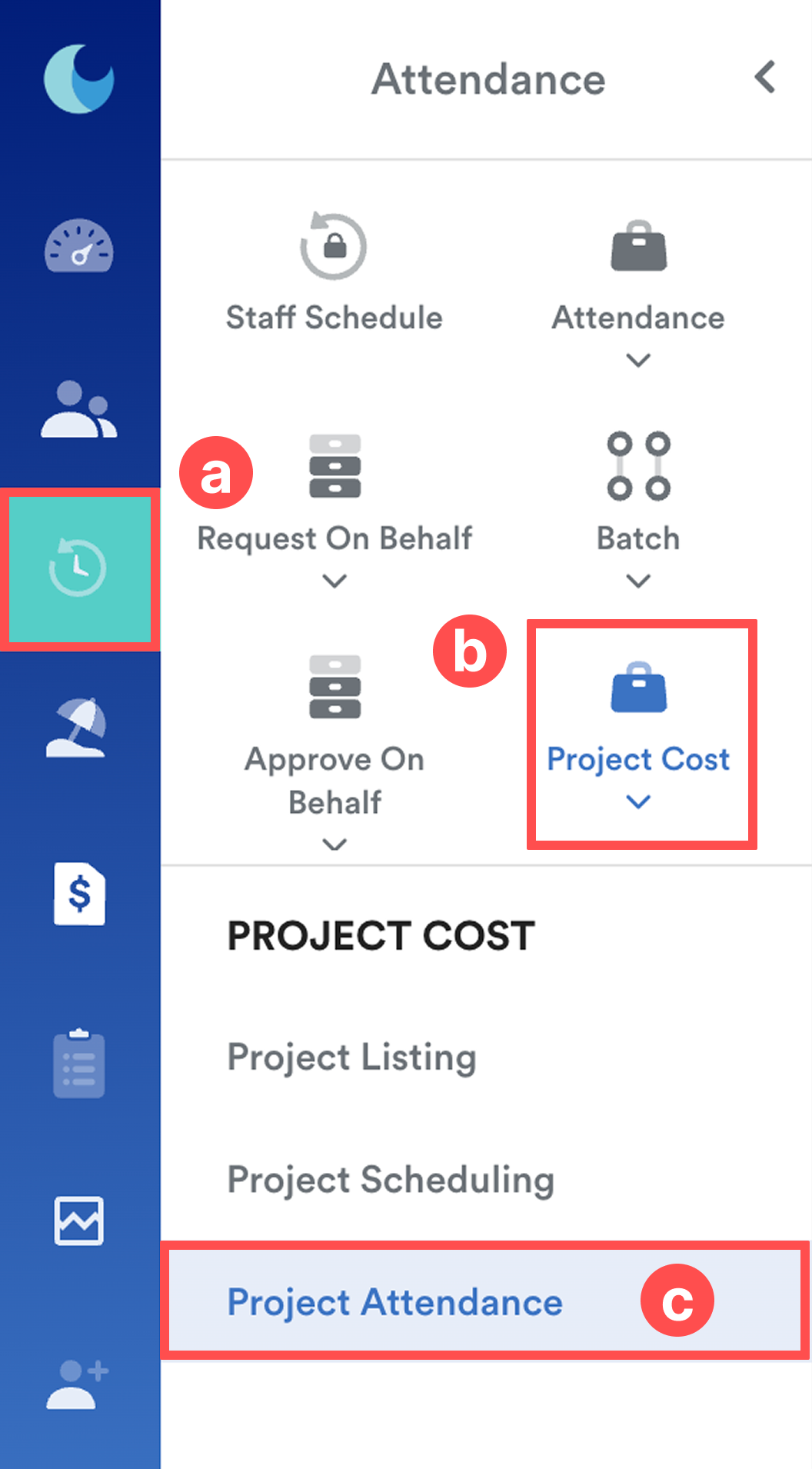
On the left menu, go to Attendance (a) > Project Cost (b) > Project Attendance (c).
Step 2
Select the specific Employee and the Date you wish to review.
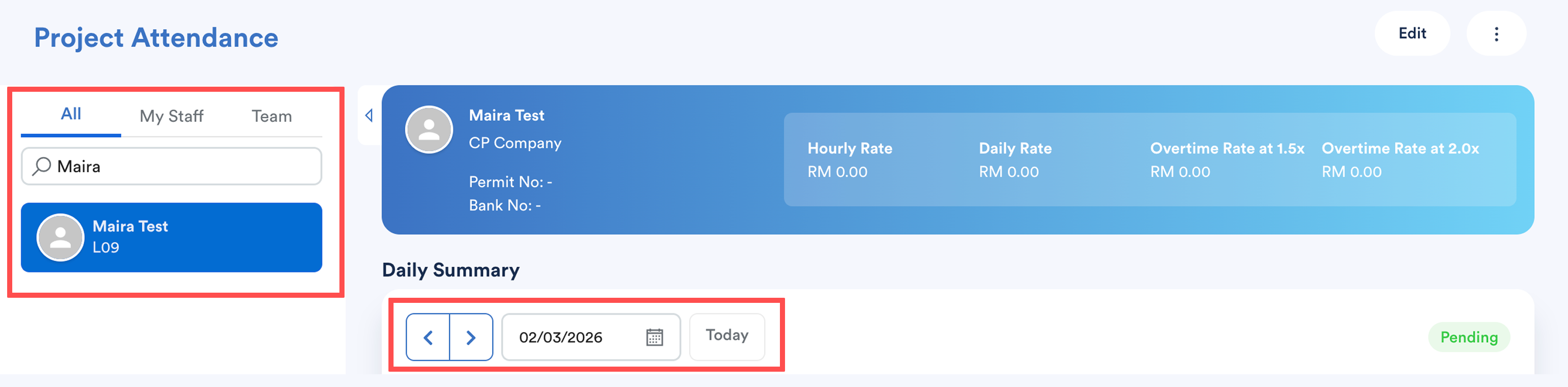
The screen will display a Daily Summary containing the employee's pay rates, shift details, and project-based metrics.
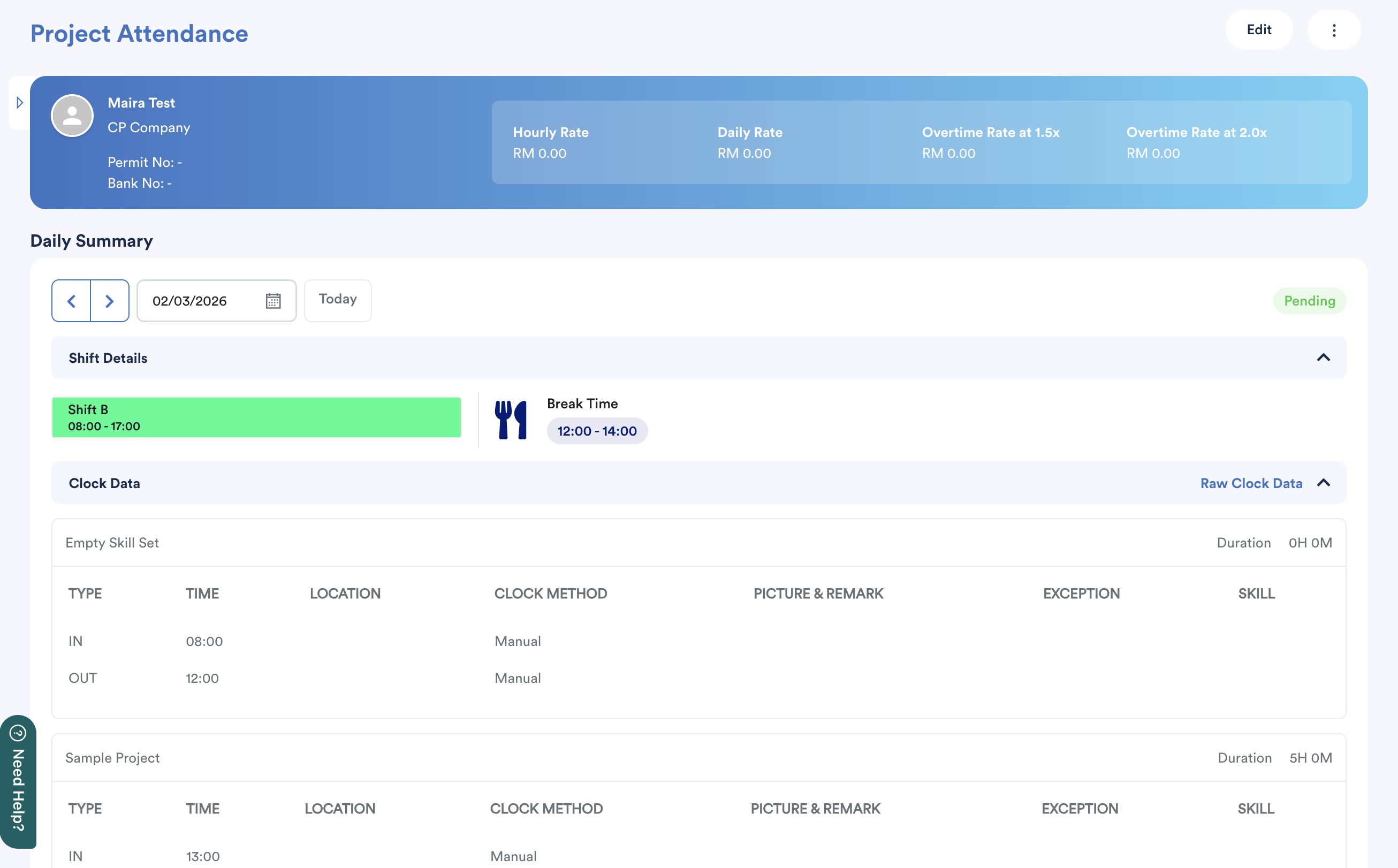
a. Clock Data
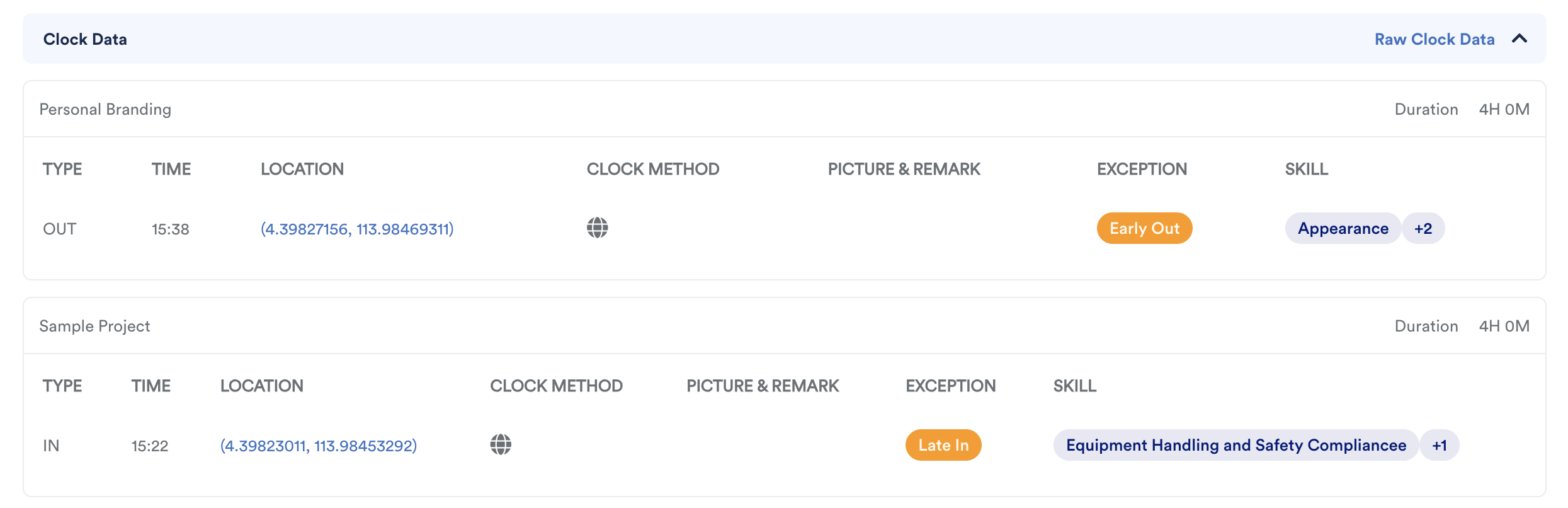
When an employee is assigned to a project, this section displays the raw clock-in and clock-out timestamps pulled from the employee's mobile or web clocking activity.
Clock data is sorted based on the specific Project selected by the employee at the time of clocking.
Any exceptions such as Late In, Early out, etc will also be flagged here based on the shift and break time.
b. Manpower Changes
This section provides a visual comparison of the employee’s movement between different projects throughout the day.
You can view the hours originally Scheduled for a project versus the Actual Hours the employee worked based on Clock Data record above.
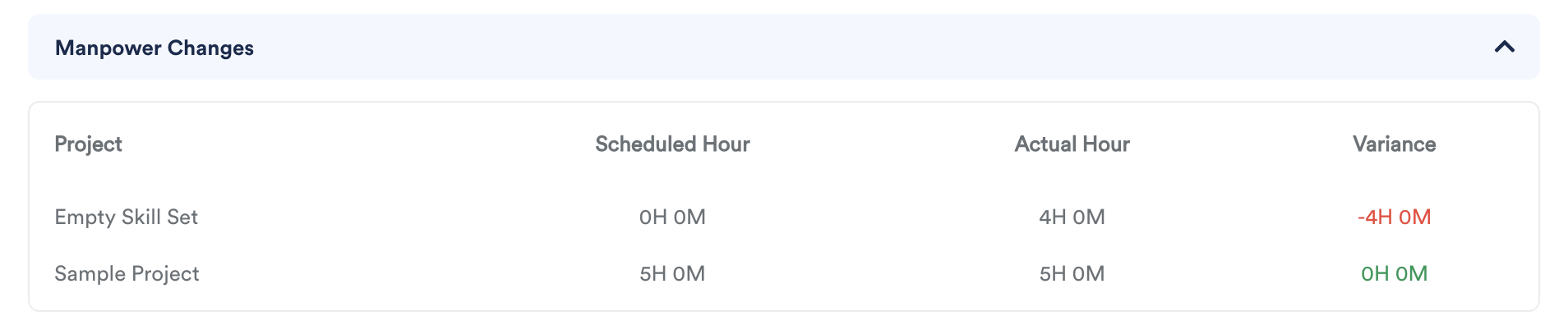
The system also automatically calculates the variance between your planning and the actual execution.
Example:
Scheduled: Project A (0h) | Project B (5h)
Actual: Project A (4h) | Project B (5h)
Result: The system will flag the negative 4-hour variance in Project "Empty Skill Set" and the zero variance in Project "Sample Project".
c. Allowance
If an employee is entitled to specific allowances based on project work, the earned amounts will appear here.
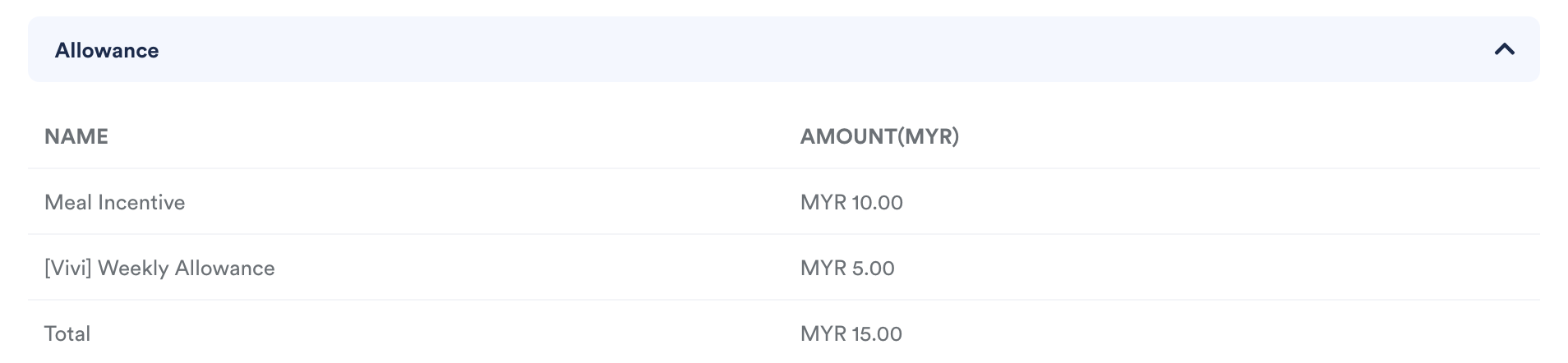
These are typically calculated automatically after a minimum number of hours have been worked on a qualifying project.
Step 3
If you need to make adjustments to the attendance data or remove an entry, use the controls located at the top right-side of the screen.

Edit: Click this to modify existing shift details and clock data.
Three Dots [⋮]: Click this icon to access the Delete option if you need to remove the record entirely.
We hope this clarifies the matter. If you require further assistance, do not hesitate to contact our support team.
Was this article helpful?
That’s Great!
Thank you for your feedback
Sorry! We couldn't be helpful
Thank you for your feedback
Feedback sent
We appreciate your effort and will try to fix the article