After creating the project listing (Refer to Project Listing), you can select employees to be included in this project. Selected employees will be shown in the project listing > Assign screen.
To arrange the workforce for this project, you need to batch-assign on the project scheduling screen. (Refer to Project Scheduling). This will allow employees to clock in for this project.
Step 1
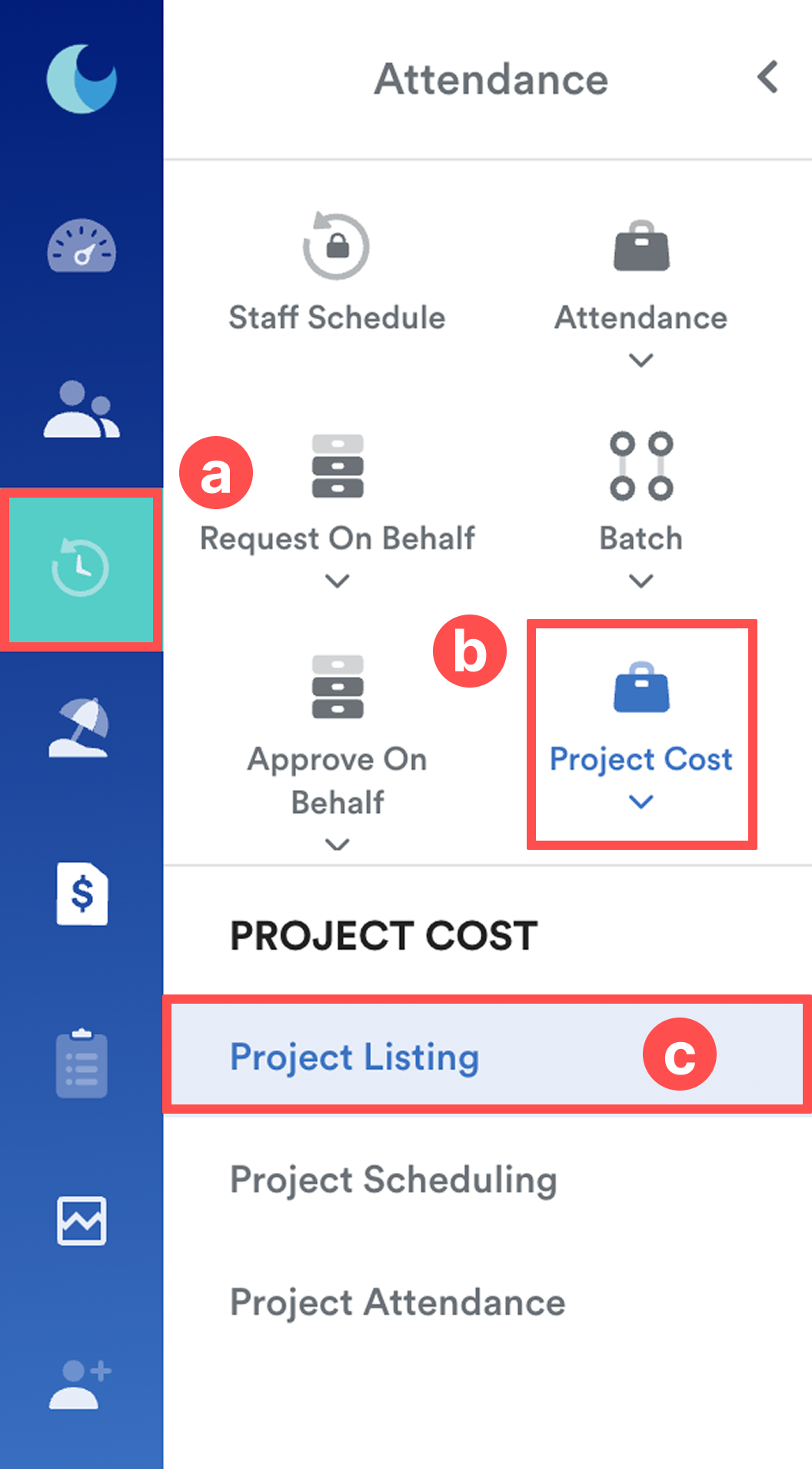
On the left menu, go to Attendance (a) > Project Cost (b) > Project Listing (c).
Step 2
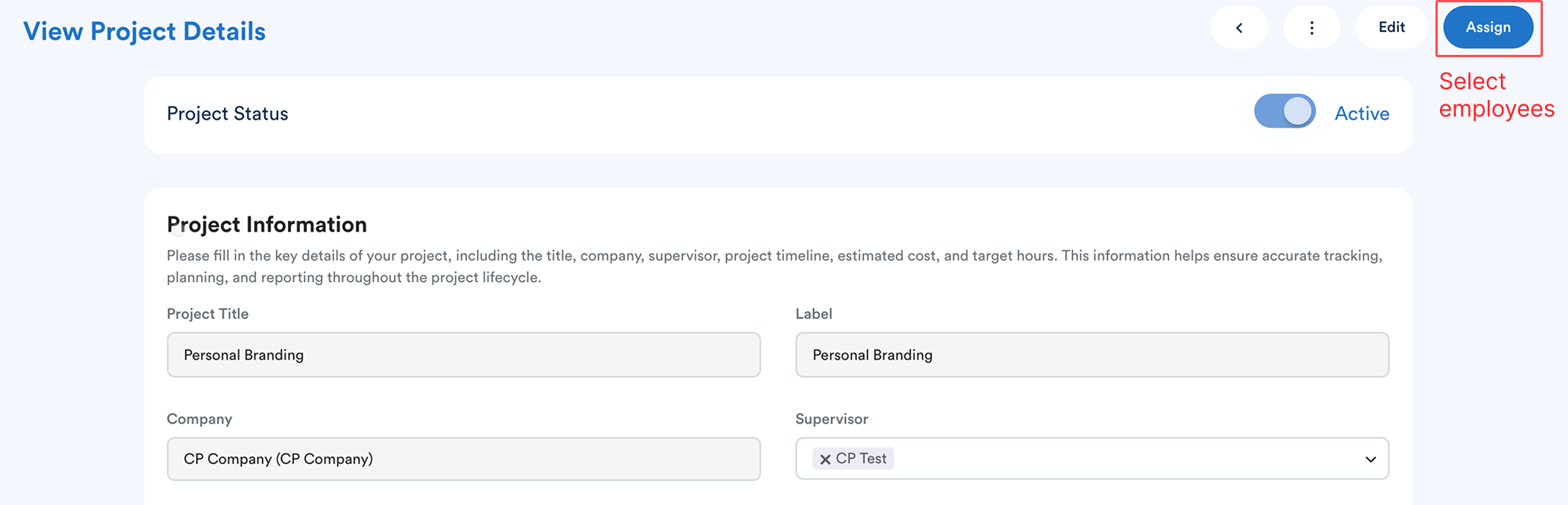
Click one of the projects. Click "Assign" to include employees in this project.
Step 3
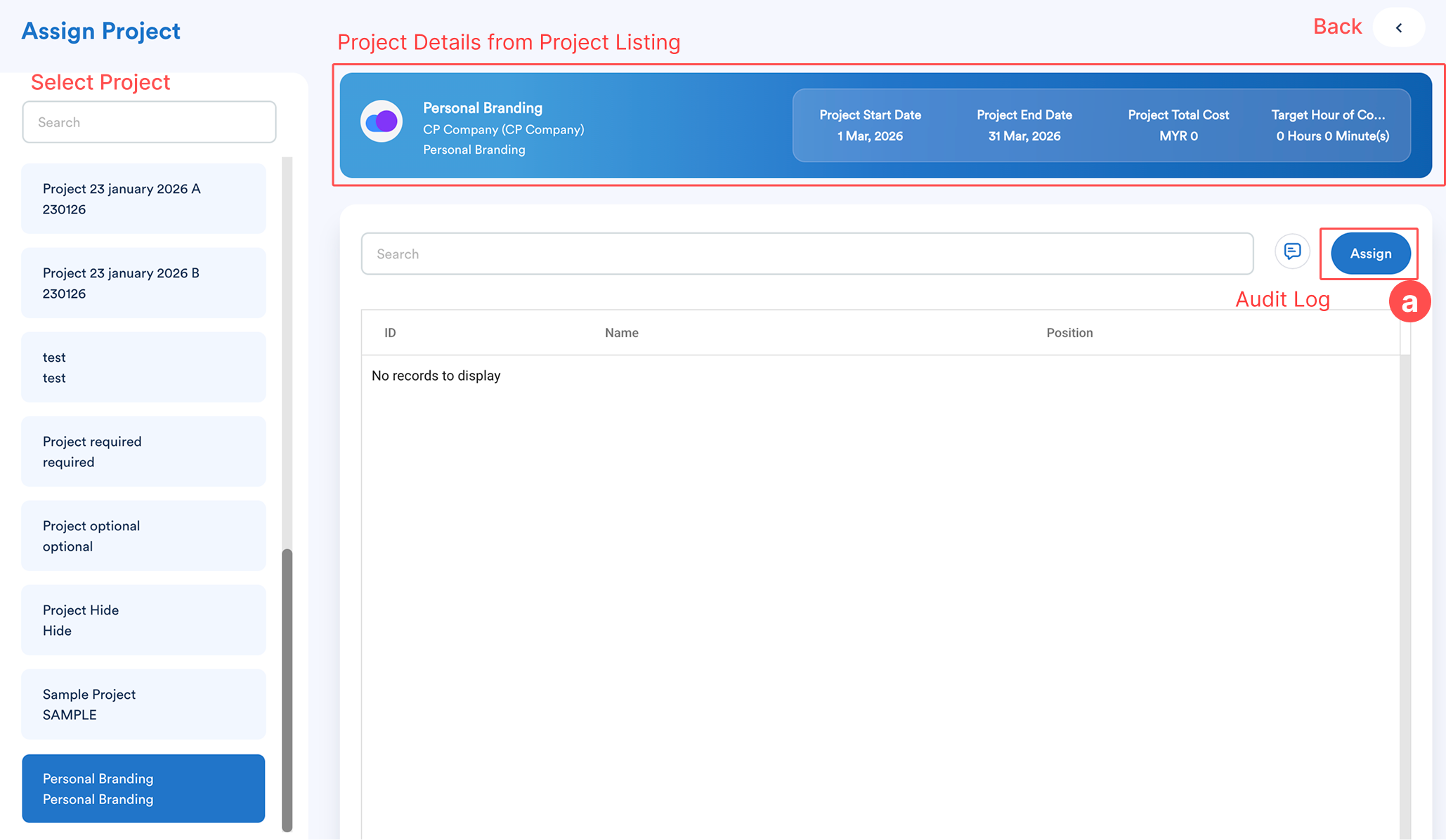
You will see selected project details as the project header. Click "Assign (a)" to include employees in this project.
Step 4
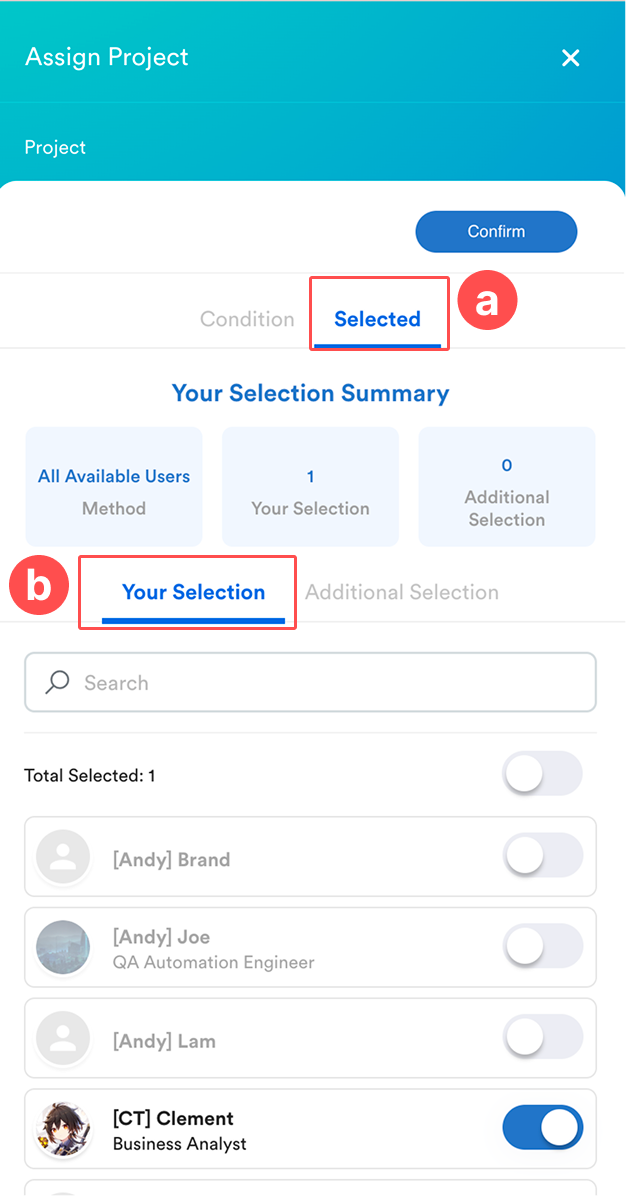
To "Assign", you can click "Selected (a)".
 | 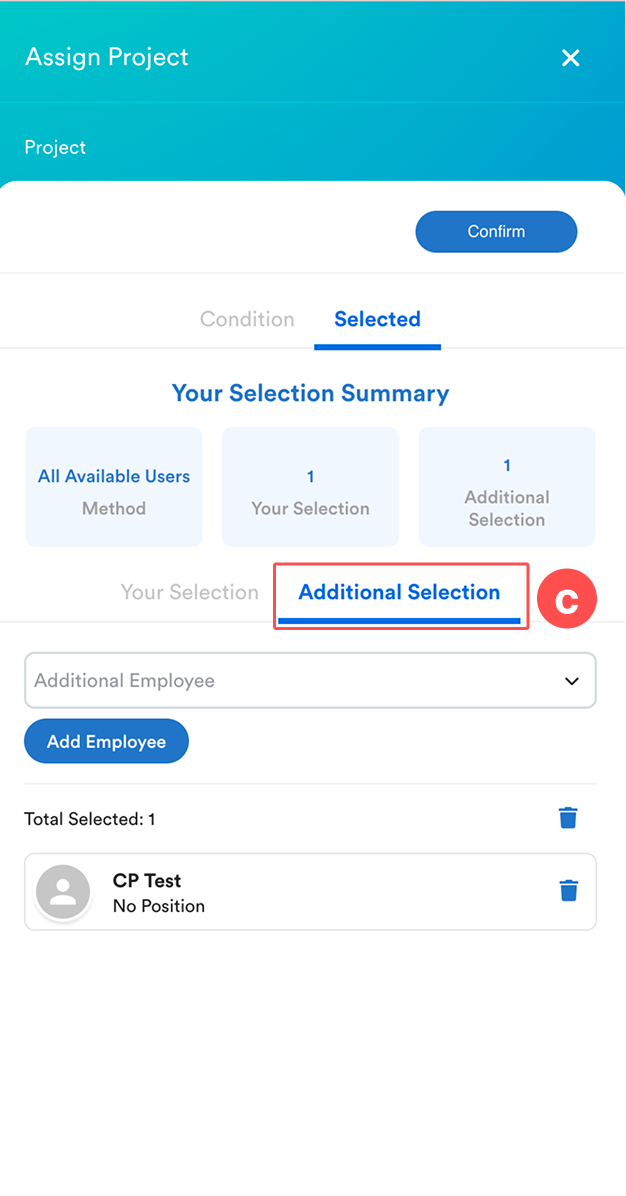 |
Step 5
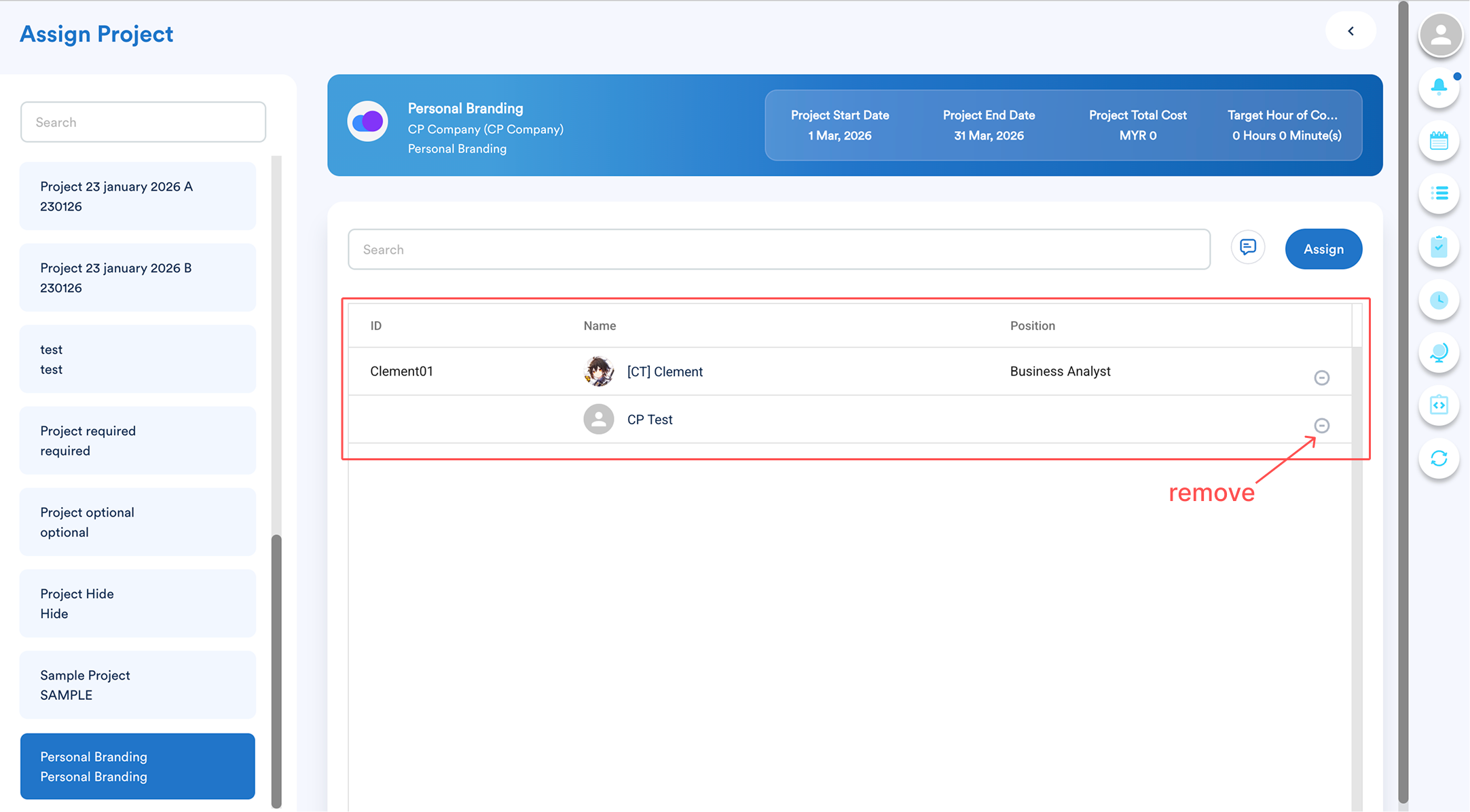
After "Confirm", you will see the selected employees in this project. You may also "remove" employees individually from here.
We hope this clarifies the matter. If you require further assistance, do not hesitate to contact our support team.
Was this article helpful?
That’s Great!
Thank you for your feedback
Sorry! We couldn't be helpful
Thank you for your feedback
Feedback sent
We appreciate your effort and will try to fix the article