Project Scheduling allows supervisors to batch-assign employees to specific projects over a defined period. Once scheduled, these projects become available for employees to select when clocking in or out via the mobile app or web portal.
Pre-requisite:
Before scheduling, ensure the project has been created and supervisors have been assigned in the Project Listing. Refer Assign Project to Employees
Step 1
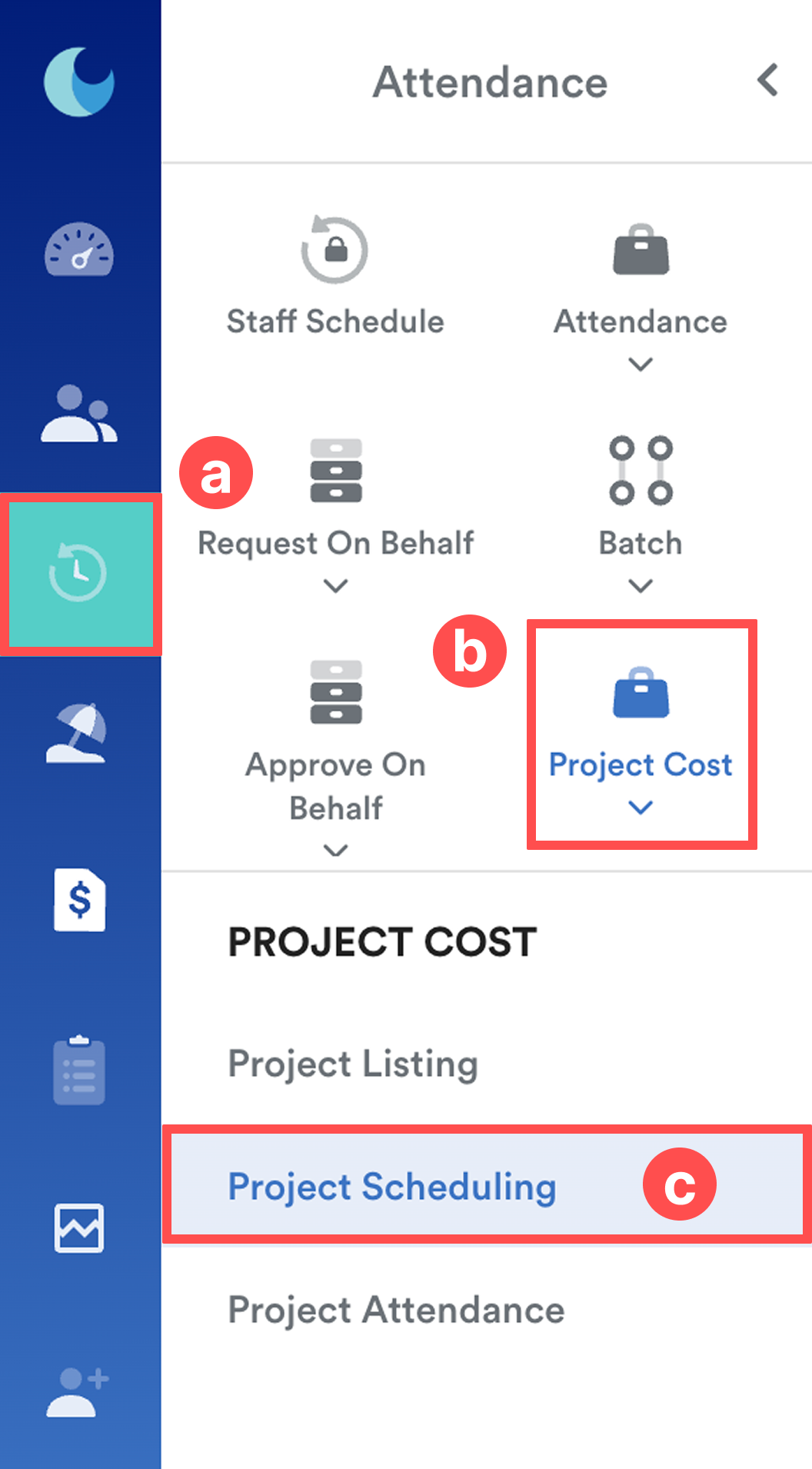
On the left menu, go to Attendance (a) > Project Cost (b) > Project Scheduling (c).
Step 2
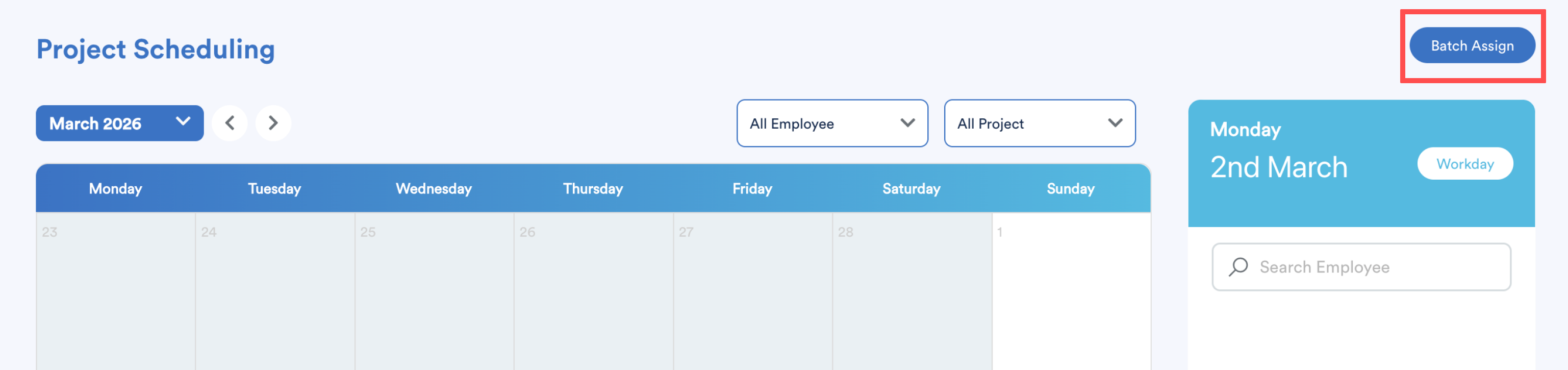
On the calendar view, click the Batch Assign button.
Step 3
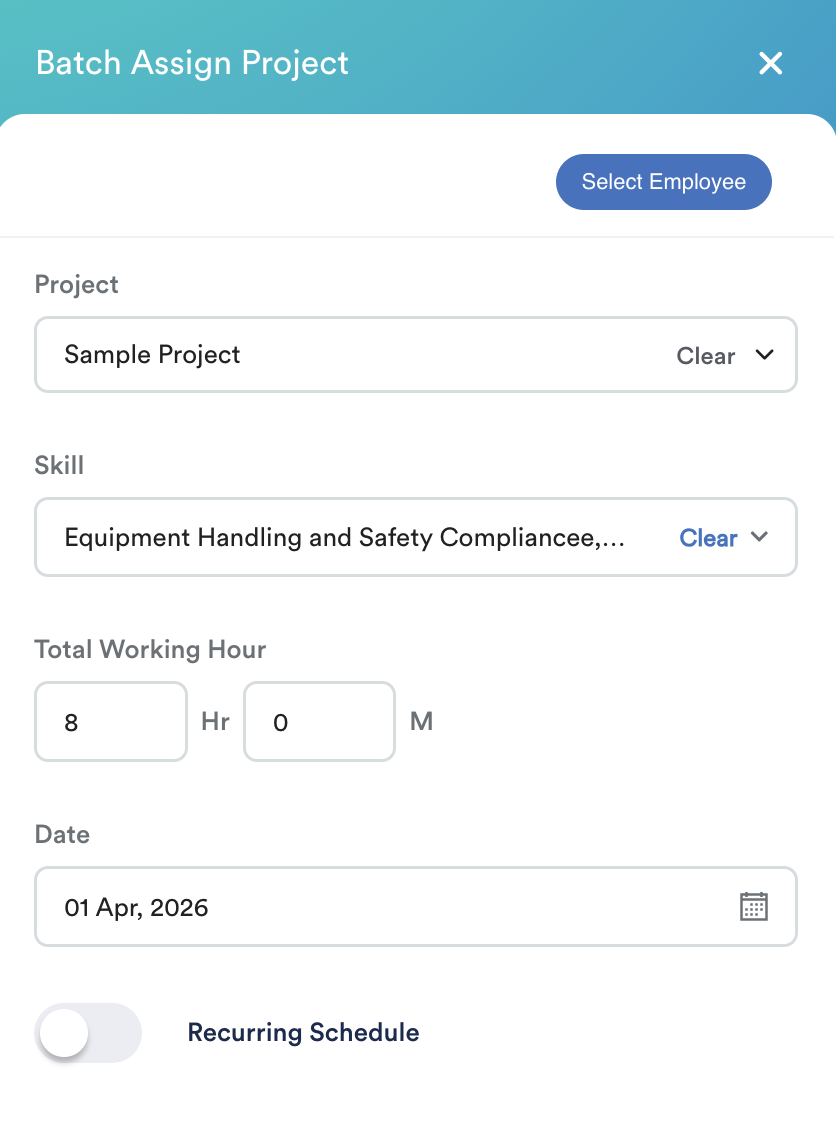
Configure the following fields:
- Project: Select the relevant Project from the dropdown
- Skill: Assign any required skills.
- Total Working Hour: Define the Total Working Hours expected for this shift.
- Date: Select the date the scheduling should start.
Step 4
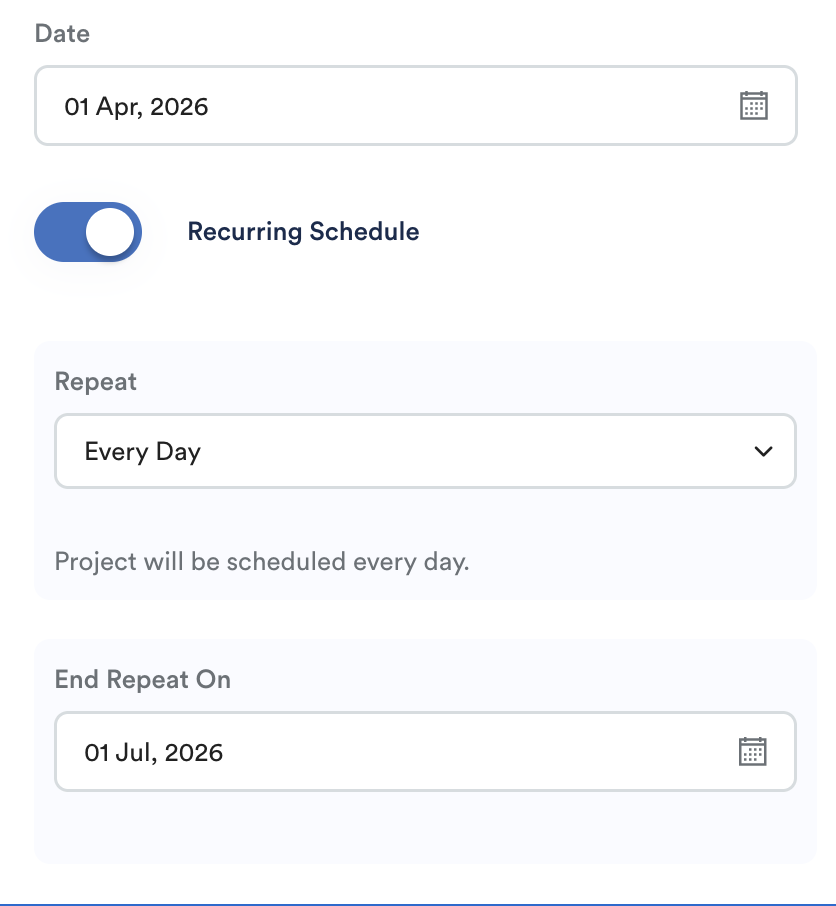
To schedule a project over a specific date range rather than a single day, toggle on the Recurring Schedule option.
- Repeat: Choose from Every Day / Every Week / Every 2 Weeks / Every Month / Custom for the repetition frequency.
- End Repeat On: Select the final date for this project cycle.
Example:
Start date: 1 April 2026
Recurring Schedule
Repeat - Every Day
End Repeat On - 1 Jul
Click the Select Employee button at the top right of the panel to view the list of staff already assigned to this project.
Step 5
Use the toggle buttons to include or exclude specific employees from this schedule.
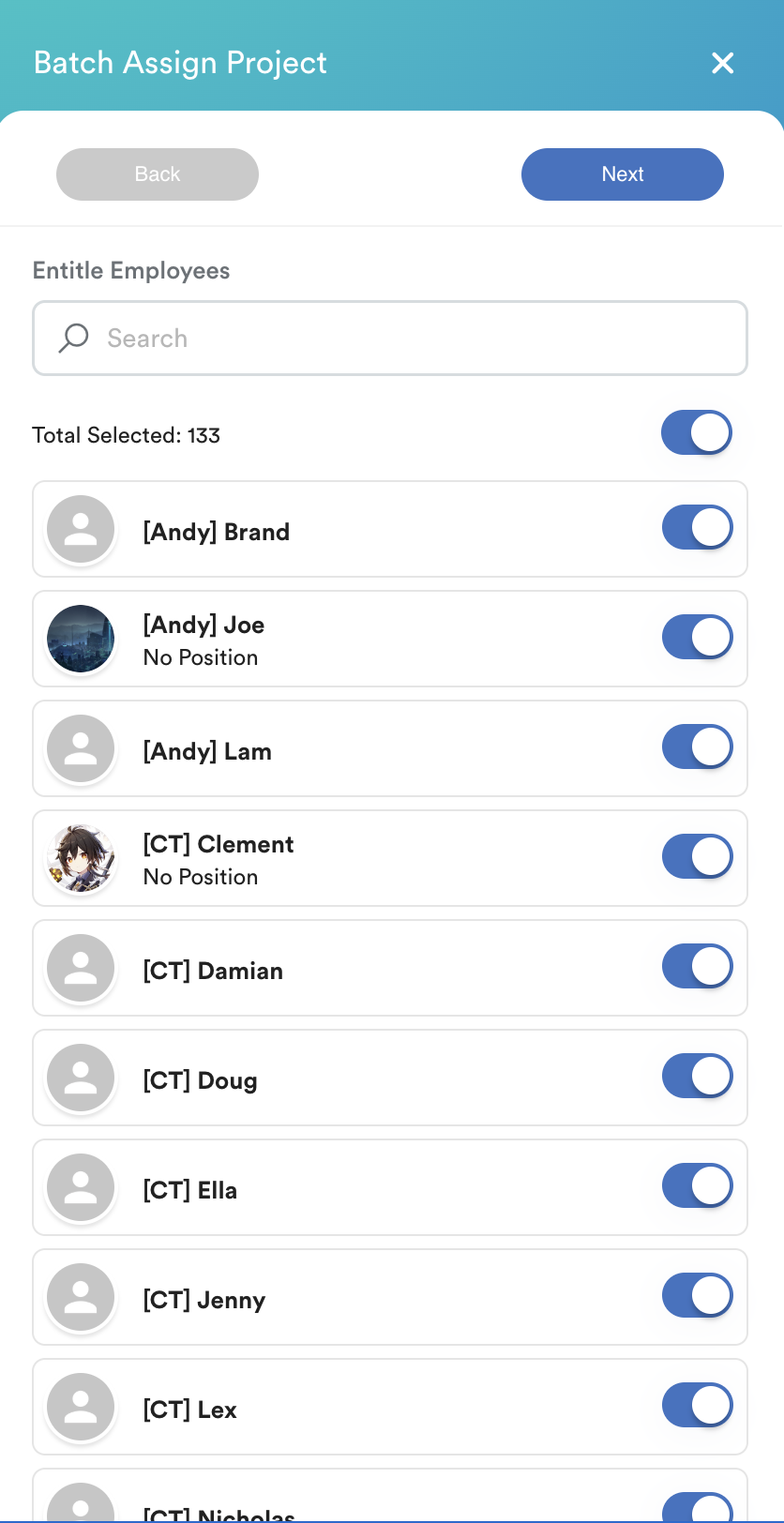
Click Next to review or add additional staff.
Step 6
If you need to include employees who were not originally assigned to the project in the Project Listing, use the selection methods to find the employee.
Click Add Employee.
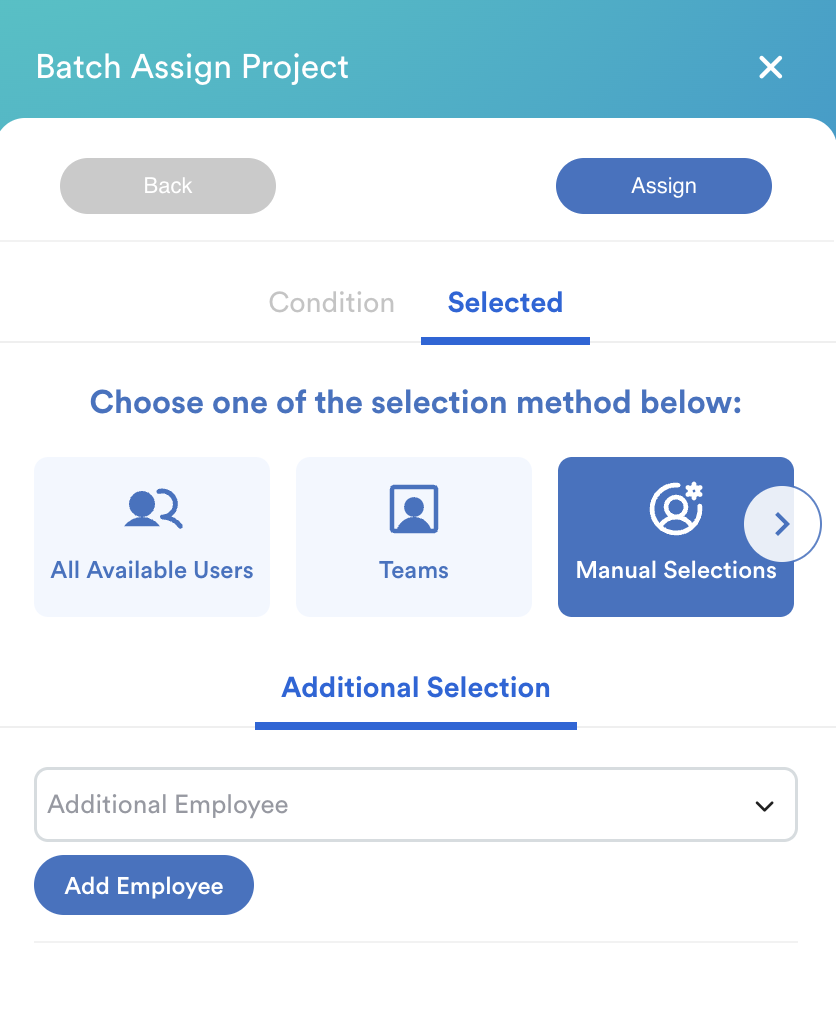
Review the final list and click Assign.
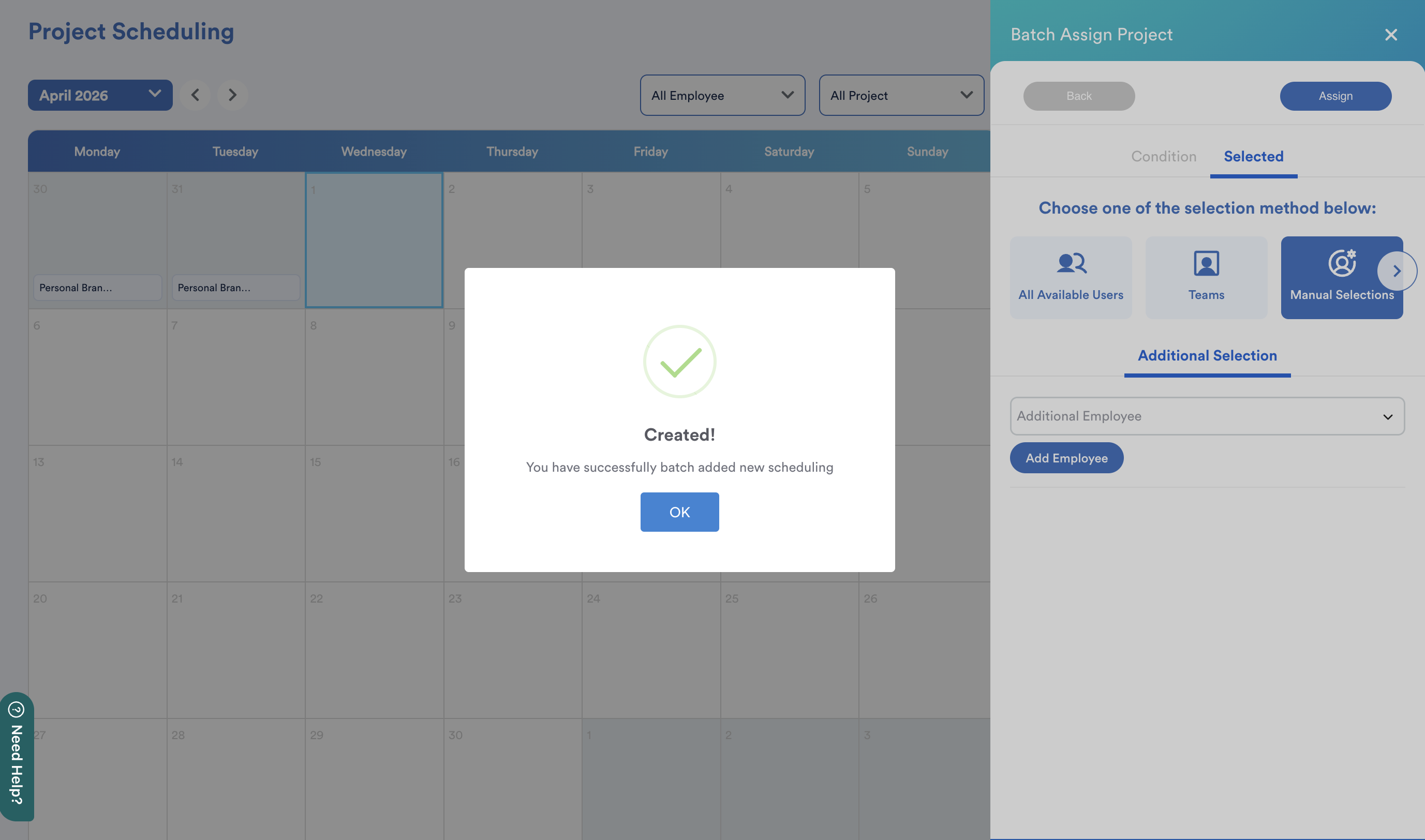
You have successfully batch-added a new project schedule. The assigned employees will now see this project as an option during their clocking sessions for the specified dates.
Employee View
As an employee, on clocking, they will see the project and skill selections provided that these 2 fields are configured as optional or required.
Employees will only be able to select the project assigned to them. Employees can update skills as well.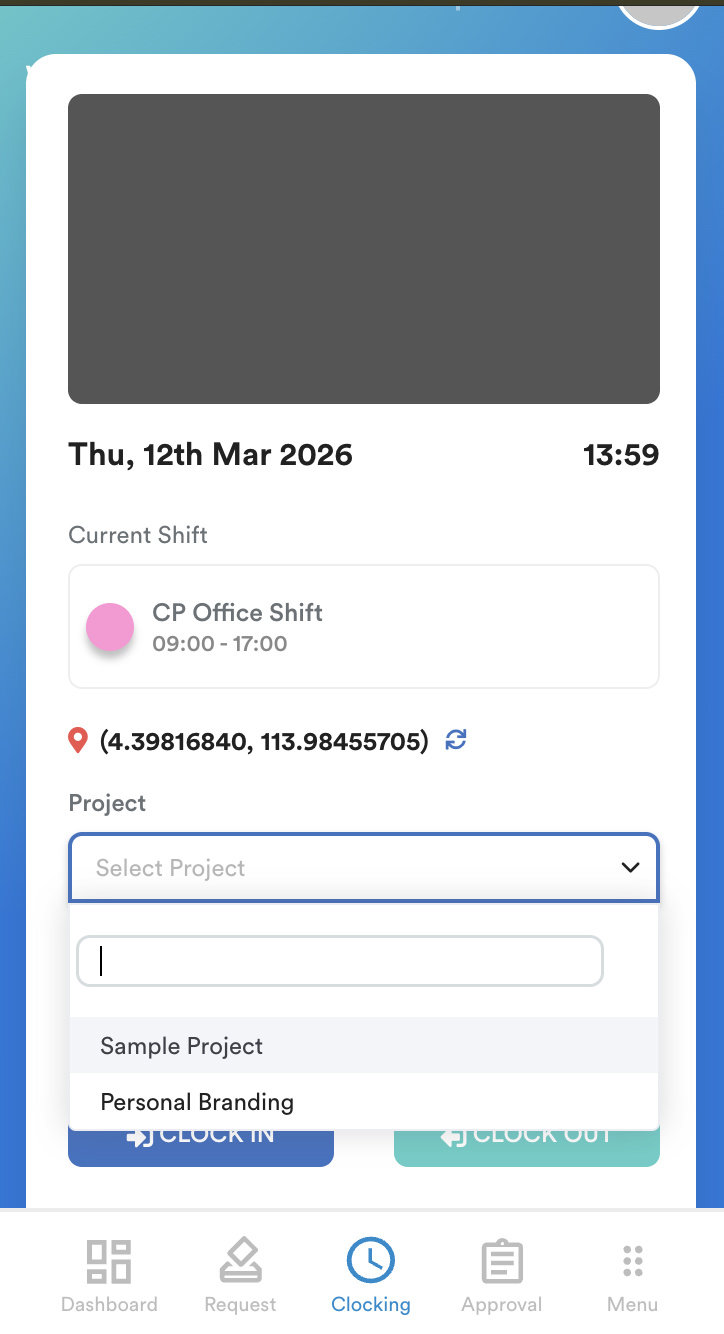
We hope this clarifies the matter. If you require further assistance, do not hesitate to contact our support team.
Was this article helpful?
That’s Great!
Thank you for your feedback
Sorry! We couldn't be helpful
Thank you for your feedback
Feedback sent
We appreciate your effort and will try to fix the article