Once a training course has been created and batches are assigned, HR or Admin must record the actual participation and performance of the trainees. This is managed via the Course Batch & Completion screen.
Step 1
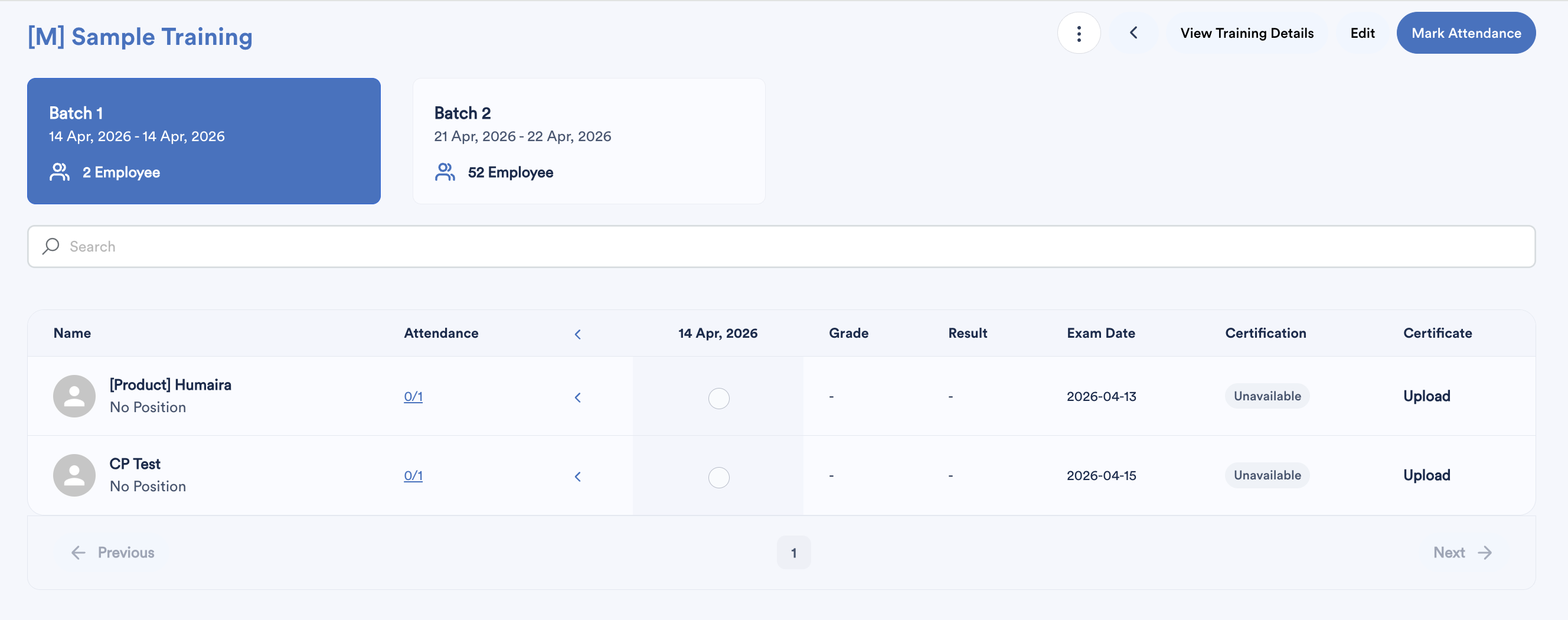
From the training list, locate your specific course, and click on the Employee List icon.

You will be directed to the course's Batch & Completion dashboard, which displays all batches, trainee details, and certification statuses.
Step 2
Marking Attendance
Click the Mark Attendance button at the top right of the screen.
Choose the correct training date from the calendar.
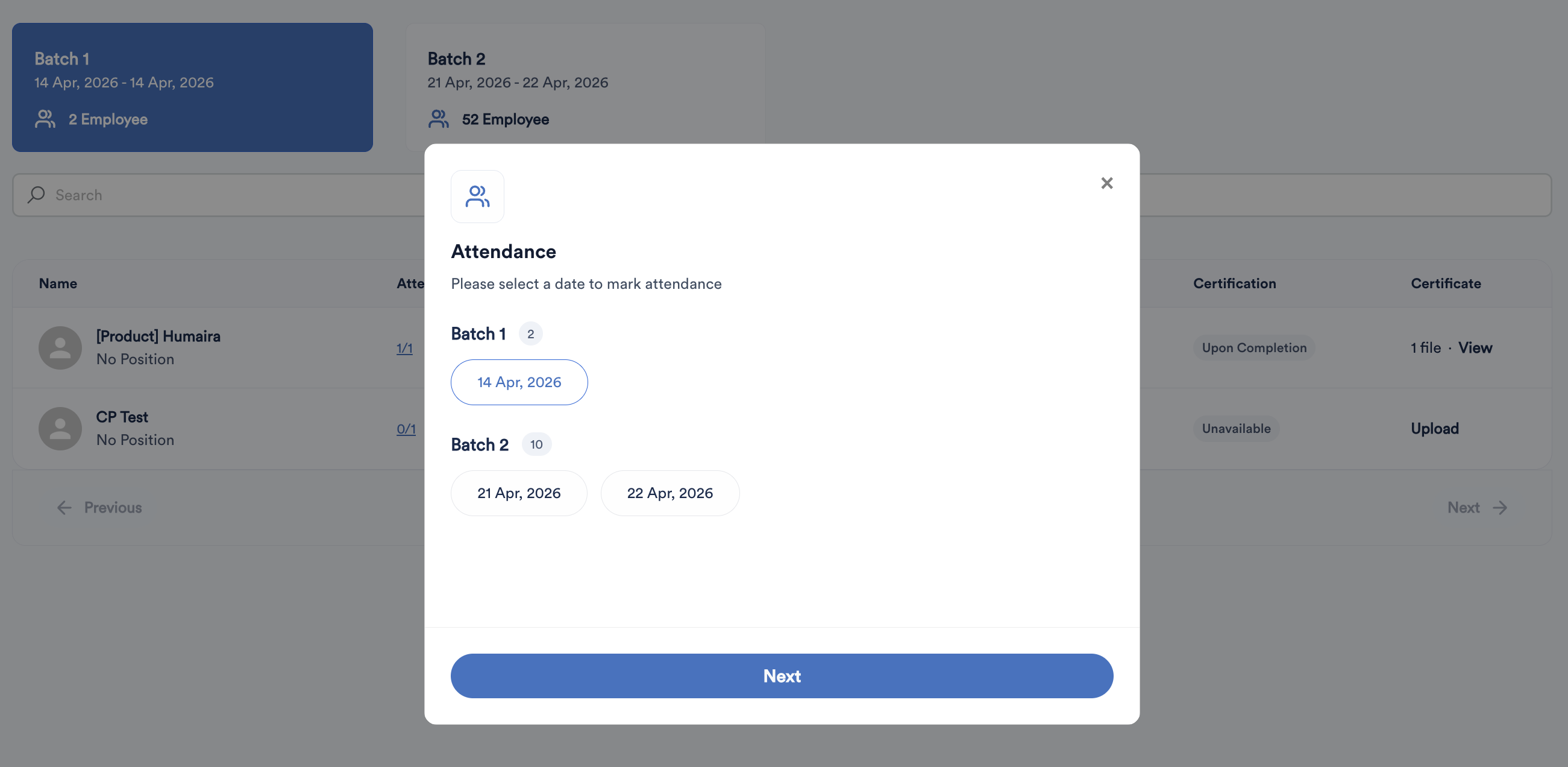
Tick the checkbox for each employee who attended the session.
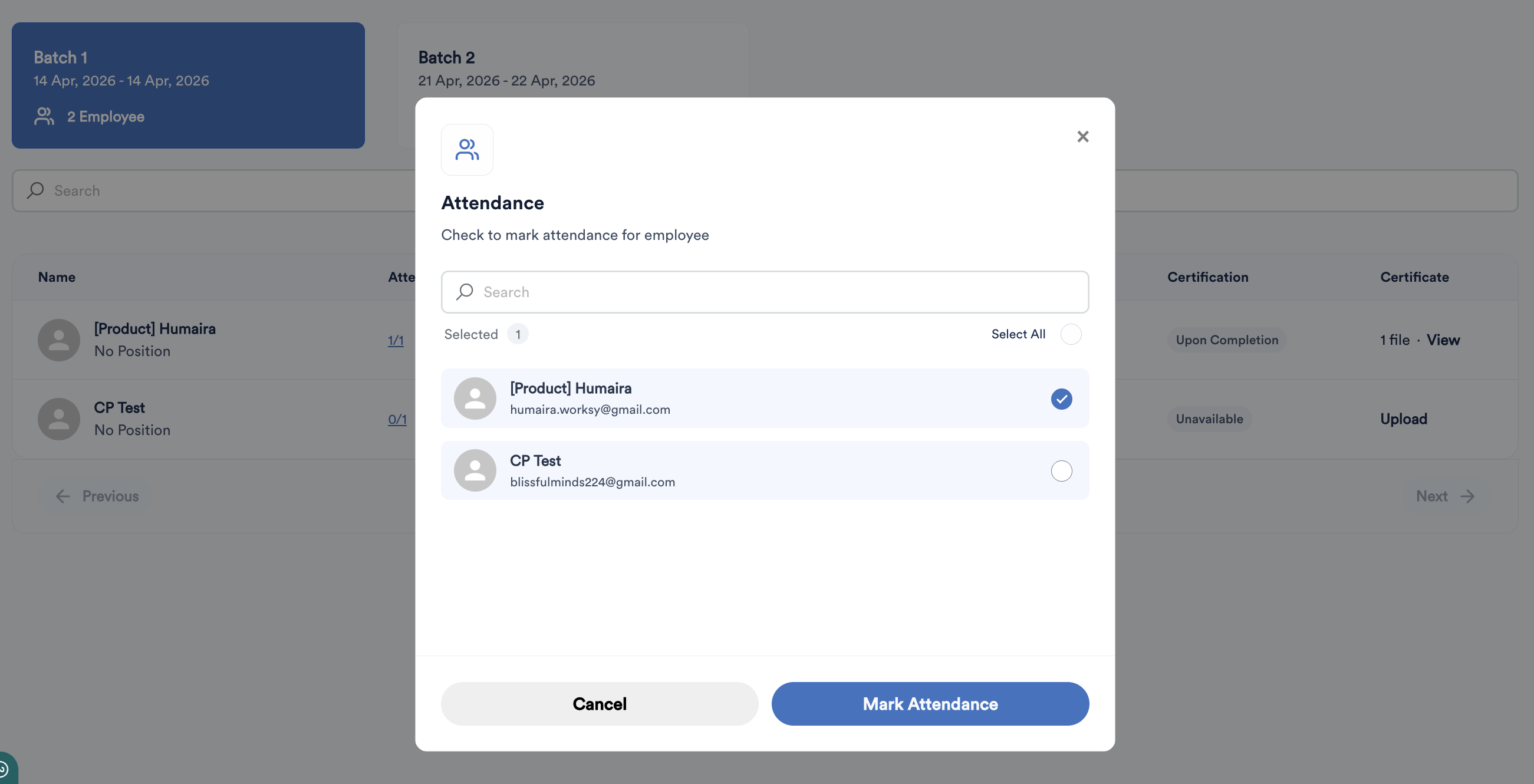
Click Mark Attendance to confirm and save the records.
Step 3
Grading and Assessment
Click the Edit button at the top right-side of the screen. Input the following details for each trainee:
- Exam Date: The date the assessment was conducted.
- Result & Grade: Enter the numerical score and letter grade (if applicable).

You may also manually adjust attendance records within this view.
Click Save to update the records.
Step 4
Uploading Certificates
Finalize the training record by providing proof of completion.
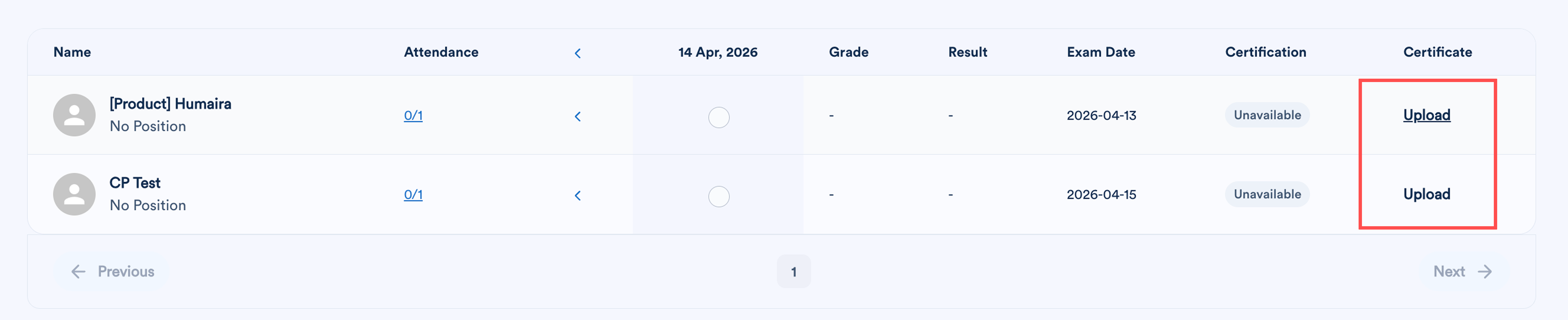
Under the Certificate column for the relevant trainee, click Upload.
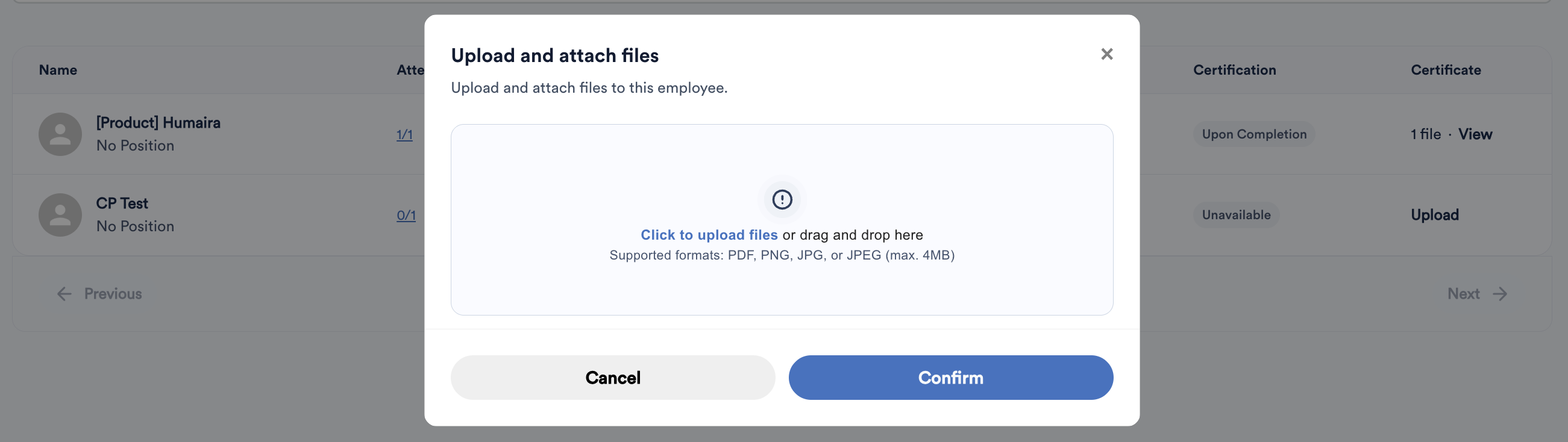
- Supported Formats: PDF, PNG, JPG, or JPEG.
- File Size Limit: Maximum 4MB.
Once the file is successfully uploaded, the Certification status will automatically update to Upon Completion.
Step 5 (optional)
You can export this batch's course attendance by clicking the three-dot (⋮) button at the top right-side of the screen.

Select Export Excel.
The system will generate a .xlsx file containing all trainee details, including attendance, assessment results, and grading for that batch.
We hope this explanation clarifies the matter. If you require additional assistance, do not hesitate to contact our support team.
Was this article helpful?
That’s Great!
Thank you for your feedback
Sorry! We couldn't be helpful
Thank you for your feedback
Feedback sent
We appreciate your effort and will try to fix the article