The Training Listing serves as the primary hub for HR or Admin to initiate and document the HRDF Training Form. This process is crucial as the details captured here are required for HRDF claim submissions.
Step 1
On the left menu, go to Training > Training Listing.
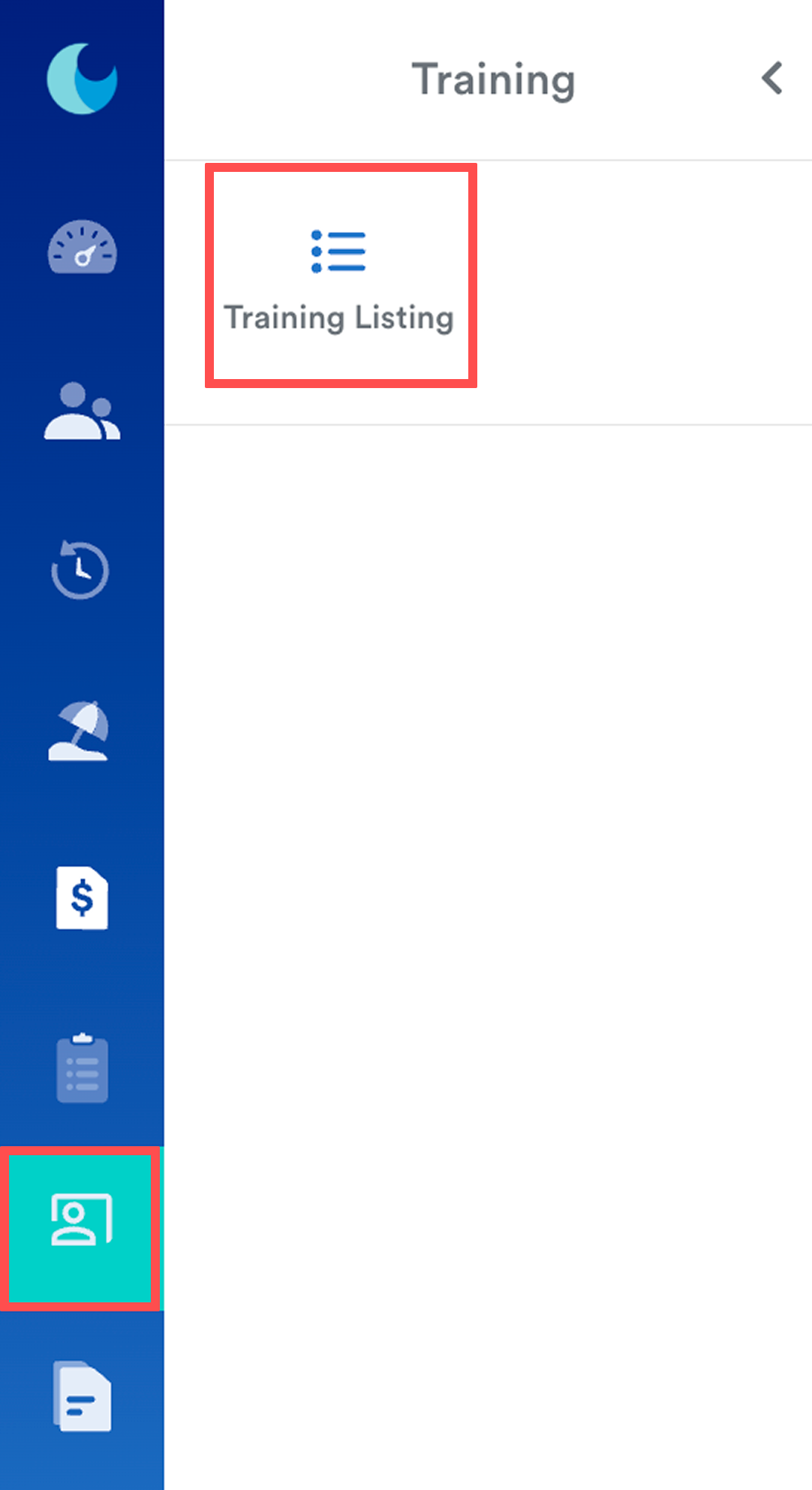
To begin a new record, click Create New.

Step 2
The interface is designed to mirror the Applications page on the eTRiS HRD Corp portal. The form is divided into four primary tabs:

1. Organisation and Provider Information
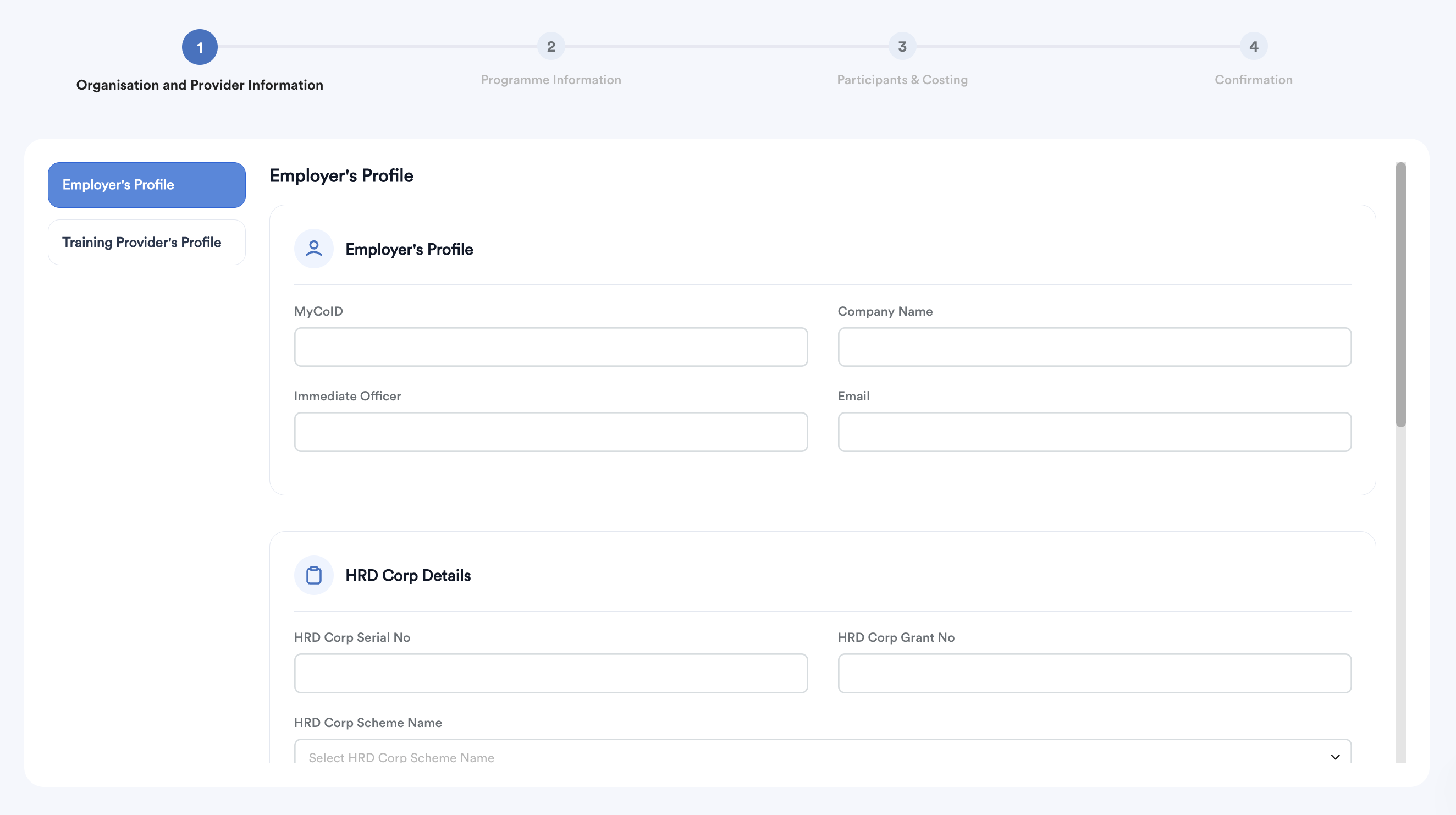
This section records the profiles of both the employer and the training vendor.
- Employer's Profile: Enter your company's HRDC details (MyCoID, Company Name, and Immediate Officer).
- HRD Corp Details: Provide the specific Serial No, Grant No, and Scheme Name.
- Training Provider's Profile: Enter the vendor's MyCoID, name, and contact information.
2. Programme Information
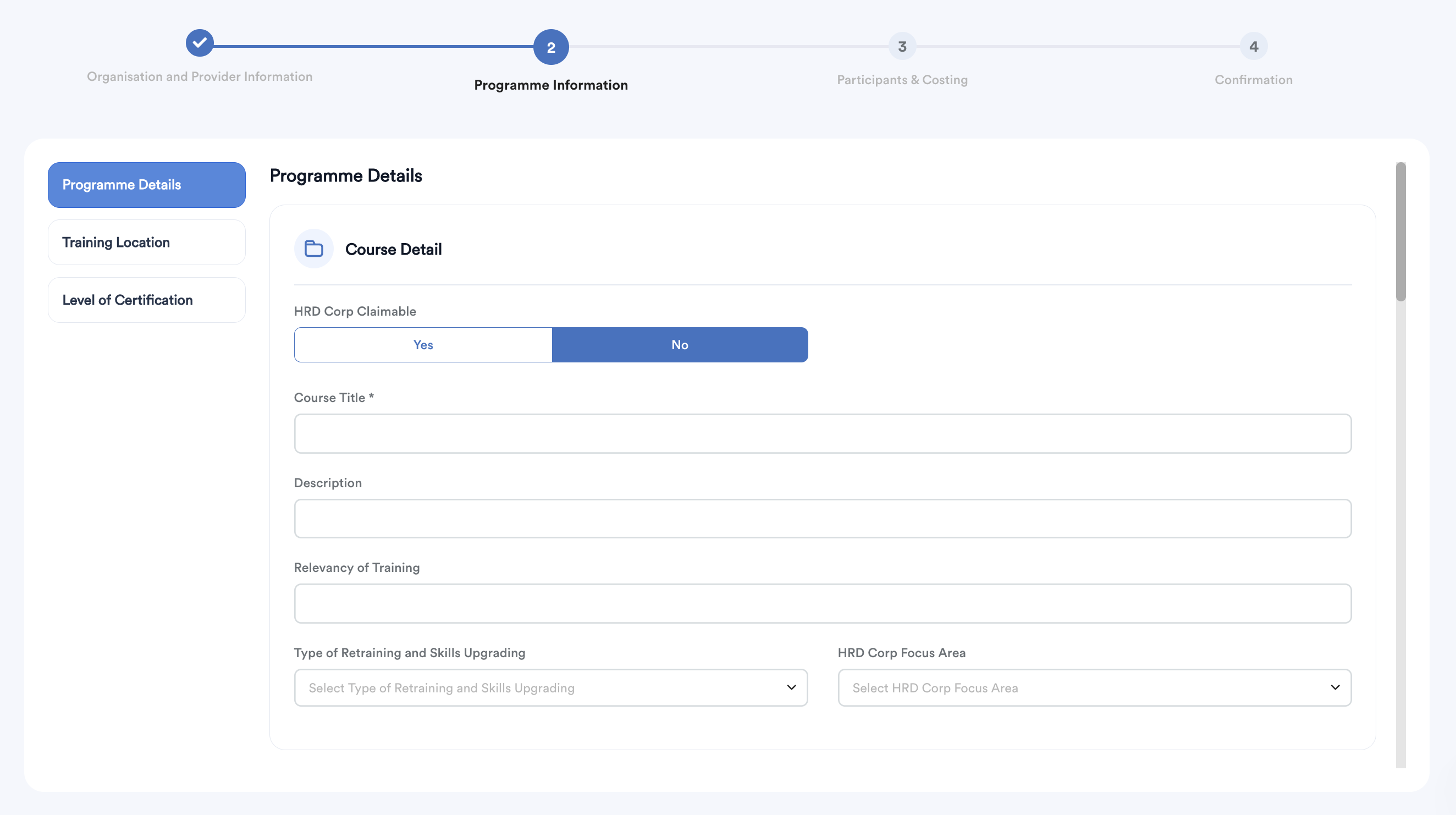
Course Detail: * Set HRD Corp Claimable to Yes or No.
- Enter the Course Title (Compulsory) and Description.
- Define the Relevancy of Training (purpose) and select the Focus Area.
Schedule & Duration: Define the Commencement of Programme and the total hours/days.
External Trainer: If applicable, click Add External Trainer to input the trainer's citizenship, ID, and location details.
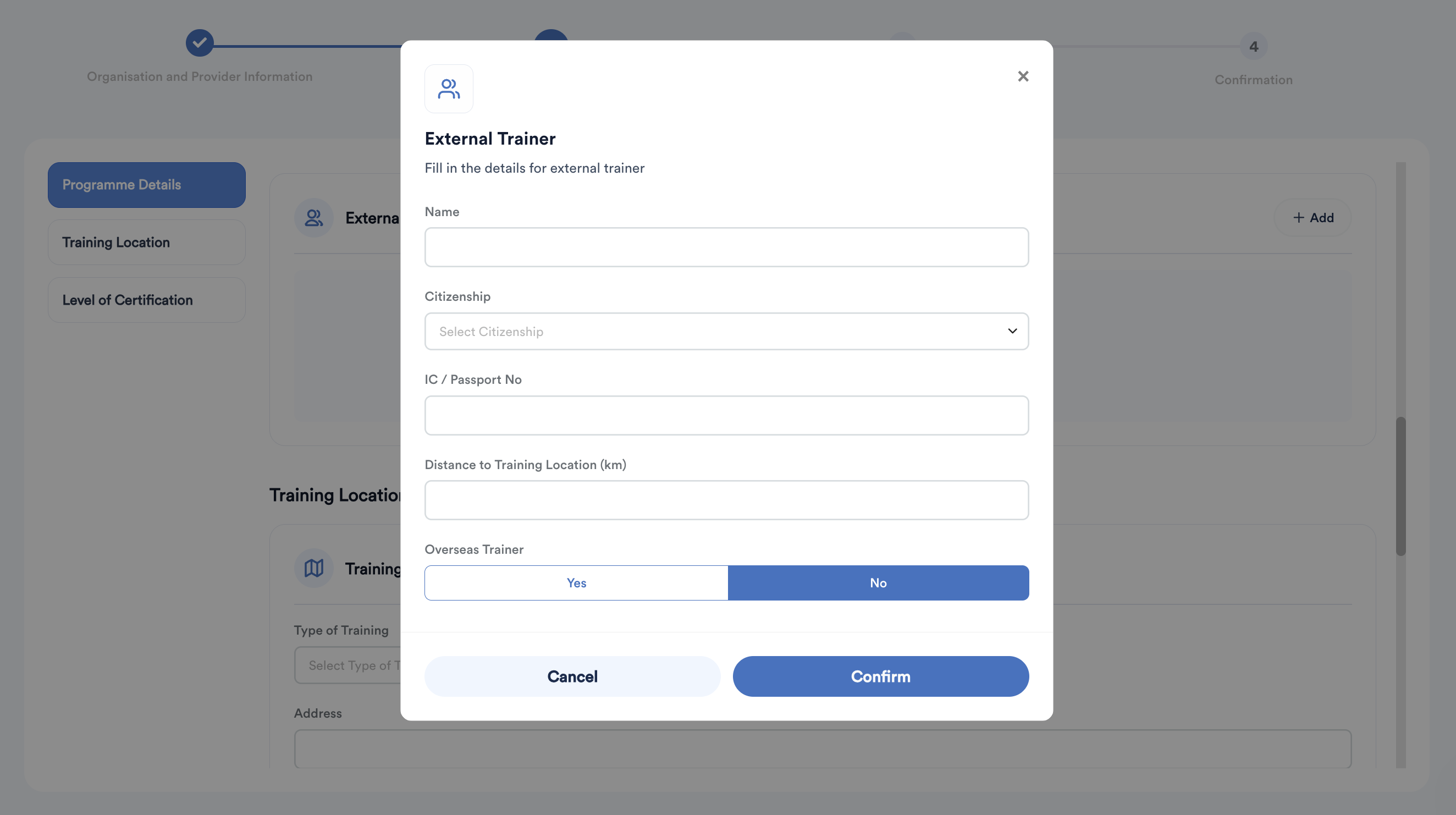
Training Location: Specify if the training is held at your own premise, locally, or overseas.
Level of Certification: Click Add to specify the qualification type (e.g. Certificate of Attendance, Diploma) and indicate if it is a Practical/TVET certification.
3. Participants & Costing
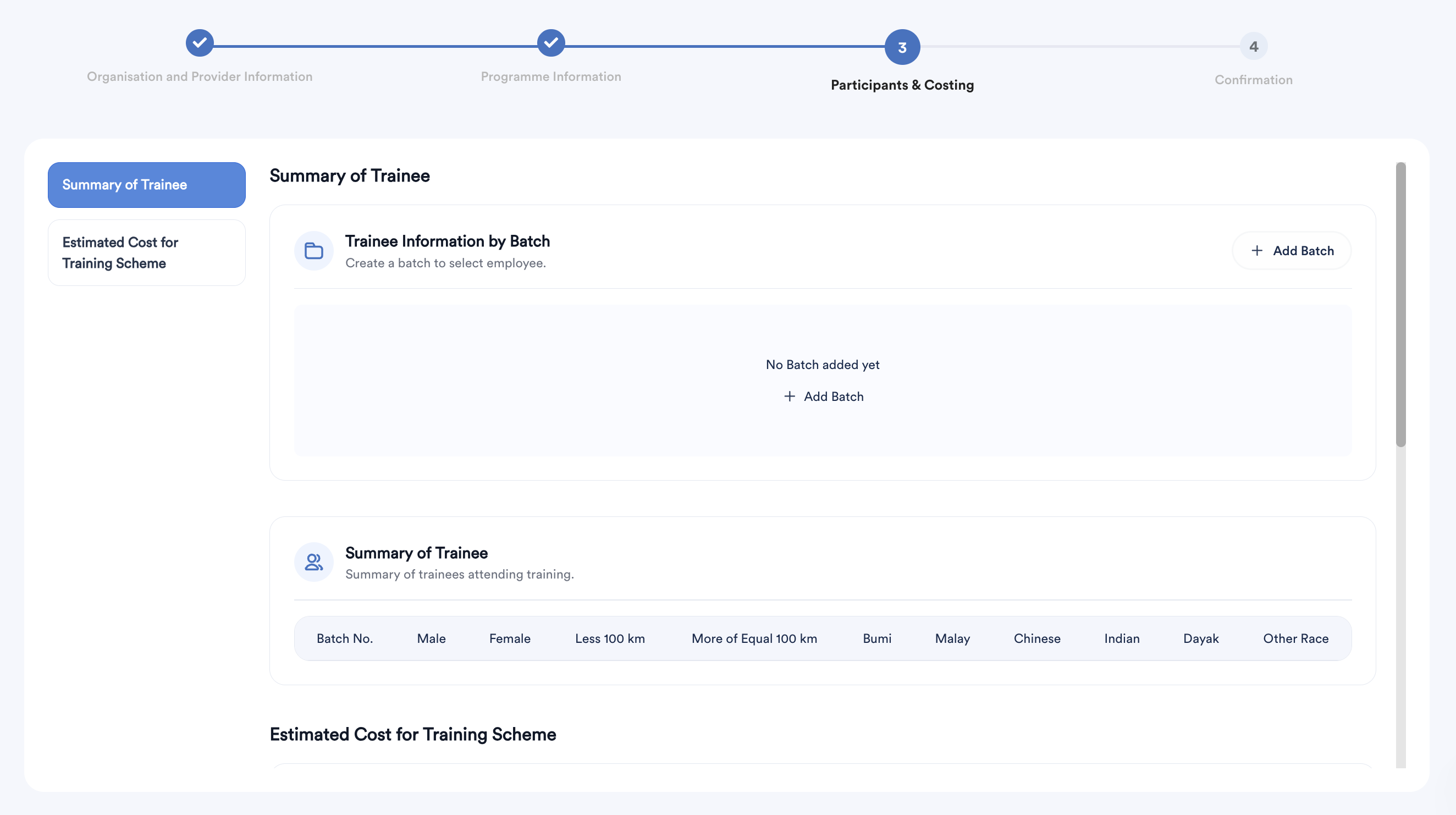
Manage attendee lists and financial projections in this section.
a. Summary of Trainee
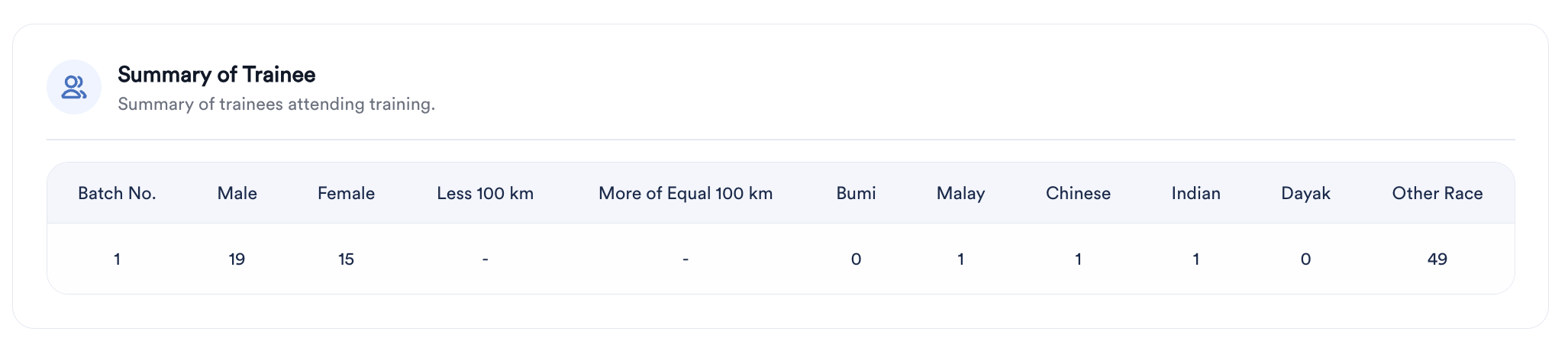
- Click Add Batch to select employees. The system will auto-generate a Batch Number once you specify the Training Schedule Date and Start/End Times.
- Note: Trainee information is automatically pulled from the existing Employee Profiles.
b. Estimated Cost for Training Scheme
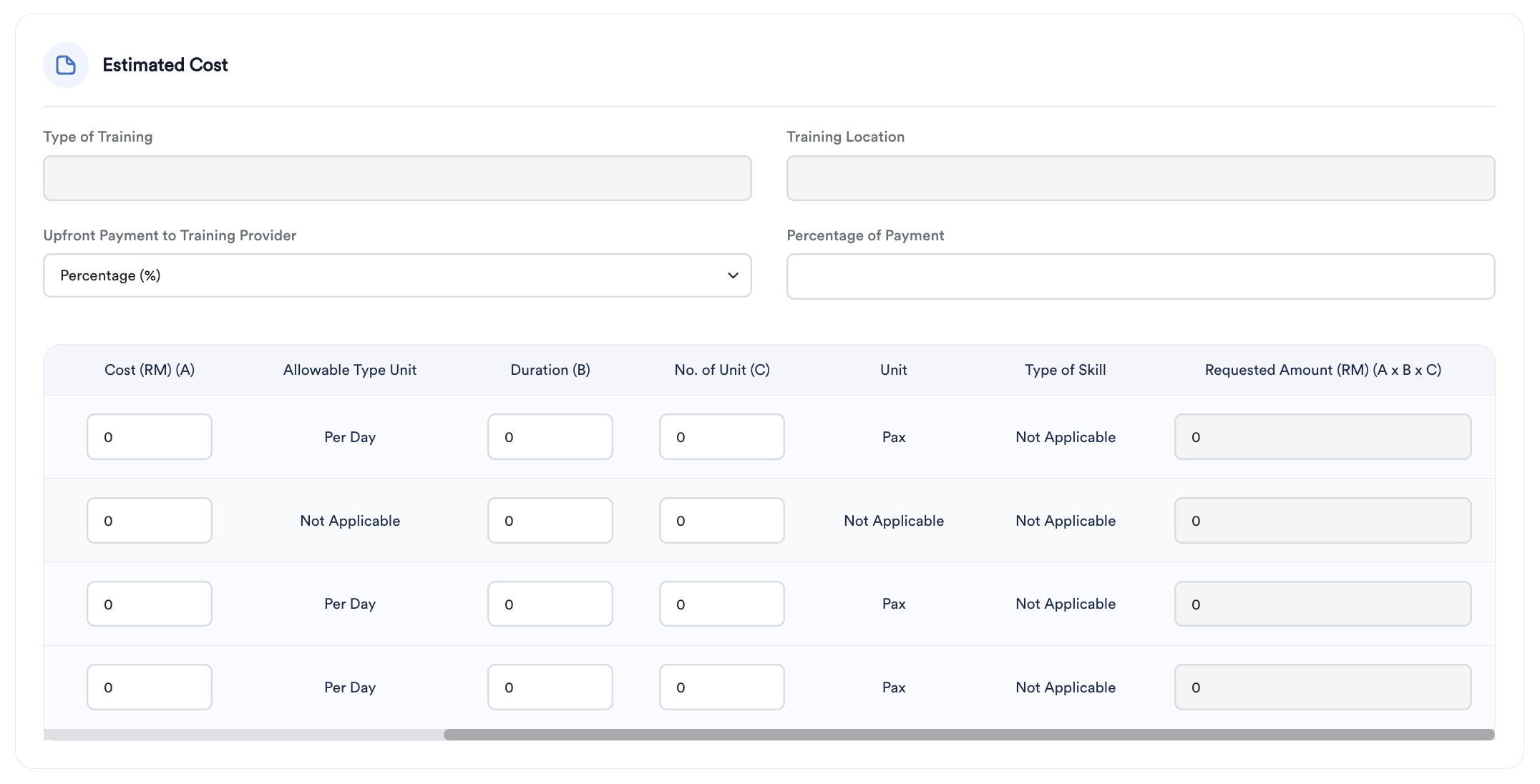
- The system syncs the Type of Training and Location from previous tabs.
- Enter any Upfront Payment (Percentage or RM) and key in the duration and unit for allowable items.
- The Requested Amount will calculate automatically.
4. Confirmation
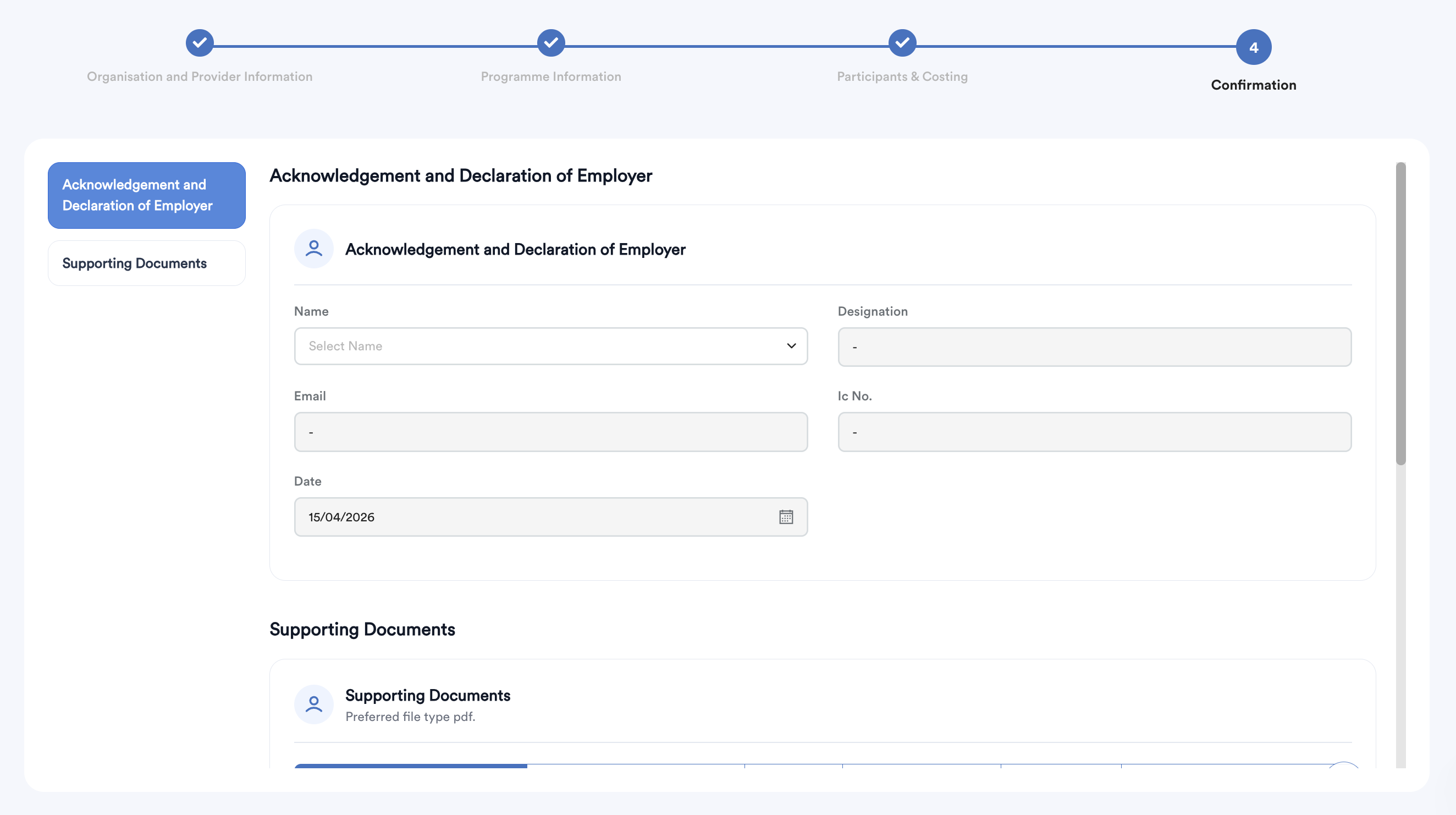
a. Acknowledgement and Declaration of Employer: Complete the employer declaration fields.
b. Supporting Documents: Upload relevant files under the designated tabs for audit and reference purposes.
Lastly, click Save.
Step 3
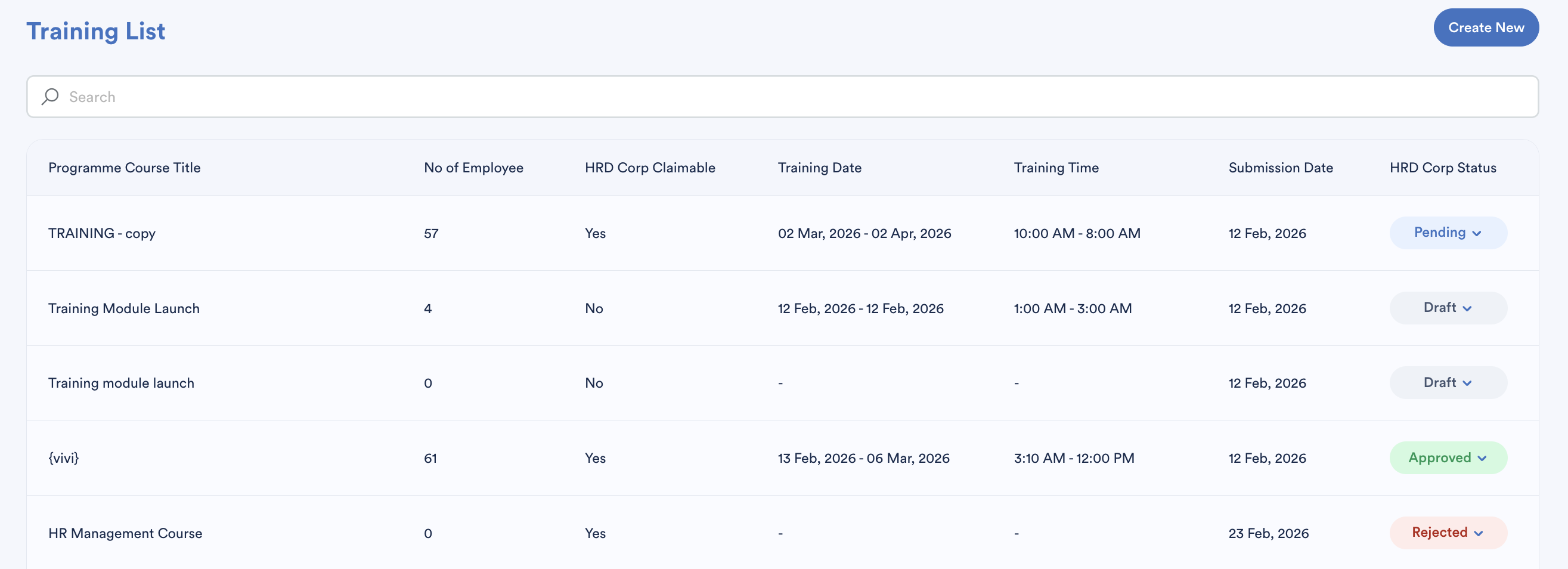
After saving, the course will appear in the Training Listing. From this dashboard, you get overview of:
- Total employees enrolled for each course.
- HRD Corp Claimable status and training schedule.
- HRD Corp Status: This must be updated manually to reflect the current stage of the application (Draft, Pending, Approved, or Rejected).
We hope this explanation clarifies the matter. If you require additional assistance, do not hesitate to contact our support team.
Was this article helpful?
That’s Great!
Thank you for your feedback
Sorry! We couldn't be helpful
Thank you for your feedback
Feedback sent
We appreciate your effort and will try to fix the article