When you click on My Onboarding, you will first be brought to the Onboarding Template Listing page.
All onboarding templates assigned to you will appear here, so you can easily keep track of what needs to be completed.
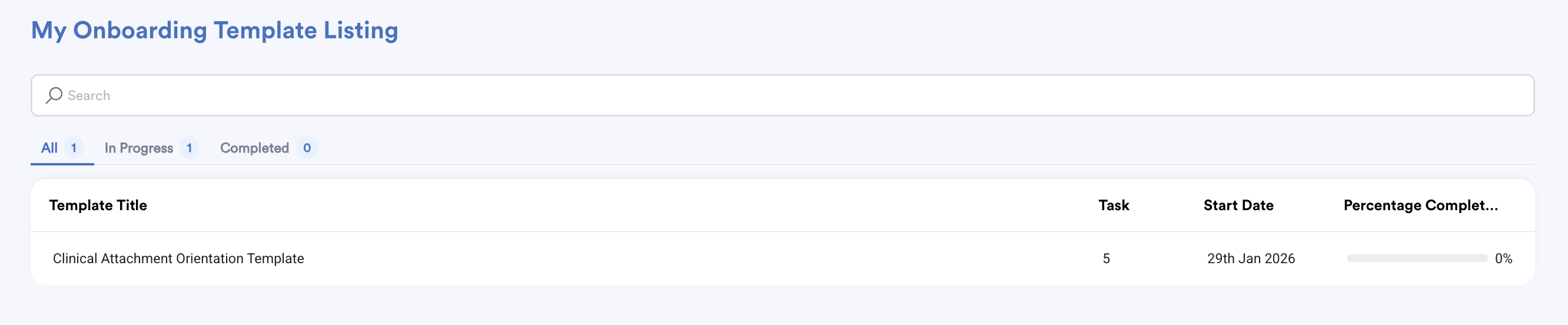
You can filter the templates by: All / In Progress / Completed
Each listing shows:
- Template title
- Number of tasks included
- Start date
- Completion percentage based on your progress
Click on a template name to view the full onboarding details and start completing your tasks.
Inside My Onboarding
Here’s a walkthrough of the sections you’ll find on this screen:
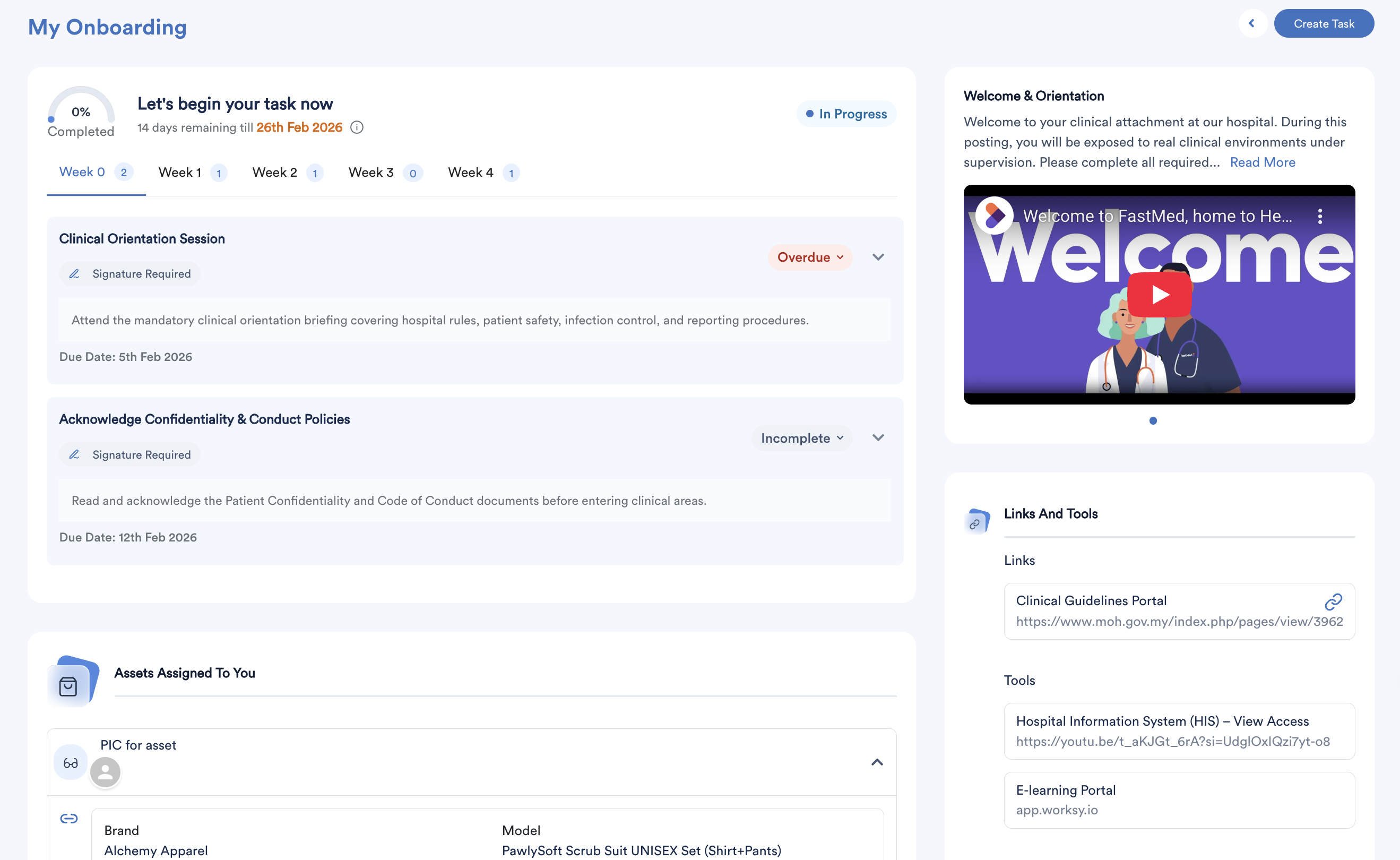
a. Tasks
This section lists all tasks assigned to you, organised by onboarding week.
You will see:
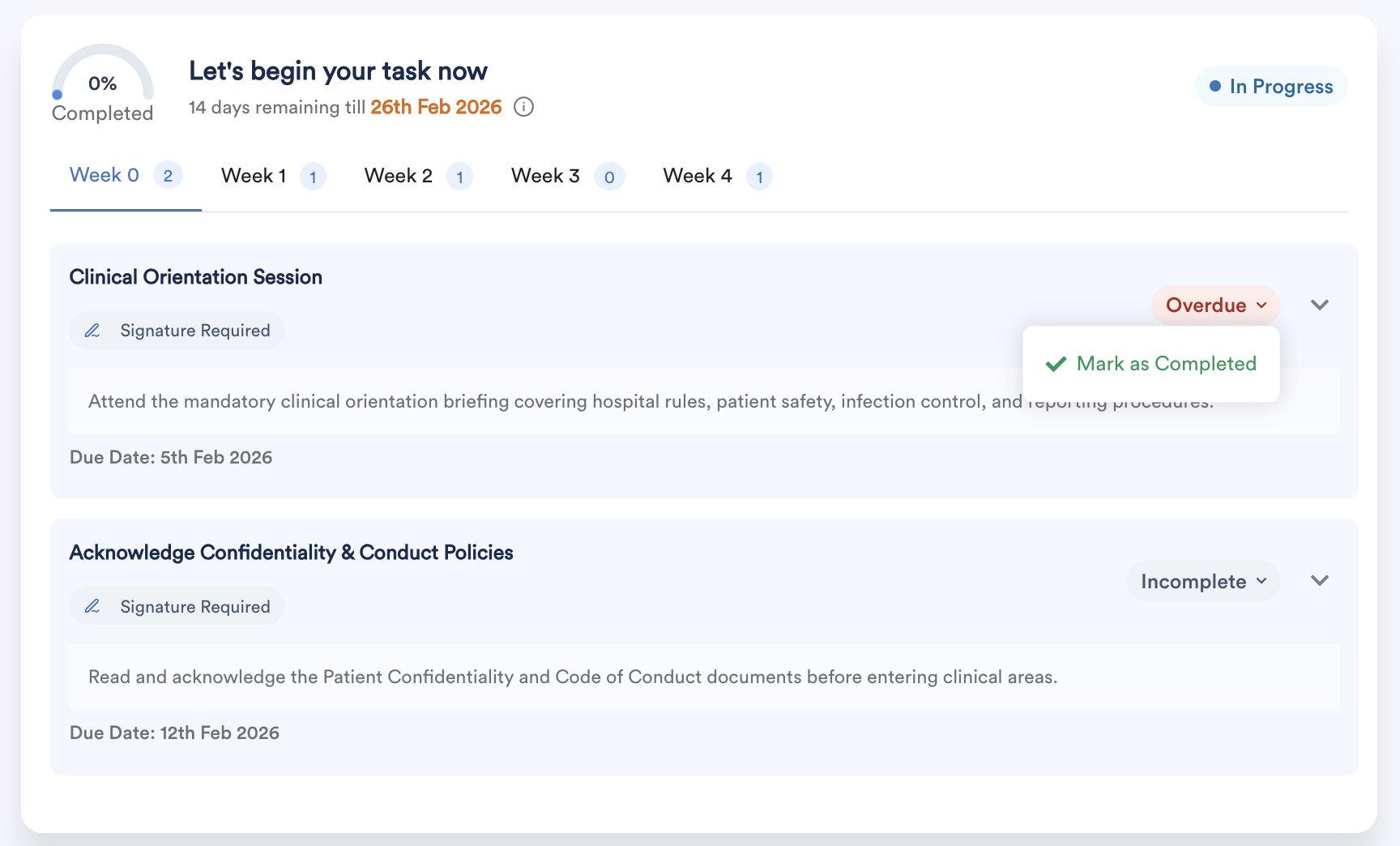
- A progress bar showing your overall completion
- The number of days remaining until the onboarding due date
(This is not affected by incomplete and complete tasks) - Task status (Completed, Incomplete, or Overdue)
You can:
- Mark tasks as complete or incomplete
- View task details and instructions
- Upload required attachments (if applicable)
- View any attachments shared with you
Make sure to complete your tasks before the due date to stay on track.
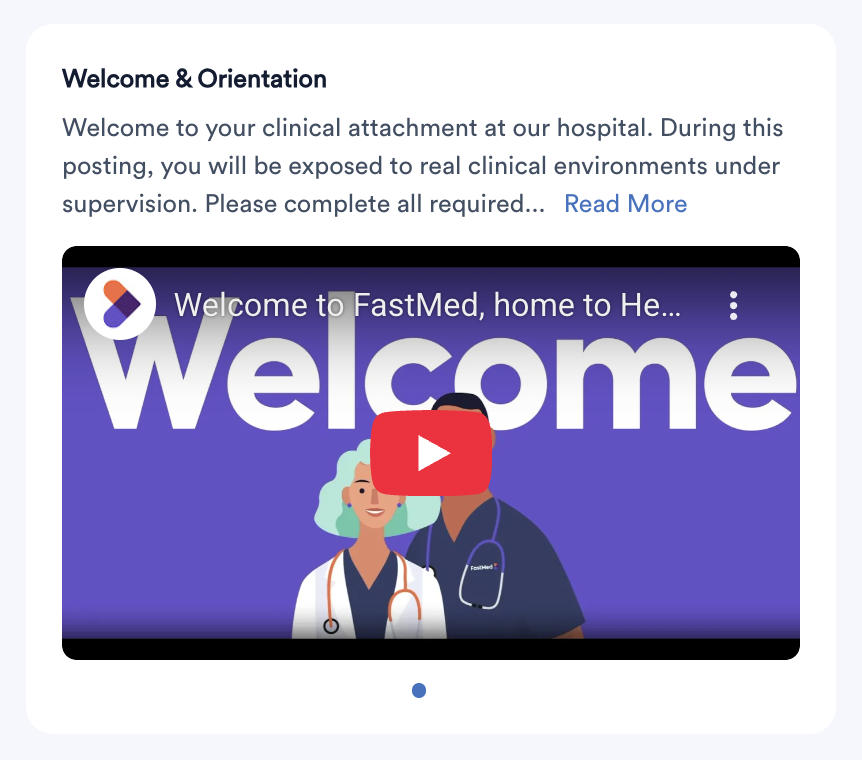
b. Welcome & Orientation
This section contains a welcome message from your company as you begin your onboarding journey.
If a video link has been added, you can watch it directly from this section.
c. Assets
This section displays all assets assigned to you, along with the PIC you can contact if you need assistance.
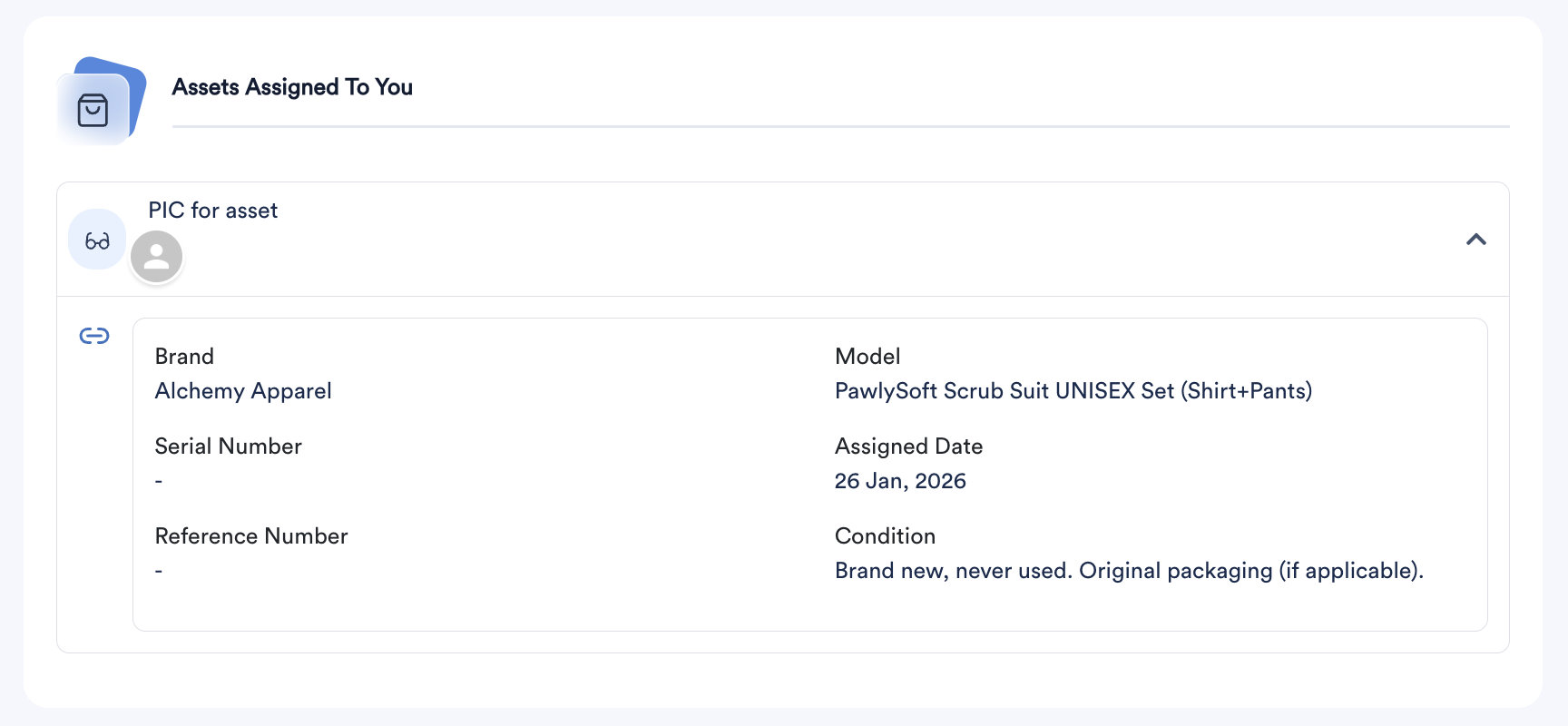
Asset details such as brand and serial number, etc will also be recorded here. These details will be referenced during asset return or offboarding.
d. Links and Tools
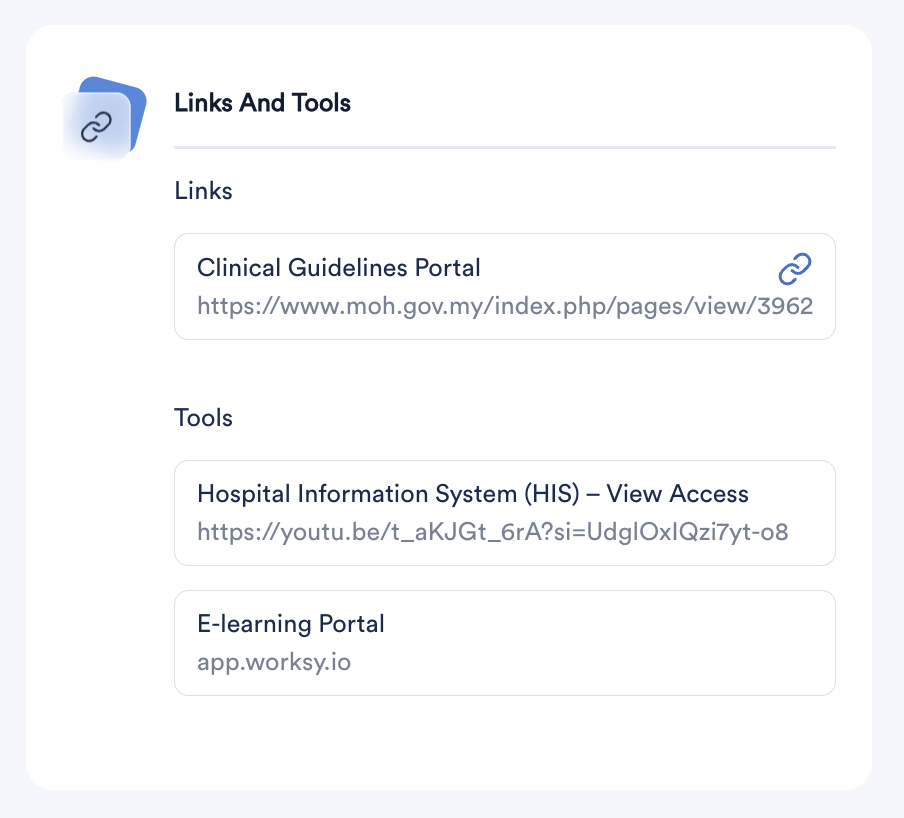
Displays important links and tools provided to support your onboarding and throughout your employment.
e. Documents Available
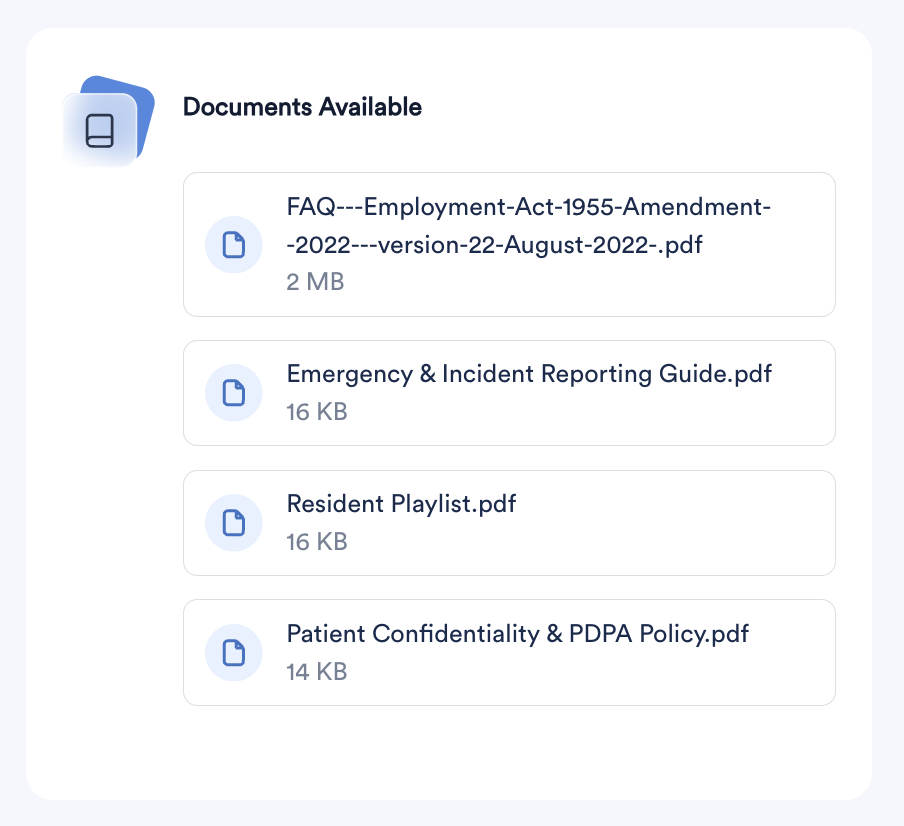
Shows documents shared with you for guidance and reference during your onboarding.
f. Important Contact
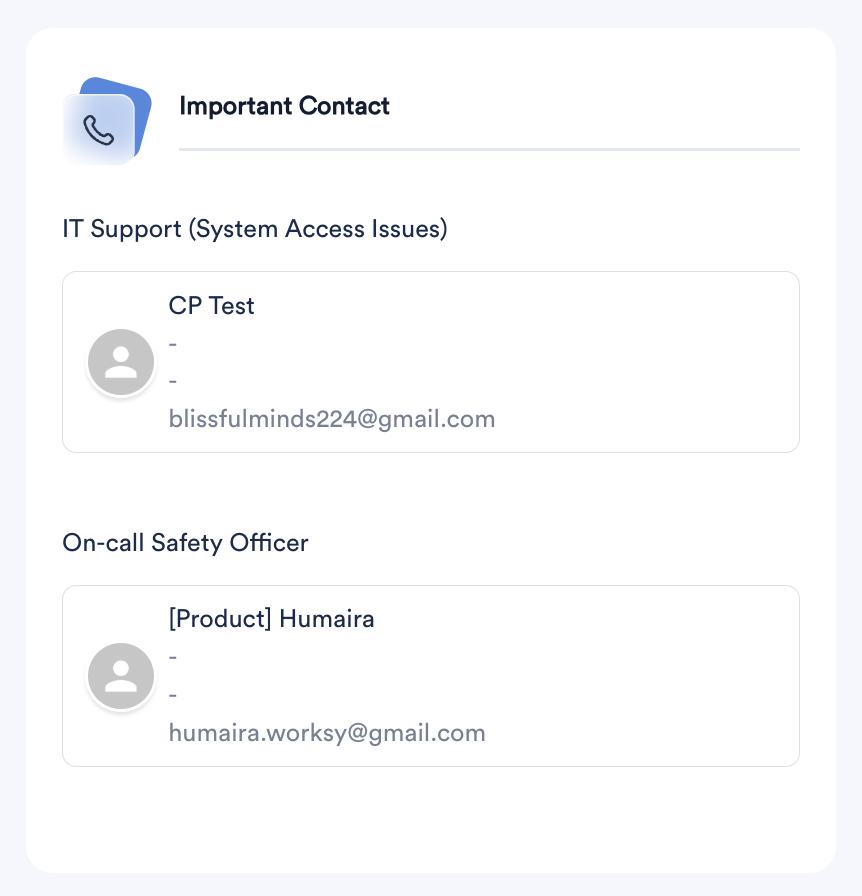
Lists key contact persons you can reach out to if you require help during onboarding.
g. Knowledge Base
Provides access to Worksy’s Knowledge Base for additional guidance and support whenever you need it.
We hope this explanation clarifies the matter. If you require further assistance, please don't hesitate to contact our support team.
Was this article helpful?
That’s Great!
Thank you for your feedback
Sorry! We couldn't be helpful
Thank you for your feedback
Feedback sent
We appreciate your effort and will try to fix the article