The Onboarding & Offboarding Task Centre shows all items that require your action.
Whenever you’re assigned as a Person-in-Charge (PIC) for an Asset, Software, or Task in an Onboarding or Offboarding Template, it will automatically appear here.
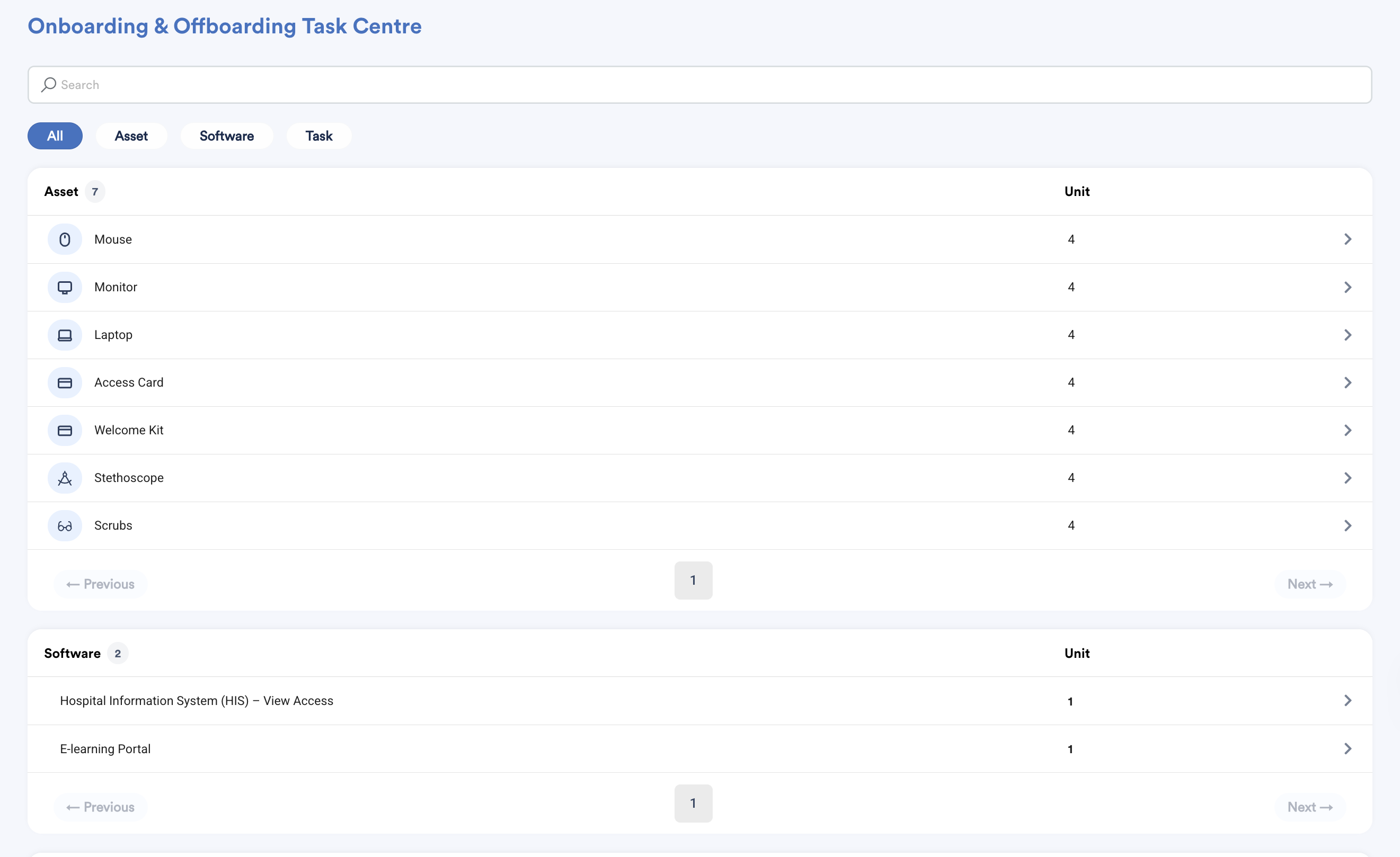
You can view your tasks:
- Under All, or
- Filtered by category: Asset / Software / Task
Task Centre
Asset
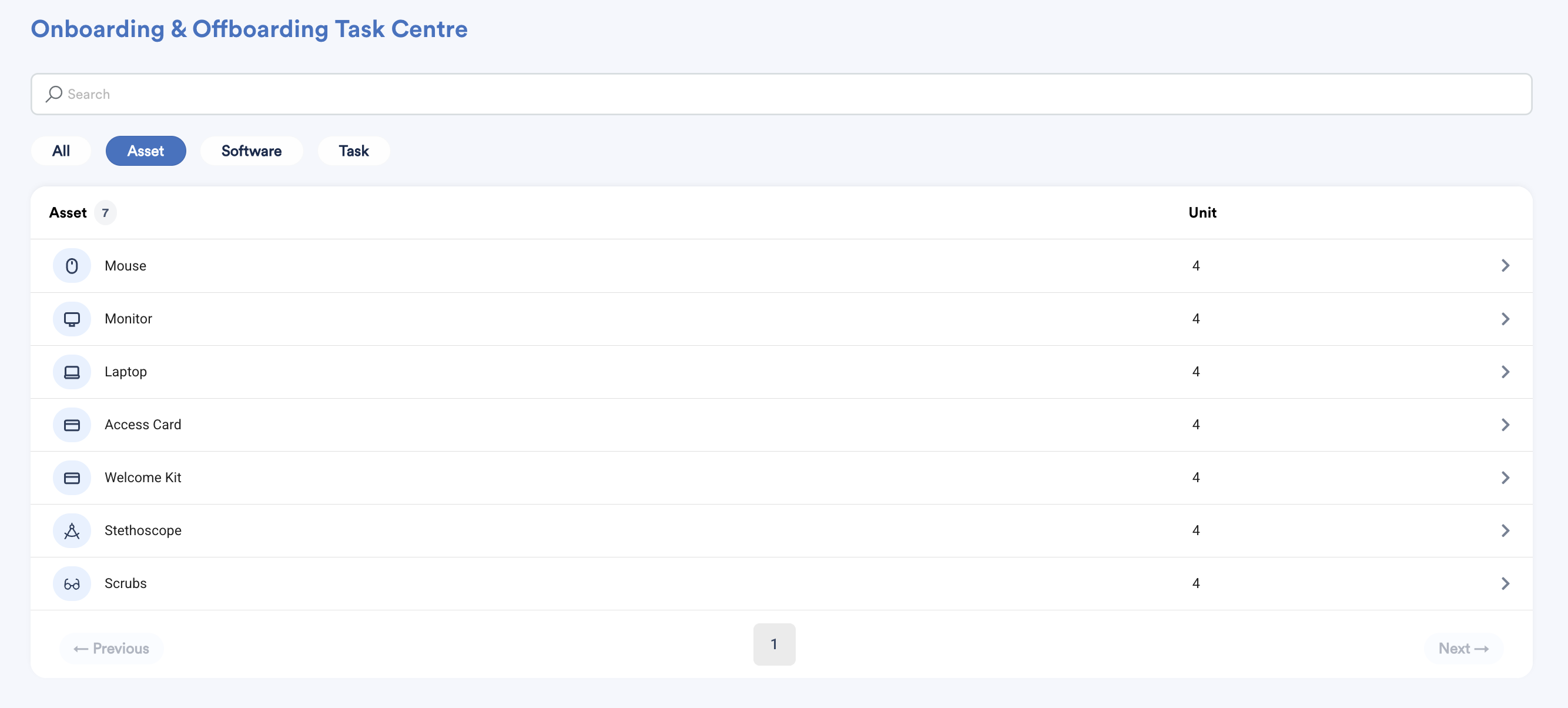
Asset tasks are used to record company assets handed over to new employees.
Before an asset appears in the employee’s My Onboarding and Profile, the PIC must first complete the asset registration. This ensures the asset details are properly recorded in the system. What you’ll see:
- A list of assigned assets and the number of unit(s) for each employee
- Tasks grouped by status: Incomplete / Completed
How to register an asset
- Click the arrow (>) next to the asset you need to complete. You’ll be redirected to the Assets screen.
- The screen will show employees who require asset registration.
- Click the arrow (>) to start registering the asset details for each employee.
When registering an asset, fill in the required details below.
(All fields are mandatory unless stated otherwise.)
- Brand
- Model
- Serial Number
- Assigned Date
- Reference Number
- Condition
- Attachment - Upload an image of the asset and/or any supporting documents
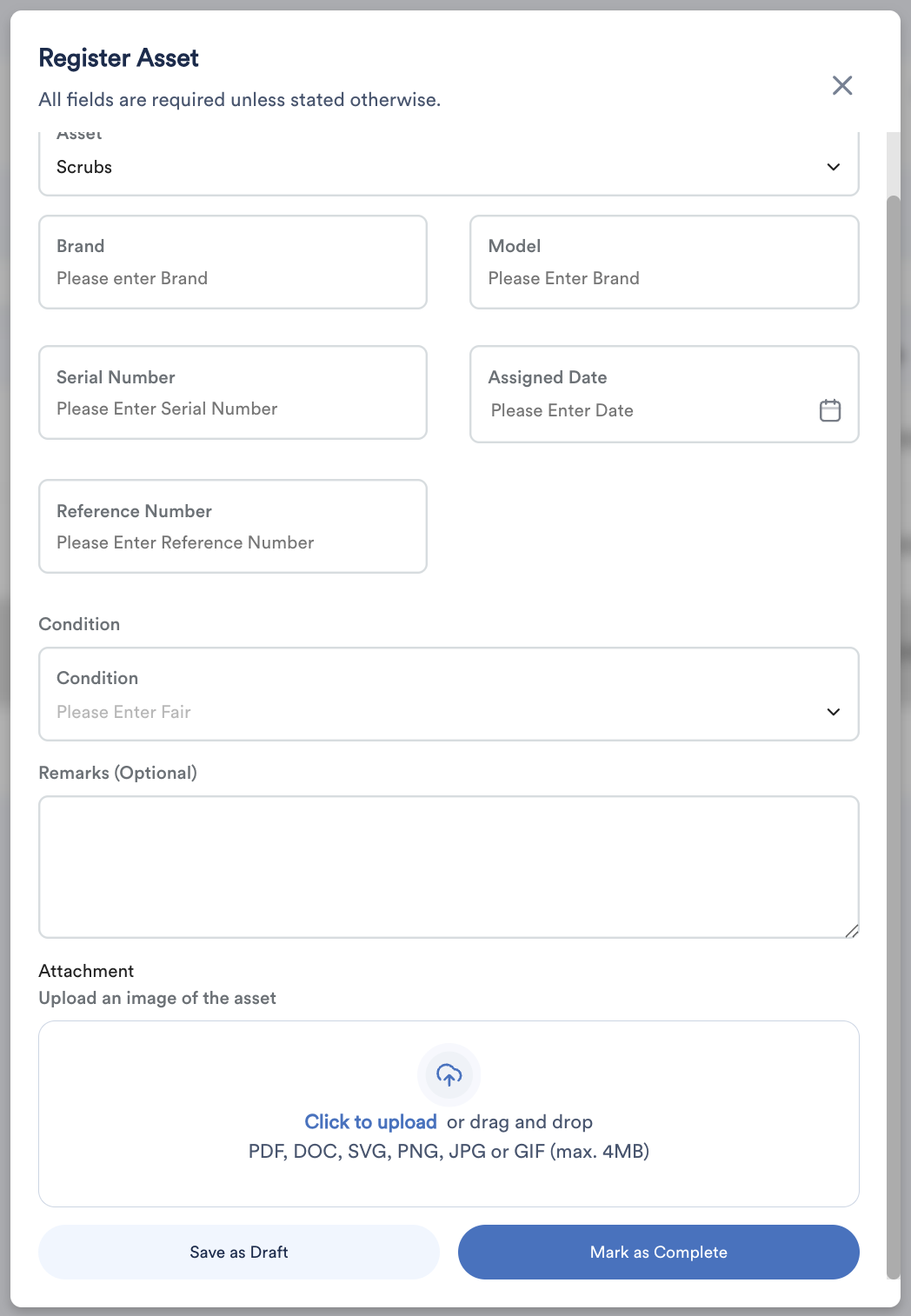
Once done, you can:
- Click Save as Draft if you’re not ready to register it yet, or
- Click Mark as Complete to finalize the asset registration
After registration, the asset will be visible in the employee’s My Onboarding and Profile.
Software
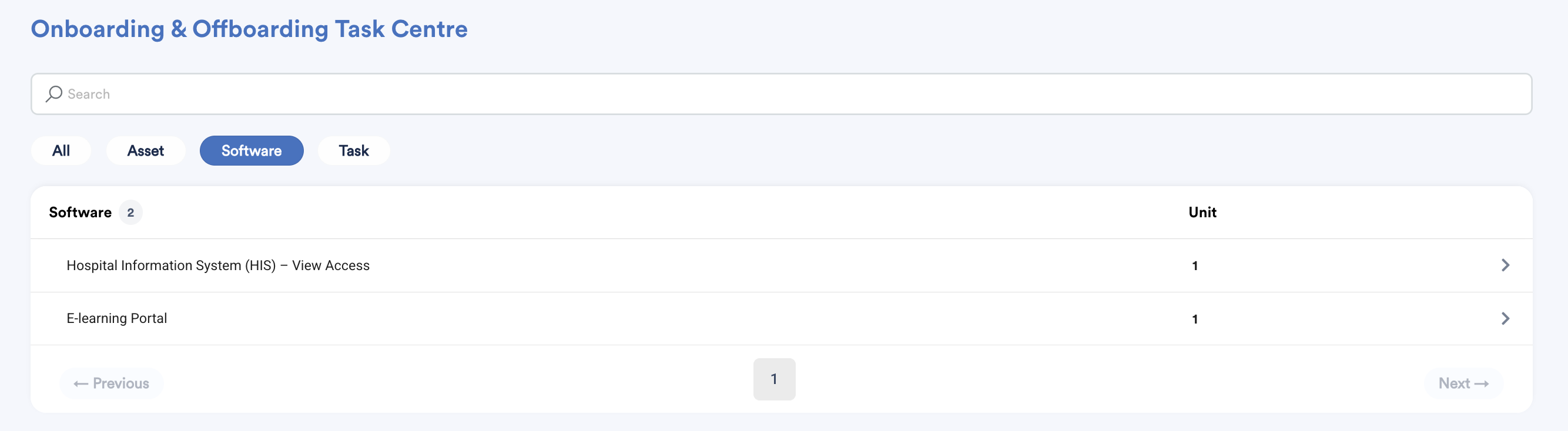
Software tasks are used to record software licenses that need to be issued or installed for employees.
Before a software can be handed over or installed, the PIC must first register the software license information. This ensures license details are properly tracked in the system.
How to register a software license
- Click the arrow (>) next to the software you need to complete. You’ll be redirected to the Software screen.
- The screen will display a list of employees who require software license registration.
- Click the arrow (>) to start registering the license details for the employee.
When registering a software license, fill in the following details:
- License Key
- Remarks (optional) - Recommended to include information such as license expiry date, subscription type, or internal reference notes
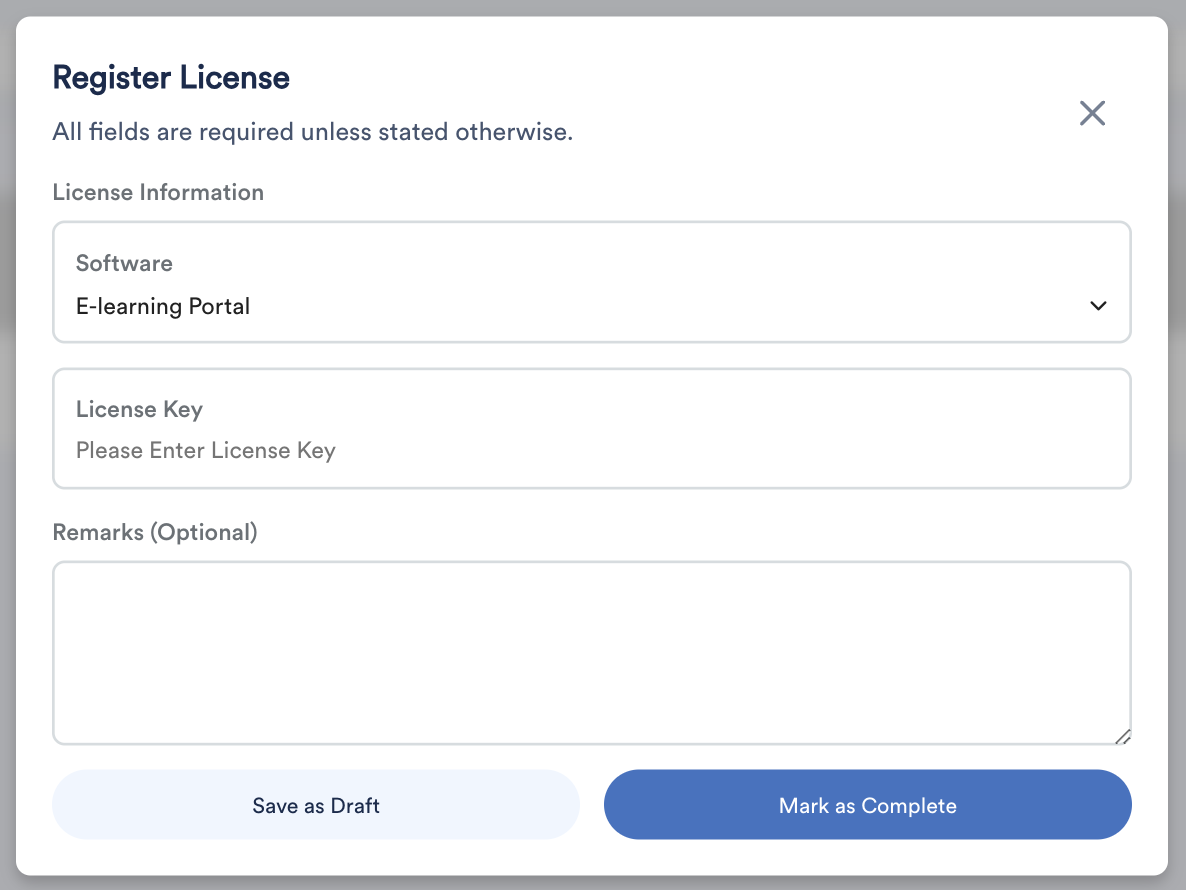
Once completed, you may:
- Save as Draft to continue later, or
- Mark as Complete to finalize the software task
After completion, the software assignment will be considered ready for handover or installation.
Task
Task items are onboarding actions that require follow-up or confirmation from the assigned PIC.
Whenever you’re assigned as the PIC for a task in an Onboarding Template, the task will appear in your Task Centre for completion.
How to complete a task
1. Click the arrow (>) next to the task you need to complete.
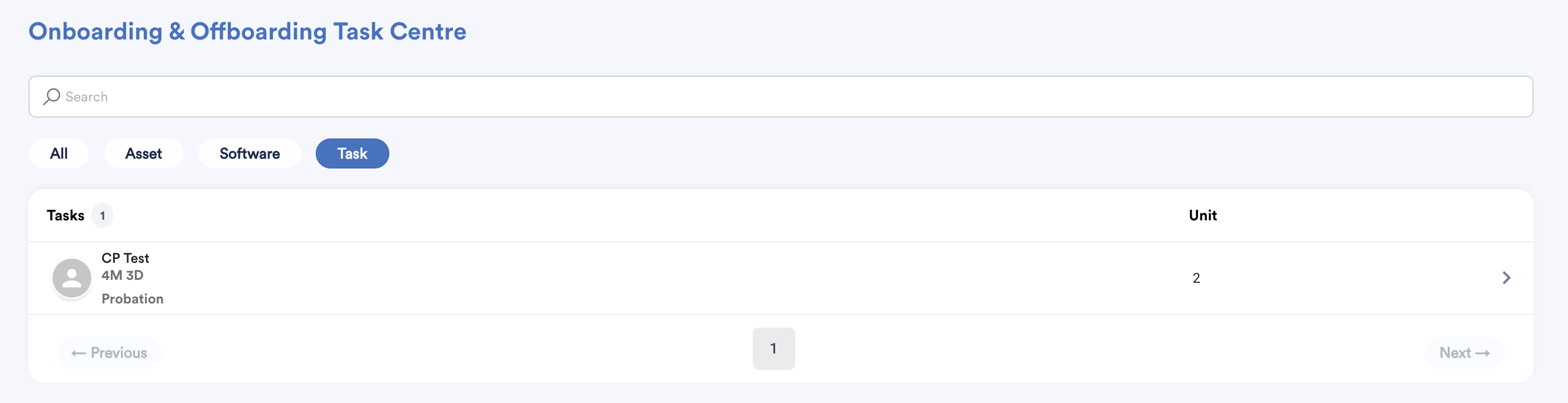
2. You’ll be redirected to the Task screen. It will list out the employees, task name, and the due dates.
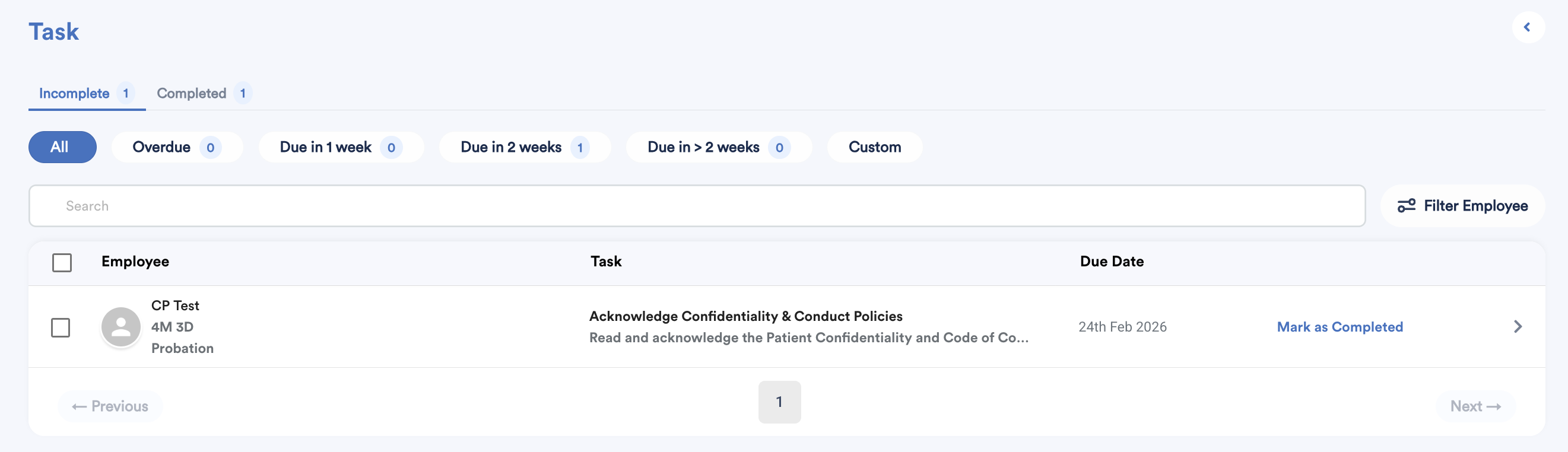
3. You can click Mark as Complete or click the arrow (>) to view the task description and attachments before marking it as complete.
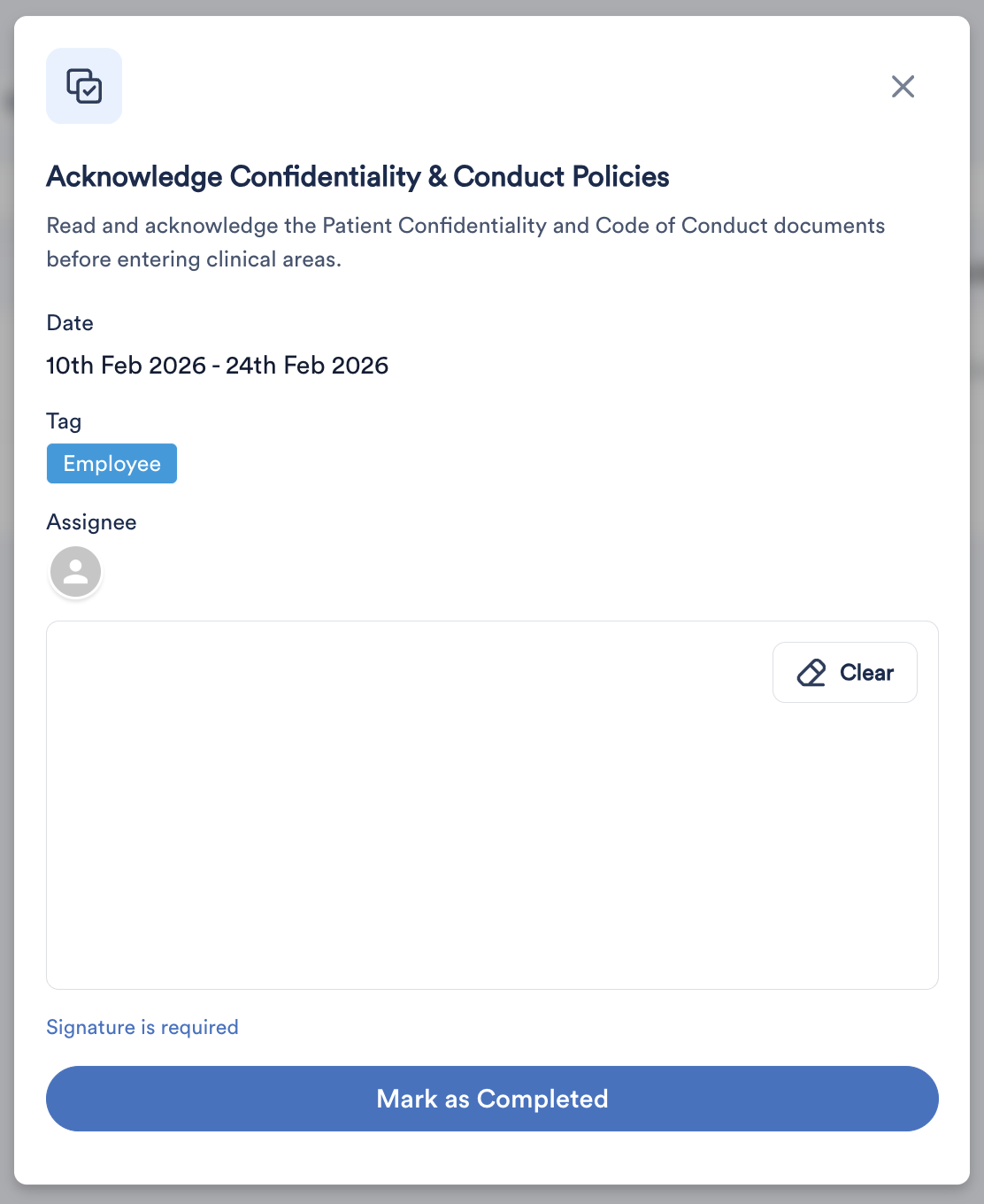
If the task requires a signature, you must complete the signing first before you can mark the task as completed.
We hope this explanation clarifies the matter. If you require further assistance, please don't hesitate to contact our support team.
Was this article helpful?
That’s Great!
Thank you for your feedback
Sorry! We couldn't be helpful
Thank you for your feedback
Feedback sent
We appreciate your effort and will try to fix the article