During Ramadan, working hours are usually shortened. To accommodate this, you can create a separate Ramadan schedule and assign it for the whole month.
Overview
- Copy the existing shift. This preserves Overtime, Holiday and Attendance settings.
- Adjust only the shift times (reduce working hours) so the system doesn’t record short-hours or lateness that could affect payroll.
- Assign the Ramadan schedule for the Ramadan date range, then revert to the normal schedule after.
Step 1
To create shift, you may refer to the article : Creating Shift Template
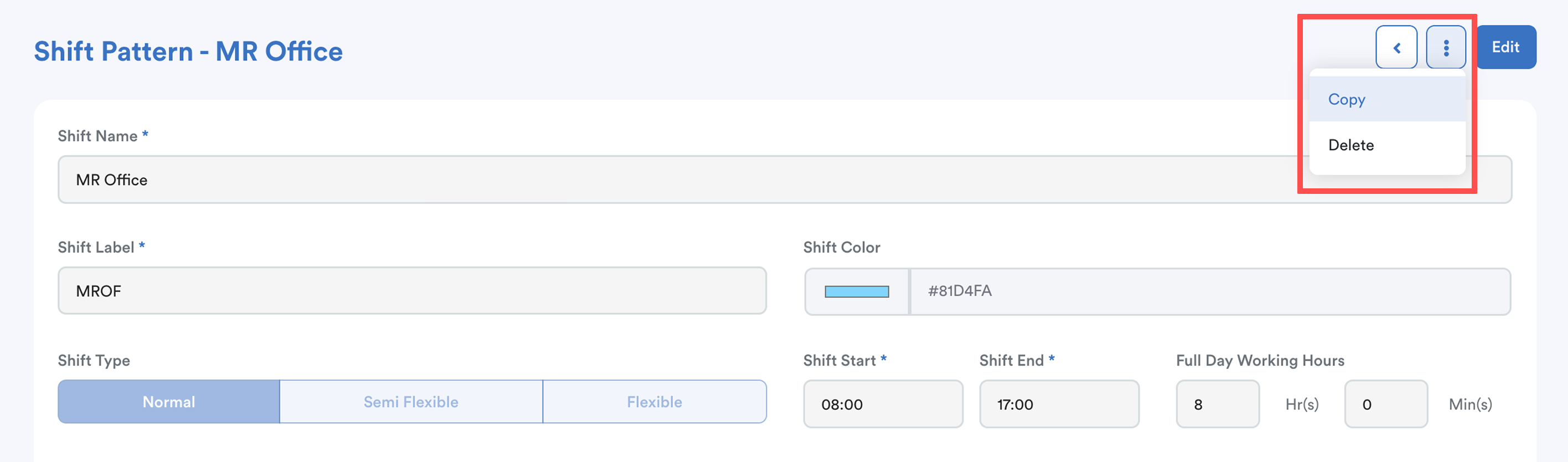
Alternatively, you can duplicate an existing shift.
Click the three dots button at the top right. Select Copy.
Adjust the working hours accordingly (for example, reduce 1 hour from the break time to reflect shorter Ramadan hours).
Example:
- Normal shift: Full day = 8 hours
- Ramadan shift: Full day = 7 hours
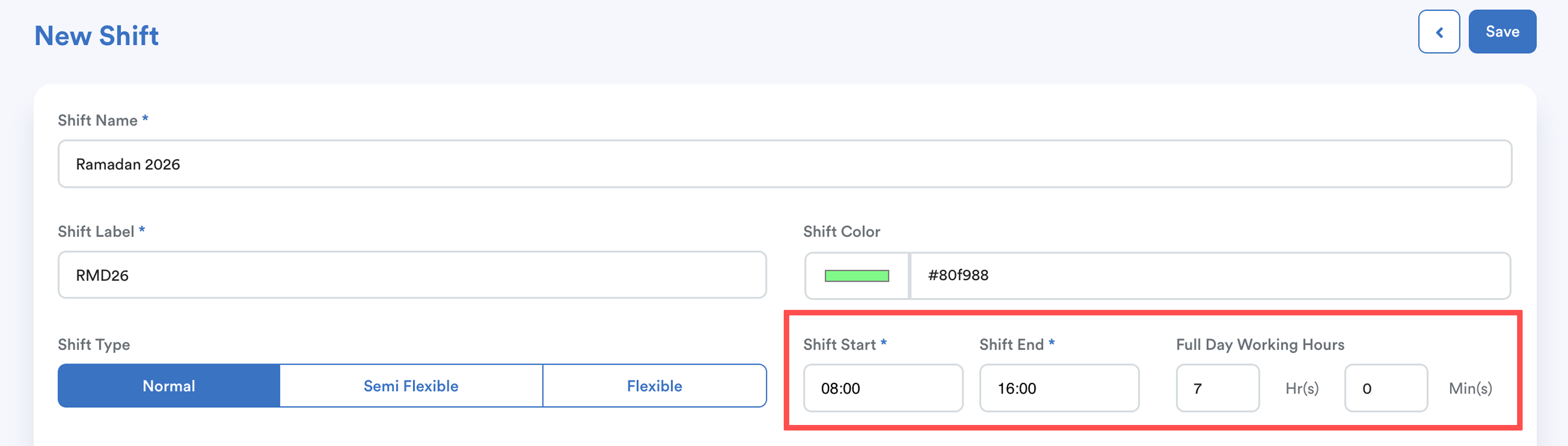
Tips: Don’t change overtime, holiday, or attendance rules here. Only change the shift timing.
Step 2
To create schedule, please refer to this article: Creating Work Schedule Template
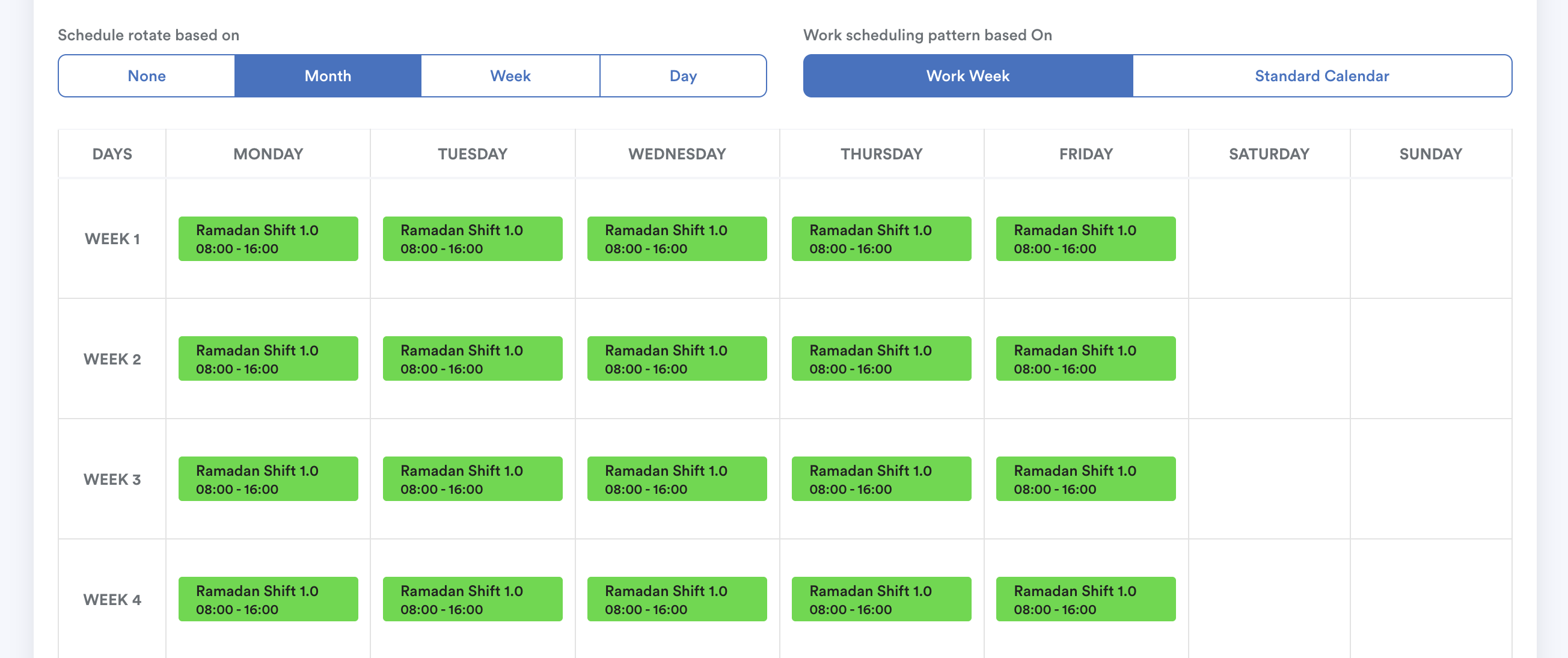
Similar to the shift setup, you may duplicate the employee’s current schedule to ensure all schedule settings remain unchanged.
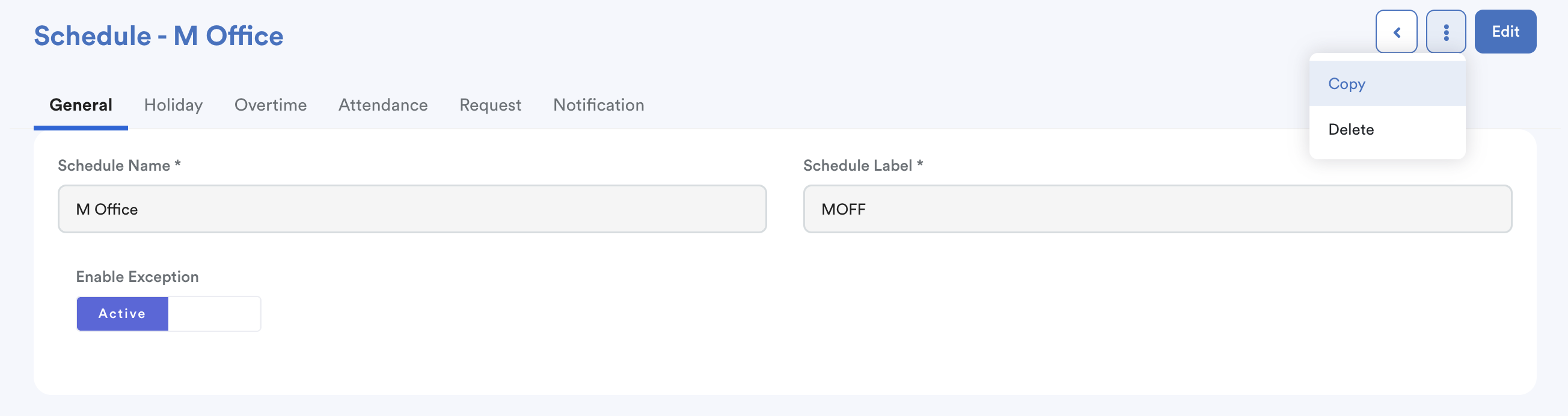
However, make sure to replace the existing shift with the Ramadan shift inside the schedule template.
Example normal schedule
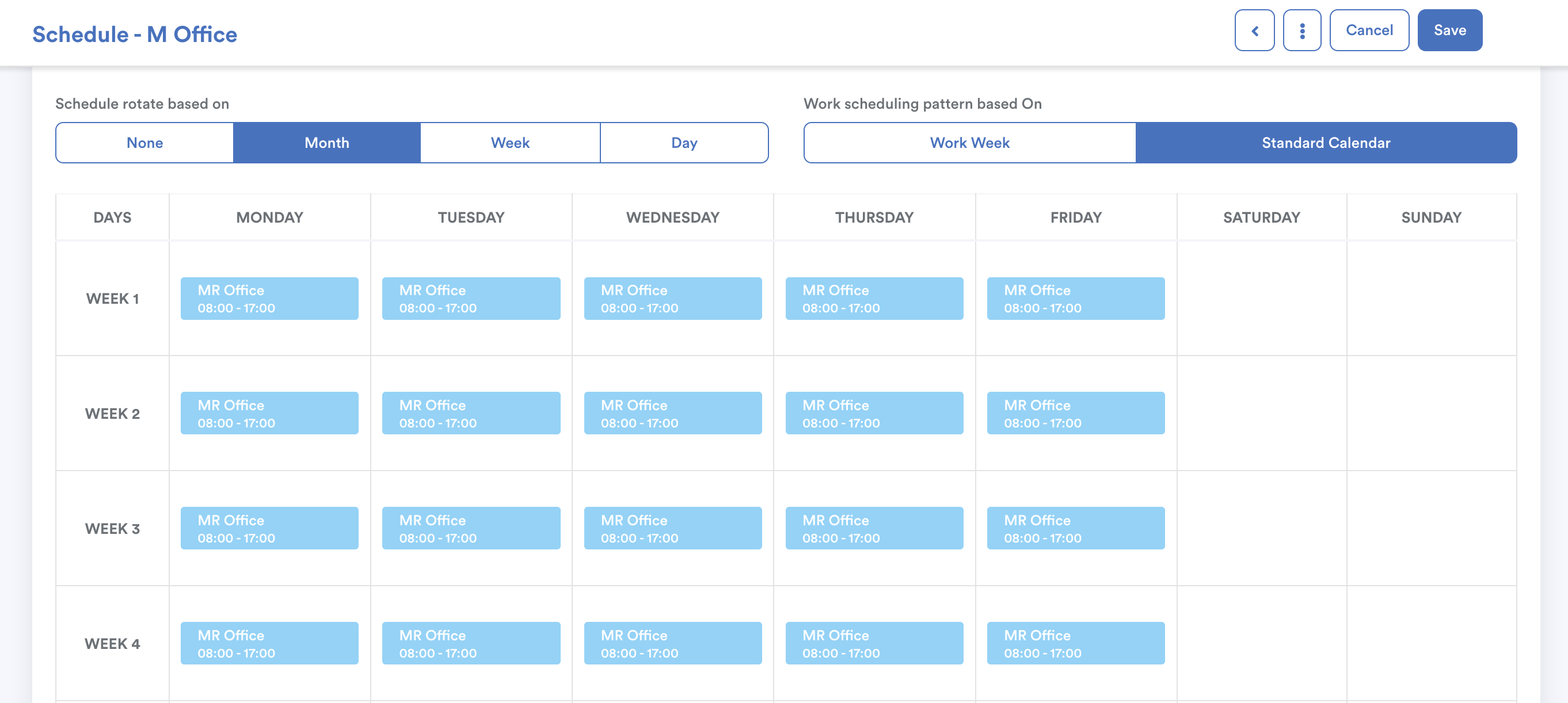
Ramadan schedule
Step 3
Once the Ramadan schedule is ready, assign it to employees. To assign the schedule, you may refer to:
By Individual: Assigning Schedule by Individual
By Batch: Batch Assign Work Schedule
Important:
Ensure the date range covers the full Ramadan period for a smooth transition between schedules.
Example:
If Ramadan starts on 1st March, set the Ramadan schedule from 1st March to 31st March.
After 31st March, reassign the normal schedule accordingly.
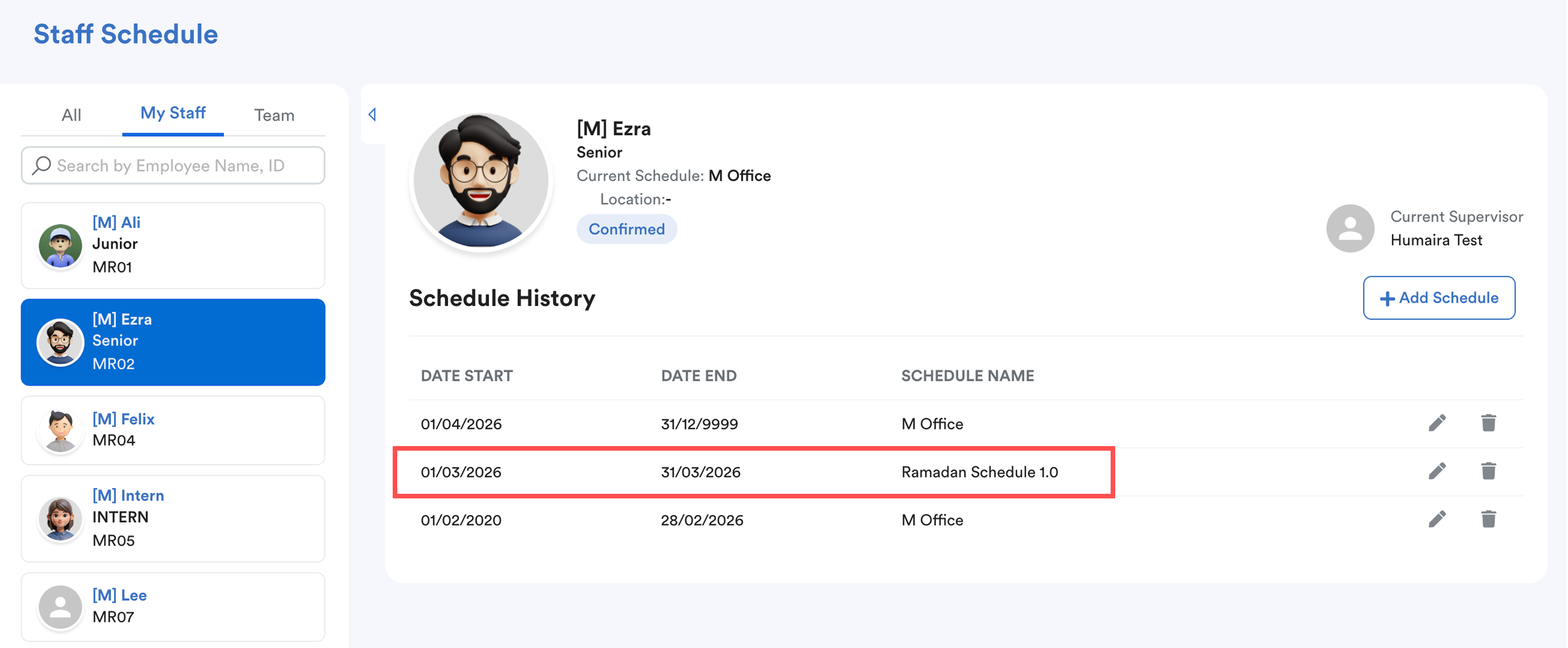
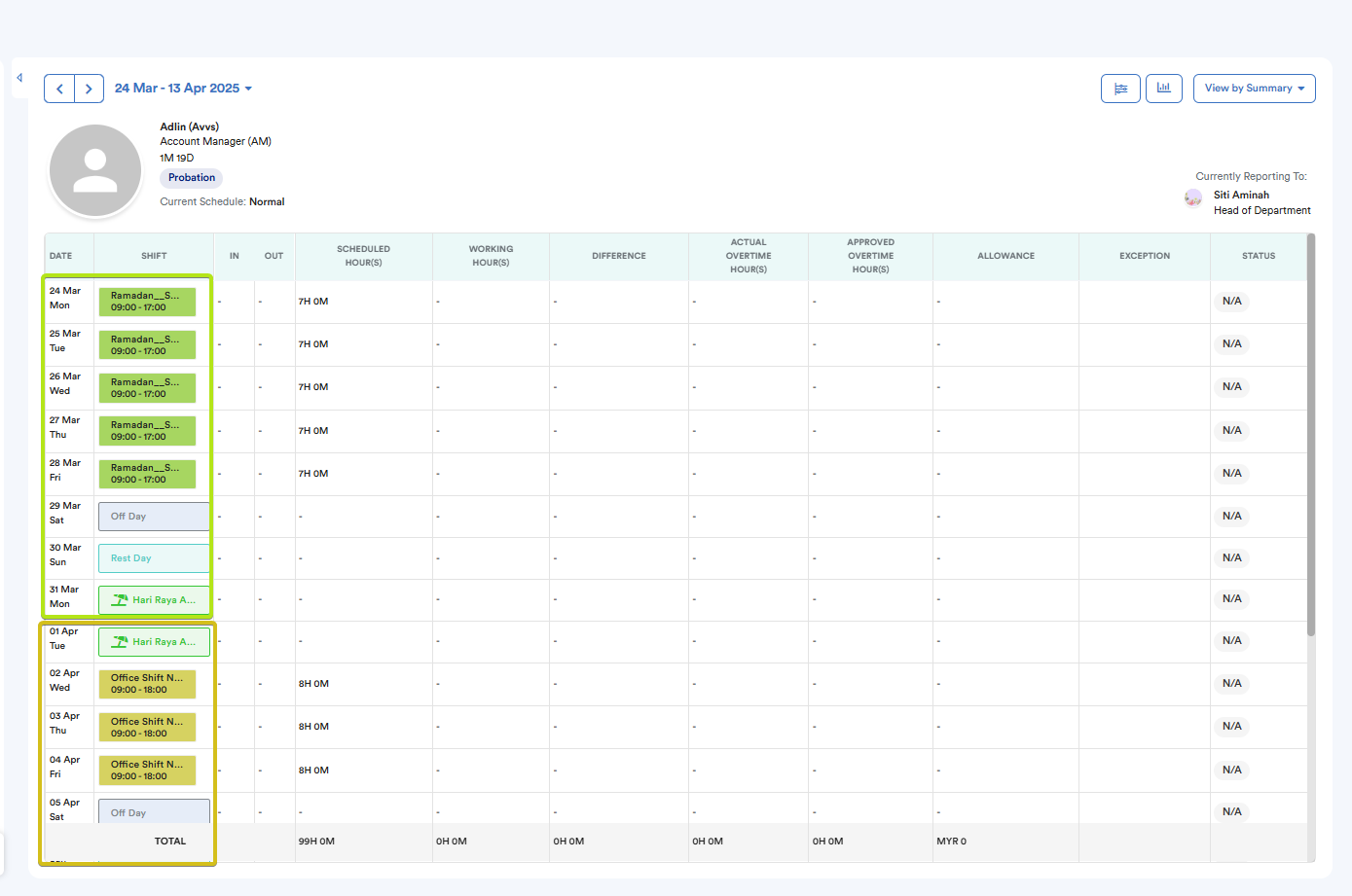
Attendance will automatically follow based on the assigned date range.
Step 4
After assigning the schedule, perform a Batch Process and tick the 3rd option.
You may refer to: Resetting Attendance to Default Schedule Settings
This ensures attendance records are recalculated based on the updated schedule.
We hope this explanation clarifies the matter. If you require additional assistance, do not hesitate to contact our support team.
Was this article helpful?
That’s Great!
Thank you for your feedback
Sorry! We couldn't be helpful
Thank you for your feedback
Feedback sent
We appreciate your effort and will try to fix the article