This article explains why a leave type is not generated for an employee, or why the “Leave not generated yet” error appears during request, and how to resolve it.
Possible Reasons
The leave entitlement may not be successfully generated due to one of the following:
- The employee is not included in any entitlement table
- The employee is included, but in an incorrect entitlement table
How to Check and Fix Entitlement Setup
Why the “Leave Not Generated” Error Appears
How to Check and Fix Entitlement Setup
Step 1
Go to Settings (a) > Leave (b) > Leave Type (c). Select the relevant leave type.
Step 2
Click Edit and go to the Entitlements (2) tab. Check if the employee is in the correct entitlement. Click the entitlement table and see the entitled employees.
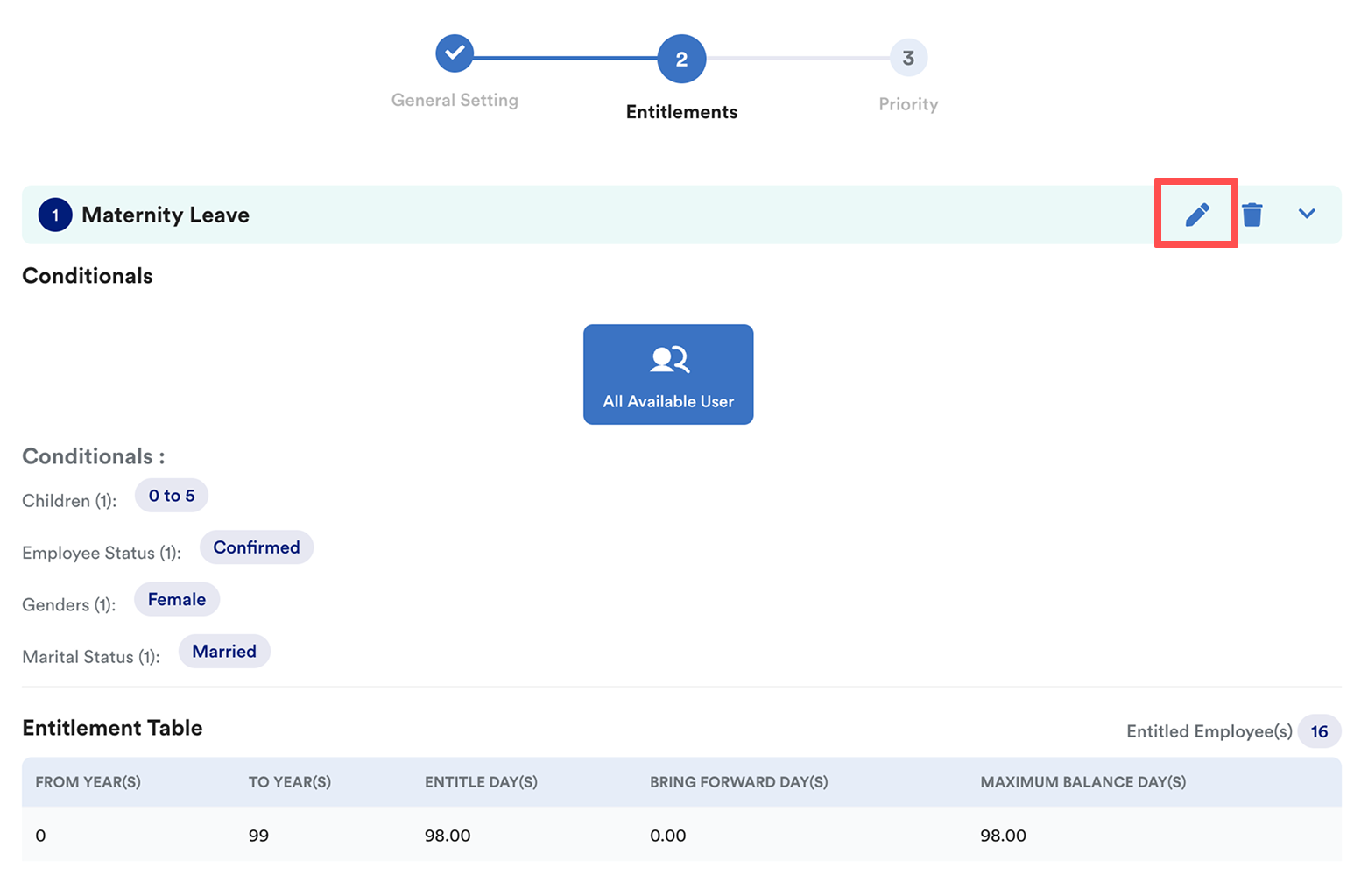
Click the pencil (edit) icon at the relevant entitlement table.
Go to Entitled Employee (3) tab to check whether the employee is included in the table.
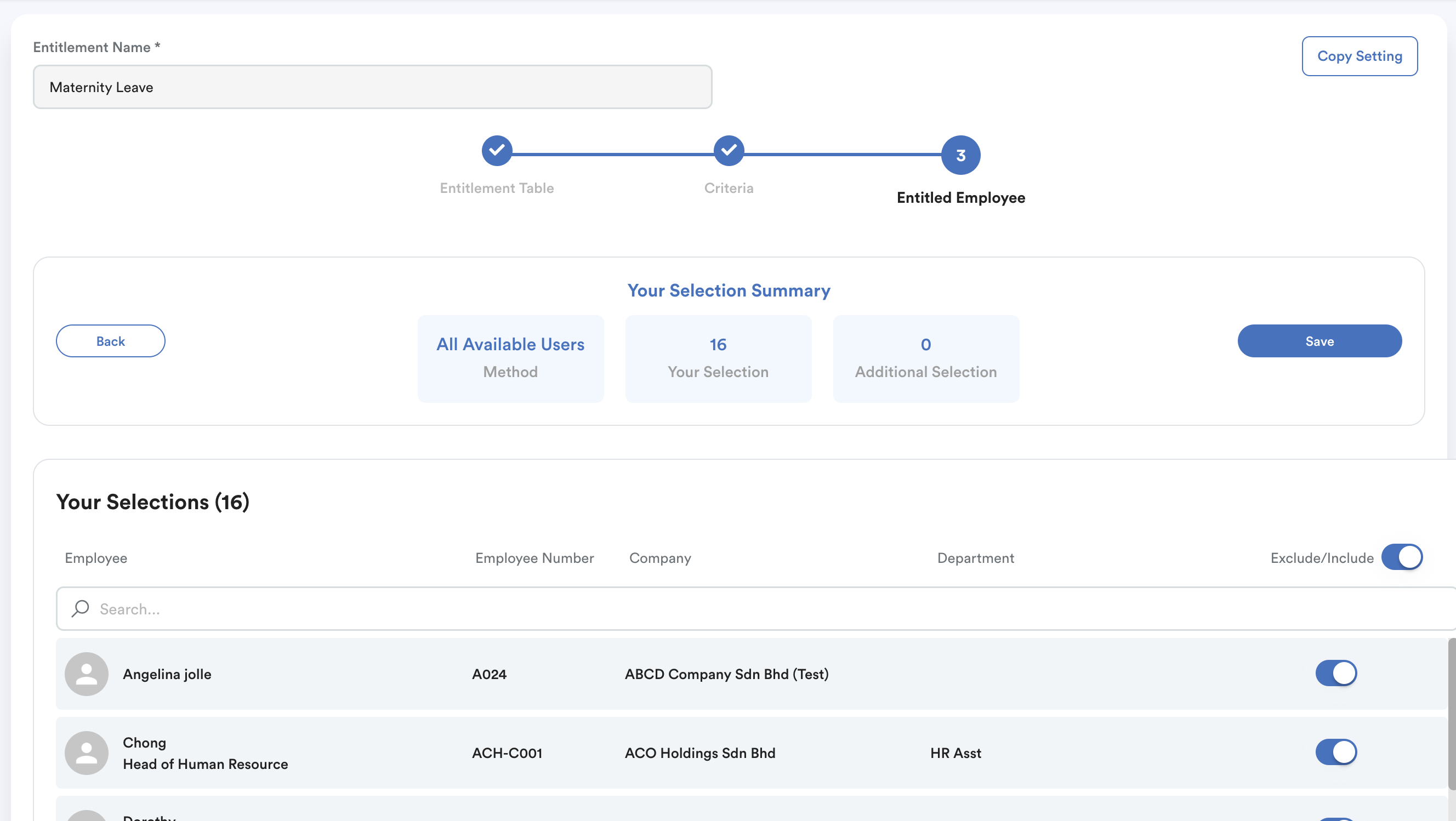
If the employee is not listed, check their profile whether they correctly fall under the criteria, or manually add the employee to the entitlement table.

Click Save.
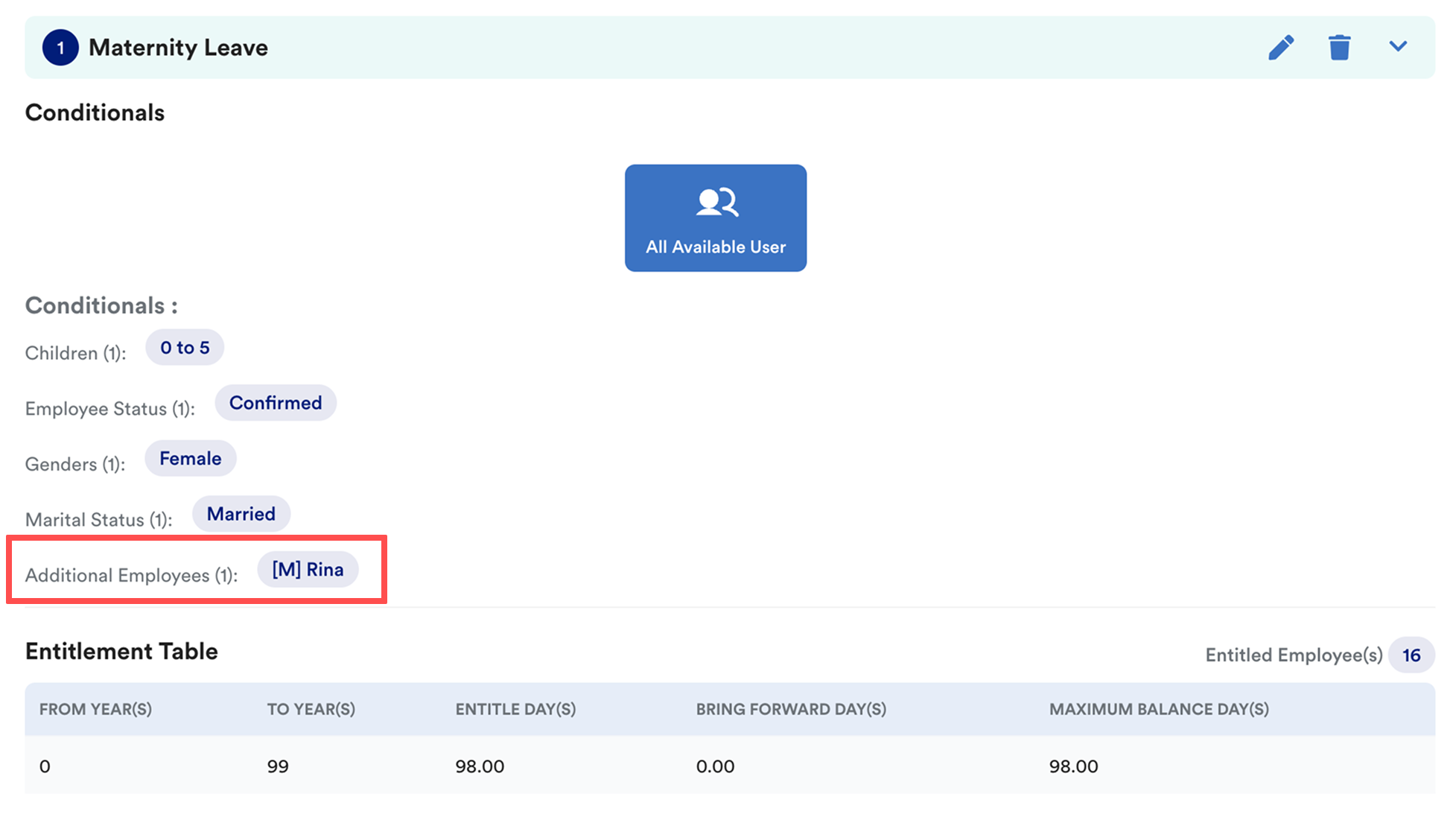
The entitlement table will show an additional employee's name when someone is added manually.
Important:
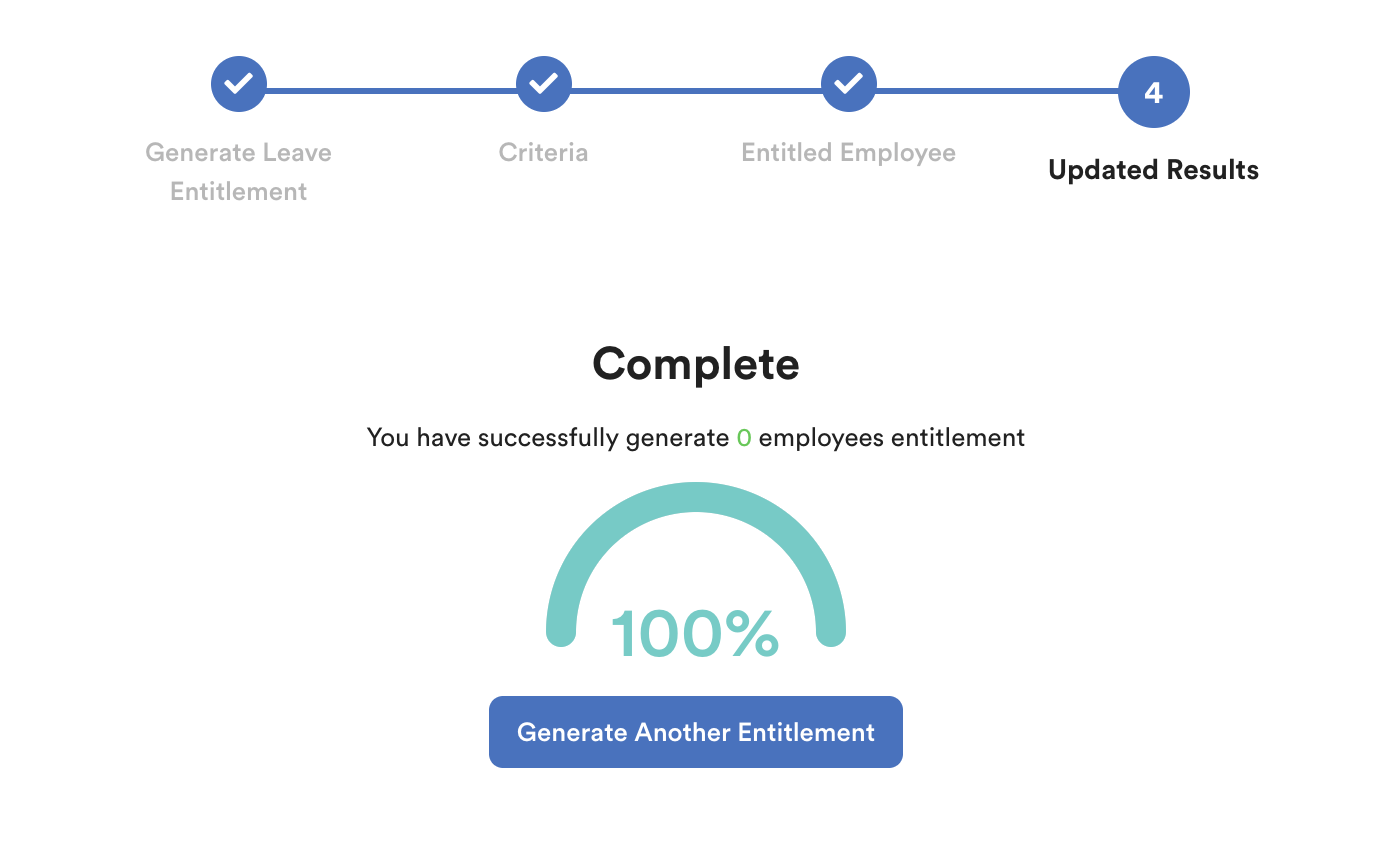
Whenever an employee is added to an entitlement table (for example, due to a marriage status change or employee confirmation), the leave type must be manually generated for the employee.
If this is not done, the employee will see a “Leave not generated” error when trying to apply for leave.
Why the “Leave Not Generated” Error Appears
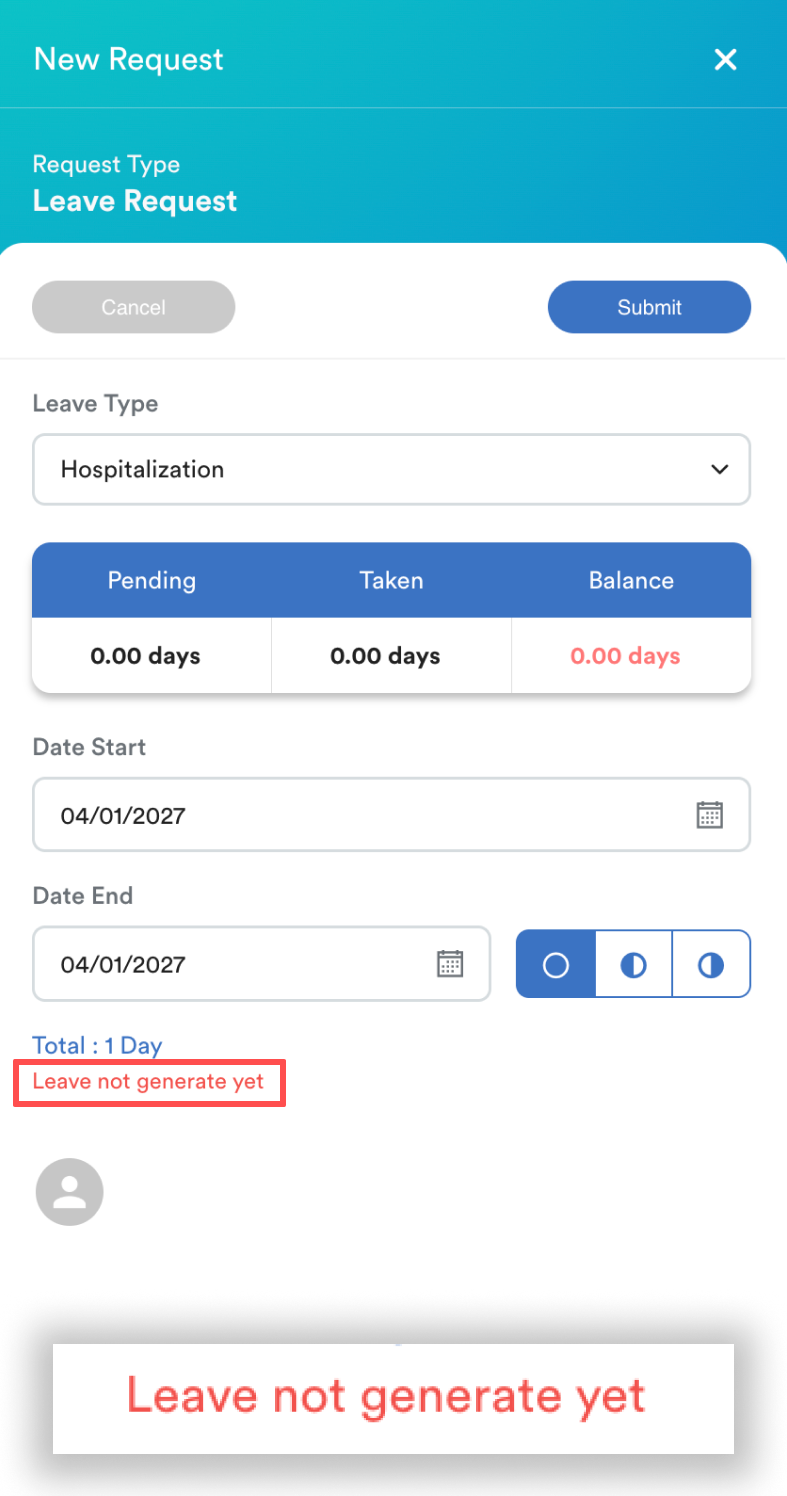
This error usually happens because the leave type scheduler has not run yet.
Example:
Employee applies for leave in December 2026. The next entitlement is scheduled to generate in January 2027.
How to Resolve the Error
Step 1
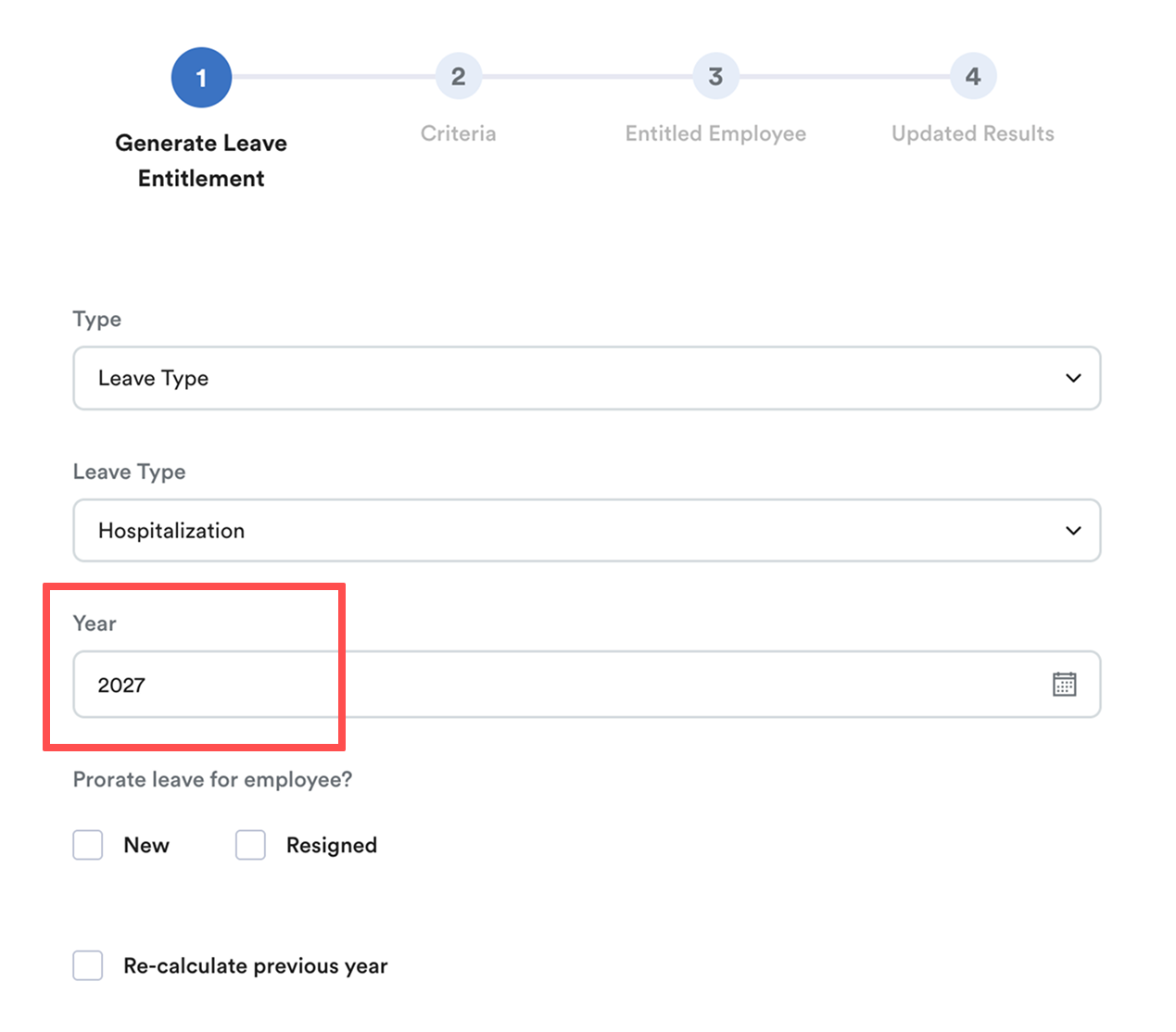
Manually generate the leave entitlement. Refer to: Generate Leave Entitlement
Important: Always select the correct year when generating leave entitlement.
- If you want the employee to apply for leave in the next year, you must generate entitlement for that year.
Example:
- Current year: 2026
- Employee needs to submit leave for 2027
- When generating entitlement, select Year = 2027
For other common leave issues, refer to: Leave Request Errors and How to Fix ThemWe hope this explanation clarifies the matter. If you require additional assistance, do not hesitate to contact our support team.
Was this article helpful?
That’s Great!
Thank you for your feedback
Sorry! We couldn't be helpful
Thank you for your feedback
Feedback sent
We appreciate your effort and will try to fix the article