1.1 Status: Pending, Locked, N/A
3.1 Approved Overtime Hours Calculation Method
3.2 Overtime Pay Mode
3.4 Pre-Approved Overtimes
3.5 Approved OT Hour(s)
1. Shift 
1.1 Status: Pending, Locked, N/A
Pending: created but not locked;
Locked: created and locked;
N/A: not created/sync with database
System logic
- Refreshing the attendance records
- Assigning a shift (either from the Attendance page or the Duty Roster)
- Submitting a leave or overtime request for the specific date
1.2 Exception
You will see exception, if the schedule has enabled exception. Refer Enable Exception in Schedule Setting
1.3 Shift Display
You will see the small rectangle if you assign shift on top of workday, refer to Shifts Assigned on Non-Workdays Become Pre-Approved OT.
To change the default shift, you can refer to Changing Default Shift in Attendance.
2. Clock Data
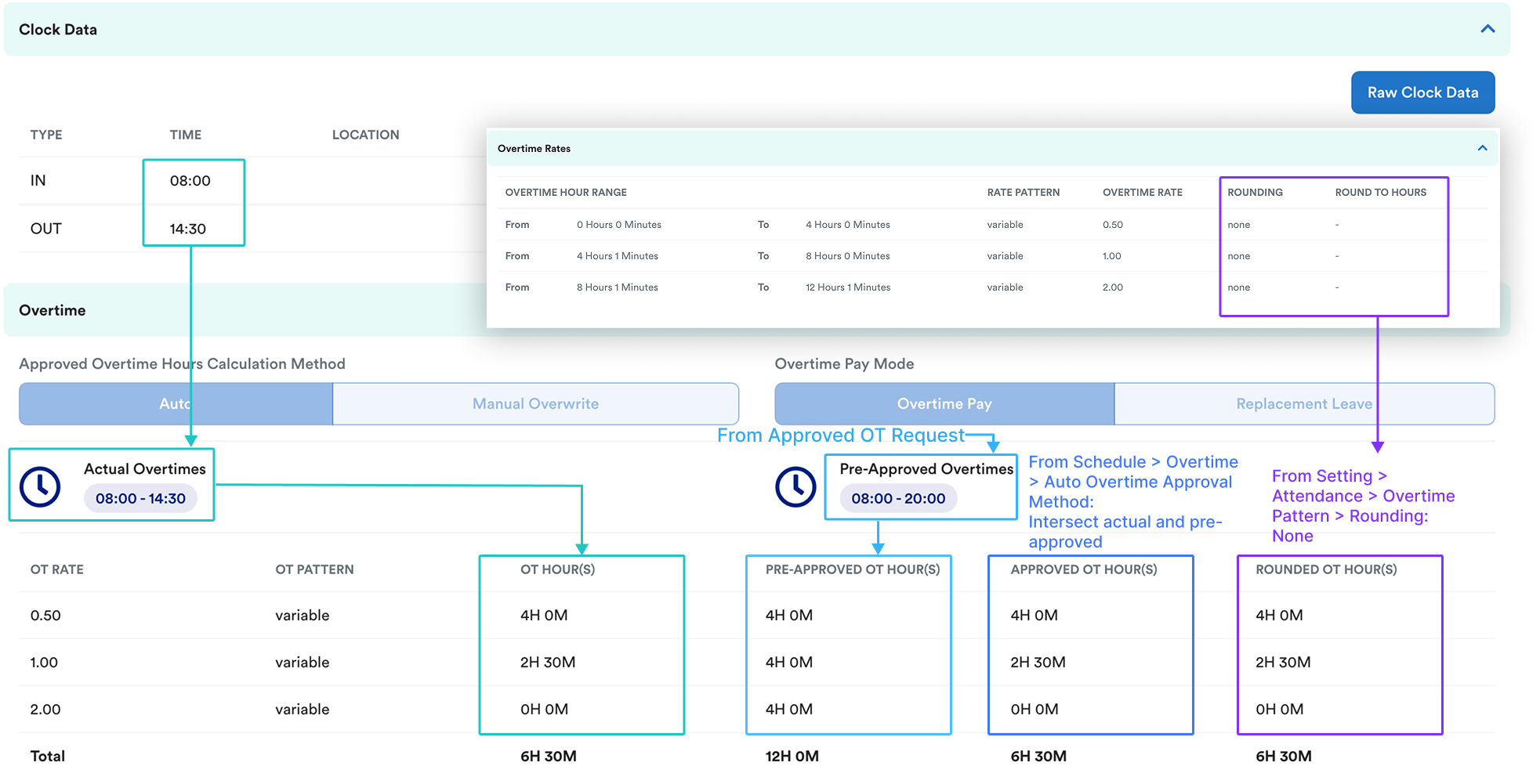
This shows the validated clock records after system checks have been applied (e.g. Minimum Interval Between Clock, Clocking Time Rounding).
To view the unprocessed records, click “Raw Clock Data”.
3. Overtime
3.1 Approved Overtime Hours Calculation Method: Setting > Attendance > Schedule > Overtime > Overtime Approval Method
3.2 Overtime Pay Mode: From OT Request Submission. "Both" can only be set in Settings > Attendance > Overtime Pattern, refer to How to Enable Both Overtime Pay and Replacement Leave as Overtime Pay Mode.

3.3 Actual Overtime: Work hours outside from schedule work shifts on workdays (example used is rest day)
3.4 Pre-Approved Overtimes: How to Get Pre-Approved Overtime?
3.5 Approved OT Hour(s): Setting > Attendance > Schedule > Overtime > Auto Overtime Approval Method, refer to Auto Overtime Approval Methods
(Click image for enlarged view)
4. Allowance
You may create daily allowance in Setting > Attendance > Daily Allowance. The entitled allowance in individual attendance is based on "Attendance Criteria" set in your daily allowance.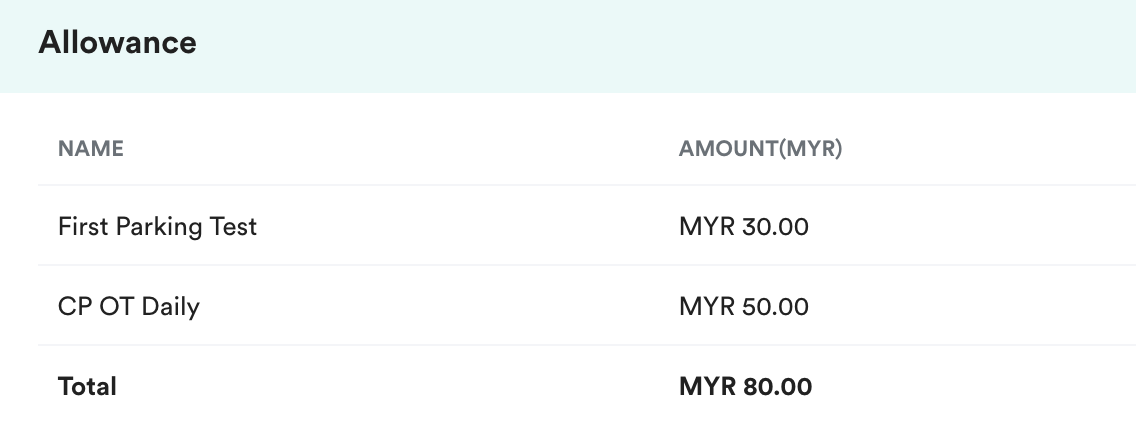
We hope this explanation clarifies the matter. If you require further assistance, please don't hesitate to contact our support team.
Was this article helpful?
That’s Great!
Thank you for your feedback
Sorry! We couldn't be helpful
Thank you for your feedback
Feedback sent
We appreciate your effort and will try to fix the article