Employee Attendance Management provides a comprehensive view of employee attendance records and allows you to update attendance information directly from one screen.
You can view attendance records within a selected date range and make updates in bulk without opening each attendance record individually.
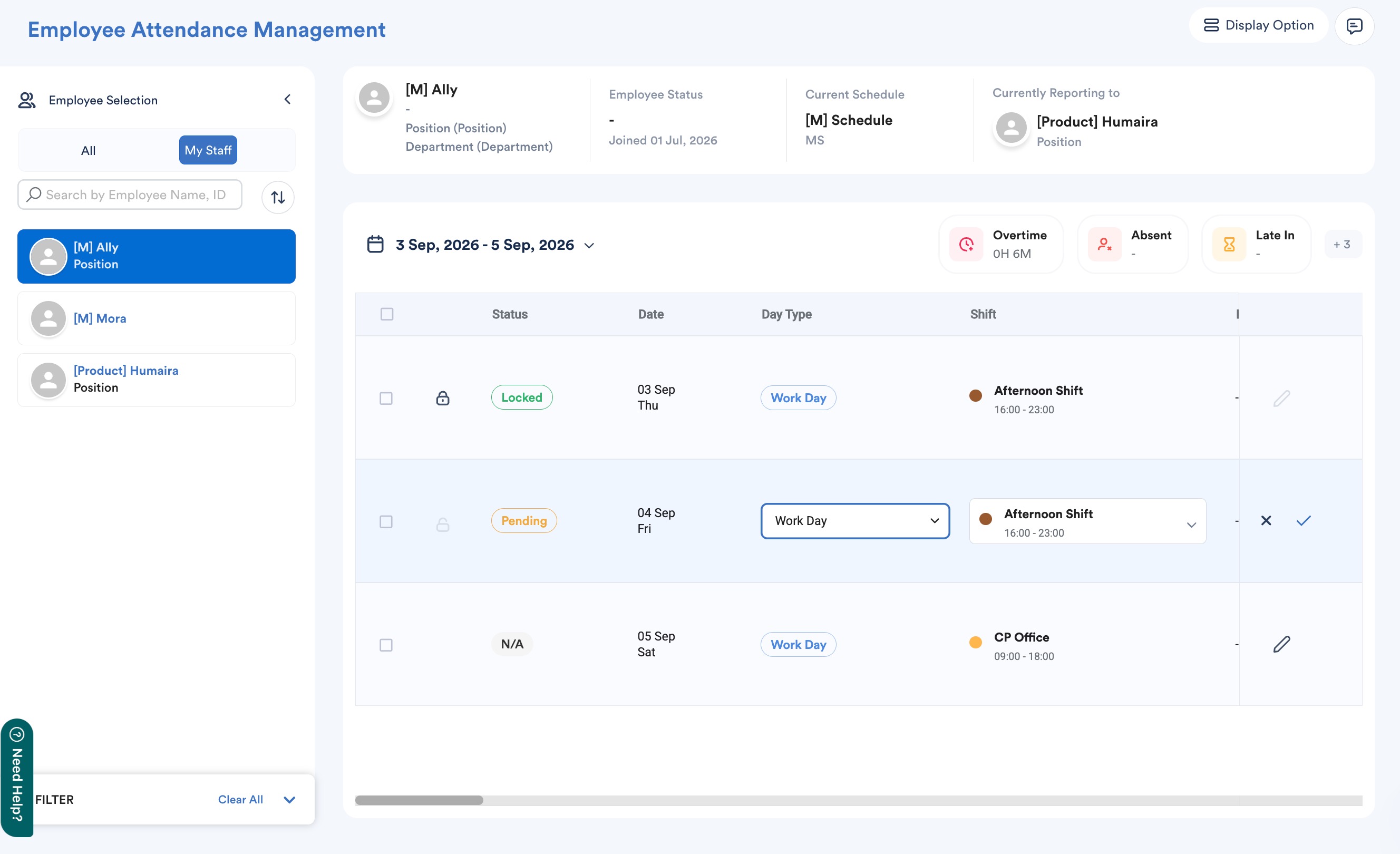
Changes made in Employee Attendance Management are automatically reflected in Daily Attendance and Individual Attendance.
A. Understanding the Attendance Screens
Worksy provides different screens for viewing and managing employee attendance:
- Daily Attendance: View employee attendance for a specific date. To update an attendance record, click the relevant date to open the Daily Attendance - Detail screen.
- Individual Attendance: View an individual employee's attendance over a selected date range. To update a record, click the relevant date to open the Individual Attendance - Detail screen.
- Employee Attendance Management: View attendance information by employee and date range, with the option to update multiple attendance records directly from the table.
B. Viewing Employee Attendance Management
To view employee attendance records:
Step 1
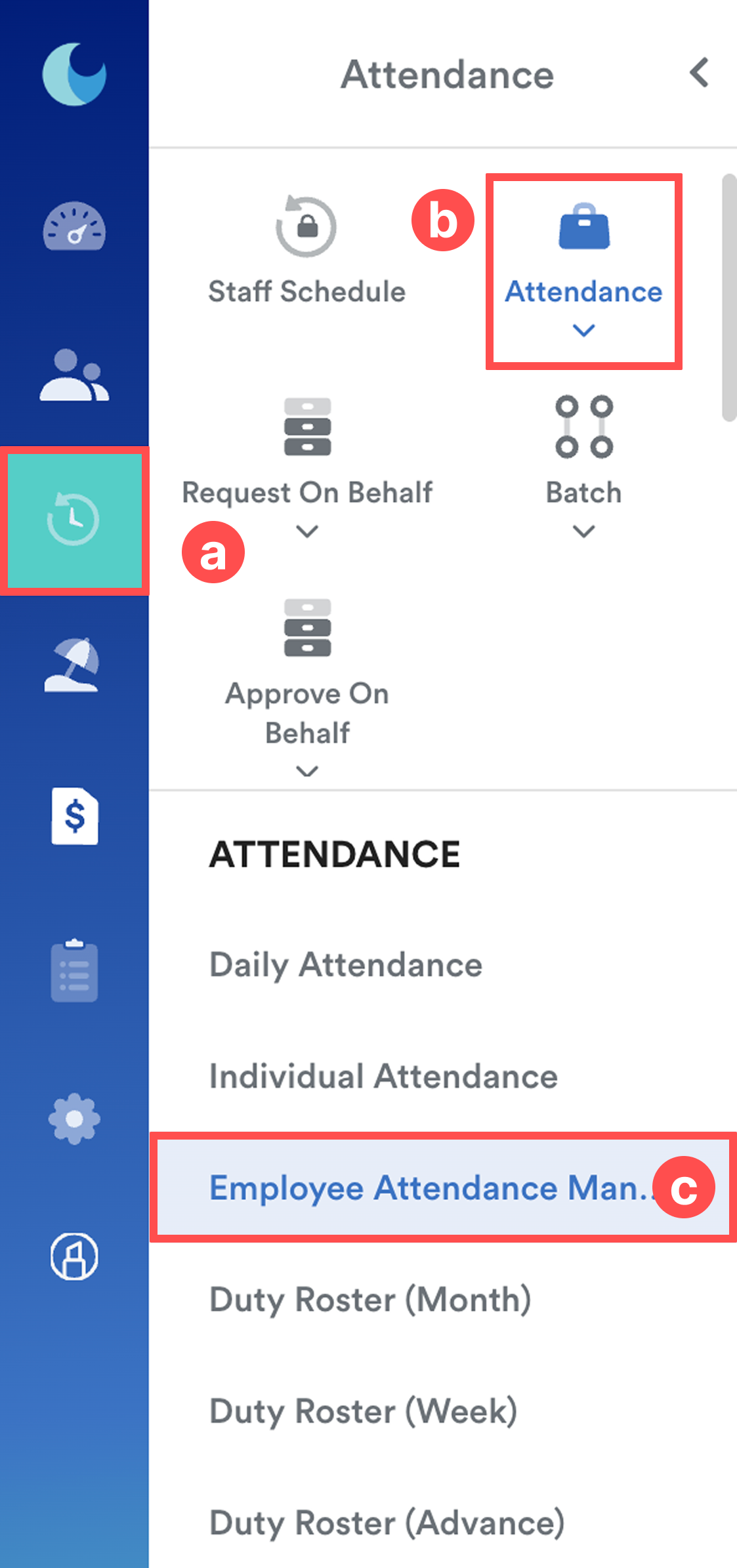
On the left menu, go to Attendance (a) > Attendance (b) > Employee Attendance Management (c).
Step 2
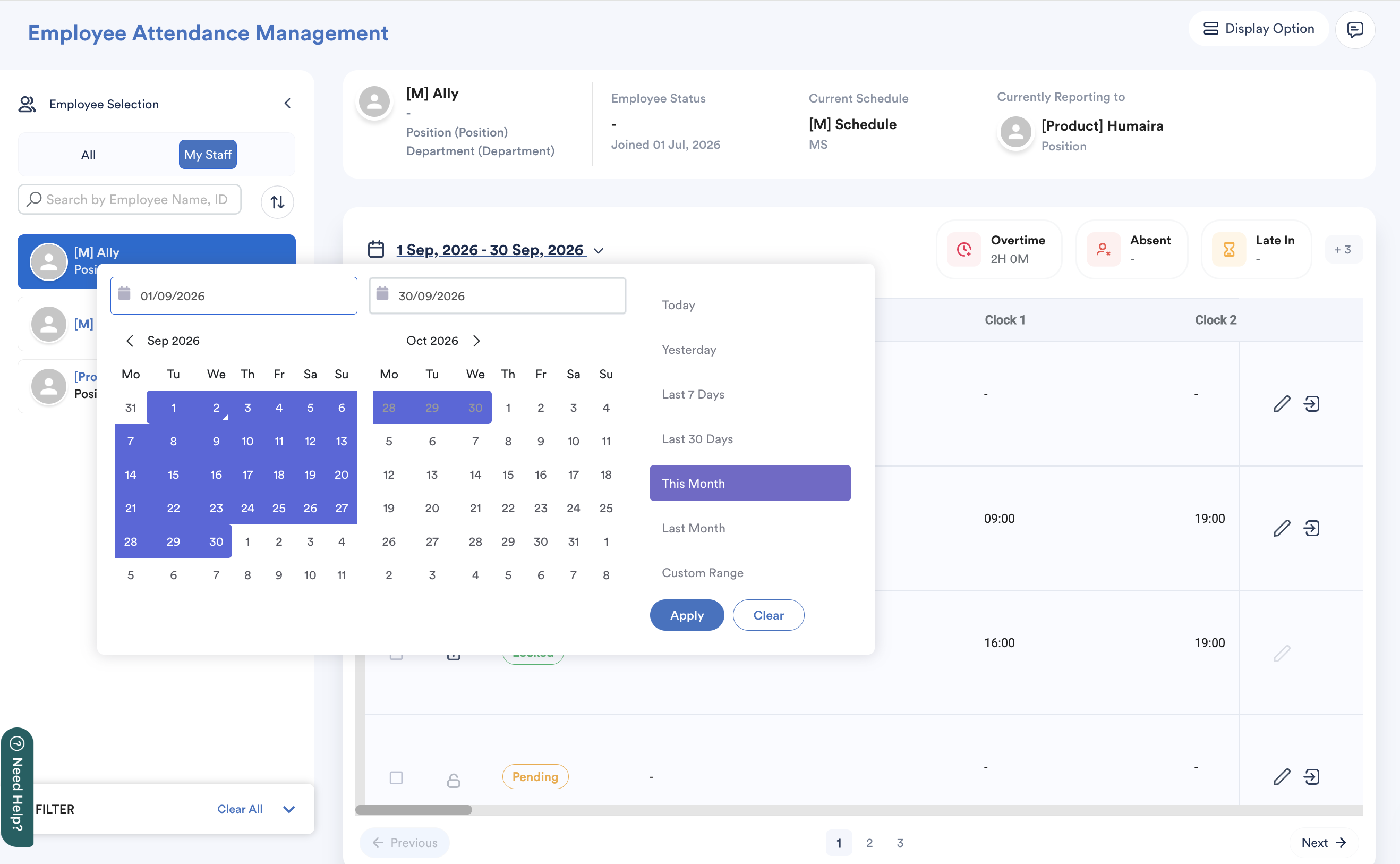
Select the employee and required date range.
Step 3
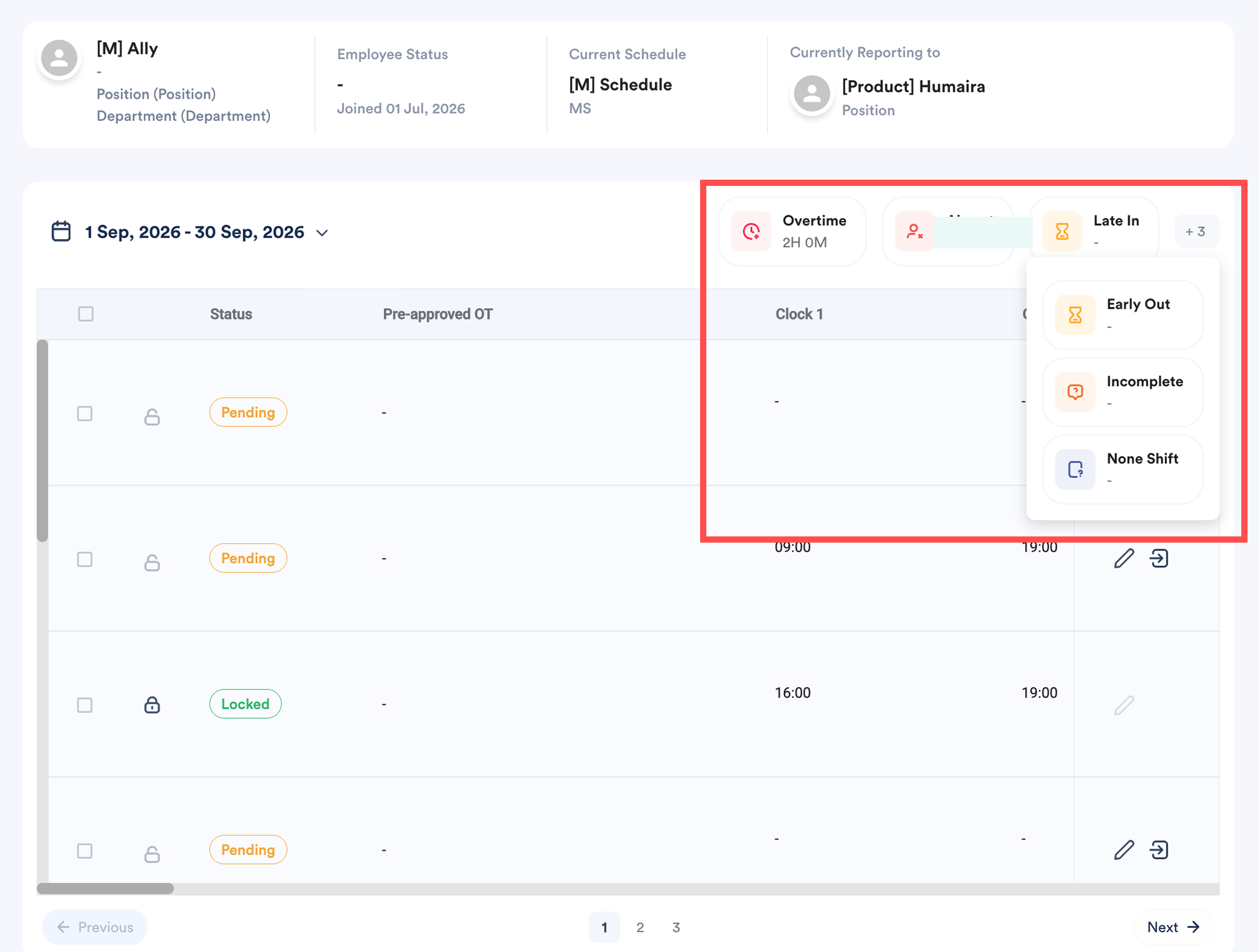
View the employee attendance records displayed in the table.
At the top of the table, the system displays a summary of attendance information for the selected date range, including: Overtime, Absent, Late In, Early Out, Incomplete, None Shift
C. Customizing the Display Options
You can customize the information displayed in the attendance table based on your requirements.
Step 1
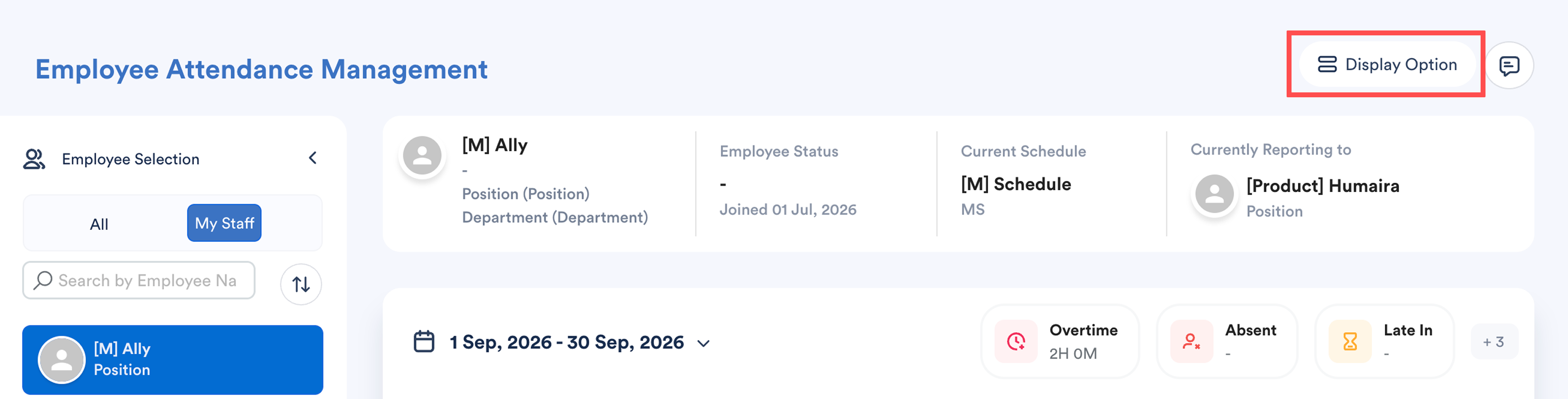
Click Display Option.
Step 2
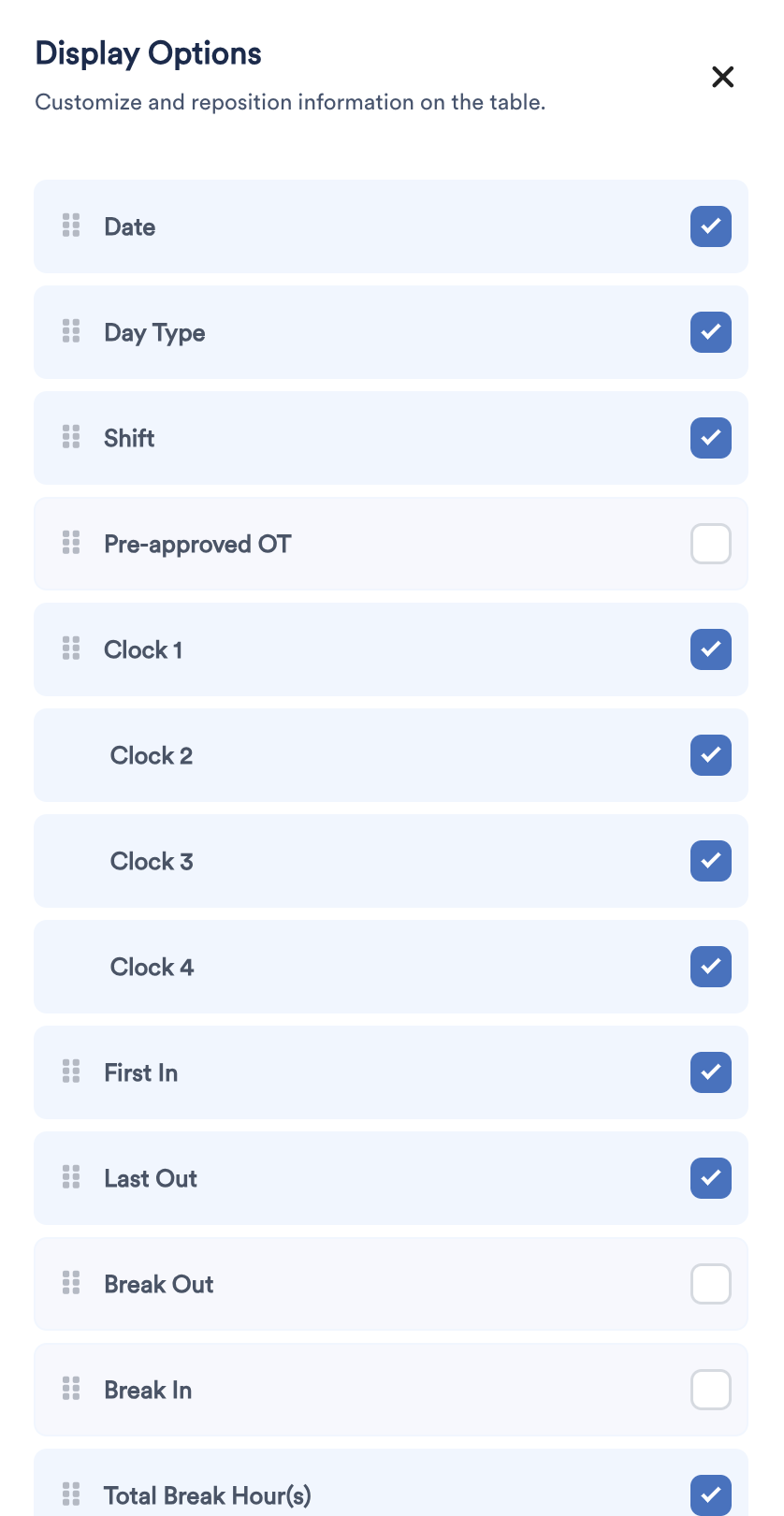
Select the information you want to display. Drag and drop the columns to reposition the selected information to arrange the columns in your preferred order.
D. Filtering Attendance Information
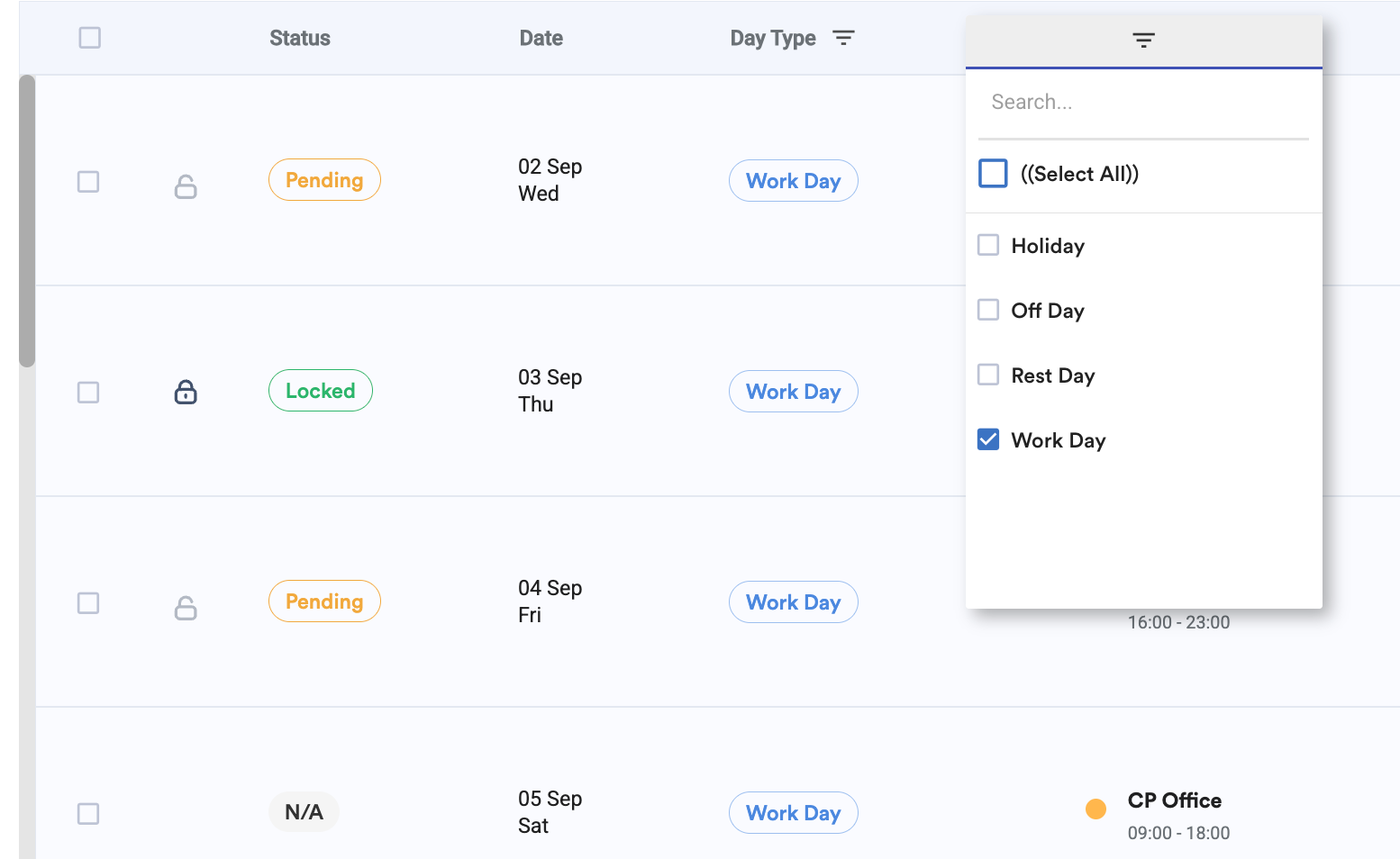
You can filter the following columns:
- Status
- Date
- Day Type
- Shift
To apply a filter, hover over the relevant column header. Click the menu icon, then select the required filter.
E. Updating Employee Attendance
You can update attendance information directly from the Employee Attendance Management table.
Depending on the information displayed, you can update:
- Day Type
- Shift
- Clock Data, with up to maximum eight clock records
- Approved Overtime Hours
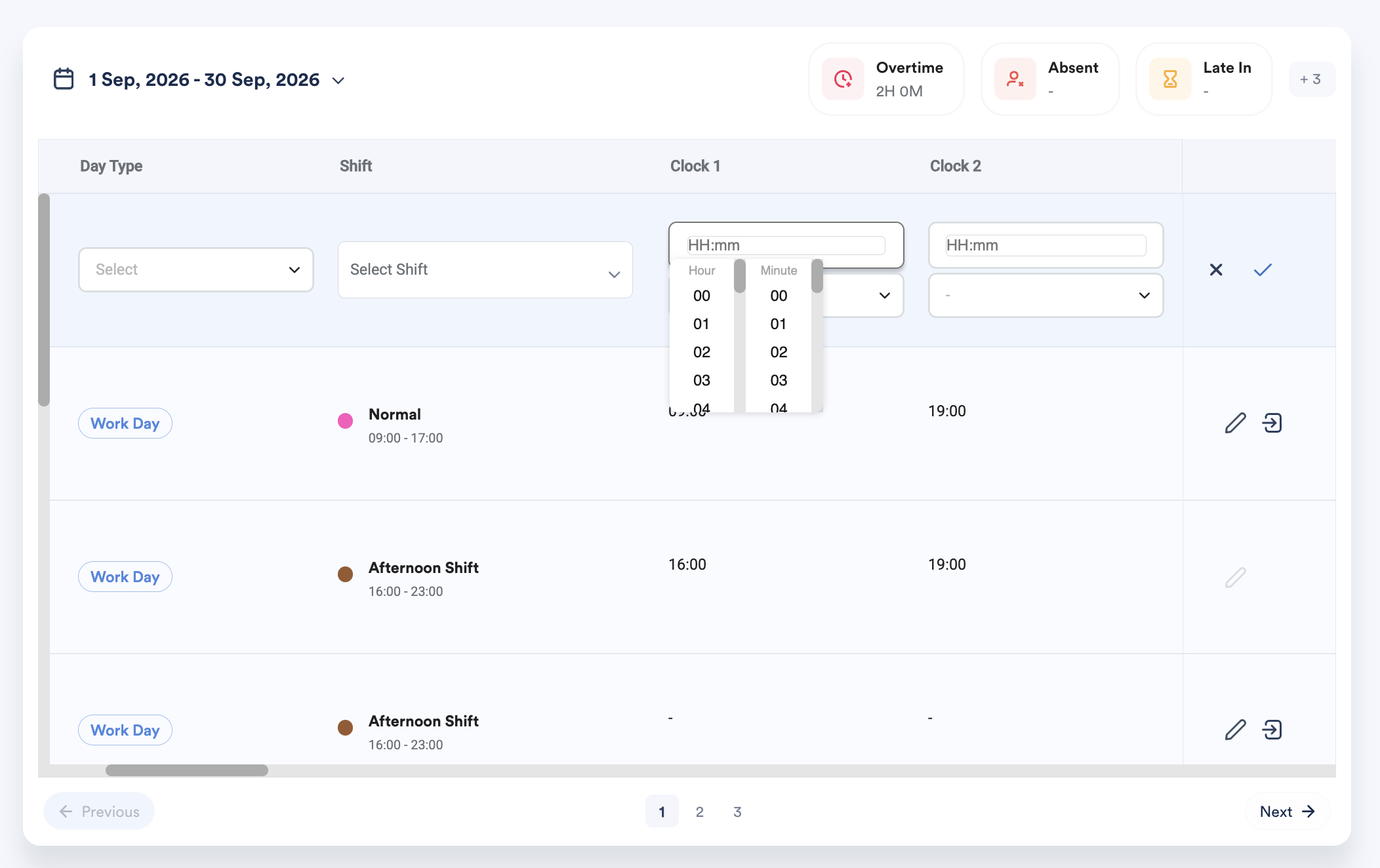
When you update an employee's clock data, the system also updates the related attendance information based on the changes made. This may include:
- First In and Last Out
- Break Out and Break In
- Total Break Hour(s)
- Scheduled Hour(s)
- Difference
- Exception
- Other related attendance information
After making your changes:
- Click the ✓ icon to save the changes.
- Click the ✕ icon to cancel the changes.
The updated attendance details and calculations follow the same information available in Daily Attendance and Individual Attendance, and any changes made are automatically reflected in both screens.
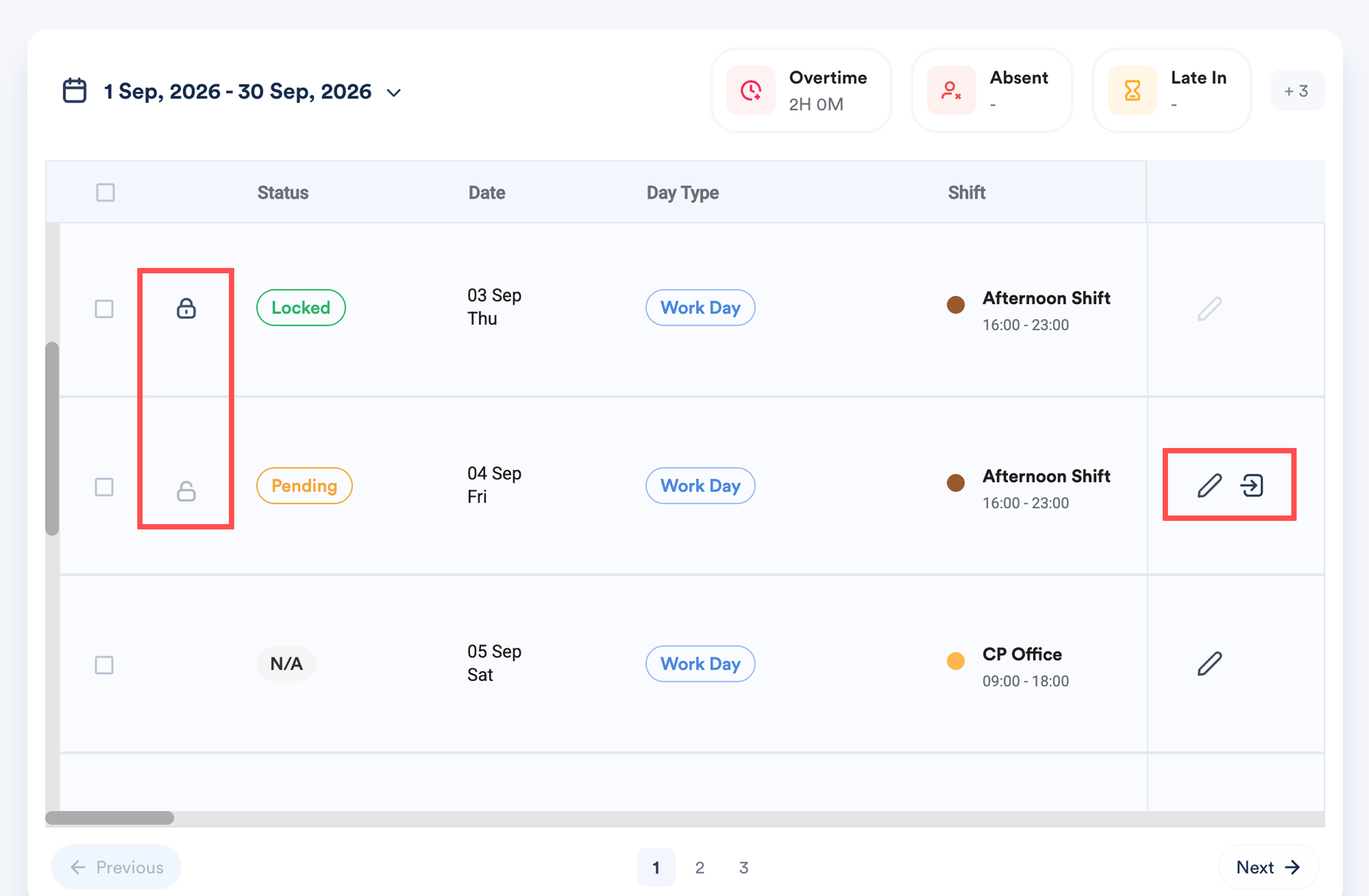
F. Locking and Editing Attendance Records
Each attendance row includes action icons that allow you to manage the attendance record.
- Lock: Locks the attendance record to prevent further editing.
- Edit: Allows you to edit the attendance information.
- Purge: Removes manually applied changes from the attendance record.
G. Viewing the Audit Log
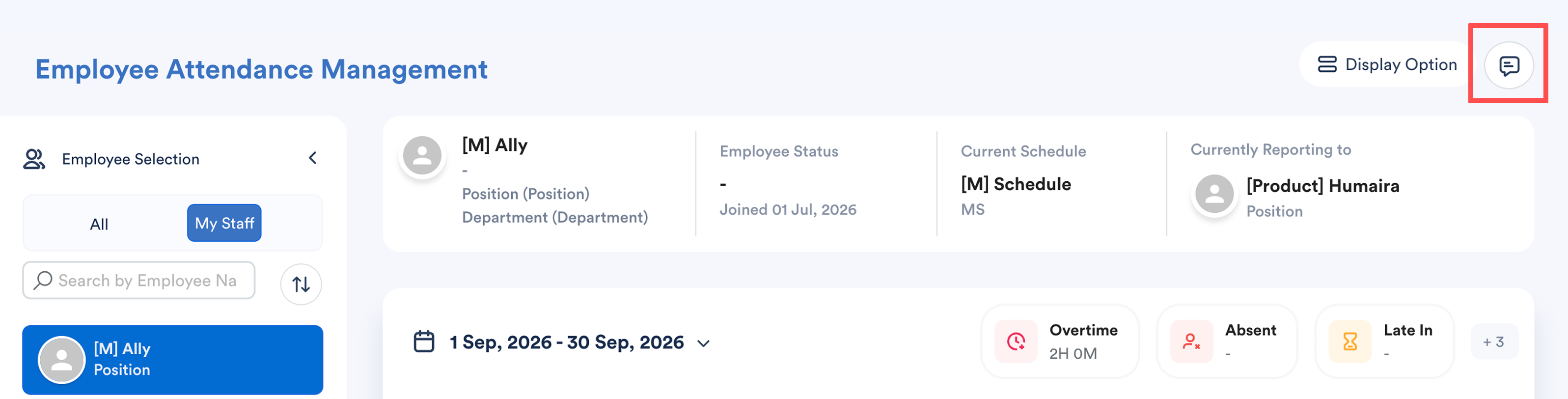
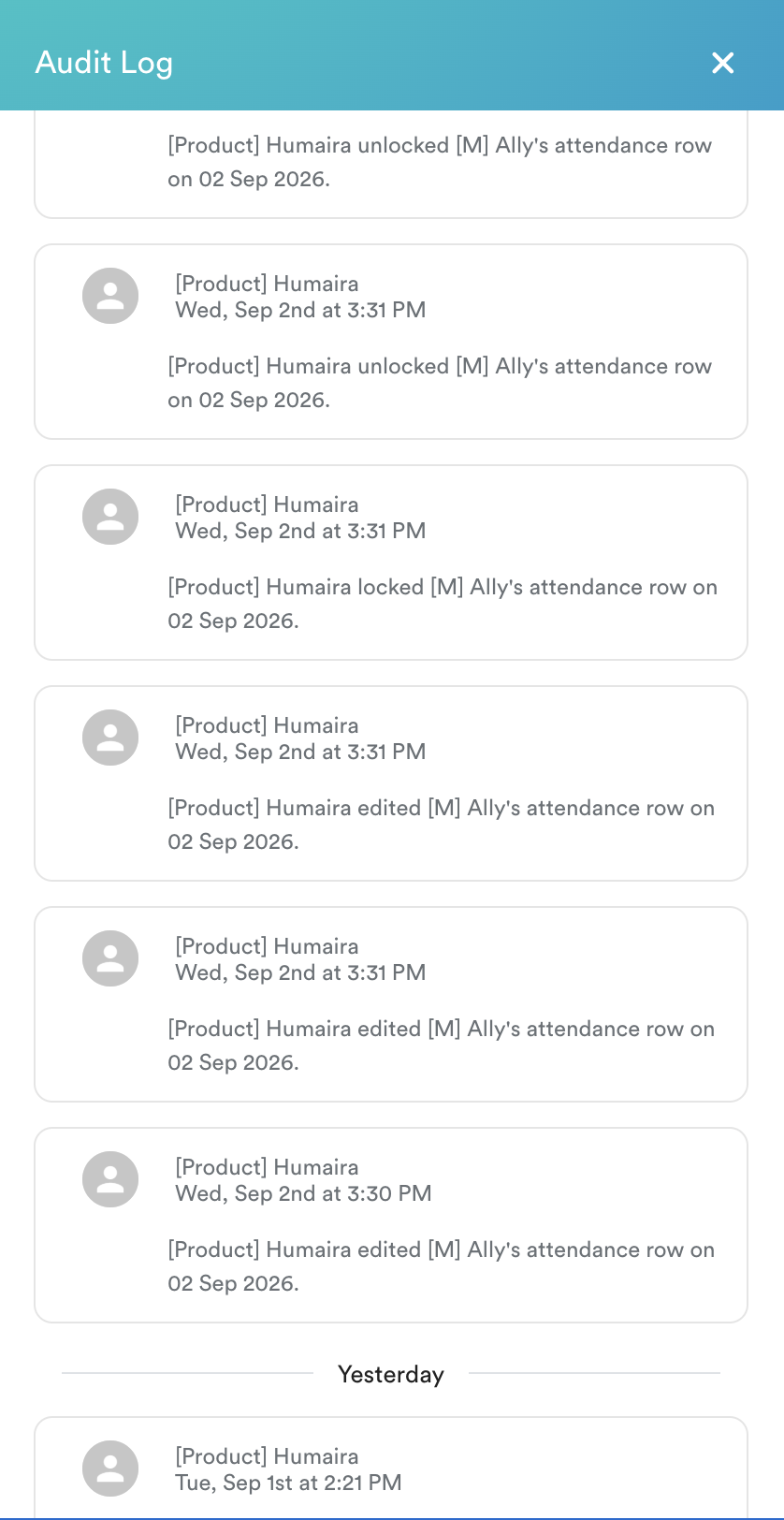
Click Audit Log next to Display Options to view the activity trail for changes made to the attendance information.
The Audit Log helps you track updates and review activities performed on employee attendance row.
We hope this explanation clarifies the matter. If you require further assistance, please don't hesitate to contact our support team.
Was this article helpful?
That’s Great!
Thank you for your feedback
Sorry! We couldn't be helpful
Thank you for your feedback
Feedback sent
We appreciate your effort and will try to fix the article