In the system, the Tax Category is the primary setting that determines how a payroll item is treated for tax purposes. It controls whether an item is tax-exempt or taxable, whether statutory deductions apply, and how the amount is reflected in the EA Form.
The system relies on the assigned Tax Category to automatically apply the correct LHDN exemption rules and map the amount to the appropriate EA Form section.
For official guidance on Section F and tax-exempt allowances, you may refer to LHDN - Nota untuk Bahagian F Borang EA
Step 1
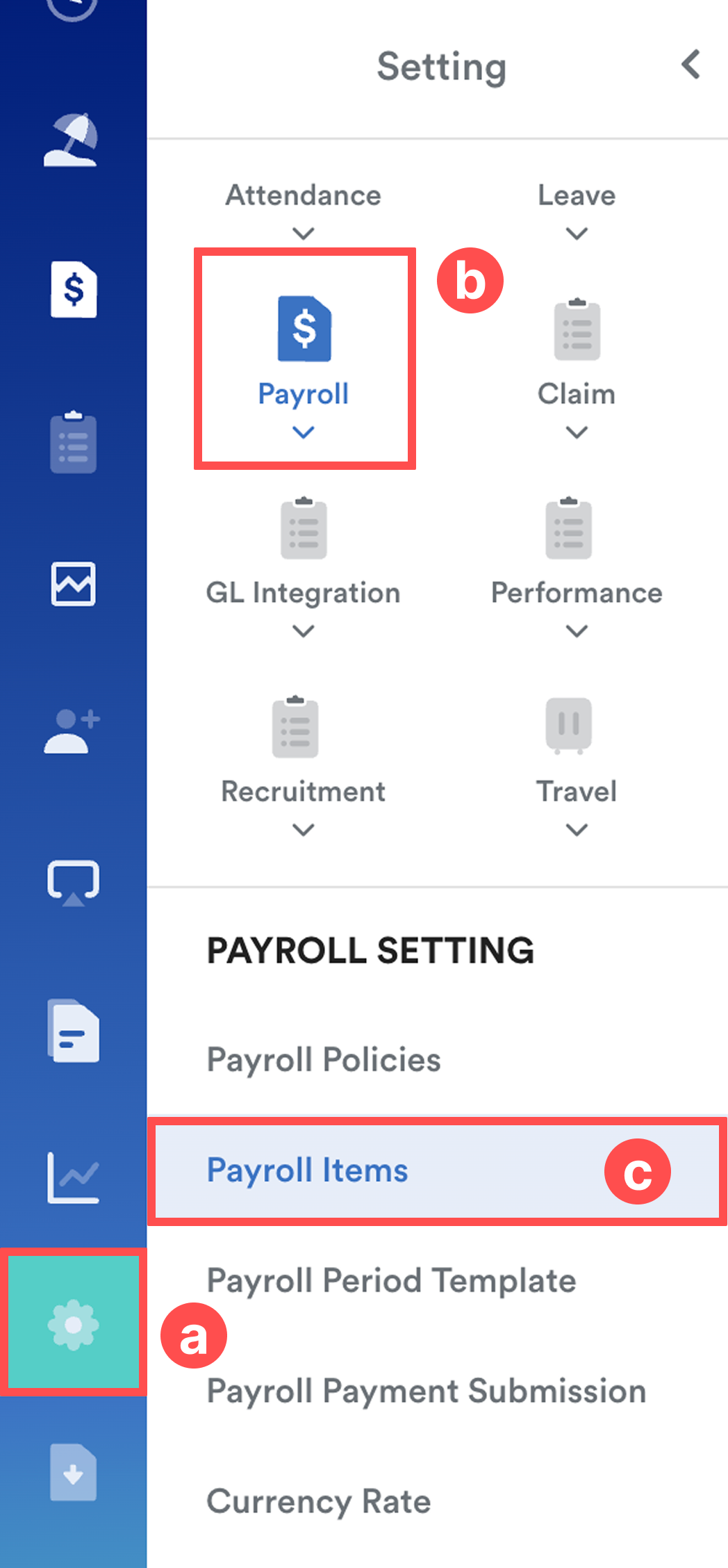
On the left menu, go to Settings (a) > Payroll (b) > Payroll Items (c) and select the relevant item or Add New.
Step 2
Under Government Statutory section, select the correct Tax Category.
From the Tax Category dropdown, choose the option that matches the allowance or income type:
Meal Allowance
Zakat
Petrol Allowance / Petrol Card
Childcare Allowance
Broadband / Telco Allowance
BIK / VOLA (Benefit in Kind / Vehicle)
Service / Achievement Award
Loan
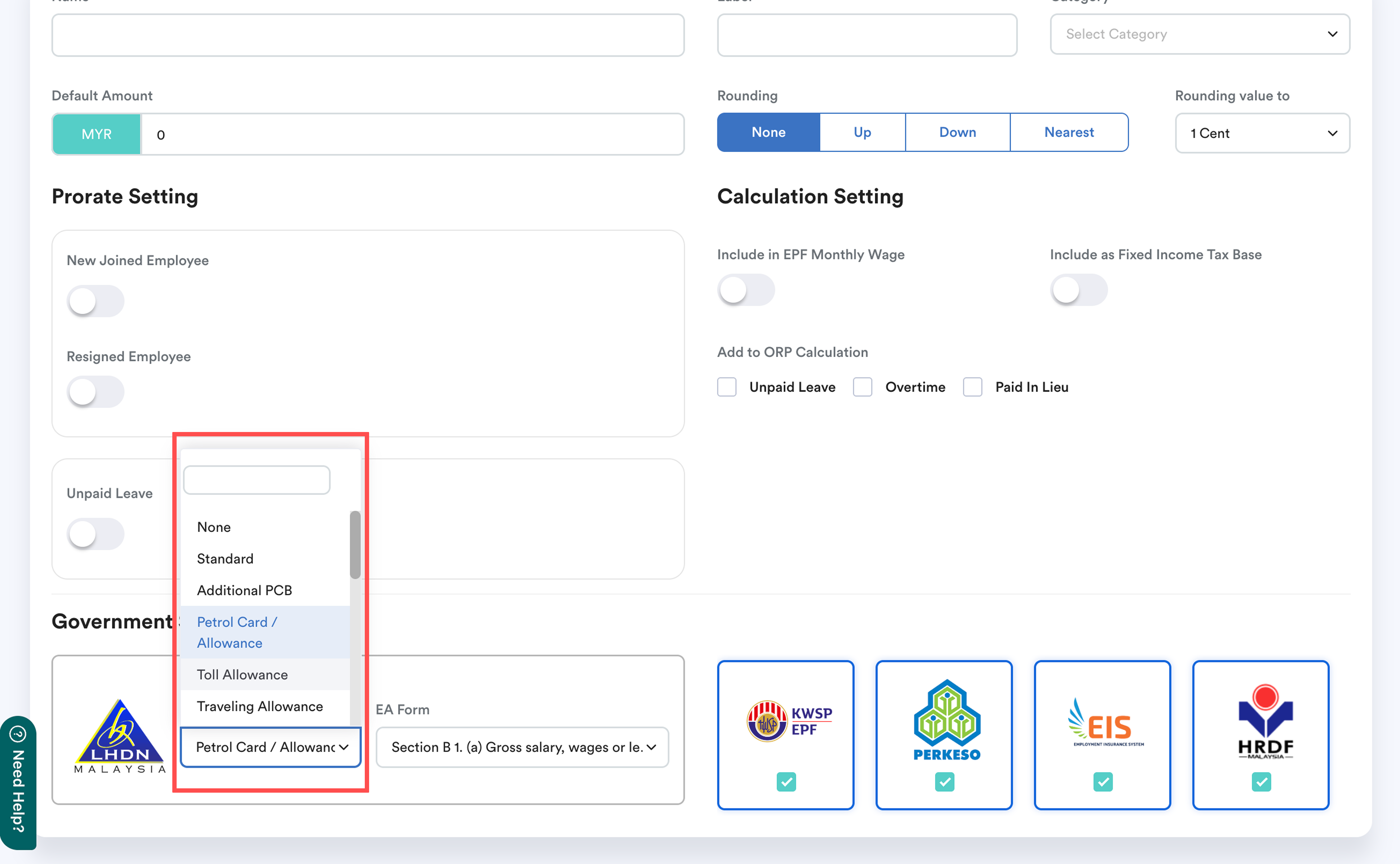
Once the correct Tax Category is applied, the system will:
Sort tax-exempt amounts to Section F
Put taxable amounts or amounts exceeding the exemption limit to Section B
Step 3
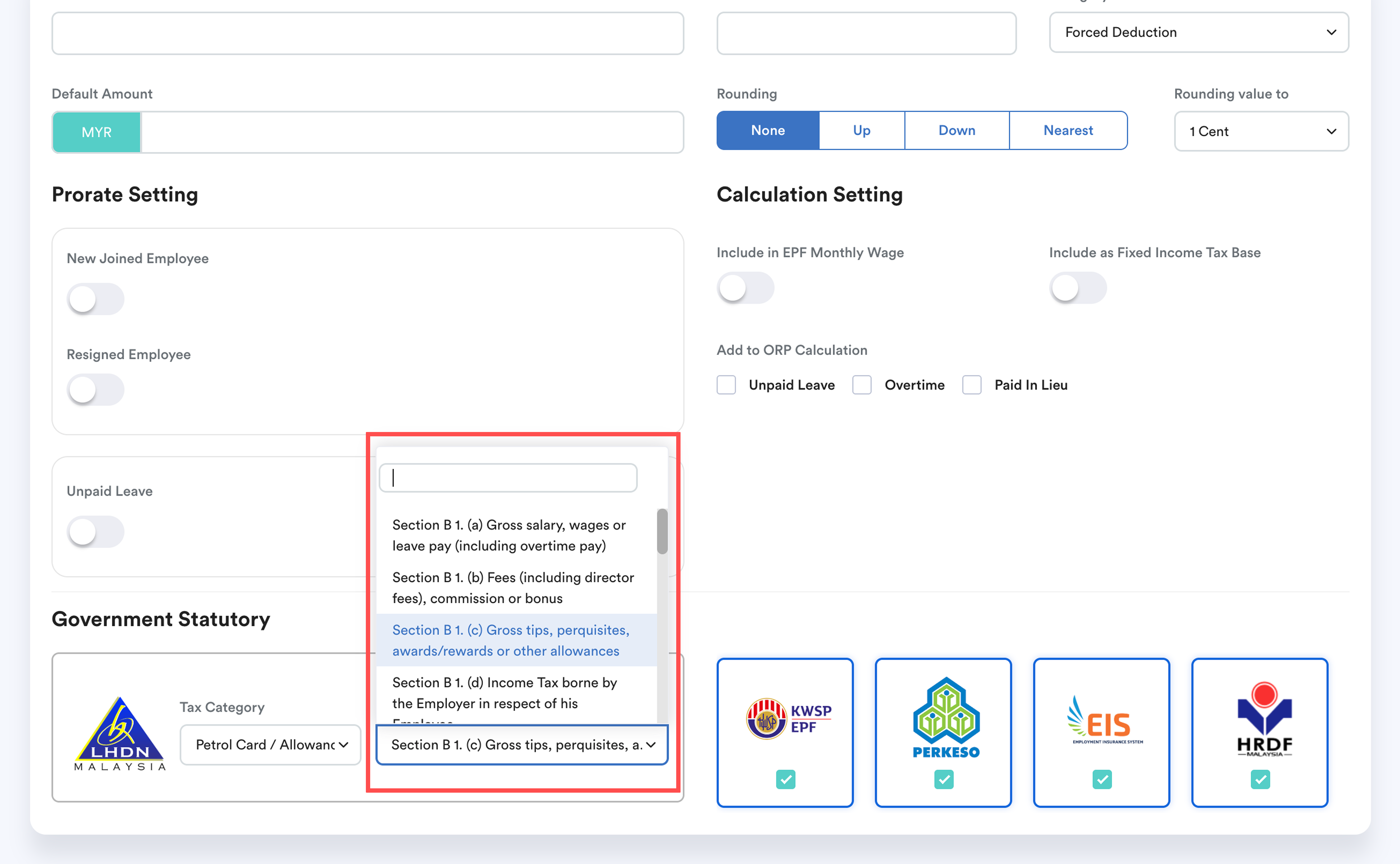
Select the relevant EA Form categories in the dropdown list.
Make sure to select the correct category as it will determine the excess tax exemption amount to appear in the right section in EA Form.
Quick info:
Section B – Employment Income (Taxable)
Includes salary, allowances, bonuses, benefits-in-kind, and any taxable portion of allowances.
- Examples: Gross salary, overtime, leave pay, director fees, commissions, tips, BIK, VOLA, awards.
- Tax-exempt portions go to Section F; any excess appears under Section B.
Section C – Pension / Periodical Payments
Includes retirement or non-regular periodic income separate from salary.
- Examples: Pension, annuities, other periodic payments.
Section D – Deductions
Reduces taxable income.
- Examples: PCB, zakat, approved deductions withheld by employer.
Step 4
Tick the relevant statutory boxes (KWSP, SOCSO, EIS, HRDF) if the item is meant to be included in statutory calculations.
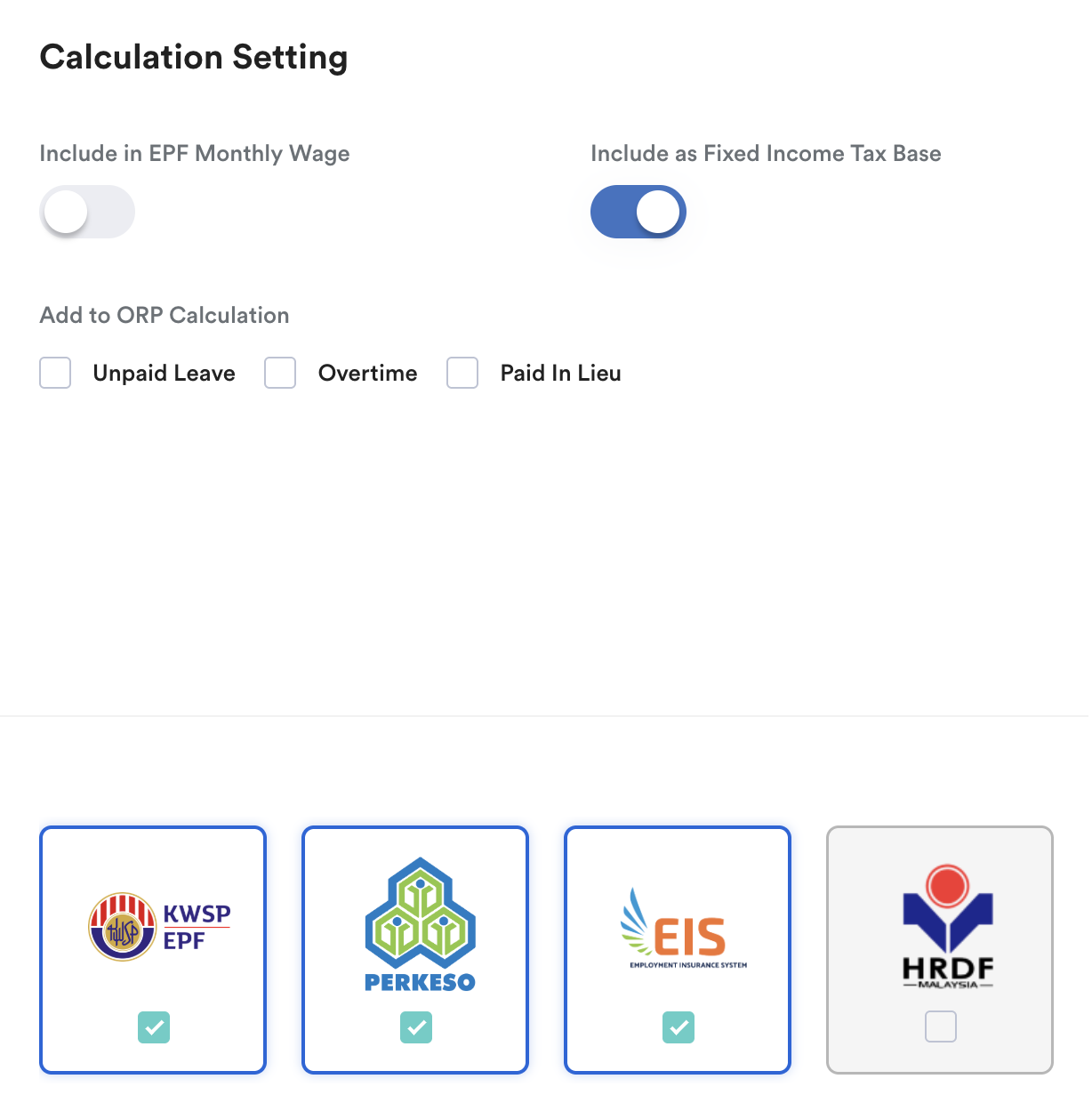
For recurring items like Fixed Allowance, toggle on Include as Fixed Income Tax Base to ensure correct statutory calculation.
You may refer to: Statutory Deductions and Employer Contributions List or Fixed and Additional Income Tax Base
Click Save.
Related:
- Can I Adjust Payroll Figures in the EA Form Without Processing Again?
- Tax Exempt Items and Limit for EA Form Section F
- Explain EA Form Section F Tax Exempted Amount
- SOCSO Appearing in EA Form D.5.a (Auto Include SOCSO/EIS in TP1)
We hope this explanation clarifies the matter. If you require further assistance, please don't hesitate to contact our support team.
Was this article helpful?
That’s Great!
Thank you for your feedback
Sorry! We couldn't be helpful
Thank you for your feedback
Feedback sent
We appreciate your effort and will try to fix the article