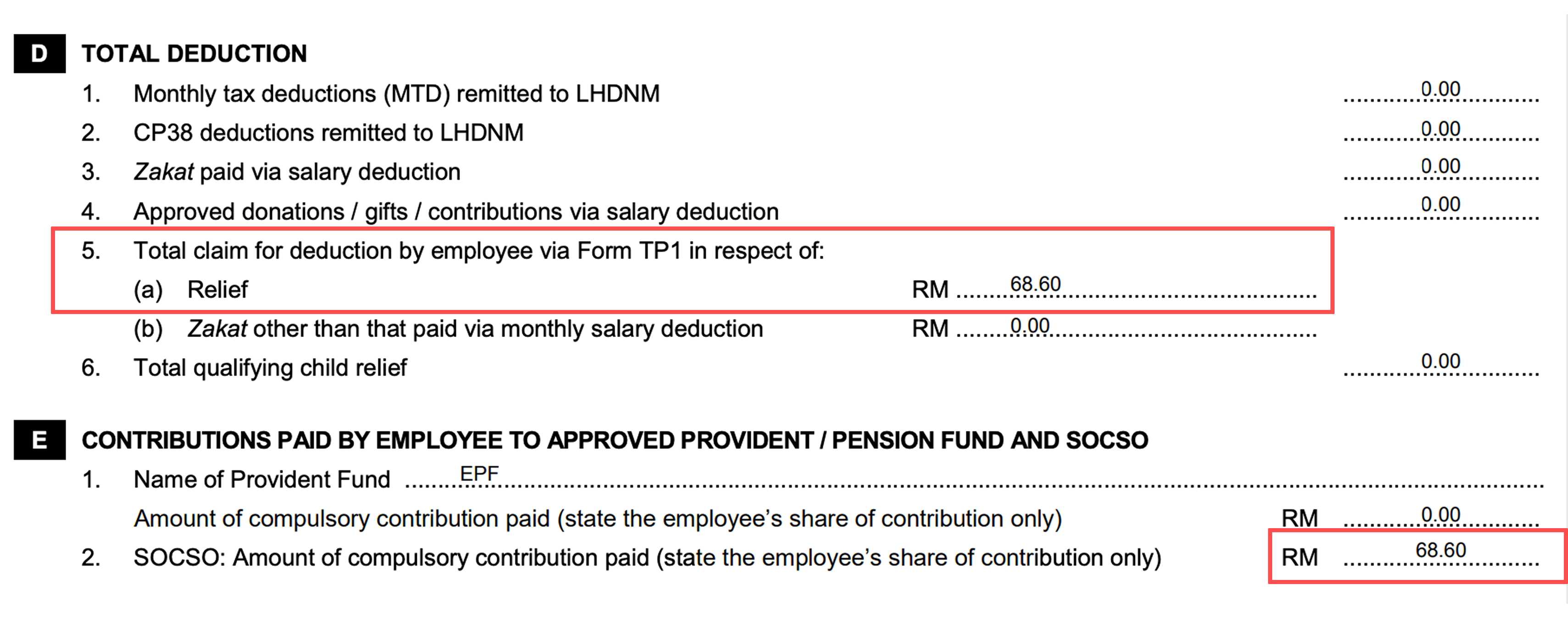
SOCSO and EIS contributions appear under EA Form Section D Item 5(a) only when “Auto-Include SOCSO/EIS in TP1” is enabled.
If you tick this, it will show as ∑LP (ELP) value in PCB calculation.
If you would like to edit E2 amount, you may refer to Adjust Payroll Figures Take On (PFTO) to Reflect on EA Form.
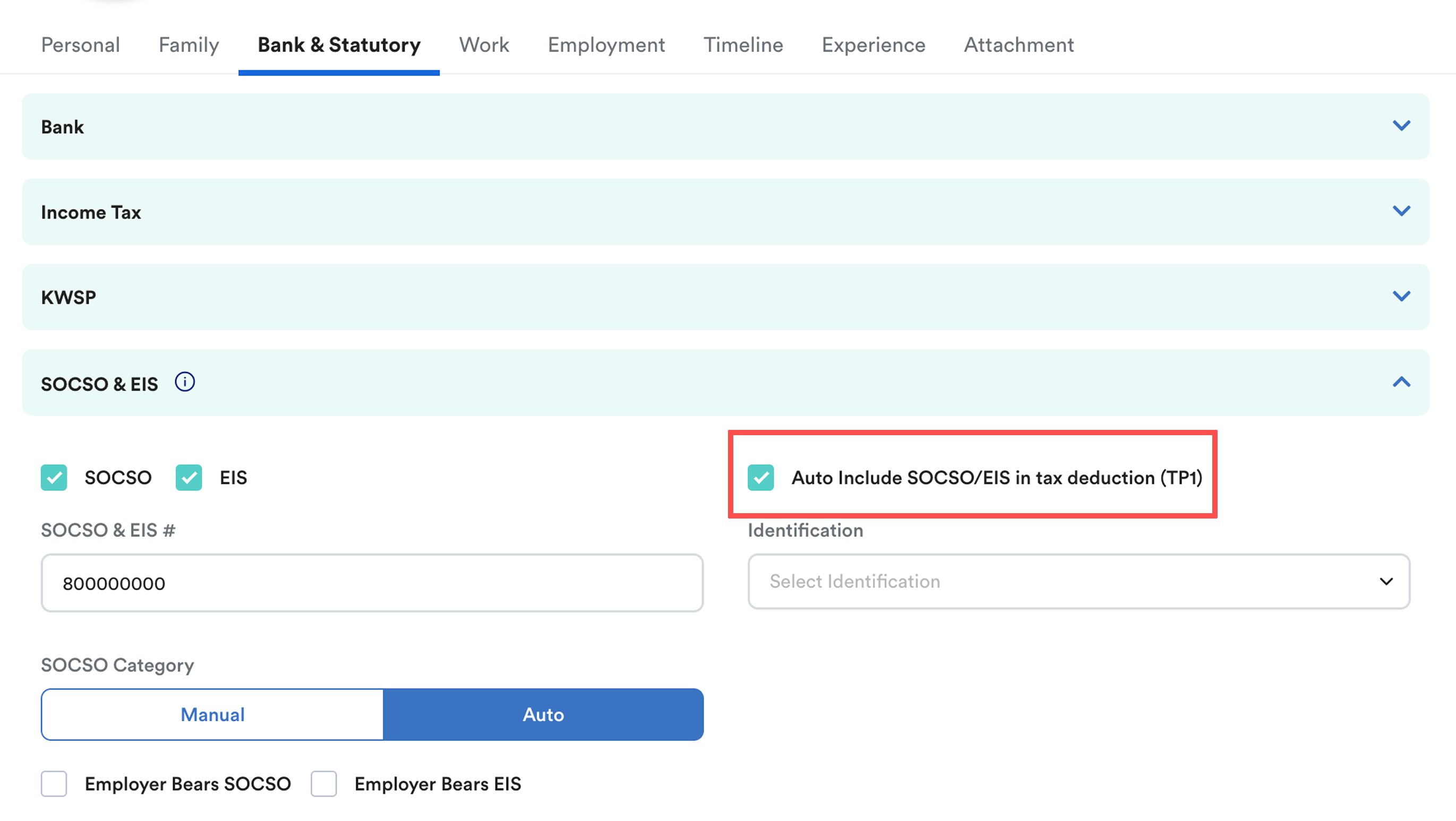
In this setup, SOCSO/EIS is treated as a tax relief for Monthly Tax Deduction (MTD) purposes, rather than just a statutory contribution.
TABLE OF CONTENTS
How SOCSO Affects MTD
The MTD calculation from the LHDN Calculator shows that including SOCSO reduces the monthly tax deducted:

Where:
- ELP = Accumulated relief from previous months
- LP1 = Relief for the current month
The combined ELP + LP1 represents the total relief applied to reduce taxable income for the current month. When SOCSO/EIS is included in TP1, it contributes to ELP and LP1, thereby reducing the employee’s PCB
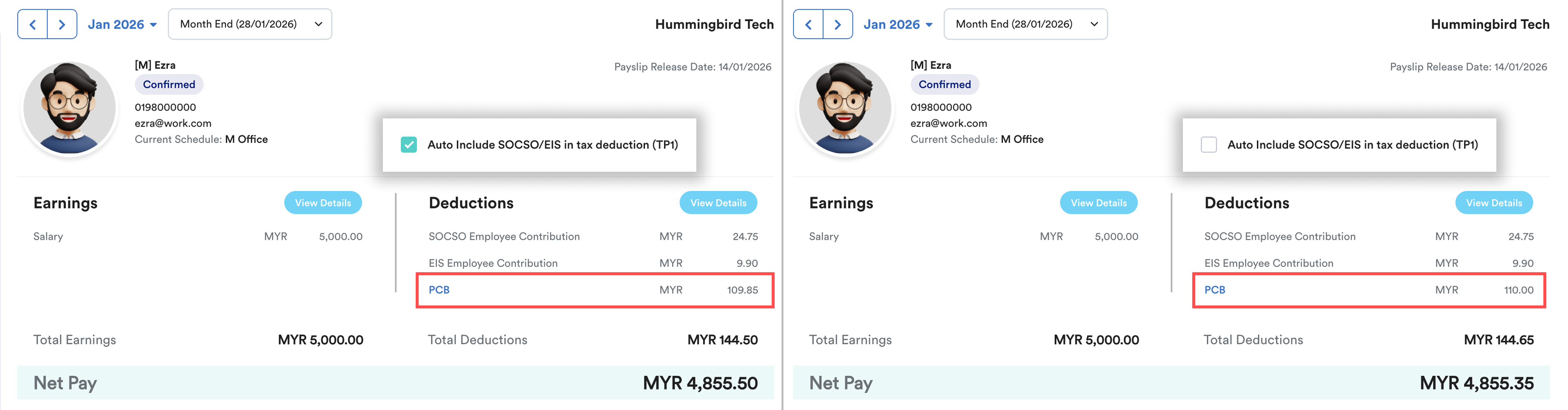
More relief (e.g. SOCSO/EIS) → lower monthly tax deduction.
This explains why SOCSO/EIS contributions, when auto-included in TP1, show up under EA Form D.5(a). It's because they directly impact MTD calculations.
What Is the TP1 Form?
The TP1 Form is an internal declaration by the employee to the employer to:
- Apply eligible reliefs (e.g., SOCSO/EIS)
- Reduce MTD throughout the year
Note:
- Not submitted to LHDN
- Kept by the employer as supporting documentation
- Directly affects MTD and EA Form reporting
Since SOCSO/EIS has been set to auto-include in TP1, it is considered a relief amount reflected under D.5(a) of the EA Form. This is the correct procedure, as SOCSO contributions can be claimed as relief in the relevant year of assessment, up to the RM350 limit

Source: LHDN - Pelepasan Cukai Tahun Taksiran 2025
Recommended Practice
To ensure SOCSO and EIS appear correctly under EA Form D.5(a), tick the "Auto-Include SOCSO/EIS in TP" box in the employee profile. This treats SOCSO/EIS as tax relief and automatically reduces MTD.
If TP1 wasn't enabled before payrolls were processed, the relief can be added manually via the Payroll Figure Take On (PFTO) screen to keep TP1 and EA Form D.5(a) accurate.
Related: How to Update Employee TP 1 Form?We hope this explanation clarifies the matter. If you require additional assistance, do not hesitate to contact our support team.
Was this article helpful?
That’s Great!
Thank you for your feedback
Sorry! We couldn't be helpful
Thank you for your feedback
Feedback sent
We appreciate your effort and will try to fix the article