Step 1
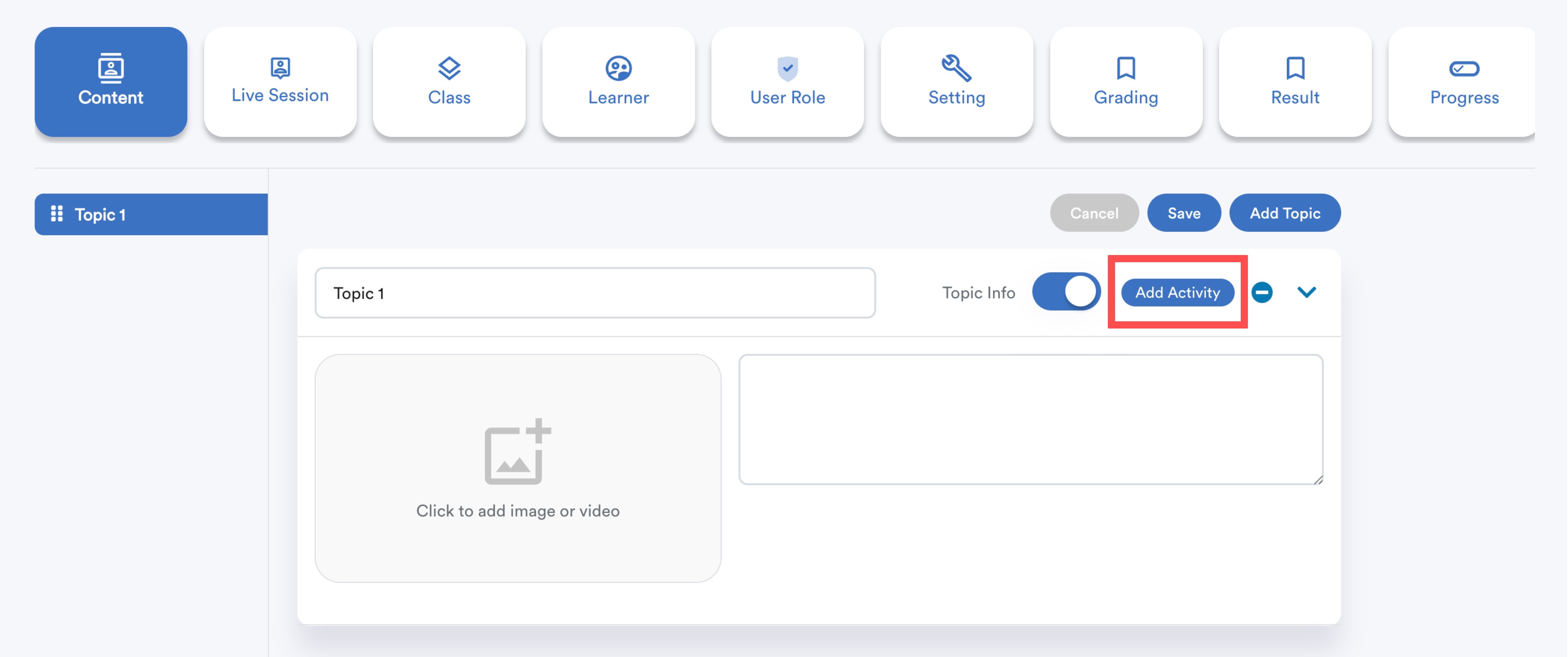
Every course must have at least one topic. After adding a topic, click Add Activity.
Step 2
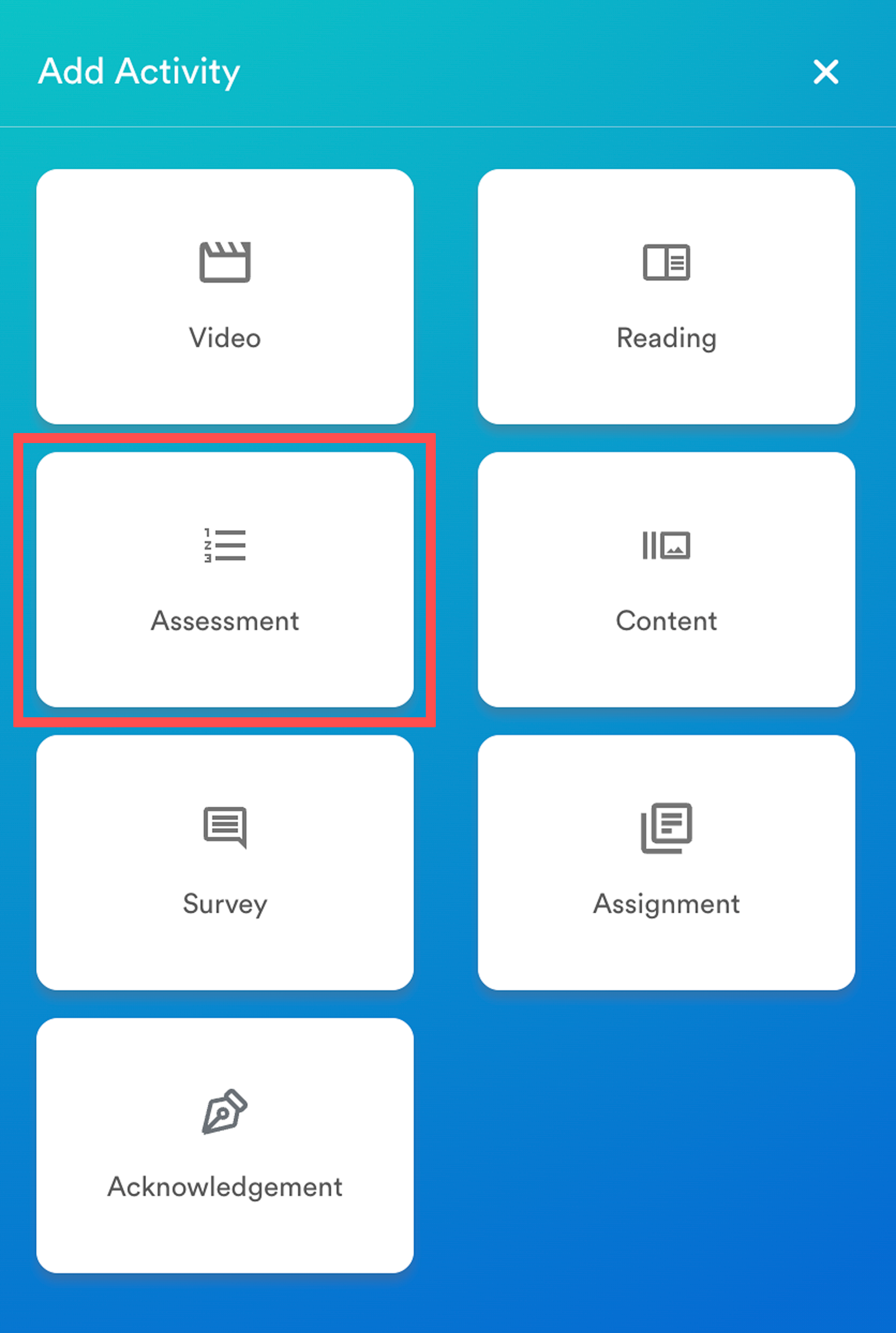
In the activity menu that slides in from the right, click Assessment.
Step 3: Settings
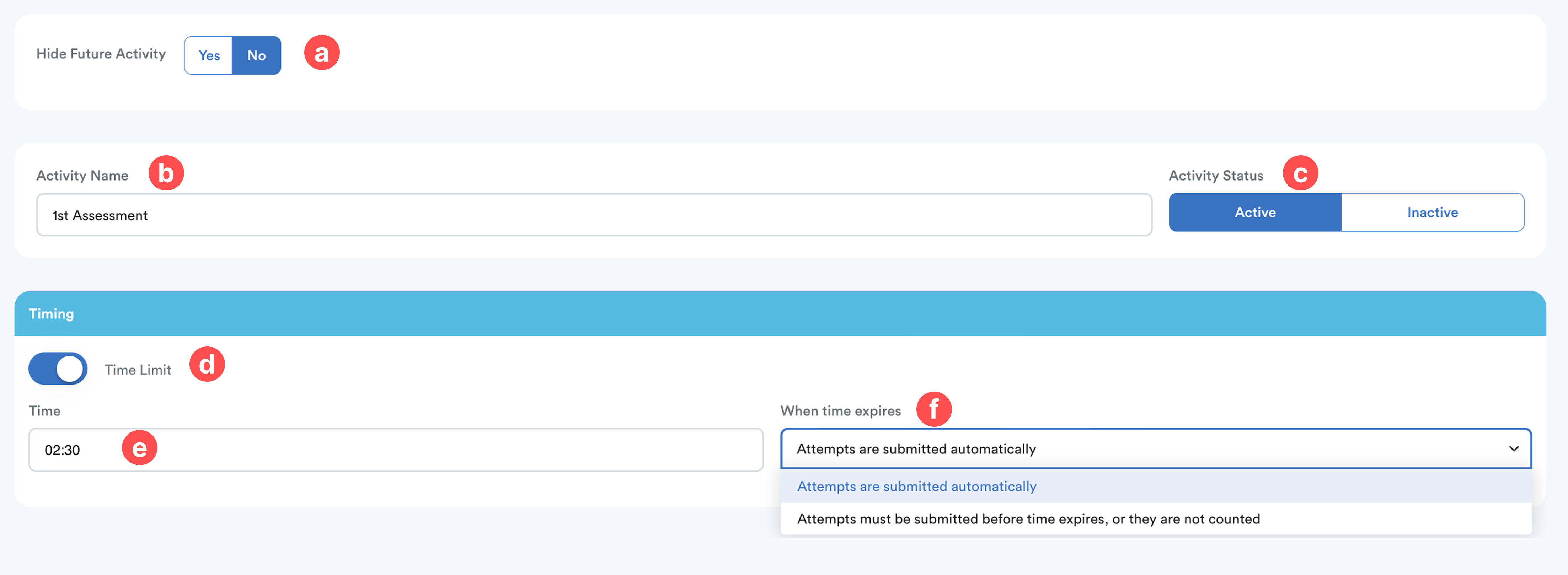
a. Hide Future Activity - Enable this if you want to hide upcoming activities from learners.
b. Activity Name - Enter a title for this survey.
c. Activity Status - Set to Active or Inactive. Inactive surveys will not be visible or accessible to learners.
d. Time Limit - Toggle this on if you want to set a time restriction for the assessment.
e. Time - Specify the time limit (hours:minutes).
f. When time expires - Choose what happens when the timer ends:
- Attempts are submitted automatically
- Attempts must be submitted before time expires or they are not counted
Grade
- Score to Pass (Marks) - Enter the minimum score learners must achieve to pass this assessment.
- Attempts Allowed - Choose Unlimited or specify a number (up to 10).
- Grading Method - Select how the final grade is calculated:
- Highest grade
- Average grade
- First attempt
- Last attempt
- Hide Identity - Choose Yes or No if you want to anonymize learner identities during grading.
Question Behavior

- Shuffle Question - Choose whether questions should appear in random order or follow your original sequence.
- Navigation Method - Free: learners can skip or jump between questions, or Sequential: learners must answer questions in order.
Learner Review

For each stage, After the Attempt or After Closed, choose whether learners can see:
- Whether Correct
- Marks
- Right Answer
Completion Policy

Completion Type - choose whether learners must:
- Meet any condition, or
- Meet all conditions
and toggle the required conditions:
- All available attempts completed
- Require passing grade

Activity Completion - This dropdown lists all activities in the course. Select if learners must complete any activity before accessing this assessment.
Step 4: Questions
This section is where you create and manage the questions for the assessment.
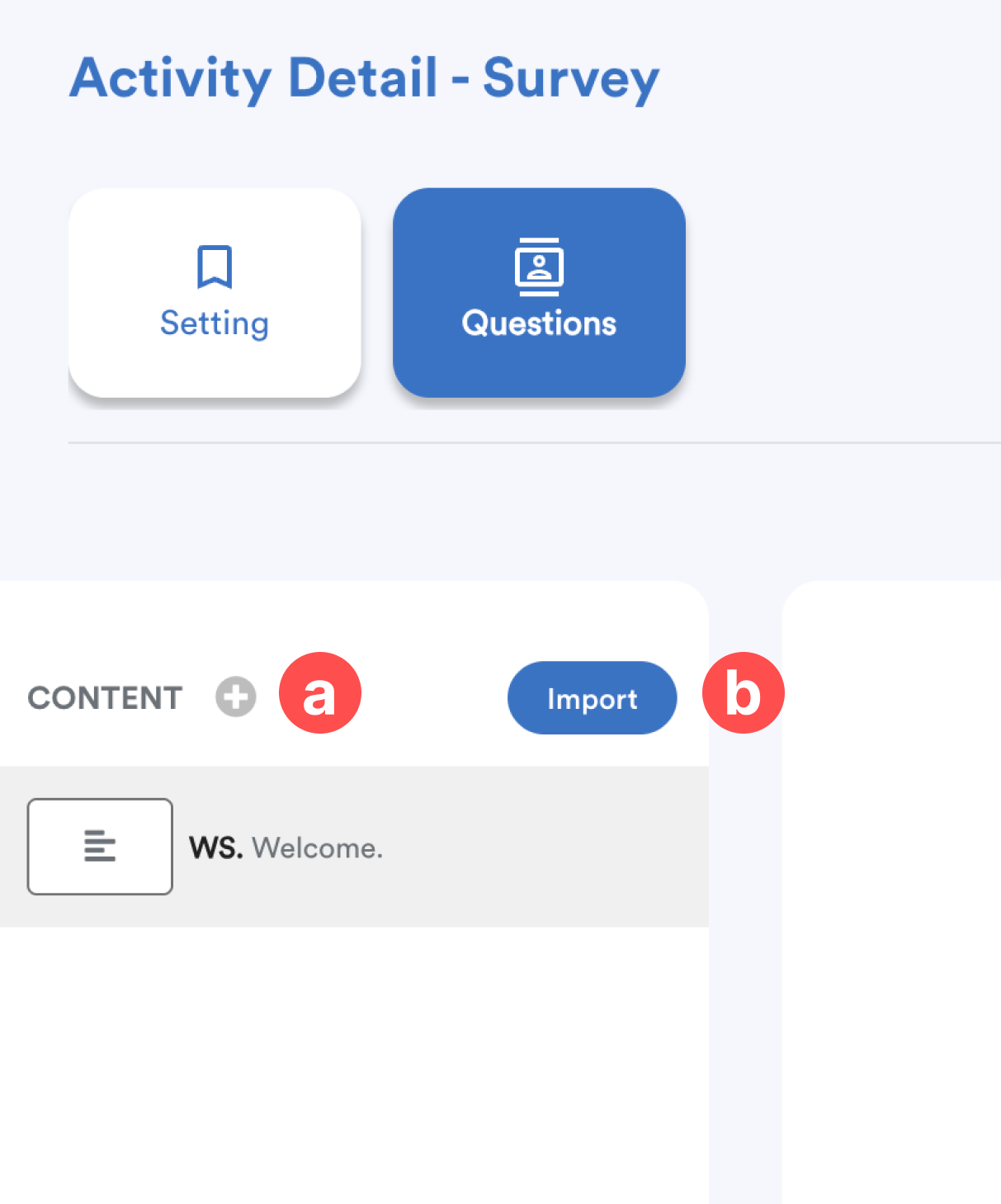
- Click Content (+) to create new questions.
- Click Import to reuse questions from existing surveys.
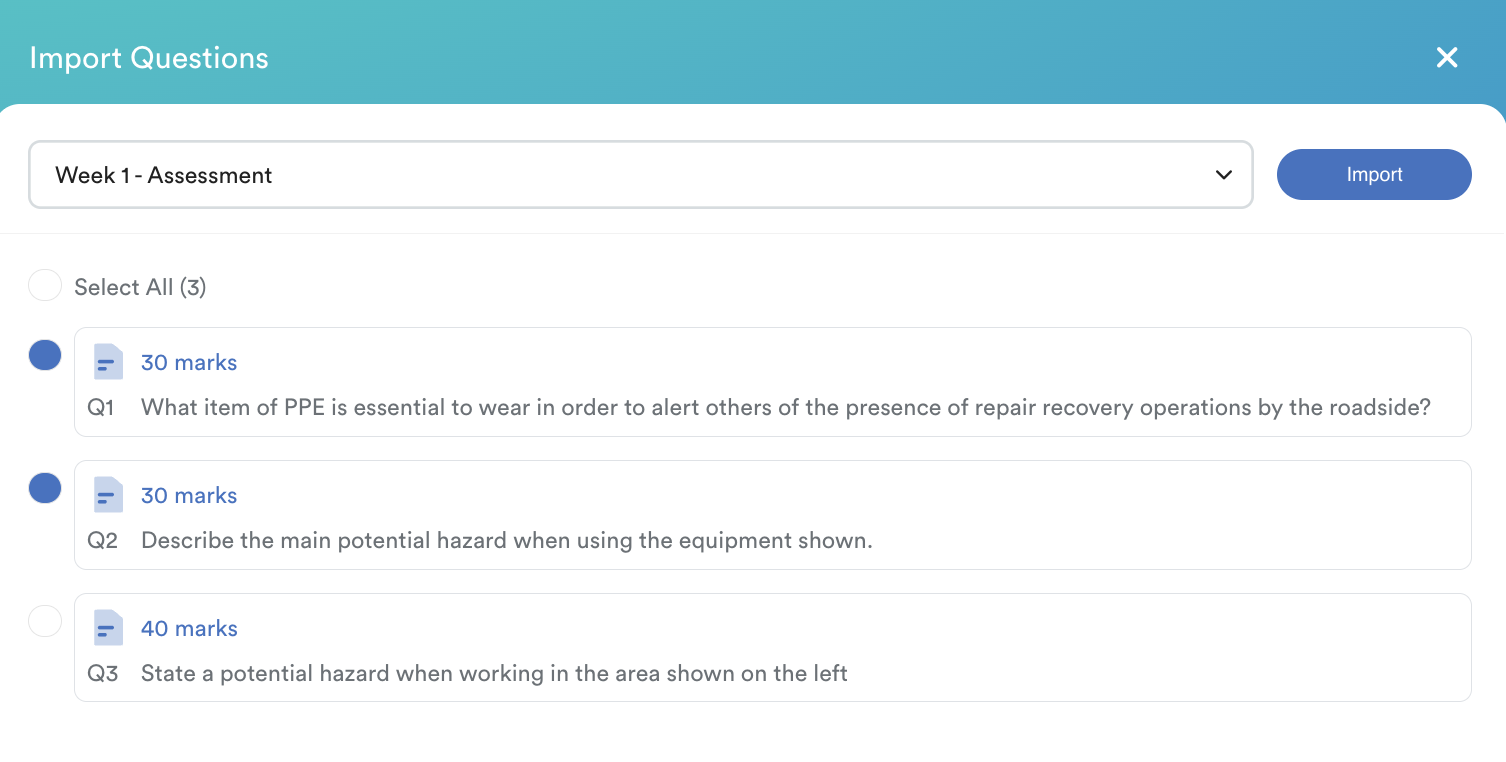
Importing questions:
- Choose a survey from the dropdown.
- Select the question using the dot icon.
- Click Import. Imported questions will appear below the current slide.
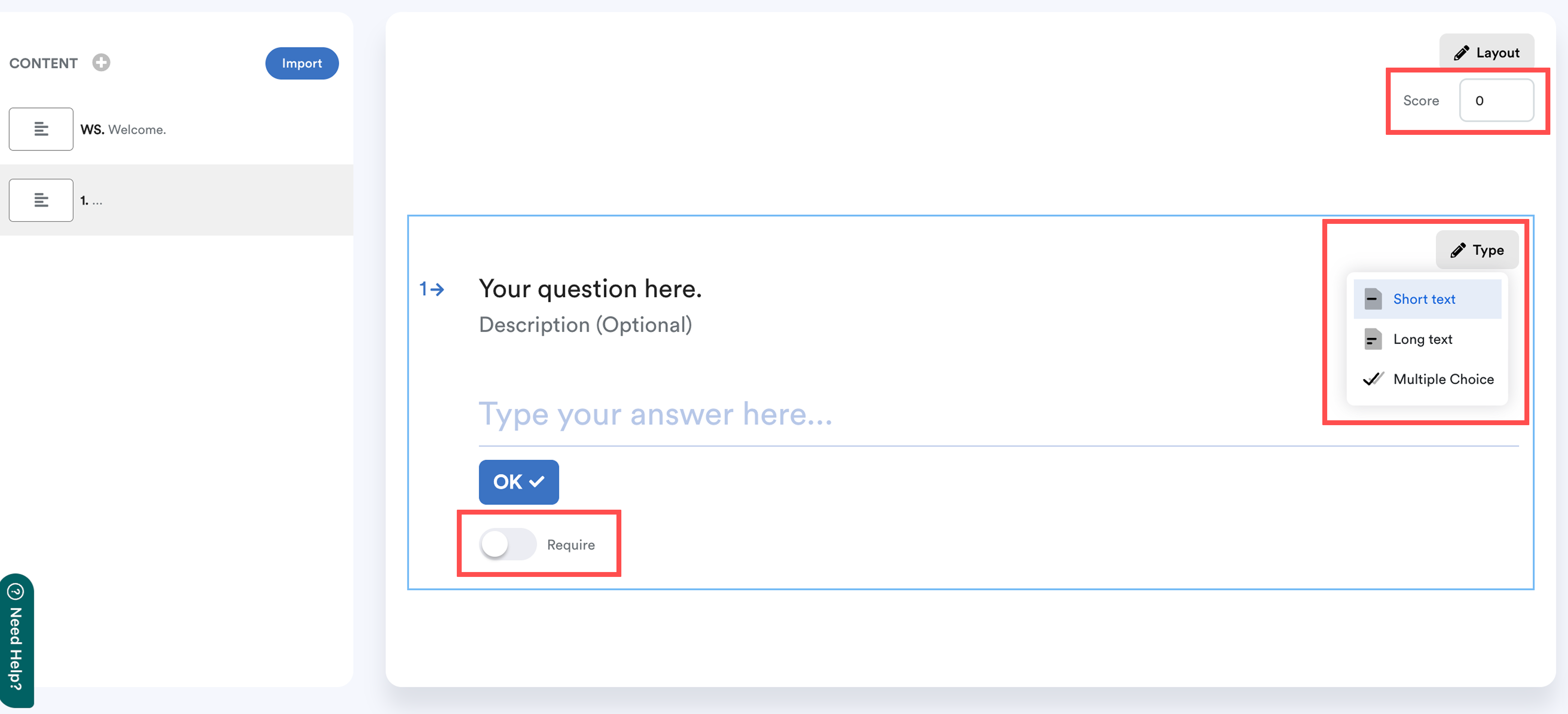
After adding a question, click Type to select the question format:
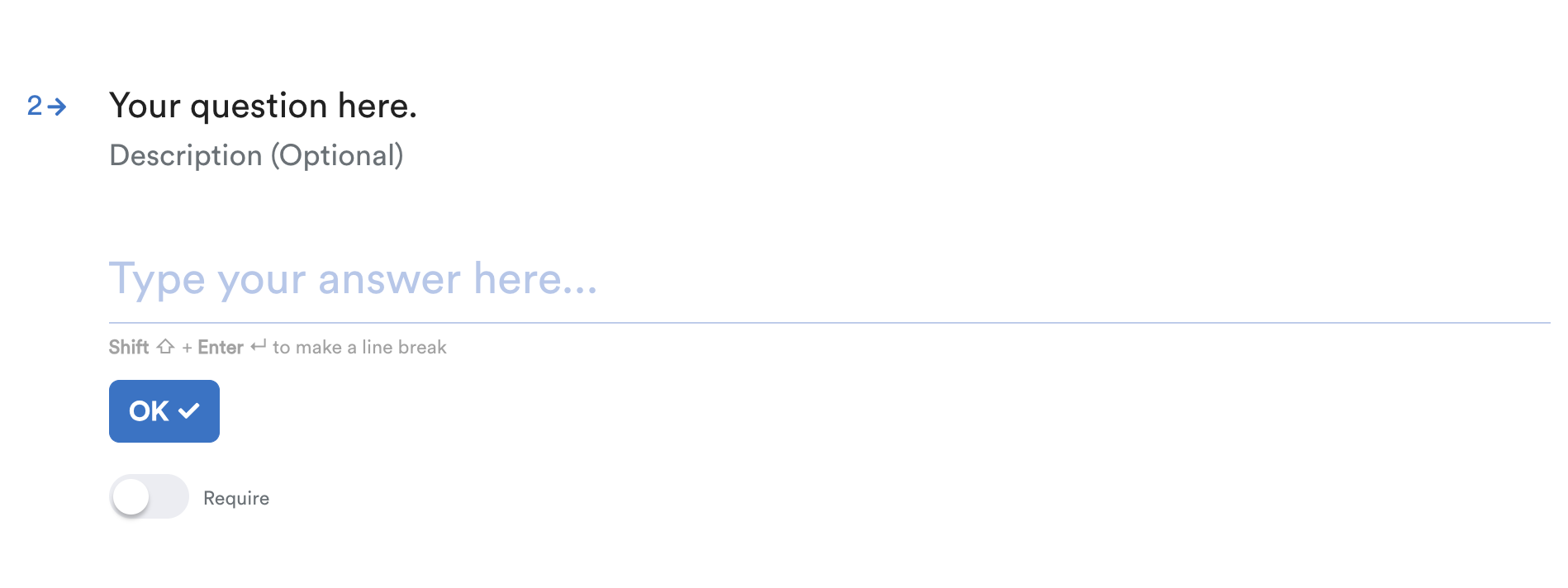
- Short Text
- Long Text
- Multiple Choice
Set the Score for each correct answer.
Every question can be toggled on whether Required to complete before submitting.
To add an image or modify the layout, click the Layout button within the question. (optional)
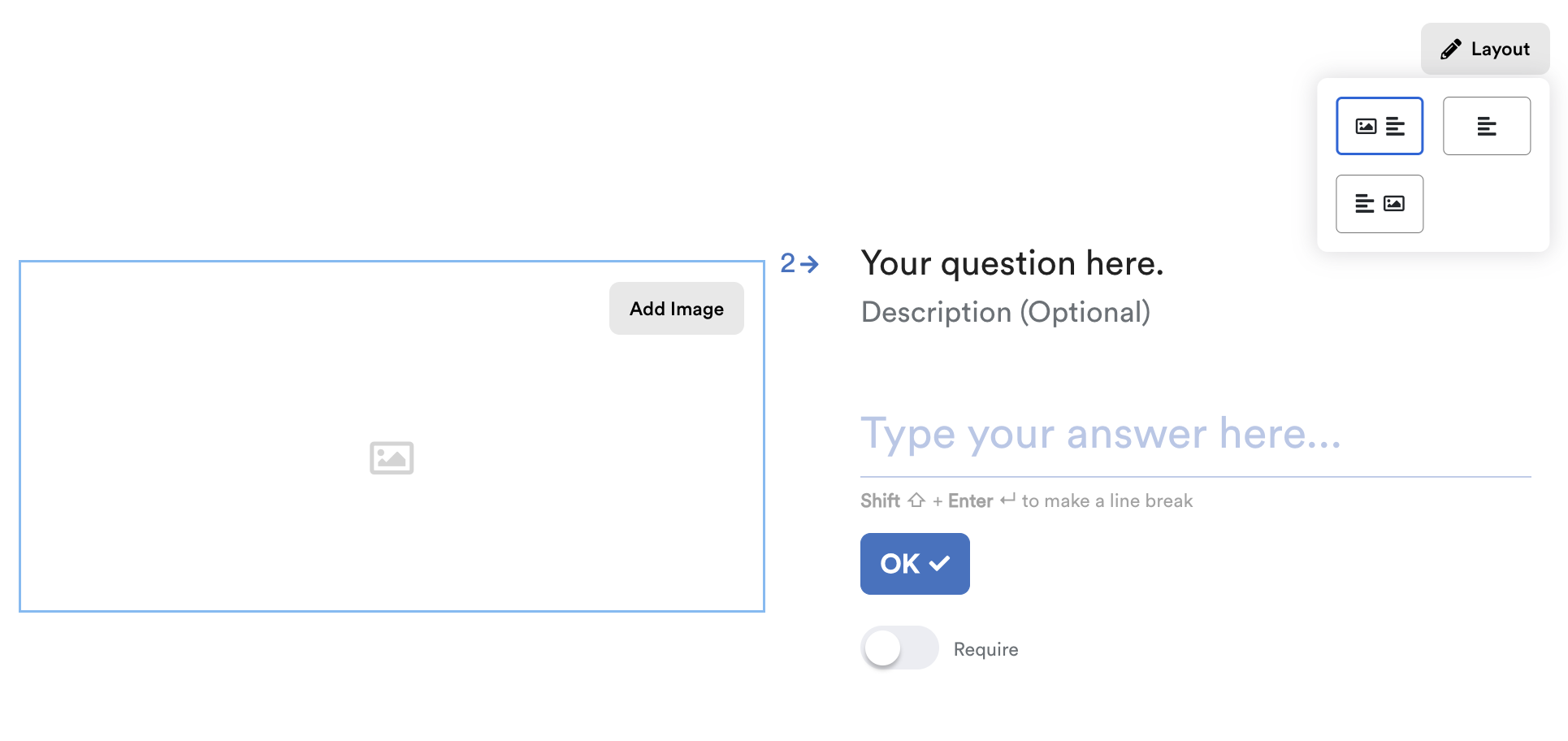
This allows you to customize how the question and media appear.
Question Type Details
i. Short Text - Use this for short and simple answers (e.g., one-word or brief responses).
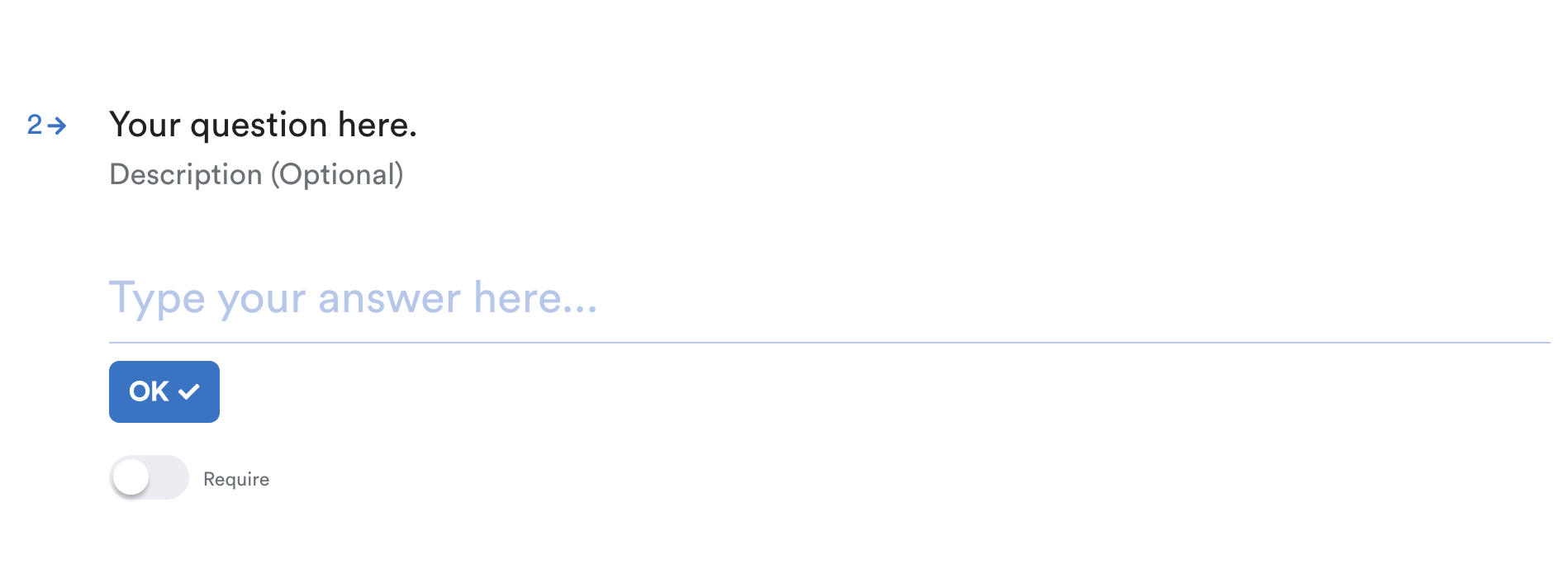
ii. Long Text - Allows longer answers with line breaks. Suitable for open-ended or descriptive responses.
iii. Multiple Choice - Learners select one answer from the provided list.
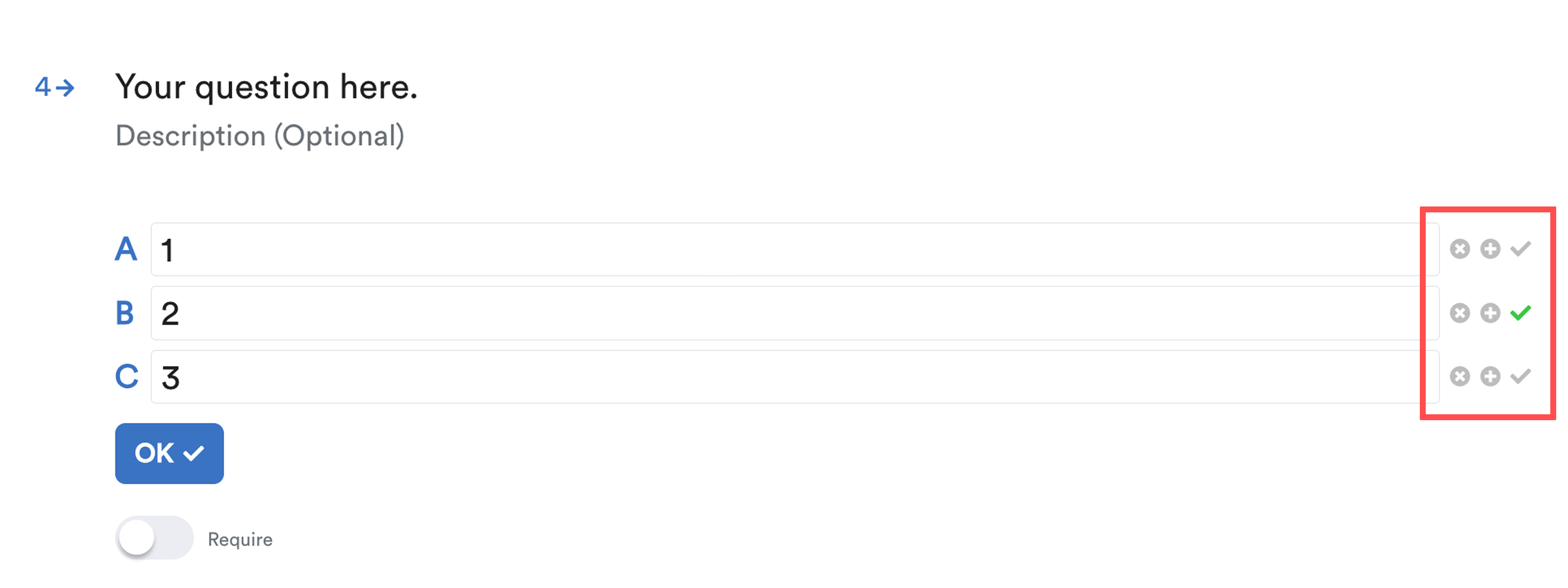
- Type the answer next to each lettered box.
- Click + to add more choices.
- Click x to remove a choice.
- Click ✓ to set the correct answer.
Step 5: Learner's View
Click Preview to view the survey from the learner’s perspective.
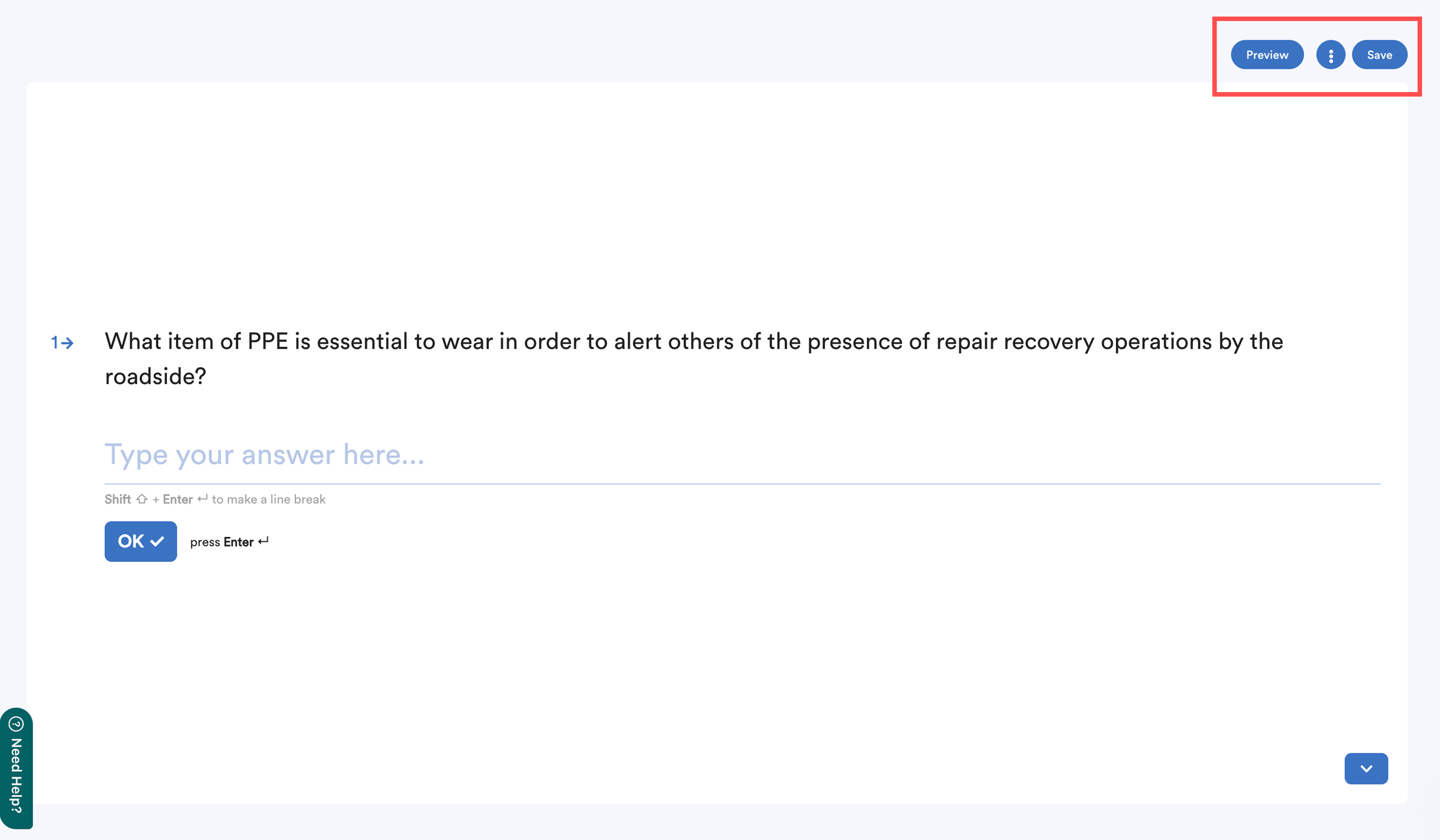
Click Save.
Step 6: Assessment Duration
Go to the Class tab, find the relevant class, and click Manage.
Open the Assessment section, then click Edit.
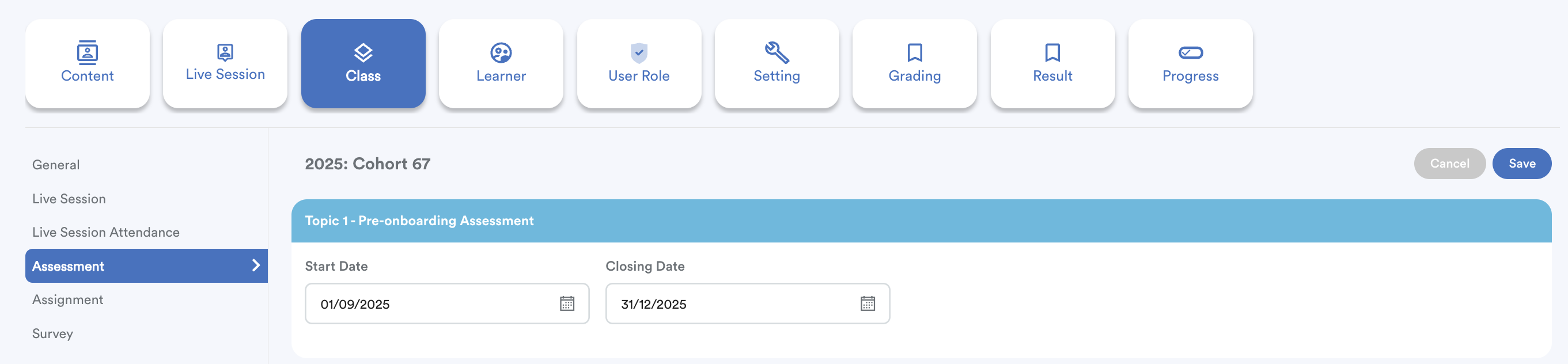
Important: Set the Start Date and Closing Date for when learners can access the assessment, then click Save. Without setting this will cause learners receive an error prompt. 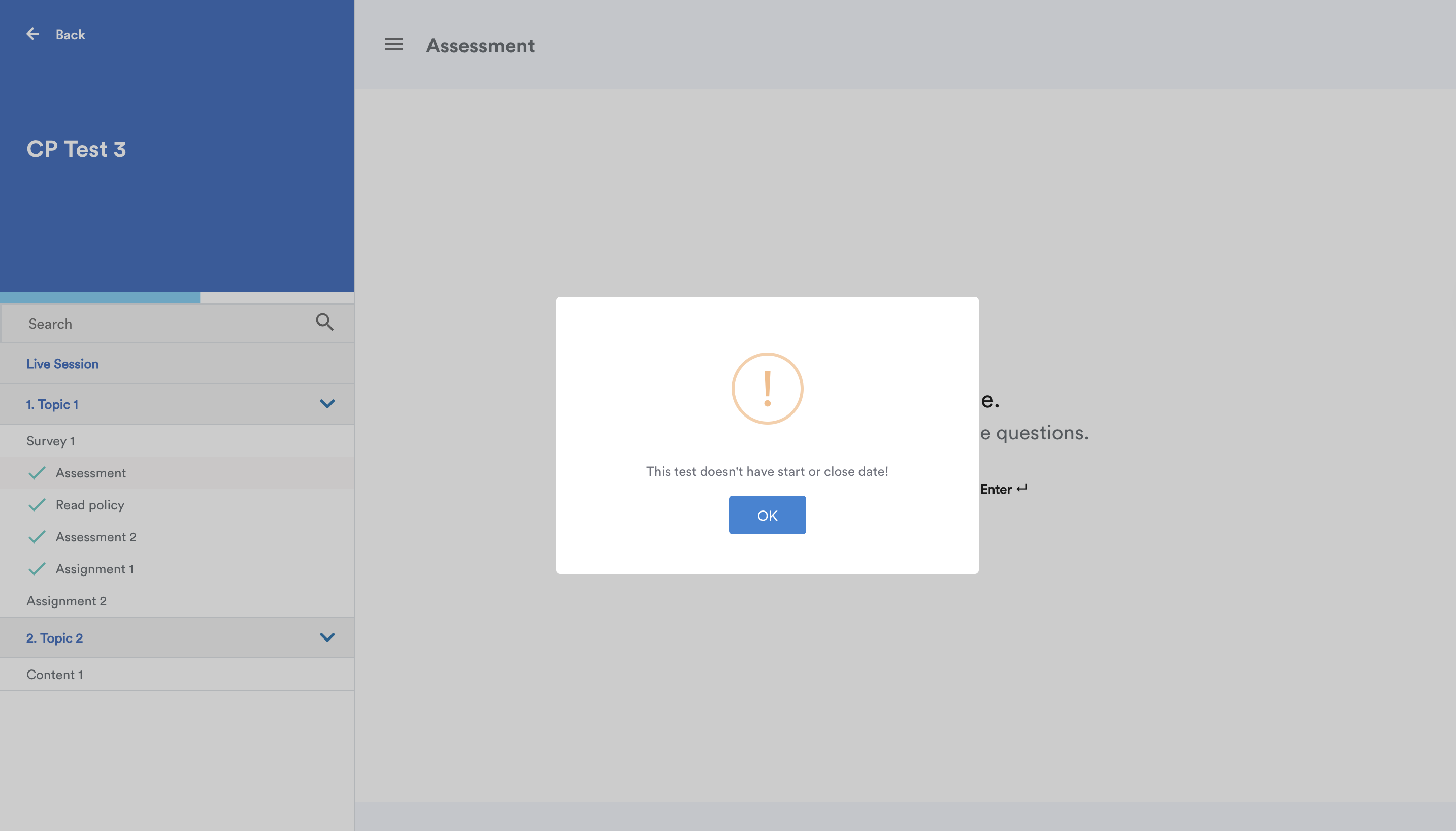
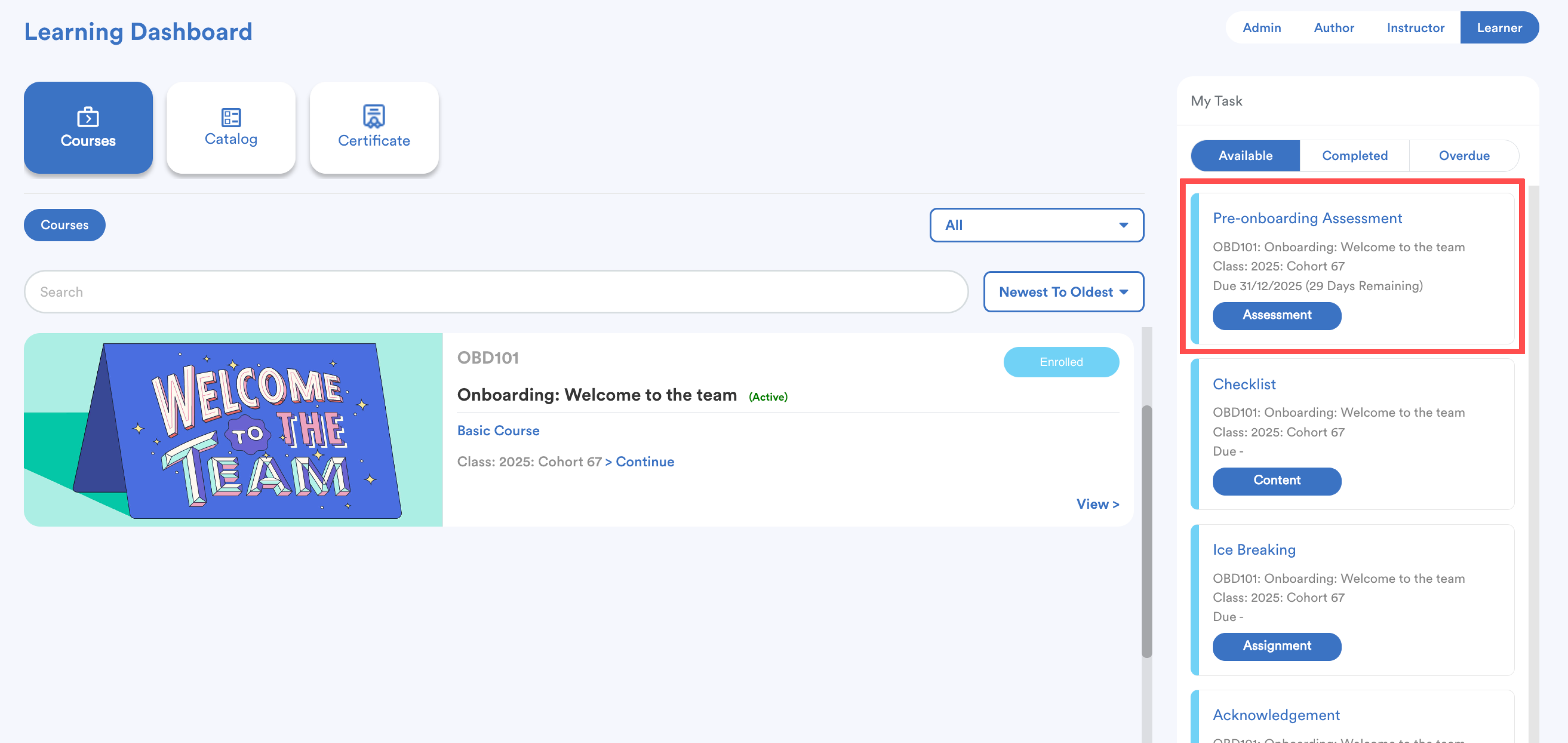
The assessment will appear as task in Learner's learning dashboard.
We hope this explanation clarifies the matter. If you require additional assistance, do not hesitate to contact our support team.
Was this article helpful?
That’s Great!
Thank you for your feedback
Sorry! We couldn't be helpful
Thank you for your feedback
Feedback sent
We appreciate your effort and will try to fix the article