Step 1
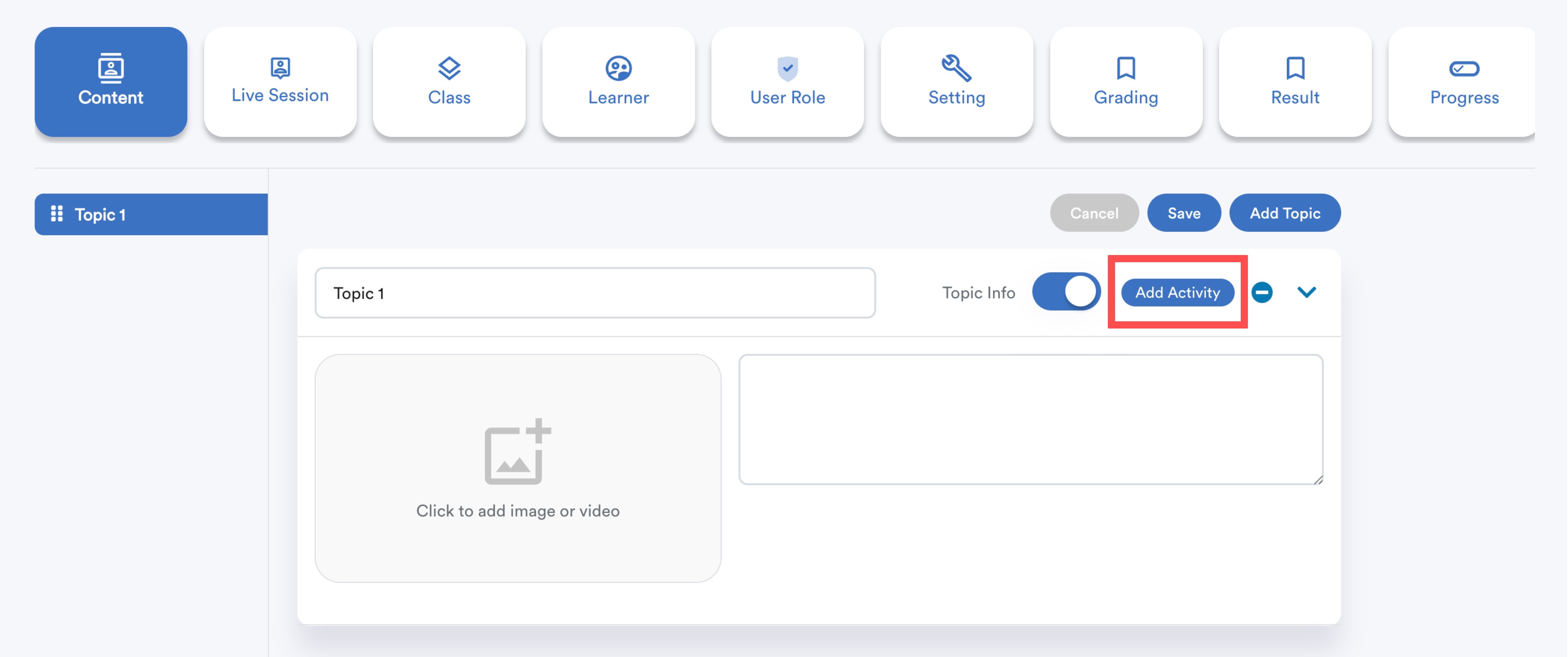
Every course must have at least one topic. After adding a topic, click Add Activity.
Step 2
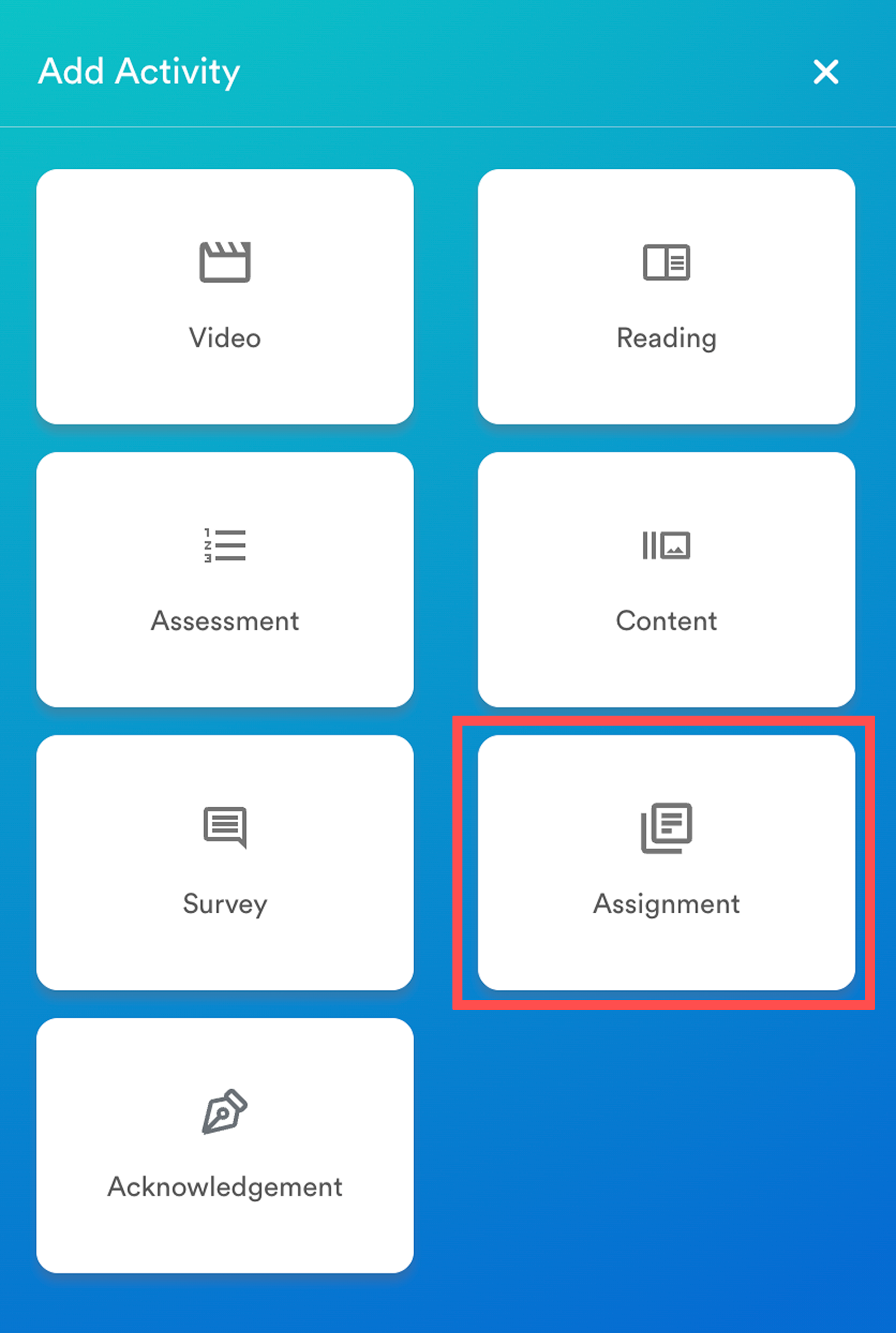
In the activity menu that slides in from the right, click Assignment.
Step 3
Fill in the activity details.
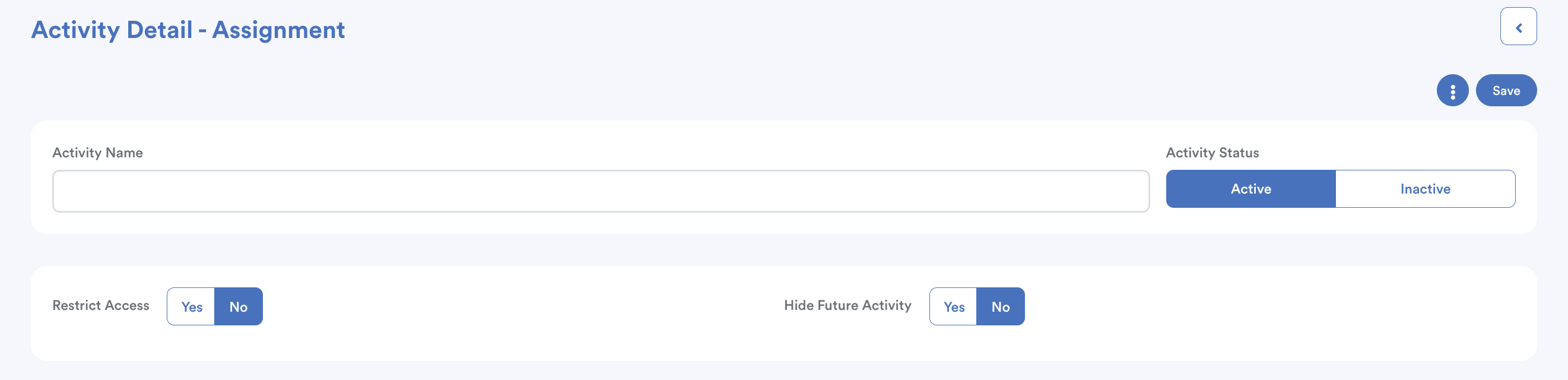
Activity Name - Enter a title for this survey.
Activity Status - Set to Active or Inactive. Inactive surveys will not be visible or accessible to learners.
Hide Future Activity - Enable this if you want to hide upcoming activities from learners.
Restrict Access - Select if learners must complete any prior activity before accessing this assignment.
Step 4
Use the Rich Text Editor in the Description section to add structure, guidelines, or instructions for the assignment.
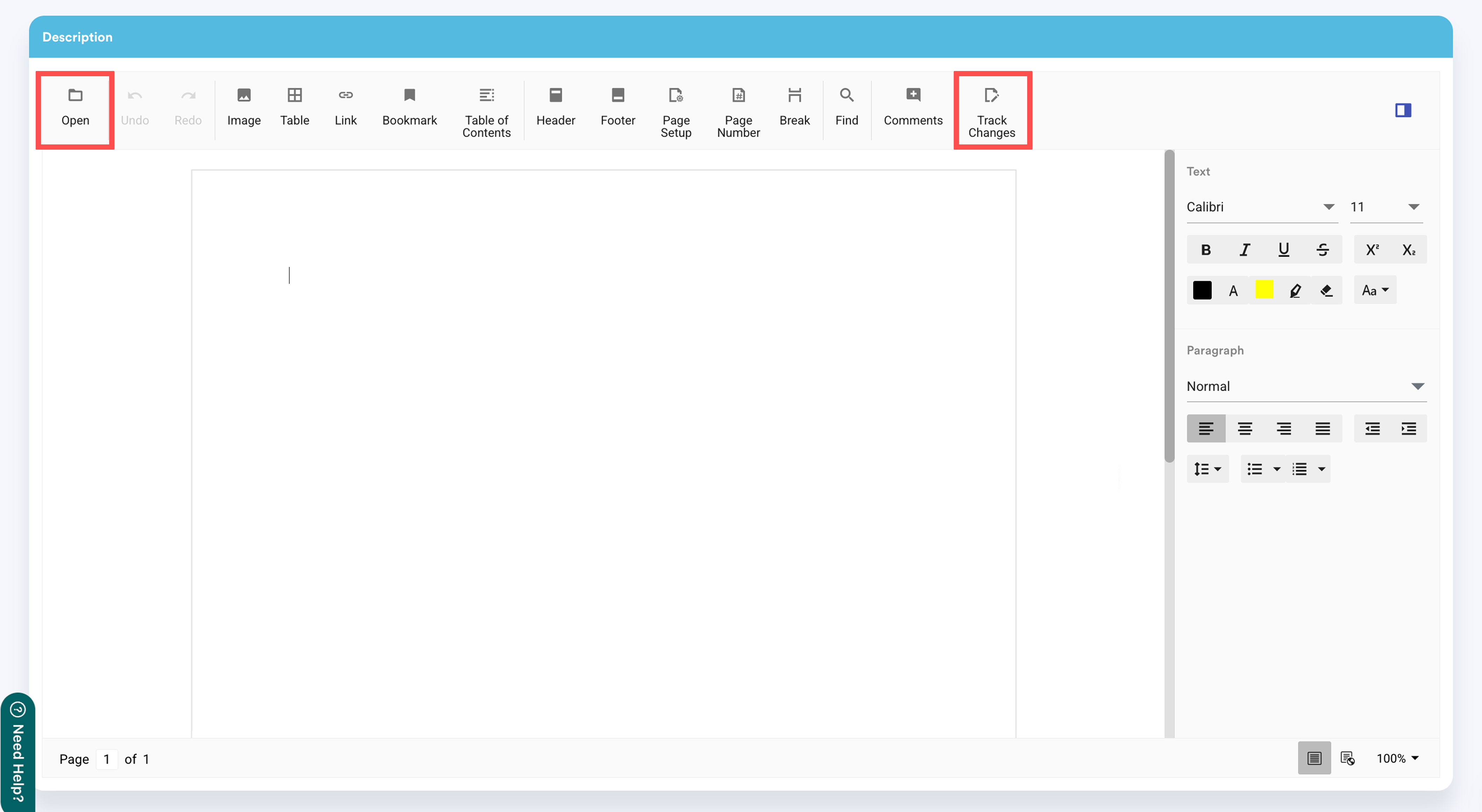
You can format text, insert images, tables, headers, footers, page numbers, breaks, and comments.
- Click Open to upload files from your desktop.
- Enable Track Changes if you want to track edits.
Step 5
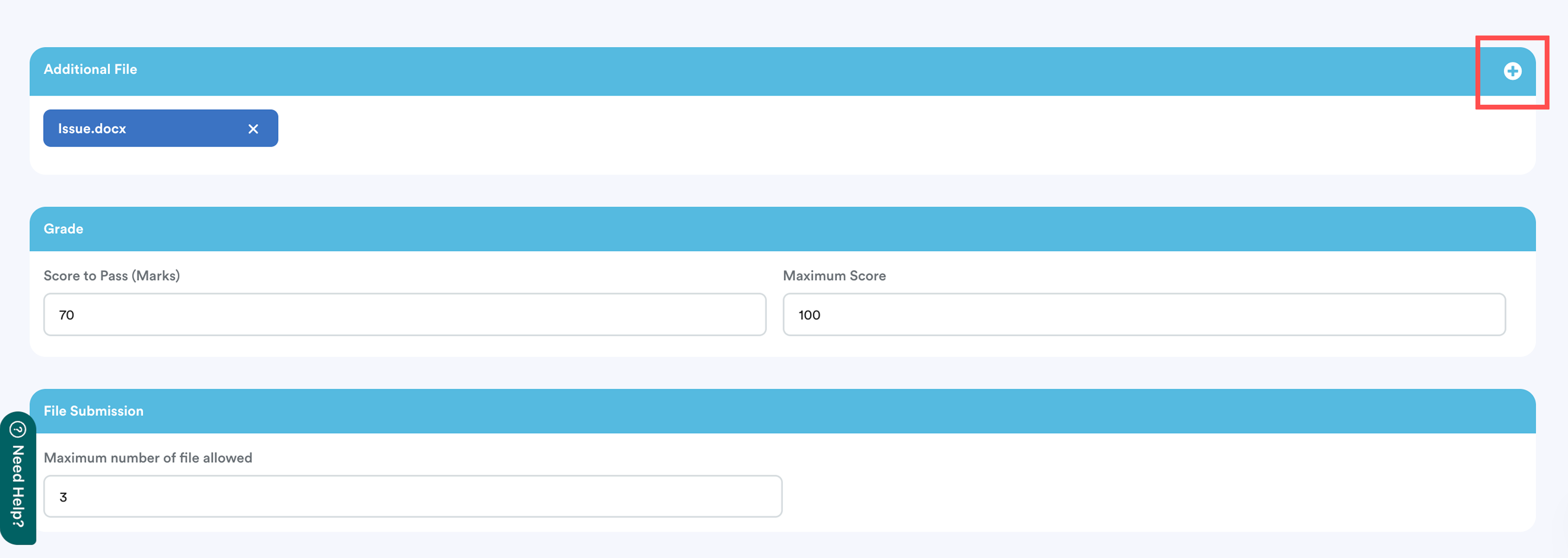
Additional File - Upload any supporting files by clicking the + button.
Grade - Set the Score to Pass and Maximum Score.
File Submission - Specify the maximum number of files learners are allowed to submit.
Step 5
Lastly, click Save at the top right of the screen.

Step 6
Go to the Class tab, find the relevant class, and click Manage.
Open the Assignment section, then click Edit.
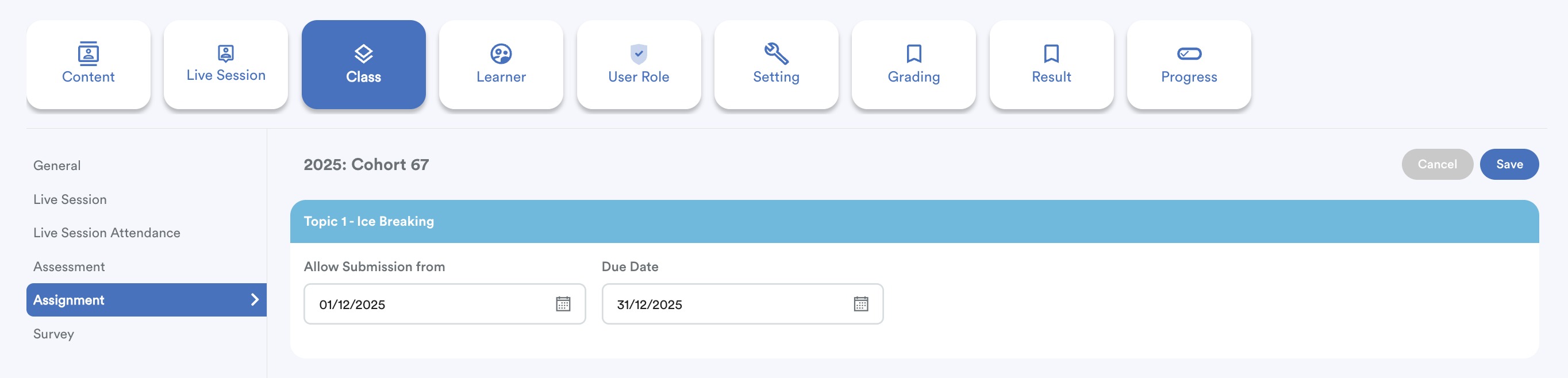
Set the following:
Allow Submission From – The date when learners can start submitting the assignment.
Due Date – The deadline for learners to submit their work.
Important: If these dates are not set, learners will be unable to submit their assignment.
Click Save to apply the settings.
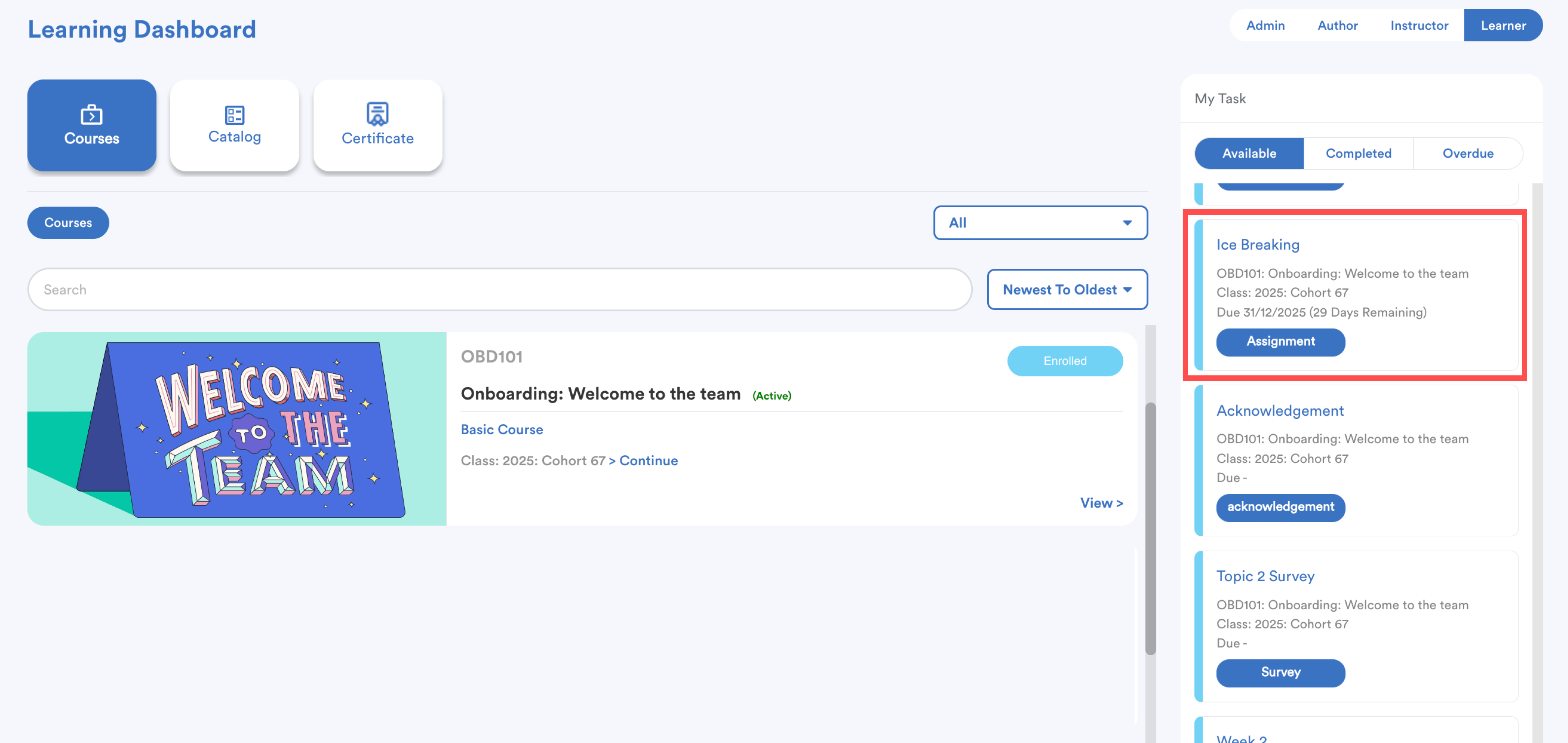
The assignment will appear as task in Learner's learning dashboard.
We hope this explanation clarifies the matter. If you require additional assistance, do not hesitate to contact our support team.
Was this article helpful?
That’s Great!
Thank you for your feedback
Sorry! We couldn't be helpful
Thank you for your feedback
Feedback sent
We appreciate your effort and will try to fix the article