Before you begin, make sure you have already created a User Group and a Course/Learning Plan.
Refer to these articles: How to Create LMS User Group and Assign Roles / How to Set Up a Learning Plan
Note: This step must be completed before enrolling learners from this user group into any Course or Learning Plan. If there is no user group assigned to course/learning plan, you will not be able to enroll learners.
Step 1
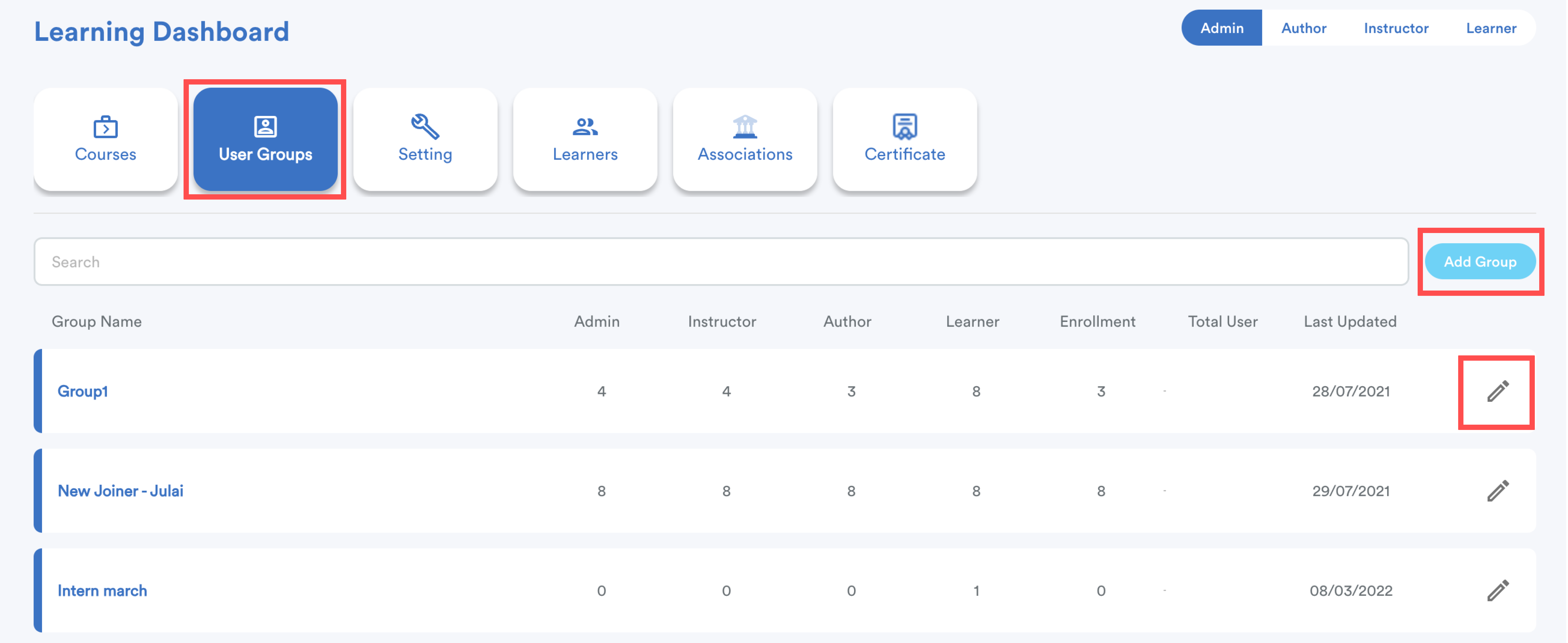
Go to User Group tab. Click Add Group to create a new group.
To edit an existing group, click the pencil icon next to it.
Step 2
Depending on your company's learning arrangement, you can navigate to either the Course or Learning Plan section. You will see a list of all existing Course/Learning Plans.
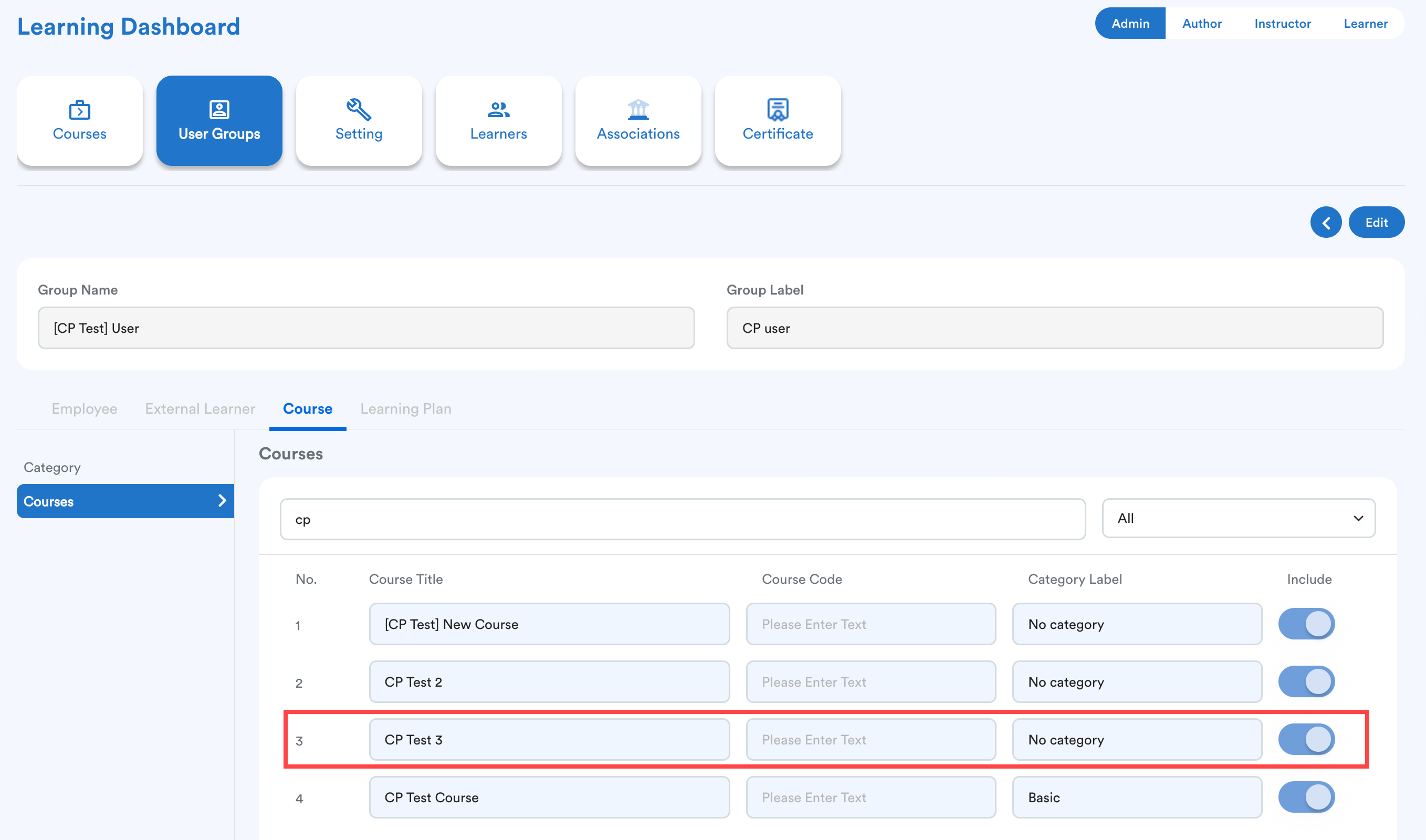
To assign a Course/Learning Plan to the group, toggle the Include button on.
Toggle off if you wish to exclude it.

Click Save when done.
Example of a user group assigned:
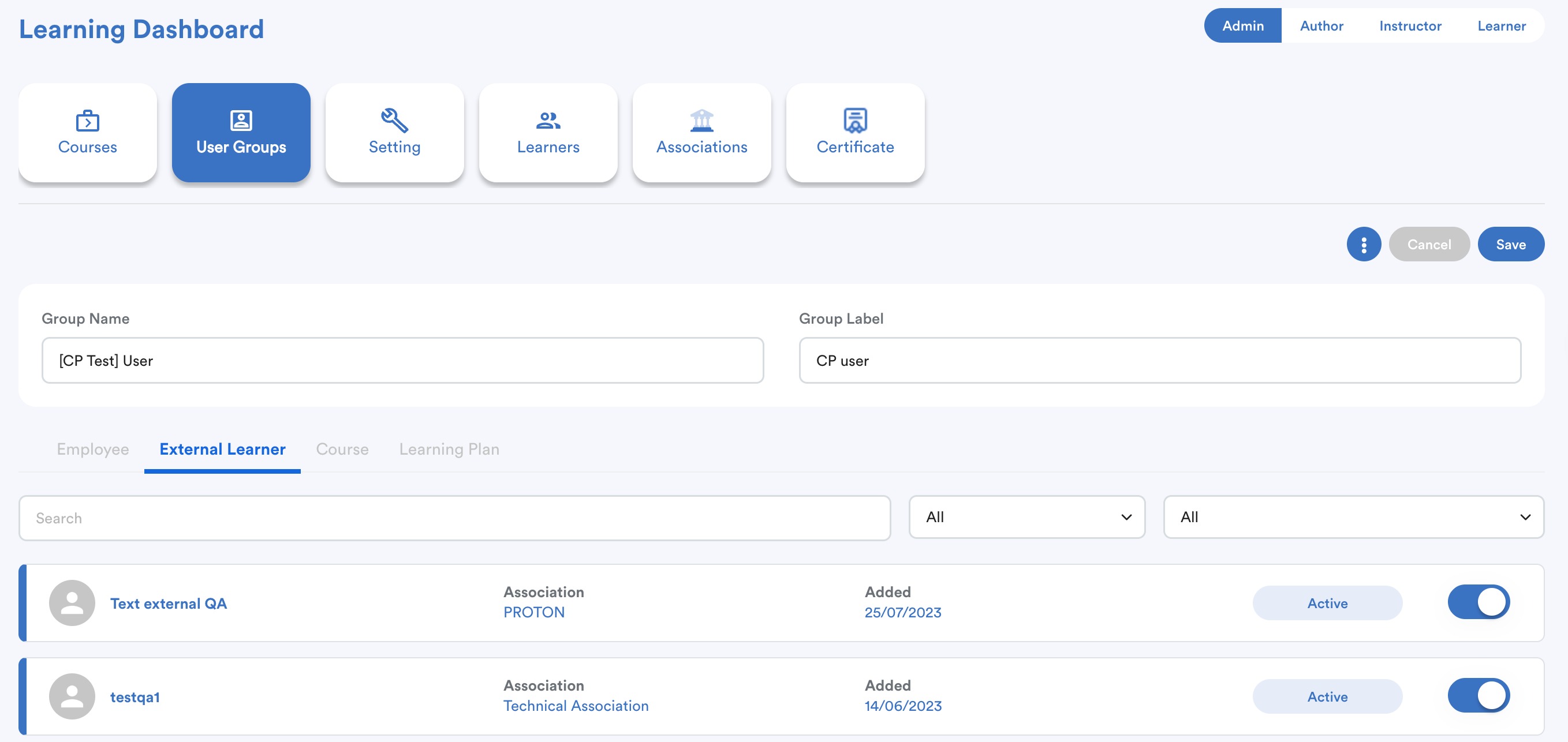
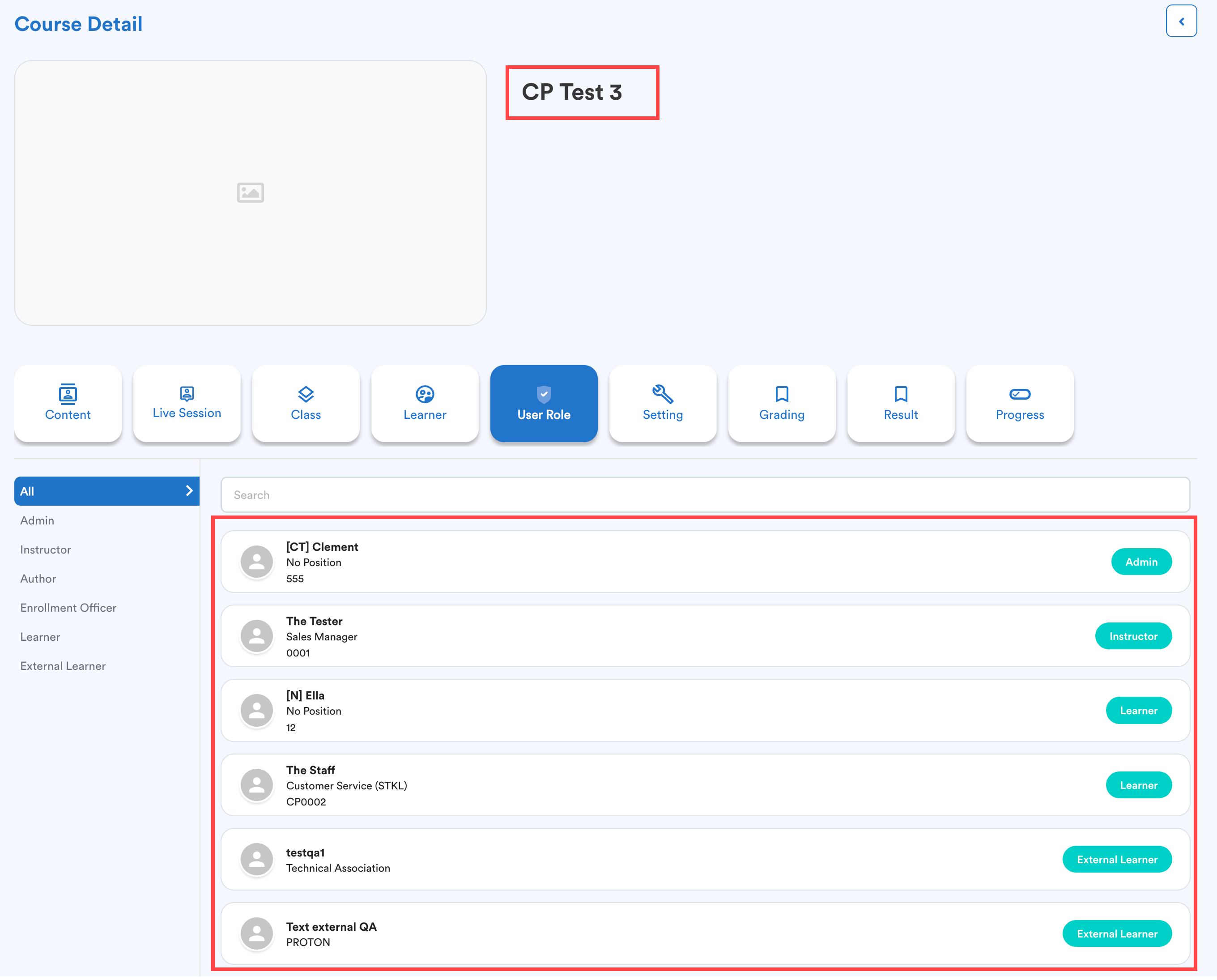
I have created [CP Test] User Group with a total of 6 people, including 1 admin, 1 instructor, 2 learners, and 2 external learners.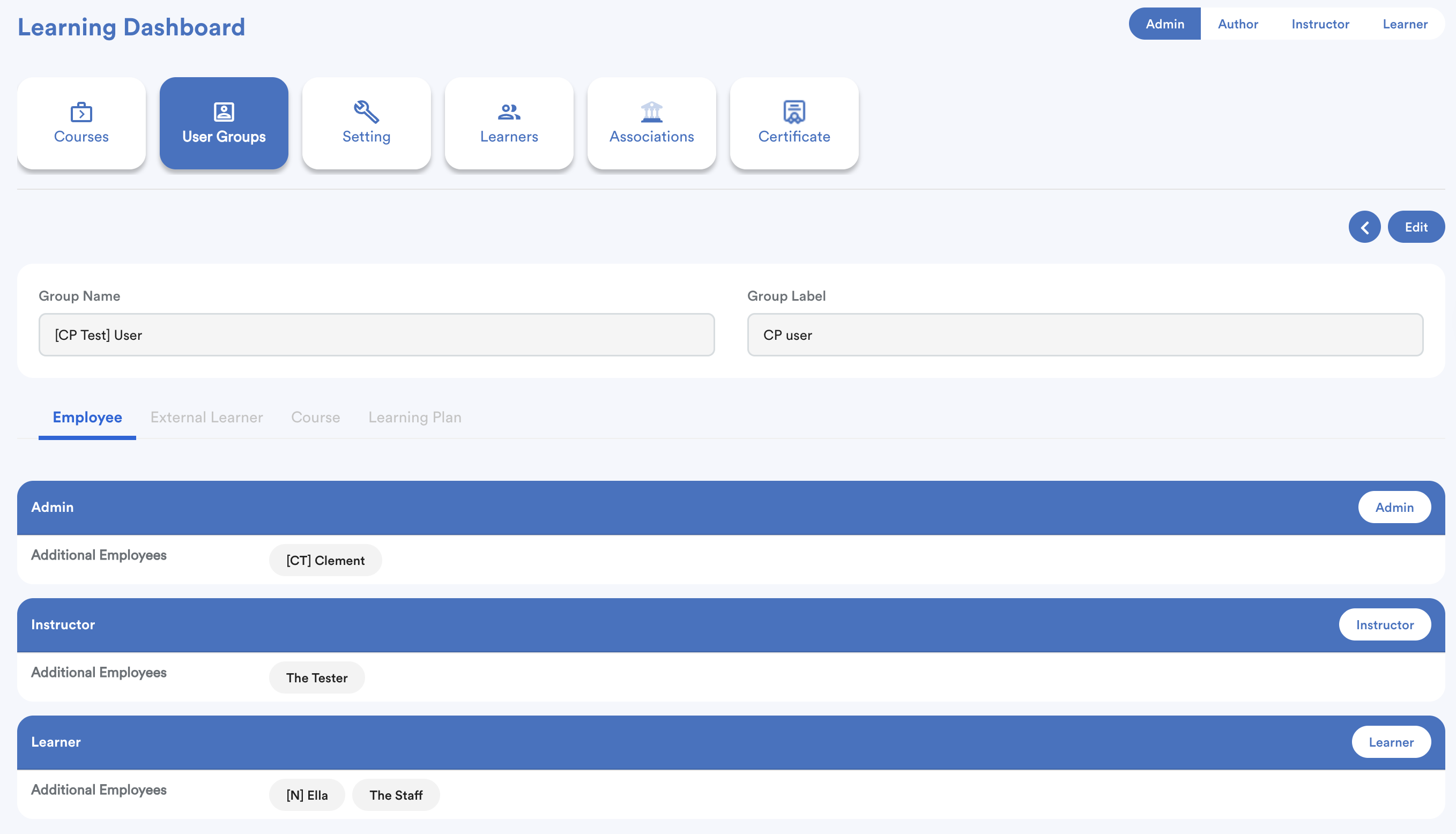
I toggle on this user group for course : CP Test 3
When I go to Course [CP Test 3] > User Role, I will see all 6 people here that I have assigned in user group.
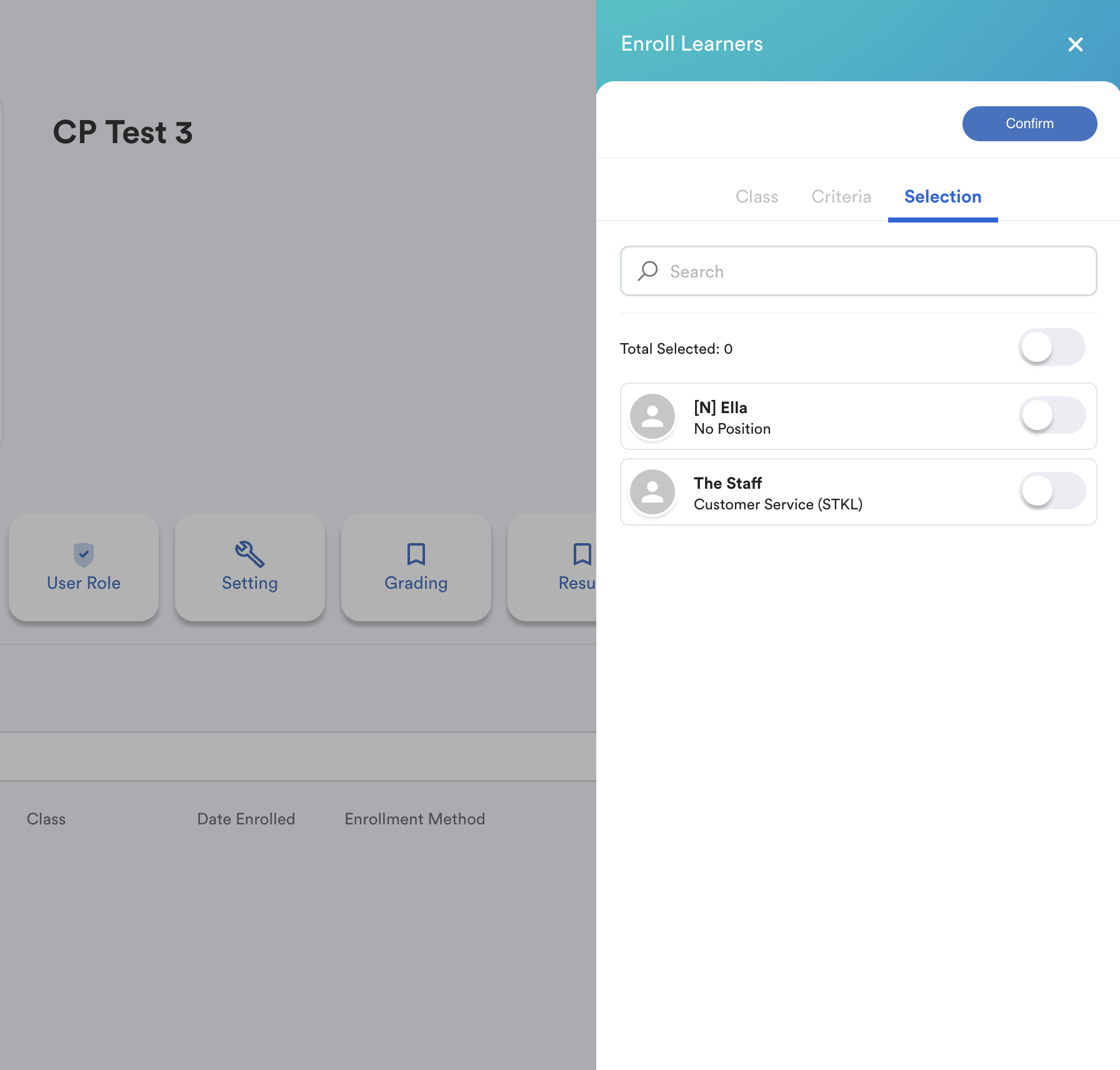
With the assigned user group, I can go to enroll my learners. I can see the 2 learners: Ella and The Staff.
Note: Class must be created first before enroll learners.
We hope this explanation clarifies the matter. If you require additional assistance, do not hesitate to contact our support team.
Was this article helpful?
That’s Great!
Thank you for your feedback
Sorry! We couldn't be helpful
Thank you for your feedback
Feedback sent
We appreciate your effort and will try to fix the article