There are two ways to cancel an approved leave request depending on your access and role:
A. Employee submit leave cancellation request
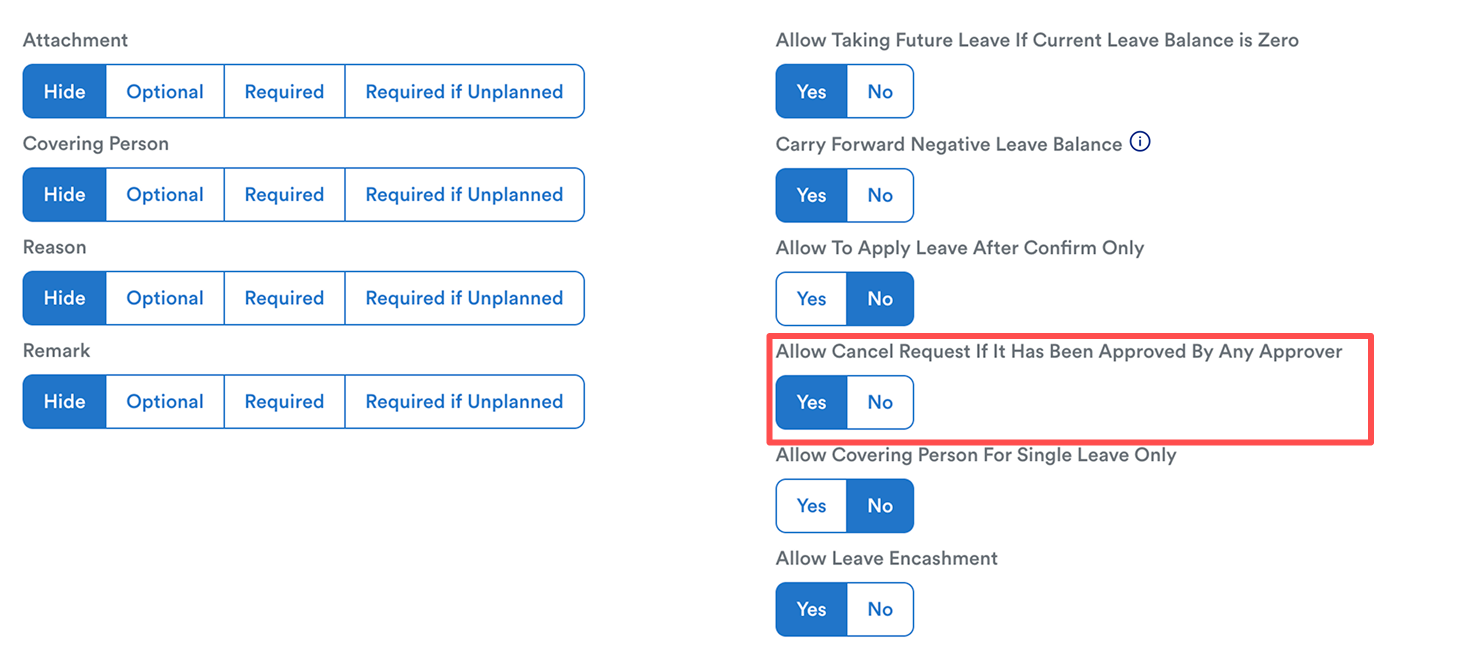
Cancel button will appear if the setting "Allow Cancel Request If It Has Been Approved By Any Approver" in leave type setting is Yes.
Step 1
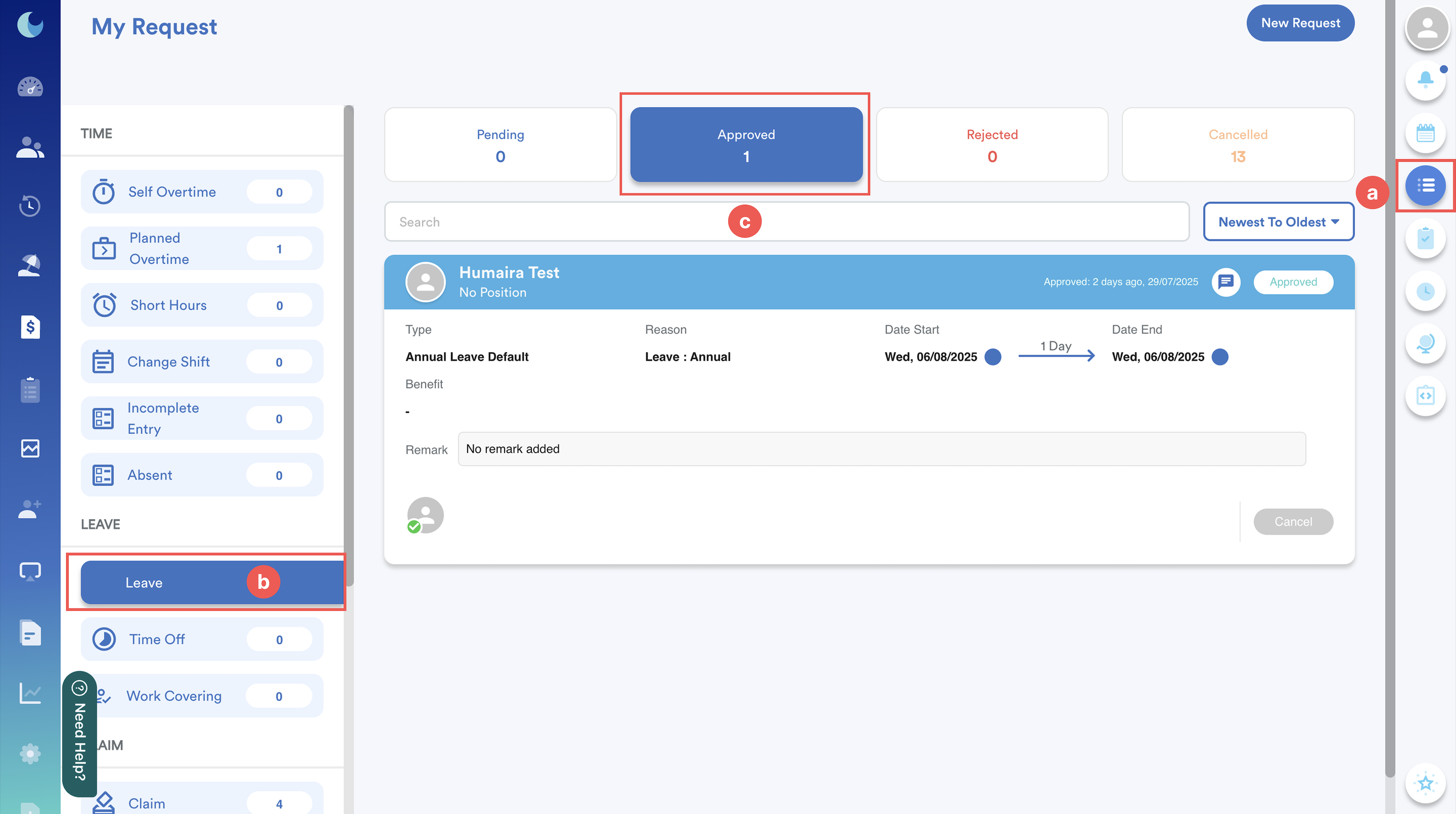
Go to My Request (a) > Leave (b) > Approved tab (c).
Step 2
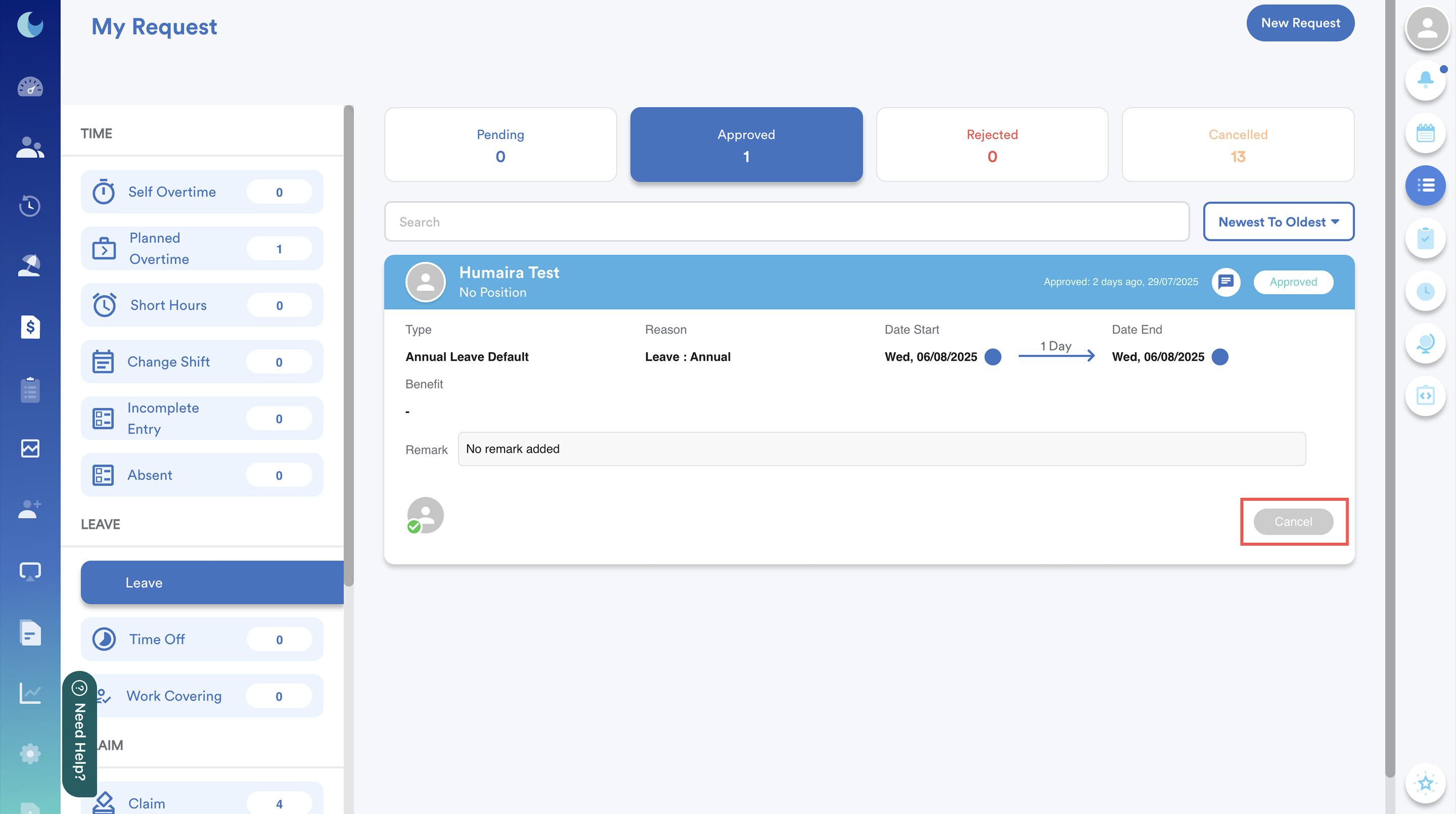
Find the approved leave date you wish to cancel and click Cancel.
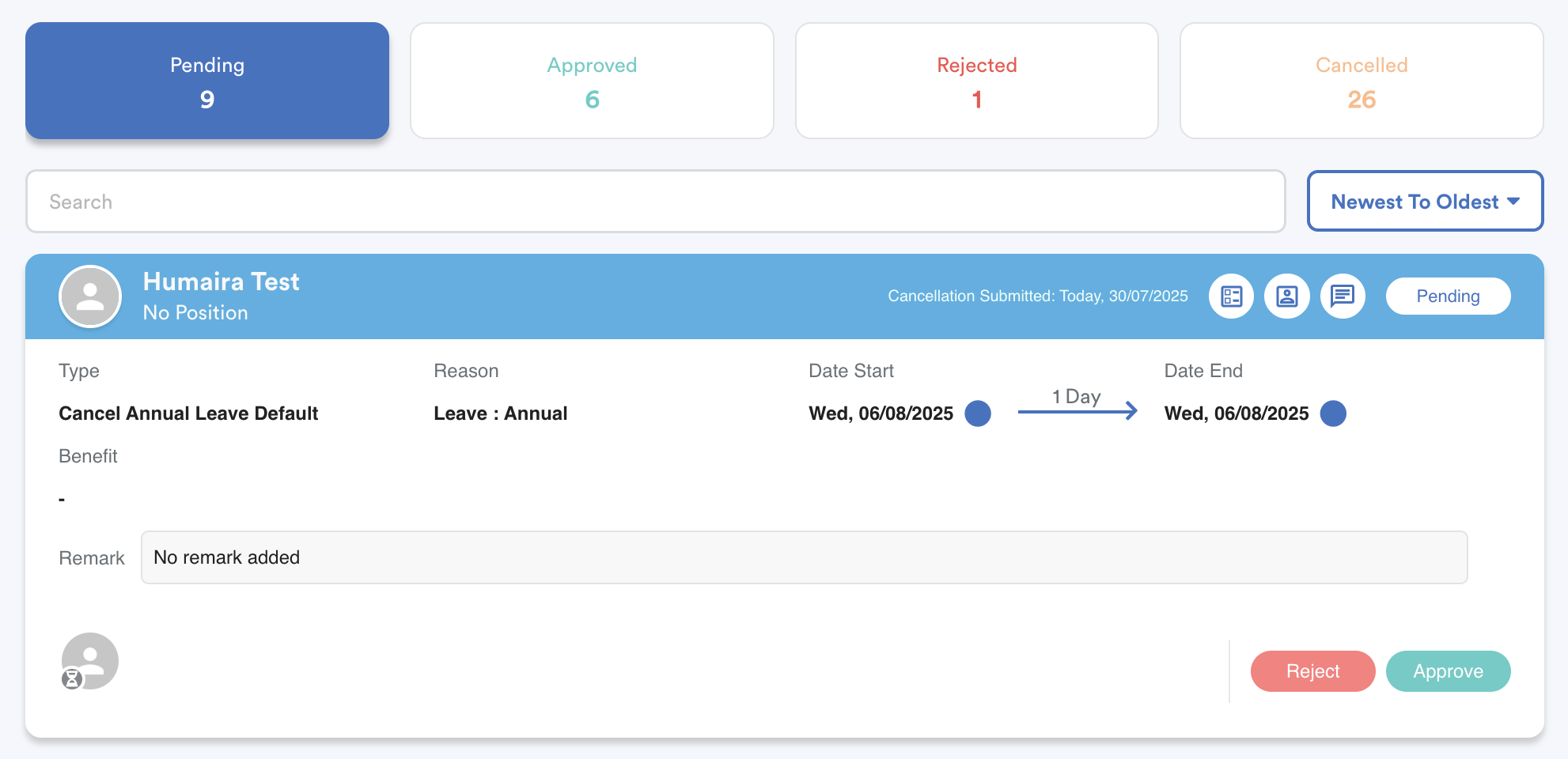
A cancellation request will be sent to your approver.
Step 3
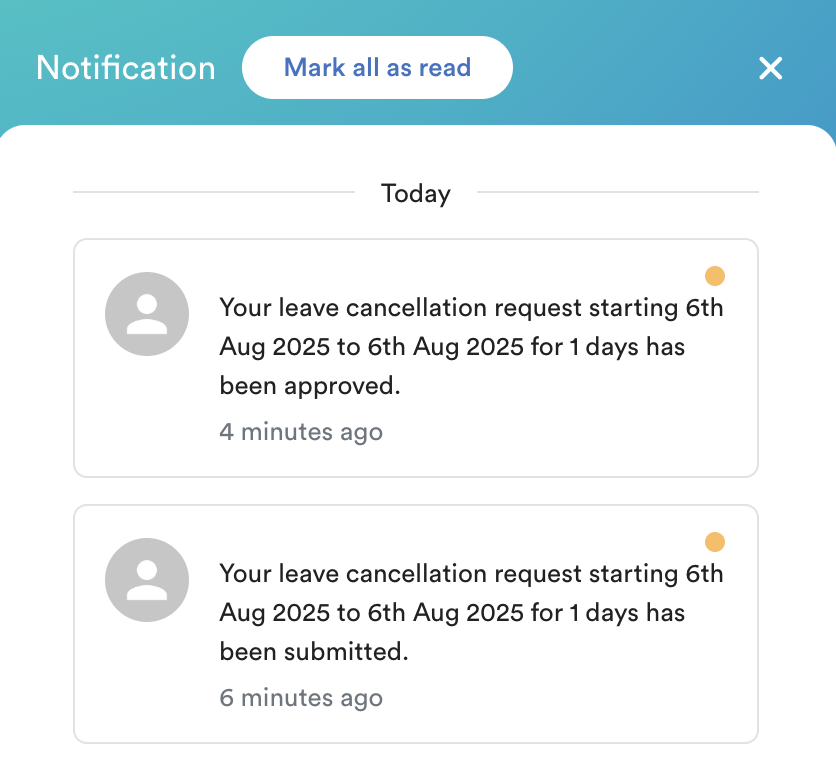
Once approved, you will receive a notification confirming that the cancellation has been approved.
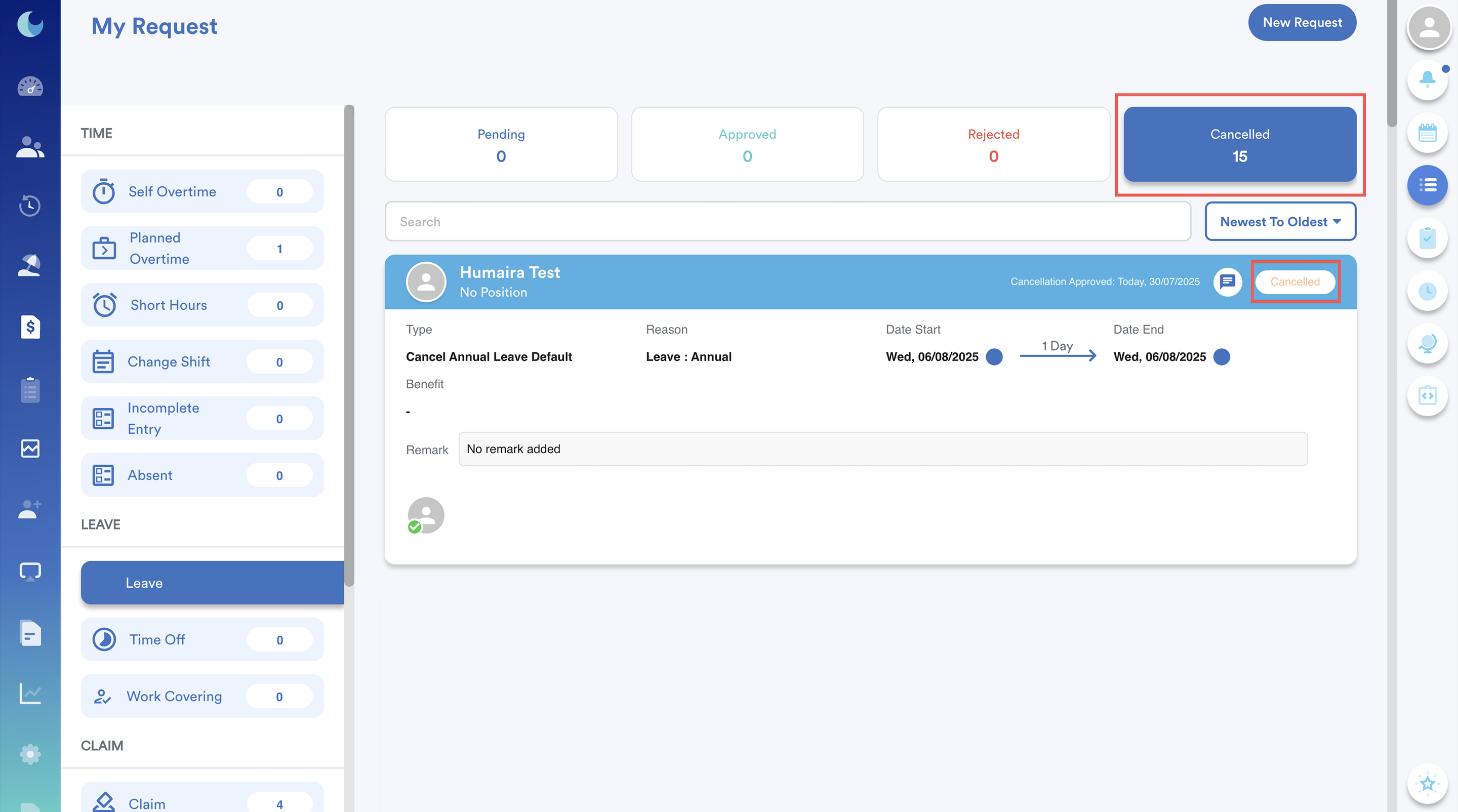
You can view the leave status under My Request > Cancelled tab.
B. HR/Admin manually delete/update leave from leave history.
Admins can cancel an employee’s approved leave by manually deleting/edit the leave record from their leave history without involving the approval process.
Step 1
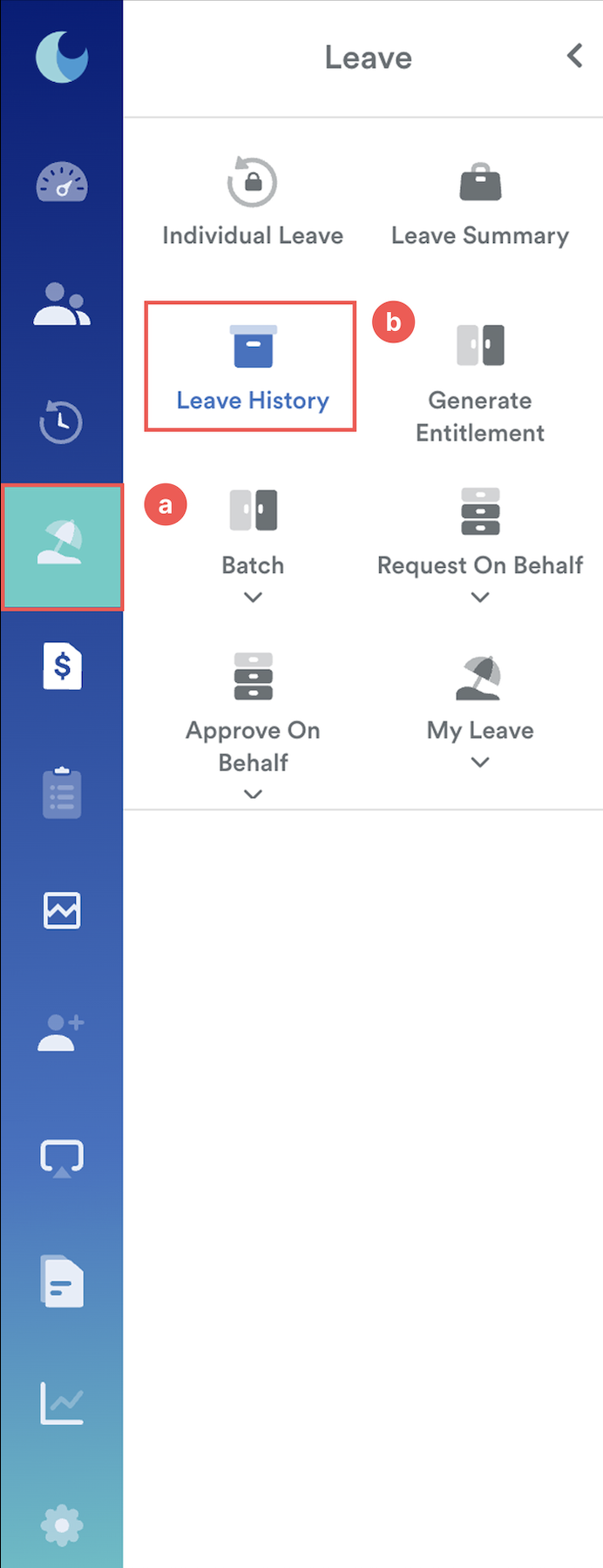
From the left menu, go to Leave (a) > Leave History (b).
Step 2
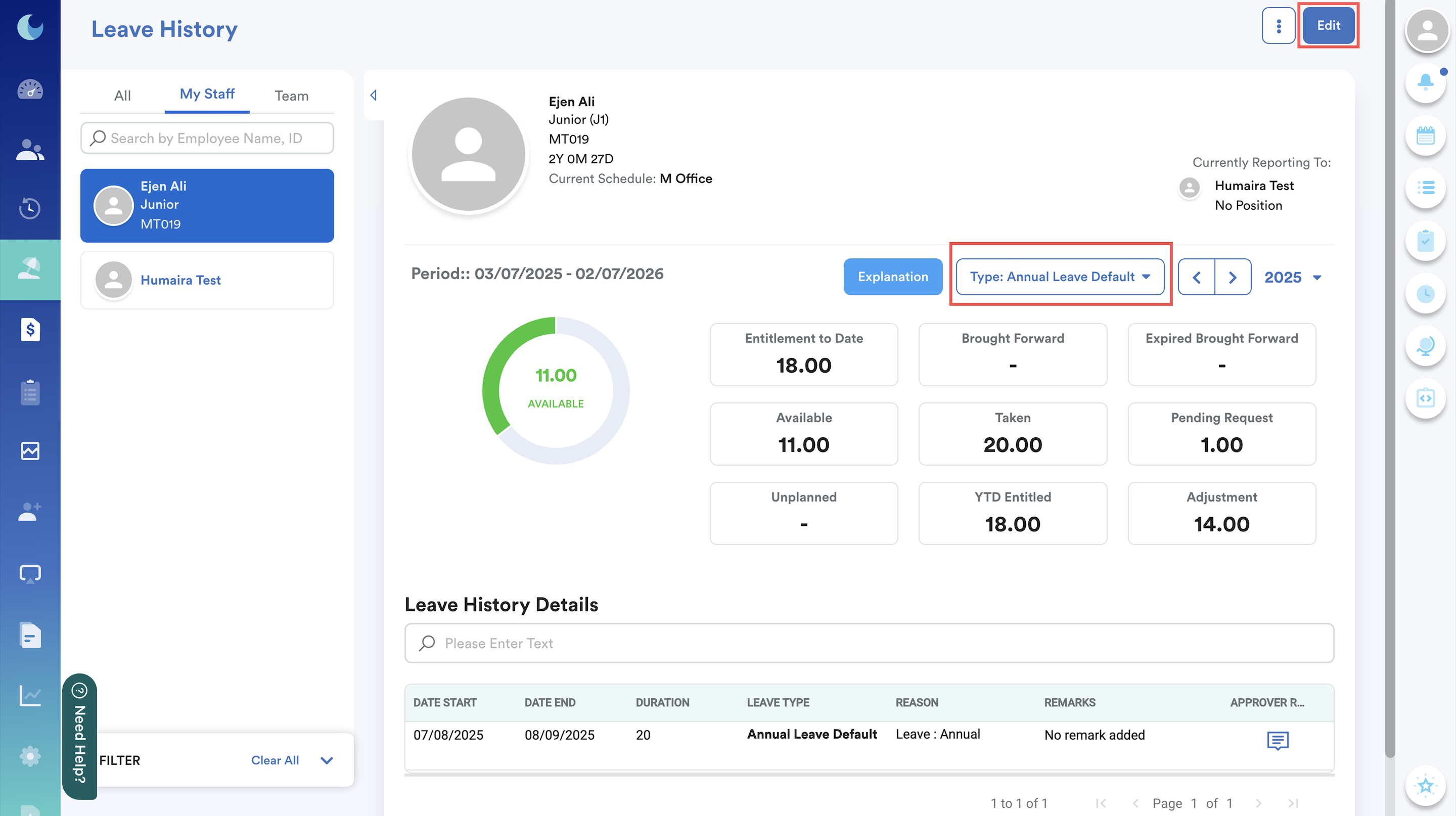
Click on the employee's name. Select the relevant Leave Type, and click Edit.
Step 3
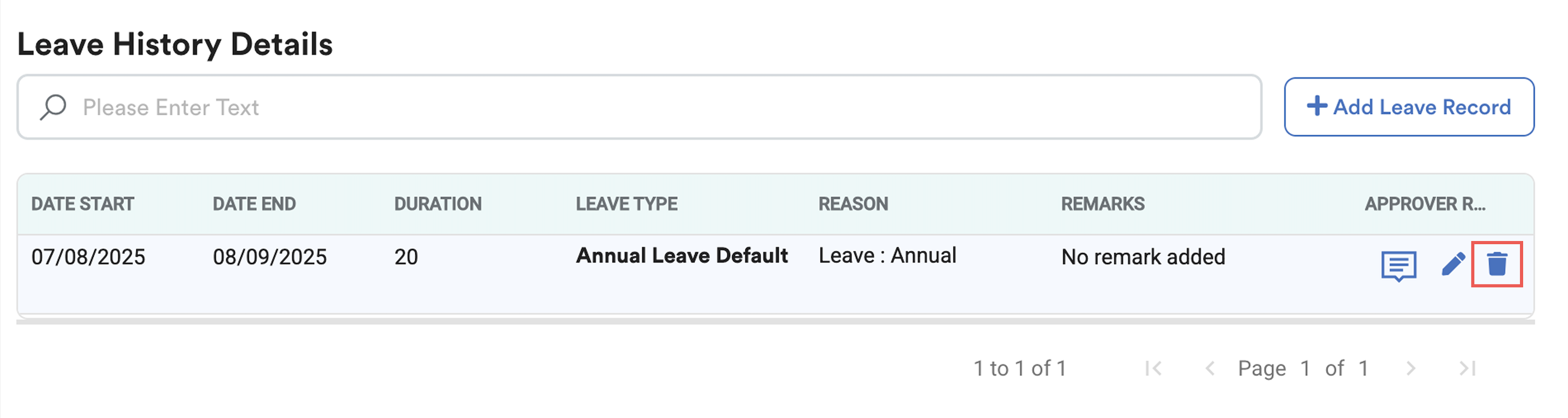
Scroll down to the Leave History Details section and find the leave date to be cancelled. Click on the dustbin icon to delete the leave.
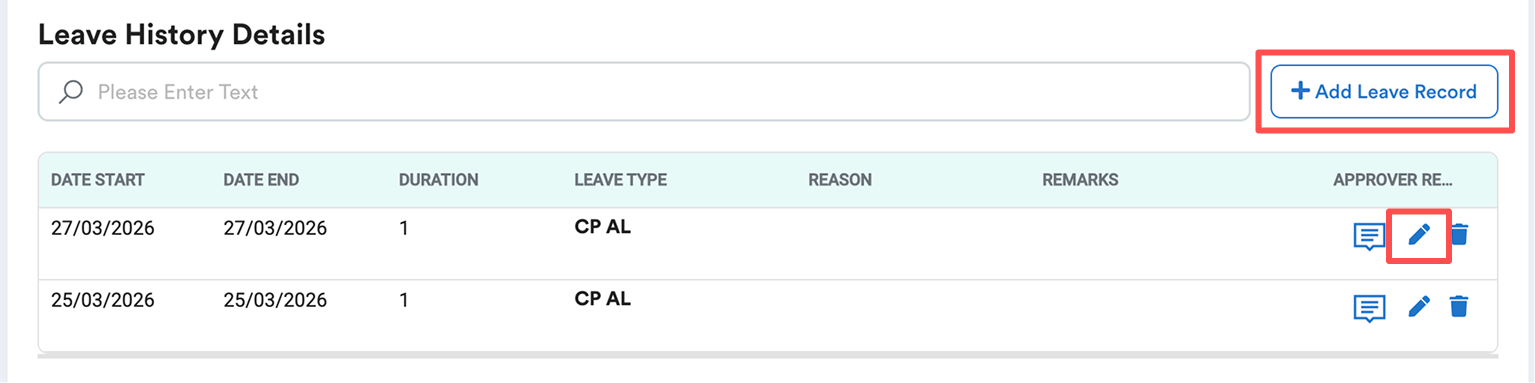
Or you can also "Add Leave Record" to add an entire new leave record.
Or edit the existing leave records, refer to Edit Leave Record in Leave History.
Step 4
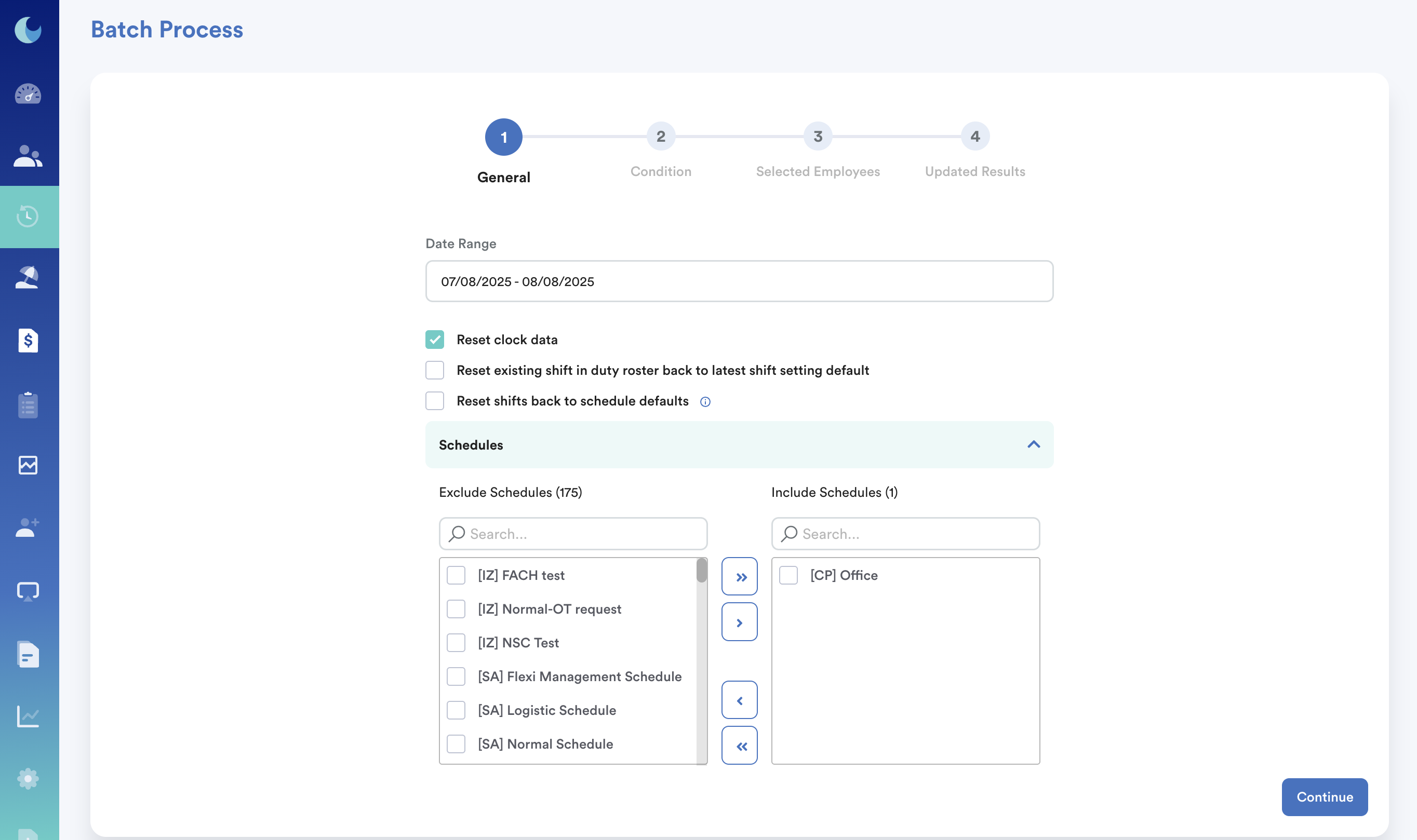
Go to Attendance > Batch > Batch Process to amend the employee's attendance.
Run the batch process for the exact date the leave was originally applied.
Result:
i) The employee’s attendance will update without the Leave tag.
ii) The leave record will be removed/updated from both the employee and approver’s screens.
We hope this explanation clarifies the matter. If you require additional assistance, do not hesitate to contact our support team.
Was this article helpful?
That’s Great!
Thank you for your feedback
Sorry! We couldn't be helpful
Thank you for your feedback
Feedback sent
We appreciate your effort and will try to fix the article