This article guides how to create an Appraisal Approval Workflow Template to define the sequence of appraisers and reviewers for performance evaluations.
When Appraisal Template is set to Auto mode, the system automatically matches the workflow based on which Appraisal Flow Template the appraisee falls under.
Step 1
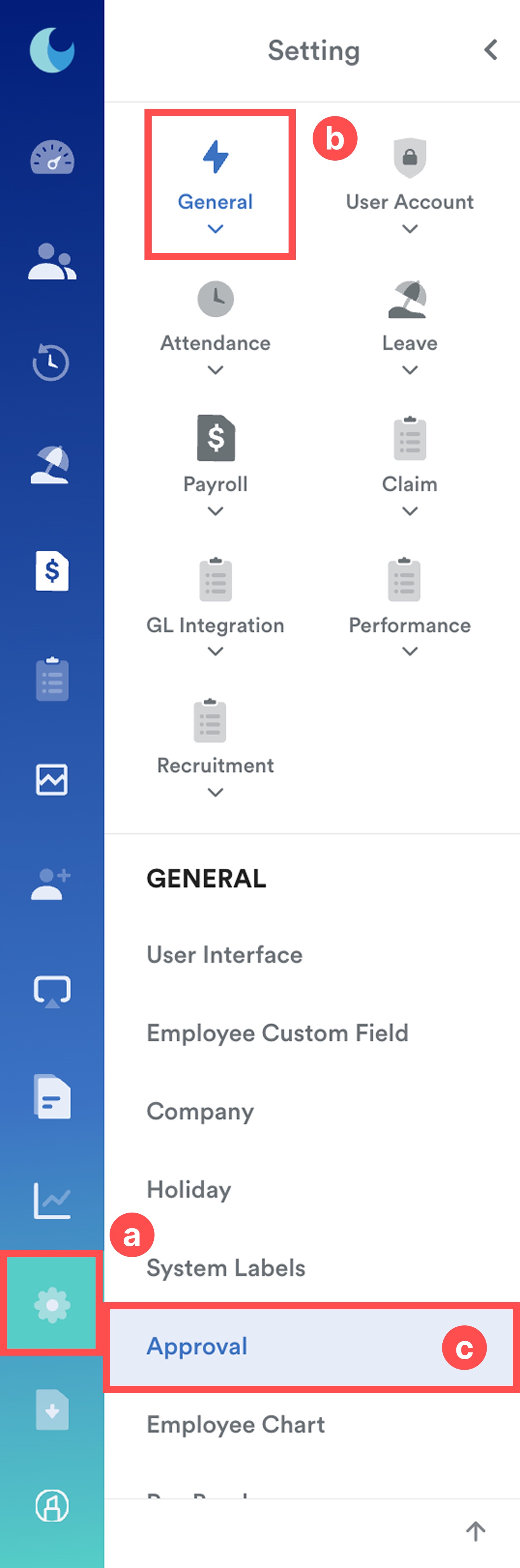
On the left menu, go to Settings (a) > General > Approval (c).
Step 2
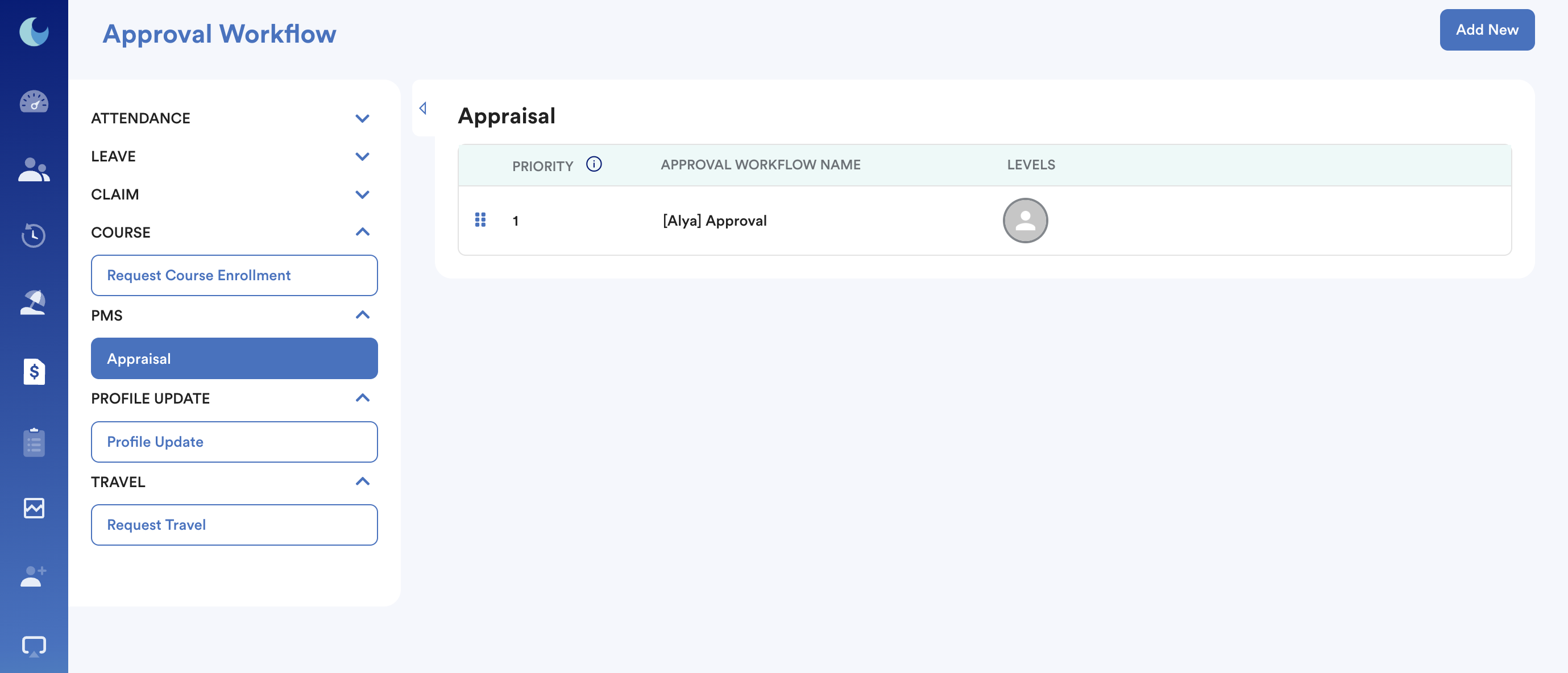
Select Appraisal and you will be directed to the Appraisal Workflow listing page. Click Add New to create a new workflow or click on an existing workflow to edit it.
Step 3
This tab defines the structure and hierarchy of the approval route.
When creating a new approval workflow, you have two options:
a. Copy From: Duplicate an existing workflow for faster setup.
b. Create New: Enter a name under Approval Name
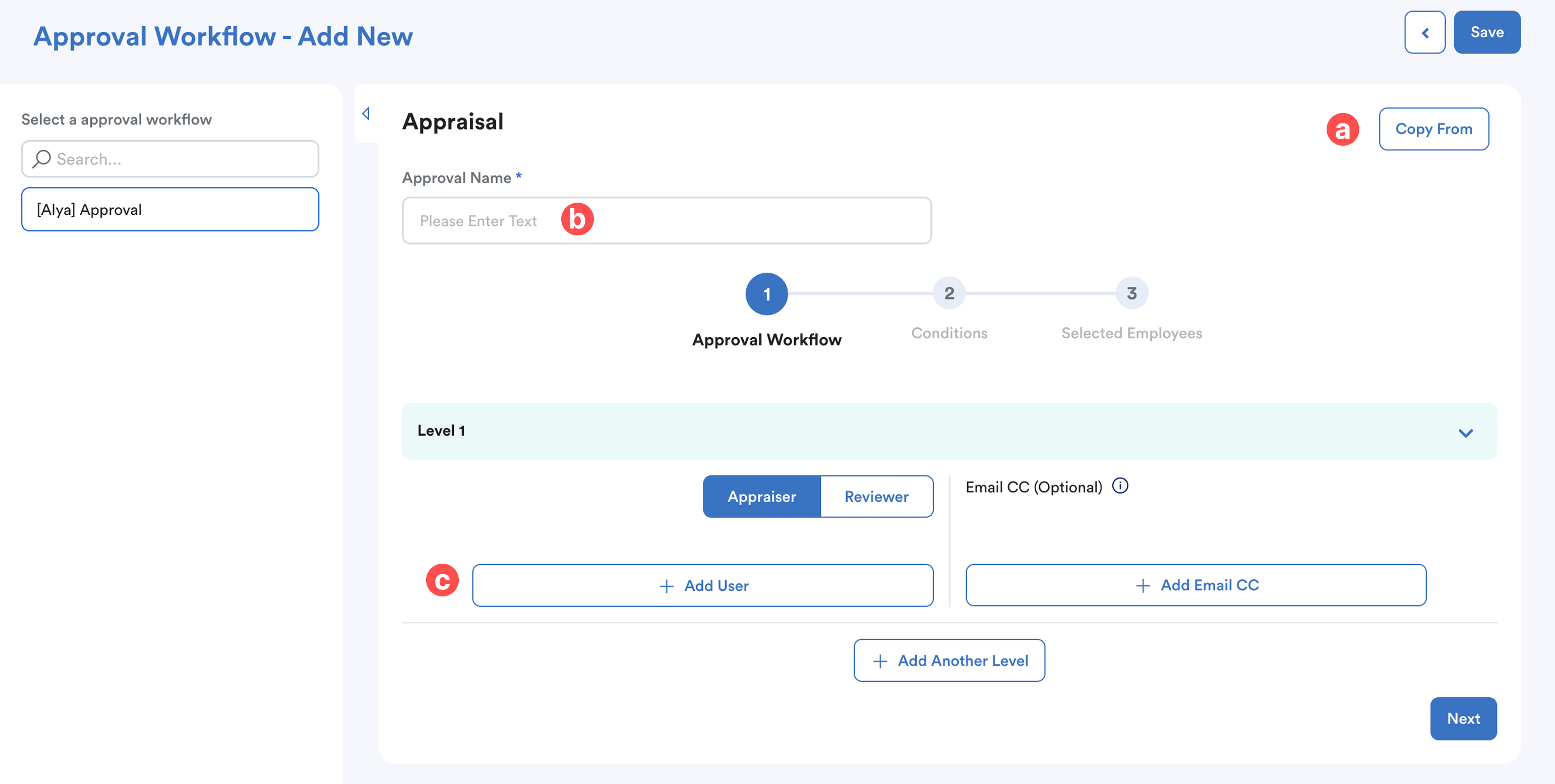
c. Add User
Select the first level. A side panel will appear with selection options:
- Level 1 Supervisor: The direct reporting manager of the appraisee.
- Level 2 Supervisor: The manager of the Level 1 Supervisor.
- Level 3 Supervisor: The manager of the Level 2 Supervisor.
- Other employees
Click "+" to move the individual to the Selected section, and "x" to remove. 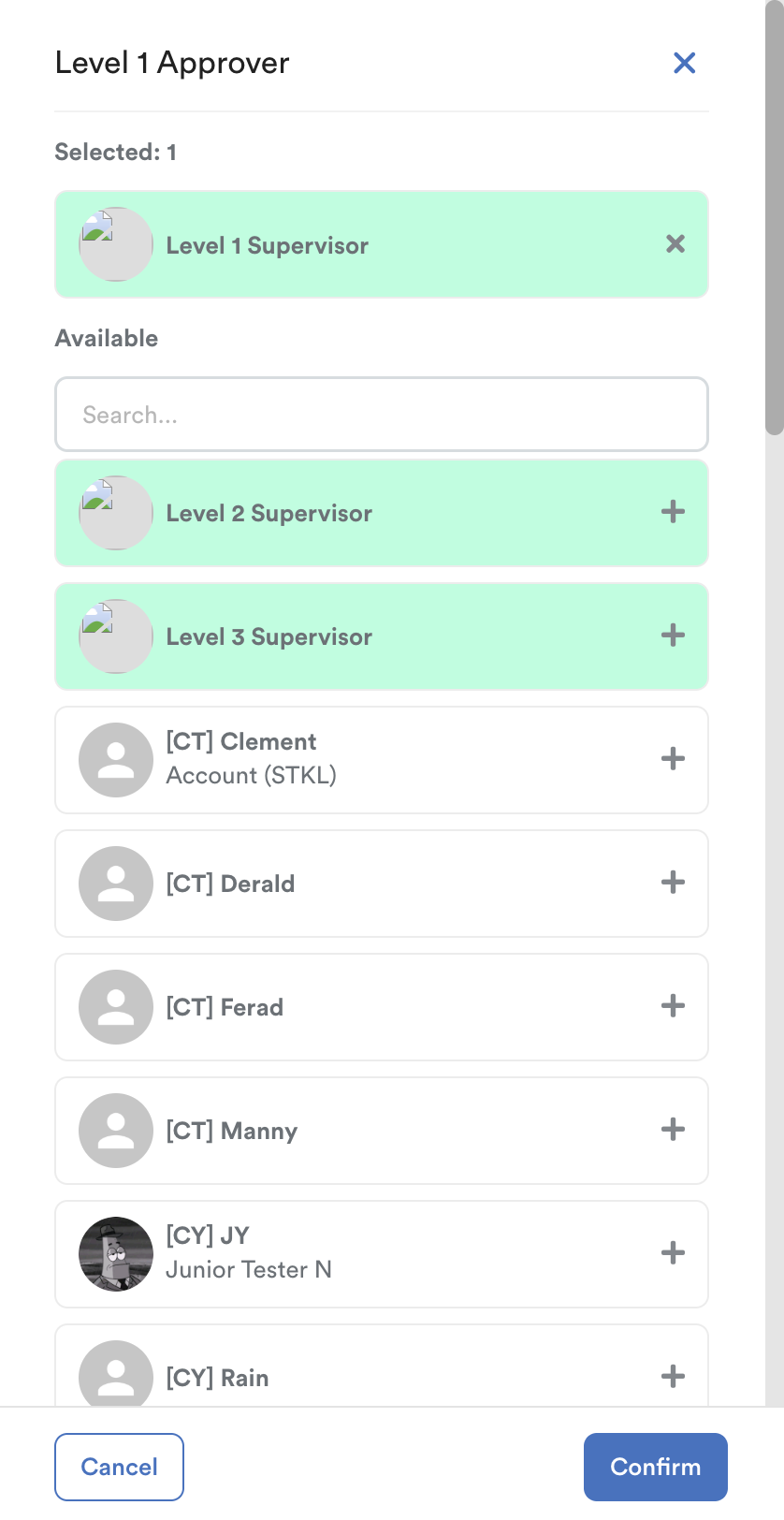
Then, click Confirm.
Step 4
After adding users, you will see them listed under Level 1. Configure the following functions:
a. Assign Role
For each level, assign a role (Appraiser or Reviewer). If a level is assigned the Reviewer role, all subsequent levels will automatically default to Reviewer.
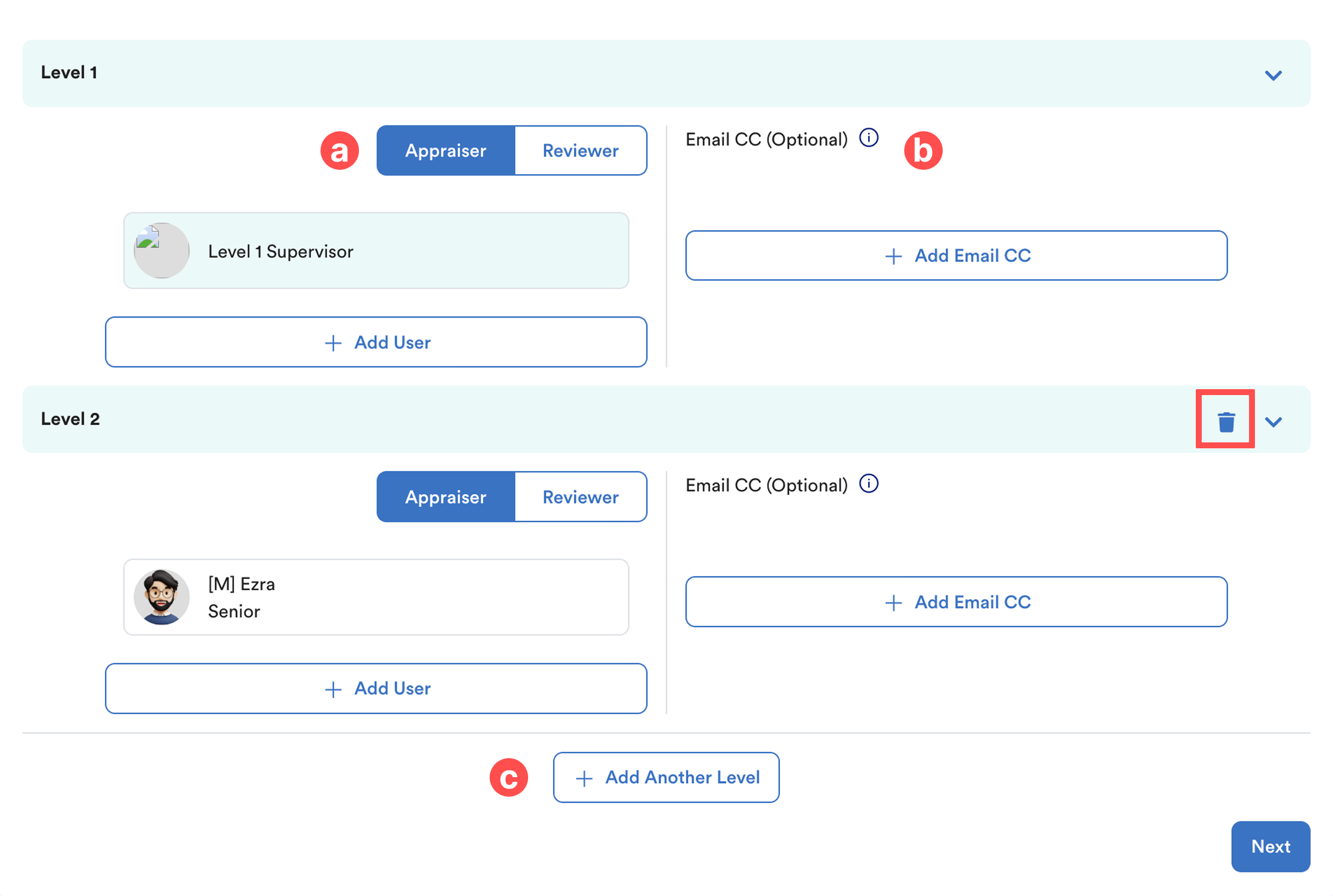
You can only select one appraiser or reviewer per level.
b. Email CC
Add users who should receive notifications without being active participants in the rating process.
c. Add Another Level
Click the + icon to add subsequent levels. You can also remove a level using the dustbin icon.
There is no limit to the number of approval levels you can create. When finished, click Next to proceed.
Step 4
This tab is to define which group of employees will be assigned under this flow.
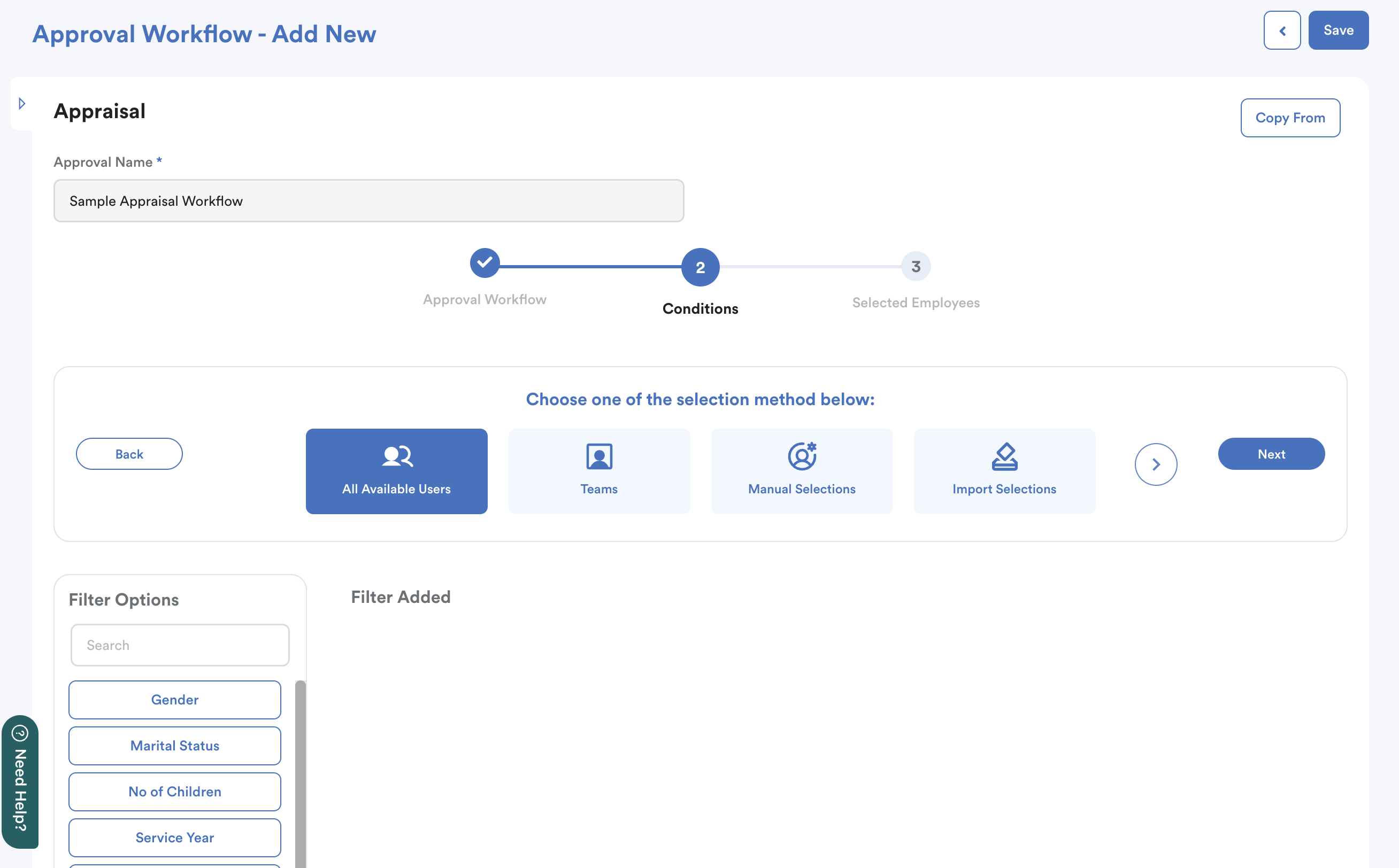
Filter which employees this workflow applies to. Once conditions are set, click Next.
Step 5
You will now see a summary page of the selected users based on your selection method. You can add or remove employees in the selection list.
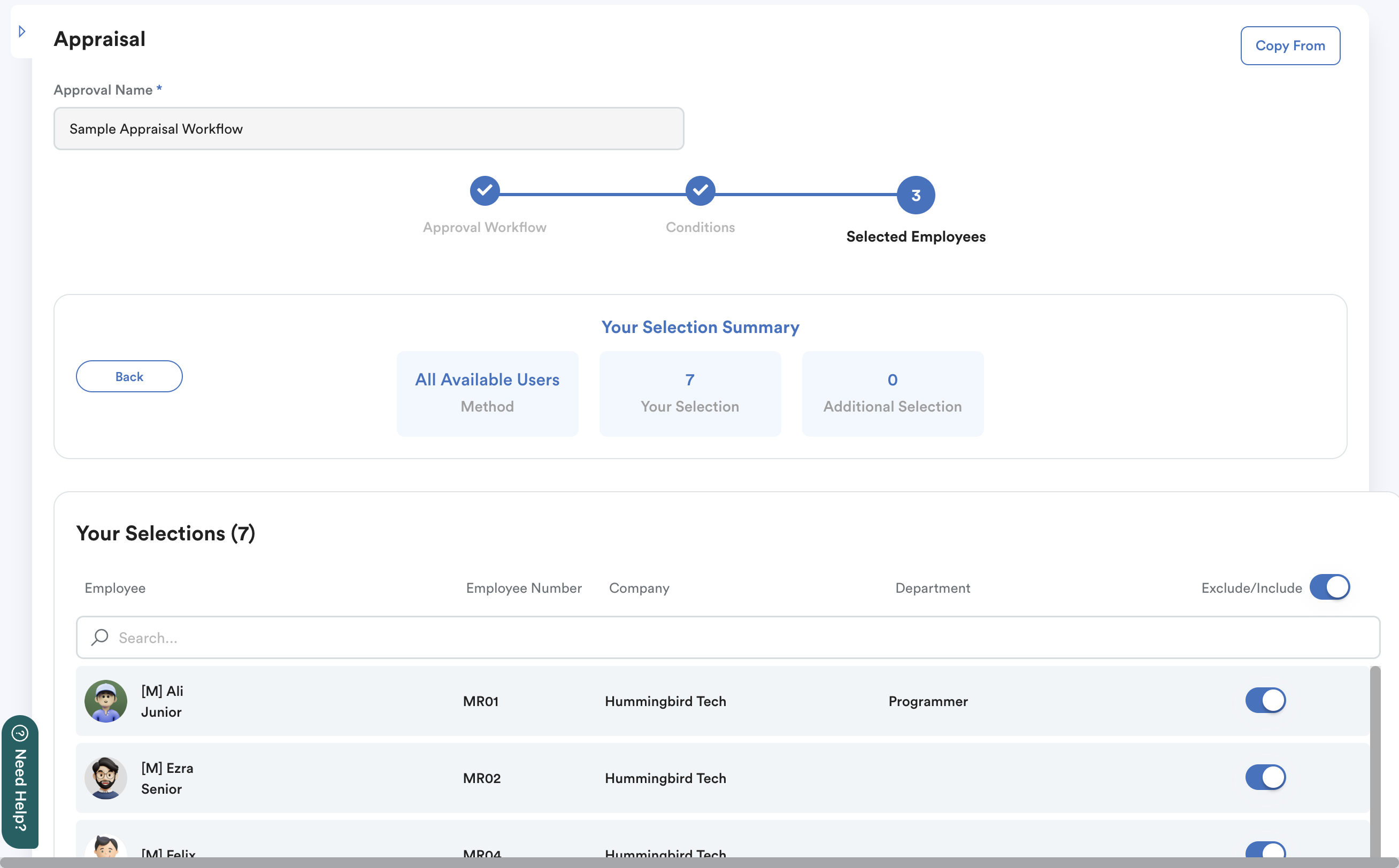
Step 6
After saving, you’ll be redirected back to the Approval Workflow List.
- The most recently created workflow appears at the bottom of the list.
- Each workflow has a priority number next to its name.
Unless a custom workflow is manually specified, the system always matches to the highest-priority workflow (highest in the list) when overlaps occur.
To adjust the order, use the drag and drop icon to move workflows to the desired position.
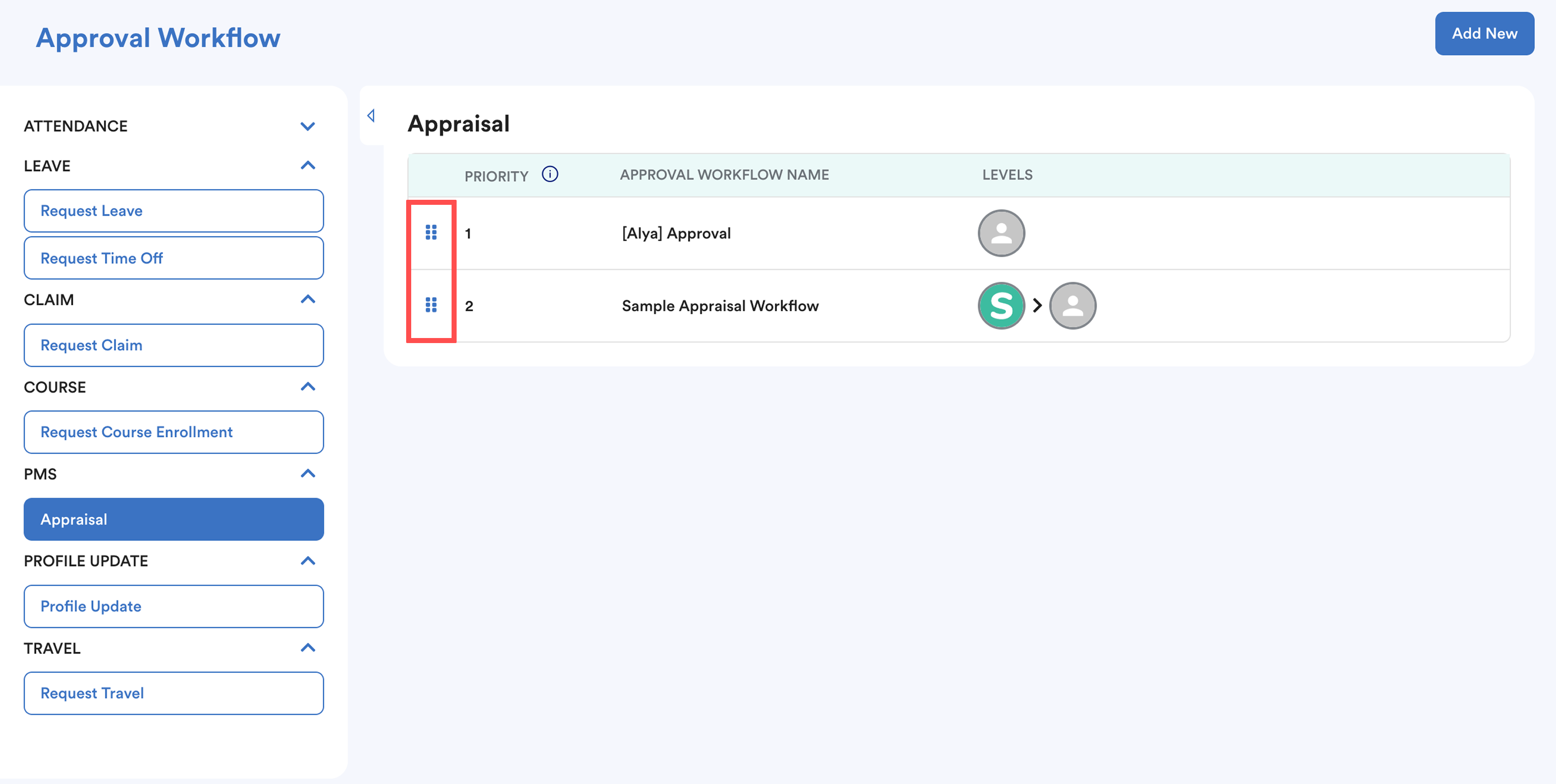
Rearrangement on this screen is saved automatically.
We hope this explanation clarifies the matter. If you require further assistance, please don't hesitate to contact our support team.
Was this article helpful?
That’s Great!
Thank you for your feedback
Sorry! We couldn't be helpful
Thank you for your feedback
Feedback sent
We appreciate your effort and will try to fix the article