The purpose of the Goal Rating Scale is to define how goal achievements are measured.
The scale created here will be assigned to goals in the Goal Library and appear during the appraisal completion.
Step 1
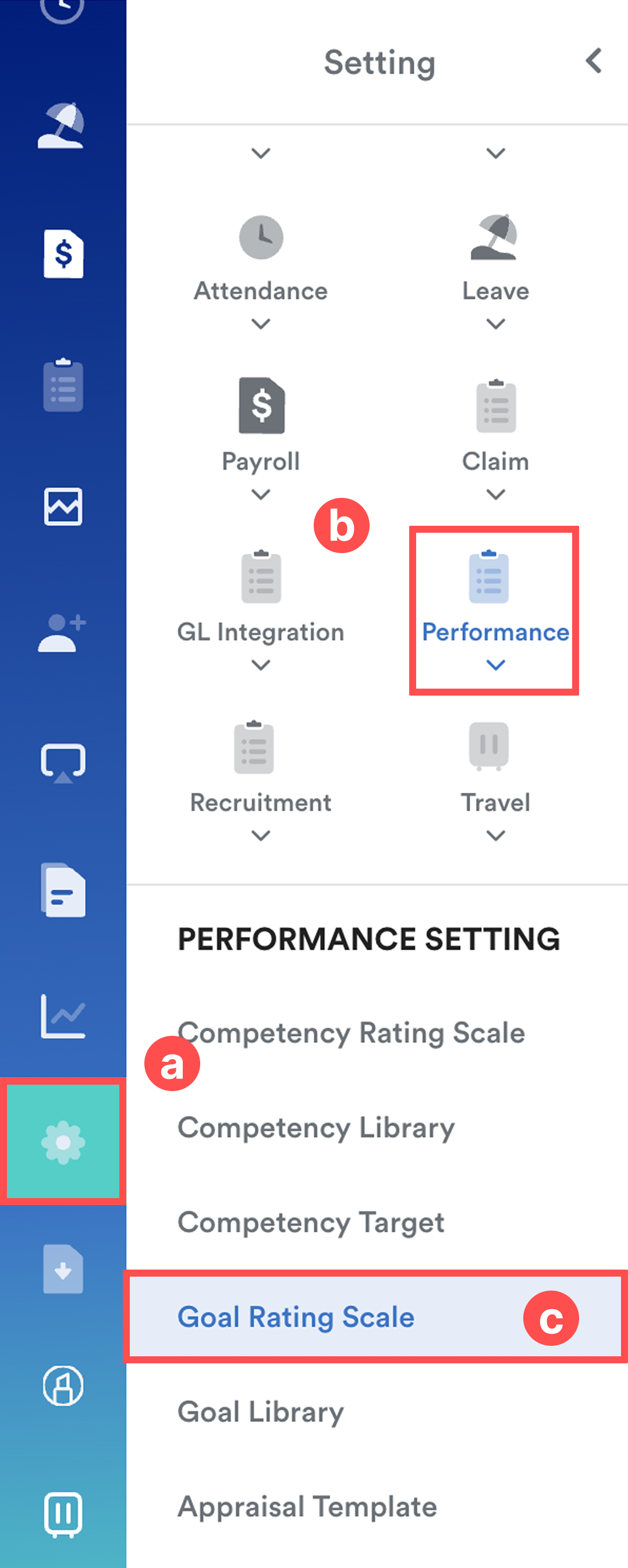
On the left menu, go to Settings (a) > Performance (b) > Goal Rating Scale (c).
Step 2
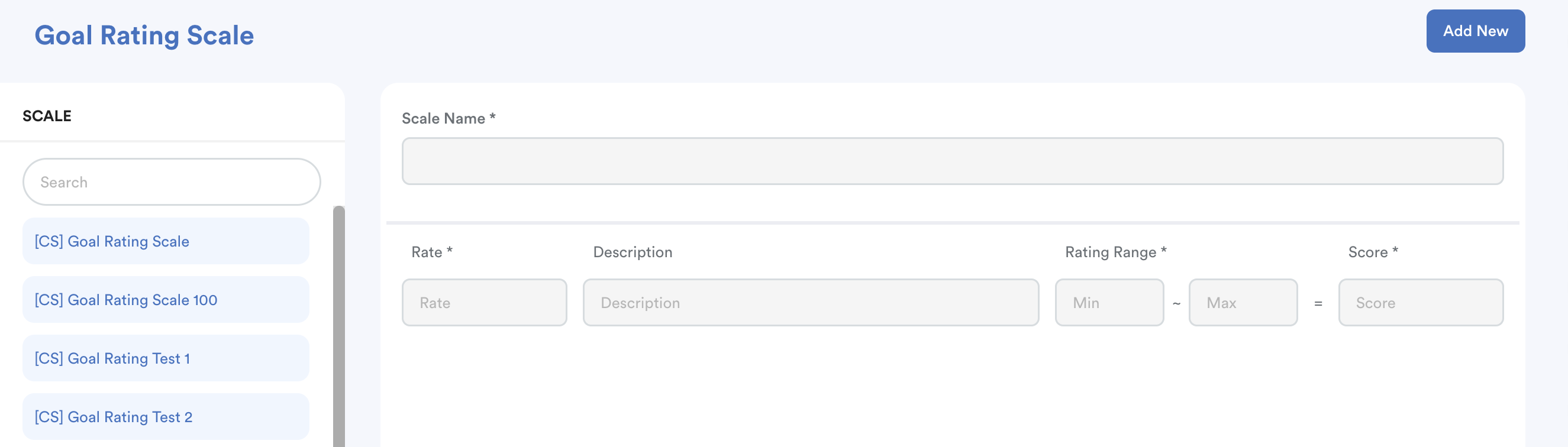
Once you arrived on the Goal Rating Scale screen, click Add New or select an existing scale from the list on the left to edit.
Step 3
Enter the required details:
Scale Name
This will be used as a reference when selecting a rating scale in the Goal Library.
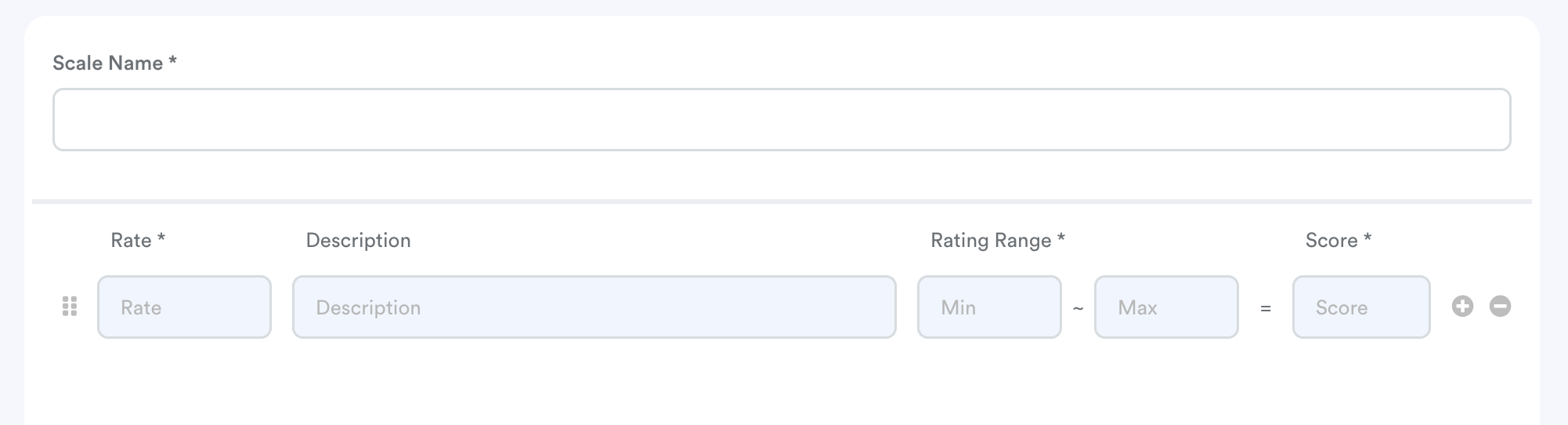
Under the rating section, define each rating level by clicking + to add a new row or – to remove it.
For each rating level, complete the following:
- Rating – The label displayed to both Appraisee and Appraiser when completing the appraisal form.
- Description – A clear definition of what the rating represents.
- Rating Range – The score range that determines when this rating applies (e.g. 0.00 – 20.00). The system will match the achieved score to the corresponding rating based on this range.
- Score – The final score assigned to this rating. This score will be used in the overall appraisal calculation.
Example:
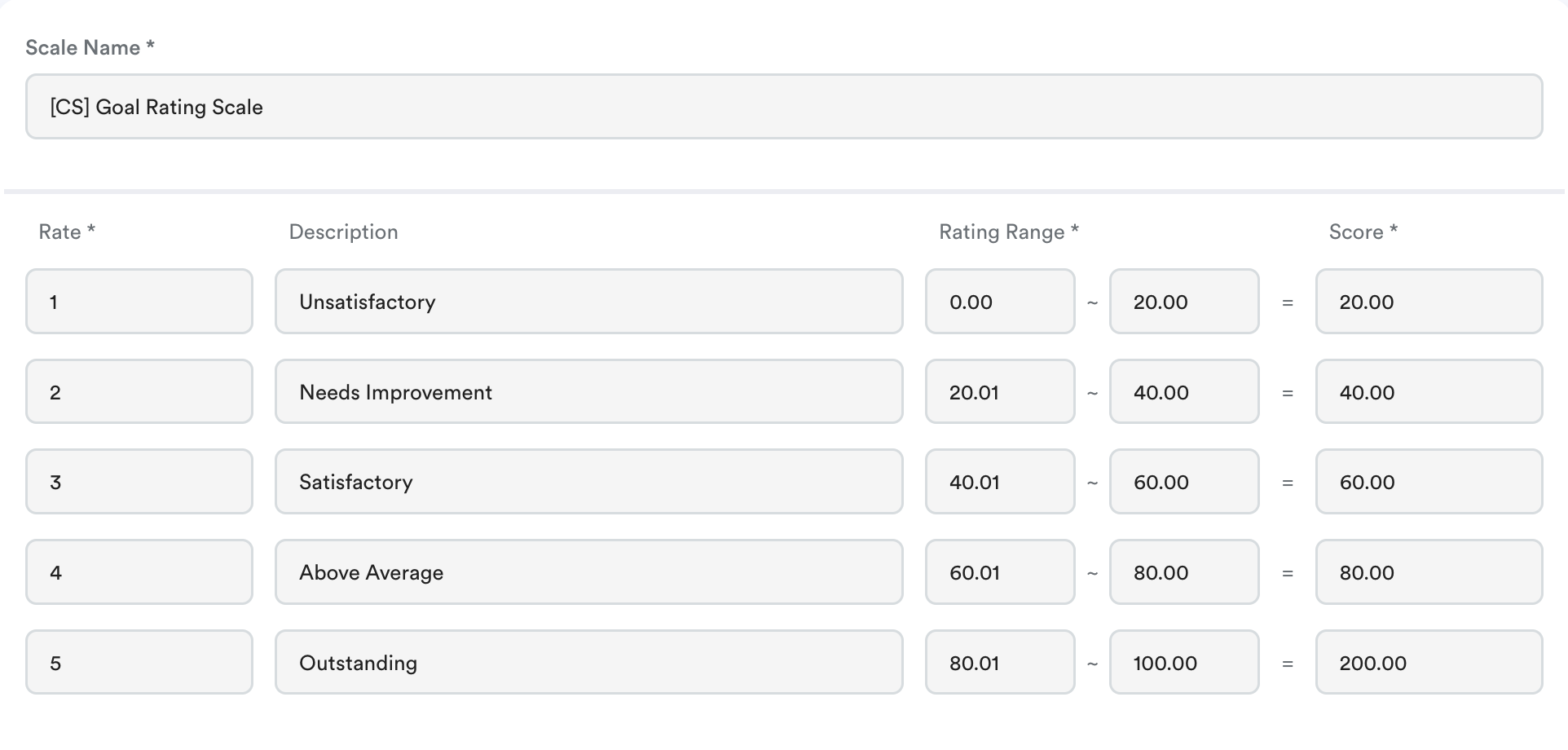
Define all necessary rating levels according to your organization’s appraisal framework.
Important: If this rating scale is already used for a Goal Library in an Appraisal Form Template, any changes made will not automatically reflect. You must reset the appraisal form for the updated rating scale to take effect.
We hope this explanation clarifies the matter. If you require further assistance, please don't hesitate to contact our support team.
Was this article helpful?
That’s Great!
Thank you for your feedback
Sorry! We couldn't be helpful
Thank you for your feedback
Feedback sent
We appreciate your effort and will try to fix the article