This section allows employees to create, submit, and monitor their individual goals throughout the appraisal cycle.
Note: If you do not see "Create" or "Update" button, please inform admin to enable it in the appraisal template.
- To enable create/edit goals, enable "Create/Edit".
- To update goal progress, enable "Update".
Step 1
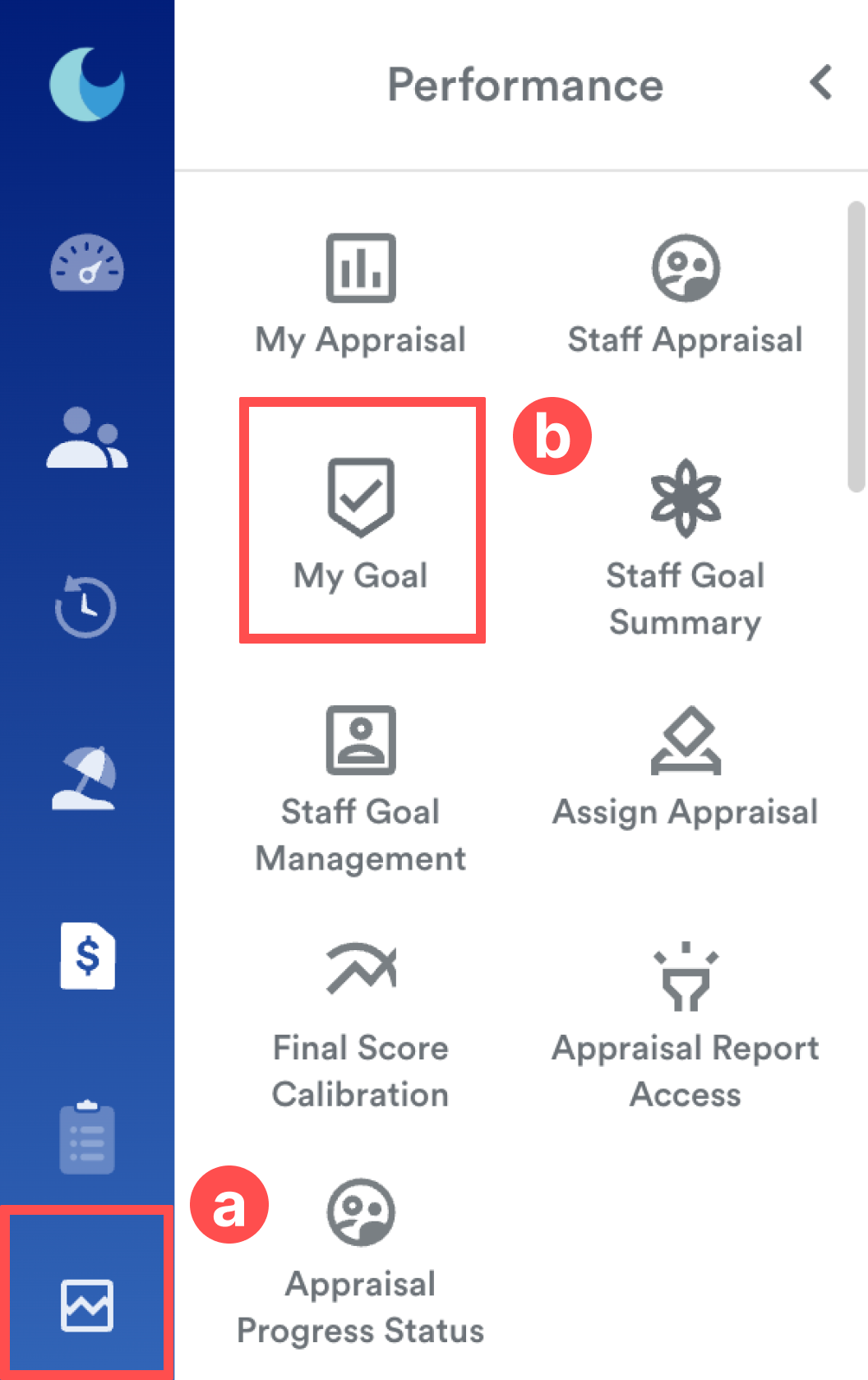
On the left menu, go to Performance (a) > My Goal (b).
Step 2
Select the relevant Appraisal Period (Year) and the relevant Appraisal Template.

Step 3
The system will display the Employee's Goal KPI weightage. Below this summary, your goals are organized into several tabs based on their current status.
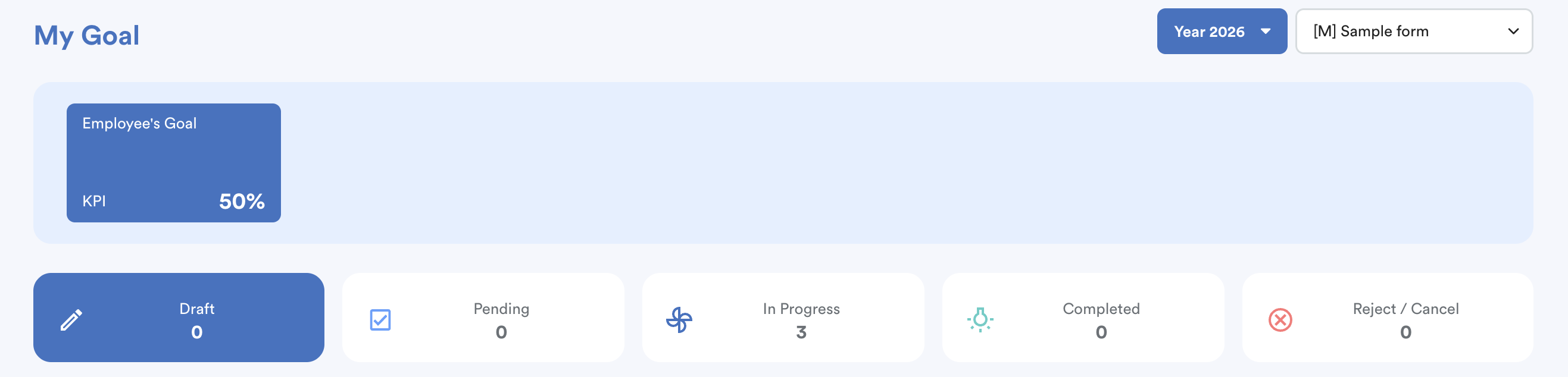
Goal Status Tabs
1. Draft
This tab is used to create and prepare goals before they are officially submitted for approval.
- Goal Template: Click this button to import existing goals from other appraisal forms.

How to Create a Goal
If you're unable to create or submit goals, please contact your HR or System Admin for permissions.
Click Create Goal and fill in the following details:
a. Goal Title & Description: Define the name and scope of the goal.
b. Milestone: Set as Active or Inactive.
c. Goal Type: Select the measurement type (Targeted Amount, Targeted Date, Goal Achievement, Targeted Range, or Text). Each type has unique conditions.
d. Weightage: Define the importance of the goal by moving the slider or entering a digit.
Note: Toggling on Accumulative Scoring allows you to update progress by scale, where you can define scoring frequency, methods, and passing/maximum scores.
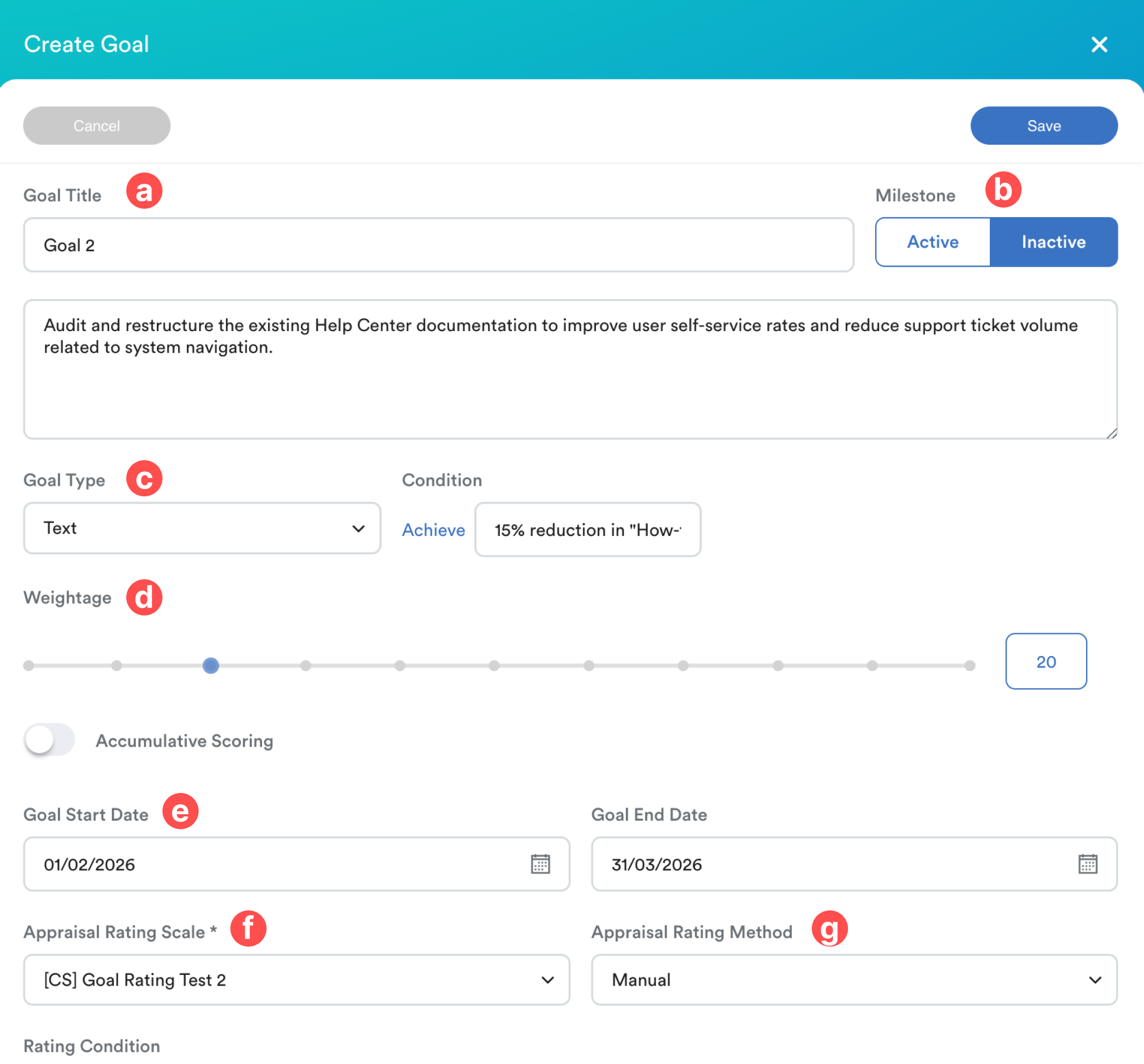
e. Dates (Optional): Define the Goal Start and End dates.
f. Appraisal Rating Scale: Select from the available scales in the dropdown menu.
g. Appraisal Rating Method: Choose Auto (Recommended) for system calculations or Manual.
Click Save once completed.
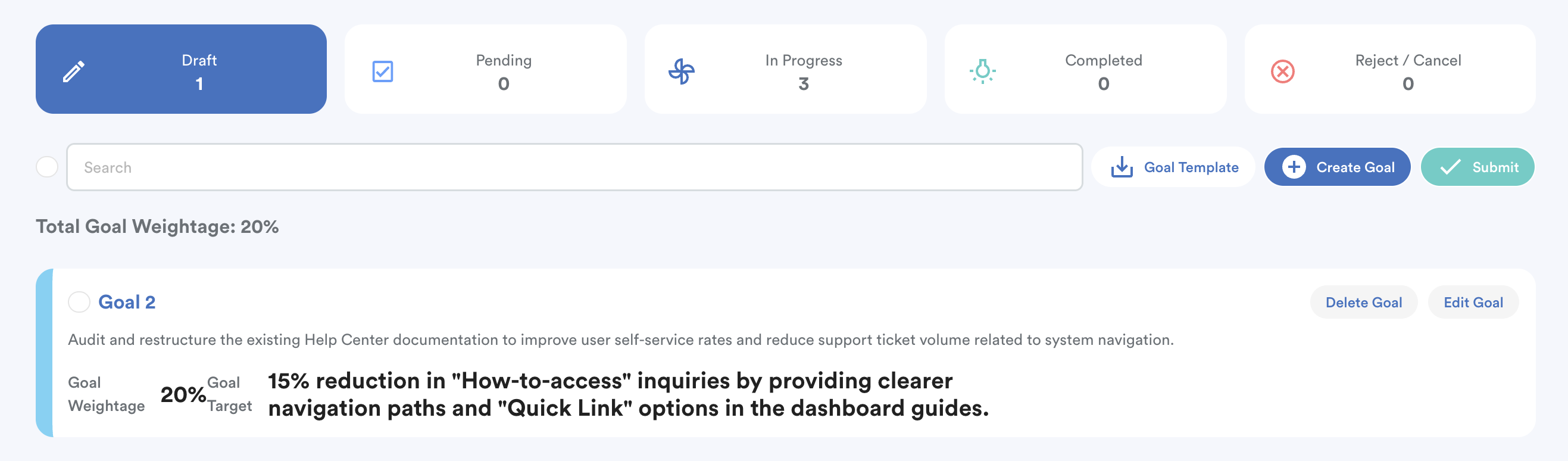
The goal will appear in the draft list. Select a goal and click Submit for approval.
2. Pending
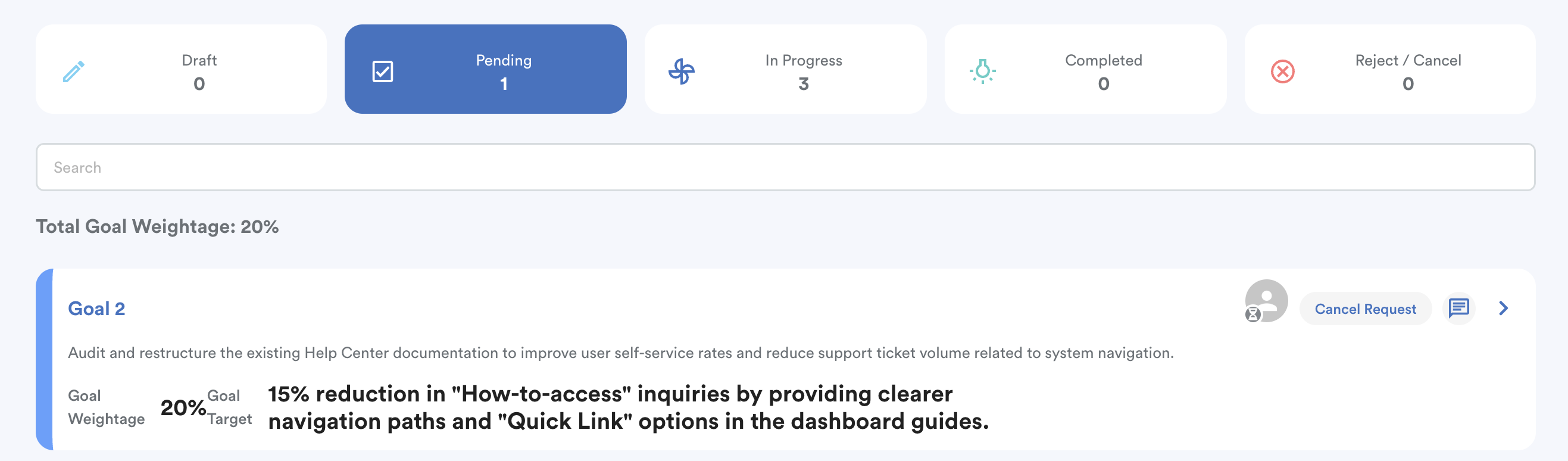
- Once a goal is submitted from the Draft tab, it moves here to await appraiser approval.
- You may click Cancel Request to move the goal to the Rejected/Cancelled tab.
3. In Progress
Contains all goals that have been approved for the current appraisal.
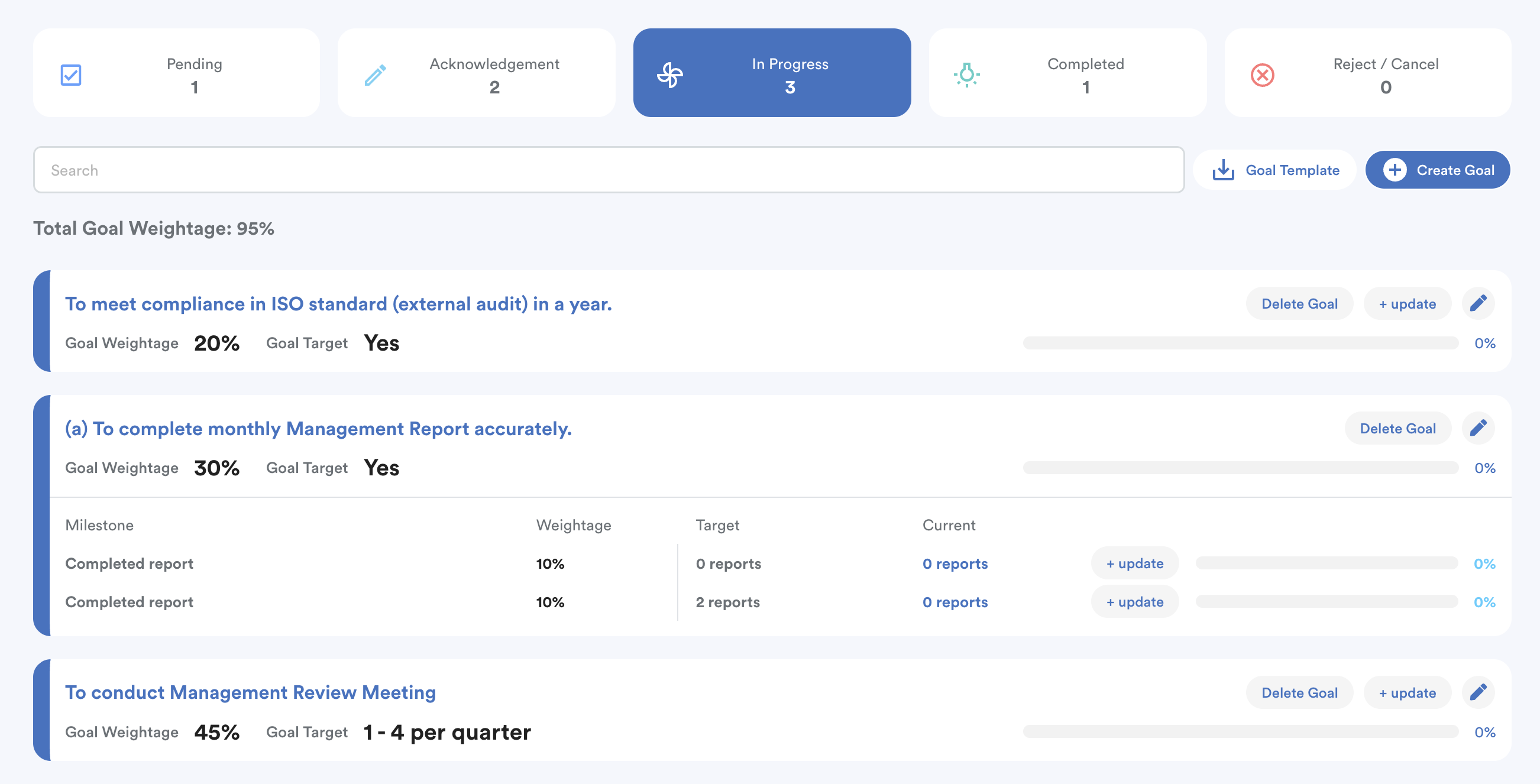
Whenever a goal is added or edited by an appraiser, an "Acknowledge Changes" button will appear within the specific goal in this tab.

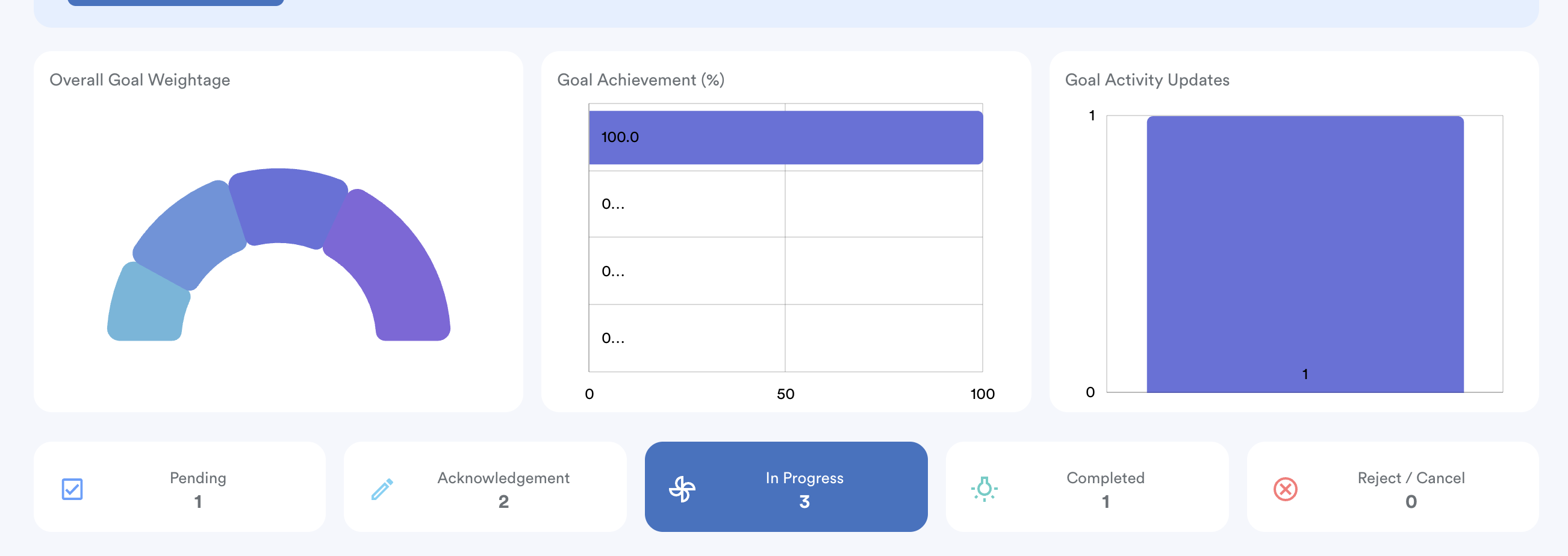
This tab also includes charts for Overall Goal Weightage, Goal Achievement (%), and Goal Activity Updates.
4. Completed
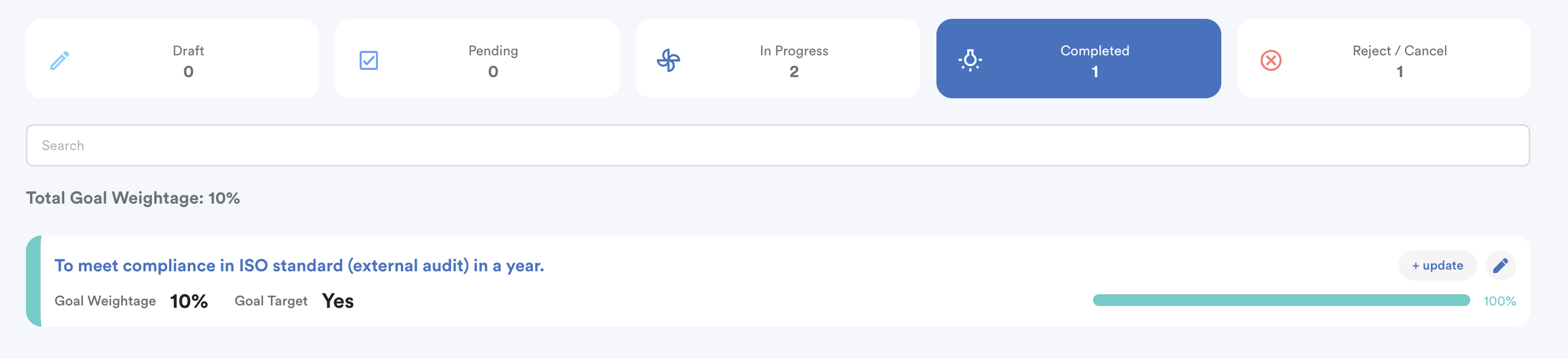
- Goals automatically move here once you update goal progress and reaches the defined target.
- Note: Appraisers maintain the ability to Update or Delete goals even after they are marked as completed.
5. Reject / Cancel
Displays goals that were not approved during the pending stage or were manually cancelled. These goals are excluded from the active appraisal calculation.
We hope this clarifies the matter. If you require further assistance, do not hesitate to contact our support team.
Was this article helpful?
That’s Great!
Thank you for your feedback
Sorry! We couldn't be helpful
Thank you for your feedback
Feedback sent
We appreciate your effort and will try to fix the article