This guide outlines how to assign or unassign appraisal forms to your employees.
Step 1
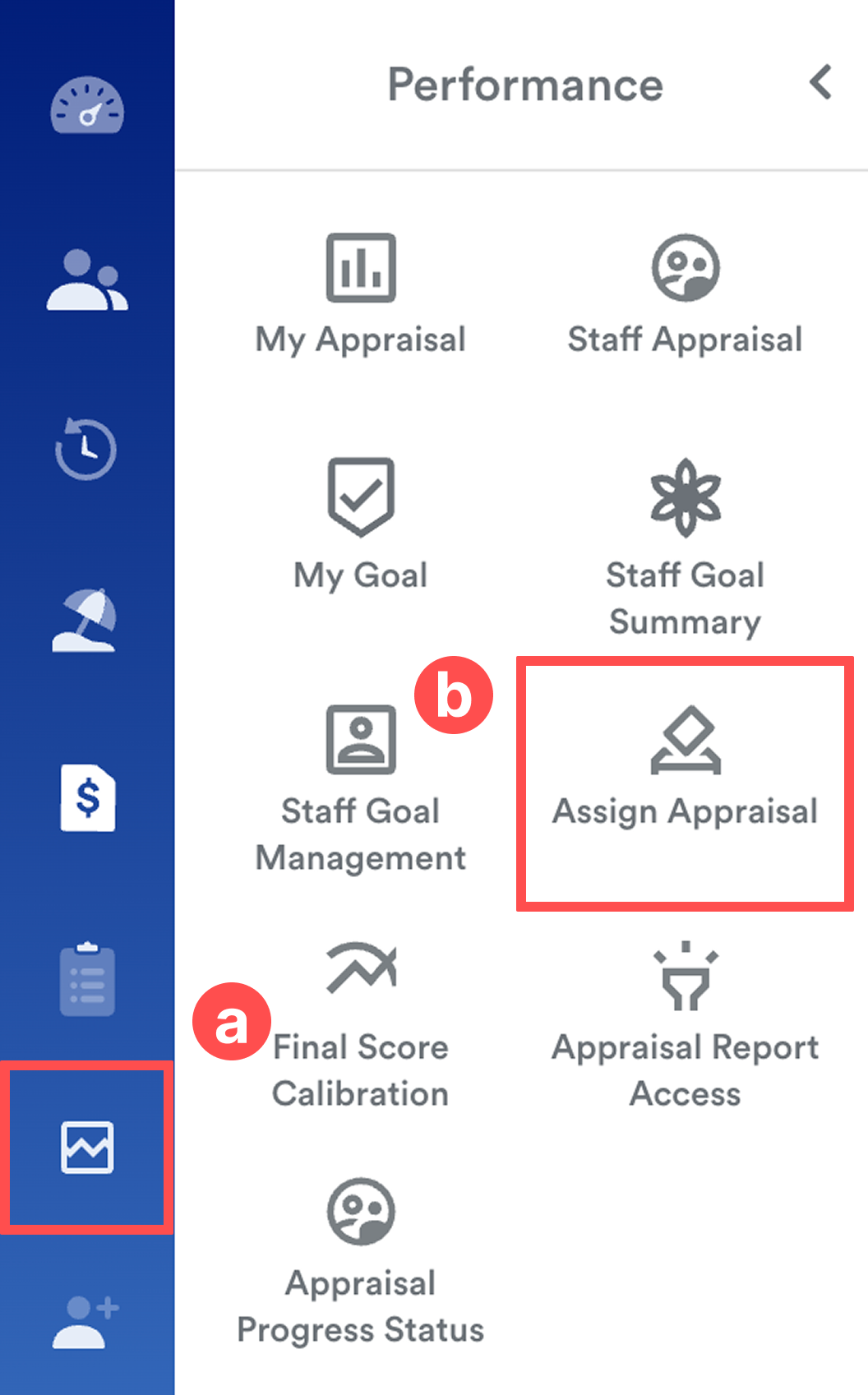
on the left menu, go to Performance (a) > Assign Appraisal (b).
Step 2
At the top of the screen, click the Year button to select the relevant period.

You can then choose your assignment method: By Template or By Employee.
A. Assign By Template (default)
Use this method if you want to assign a specific assessment to a group of people at once.
Choose from the list of created templates on the left. The right-side panel will display all employees who were selected as "Appraisees" during the template setup.
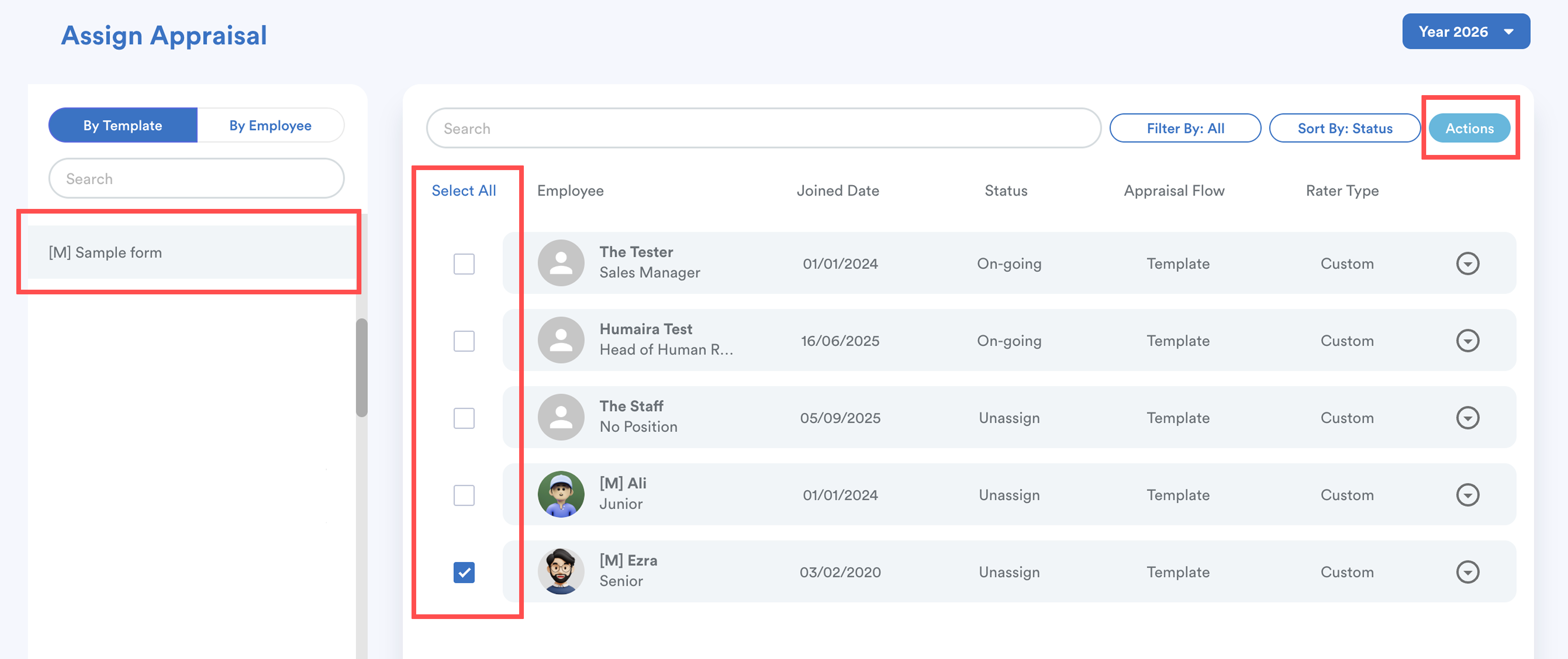
- Tick the checkbox next to specific employees or click Select All.
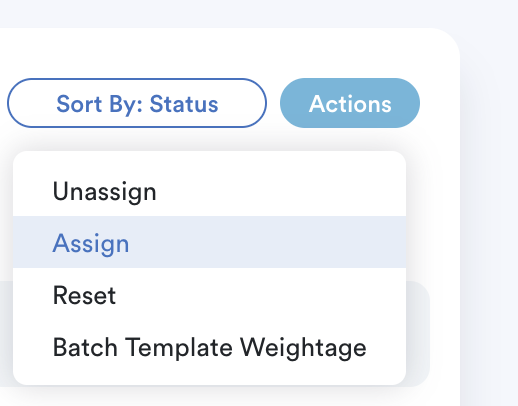
- Click the Actions button > select Assign. To remove an appraisal, select Unassign.
B. Assign By Employee
Use this method if you want to manage multiple different appraisal forms for a single individual.
Choose an employee from the list. The right-side panel will list all appraisal templates where this employee is listed as an Appraisee.
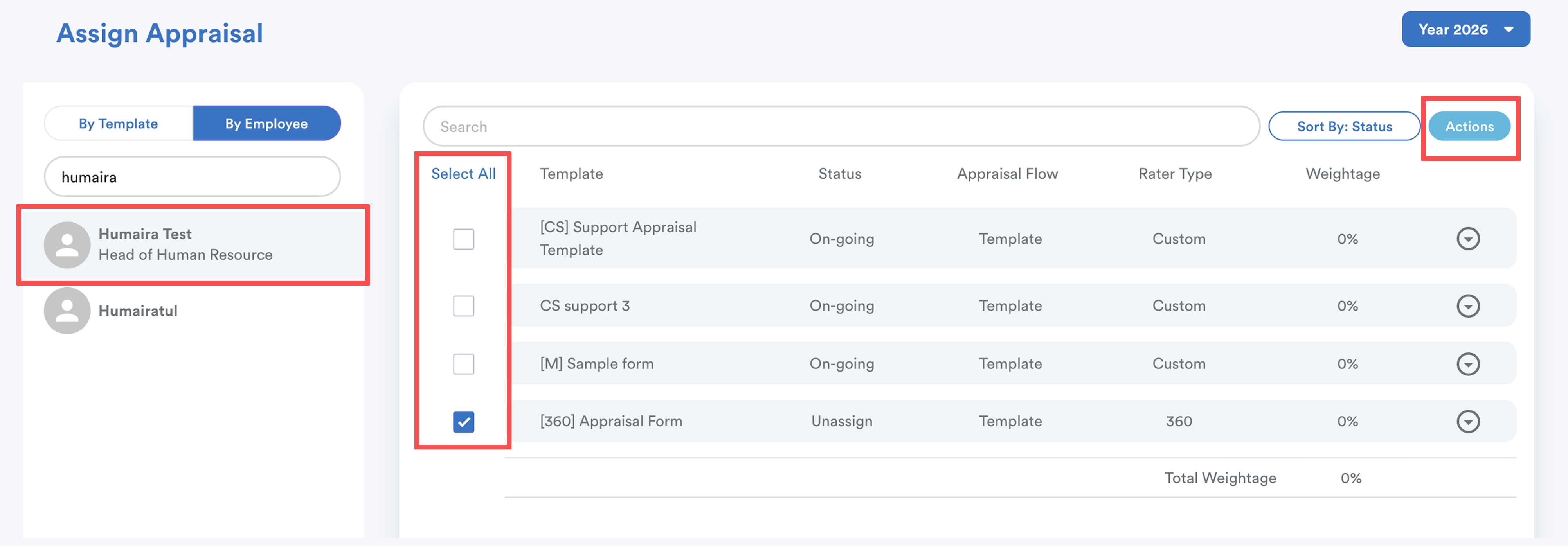
- Tick the checkbox next to the appraisal form(s) or click Select All.
- Click the Actions button > select Assign. To remove an appraisal, select Unassign.
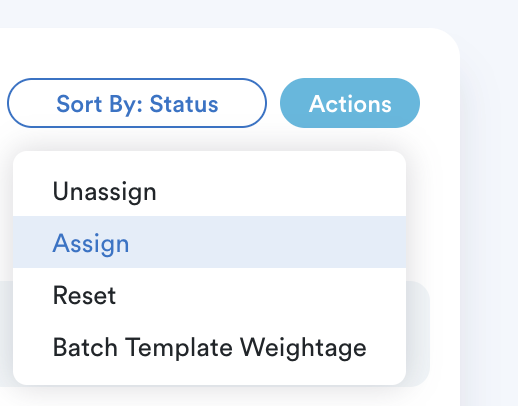
Once assigned, the appraisal status updates from Unassign to Ongoing, and employees can view the form in their My Appraisal.
Note: The appraisal template cannot be removed if you have ever assigned it to employees. You can toggle to "inactive" in appraisal template status, refer to Creating Appraisal Template.
We hope this explanation clarifies the matter. If you require further assistance, please don't hesitate to contact our support team.
Was this article helpful?
That’s Great!
Thank you for your feedback
Sorry! We couldn't be helpful
Thank you for your feedback
Feedback sent
We appreciate your effort and will try to fix the article